
Email Notifications In OMNIA
In order for Email Notifications to work in OMNIA, The Integration Server must be downloaded and Installed.
After Integration Server installation Actions and Rules will need to be configured for Email Notifications.
In the OMNIA URL, go to Setup/downloads/Addons

The addons installer will download.

Launch the Client Install

Accept the Agreement

Select which Options you want to install, click Next

This will place an Addons Folder in the root of OMNIA

Inside the Addon Folder there will be a Bin Folder

Launch the Integration Server

Integration Server

To Create Actions and Rules, Click on Integration, Select Either Actions or Rules

Creating Actions
Select Integration, from the drop down select Actions
Click on the Plus to add an Action
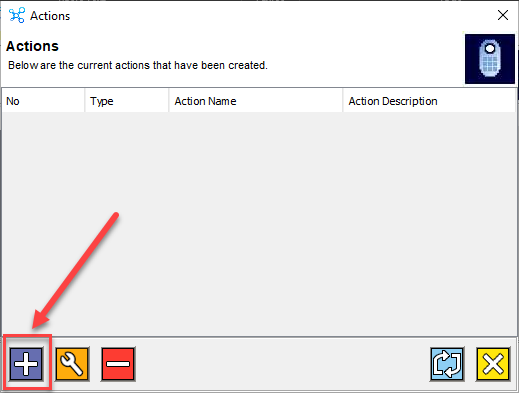
The Action Wizard Launches

Give the Action a Name, Give a Description if needed.
From the Action Type Drop Down Select Email

After Selecting Email, you will see areas that need the Email Server Information

After entering the Email Server Information, Click the Next Arrow

Enter a Valid Email address in the To:
You can Enter any Value you would like in the from.
In this example we are using a Mailgun Email Server but chose to use OMNIA@OMNIA.com for the From email address
Right Click inside the box below the subject line to select what details will be included in the email.


For This example, Event Name, First Name, Last Name, and Time were selected for details in the Email Notification
Click Next

A summary of the Action created displays
Click the Next button

An Action is now created and will display. If this is your first action created the number will be 1, for this example this was the 9th Action Created.
Click the X to close the Actions Window

Creating a Rule
On the Integration Server, Select Integration, from the drop down select Rules
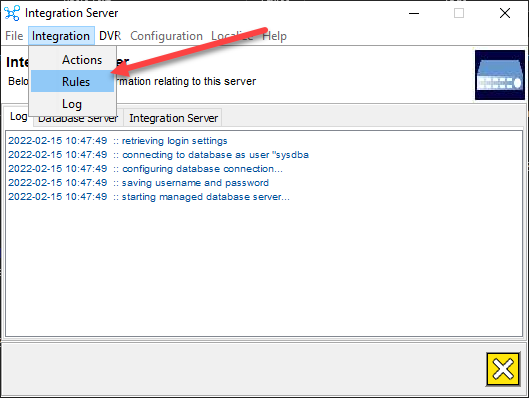
Select the Plus Button to create a New Rule

The Rule Wizard will Launch, Click Next

Give the Rule a Name, Give the Rule a Description if needed.
Always Select IXP400 as the Rule Type
In this example , we are setting up a rule to Email when a tagholder uses a specific Door
For this example , we selected Events, Tags, Terminals, and Tagholders.
Click Next

The Events Page Displays
We will now need to choose the Event for the Rule
Scroll to Find the Event, Highlight it,
Click Next

The Tags Page Displays
We will now need to choose which tag for the rule
Scroll to find the Correct Tagholders Tag.
Click Next

The Tagholders Page Displays
We will need to choose the Correct Tagholders Name
Click Next

The Terminal Page Displays
We will need to select the Terminal for the Rule
Click Next

The Active Time Page will Display
This will allow you to choose, if needed, an Active Time Period for the Rule to be Enforced
By Default the Active Time is 24/7 and Holidays.
Click Next
You may Edit the Active Time Period by clicking on the Wrench

You may Edit the Active Time,
When Finished Editing the Active Time, click the Green Check Box

The Action Selection Page will Display
You will choose the Action you want to take place for this rule. In this example we have only created One Action.

Select the Action, Press the Arrow Left Button to move the Action to the Selected Actions
Click Next

You will get a notification of Completed, and will be able to scroll in the message listing the details of the Rule and Action Associated with the Rule
Click Next to Finish

A Rules page Displays
Click the X to Finish

Click on the Integration Server Tab to view the current rules and actions taking place

Need further assistance?