• Skip to primary navigation
  • Skip to main content
PMT Security Logo

PMT Security

Integrated Security & Access Control Solutions

  • Home
  • About Us
    • Security That Connects
    • Security and Trust
    • Our Partners
    • Our Integrators
  • Solutions
    • Education
    • Retirement & Healthcare
    • Manufacturing
    • Government Facilities
    • Residential
    • Retail Businesses
    • Campgrounds & Outdoor Resorts
  • Products
    • Access Control
      • Control Features
      • Reporting & Monitoring
      • Control Module
      • Digital IO Module
      • Reader Module
      • Readers
    • Cloud Networking
    • Micro-PC
    • Video Management
    • Visitor Control
    • Intercom
    • Live Guard
    • Housings & Pedestals
  • Support
    • Knowledgebase
    • Download Center
    • License Request
    • RMA Request Form
  • Blog
  • Contact Us
  • USA +1 727-786-1900
  • CAD +1 647-999-4644

ImproNet/AmanoNet Database Backup: SQL

ImproNet/AmanoNet Database Backup: SQL

How to make an ImproNet/AmanoNet SQL Database Backup

It is essential that regular backups are made and kept on removable media, or on a networked drive.

Storing backups on the local disk will not prevent data loss if the hard drive fails.

To Backup your ImproNet/AmanoNet SQL Database:

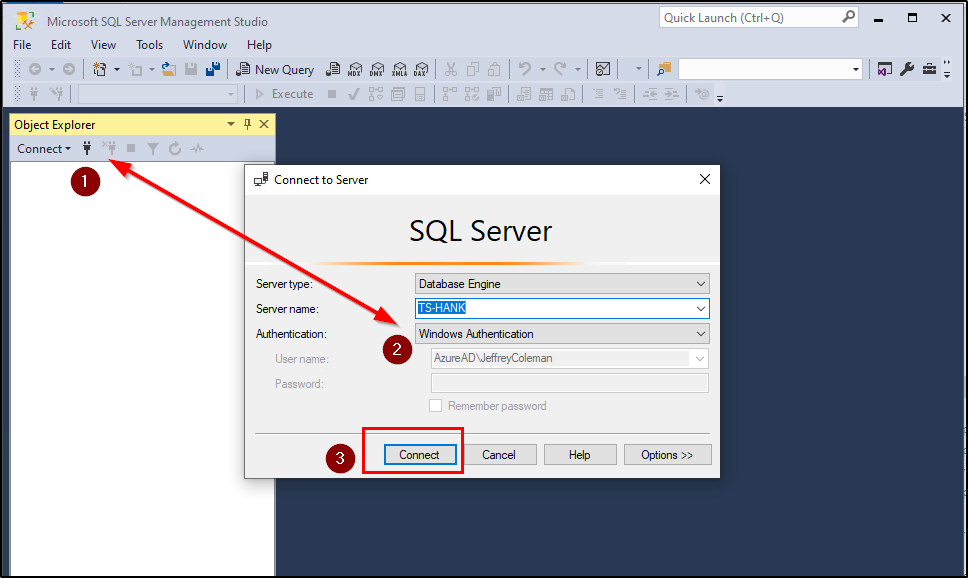
  • Open Sql Server Management Studio
  • Login using your Login Details

Windows Authentication should be sufficient unless the site has no allowed Windows Authentication
            Defaults: (Username: Sysdba, Password: masterkey). (Username: sa, Password:                                                    M@sterkey1)

  • Click on Connect
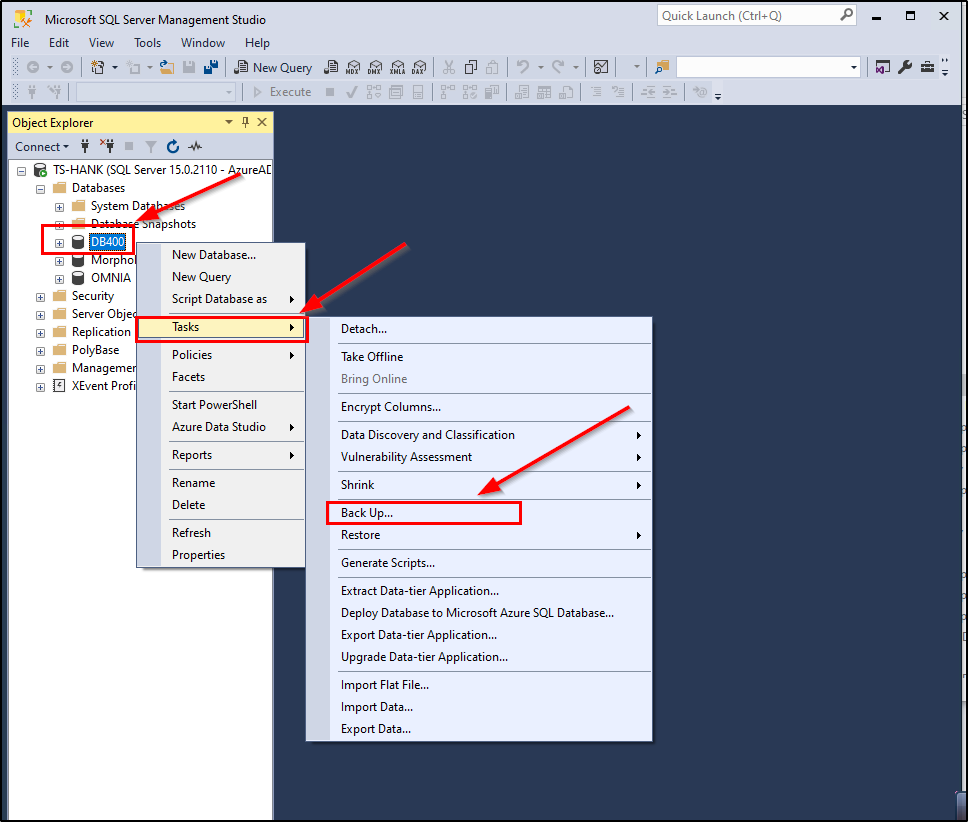
  • Expand the Database Folder by clicking on the + next to Databases
  • Right Click on the ImproNet/AmanoNet SQL Database, The Database name is DB400.                      DB400 > Tasks> Back Up…
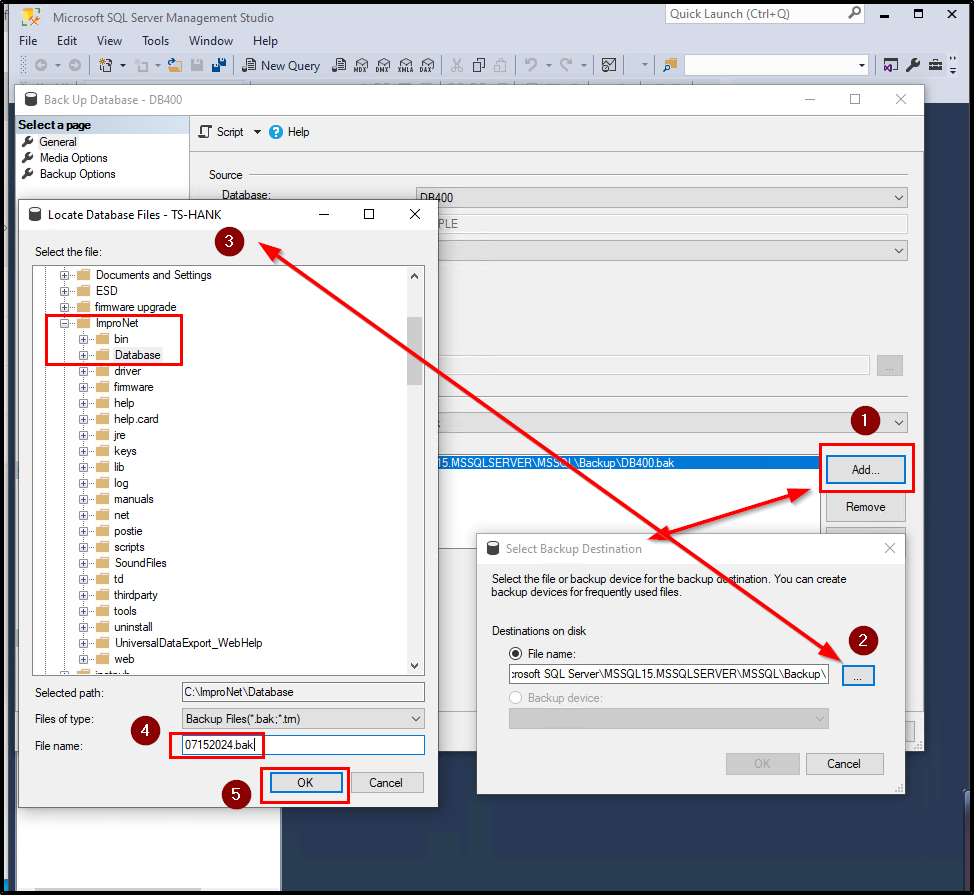
  • Click on the Add… Button
  • Click on the … Button and Navigate to the following location: [Drive:] \ImproNet\database\Backups OR The location you want to store backups to
  • Enter a name for your backup with a suffix off: .Bak
  • Click on Ok,
  • Verify the Backup Name and Location. Click on the OK Button on Select Backup Destination Window
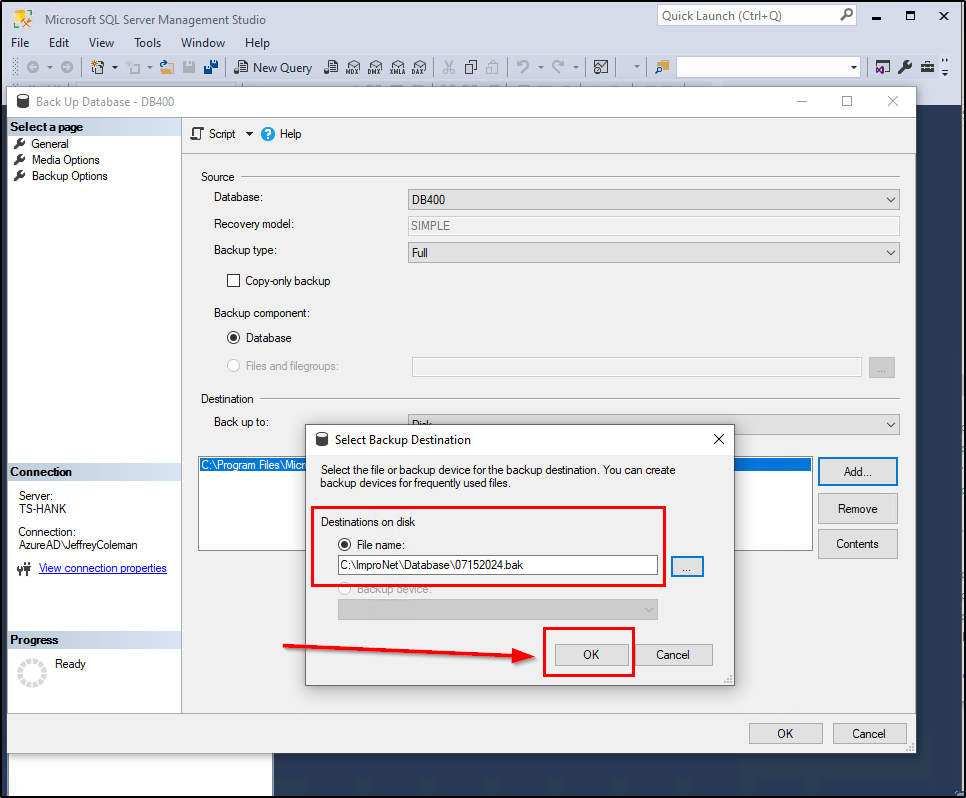
  • Select the Correct Path from above then Select OK.
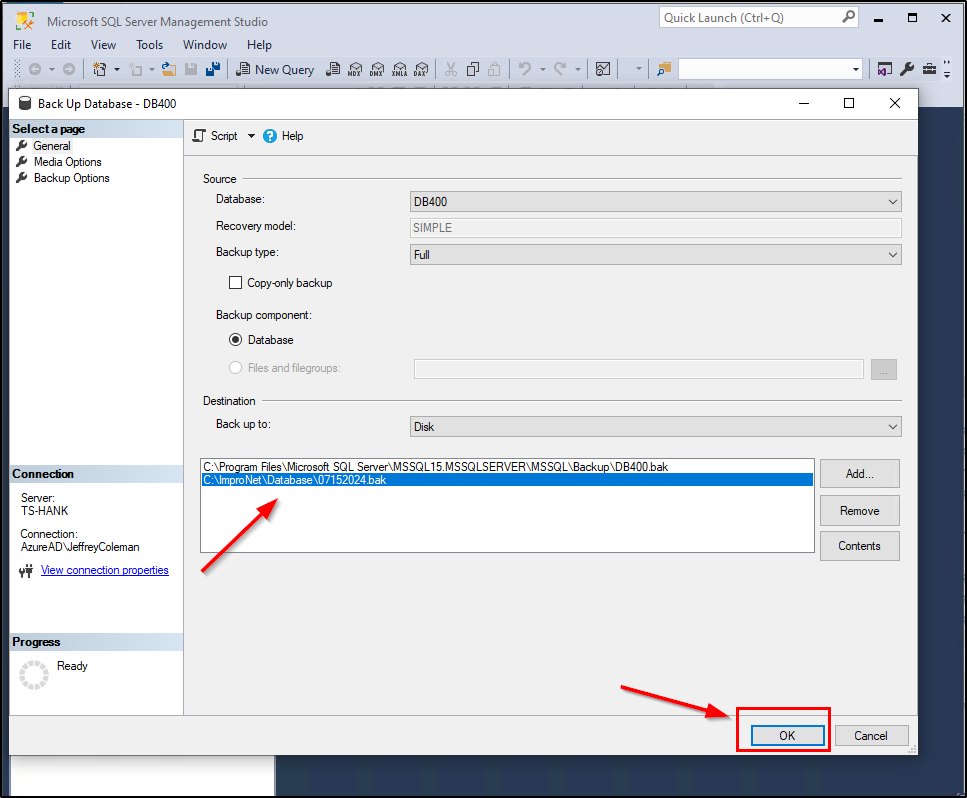
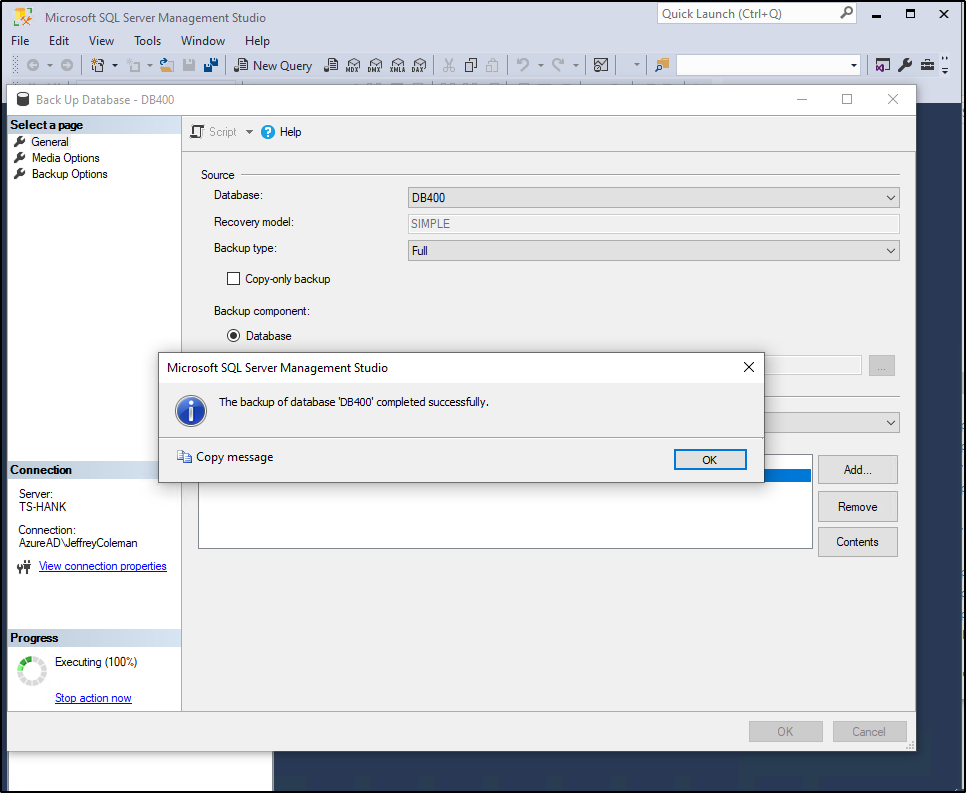
  • The Backup will begin.
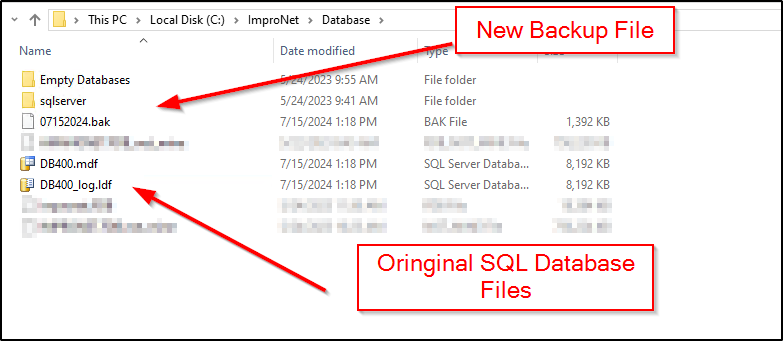
  • The backup is now complete and at the location you selected in a previous step.
Need further assistance?

Submit a Support Ticket

Security Best Practices & Support

  • Facebook
  • LinkedIn
  • Twitter

PMT Security

Copyright © 2026 PMT Security, Inc. | All Rights Reserved

  • Privacy Policy
  • Terms of Use
  • Cookie Policy
  • Accessibility
  • Contact Us