
Operator Profiles in OMNIA
How to create Operator Profiles in OMNIA
Operator Profiles
Setting up operator profiles and operators in OMNIA
There are several pre-defined operator profiles available in OMNIA, if you find that you need to create a custom profile, follow this procedure:
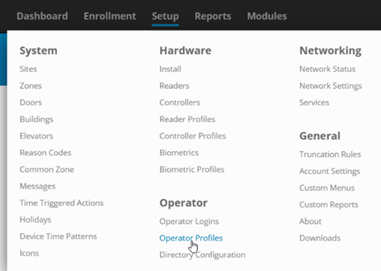
- In OMNIA, browse to the SETUP menu and select OPERATOR PROFILES
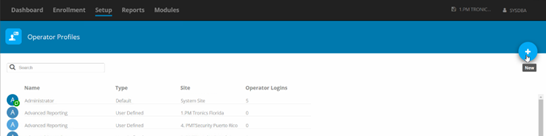
2. Select the

at the top left of the page to add anew profile.
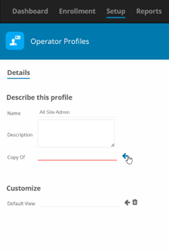
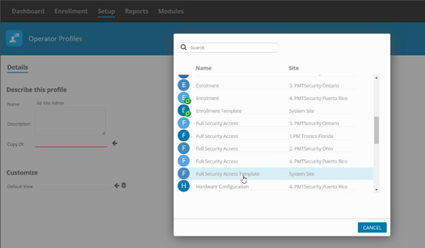
3. Give the new profile a descriptive name and then select a template from the selection list, select a template that most closely matches what you need in the new profile.
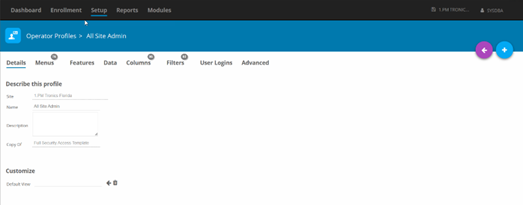
4. Now that the profile is created, you now need to fine-tune it, move through the menu items and add/remove functionality as needed.
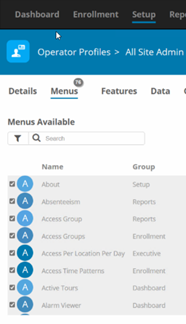
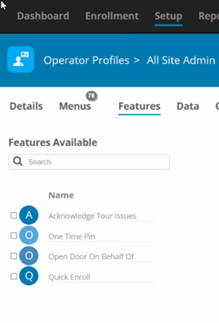
- MENUS and FEATURES gives you the ability to decide what menu items an operator with this profile will have access to. Checked means they have access, unchecked means the item is hidden from the operator.
- DATA allows you to apply data filters to the profile, for instance, if you want the profile to have access to multiple sites, you would add a SITE filter here and check all sites that you want an operator with this profile to have access to.
- Add a filter, give it a name and select what type of filter you require.
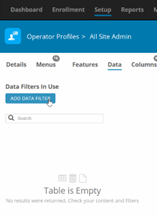
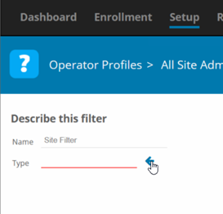
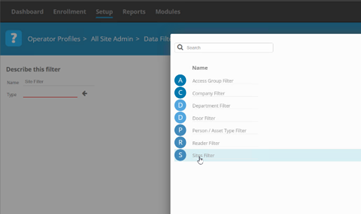
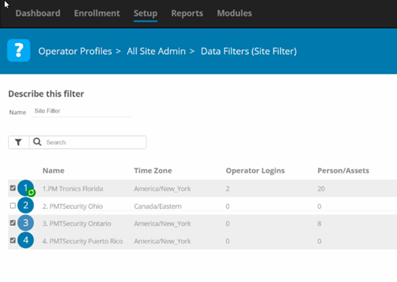
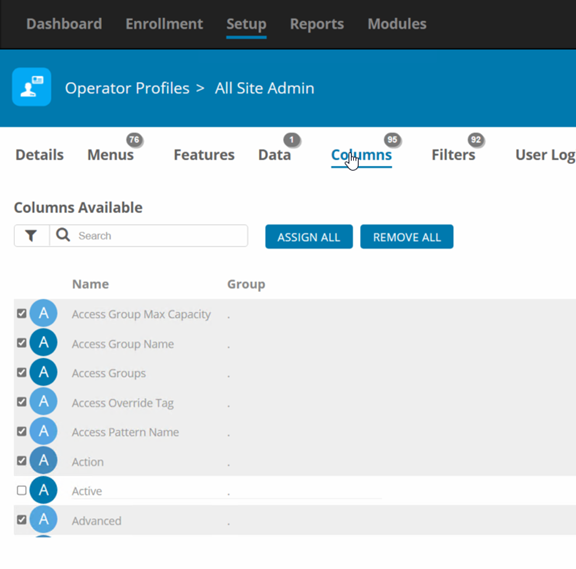
Select filter parameters, check means available, unchecked is unavailable. d. COLUMNS Give access on a more granular level right down to single parameters within a tagholder record, usually one would not need to change anything here unless there is a particular parameter that you do not want the profile to have access to for instance you might not want the operator to have the ability to apply the ACCESS OVERIDE flag to any tags in the system.
e. FILTERS is a list of system filters that you may want to allow the operator to have access to, this does not limit access and is used in filtering date for things like reports. The default here is usually adequate.
5. Now that the Profile is configured, go to user logins and apply the profile to the desired user login.
Need further assistance?