• Skip to primary navigation
  • Skip to main content
PMT Security Logo

PMT Security

Advanced Access Control

  • Home
  • About Us
    • Security and Trust
    • Our Partners
    • Our Integrators
  • Solutions
    • Education
    • Retirement & Healthcare
    • Manufacturing
    • Government Facilities
    • Residential
    • Retail Businesses
    • Campgrounds & Outdoor Resorts
  • Products
    • Access Control
      • Control Features
      • Reporting & Monitoring
      • Control Module
      • Digital IO Module
      • Reader Module
      • Readers
    • Video Management
    • Visitor Management
    • Intercom
    • Live Guard Video Monitoring
    • Housings & Pedestals
  • Support
    • Knowledgebase
    • Download Center
    • License Request
    • RMA Request Form
  • Blog
  • Contact Us

OMNIA DATABASE BACKUP USING SQL 2019

OMNIA Database Backup SQL 2019

This process involves making a backup of the OMNIA Database using Sql Server Management Studio 2019.

OMNIA Database Backup

For SQL Server Management Studio 2019

OMNIA Database Backup

It is essential that regular backups are made and kept on removable media, or on a networked drive.

Storing backups on the local disk will not prevent data loss if the hard drive fails.

To Backup your OMNIA Database:


In the windows search bar. Type SQL Server Management Studio

 Open SQL Server Management Studio
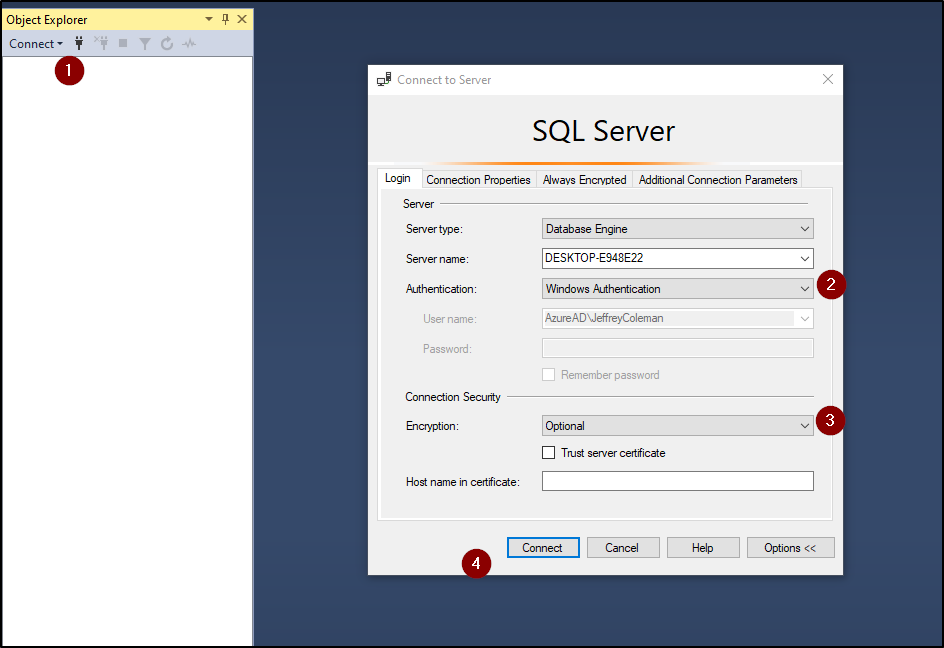
Login using your Login Details

  1. Click Connect
  2. Select Windows Authentication
        Other Possible Logins:
                   User = sysdba   Password = masterkey
                   User = sa           Password = M@sterkey1
  3. Select Optional for Encryption
  4. Select Connect


Expand the Database Folder by clicking on the +
Right Click on OMNIA > Tasks> Back Up…
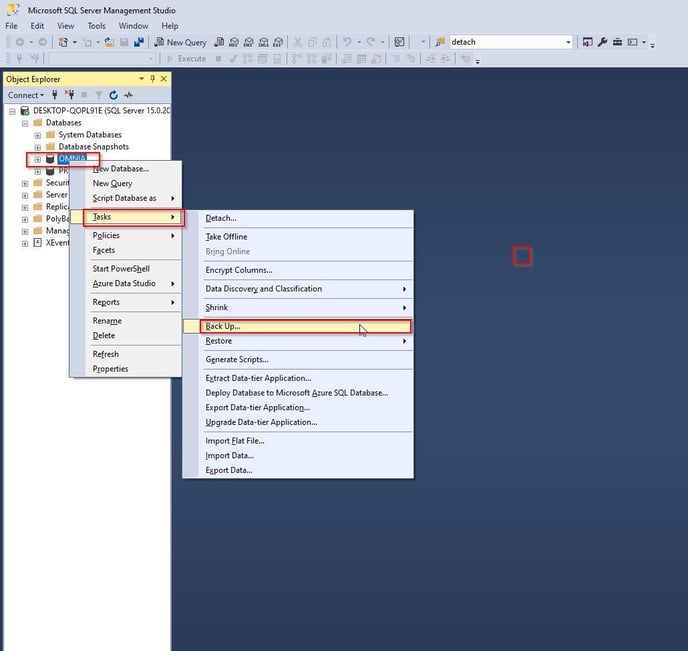
OMNIA_Tasks_Backups

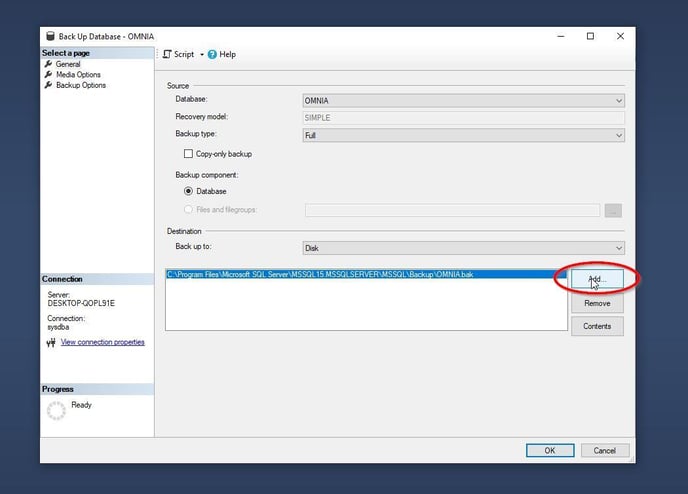
Click on the Add…

Add_Destination

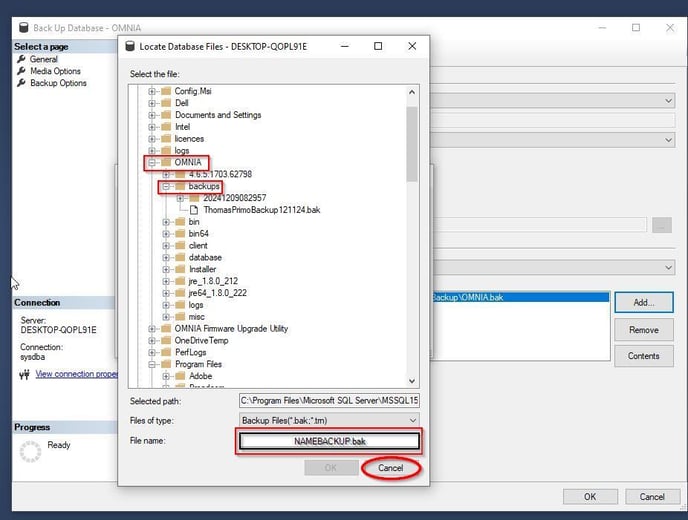
Select the (…) option.

Locate:     [Drive:] \OMNIA\database\Backups

OR

The location you want to make backups to
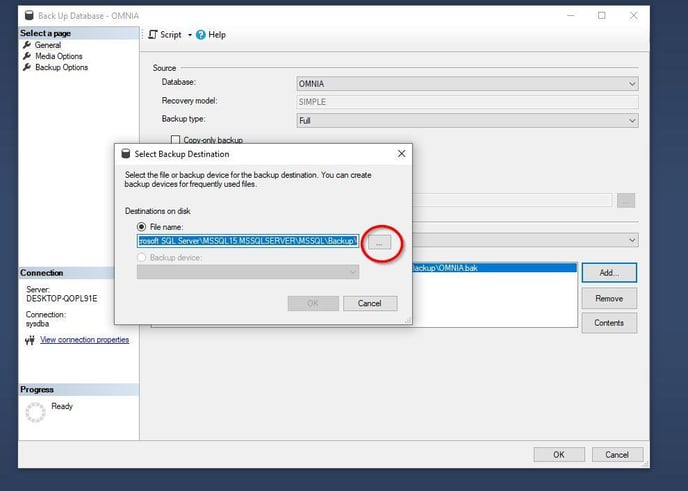
Select Destination
Thomas_backup

Enter a name for your backup with a suffix off  .Bak
Select Ok
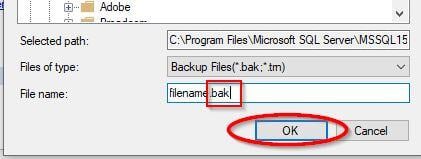
bak

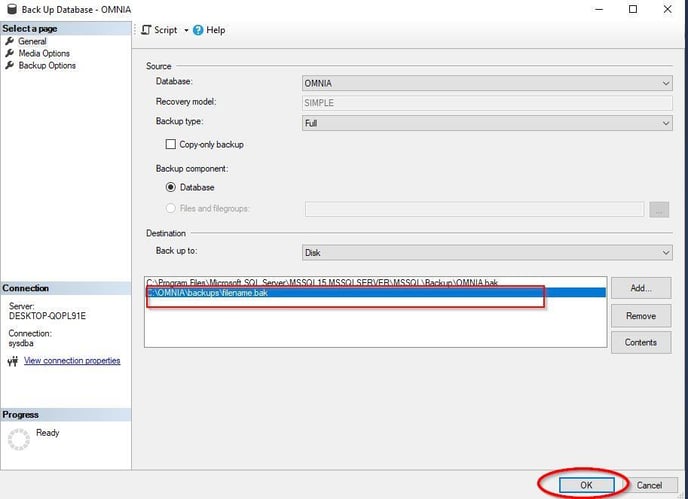
Select OK

bak

Select your destination and Click OK

Final

Once the backup is successful you will see a backup completed a message.

Your Backup of the OMNIA Database is now Complete.

Submit a Support Ticket

FAQ

General

Technical Bulletins

Access Control

AmanoNet

Nexxus220

Omnia

Omnia Lite

PM Tronics Hardware

Amano Readers and Credentials

Legacy Hardware

Partner Products

Partner Products

Video Management Systems

Cathexis Video (Amano Vision)

AmanoDVMS

Vision

Security Best Practices & Support OMNIA

  • Facebook
  • LinkedIn
  • Twitter

PMT Security

Copyright © 2026 PMT Security, Inc. | All Rights Reserved

  • Privacy Policy
  • Terms of Use
  • Cookie Policy
  • Accessibility
  • Contact Us