• Skip to primary navigation
  • Skip to main content
PMT Security Logo

PMT Security

Advanced Access Control

  • Home
  • About Us
    • Our Partners
    • Our Integrators
  • Solutions
    • Education
    • Retirement & Healthcare
    • Manufacturing
    • Government Facilities
    • Residential
    • Retail Businesses
    • Campgrounds & Outdoor Resorts
  • Products
    • Access Control
      • Control Features
      • Reporting & Monitoring
      • Control Module
      • Digital IO Module
      • Reader Module
      • Readers
    • Video Management
      • Integration
      • Analytics
      • Search & Export
    • Visitor Management
    • Intercom
    • Live Guard Video Monitoring
    • Housings & Pedestals
  • Support
    • Knowledgebase
    • Download Center
    • License Request
    • RMA Request Form
  • Blog
  • Contact Us

Navigating IPTool 3

Navigating IPTool 3

How to navigate, search, change IP and Open camera using the IPTool 3

Make sure you have IPTOOL3 installed on a computer and connected to the same network as your IP cameras.

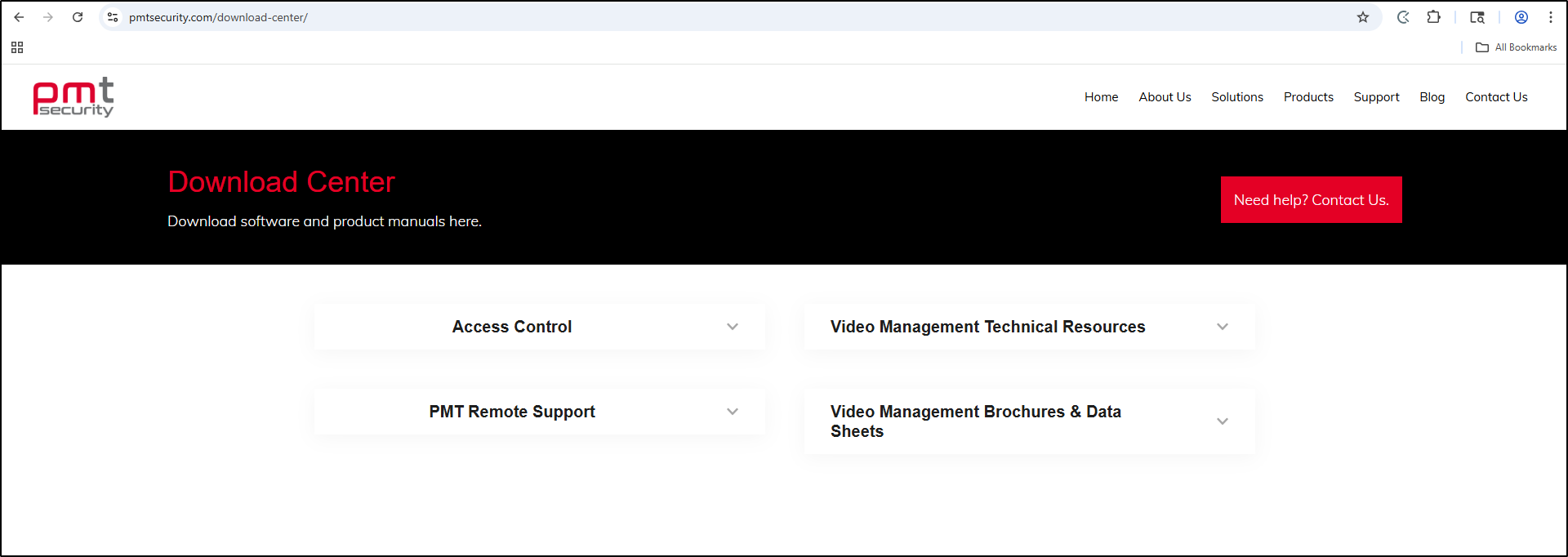
1. Installation: https://pmtsecurity.com/download-center/

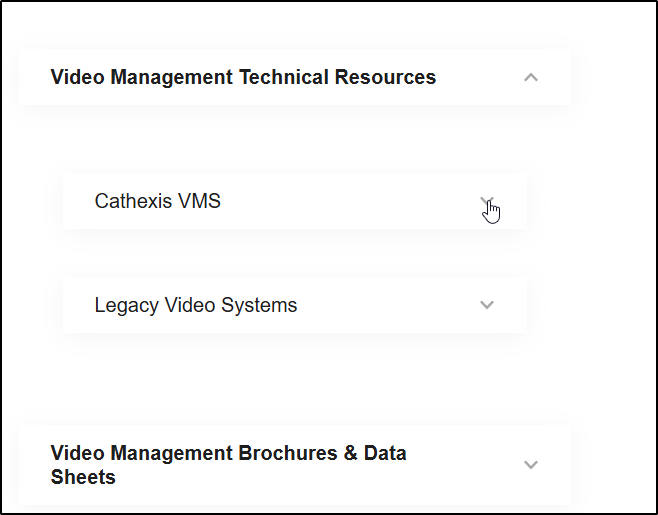
     a. Select Video Management Technical Resources arrow.
1-Jun-12-2025-03-40-41-5211-PM

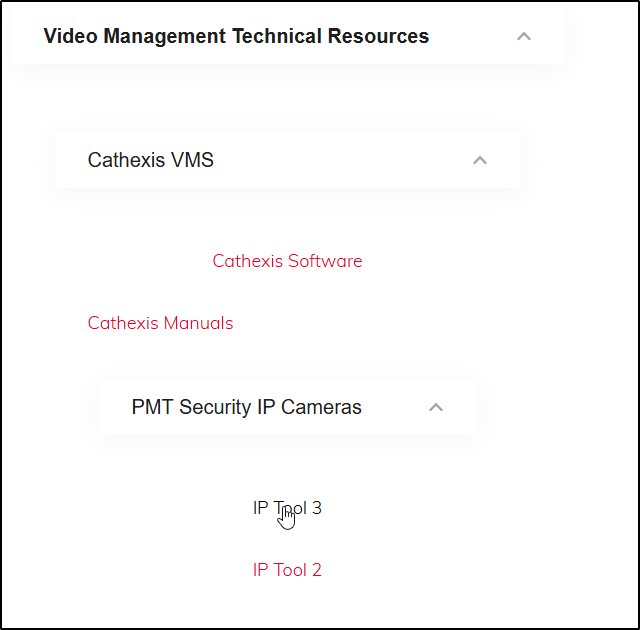
     b. Select Cathexis VMS

2-Jun-12-2025-03-40-41-5202-PM

     c. Select the IPTOOL3

3-Jun-12-2025-03-40-41-5211-PM

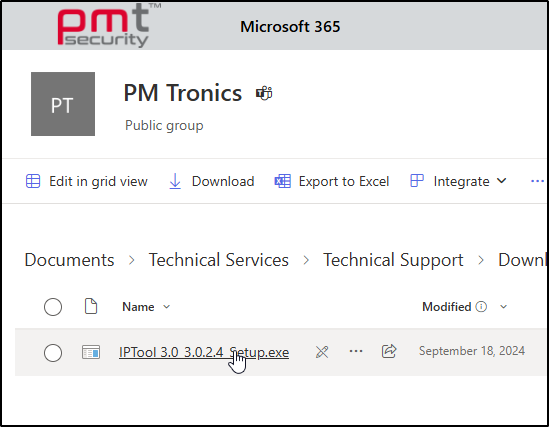
     d. Select the .exe Setup and download
4-Jun-12-2025-03-40-41-5204-PM

2. Network Scan:

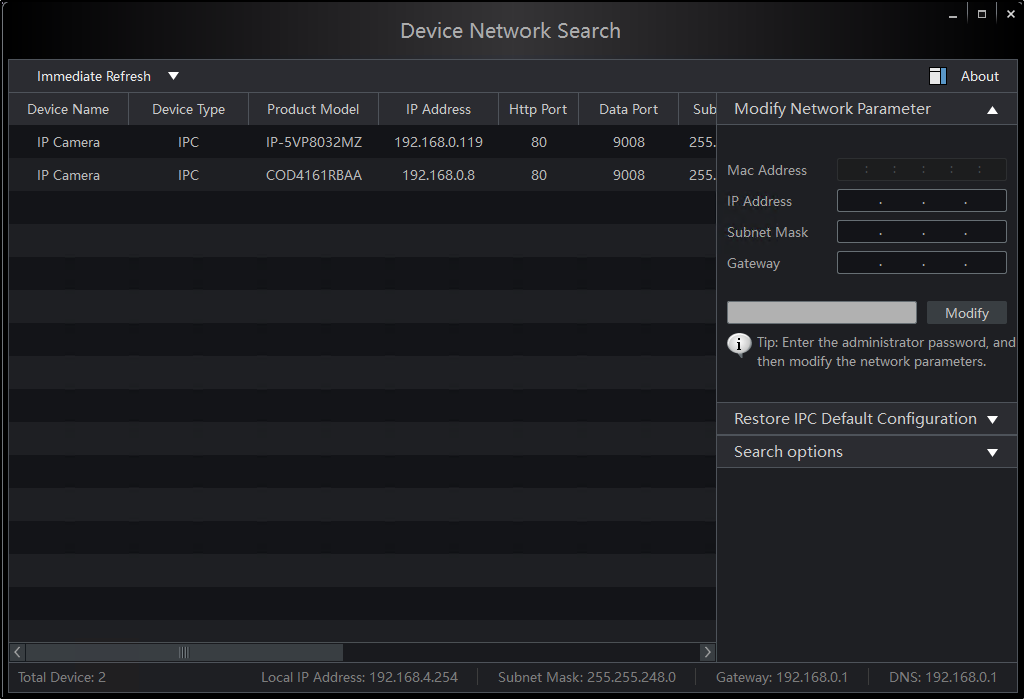
Run IPTOOL3 and let it scan your network to detect any IP cameras.

     a. Open IPTool by double clicking or right click and select Open.

5-Jun-12-2025-03-40-41-5202-PM

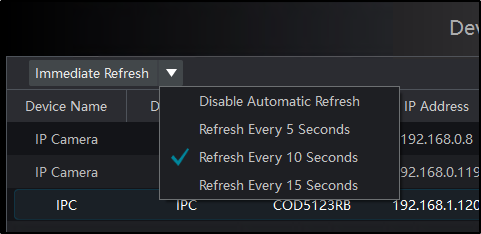
     b. Once open you can regulate how often the network search is conducted. 
6-Jun-12-2025-03-40-41-5234-PM

     c. Select the down arrow to adjust the Refresh rate.
7-Jun-12-2025-03-50-52-8897-PM

3. Camera Selection:

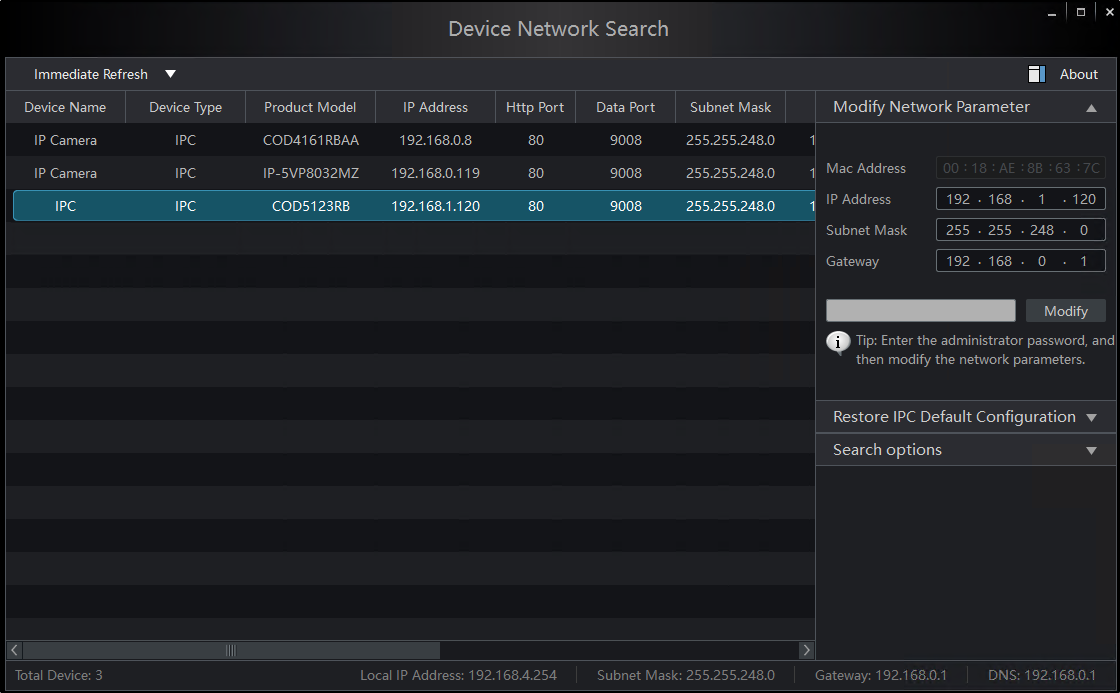
Once the cameras are detected, you can select the specific camera you want to work with.

     a. Select camera
8-Jun-12-2025-04-07-10-0302-PM

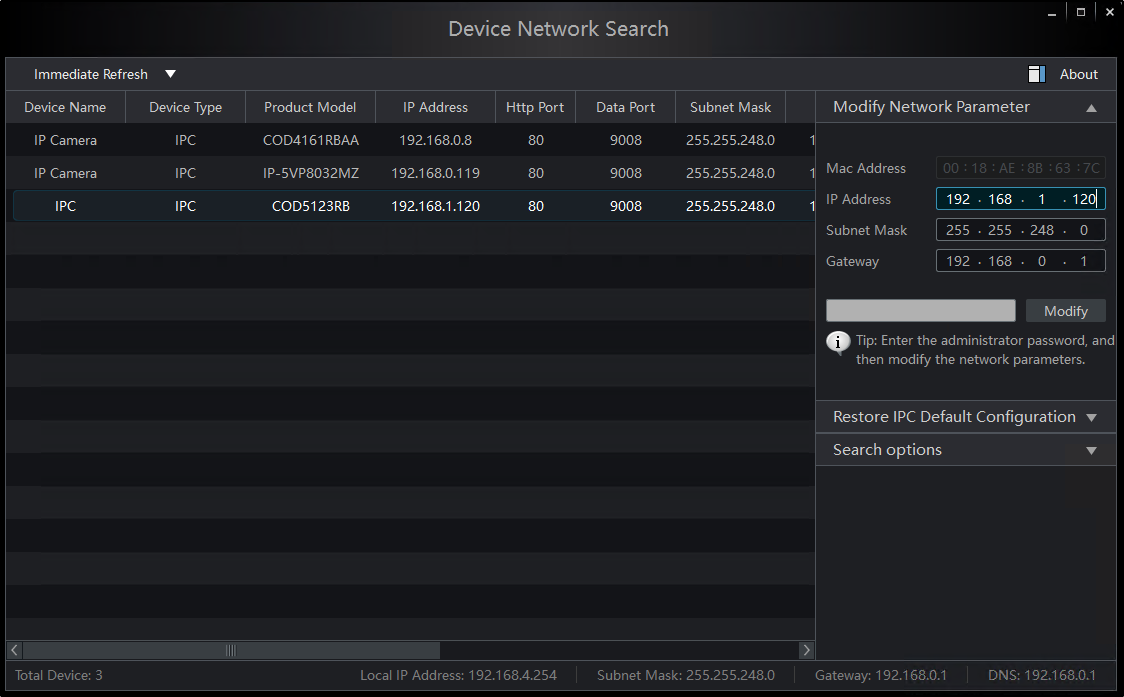
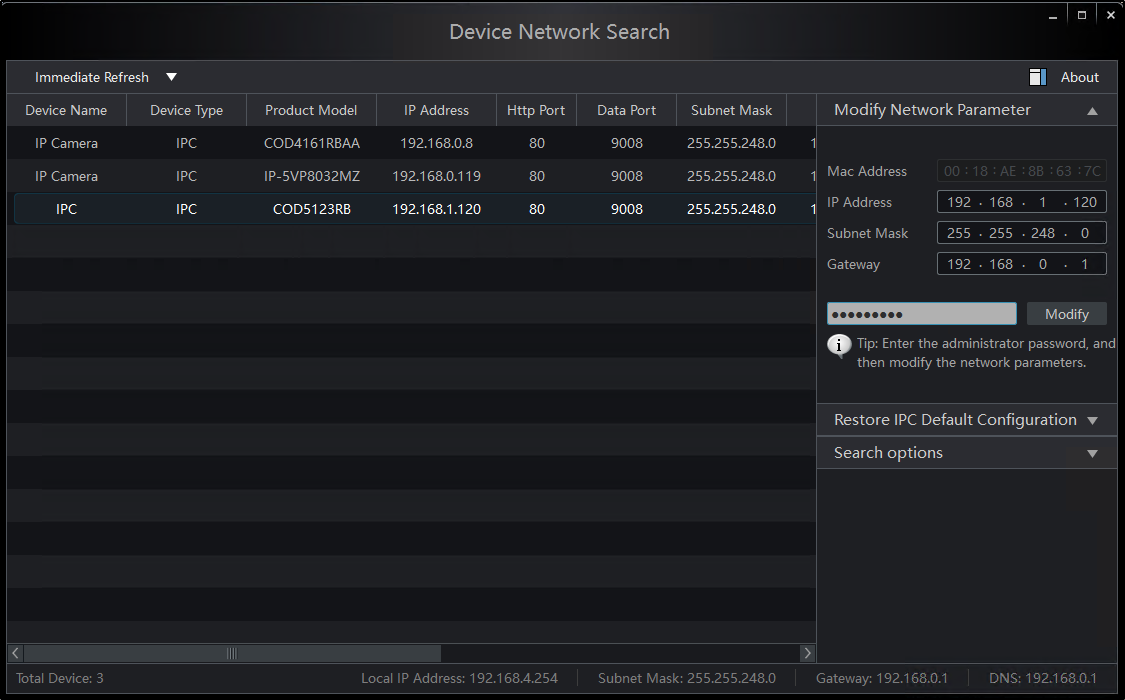
     b. To change the IP Address, Subnet Mask, and Gateway. In the Modify Network Parameter section select each box you want to make changes to.
10-Jun-12-2025-05-11-06-5704-PM

     c. Once you’ve made the necessary changes. Select the grey box and enter the password to your camera then click Modify. 

Default IP for PMT Security Cameras: 192.168.226.201

Default Password for PMT Security Cameras: 123456
11-4

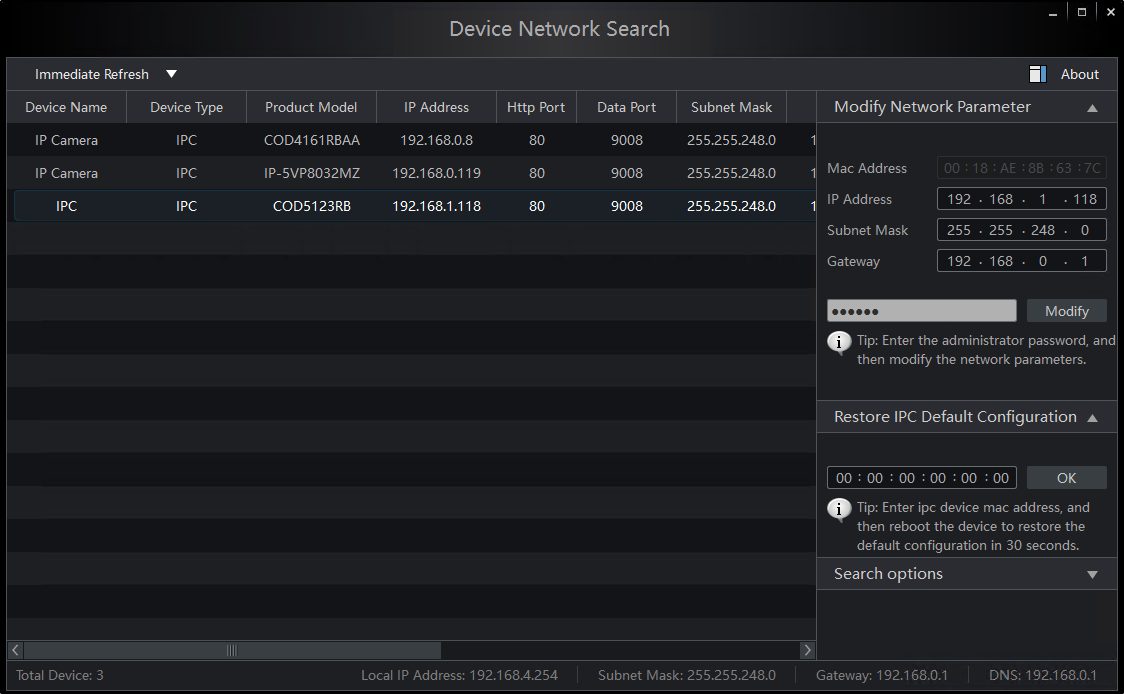
     d. To Restore IPC Default Configuration enter IPC Device mac address then reboot the device within 30 seconds.
14-1

4. Configuration Path:

IPTOOL3 provides path to IPC URL.

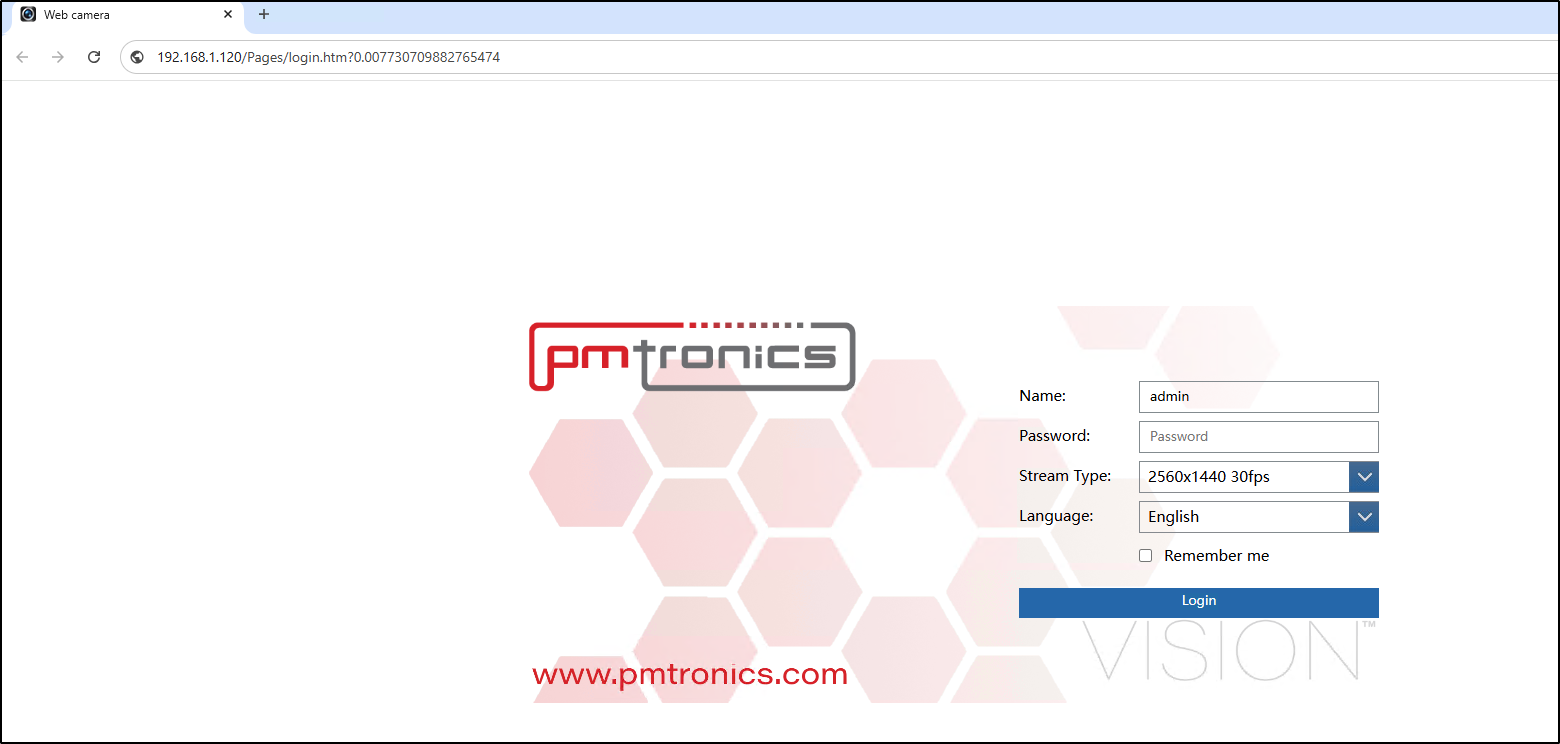
     a. Double click the Camera

8-Jun-12-2025-04-07-10-0302-PM

     b. It will open in your default Web-Browser. From here you will be able to log into the camera to continue camera configuration before installation in the Video Management System.
9-Jun-12-2025-05-29-11-4691-PM

Submit a Support Ticket

FAQ

General

Technical Bulletins

Access Control

AmanoNet

Nexxus220

Omnia

Omnia Lite

PM Tronics Hardware

Amano Readers and Credentials

Legacy Hardware

Partner Products

Partner Products

Video Management Systems

Cathexis Video (Amano Vision)

AmanoDVMS

Vision

Security Best Practices & Support OMNIA

  • Facebook
  • LinkedIn
  • Twitter

PMT Security

Copyright © 2026 PMT Security, Inc. | All Rights Reserved