
Adding Cameras into Cathexis
Adding Cameras into Cathexis, creating Database, setting motion recording, analytics, and schedules
Setting up your Cameras
-Open application for CathexisVision
(1-1)
-Login in using:
Name: admin
Password: admin
Right Click on the tab Open tab>Setup
or select Site>Open Tab>Setup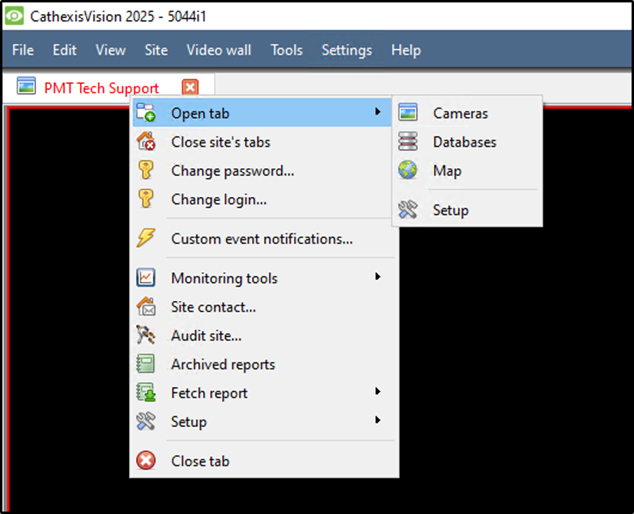
(1-2)
Look for the Icon (1-3)

(1-3)
Setting up your Database
Select Database from the tree. Select New
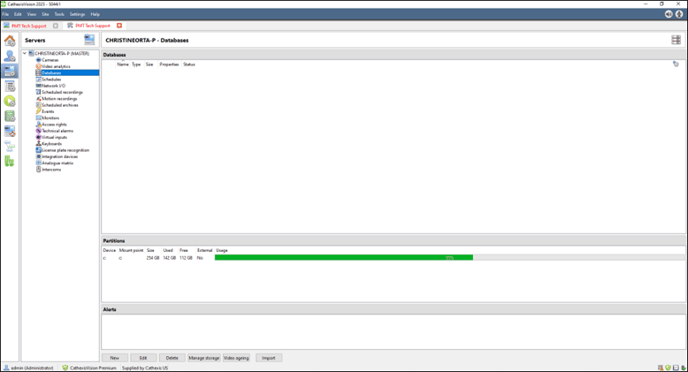
(2-1)
Select New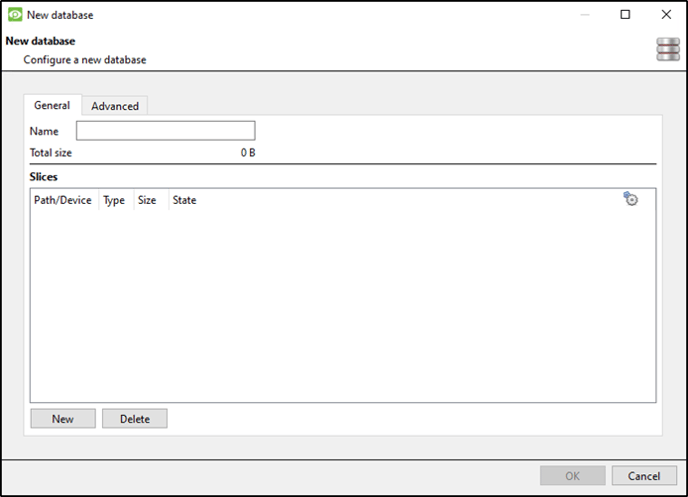
(2-2)
Choose Size and Select OK
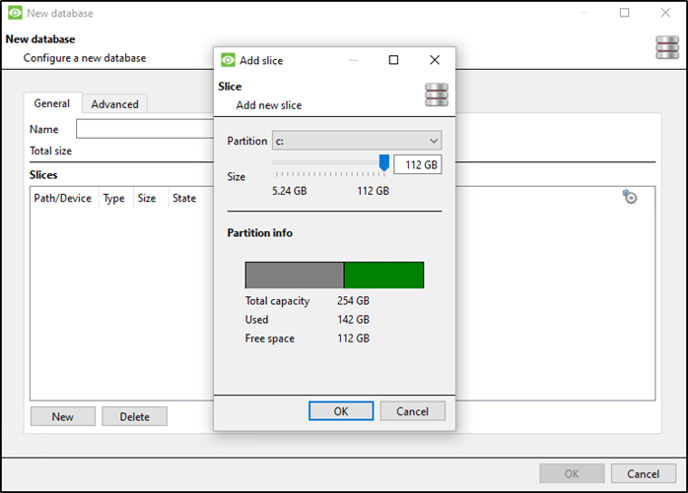
(2-3)
Select OK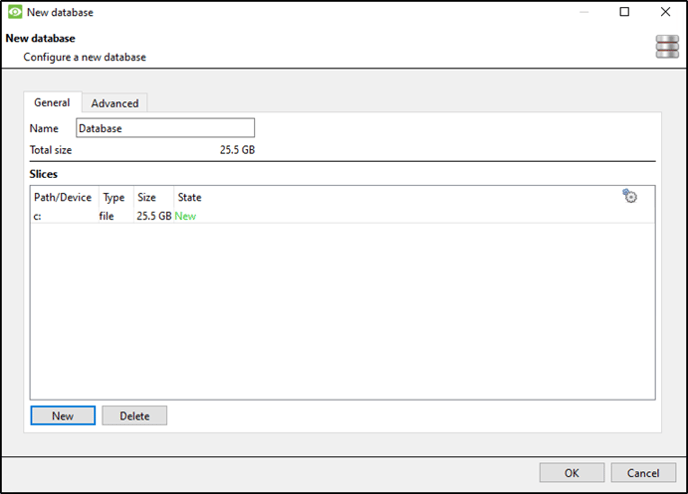
(2-4)
Setting up Cameras
In the drop tree select Cameras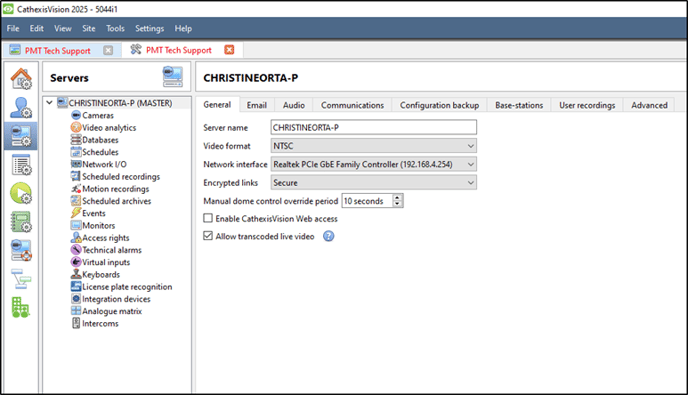
(3-1)
Right Click on the right side or select new at the bottom of the page.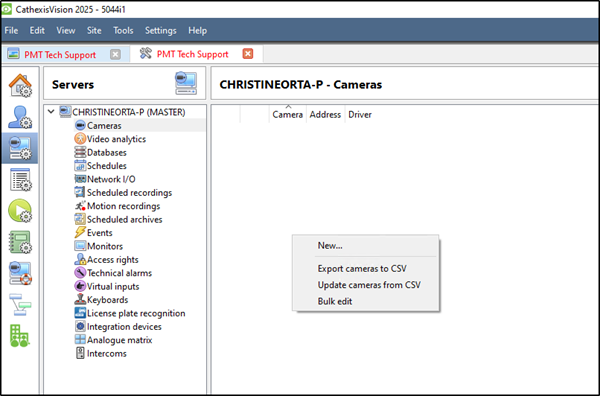
(3-2)
Scan for the cameras IP
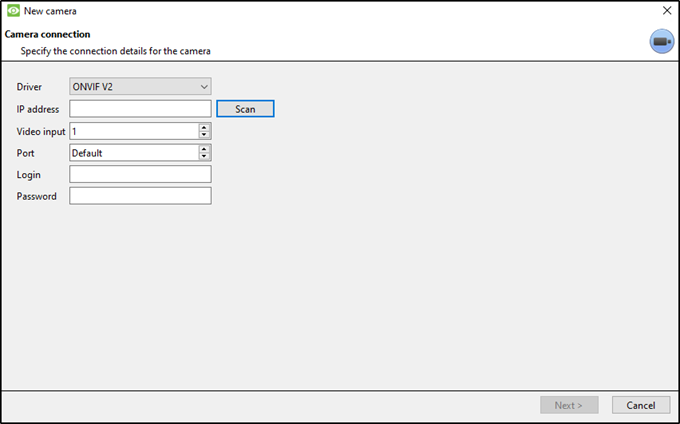
(3-3)
Select which camera you would like to use.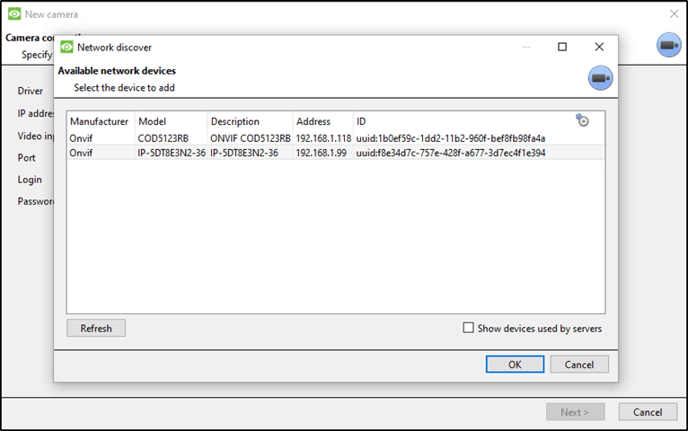
(3-4)
Select the driver that your specific camera uses.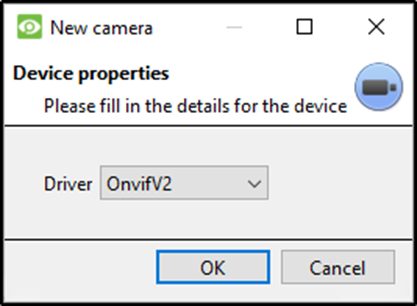
(3-5)
Enter the cameras Login and Password. Select Next >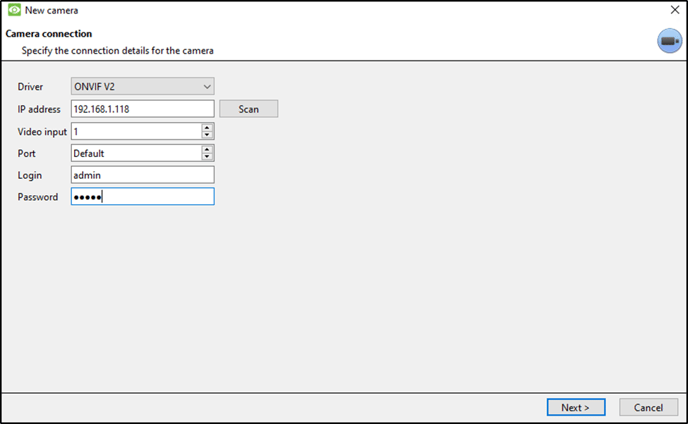
(3-6)
Name your camera. Select Next >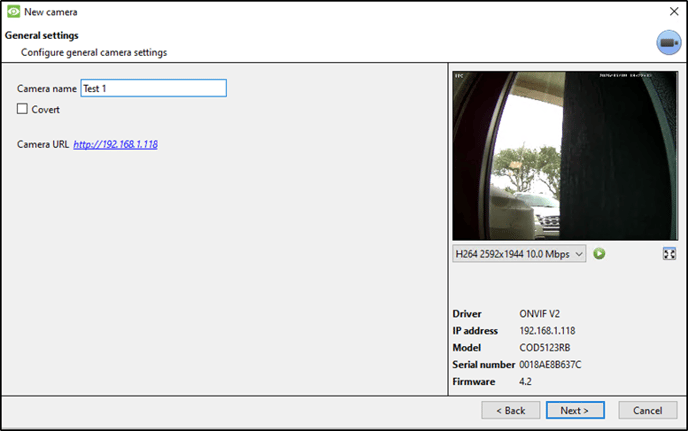
(3-7)
Select 2 Unused (unicast) to create a second feed for analytics. Then select Yes to enable.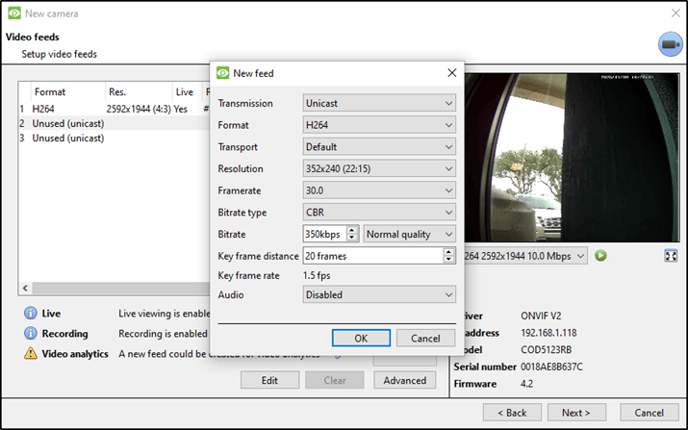
(13-8)
Select Next >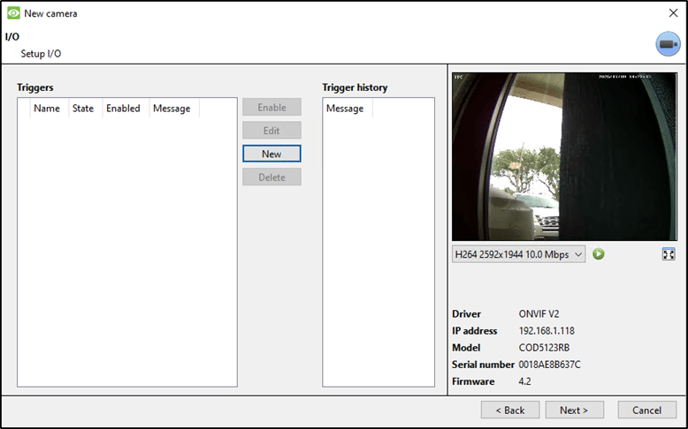
(3-9)
Choose Yes or No and select Next >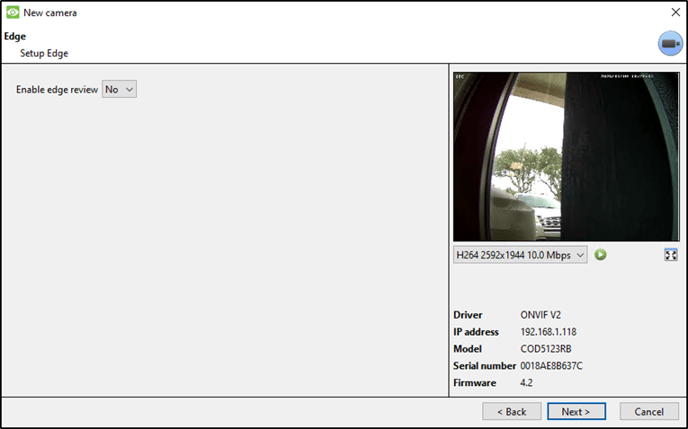
(3-10)
Select Enable PTZ if you have a PTZ camera. Select Next >
(3-11)
CAMERA CONFIGURATION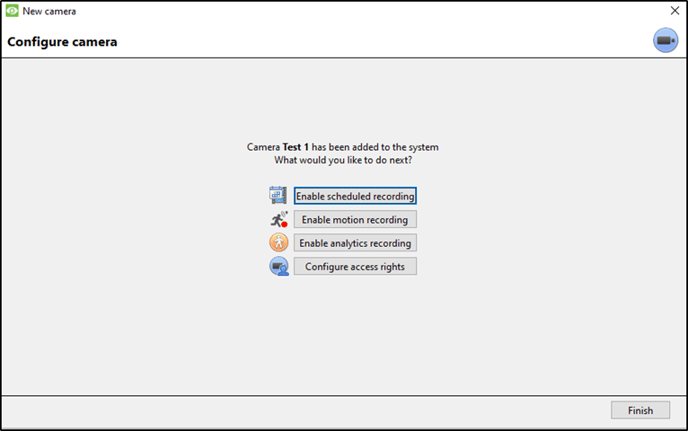
(3-12)
Scheduled Recording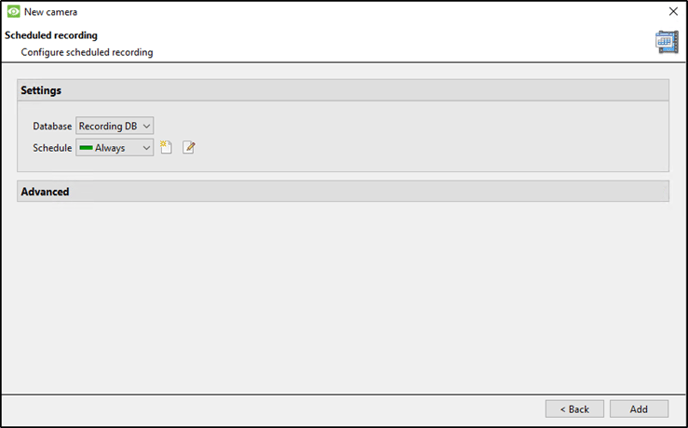
(3-13)
Motion Recording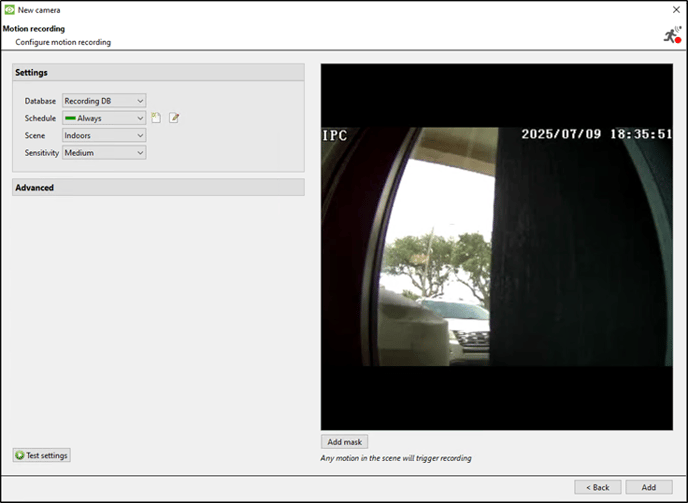
(3-14)
Analytics Recording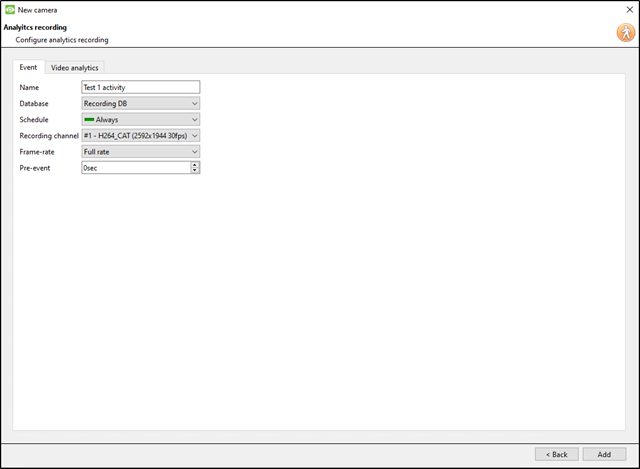
(3-15)
Select Finish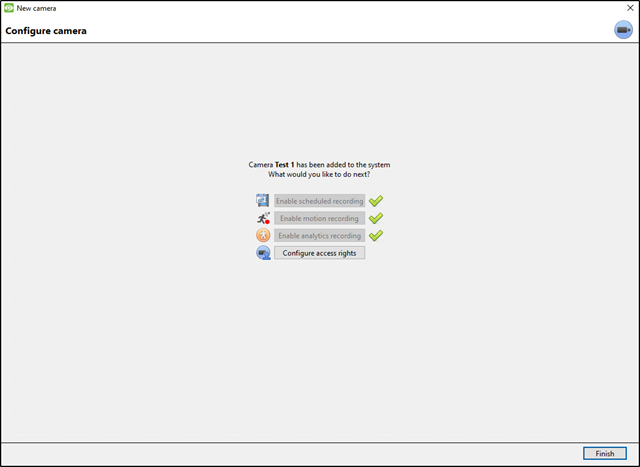
(3-16)
Video Analytics
Select Video analytics from tree. Select New
(4-1)
New video analytics select Camera, Type, and Algorithm.

(4-2)
Create Zones, Advanced settings, Day/Night, and Triggers. Click OK.
(4-3)
SCHEDULES
Select New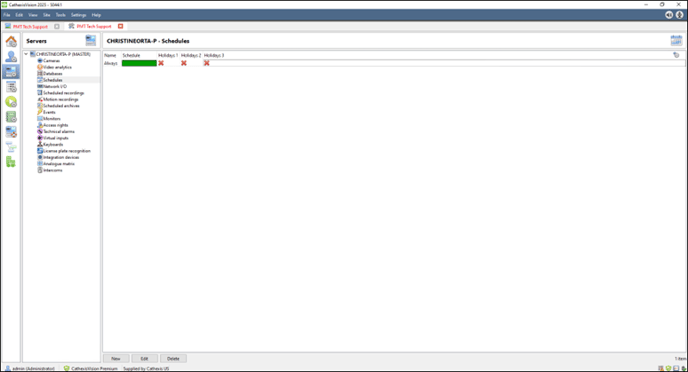
(5-1)
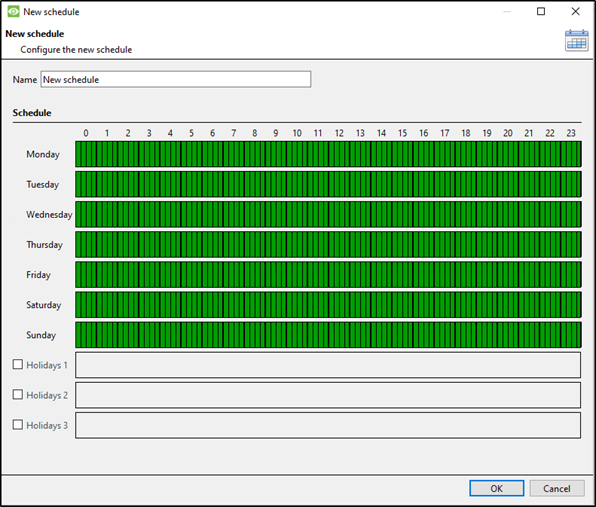
Highlight the day and times you would like to record.
Please call 727-786-1900 if you have any questions on this procedure.
Need further assistance?