
OMNIA CSV Imports
How to import Tagholders into OMNIA with a .CSV file
OMNIA CSV Imports
The OMNIA application provides a simple CSV import utility that can be used to import tagholders, vehicles and visitors.
- Create a CSV file with headers and required data. A list of fields available for import can be seen in the table below.
- The minimum needed data to import is First Name, Last Name, and ID Number
| Birthday | Fax (H) | Postal Address (W) |
| Company | Fax (W) | Second Name |
| Department | First Name | Street Address (H) |
| Device Serial No | Gender | Street Address (W |
| Driver’s License No | ID Number | Suffix |
| Email (H) | Last Name | Title |
| Email (W) | Mobile Number | Vehicle Color |
| Email Address | Name of person visiting | |
| Employee No | Position | |
| Employer | Postal Address (H) |
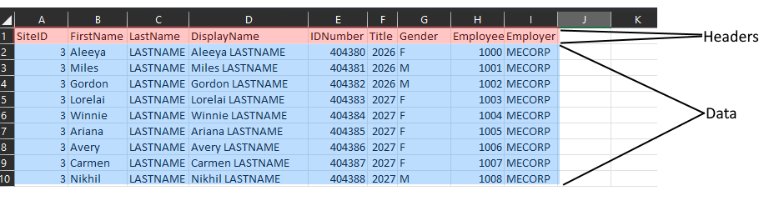
CSV Document should resemble this:
- Go to the OMNIA Server Application and select the TOOLS tab:
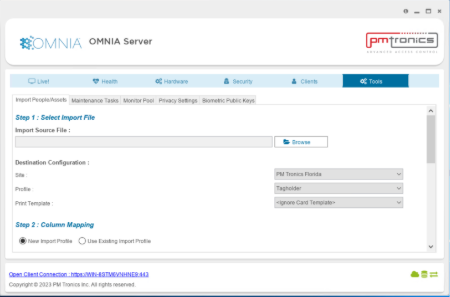
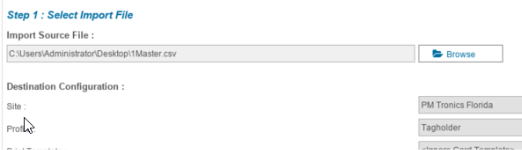
Click the ‘Browse’ button and browse to your saved CSV file and select the file:

The Browse box should now show the path to your CSV file.
- Move down to Step 2: Column Mapping, before doing anything else, create a New Profile Name. In the left of the table, you will see the column headers from you CSV file, we now need to map those to fields in the database that we want to populate with the import.
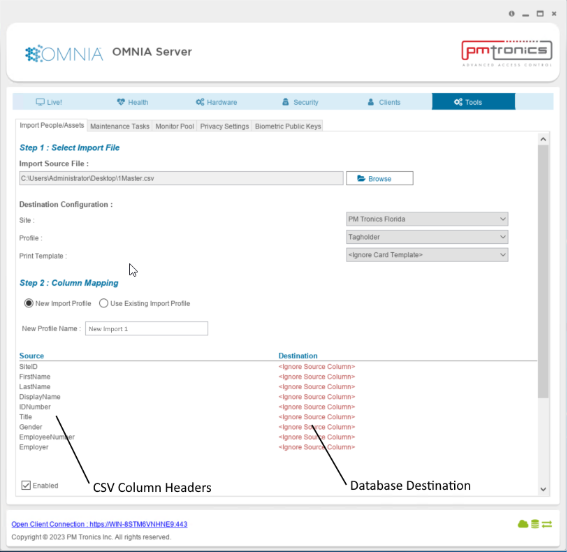
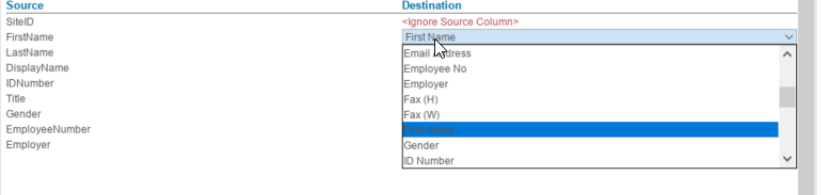
Map the source to destination by clicking on the red DESTINATION rows on the right, these are drop-downs that you can use to map your CSV source to the correct field in the database, save the profile by clicking the save button:
The saved profiles will be available for subsequent imports using the same .CSV file.
- Move down to Step 3: Process File, press the Process button
Review the summary at the bottom to confirm that the import was successful:
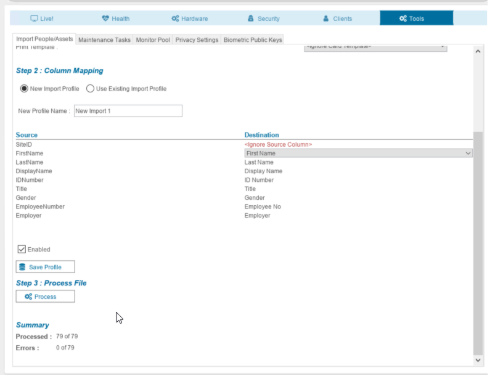
- Errors or failures are usually caused by the use of special characters, extra spaces before or after records, lines between records or mismatches between source and destination mapping.
Need further assistance?