
Setting up a Behavior on an OMNIA Reader Profile (a.k.a Terminal Modes in legacy systems)
When setting up a Behavior for a door or group of doors within the system, you must include all the doors affected by this behavior in the same Reader Profile. Make sure you setup the Reader Profile ahead of time.
In this example, we will be setting up a single door to be unlocked during each weekday from 8am to 5pm.
First, make sure to create a Device Time Pattern for the weekday hours.
1. Navigate to Device Time Patterns (DTP) on the Setup menu item and click.
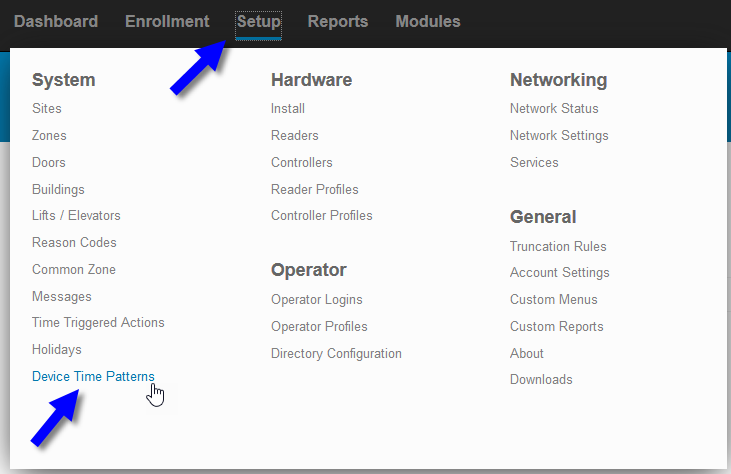
2. Click the plus button to add a new DTP.

3. Fill in the appropriate fields. (Pro tip: Naming your DTPs with meaningful descriptions of the time and date will make it easier to know what they are later at a glance)

4. Save the DTP by clicking the check button.

5. Next, navigate to the Reader Profiles item on the Setup menu and click.

6. Choose the correct reader profile.

7. If not already done so, select each reader you will affect by this new pattern. (IMPORTANT! Please note that moving a reader into a new Reader Profile affects assignments to inputs, outputs, and other actions previously assigned to that reader and reader terminal port from it’s previous profile. Any previous actions assigned to events will be lost.)
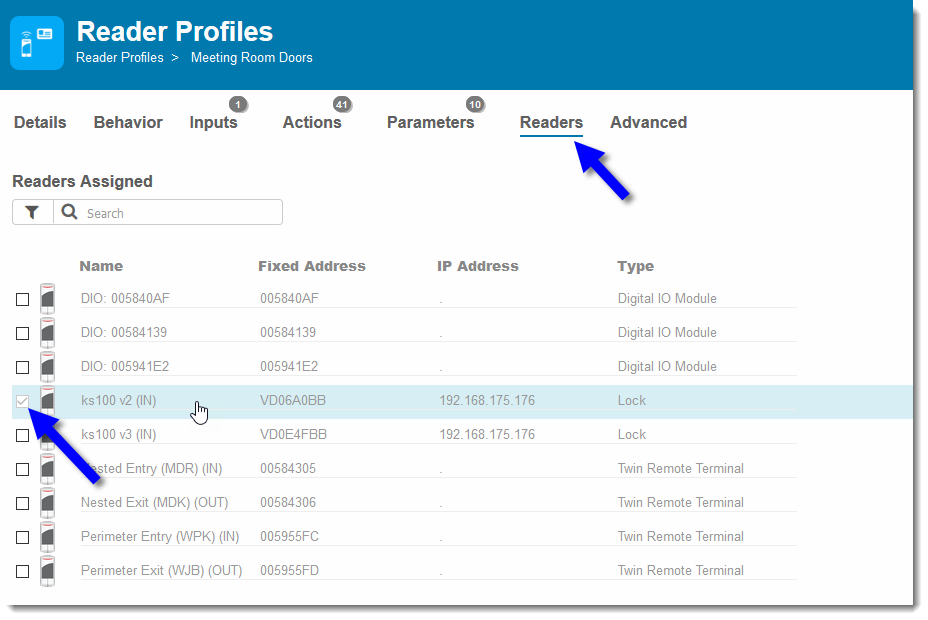
8. Choose Behavior tab, then select Edit Behavior.

9. Search or scroll to Unlock on the Device Behavior list and click.

10. Choose your Device Time Pattern (that you created earlier)

11. Choose the options for each output state. (Drive relay typically means unlock door. Check with your installer for details on your exact setup)
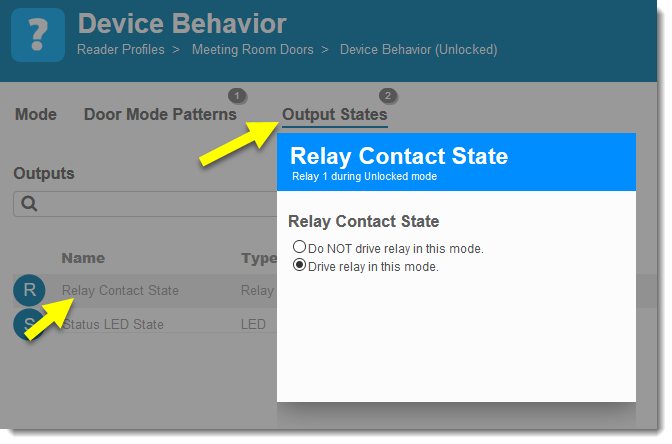

12. Note that now you have one new behavior assigned. If your site is setup to Auto Synchronize (default) then your door should be affected immediately.
If you have any questions, please contact support for assistance.
Need further assistance?