• Skip to primary navigation
  • Skip to main content
PMT Security Logo

PMT Security

Advanced Access Control

  • Home
  • About Us
    • Our Partners
    • Our Integrators
  • Solutions
    • Education
    • Retirement & Healthcare
    • Manufacturing
    • Government Facilities
    • Residential
    • Retail Businesses
    • Campgrounds & Outdoor Resorts
  • Products
    • Access Control
      • Control Features
      • Reporting & Monitoring
      • Control Module
      • Digital IO Module
      • Reader Module
      • Readers
    • Video Management
      • Integration
      • Analytics
      • Search & Export
    • Visitor Management
    • Intercom
    • Live Guard Video Monitoring
    • Housings & Pedestals
  • Support
    • Knowledgebase
    • Download Center
    • License Request
    • RMA Request Form
  • Blog
  • Contact Us

Input

Database Migration from Nexus220/IXP220 to OMNIA

What Data is Migrated from Nexus220 during a Database Conversion?

PMT Security offers a conversion service to migrate data from an Nexus220 system to an OMNIA system. It is however a limited migration and only select data is migrated.

Database migration from Nexus220/IXP220 to OMNIA

The following data IS migrated from the IXP220 database:

  • Limited master data (first name, last name, ID number, company)
  • Tagholder images
  • Departments and department assignments
  • Tags
  • Access groups and access group assignments
  • Access time patterns and assignments
  • Biometric templates (fingerprints)

The following data IS NOT migrated from the IXP220 database:

  • Hardware (controllers, terminals, readers, including 3rd party biometric readers)
  • Doors
  • Areas
  • Transactions
  • Operators
  • Other miscellaneous settings not mentioned in the list of migrated data

If there is a need to refer to transactions from the Nexus220 system for historical purposes, it is recommended that this is done via Nexus220 reports from the old Nexus220 database.


Hardware must be installed again the new system, doors created and assigned to areas. Areas can be linked to the migrated access groups to restore correct access assignments to tagholders.


IXP220 system controllers are not compatible with OMNIA, and must be replaced with the appropriate controller for the new system.

Need further assistance?
Submit a Support Ticket

Submit a Support Ticket

FAQ

General

Technical Bulletins

Access Control

AmanoNet

Nexxus220

Omnia

Omnia Lite

PM Tronics Hardware

Amano Readers and Credentials

Legacy Hardware

Partner Products

Partner Products

Video Management Systems

Cathexis Video (Amano Vision)

AmanoDVMS

Vision

Creating an Input on a Wiegand Reader Module to Generate a Lockdown/Emergency Mode For a Single APC Controller In OMNIA

Creating an Input on a Wiegand Reader Module to Generate a Lockdown/Emergency Mode For a Single APC Controller In OMNIA

How to create an input that will put the single APC Controller into Lockdown or Emergency Mode in OMNIA

Emergency
Emergency inputs are associated with fire alarms (3rd Party System Activation) or emergency call points (Manual Activation).
Activating this input will raise an Emergency event that will unlock all your
emergency doors.
In the following example, we will use the DOS (Input 1) input on a Wiegand Reader Module to activate Emergency.

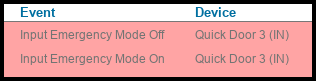
Input Emergency Mode Off
Input Emergency Mode On 
Wiegand Reader Module (Input 1)

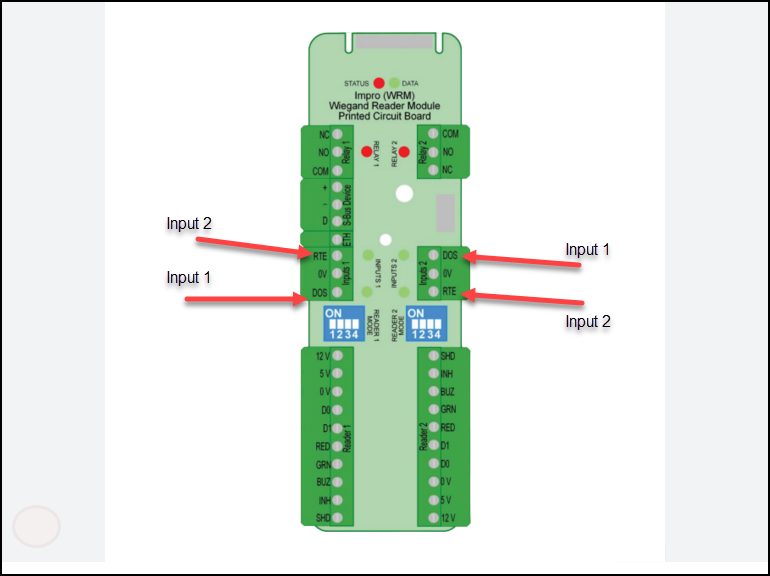
REMEMBER: DOS is always input 1 and RTE is always input 2

Lockdown 

Lockdown inputs are associated with Intruder/Active Shooter emergency call points.

Activating this input will raise a Lockdown event that will prevent the unlocking of your emergency doors.

In the following example, we will use the RTE (Input 2) input on a Wiegand Reader Module to activate Lockdown,

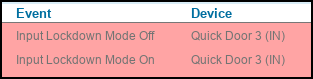
Input Lockdown Mode Off
Input Lockdown Mode On
Wiegand Reader Module (Input 2)

REMEMBER:  DOS is always input 1 and RTE is always input 2.

Location of Input 1 (DOS) and Input 2 (RTE) on Wiegand Reader Module for OMNIA

Note
This method will only affect the doors connected to the same system controller
as this Wiegand Reader Module. To activate Emergency mode across multiple controllers, see Configuring Emergency Input Across Multiple Controllers

Configuring an Emergency Input

These steps apply to any reader in any profile

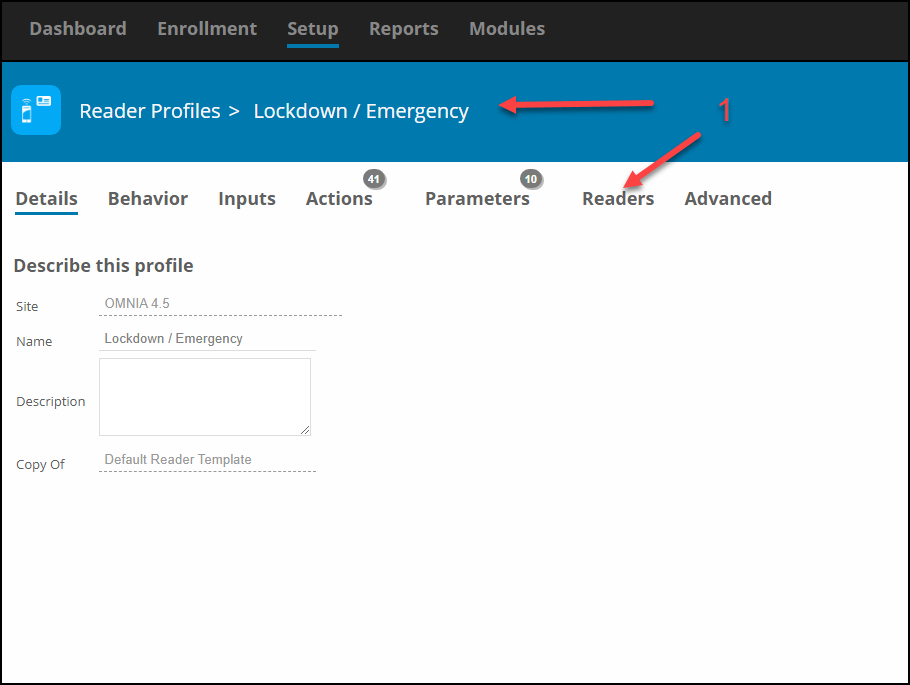
  1. Open the Reader Profile ( Ensure this contains the correct reader being used for the input ) or Create a New Reader Profile ( Ensure you select the correct Reader being used for the input ) For This Scenario , a new Reader Profile was created. Reader Profile named Lockdown/Emergency. For Simplicity we have used the same Wiegand Reader Modules inputs for both Lockdown (Input 2)  and Emergency (Input 1). The Wiegand Reader Modules Fixed Address is 005DC20.
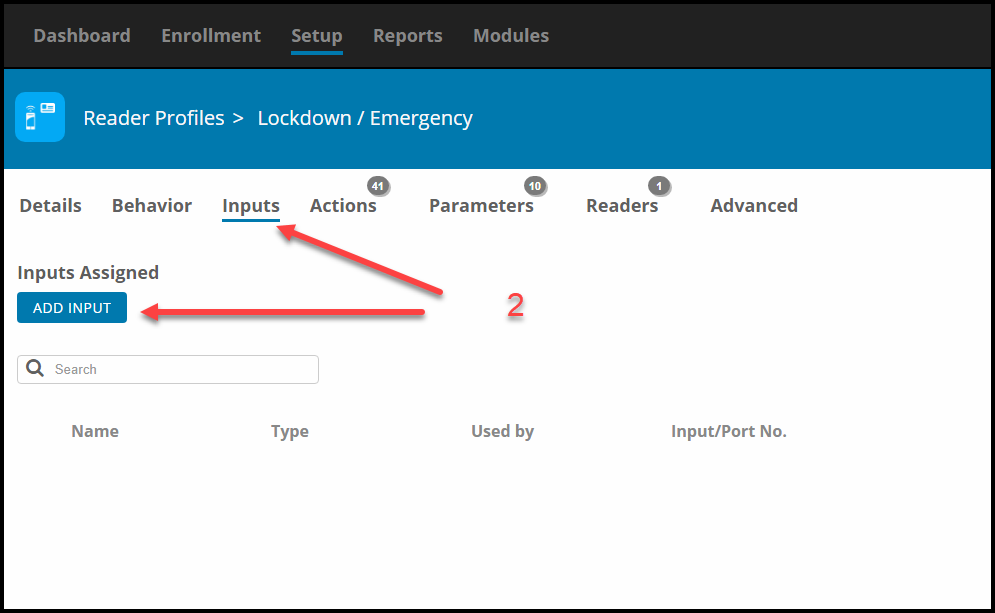
  2. Select Inputs then select Add Input
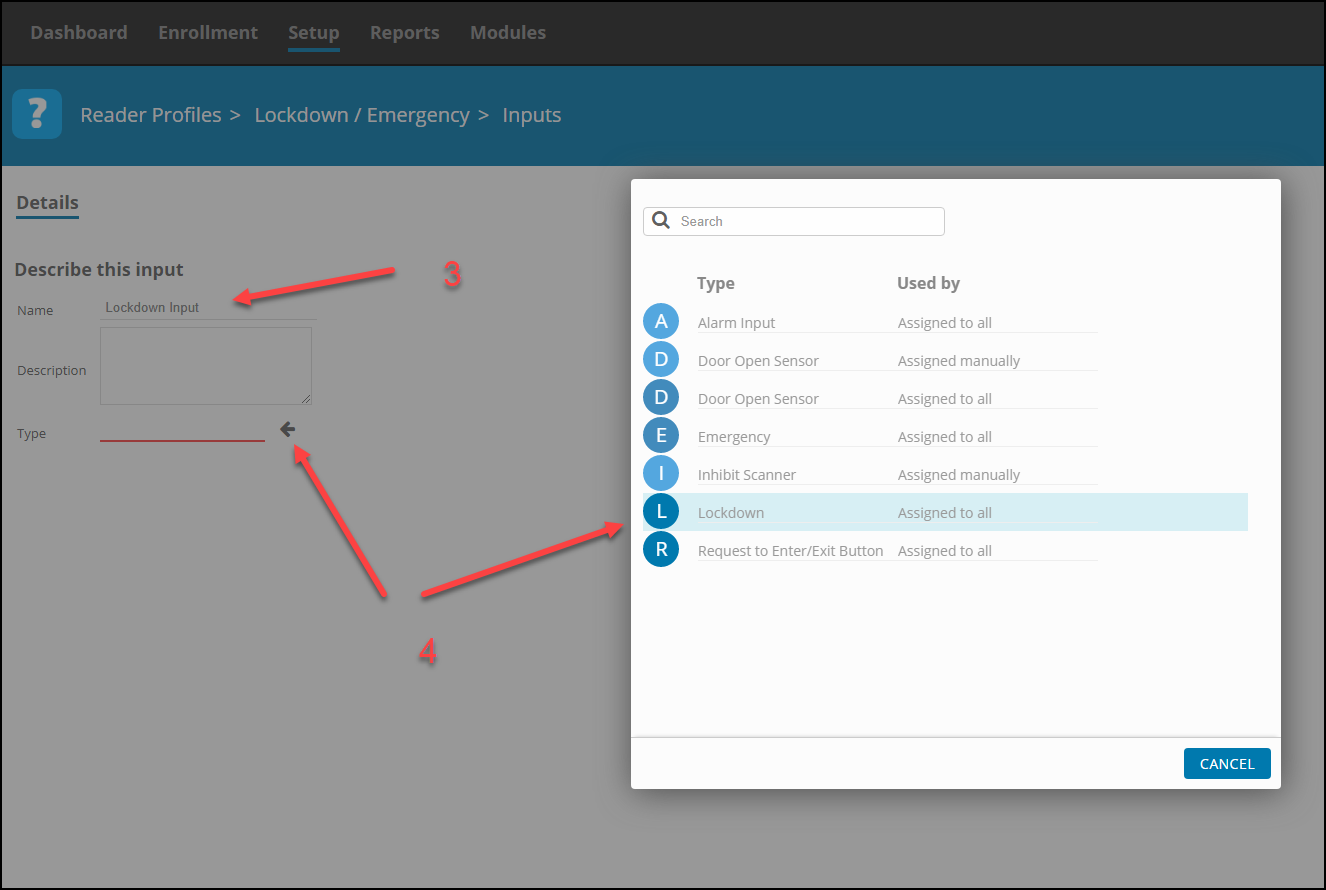
  3. Name the input.
  4. Select the type of input, for this case Emergency or Lockdown
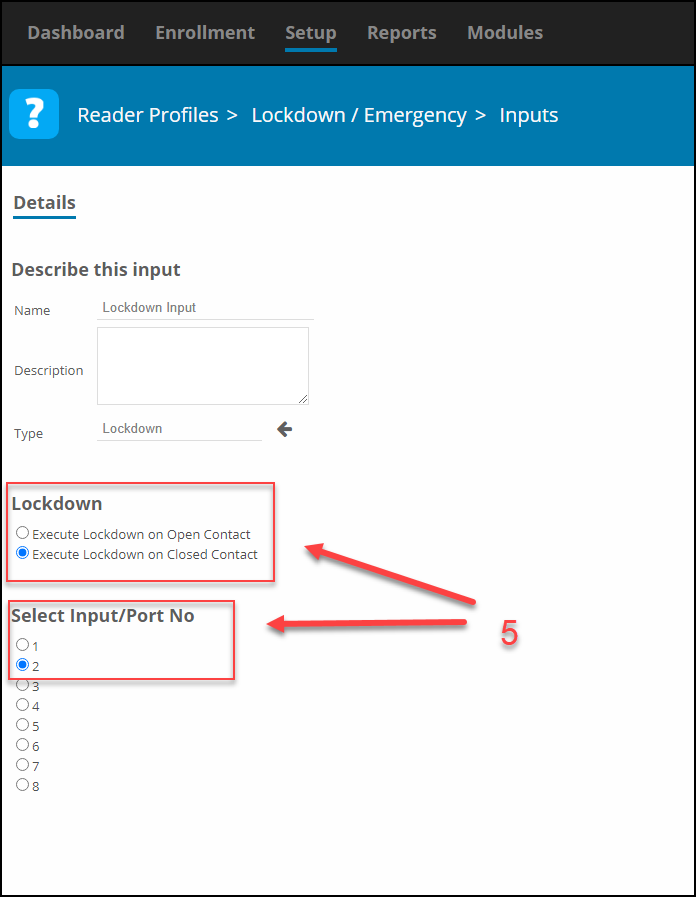
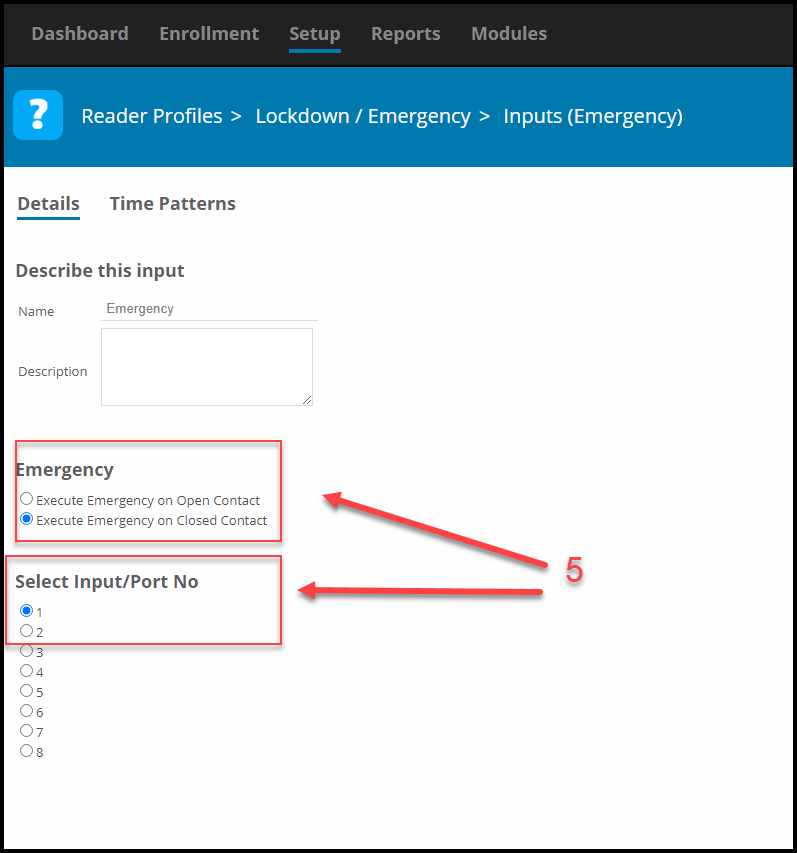
  5. Select the Contact State and Input Number
  6. Save

1.  Open the Reader Profile

Located under Set-Up - Open Reader Profiles > Lockdown / Emergency, Select Readers Tab

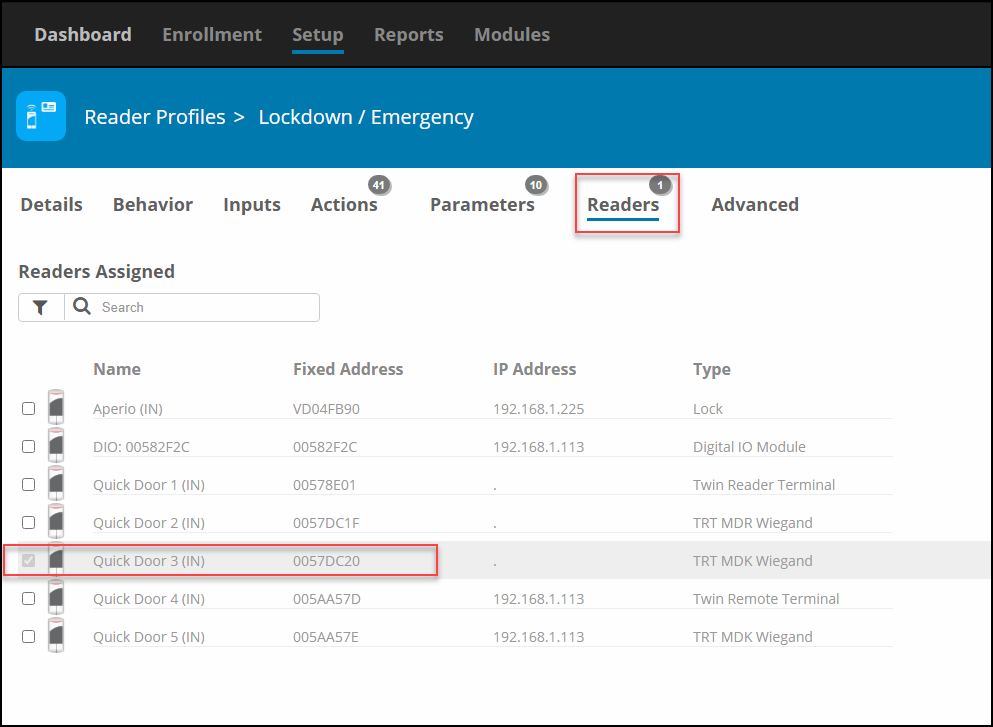
Select the Reader the Inputs are associated with.

Select the Reader the Inputs are associated. Eg. Quick Door 3 (IN)

2. Select Inputs then select Add Inputs.

Select Inputs Tab, then Select "ADD INPUT"

3. Name the input.

4. Select the type of input, Lockdown or Emergency

Select the "type" of input, Lockdown or Emergency.

5. Select the Contact State and Input Number

REMEMBER:  DOS is always input 1 and RTE is always input 2.

Lockdown

Lockdown
Select the Contact State and Input Number

REMEMBER:  DOS is always input 1 and RTE is always input 2.

Emergency

Emergency
Select the Contact State and Input Number

REMEMBER:  DOS is always input 1 and RTE is always input 2.

Emergency and Lockdown Behavior
After creating an emergency or lockdown input, you need to decide how all your readers
will behave during Emergency Mode and Lockdown Mode.

Emergency Mode

By default, your readers will flash green but no relays will drive. The state of the relays will need to be changed.

Lockdown Mode

By default,  your readers will flash red and no relays will drive


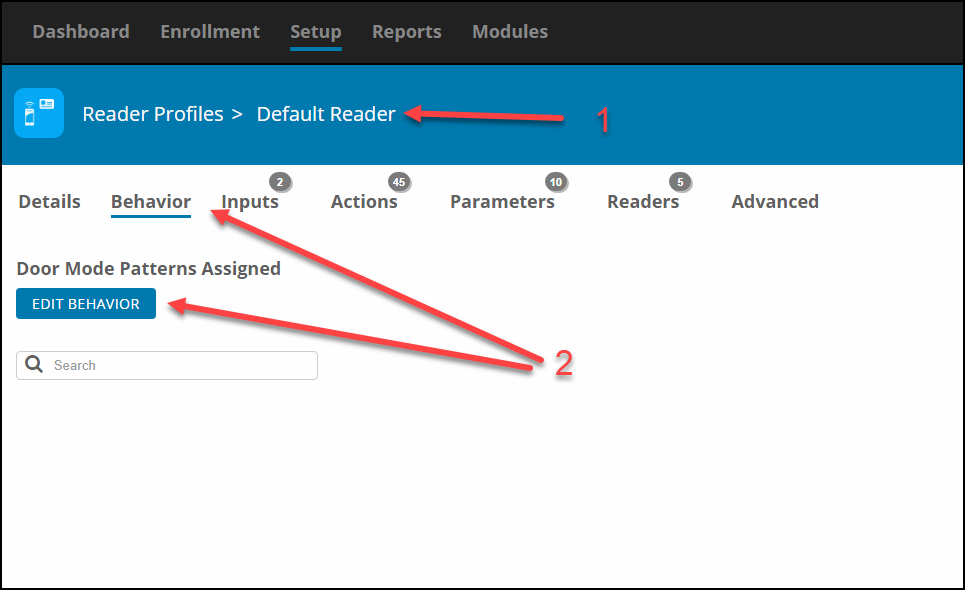
To configure the Modes: go to, Setup>Hardware>Reader Profiles> select profile >Behavior


Steps:
1. Select the Reader Profile for the readers you wish to unlock/lockdown
2. Select the Behavior then Edit Behavior

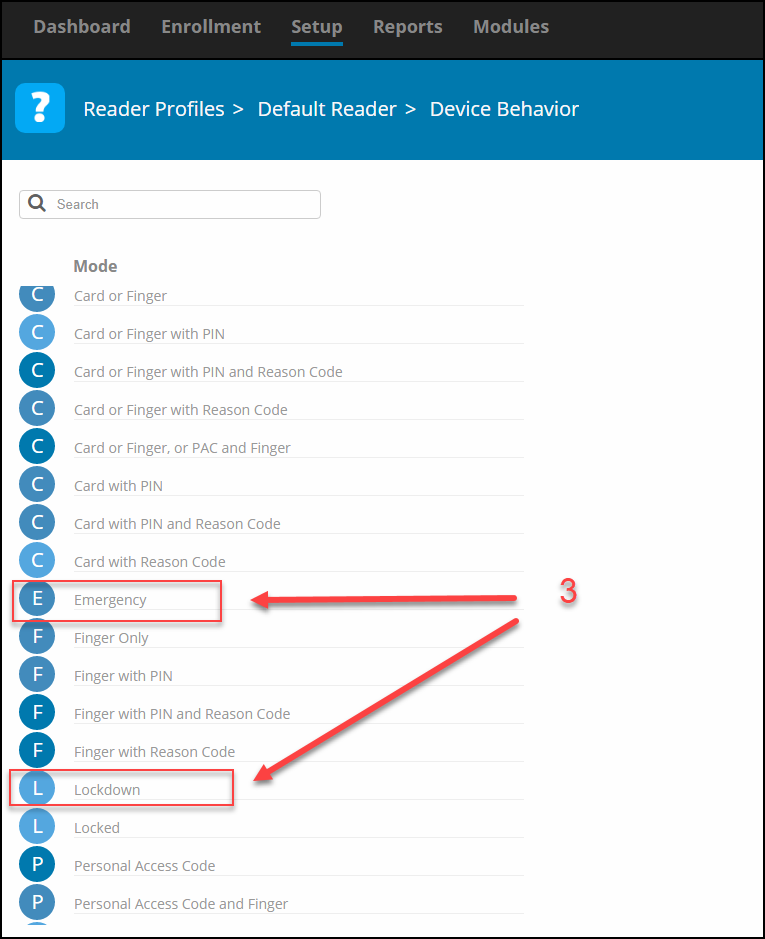
3. Search for Emergency/Lockdown
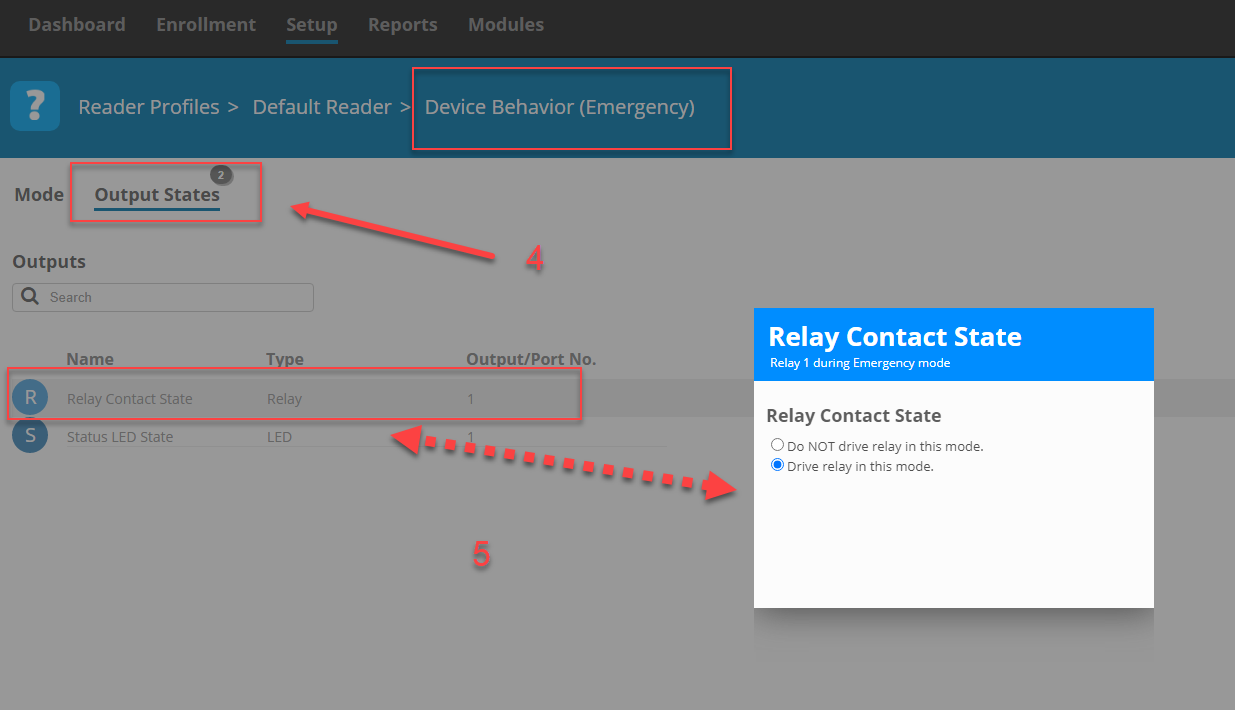
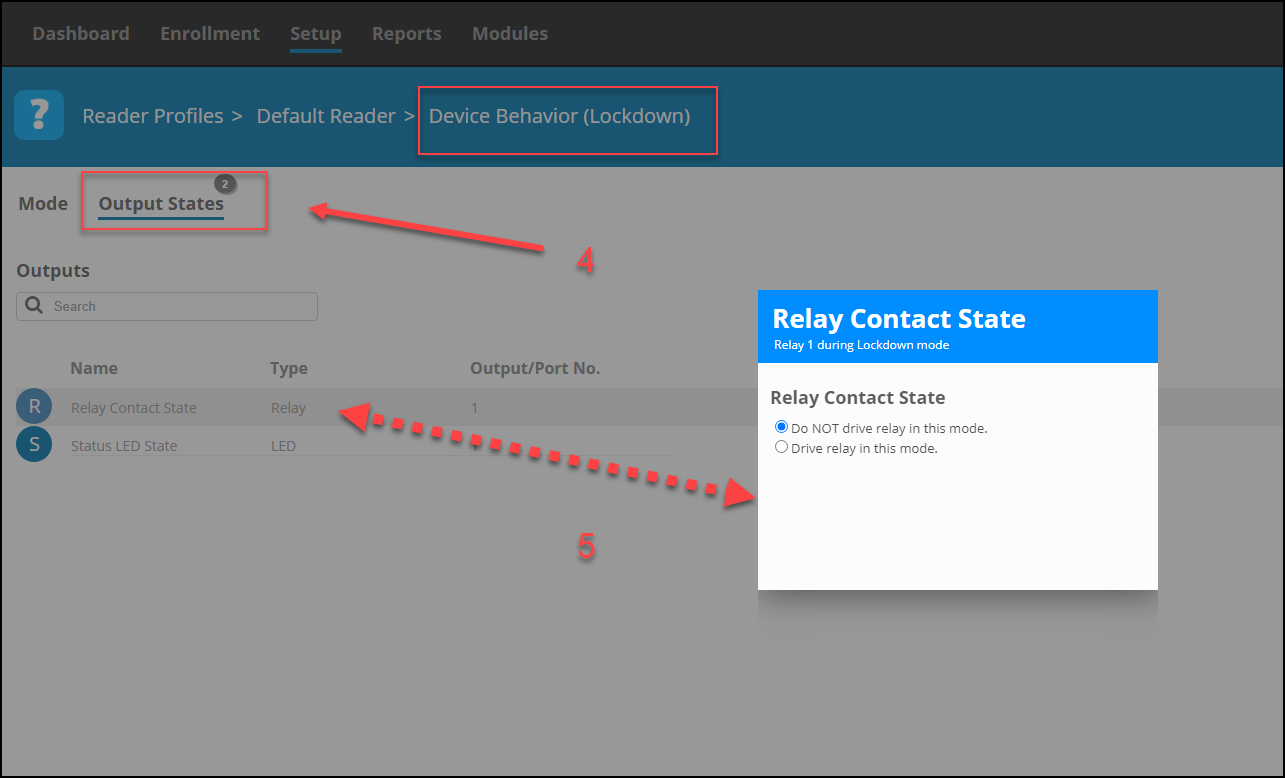
4. Select Output States
5. Select Relay Contact State then for Emergency Mode select Drive relay in this mode, for Lockdown leave section at Do Not Drive Relay

Under Setup Tab, Select Reader Profiles > Default Reader

Select Behaviour Tab
Click "EDIT BEHAVIOR"
Select E (Emergency) or L (Lockdown)

Emergency

Emergency Relay Contact State
Drive relay in this mode

Lockdown

Lockdown Relay Contact State
Do NOT drive relay in this mode

Now all the readers in the selected Reader Profile will drive their relays during
Emergency Mode and will not drive relays in Lockdown Mode. Repeat these steps for any other required Reader Profiles.

Need further assistance?

Submit a Support Ticket

Submit a Support Ticket

FAQ

General

Technical Bulletins

Access Control

AmanoNet

Nexxus220

Omnia

Omnia Lite

PM Tronics Hardware

Amano Readers and Credentials

Legacy Hardware

Partner Products

Partner Products

Video Management Systems

Cathexis Video (Amano Vision)

AmanoDVMS

Vision

  • Facebook
  • LinkedIn
  • Twitter

PMT Security

Copyright © 2026 PMT Security, Inc. | All Rights Reserved