• Skip to primary navigation
  • Skip to main content
PMT Security Logo

PMT Security

Advanced Access Control

  • Home
  • About Us
    • Our Partners
    • Our Integrators
  • Solutions
    • Education
    • Retirement & Healthcare
    • Manufacturing
    • Government Facilities
    • Residential
    • Retail Businesses
    • Campgrounds & Outdoor Resorts
  • Products
    • Access Control
      • Control Features
      • Reporting & Monitoring
      • Control Module
      • Digital IO Module
      • Reader Module
      • Readers
    • Video Management
      • Integration
      • Analytics
      • Search & Export
    • Visitor Management
    • Intercom
    • Live Guard Video Monitoring
    • Housings & Pedestals
  • Support
    • Knowledgebase
    • Download Center
    • License Request
    • RMA Request Form
  • Blog
  • Contact Us

Security Best Practices & Support

Log4j Vulnerability

Log4j Vulnerability

The United States Cybersecurity and Infrastructure Security Agency issued an alert about the vulnerability on Friday 10 December 2021

The Developers of OMNIA have put out this information regarding the Log4j Vulnerability.

The vulnerability affects specific versions of log4j (Apache Log4j 2.x <= 2.15.0-rc1). Our OMNIA installations thus far have been using V1.x. 

Furthermore, this is not of concern unless the OMNIA web server is exposed on the internet. If the web server is accessible only on the secured internal network then this is not a risk.

We do not recommend exposing the OMNIA web interface on the internet.

Cybersecurity and Infrastructure Security Agency (CISA) Director Jen Easterly released the following statement today on the “log4j” vulnerability: (Excerpt from statement)

CISA recommends asset owners take three immediate steps regarding this vulnerability: 

  1.  Enumerate any external facing devices that have log4j installed. 
  2. Make sure that your security operations center is actioning every single alert on the devices that fall into the category above. 
  3. Install a web application firewall (WAF) with rules that automatically update so that your SOC is able to concentrate on fewer alerts. 

What is Log4j and why does it matter?

Log4j is one of the most popular logging libraries used online, according to cybersecurity experts. Log4j gives software developers a way to build a record of activity to be used for a variety of purposes, such as troubleshooting, auditing and data tracking. Because it is both open-source and free, the library essentially touches every part of the internet.

Need further assistance?

Submit a Support Ticket

Submit a Support Ticket

FAQ

General

Technical Bulletins

Access Control

AmanoNet

Nexxus220

Omnia

Omnia Lite

PM Tronics Hardware

Amano Readers and Credentials

Legacy Hardware

Partner Products

Partner Products

Video Management Systems

Cathexis Video (Amano Vision)

AmanoDVMS

Vision

Change SYSDBA Password in OMNIA

Change SYSDBA Password in OMNIA

With OMNIA basic, you have a single login which is SYSDBA.

Logins and Passwords

With OMNIA basic, you have a single login which is SYSDBA.

With OMNIA Pro and Enterprise, you can configure multiple Operator Profiles with various levels of security and menu access.

Users can change their password at any time from the front-end by clicking on their user name.

To change the SYSDBA password ensure you are logged in with the SYSDBA username and password.

Click on the user SYSDBA in upper right hand corner of web page.

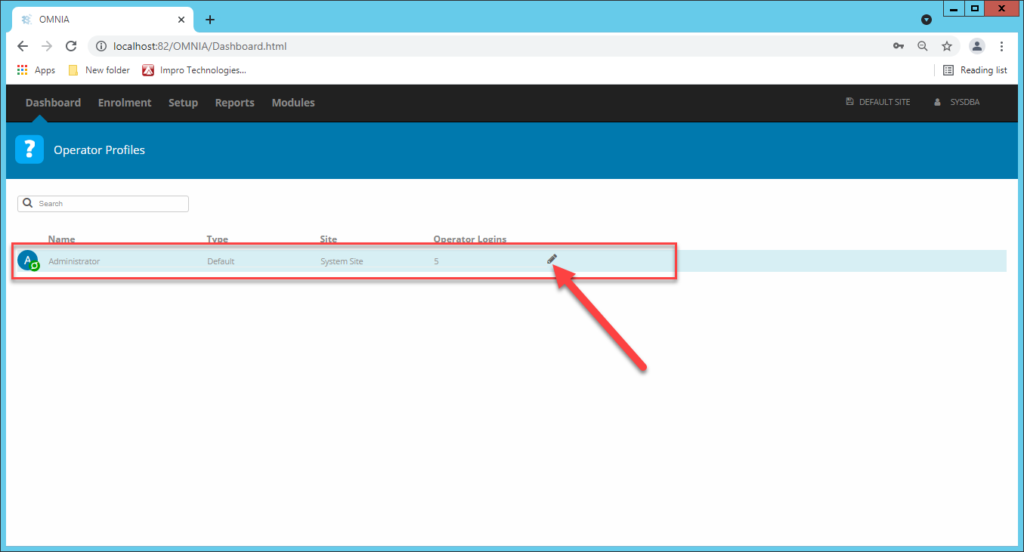
Choose Operator Profiles

Choose the Administrator Account, Click on Edit Pencil

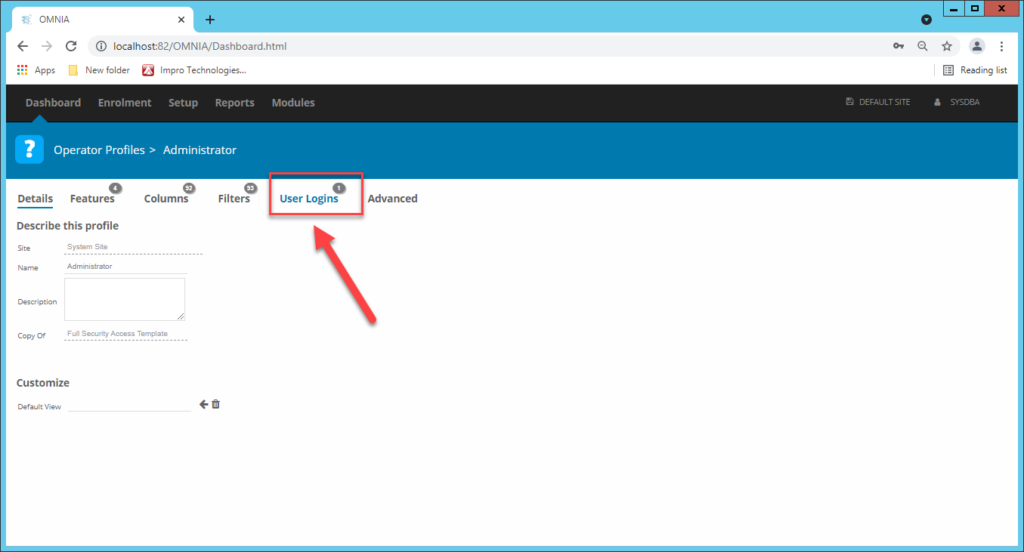
Select the User Logins Tab

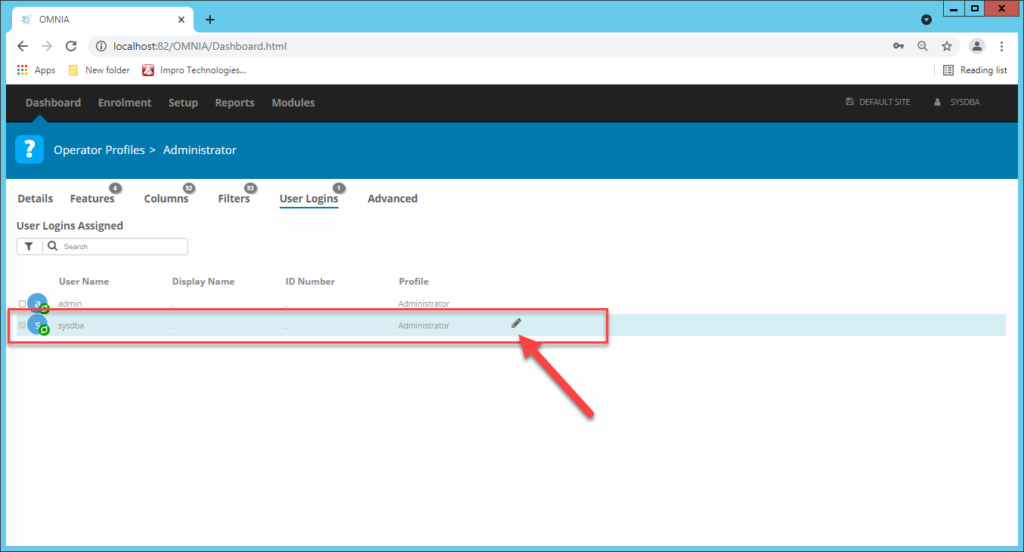
Select the SYSDBA account, click the Edit Pencil

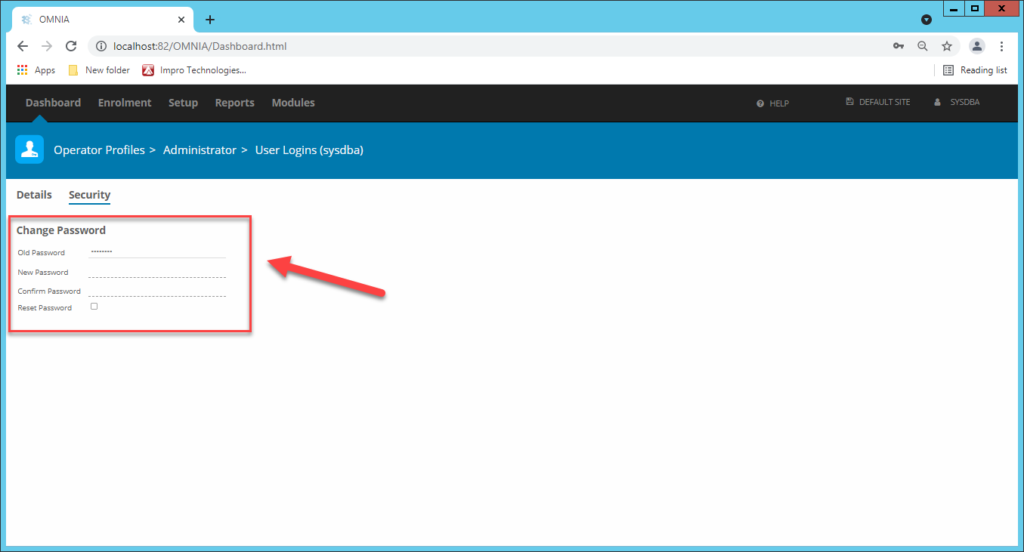
You will now be able to change the SYSDBA password.

Need further assistance?
Submit a Support Ticket

Submit a Support Ticket

FAQ

General

Technical Bulletins

Access Control

AmanoNet

Nexxus220

Omnia

Omnia Lite

PM Tronics Hardware

Amano Readers and Credentials

Legacy Hardware

Partner Products

Partner Products

Video Management Systems

Cathexis Video (Amano Vision)

AmanoDVMS

Vision

Door Does Not Open After Presentation To The Reader

Door Does Not Open After Presentation To The Reader

Tag/Finger does not open door

Using Events to Troubleshoot (Found in Dashboard > Transactions)

The Transaction page is a great place to do basic troubleshooting. When Tags don’t work, look at the event to determine the cause.

NOTE: On busy sites the transactions page might move too fast to see the problem event. In this case, run a Transaction Report on the Tagholder to see their latest events.

Here follows a list of denied events and their meaning…

Denied Location

Tag does not have access to that door.

Resolution:

Option 1: Select an Access Group in the Tagholders’ configuration page that includes that door.

Option 2 (Caution) Modify the assigned Access Group to include the desired door.

WARNING: Making changes to the area will affect all Tagholders using it.

Denied Time or Day

Tagholder’s access group does not include the time or day.

Resolution:

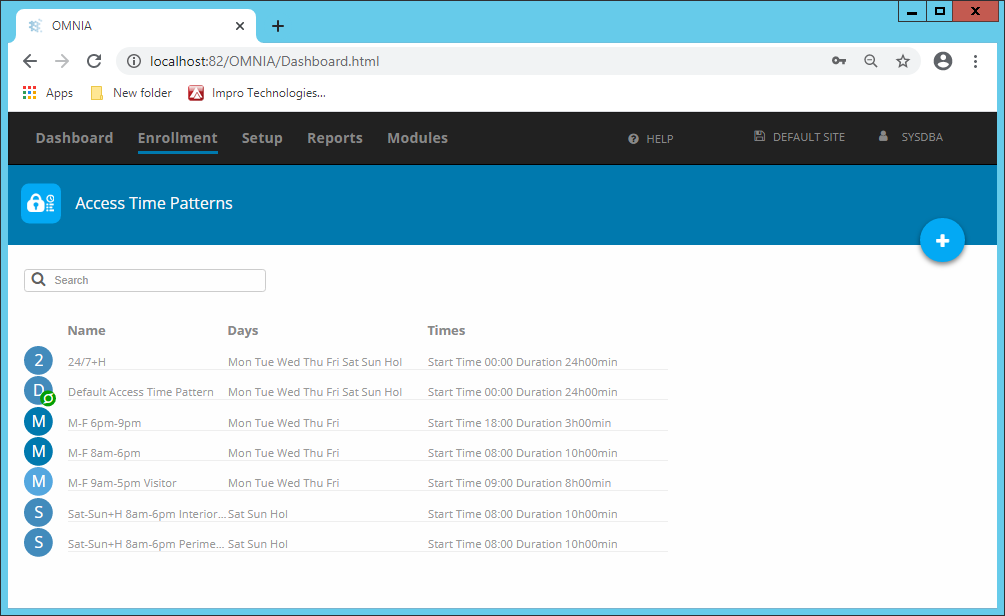
Option 1 Look at Enrollment > Access Time Patterns to adjust times/days, or grant the Tagholder an access group that contains a valid time pattern.

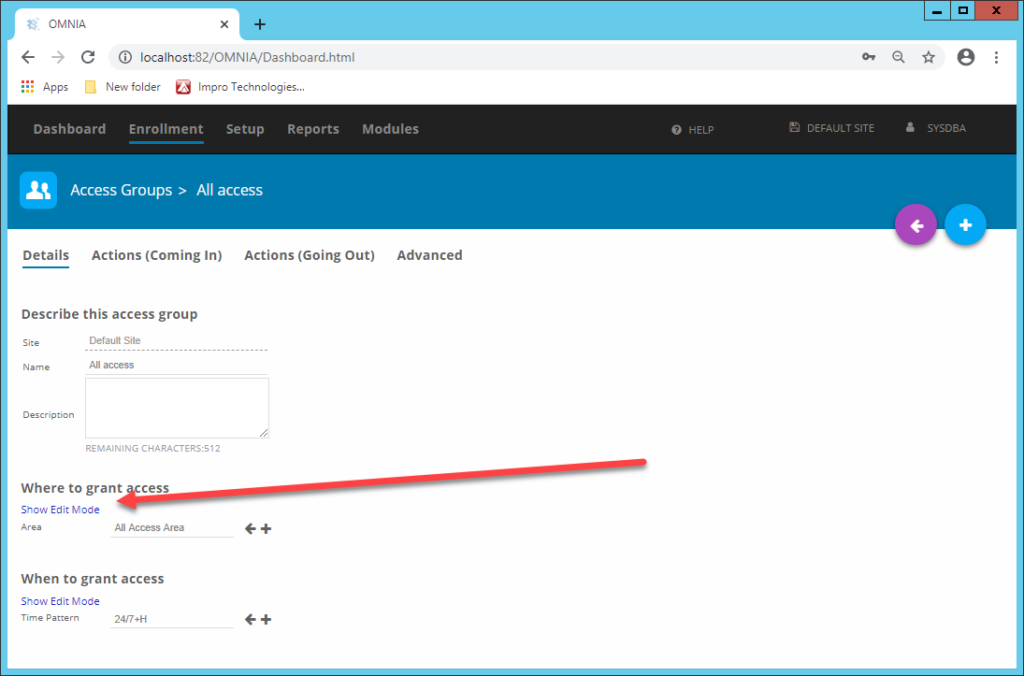
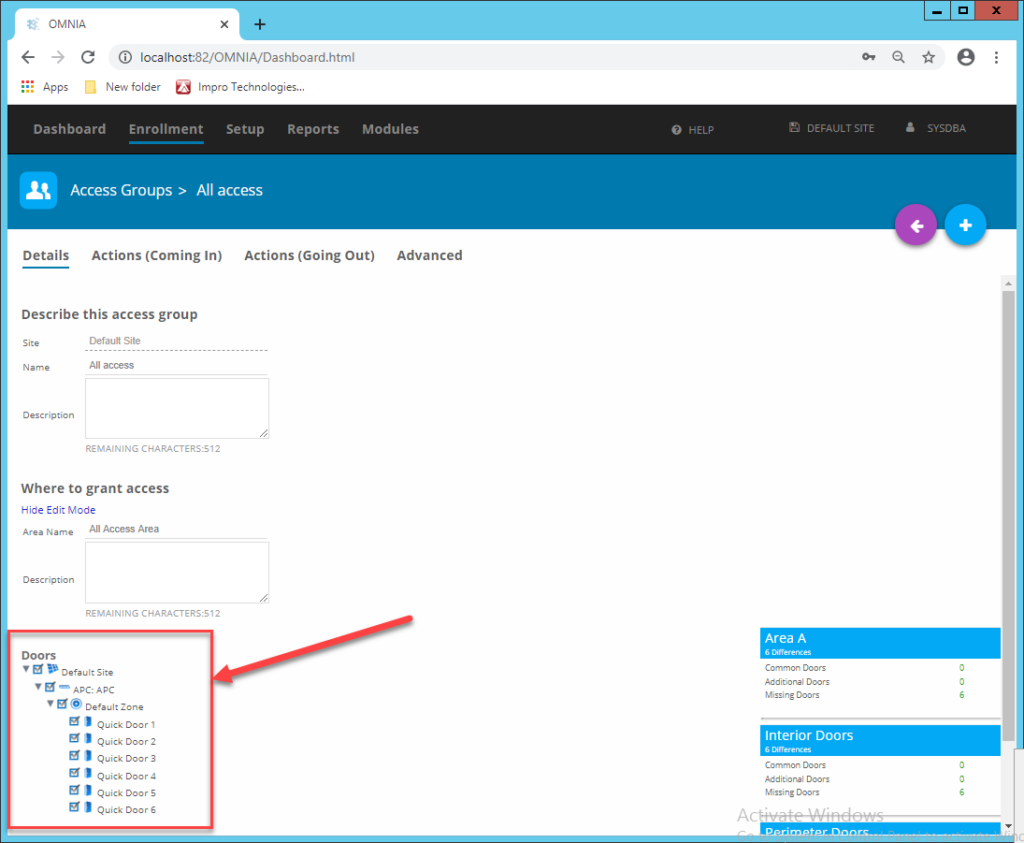
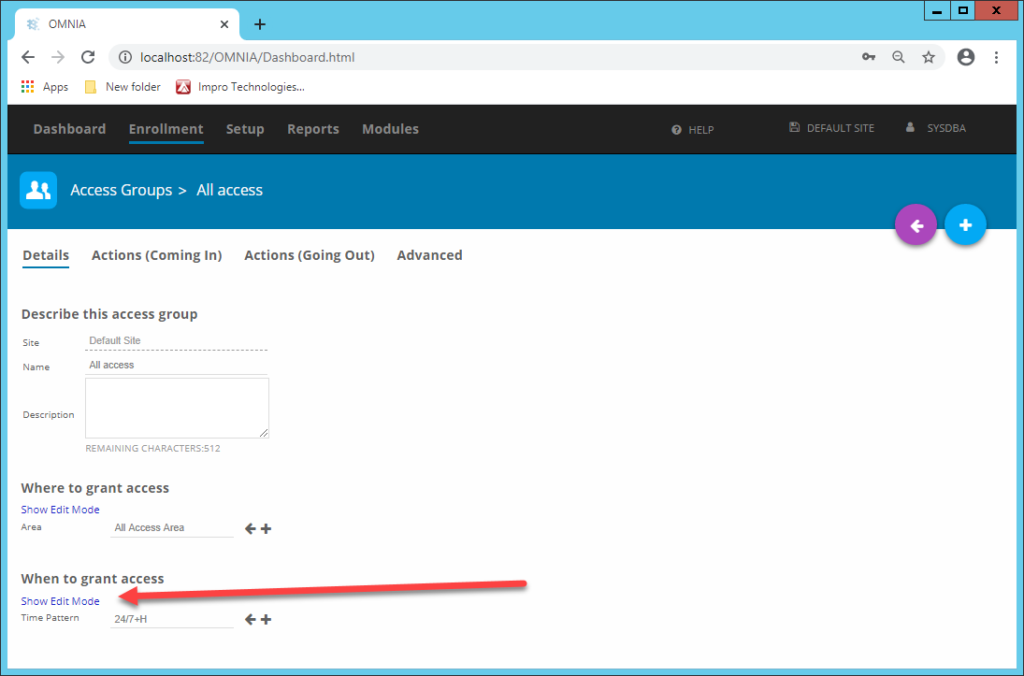
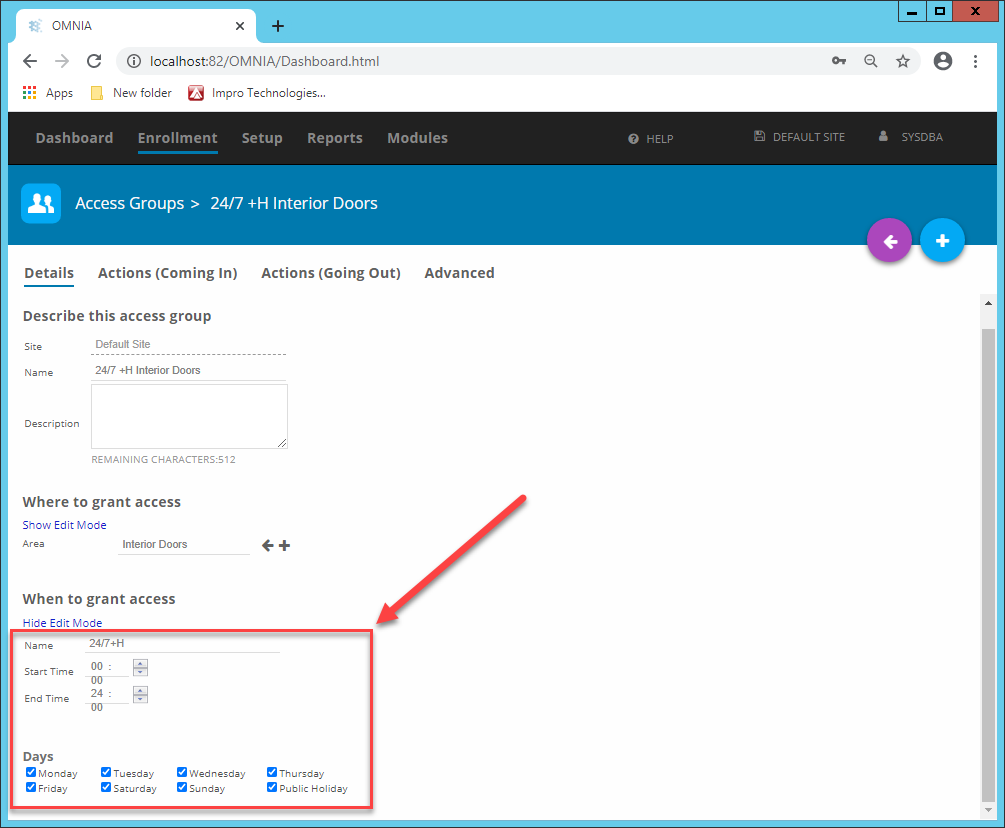
Option 2 Use the Show Edit Mode option found in Access Groups to see times assigned to the area, you can also make any required changes.

WARNING: Making changes to the access time pattern will affect all Tagholders using it.

Holidays can also cause denied time or day events. See if any holidays have been entered on the day of the denied event.

Denied APB

Tagholder needs to follow the rules of anti-pass-back (APB).

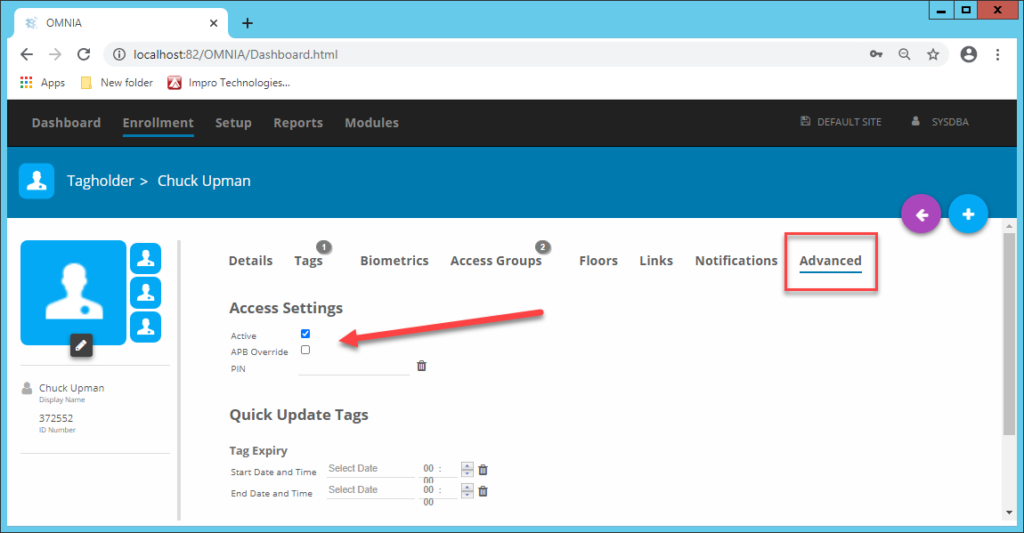
It is possible to override APB for individual Tagholders under Advanced in the Tagholder configuration. (Not Recommended)

Denied Tag Suspended

Tag is suspended.

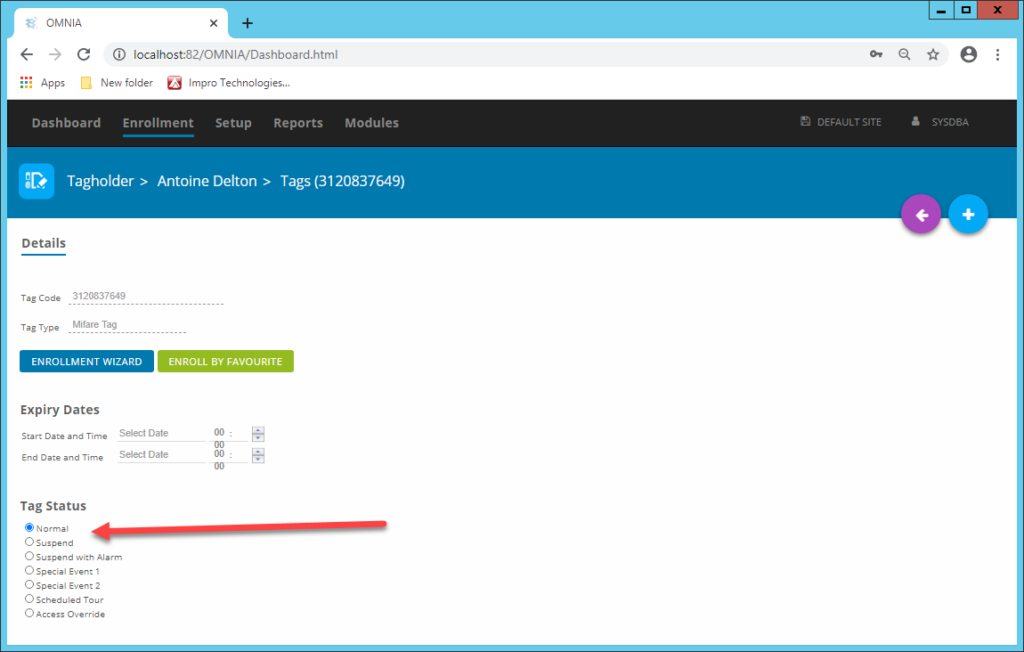
Open the Tag under the Tagholders configuration and set the Tag Status to Normal.

Denied Tag Expired

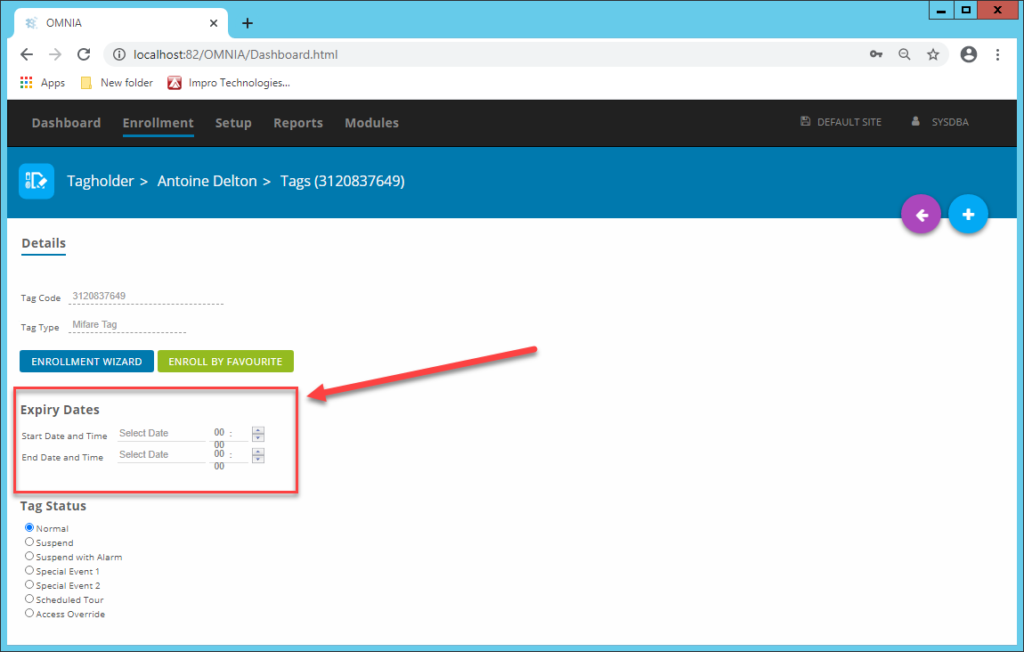
Tag has an expiry date entered. Configure expiry dates under the Tagholders configuration.

Denied Location Locked

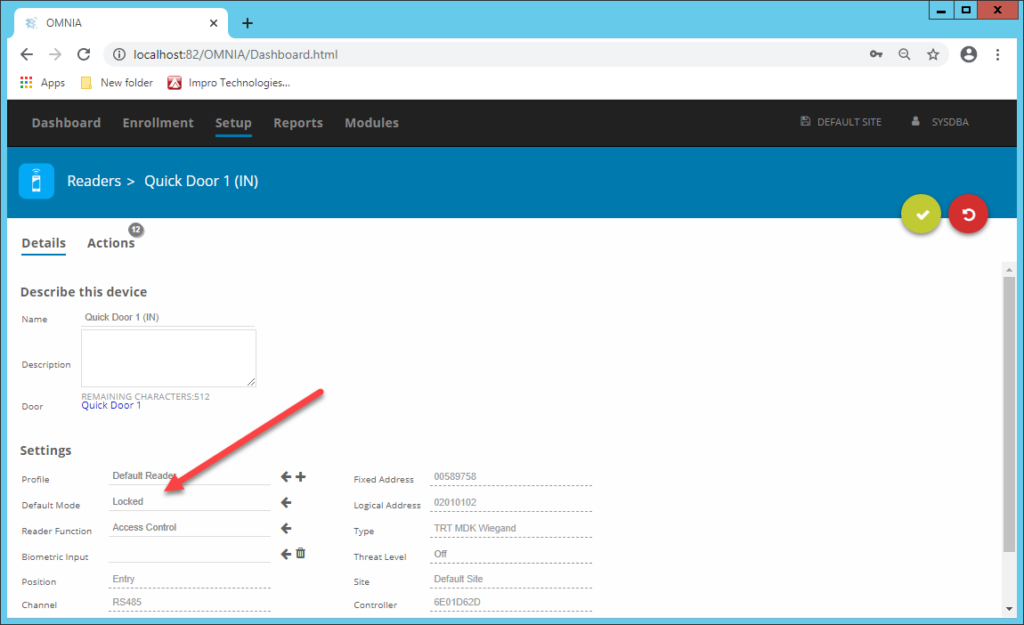
The default mode on the reader is set to Locked Or, there is a Device Time Pattern locking the reader.

Change the Default Mode on the Reader, If your log in prevents this: Contact the system administrator.

Denied Pin

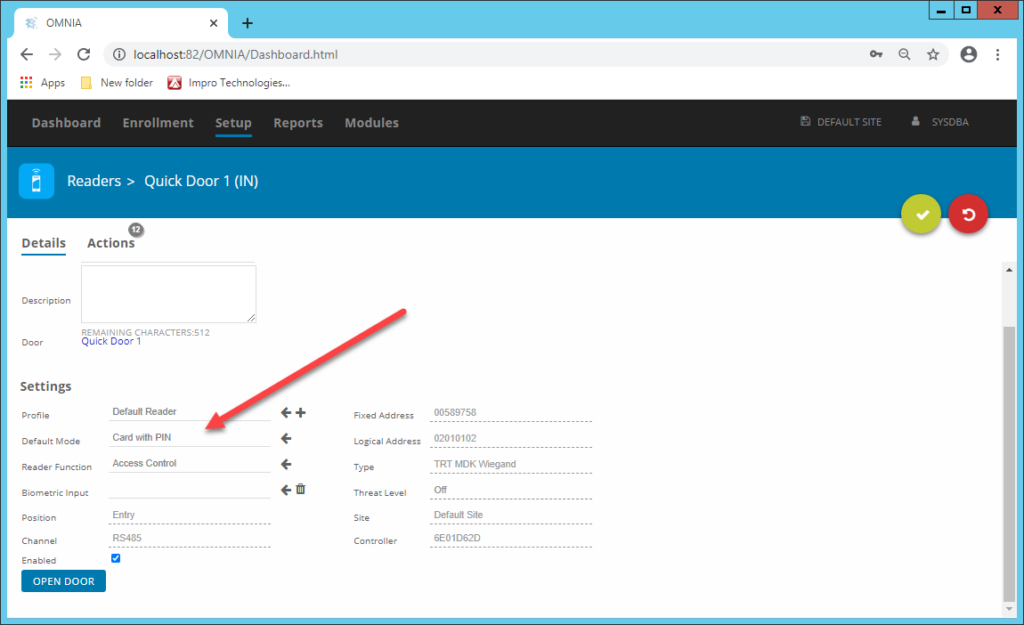
The default mode on the reader is set to Card with Pin, OR, there is a Device Time Pattern enforcing Tag with Pin.

During this mode, users need to enter a pin code AFTER presenting their credentials (There will be a short beep alerting you to enter a pin)

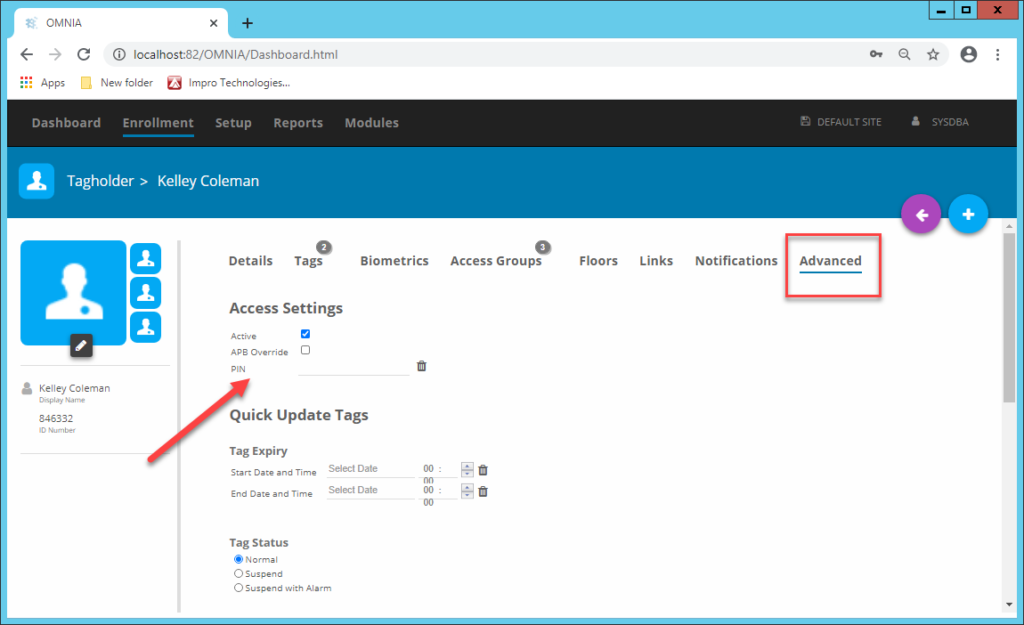
Pins can be assigned under the Advanced section in the Tagholder configuration.

Denied Unknown Tag:

Here are a few possible reasons for denied unknown tag events.

Denied unknown tag, and there is no name.

Tag has not been assigned to a Tagholder (New Tag)

Denied unknown tag, and there is a name.

The tag is assigned to the person but;

  • They don’t have an access group assigned (Assign at least one access Group)
  • The controller needs to sync (See Next Section)
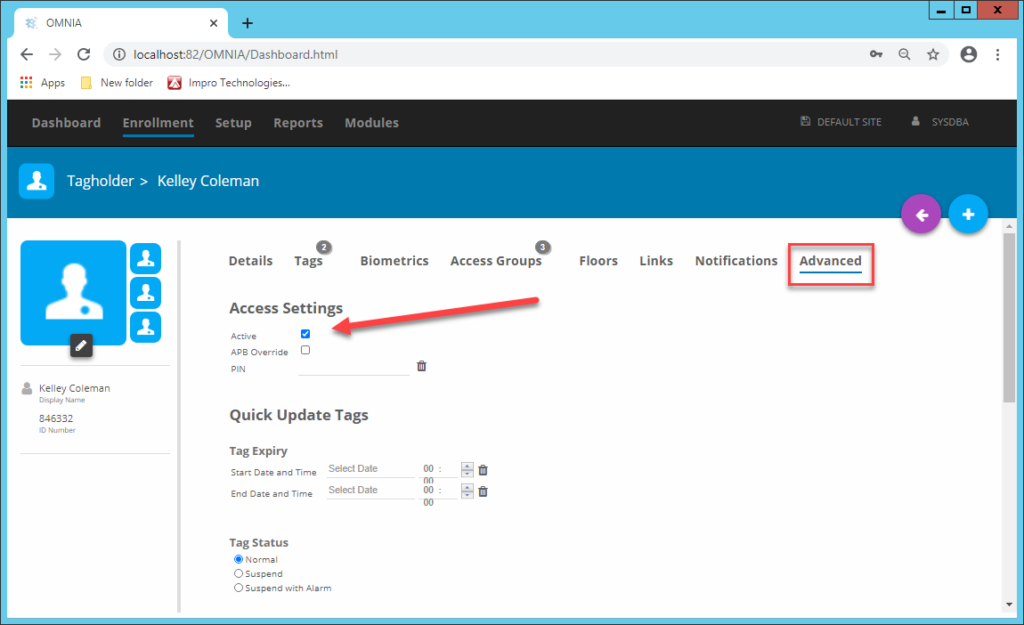
  • The Tagholder is non-current (Ensure that the current tick is active under Advanced in the Tagholders configuration page)

Need further assistance?
Submit a Support Ticket

Submit a Support Ticket

FAQ

General

Technical Bulletins

Access Control

AmanoNet

Nexxus220

Omnia

Omnia Lite

PM Tronics Hardware

Amano Readers and Credentials

Legacy Hardware

Partner Products

Partner Products

Video Management Systems

Cathexis Video (Amano Vision)

AmanoDVMS

Vision

Create a Site Lockdown Input for OMNIA

Create a Site Lockdown Input for OMNIA

Print Site wants a lockdown button  installed To Create an input that will lockdown the Site proceed as follows; 

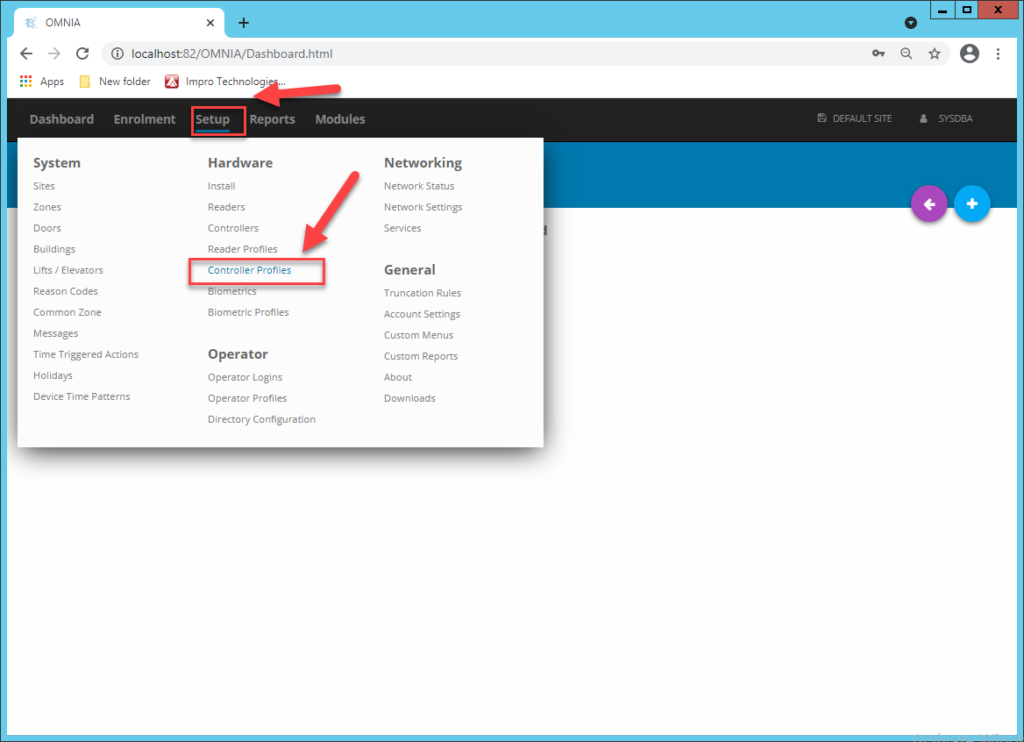
You will need to create an Action in the Controller Profiles, this action will affect all Terminals  Go to Setup/Controller Profiles

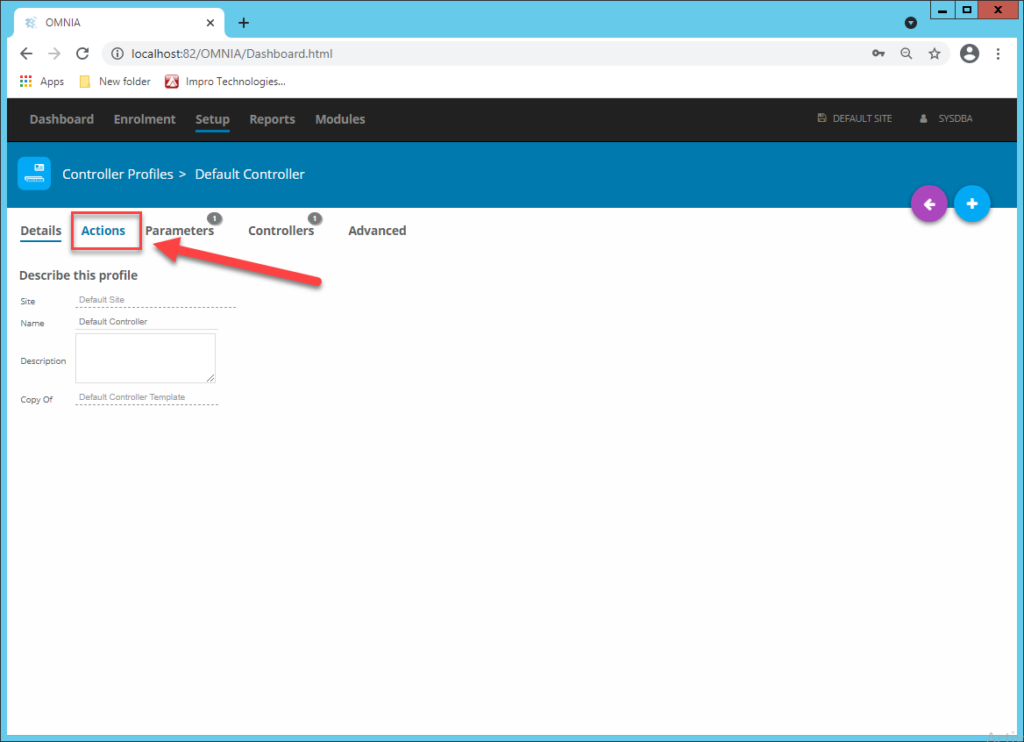
 Go to Actions, then Add Action

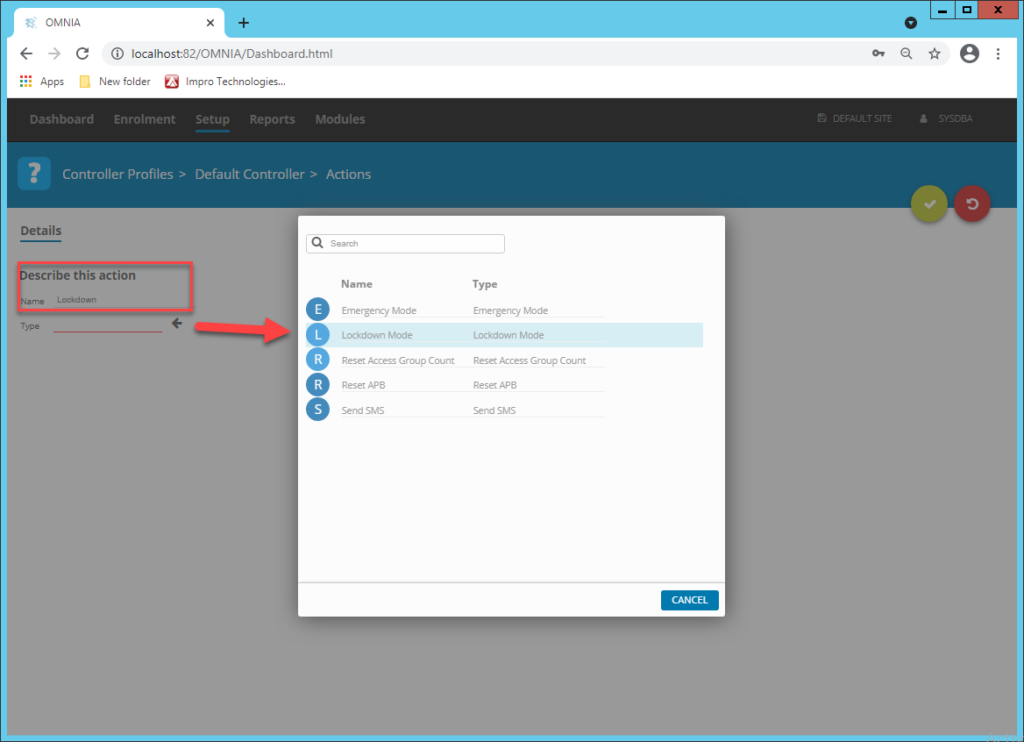
Describe the Action and Choose Lockdown Mode for the Type.  Click the Enabled Radio Button, Do Not Choose a Time Pattern.

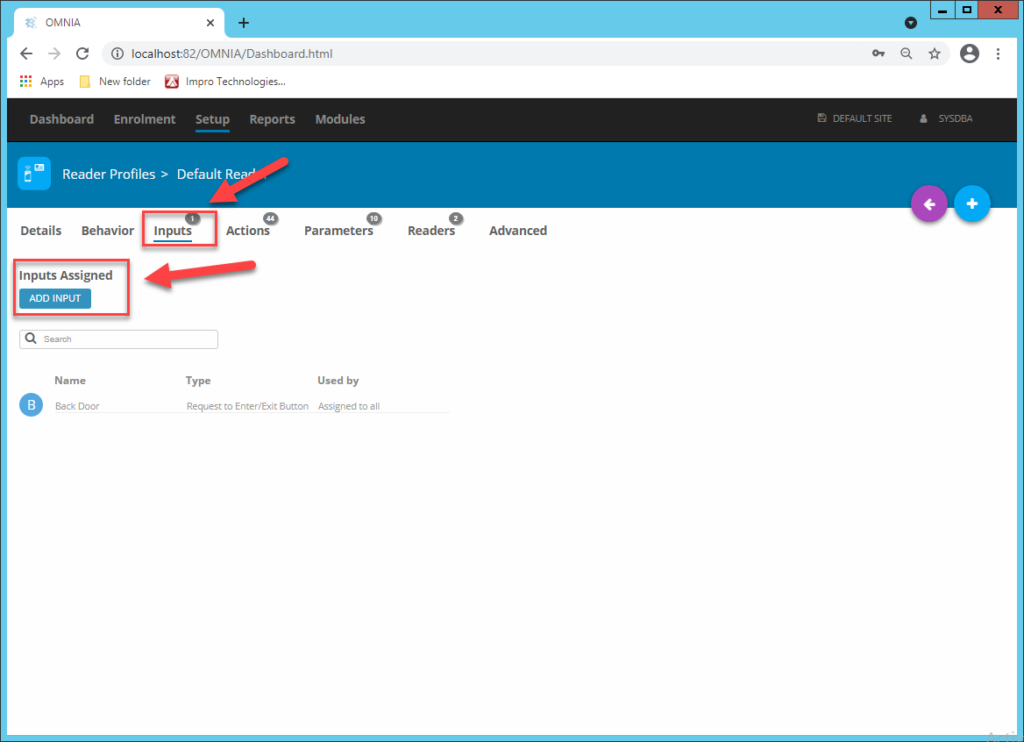
Now Create an Input in the Reader Profile where the Lockdown Input is wired to.  Either Input 1 or Input 2 depending on where the wires land Go to Setup/Reader Profiles/ Once in the Reader Profile, select the Inputs tab, create new input.

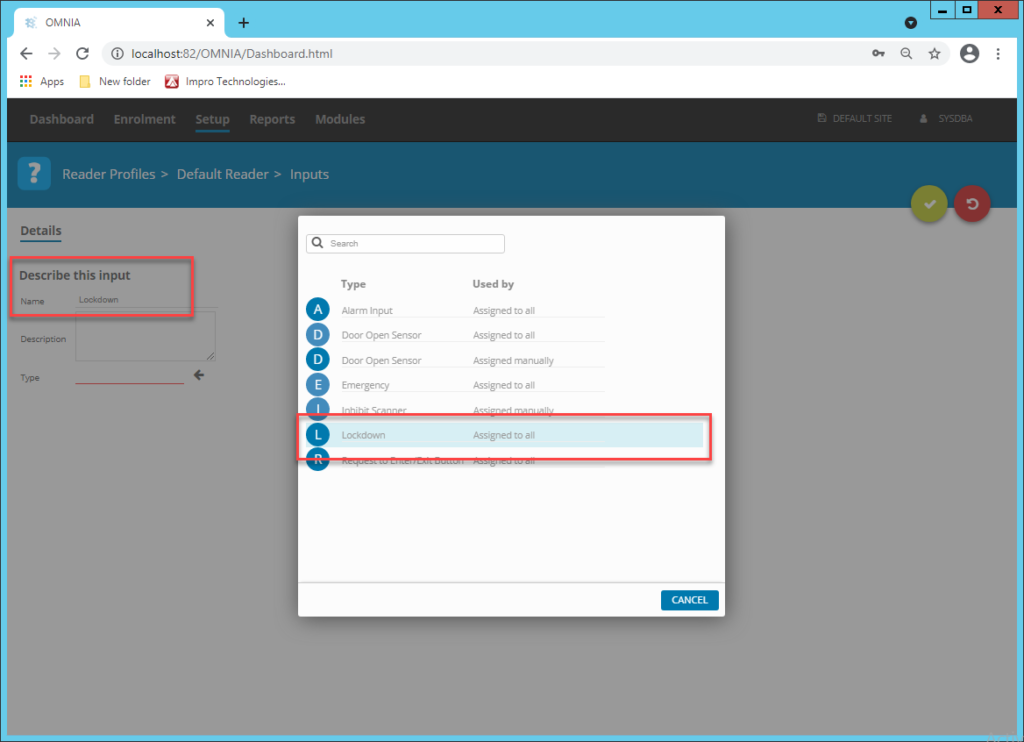
Name the Input Accordingly,  choose Lockdown as the Type.

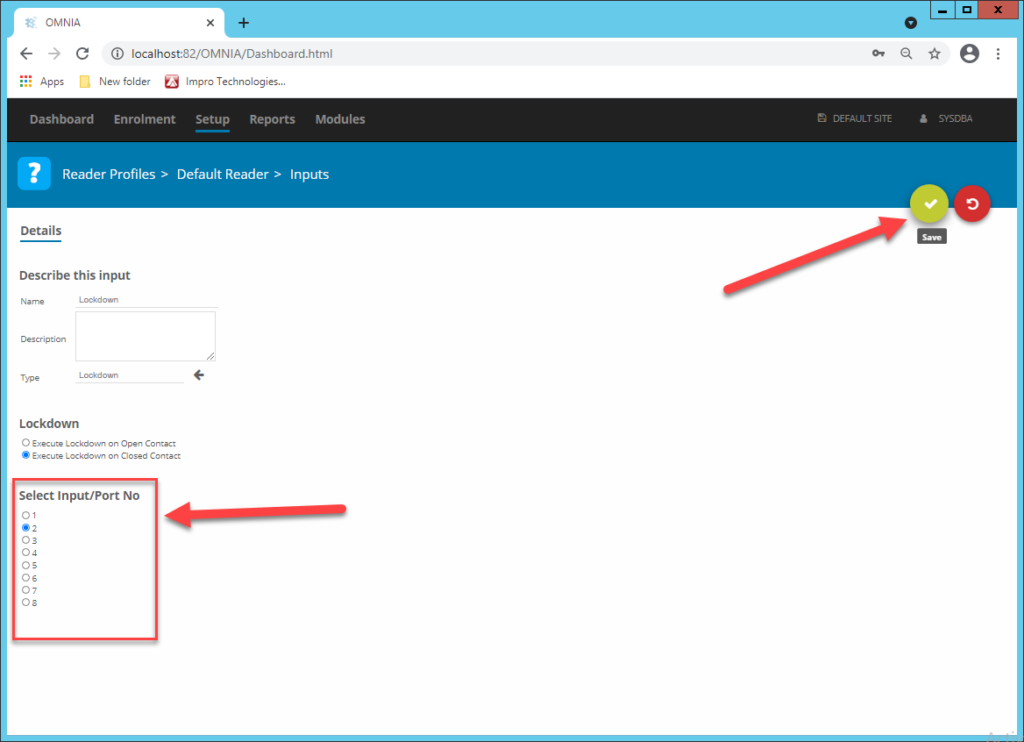
Make sure you are choosing the correct input, then save.

Your input button will now Trigger a Lockdown when pressed.

Need further assistance?
Submit a Support Ticket

Submit a Support Ticket

FAQ

General

Technical Bulletins

Access Control

AmanoNet

Nexxus220

Omnia

Omnia Lite

PM Tronics Hardware

Amano Readers and Credentials

Legacy Hardware

Partner Products

Partner Products

Video Management Systems

Cathexis Video (Amano Vision)

AmanoDVMS

Vision

OMNIA Tagholder Enrollment

OMNIA Tagholder Enrollment

Enrollment is the process of creating ‘Tagholders’ and assigning access credentials like; Tags or fingerprints.

Tagholders need to be assigned at least one Access Group in order to access specific doors.

  1. Create new Tagholder (Save)
  2. Add Image (Optional, but recommended)
  3. Add Tags
  4. Assign Access Groups

Adding a new Tagholder

A Tagholder is any person who uses a Tag or Fingerprint to access your site. 

OMNIA licensing will determine the maximum amount of Tagholders allowed per site. 

To add a new Tagholder

  • Navigate to Enrollment>Tagholders
  • Click on New
  • Fill in the compulsory fields ( First Name, Last Name, ID, Display Name)
  • Fill in any additional information (Contact info, Department, Company)
  • Save

Note: Only after saving will the Tags, access groups and photo options become available.

Adding Images

You will only be able to add pictures after saving a new Tagholder. Portal allows for 3 Images per person. These could include ID/Passport images

  • Click on the pencil icon
  • You can either browse to a saved picture or take new picture using a webcam
  • You can edit the image rotation and color settings by clicking on Edit Picture

Adding Tags

‘Tags’ are the credentials used by Tagholders to gain access to your site. Tags can be cards, keyring-fobs or fingerprints.

Note: The Tags option will only appear after you save the Tagholder’s compulsory fields.

Adding a new Tag:

  • Select the Tagholder and go to Tags
  • Click on ADD TAGS
  • Click on ENROLLMENT WIZARD
  • Click on Enroll Card
  • Choose Enrollment Option

Add start and end dates (Optional) Save. 

NOTE: You MUST have a start date to set an expiration date.

Assigning Access Groups

NOTE:  See Knowledge Base Article OMNIA Access Groups, Areas, and Device Time Patterns for Creating Access Groups.

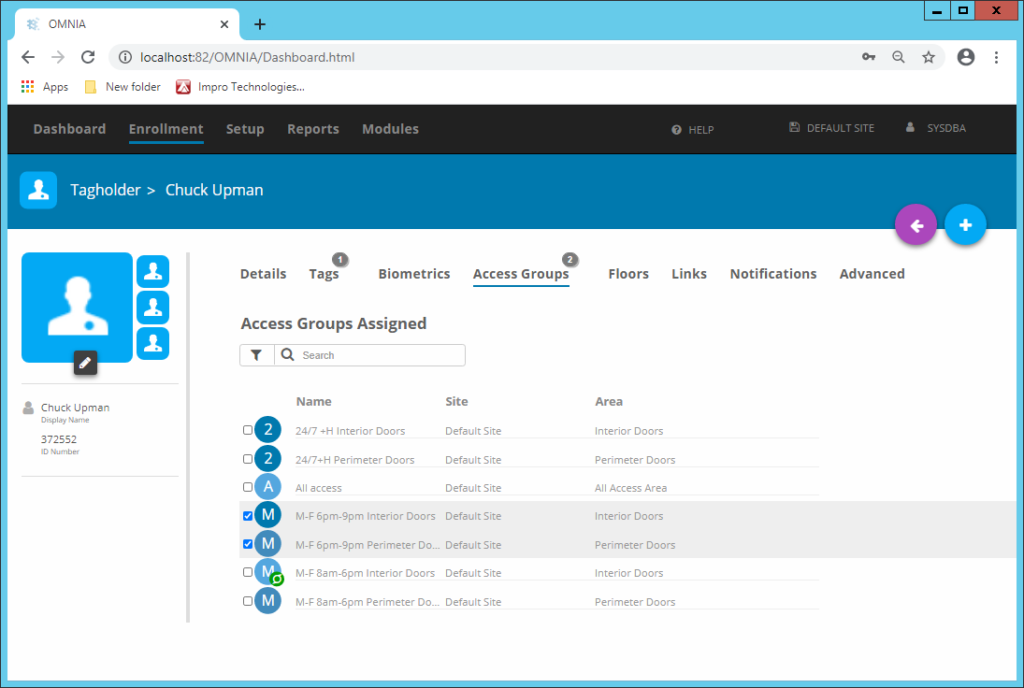
Access Groups determine where and when Tagholders have access, select the applicable Access Groups in their Tagholder configuration.

Select the Access groups applicable to the Tagholder.

Temporary access

To grant temporary access to a specific area, use the area expiry feature. This will disable the selected Access Group according to the end date.

Need further assistance?
Submit a Support Ticket

Submit a Support Ticket

FAQ

General

Technical Bulletins

Access Control

AmanoNet

Nexxus220

Omnia

Omnia Lite

PM Tronics Hardware

Amano Readers and Credentials

Legacy Hardware

Partner Products

Partner Products

Video Management Systems

Cathexis Video (Amano Vision)

AmanoDVMS

Vision

  • « Go to Previous Page
  • Page 1
  • Interim pages omitted …
  • Page 11
  • Page 12
  • Page 13
  • Page 14
  • Page 15
  • Interim pages omitted …
  • Page 23
  • Go to Next Page »
  • Facebook
  • LinkedIn
  • Twitter

PMT Security

Copyright © 2026 PMT Security, Inc. | All Rights Reserved