• Skip to primary navigation
  • Skip to main content
PMT Security Logo

PMT Security

Advanced Access Control

  • Home
  • About Us
    • Our Partners
    • Our Integrators
  • Solutions
    • Education
    • Retirement & Healthcare
    • Manufacturing
    • Government Facilities
    • Residential
    • Retail Businesses
    • Campgrounds & Outdoor Resorts
  • Products
    • Access Control
      • Control Features
      • Reporting & Monitoring
      • Control Module
      • Digital IO Module
      • Reader Module
      • Readers
    • Video Management
      • Integration
      • Analytics
      • Search & Export
    • Visitor Management
    • Intercom
    • Live Guard Video Monitoring
    • Housings & Pedestals
  • Support
    • Knowledgebase
    • Download Center
    • License Request
    • RMA Request Form
  • Blog
  • Contact Us

Security Best Practices & Support

IDEMIA Sigma Lite Readers NOT compatible for use in AmanoNet or Nexus220

IDEMIA Sigma Lite Readers are NOT compatible for use in AmanoNet or Nexus220

IDEMIA Sigma Lite Readers cannot be used in Nexus220 and AmanoNet (Legacy Mode)

IMPORTANT: IDEMIA Sigma Lite Firmware is no longer able to be downgraded into any legacy mode firmware

IDEMIA Sigma Lite Biometric readers are no longer able to be downgraded into Legacy Mode.

SIGMA Range
End of compatibility of Firmware: Legacy Morpho 2G and BioScrypt 4G


October 2021
In 2014, SIGMA range has introduced the 5G mode related to database structure and configurations with software, as a renewed basis to bring always more innovation and value to our customers. To provide continuity in Morpho (2G mode) and Bioscrypt (4G mode) installations and enable a smooth migration to SIGMA Range, IDEMIA has been developing specific firmware versions for the SIGMA range, called Legacy Firmware. This allows a new SIGMA terminal to be compatible with previous generations of terminals in 2G or 4G modes: when the administrator configures a SIGMA terminal in any of the Legacy firmware, it supports the database structures and configurations of the selected legacy terminal and software.
After 7 years providing and supporting migration, IDEMIA is now removing the Legacy Firmware from its portfolio. It will no longer be possible to install a Legacy firmware on a new SIGMA device starting January 2022.

Consequently, the following firmware versions will be discontinued on Jan 1st 2022:

  1. SIGMA Wide Firmware-upgrade-masigma_MA2G.4.9.8-prod.bin Firmware-upgrade masigma_MA4G.4.9.8-prod.bin
  2. SIGMA Lite Firmware-upgrade- malite_MA2G.4.9.8-prod.bin Firmware-upgrade- malite_MA4G.4.9.8-prod.bin
  3. SIGMA Lite+ Firmware-upgrade- malite-plus_MA2G.4.9.8-prod.bin Firmware-upgrade- malite-plus_MA4G.4.9.8-prod.bin
  4. SIGMA Extreme Firmware-upgrade-maxt_MA2G.4.9.8-prod.bin Firmware-upgrade-maxt_MA4G.4.9.8-prod.bin


In January 2022, the situation will be the following:
Will my Morpho or Bioscrypt legacy installation continue to work?
Yes – your installation will still be active as per current performances.
Is my Morpho or Bioscrypt legacy installation supported by IDEMIA?
No – As stated in the Maintenance and Support policy (October 2020), no more firmware nor software evolution will be performed. Support and repair activity is limited to legacy installations currently covered by a maintenance contract.

Will I be able to introduce a new SIGMA device into my BioScrypt legacy installation?
No – The SIGMA terminals purchased after January 2022 will not be compatible with the legacy Firmware versions
listed in the table above and Secure Admin software range is no more supported.

In case of failure of a SIGMA device loaded with a legacy firmware, will IDEMIA be able to repair it?
Yes – Please call Customer Care Center and mention which Legacy firmware is used. After repair, IDEMIA will return the device loaded with legacy firmware 4.9.8. From January 2024, repair feasibility will be evaluated case-by-base.

Need further assistance?

Submit a Support Ticket

Submit a Support Ticket

FAQ

General

Technical Bulletins

Access Control

AmanoNet

Nexxus220

Omnia

Omnia Lite

PM Tronics Hardware

Amano Readers and Credentials

Legacy Hardware

Partner Products

Partner Products

Video Management Systems

Cathexis Video (Amano Vision)

AmanoDVMS

Vision

Using Contextual Help and Key Assist For Nexus220

Using Contextual Help and Key Assist For Nexus220

The Nexus 220 System has integrated WebHelp.

Information is covered in detail in the WebHelp. Activate the WebHelp from the Menu Bar as follows:

  • In the Computer running the Nexus220 Software, Launch Nexus220.exe as Administrator
  • From the Menu Bar select Help Topics > Online Help.

The Context Sensitive WebHelp provided with the Nexus220 Software works with your positioned Mouse Pointer (or cursor) on your screen. For example if you place your Mouse Pointer in the Viewer Pane, WebHelp opens Context Sensitive WebHelp specific to the Viewer Pane. If, however, you want WebHelp specific to the active Configuration Pane, continue as follows:

  • Move your Mouse Pointer into the Configuration Pane.
  • Anchor your Mouse Pointer by clicking the left-hand mouse button giving the Pane focus.
  • Press the F1 key on your keyboard.

Key Assist

The Nexus220 Base Application also includes Key Assistance. Selecting the Key Assist option opens an area on the right-hand side of the Base Application’s desktop. This area displays a list of keyboard shortcuts letting you quickly move between the Page Tabs. The final option in the Key Assist Area (System Navigation) opens the System Navigation dialog. This dialog allows quick navigation through System related functions.

Get Key Assistance as follows:

  • Launch the Nexus220 Software
  • From the Menu Bar select Help Topics > Key Assist.

Need further assistance?
Submit a Support Ticket

Submit a Support Ticket

FAQ

General

Technical Bulletins

Access Control

AmanoNet

Nexxus220

Omnia

Omnia Lite

PM Tronics Hardware

Amano Readers and Credentials

Legacy Hardware

Partner Products

Partner Products

Video Management Systems

Cathexis Video (Amano Vision)

AmanoDVMS

Vision

Reduce length of time on buzzer for readers in Nexus220

Reduce length of time on buzzer for readers in Nexus220er

You can reduce the length of time or turn off the buzzer is on during an Allowed or Denied in transaction.  

NOTE: In cases where there is a third-party or non MDR/MDK reader in Multi Discipline mode, you will only be able to reduce the time to a short beep.  Also, key presses are not affected with this parameter.

  1. To change the buzzer length, navigate to the door you want to update and select the door name.
  2. On the right, select the Entry or Exit reader tab, depending on which reader you want to change.
  3. On the far right, you can update the time in the buzzer duration fields for valid and/or invalid tag reads.  Time is in 1/10th of a second increments. (i.e. 20 is 2.0 seconds.
  4. Click the green check to save changes.

Need further assistance?
Submit a Support Ticket

Submit a Support Ticket

FAQ

General

Technical Bulletins

Access Control

AmanoNet

Nexxus220

Omnia

Omnia Lite

PM Tronics Hardware

Amano Readers and Credentials

Legacy Hardware

Partner Products

Partner Products

Video Management Systems

Cathexis Video (Amano Vision)

AmanoDVMS

Vision

How to get a copy of a database from Nexus220 Software

How to get a copy of a database from Nexus220 Software

Steps to get a copy of working database from Nexus220

  1. Go into Services, Stop the Firebird Service
    • Right Click, choose Stop Service
  2. Go into C:\Nexus220\database
    • Find the Database with the name DB220.FDB
    • Right Click and choose copy, then Paste a Copy of Database in desired location
    • Right Click and choose Paste
  3. Go back into Service, Start the Firebird Service

Need further assistance?
Submit a Support Ticket

Submit a Support Ticket

FAQ

General

Technical Bulletins

Access Control

AmanoNet

Nexxus220

Omnia

Omnia Lite

PM Tronics Hardware

Amano Readers and Credentials

Legacy Hardware

Partner Products

Partner Products

Video Management Systems

Cathexis Video (Amano Vision)

AmanoDVMS

Vision

How to set OMNIA Access Groups, Areas, and Device Time Patterns

OMNIA Access Groups, Areas, and Device Time Patterns

OMNIA Access groups is the feature that determines where and when people have access.

OMNIA Access groups are made up of three main components;

  1. Areas (Where people have access)
  2. Time Patterns (When people have access)
  3. Holidays (Control access on public holidays)
OMNIA - Enrolment - Access Groups

Creating Access Groups in OMNIA

  • Set up different Areas according to your requirements
  • Set up Access Time Patterns according to your requirements
  • Enter any relevant public holidays
  • Create Access Groups by linking Areas with Access Time Patterns

Area + Time Pattern = Access Group

Areas in OMNIA

Areas determine the doors people have access to. Create different areas for each department in your facility and select the doors that will be available to that Area

How to create a new Area

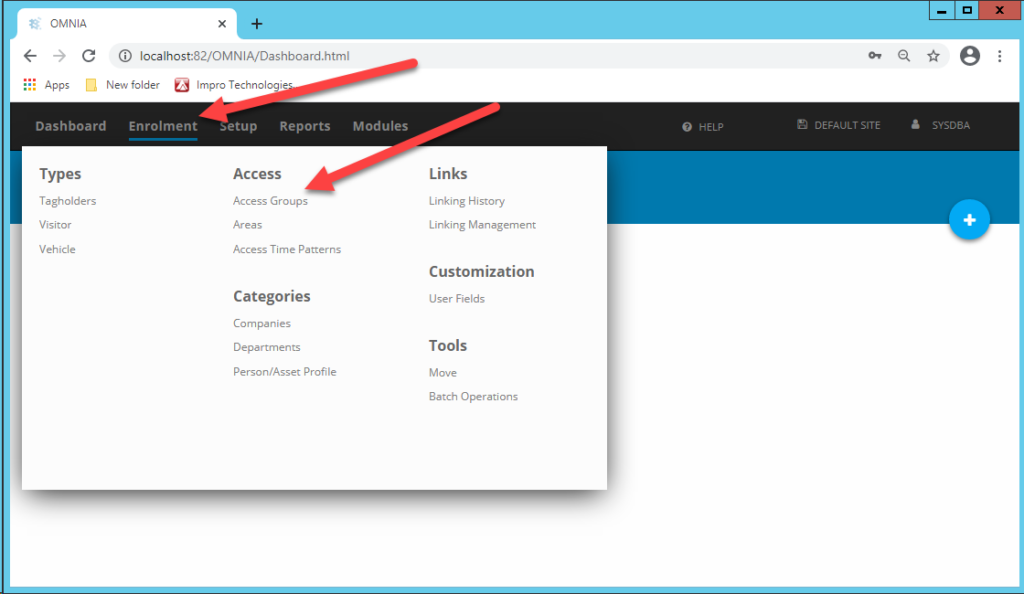
  • Navigate to Enrollment > Access > Areas
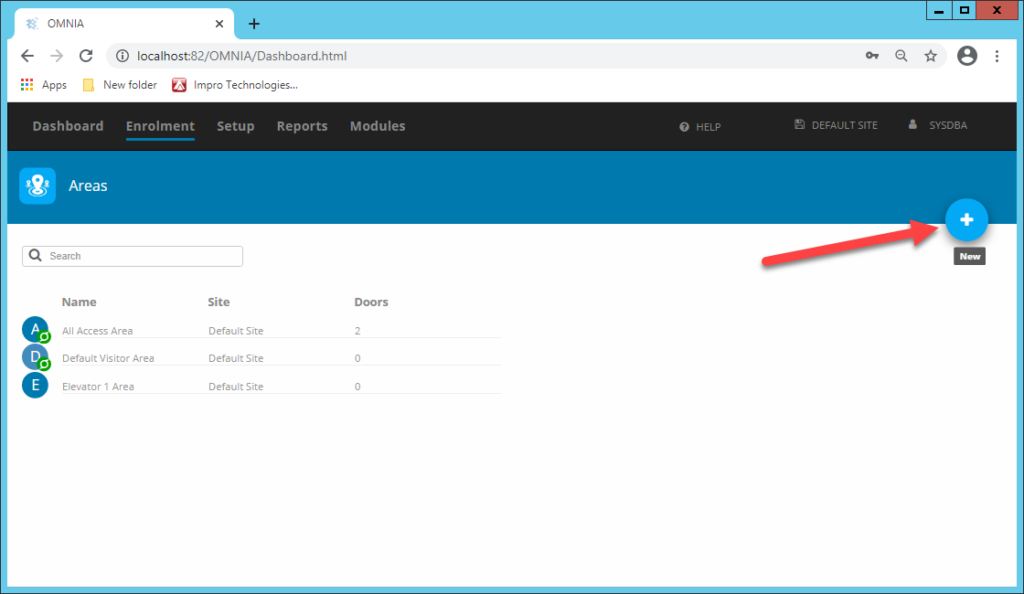
  • Click on the blue + to create a new Area
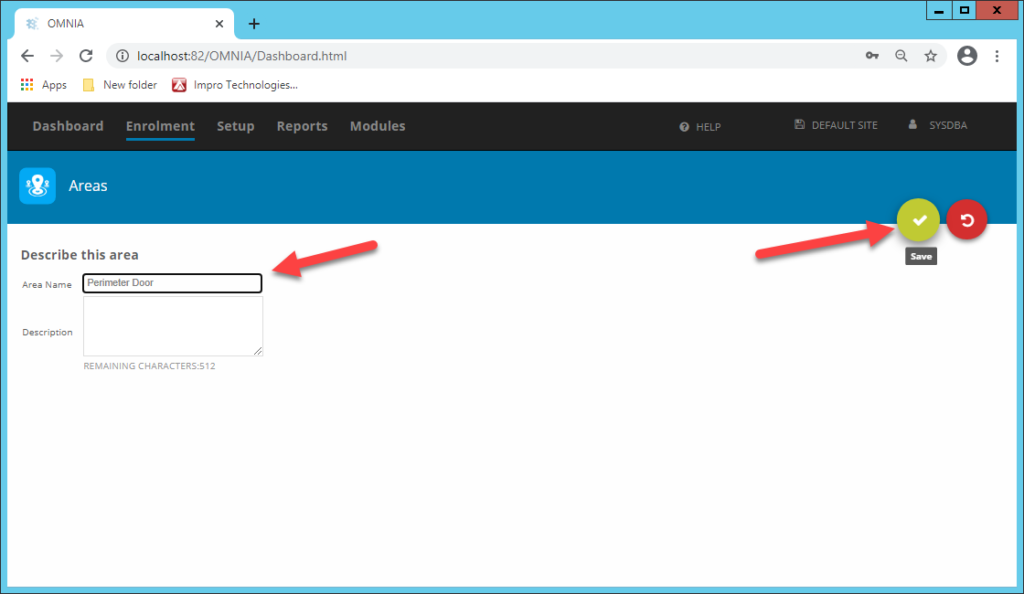
  • Give the area a descriptive name
  • Save by clicking Green Check
In OMNIA navigated to Enrollment, select Access, then select Areas, click the blue '+' symbol to create a new Area.
Describe the Area and Save
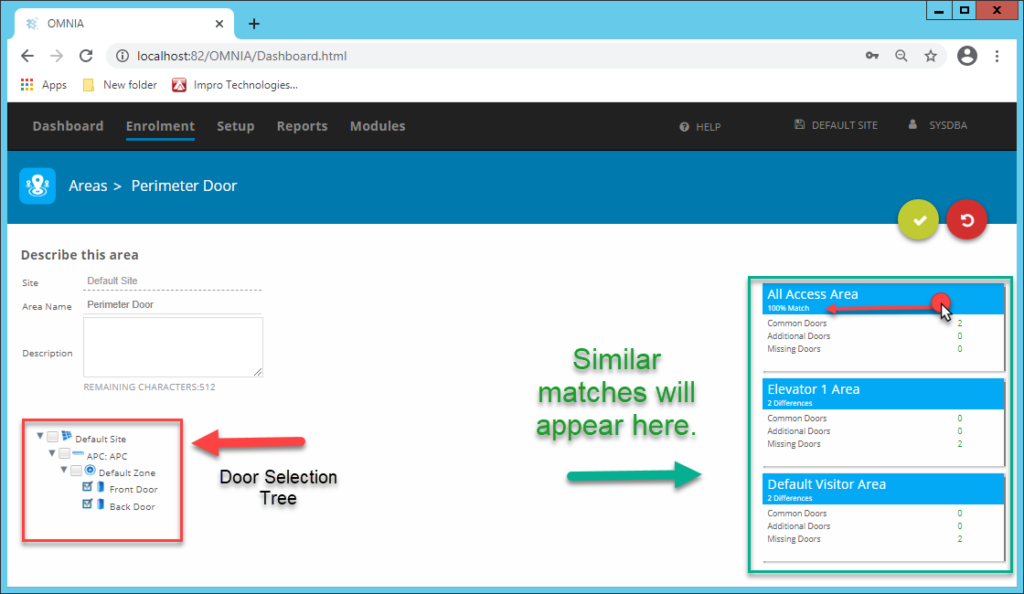
  • Expand the Door Selection Tree
  • Select the doors that will be accessed
  • Save
Expand the Door Selection Tree, Select the doors that will be accessed in this area and save again.

Similar matches

Avoid creating duplicate areas by looking at Similar Matches. Duplicate areas in the database would create an untidy system.

If you have a 100% match with an existing area, consider using that Area instead of creating a new one.

Access Time Patterns

Access Time Patterns determine the times when people have access. Create different time patterns for each department in your facility.

How to create a new Access Time Pattern

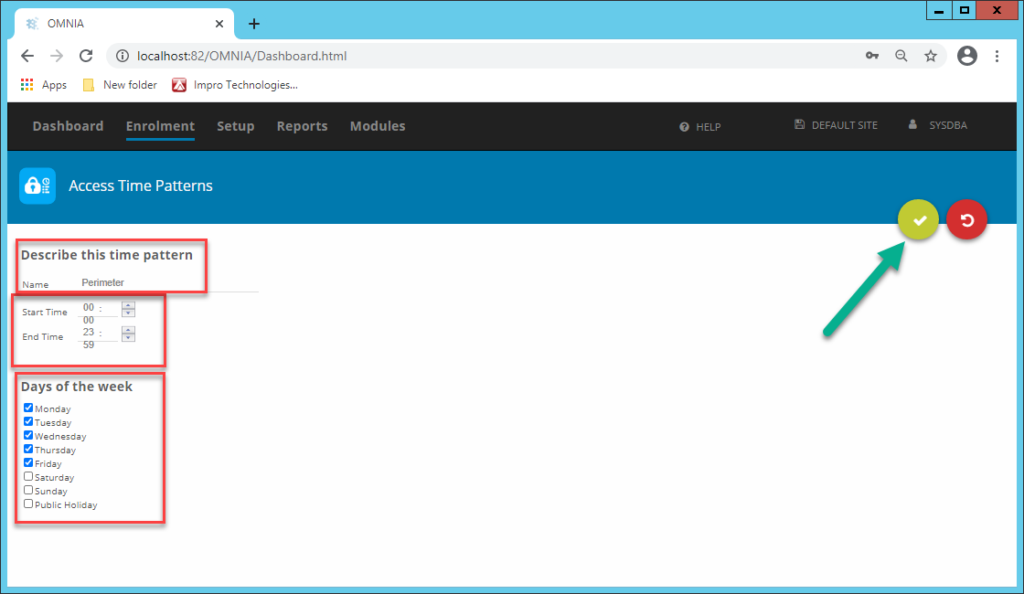
Navigate to Enrollment > Access Time Patterns

  • Click on the blue + to create a new Access Time Pattern
  • Give the pattern a descriptive name
  • Choose the start time
  • Choose the end time
  • Select the days of the week
  • Save
In OMNIA to create a new Access Time Pattern, navigate to Enrollment, Select Access Time Patterns, select the blue '+' to create a new Access Time Pattern. Describe the time pattern, select your start and end times, select the days of the week and then save using the green check mark button.

Holidays can be used to control access on public holidays.

Holidays are not set up automatically. Enter all relevant public holidays during the beginning of each year.

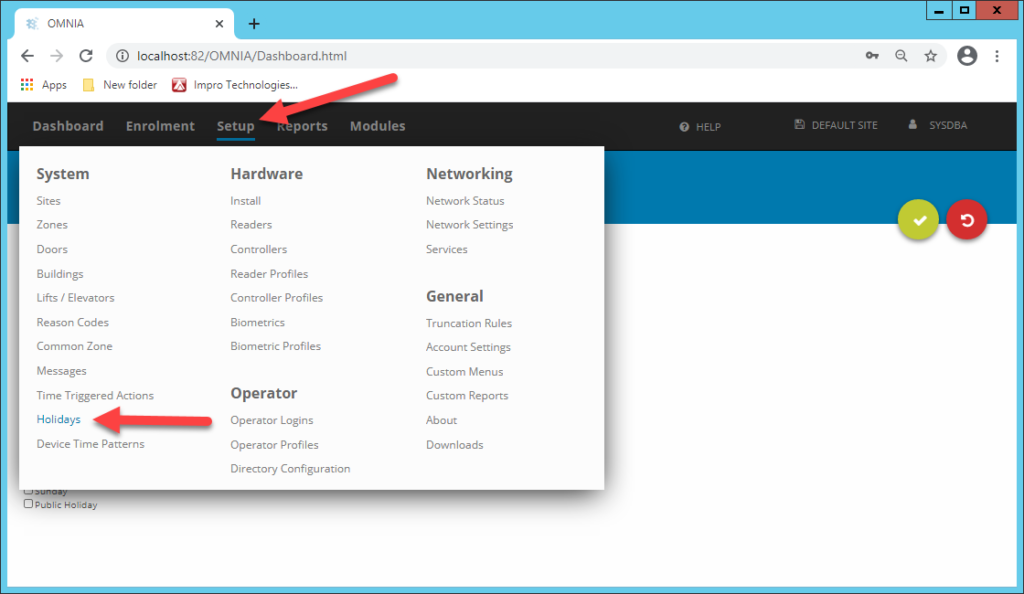
How to set up holidays in OMNIA

  • Navigate to Setup > System > Holidays
How to set-up holidays in OMNIA, navigate Setup > Systems > Holidays
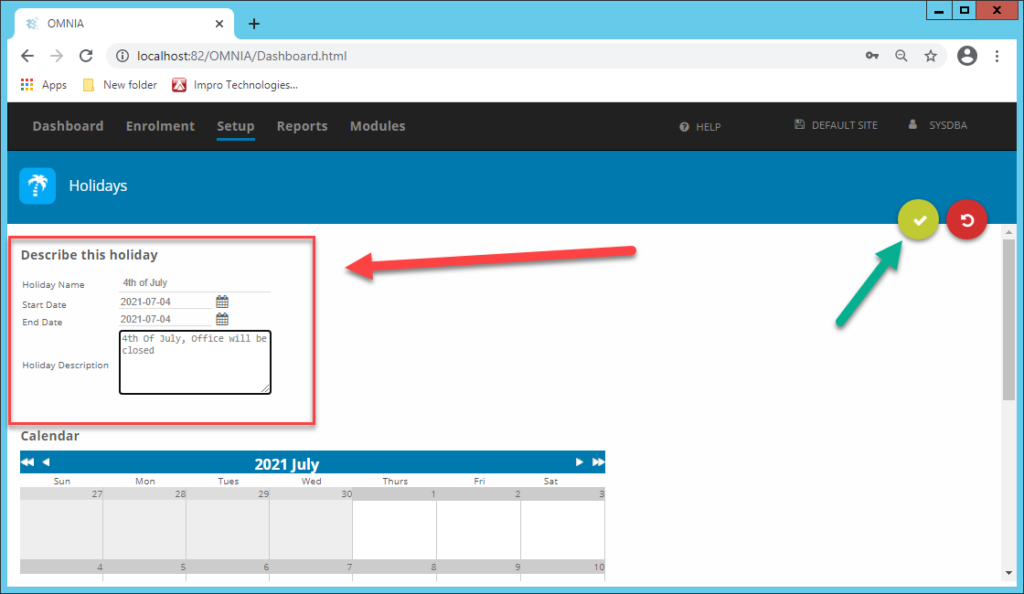
Select '+' to create a new entry.
  • Click on + to create a new entry
  • Give the holiday a descriptive name
  • Choose the start date
  • Choose the end date
  • Enter a description (Optional)
  • Save
Describe the holiday, select start and end date, and save using green check mark button.

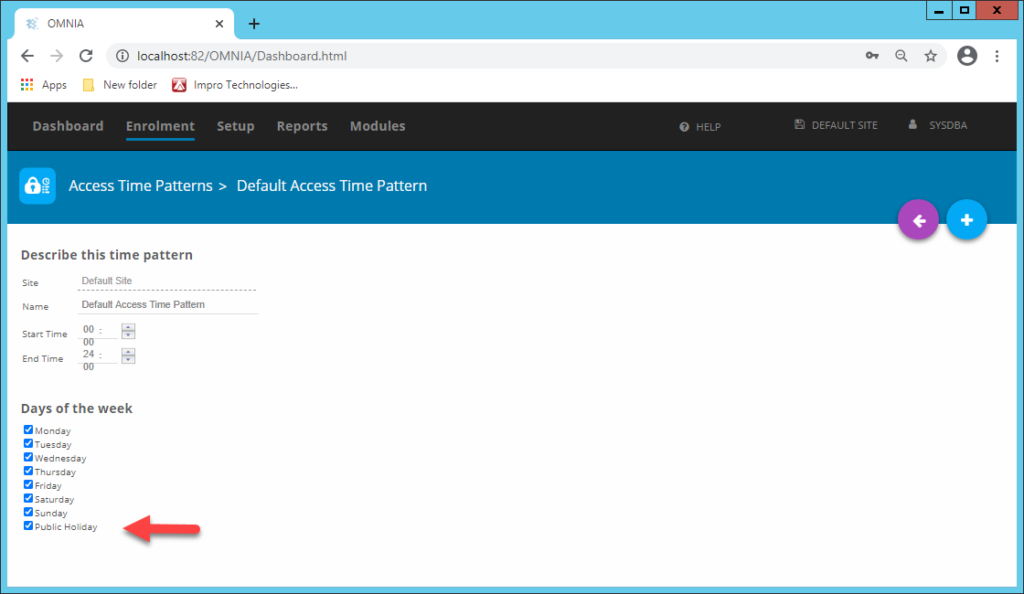
To control access on holidays, use the Public Holiday tick found in Access Time Patterns

To control access on holidays, use the Public Holiday tick found in Access Time Patterns.

Holiday Report

For a quick report on which holidays have been set up, run a holiday report under Reports

Enrollment

Enrolment is the process of creating ‘Tagholders’ and assigning access credentials like; Tags or fingerprints.

Tagholders need to be assigned at least one Access Group in order to access specific doors.

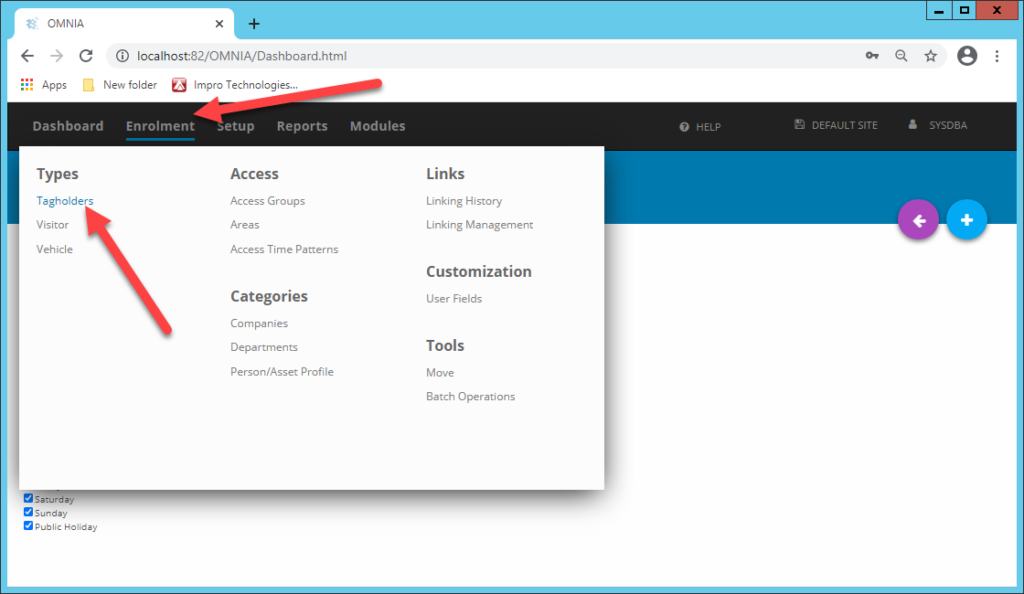
Tagholders need to be assigned at least one Access Group in order to access specific doors. To create a new Tagholder, navigate to Enrolment > Tagholders
  1. Create new Tagholder (Save)
  2. Add Image (Optional, but recommended)
  3. Add Tags
  4. Assign Access Groups

Adding a new Tagholder in OMNIA

A Tagholder is any person who uses a Tag or Fingerprint to access your site. 

OMNIA licensing will determine the maximum amount of Tagholders allowed per site. 

To add a new Tagholder

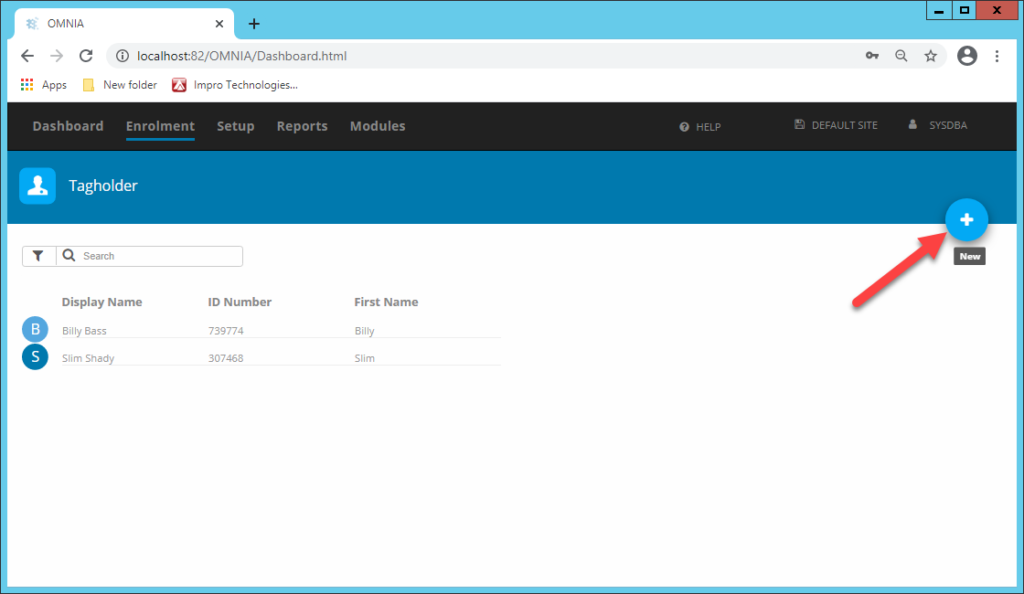
  • Navigate to Enrollment > Tagholders
  • Click on New
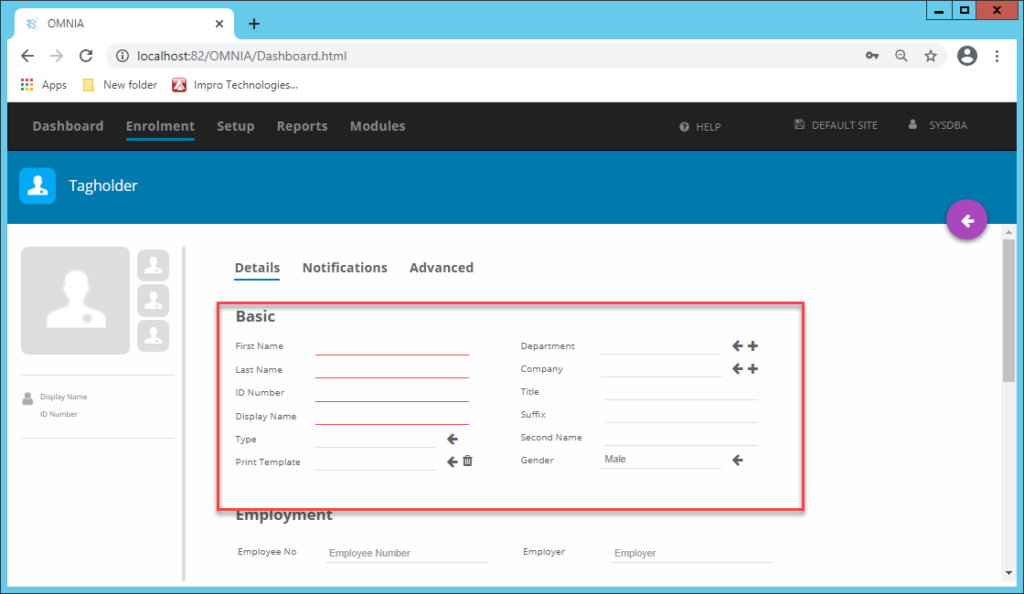
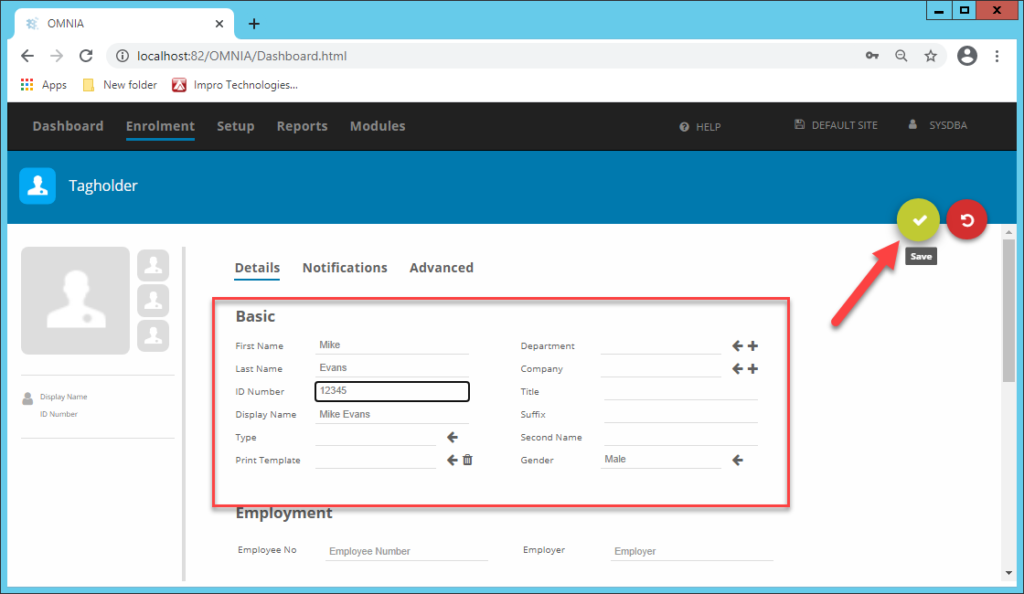
  • Fill in the compulsory fields ( First Name, Last Name, ID, Display Name)
  • Fill in any additional information (Contact info, Department, Company)
  • Save
To add a new Tagholder select the blue '+' button.
Fill in Tagholder information, only after saving will tags, access groups and photo options become available.

Note: Only after saving will the Tags, access groups and photo options become available.

OMNIA features available after initial tagholder setup and save.

Adding Images

You will only be able to add pictures after saving a new Tagholder. Portal allows for 3 Images per person. These could include ID/Passport images

  • Click on the pencil icon
  • You can either browse to a saved picture or take new picture using a webcam
  • You can edit the image rotation and color settings by clicking on Edit Picture
Click on the pencil icon to edit tagholder image.

Adding Tags

‘Tags’ are the credentials used by Tagholders to gain access to your site. Tags can be cards, keyring-fobs or fingerprints.

Note: The Tags option will only appear after you save the Tagholder’s compulsory fields.

Adding a new Tag:

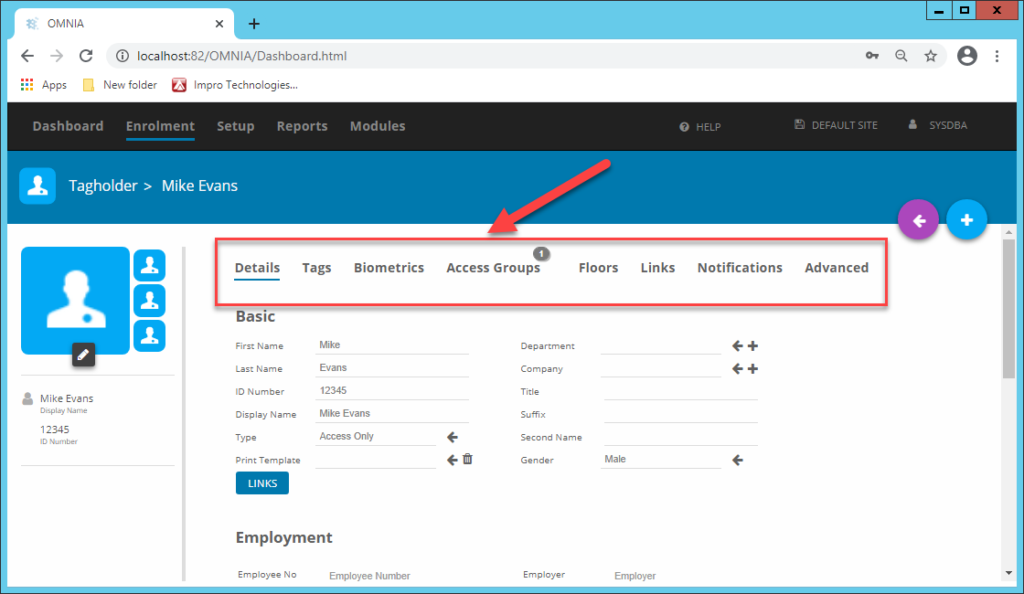
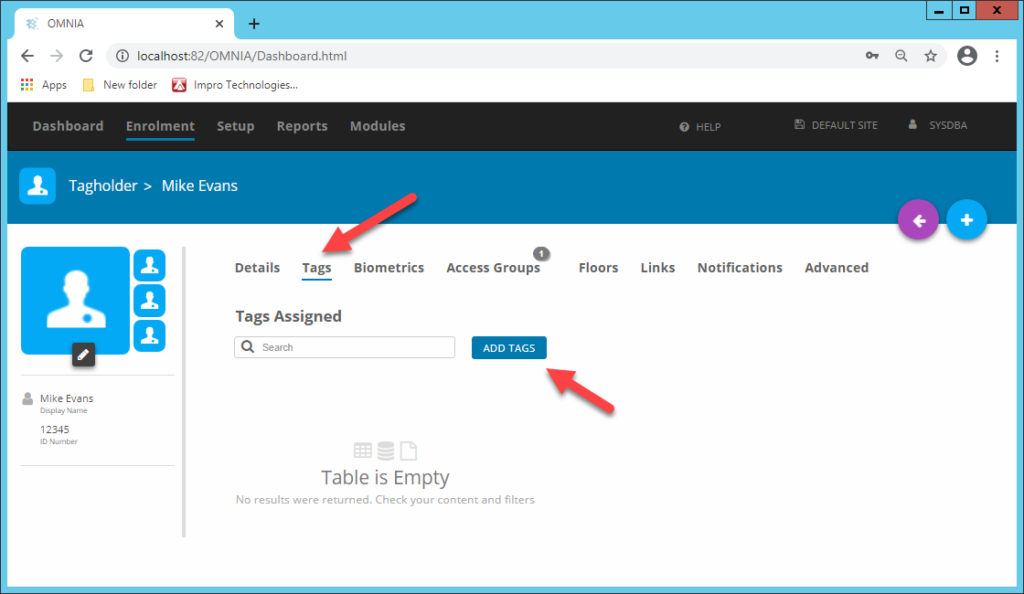
  • Select the Tagholder and go to Tags
    • Click on ADD TAGS
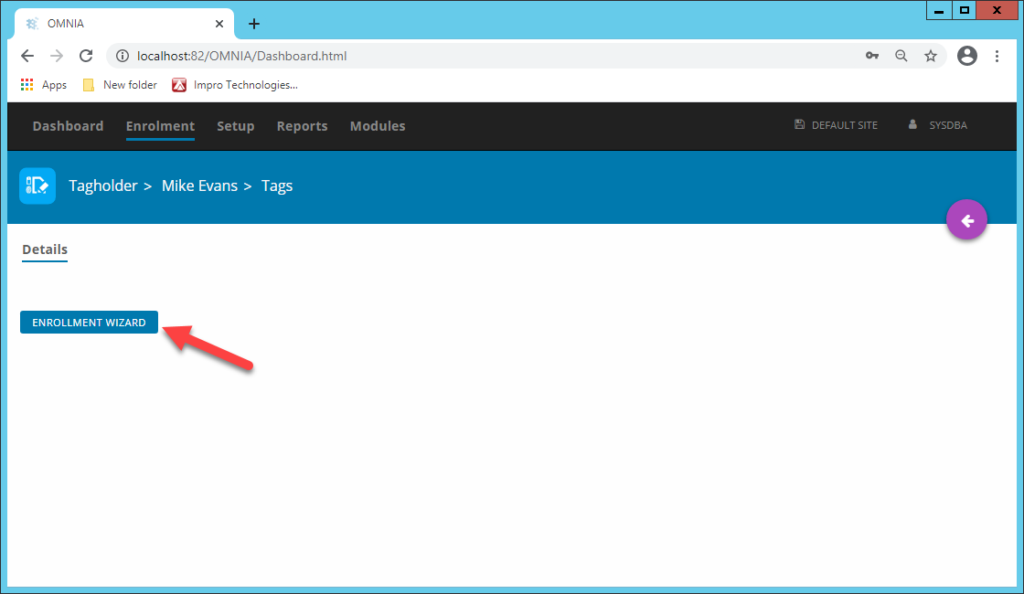
  • Click on ENROLLMENT WIZARD
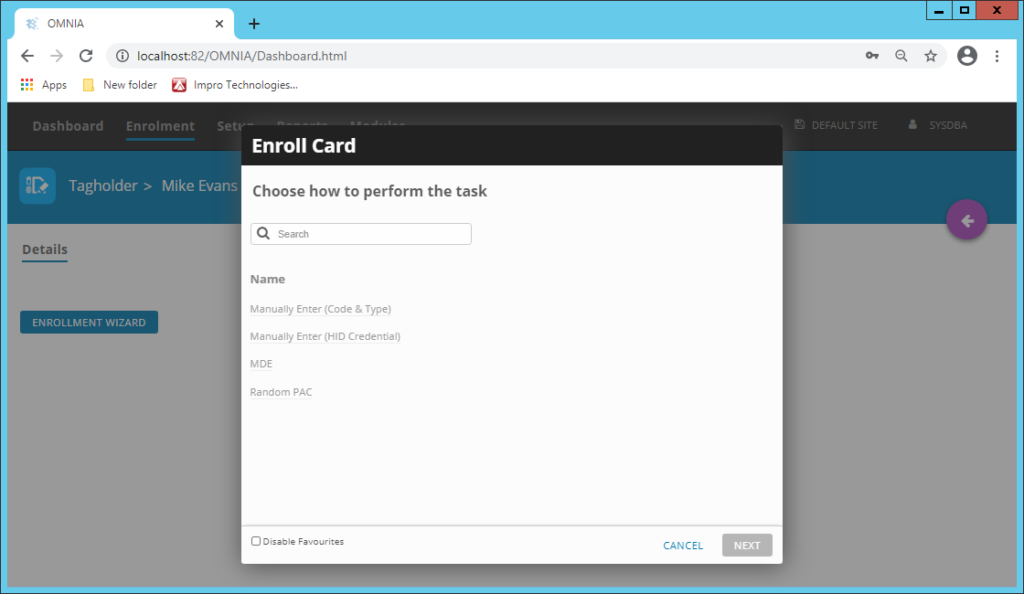
  • Click on Enroll Card
  • Choose Enrollment Option
Adding New Tag 
Select the Tagholder and go to Tags
Click on ADD TAGS
Click on ENROLLMENT WIZARD
Click on Enroll Card
Choose Enrollment Option

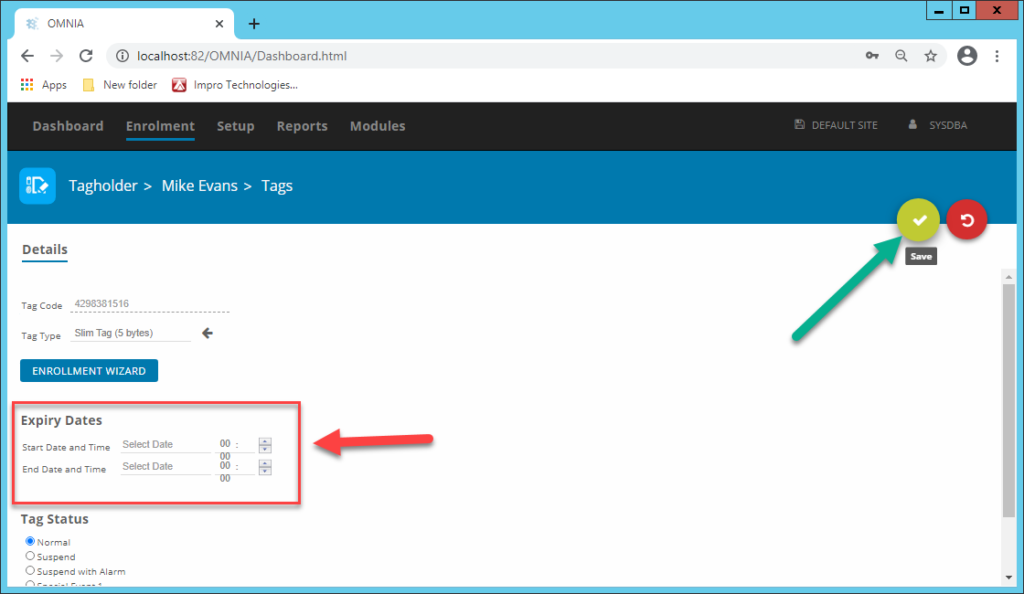
Add start and end dates (Optional) Save. 

NOTE: You MUST have a start date to set an expiration date.

Add Start and End Dates

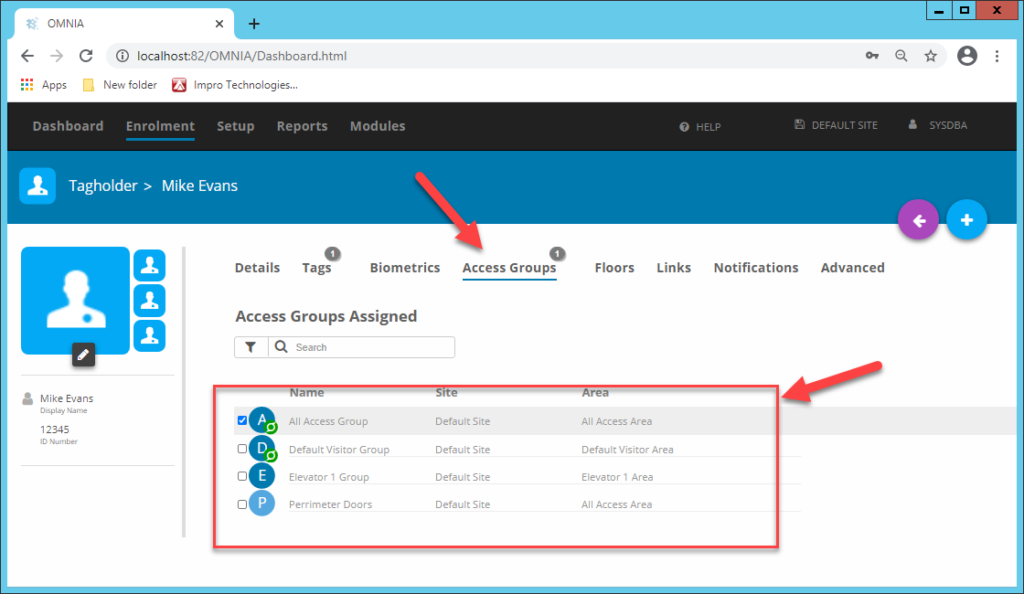
Assigning Access Groups

Access Groups determine where and when Tagholders have access, select the applicable Access Groups in their Tagholder configuration.

Select the Access groups applicable to the Tagholder.

Select OMNIA Access groups applicable to the Tagholder.

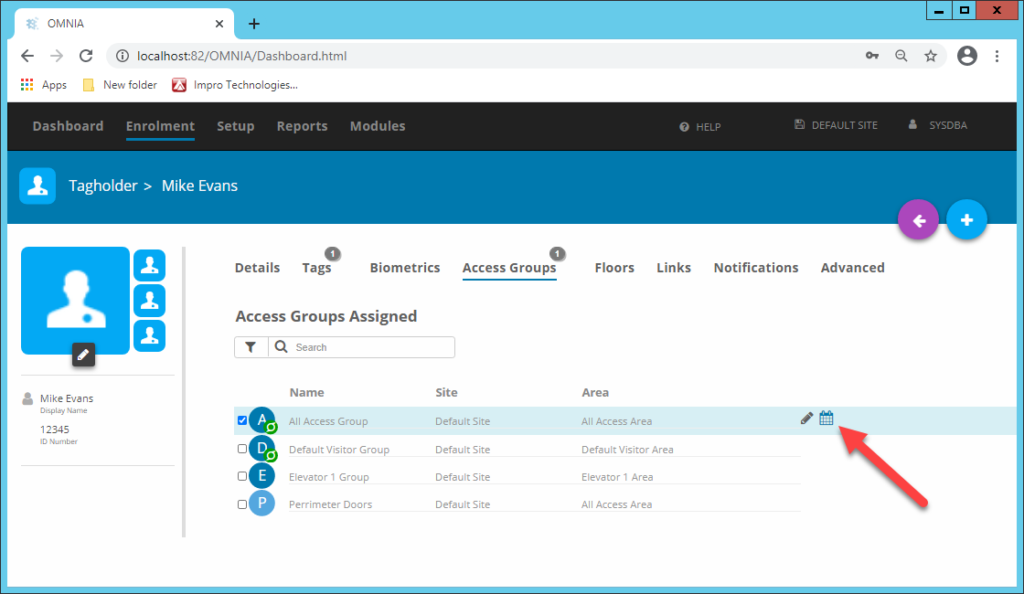
Temporary access

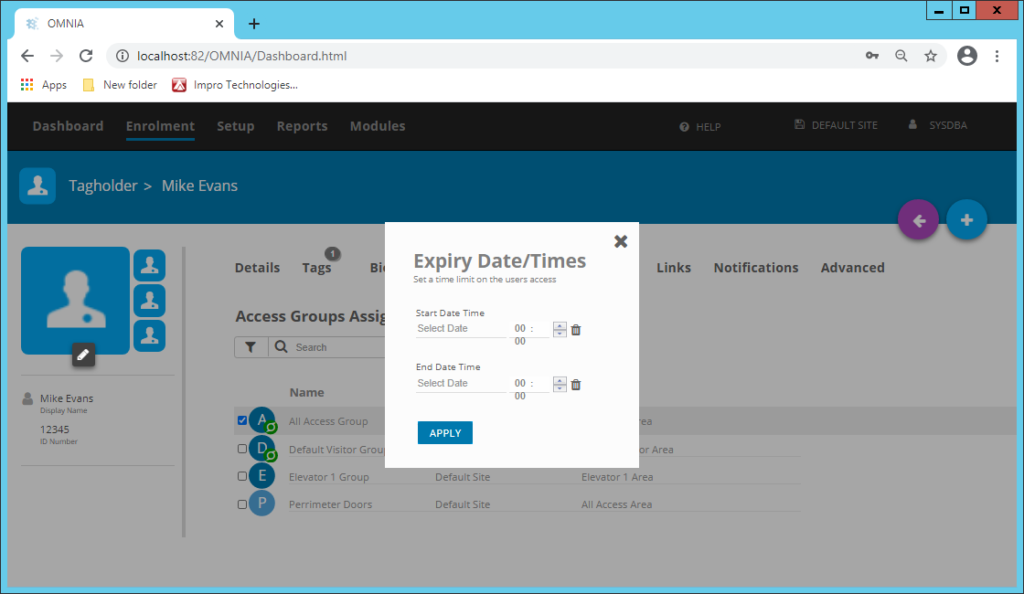
To grant temporary access to a specific area, use the area expiry feature. This will disable the selected Access Group according to the end date

To grant temporary access to a specific area, use the area expiry feature. This will disable the selected Access Group according to the end date.
Fill in Expiry Date/Times

Need further assistance?
Submit a Support Ticket

Submit a Support Ticket

FAQ

General

Technical Bulletins

Access Control

AmanoNet

Nexxus220

Omnia

Omnia Lite

PM Tronics Hardware

Amano Readers and Credentials

Legacy Hardware

Partner Products

Partner Products

Video Management Systems

Cathexis Video (Amano Vision)

AmanoDVMS

Vision

  • « Go to Previous Page
  • Page 1
  • Interim pages omitted …
  • Page 14
  • Page 15
  • Page 16
  • Page 17
  • Page 18
  • Interim pages omitted …
  • Page 23
  • Go to Next Page »
  • Facebook
  • LinkedIn
  • Twitter

PMT Security

Copyright © 2026 PMT Security, Inc. | All Rights Reserved