• Skip to primary navigation
  • Skip to main content
PMT Security Logo

PMT Security

Advanced Access Control

  • Home
  • About Us
    • Security and Trust
    • Our Partners
    • Our Integrators
  • Solutions
    • Education
    • Retirement & Healthcare
    • Manufacturing
    • Government Facilities
    • Residential
    • Retail Businesses
    • Campgrounds & Outdoor Resorts
  • Products
    • Access Control
      • Control Features
      • Reporting & Monitoring
      • Control Module
      • Digital IO Module
      • Reader Module
      • Readers
    • Video Management
    • Visitor Management
    • Intercom
    • Live Guard Video Monitoring
    • Housings & Pedestals
  • Support
    • Knowledgebase
    • Download Center
    • License Request
    • RMA Request Form
  • Blog
  • Contact Us

Akuvox

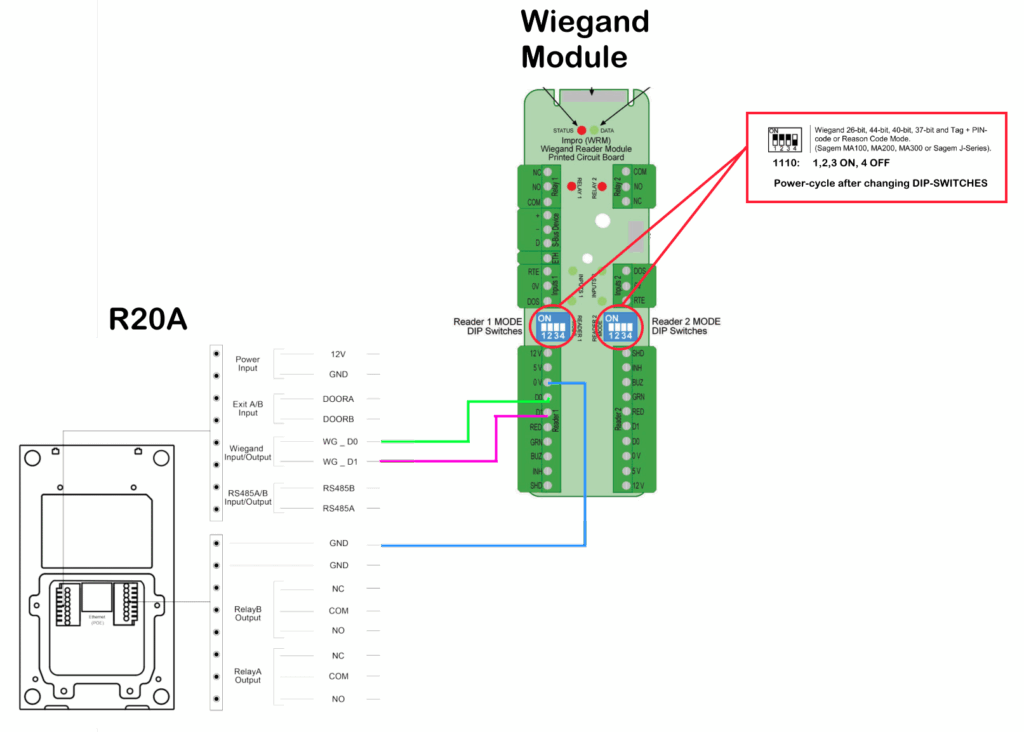
Akuvox R20 Wiring Diagram to Wiegand Reader Module (WRM)

Akuvox R20 Wiring Diagram to Wiegand Reader Module (WRM)

How to wire an Akuvox R20 to a Wiegand Reader Module
Need further assistance?

Submit a Support Ticket

Submit a Support Ticket

FAQ

General

Technical Bulletins

Access Control

AmanoNet

Nexxus220

Omnia

Omnia Lite

PM Tronics Hardware

Amano Readers and Credentials

Legacy Hardware

Partner Products

Partner Products

Video Management Systems

Cathexis Video (Amano Vision)

AmanoDVMS

Vision

Basic Setup Guide:  Akuvox

Akuvox R20A Doorphone and C315 Indoor monitor 

Basic Setup Guide:  Akuvox

Akuvox R20A Doorphone and C315 Indoor monitor 

How to Configure the Akuvox R20A and C315 Indoor Monitor

Basic Setup Guide:  

Akuvox R20A Doorphone and C315 Indoor monitor 
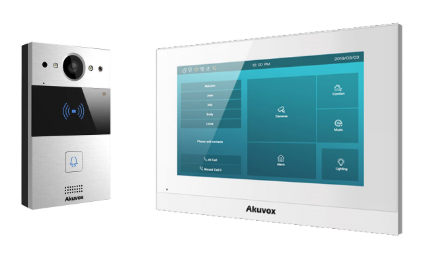
Akuvox R20A Doorphone 

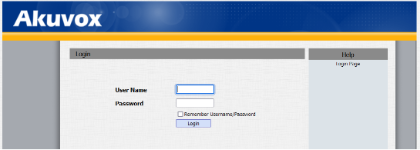
  1. Connect the unit to the network, using a web-browser, browse the R20A device homepage by typing the IP address into the browser address bar, you will be required to log in.  

Default credentials are user: admin, password: admin 

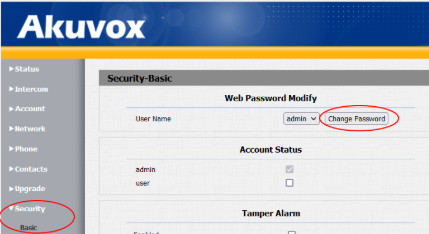
  1. On first login, you will be required to change the default password. 

The password must be at least eight characters long containing one uppercase letter, one lowercase letter, and one digit.  

ENSURE THAT YOU RECORD THE NEW PASSWORD. 
  1. Browse to NETWORK \ BASIC and set the unit to use a STATIC IP, fill in the IP information as required or as provided by the customer. 
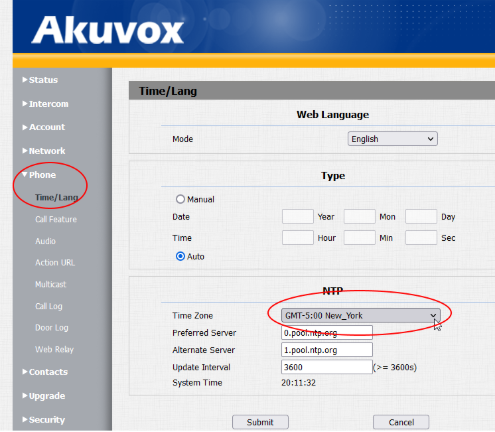
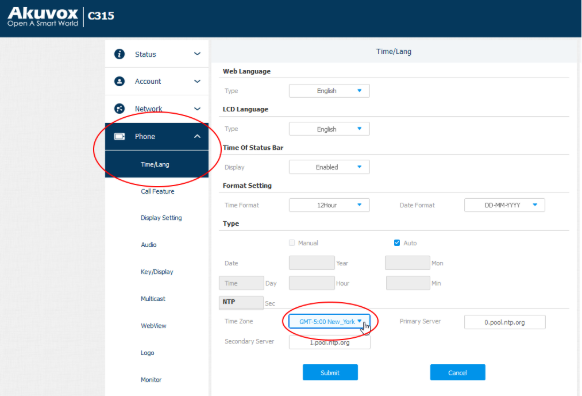
  1. Set your timezone: Go to PHONE \ TIME \ LANG and set the timezone. 

Akuvox C315 Indoor monitor 

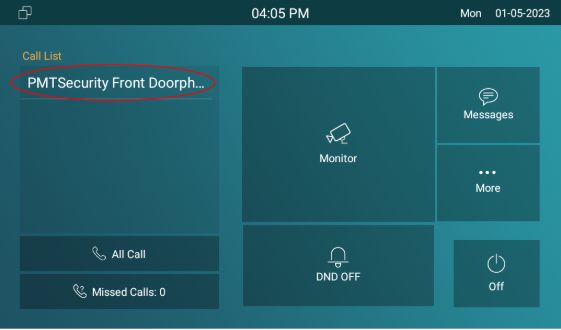
  1. On power-up, select ‘ETHERNET’ or ‘WIRELESS’ depending on your needs and run through the setup wizard. Be sure to uncheck the ‘DHCP’ box. Choose a theme and tap ‘DONE’ 
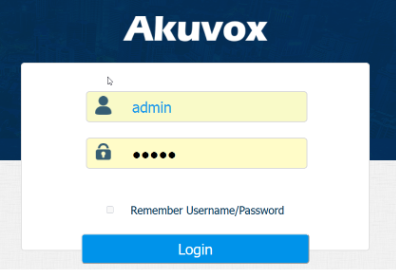
  1. Connect the unit to the network, using a web-browser, browse the monitor homepage by typing the IP address into the browser address bar, you will be required to log in.  

Default credentials are user: admin, password: admin 

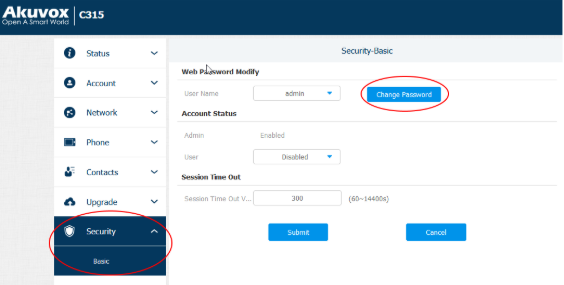
  1. Browse to SECURITY \ BASIC and change the admin password. 

The password must be at least eight characters long containing one uppercase letter, one lowercase letter and one digit.  

ENSURE THAT YOU RECORD THE NEW PASSWORD. 

Connecting the doorphone and monitor 
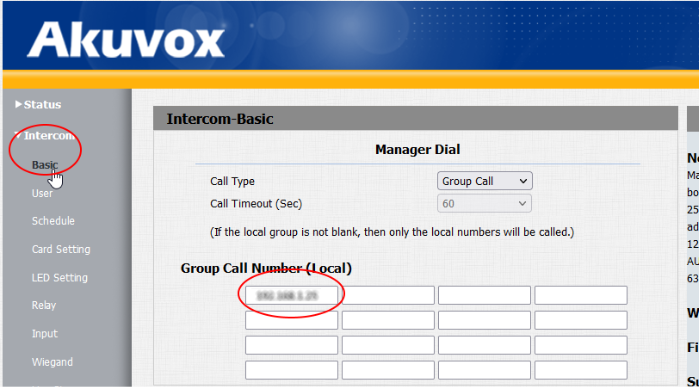
  1. Log into the doorphone web interface, browse to INTERCOM \ BASIC and under the first box in the GROUP CALL NUMBER(LOCAL) insert the IP address of the monitor, click SUBMIT to save changes. 
  1. Log into the monitor web interface, browse to CONTACTS \ LOCAL CONTACTS and under CONTACT SETTINGS add a name for the doorphone under NAME, in the NUMBER 1 box, insert the IP address of the doorphone, click ADD. 
  1. Set your timezone: Go to PHONE \ TIME \ LANG and set the timezone. 

Other Things to do… 

  1. Send the doorphone video stream to your Cathexis VMS system: 
  1. In a web browser open the doorphone web interface and browse to INTERCOM \ RTSP, set a username and password and ensure RTSP is checked at the top. 
  1. Log into a setup tab in Cathexis and add the RTSP stream as a camera feed. 
  1. Use the doorphone built-in card reader as a reader in your OMNIA system 
  1. Follow the wiring guide provided in the box with the doorphone. 
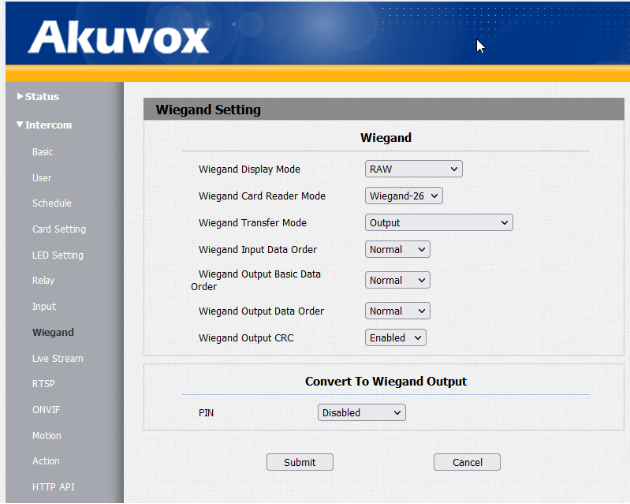
  1. Browse to INTERCOM \ WIEGAND, set WIEGAND DISPLAY MODE to RAW, set WIEGAND CARD READER MODE to WIEGAND-26, set WIEGAND TRANSFER MODE to OUTPUT, click SUBMIT. 

Need further assistance?

Submit a Support Ticket

Submit a Support Ticket

FAQ

General

Technical Bulletins

Access Control

AmanoNet

Nexxus220

Omnia

Omnia Lite

PM Tronics Hardware

Amano Readers and Credentials

Legacy Hardware

Partner Products

Partner Products

Video Management Systems

Cathexis Video (Amano Vision)

AmanoDVMS

Vision

  • Facebook
  • LinkedIn
  • Twitter

PMT Security

Copyright © 2026 PMT Security, Inc. | All Rights Reserved

  • Privacy Policy
  • Terms of Use
  • Cookie Policy
  • Accessibility
  • Contact Us