• Skip to primary navigation
  • Skip to main content
PMT Security Logo

PMT Security

Advanced Access Control

  • Home
  • About Us
    • Our Partners
    • Our Integrators
  • Solutions
    • Education
    • Retirement & Healthcare
    • Manufacturing
    • Government Facilities
    • Residential
    • Retail Businesses
    • Campgrounds & Outdoor Resorts
  • Products
    • Access Control
      • Control Features
      • Reporting & Monitoring
      • Control Module
      • Digital IO Module
      • Reader Module
      • Readers
    • Video Management
      • Integration
      • Analytics
      • Search & Export
    • Visitor Management
    • Intercom
    • Live Guard Video Monitoring
    • Housings & Pedestals
  • Support
    • Knowledgebase
    • Download Center
    • License Request
    • RMA Request Form
  • Blog
  • Contact Us

Security Best Practices & Support

Creating Relay Actions I/O in OMNIA

Creating Relay Actions I/O in OMNIA

A Guide

Setup/Reader Profiles/Input-Output

Add Action

Choose Relay Action 1

Select the Relay you want to fire and change the time from 40ms to 10ms and Save. This will drive the relay for 1 Second.

When setting up time triggered Events. this event will be chosen. This will arm the alarm.

Add another action for the Second Relay, chose correct relay to fire and change time to 10 and save.

This action will be chosen at the readers, This action will fire the disarm alarm relay when someone presents a valid tag to the reader.

Go to the Readers you want to disarm the Alarm.

Choose Actions

From the Event Action list, choose Allowed Normal In., you must choose Allowed Normal in and not Allowed All Events.

This will prevent the REX’s from firing the relay and disarming the alarm after hours.

Scroll or search for the Action you created, put check in box, 

When valid tag is presented to the reader, it will perform this action now.

Perform the same steps at all additional readers that need this action.

Setting up the Alarm Trigger

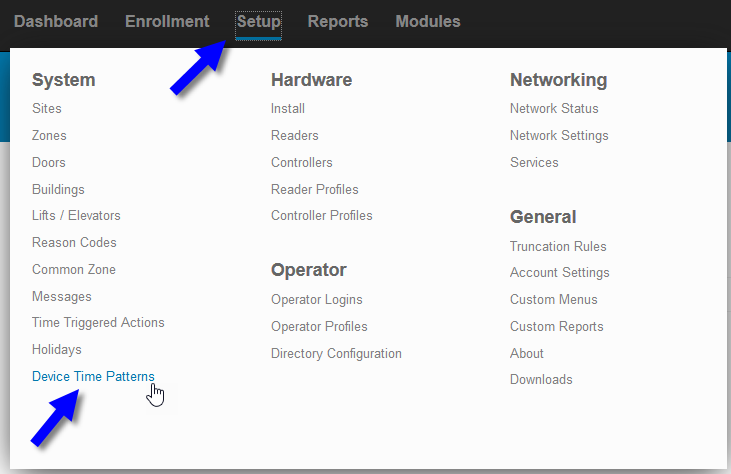
Create a Device Time Pattern

Setup/Device Time Pattern

Set the Time and Days of the Week, Save

Now Create a Time Triggered Action.

Chose the Time Pattern you created  and choose the Action you created to Drive relay 1 for one second.

Need further assistance?
Submit a Support Ticket

Submit a Support Ticket

FAQ

General

Technical Bulletins

Access Control

AmanoNet

Nexxus220

Omnia

Omnia Lite

PM Tronics Hardware

Amano Readers and Credentials

Legacy Hardware

Partner Products

Partner Products

Video Management Systems

Cathexis Video (Amano Vision)

AmanoDVMS

Vision

Setting up a Behavior on an OMNIA Reader Profile (a.k.a Terminal Modes in legacy systems)

Setting up a Behavior on an OMNIA Reader Profile (a.k.a Terminal Modes in legacy systems)

When setting up a Behavior for a door or group of doors within the system, you must include all the doors affected by this behavior in the same Reader Profile.  Make sure you setup the Reader Profile ahead of time.

In this example, we will be setting up a single door to be unlocked during each weekday from 8am to 5pm.

First, make sure to create a Device Time Pattern for the weekday hours.

1. Navigate to Device Time Patterns (DTP) on the Setup menu item and click.

2. Click the plus button to add a new DTP.

3. Fill in the appropriate fields. (Pro tip:  Naming your DTPs with meaningful descriptions of the time and date will make it easier to know what they are later at a glance)

4. Save the DTP by clicking the check button.

5. Next, navigate to the Reader Profiles item on the Setup menu and click.

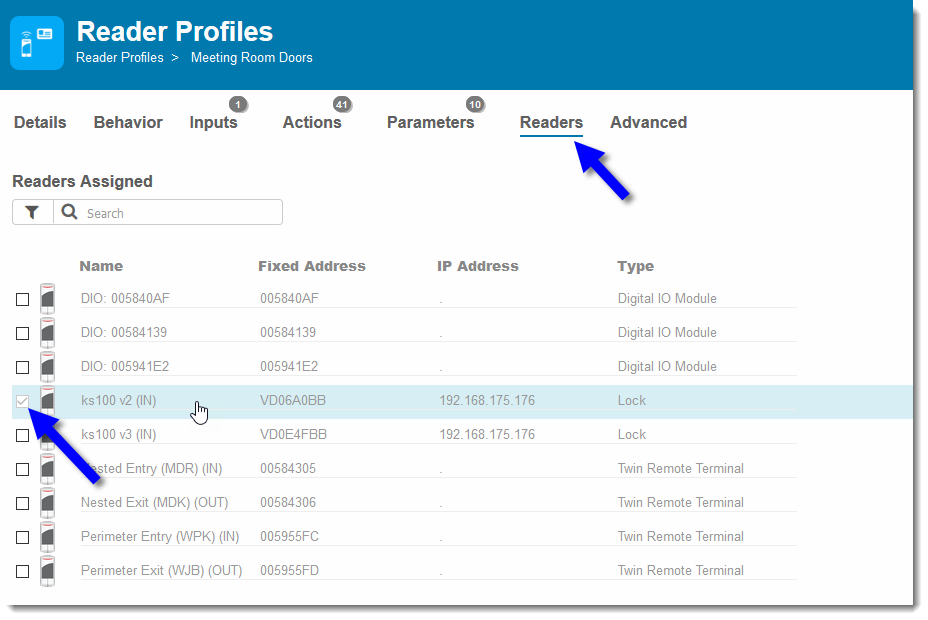
6.  Choose the correct reader profile.

7. If not already done so, select each reader you will affect by this new pattern. (IMPORTANT! Please note that moving a reader into a new Reader Profile affects assignments to inputs, outputs, and other actions previously assigned to that reader and reader terminal port from it’s previous profile.  Any previous actions assigned to events will be lost.)

8. Choose Behavior tab, then select Edit Behavior.

9.  Search or scroll to Unlock on the Device Behavior list and click.

10.  Choose your Device Time Pattern (that you created earlier)

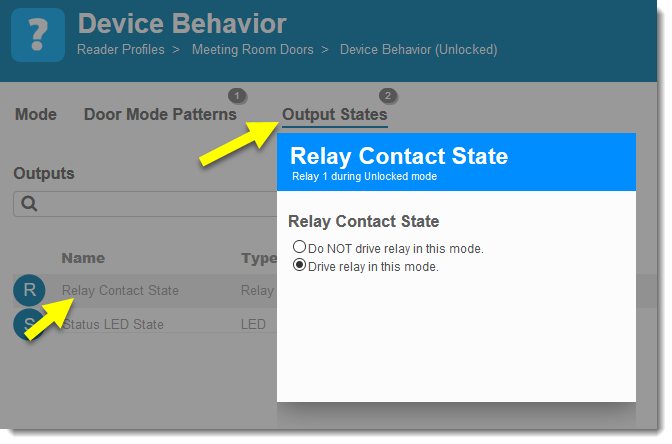
11.  Choose the options for each output state.  (Drive relay typically means unlock door.  Check with your installer for details on your exact setup)

12.  Note that now you have one new behavior assigned.  If your site is setup to Auto Synchronize (default) then your door should be affected immediately.

If you have any questions, please contact support for assistance.

Need further assistance?

Submit a Support Ticket

Submit a Support Ticket

FAQ

General

Technical Bulletins

Access Control

AmanoNet

Nexxus220

Omnia

Omnia Lite

PM Tronics Hardware

Amano Readers and Credentials

Legacy Hardware

Partner Products

Partner Products

Video Management Systems

Cathexis Video (Amano Vision)

AmanoDVMS

Vision

Installing SQL Server Express 2014 With Tools for OMNIA

Installing SQL Server Express 2014 With Tools for OMNIA

Setting up SQL Server Express 2014 with Tools for OMNIA

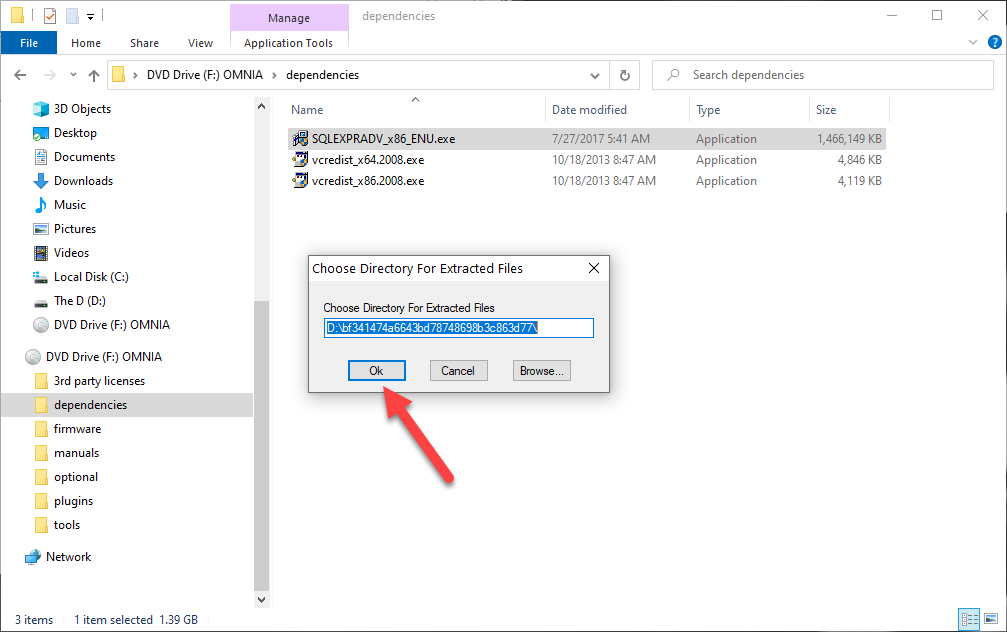
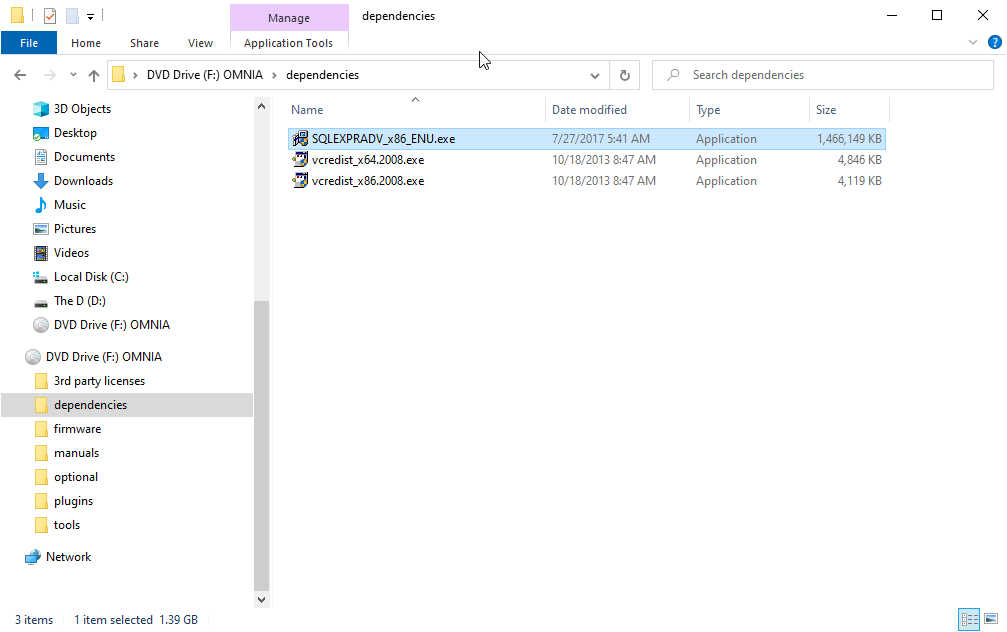
Run the installer executable.

Wait for file extraction to complete.

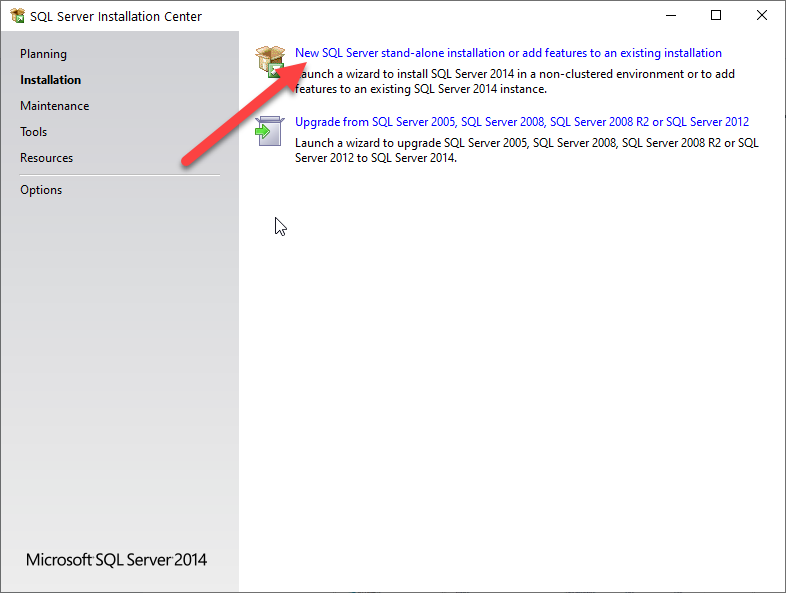
Select ‘New SQL Server stand-alone installation or add features to and existing installation.

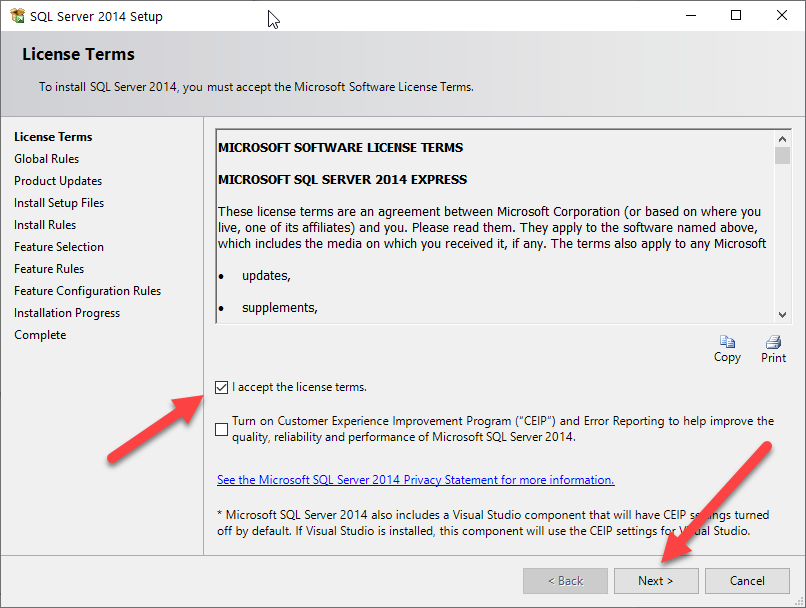
Make sure you click “I accept the license terms” and then “Next”

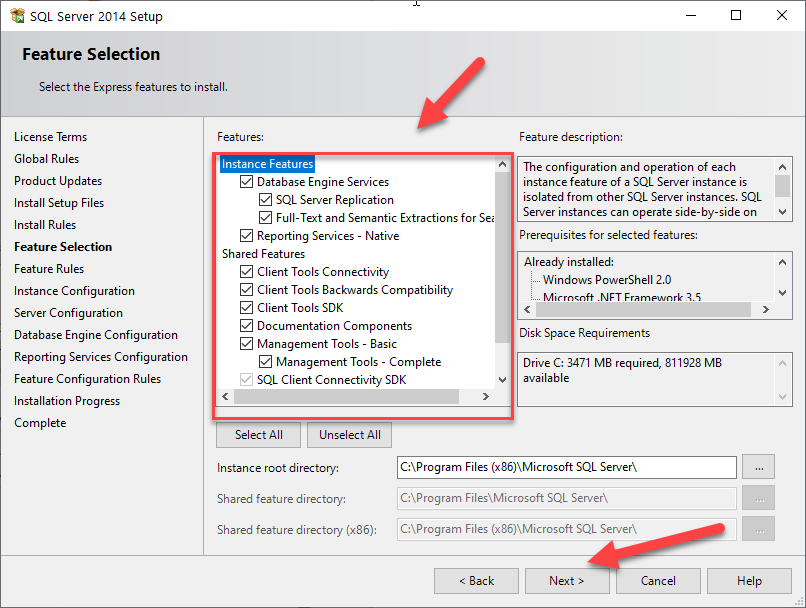
Leave the feature selection as default and click on “Next”

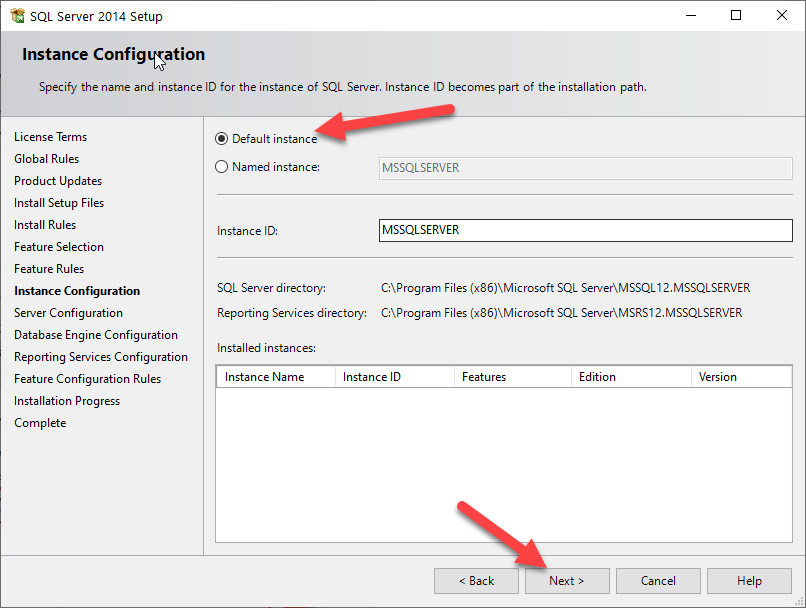
Select “Default Instance” and then click “Next”

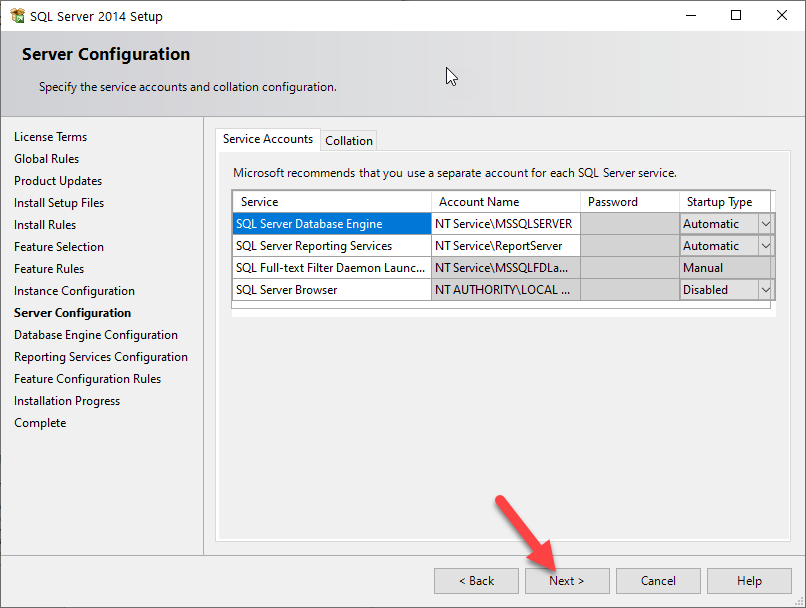
Select the service startup as below.

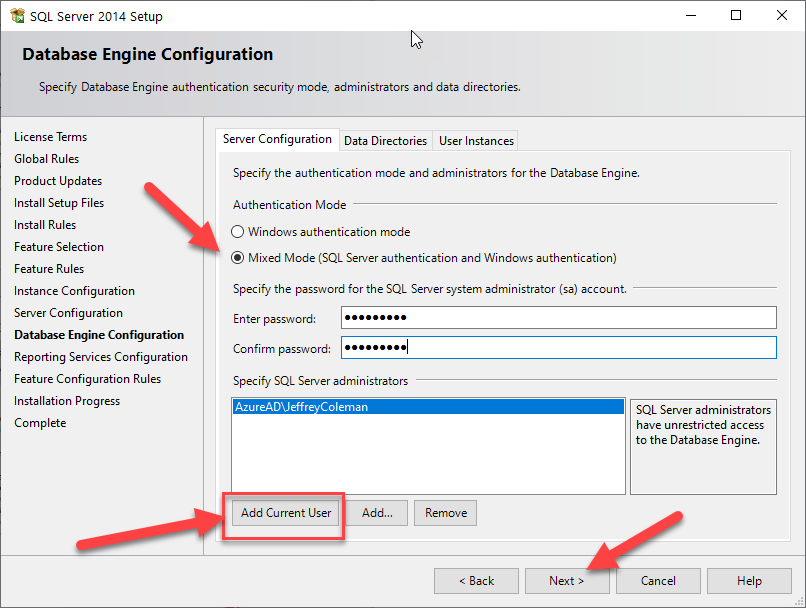
The Database Engine Configuration is very important, select the “Mixed Mode”. Where it asks for a Password, enter the word “masterkey”, then click the “Add Current User”. You do not need to change the “Data Directories” or the “File Stream”. Click on “Next”

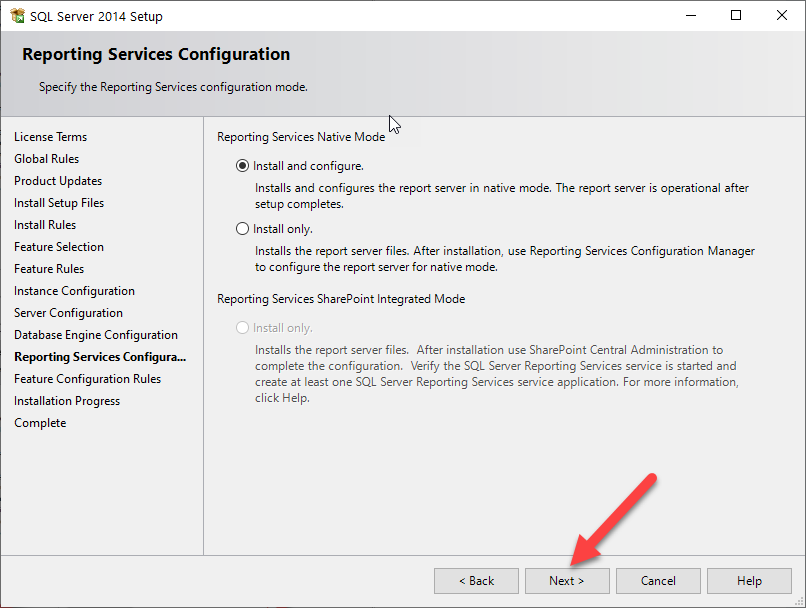
Leave the Reporting Services Configuration as “Install and configure” and click on “Next”

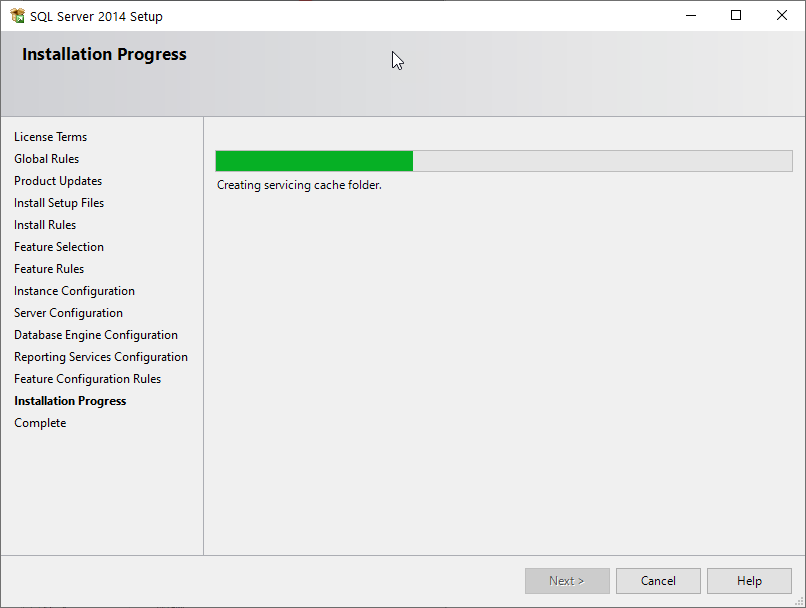
Click on “Next” and SQL will start installing. 

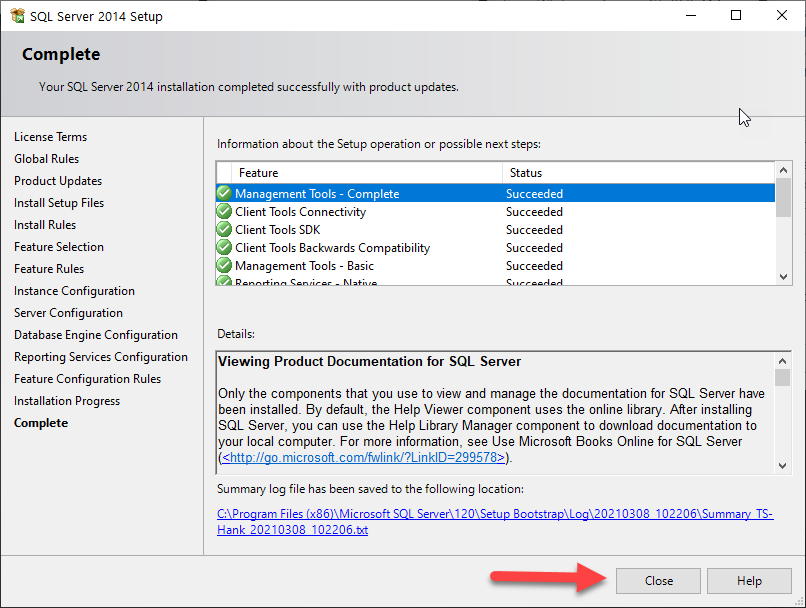
Click on “Close”

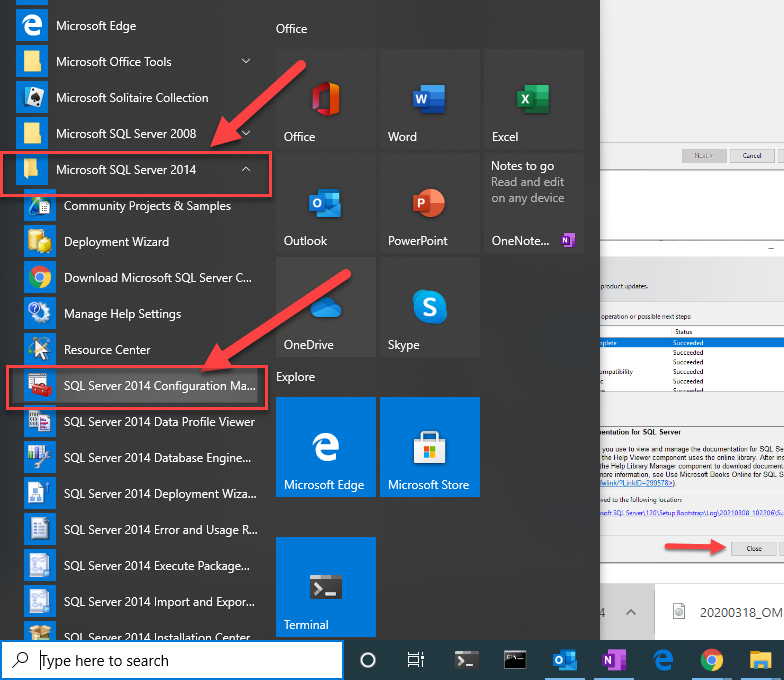
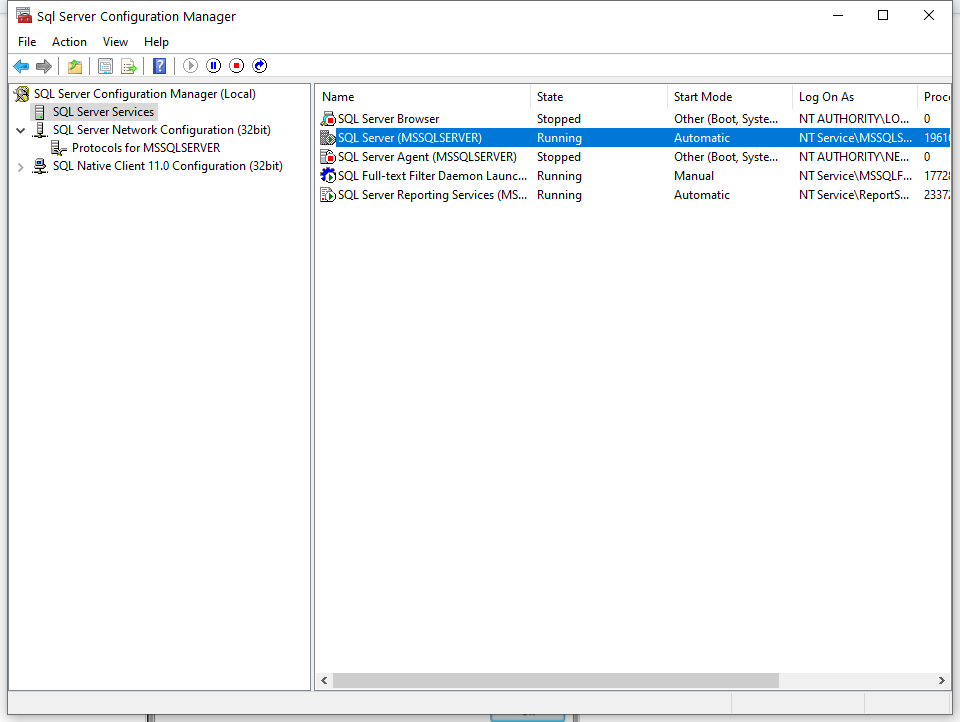
Open the “SQL Configuration Manager” from (Start > Programs > Microsoft SQL Server 2012 > Configuration Tools). Open/Run “SQL Server Configuration Manager” as administrator.

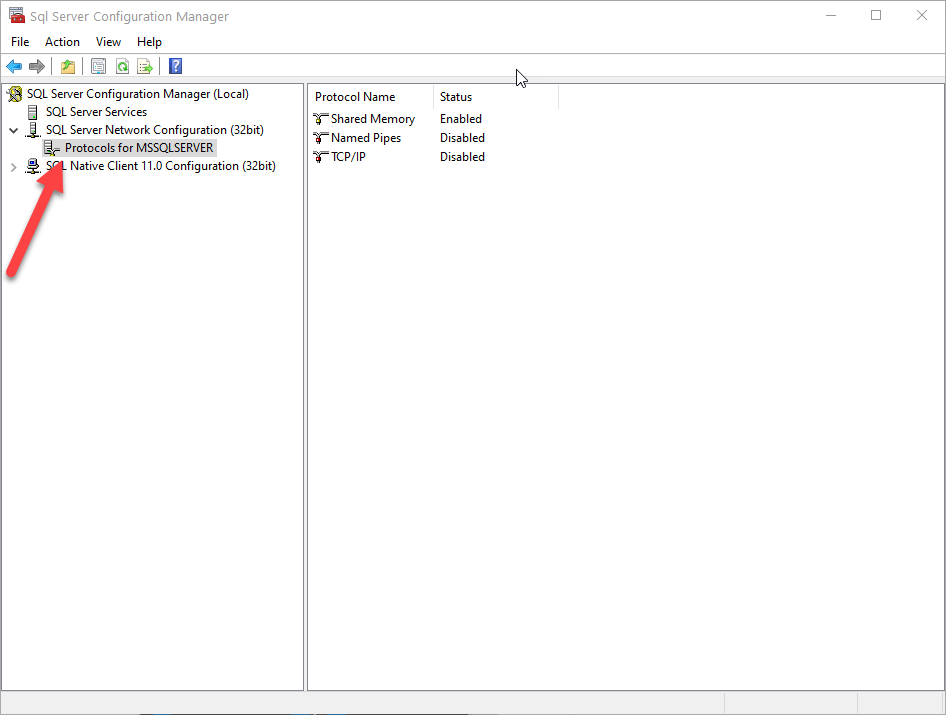
Click “Protocols for MSSQLSERVER”.

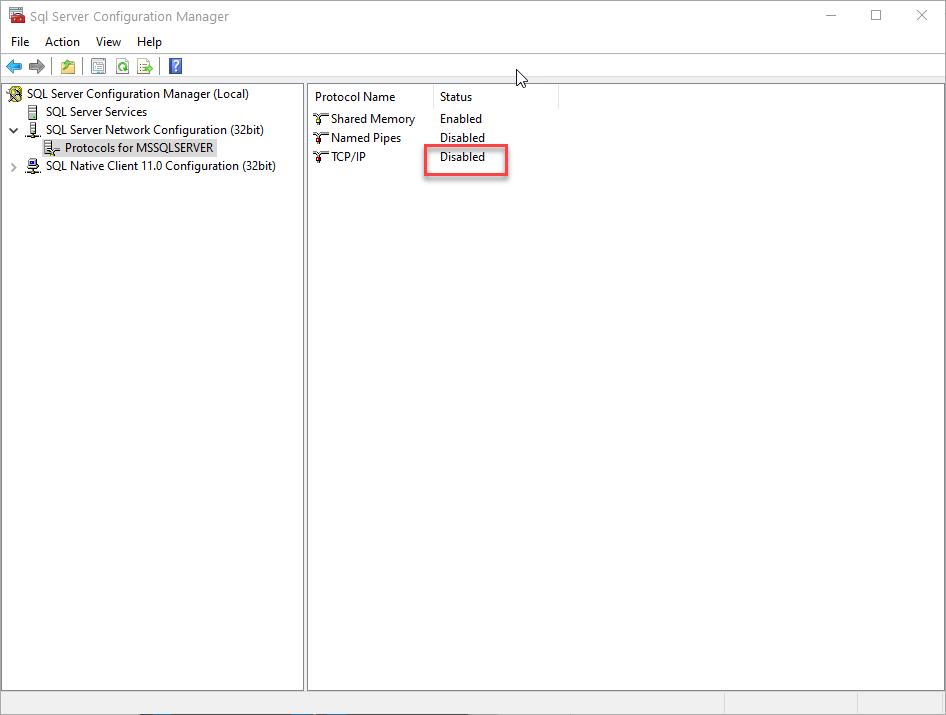
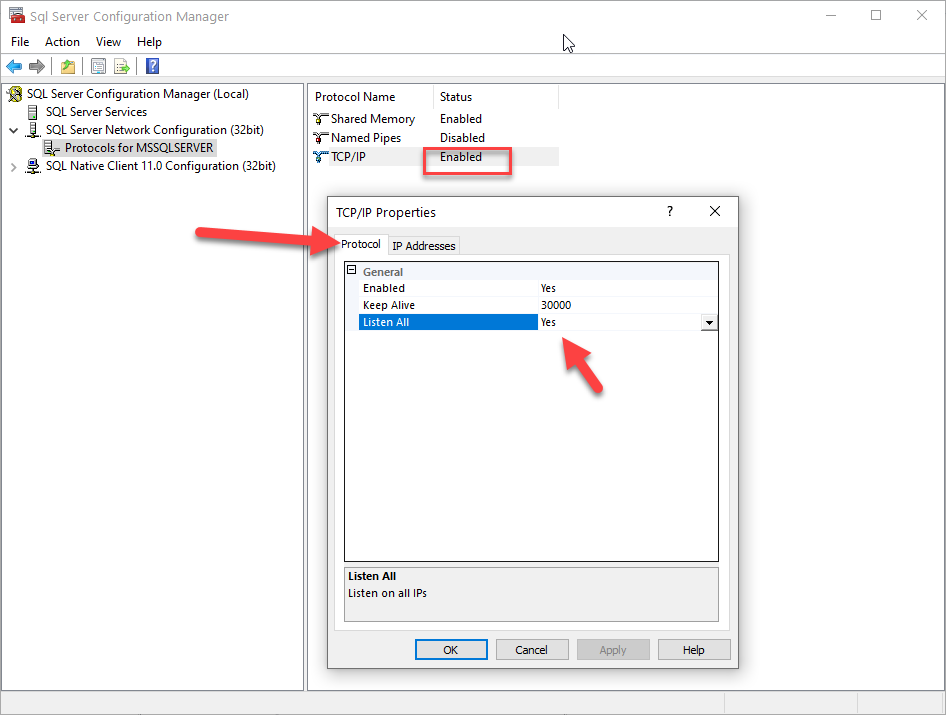
Right click the “TCP/IP” and click “Properties”, Set the “Enabled” field to “Yes”.

Click the “IP Addresses” tab.

Set the “Enabled” to “Yes”. “IP Address” to your local IP Address, and set the TCP Port to “1433”

Under “IP All” set the TCP Port to “1433”

If you have multiple Network Cards (NIC’s) you may have more IP settings to configure. Rule of thumb is to set the TCP Port to 1433. Click “Apply”.

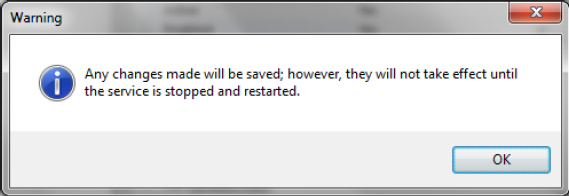
Click the “SQL Server Services”. Right click the SQL Server/ SQLEXPRESS and select “Restart”

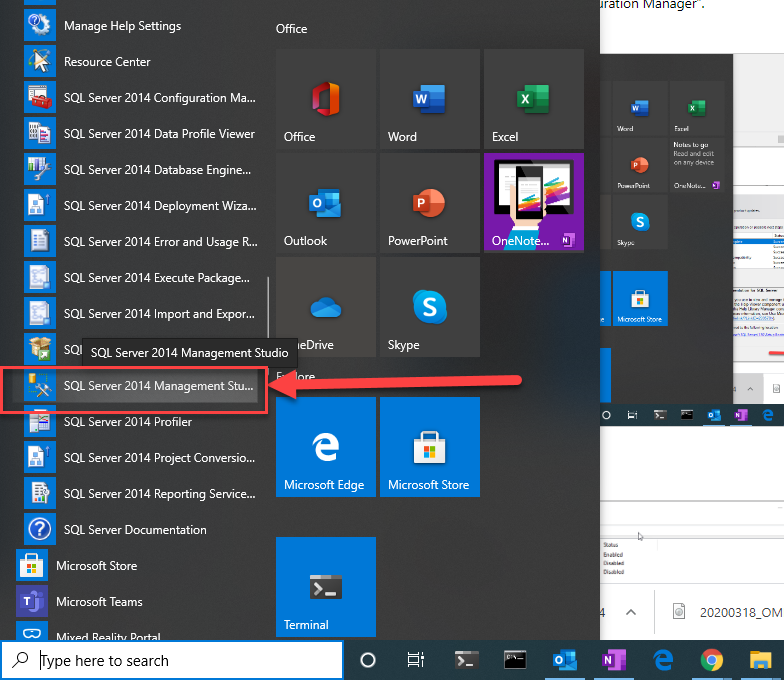
Open the SQL Server Management Studio. (Start > Programs > Microsoft SQL Server 2012).

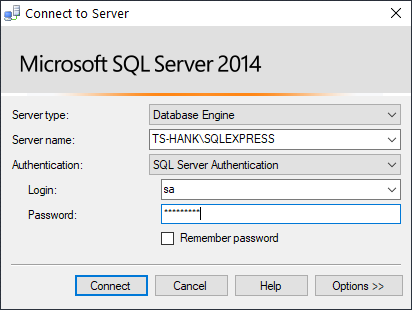
To log on to the Server, the “server type” must be “Database Engine”. The Server Name must refer to the server hostname .The Authentication must be set to “SQL Server Authentication”. The Login will be “sa” and the password must be “masterkey”. Click on “Connect”

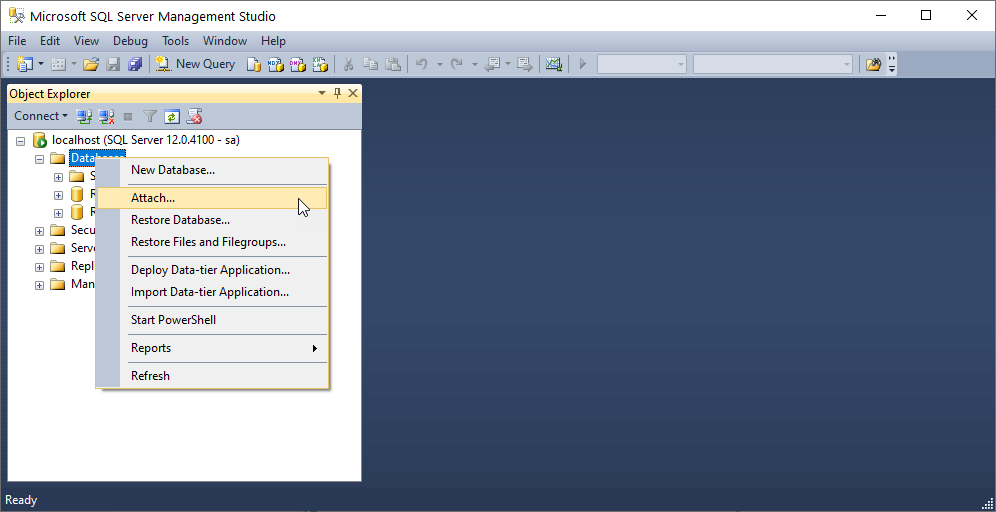
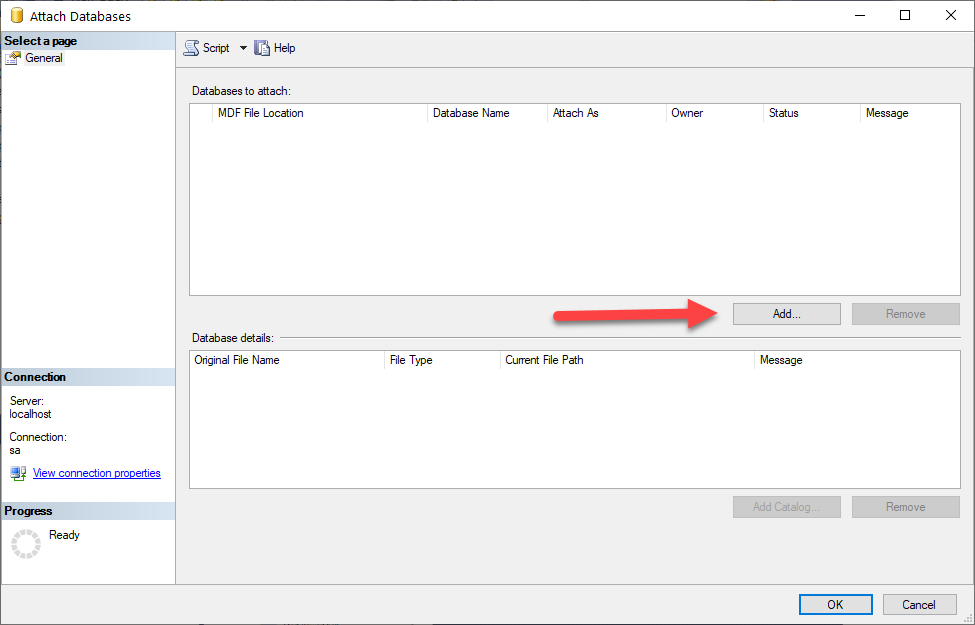
After Logging in successfully, we may now attach the database. Right click “Databases” select “Attach”.

NOTE: If OMNIA is not installed at this point, there will be no database to attach, 

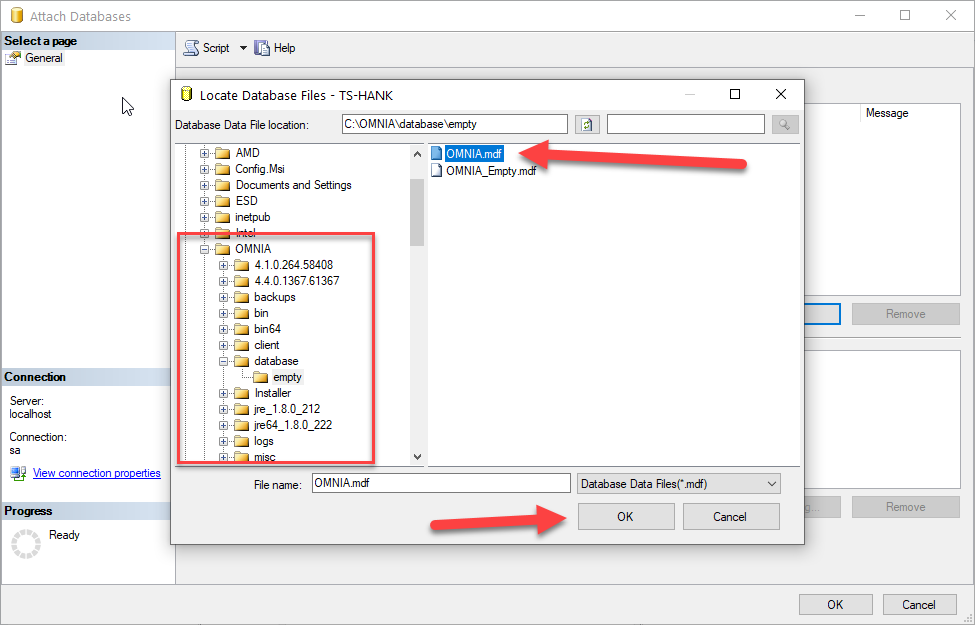
Browse to the OMNIA.MDF file (e.g. C:\OMNIA\database), select it an click “OK”

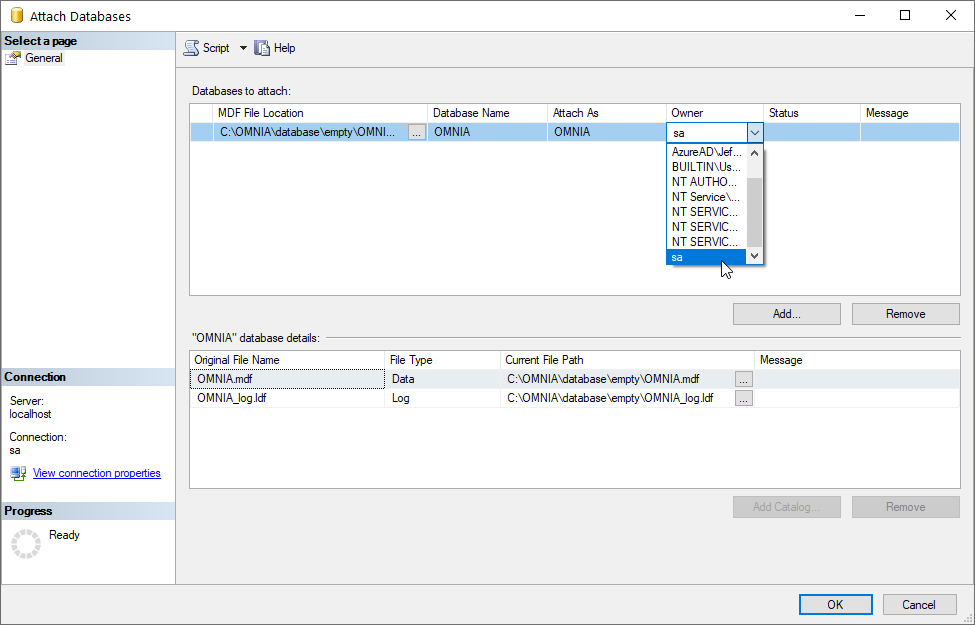
Review the settings according to the screenshot, click OK

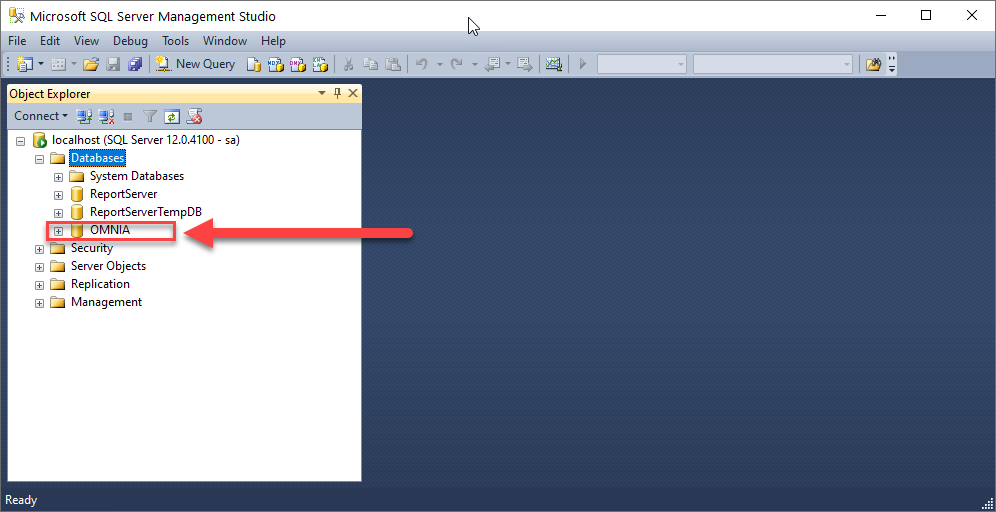
The Database will now appear in Microsoft SQL Management Studio

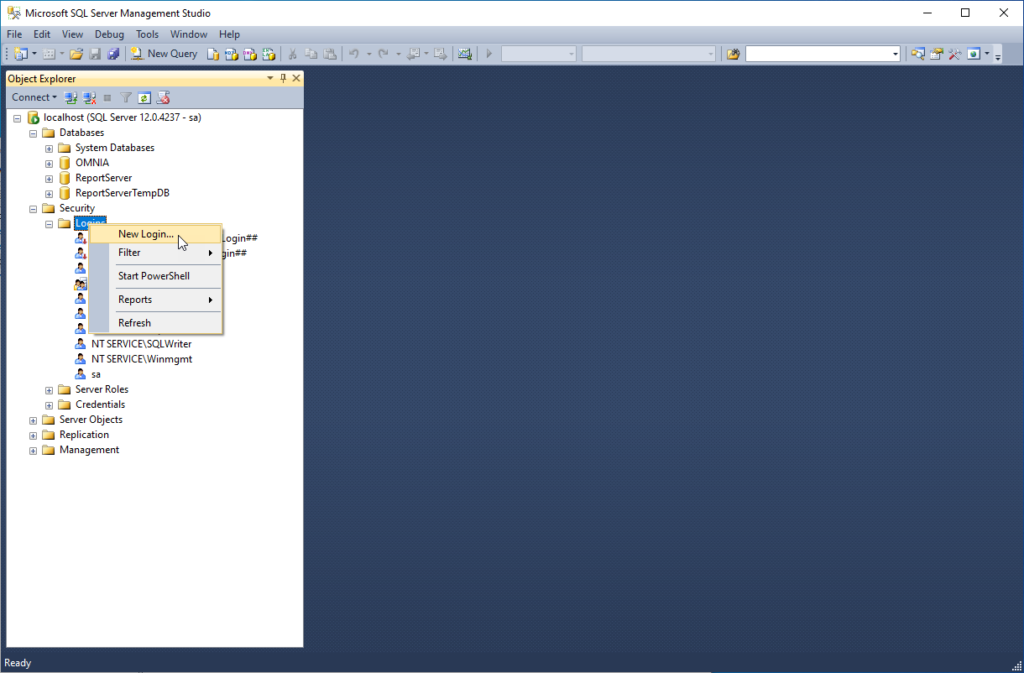
Make sure you have the “sysdba” user under “Security” of the OMNIA Database with the following settings: (If not add the sysdba user under Security ; Logins as a new login)

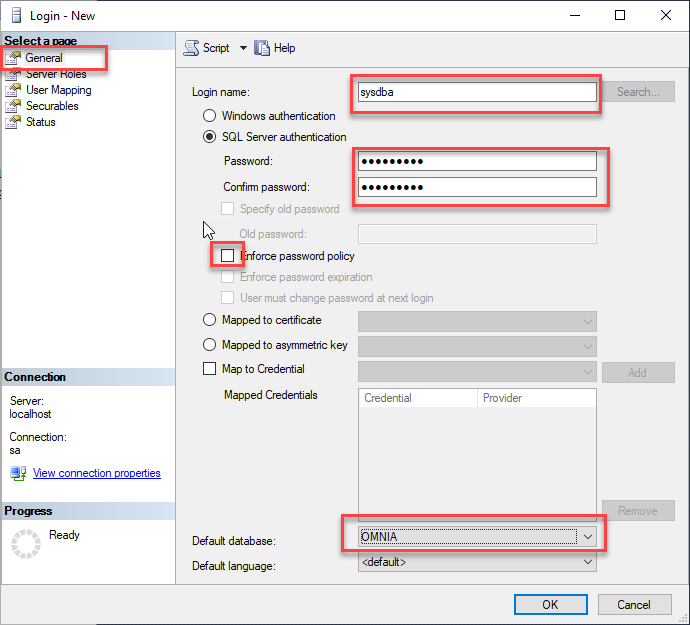
General

Type the login name as “sysdba”. Select “SQL Server authentication”. Type the Password as “masterkey”. Deselect the “Enforce password policy”. Set the “Default database” to “OMNIA” (do not click OK yet) .

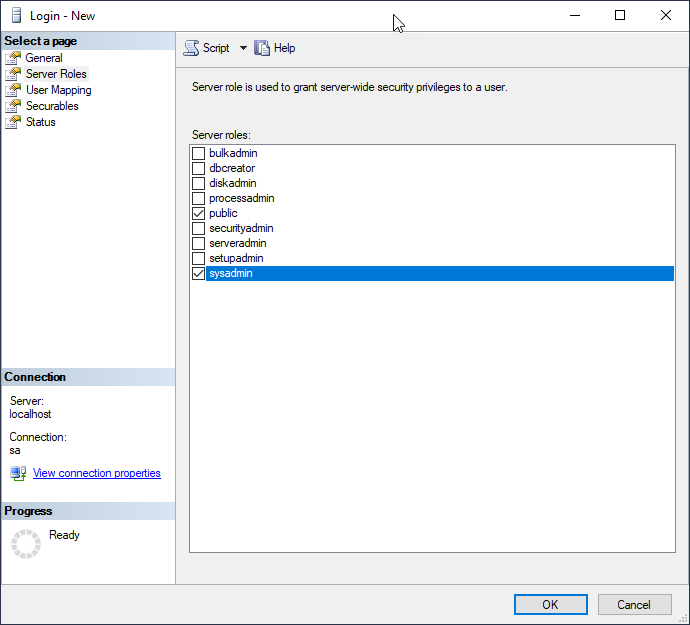
Server Roles

Select “Server Roles” on the Left and make sure the “sysadmin” is selected. (do not Click ok yet)

User Mapping

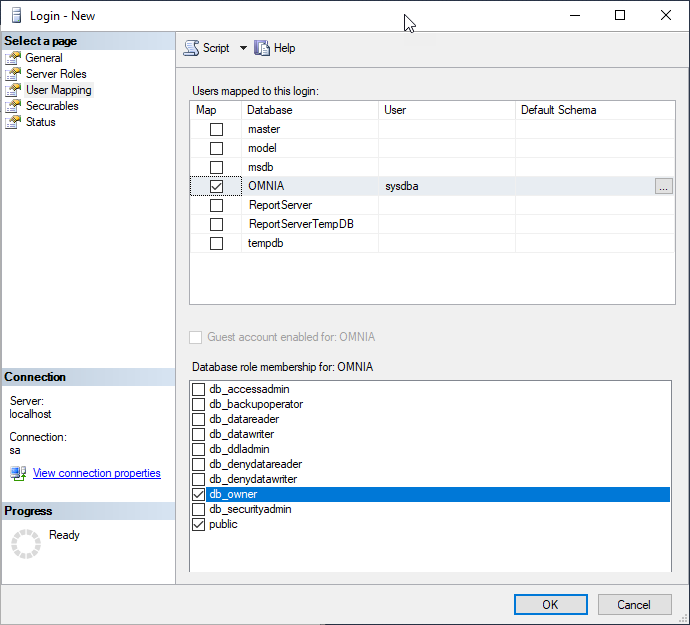
Click on “User Mapping”. Make sure OMNIA is selected, and that OMNIA is the “db_owner” and has “public” access. (do not click OK yet)

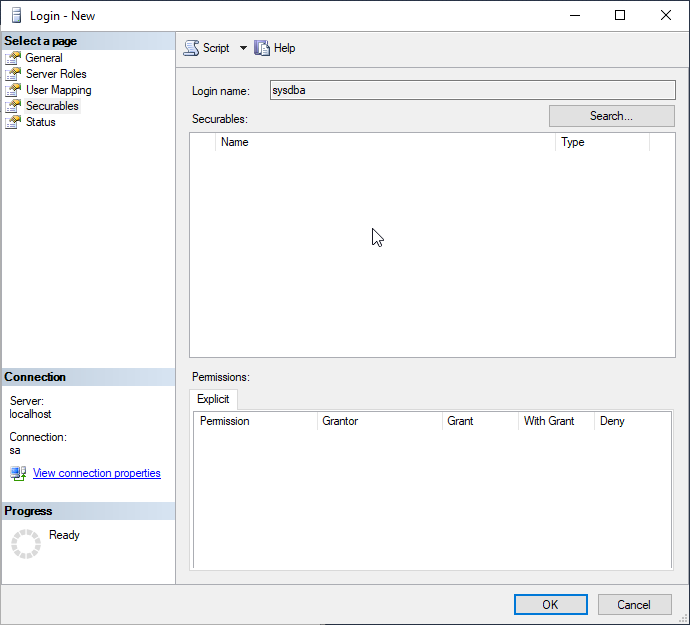
Securables

Set the “Securables” as follows (do not click OK yet) :

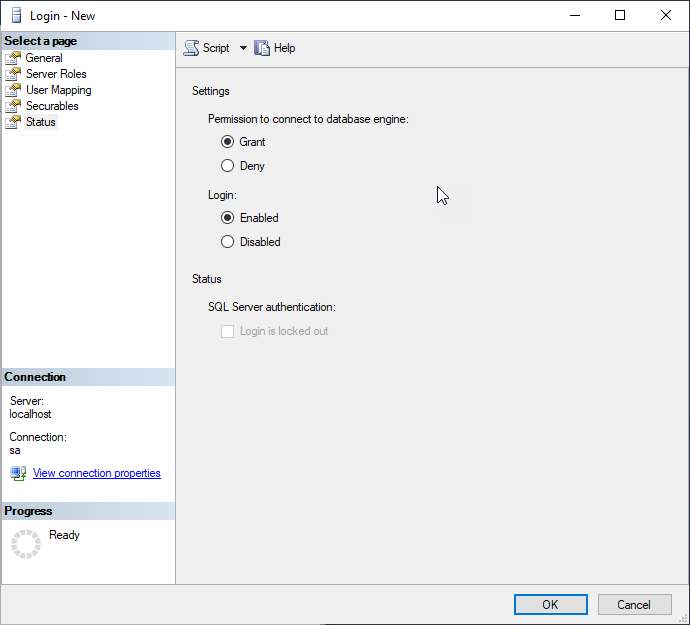
Status

Lastly, set the status as follows then you may click OK:

Need further assistance?

Submit a Support Ticket

Submit a Support Ticket

FAQ

General

Technical Bulletins

Access Control

AmanoNet

Nexxus220

Omnia

Omnia Lite

PM Tronics Hardware

Amano Readers and Credentials

Legacy Hardware

Partner Products

Partner Products

Video Management Systems

Cathexis Video (Amano Vision)

AmanoDVMS

Vision

Emergency Mode On The Dashboard

Emergency Mode On The Dashboard

Guide for emergency mode on the dashboard.

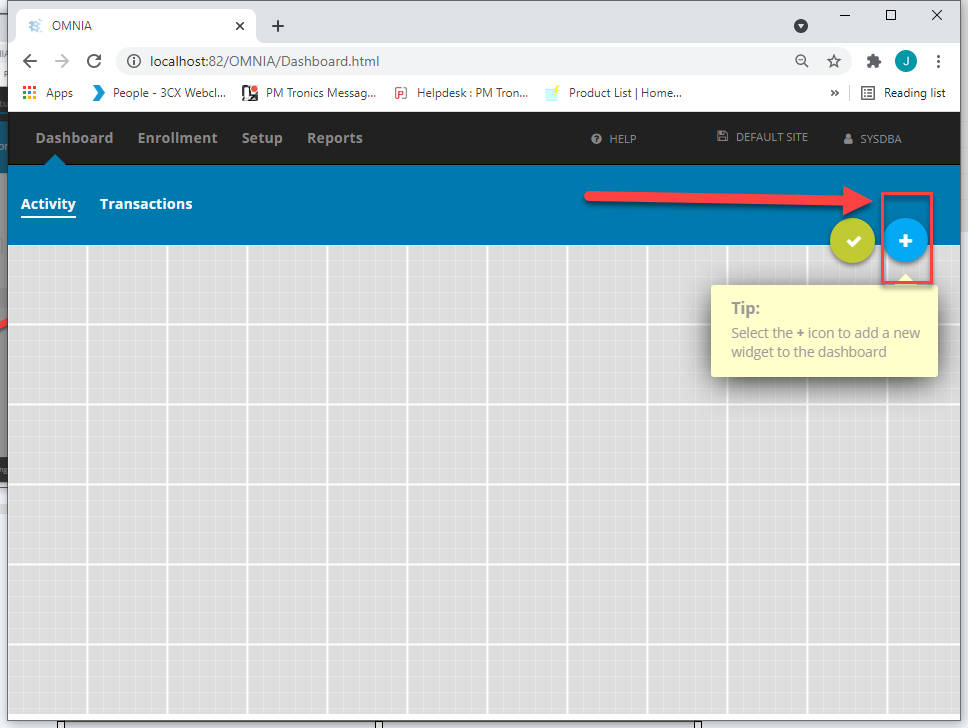
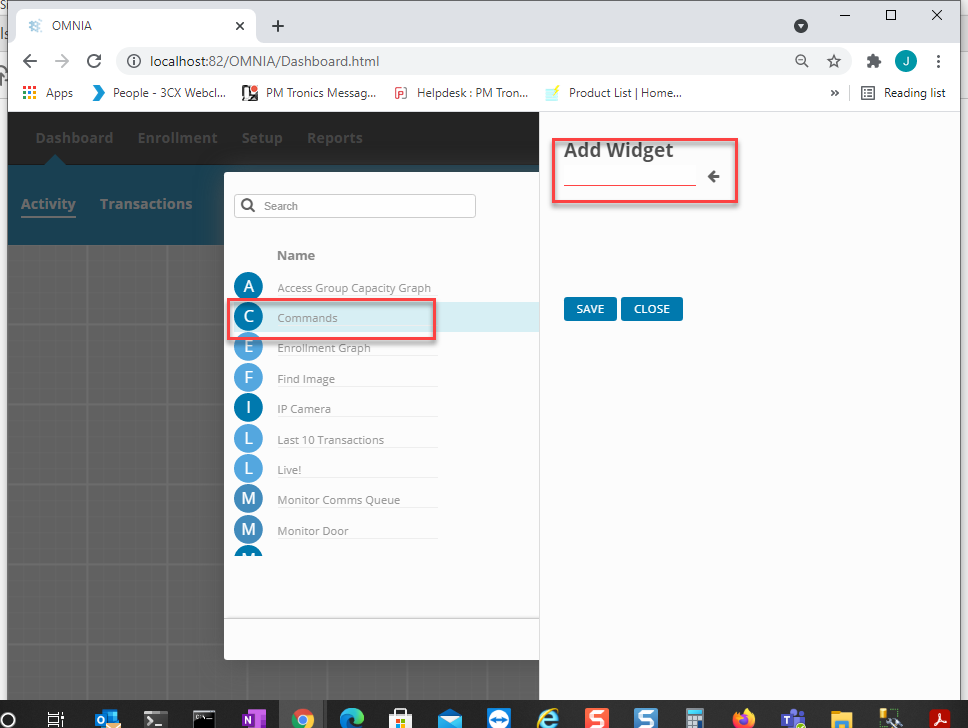
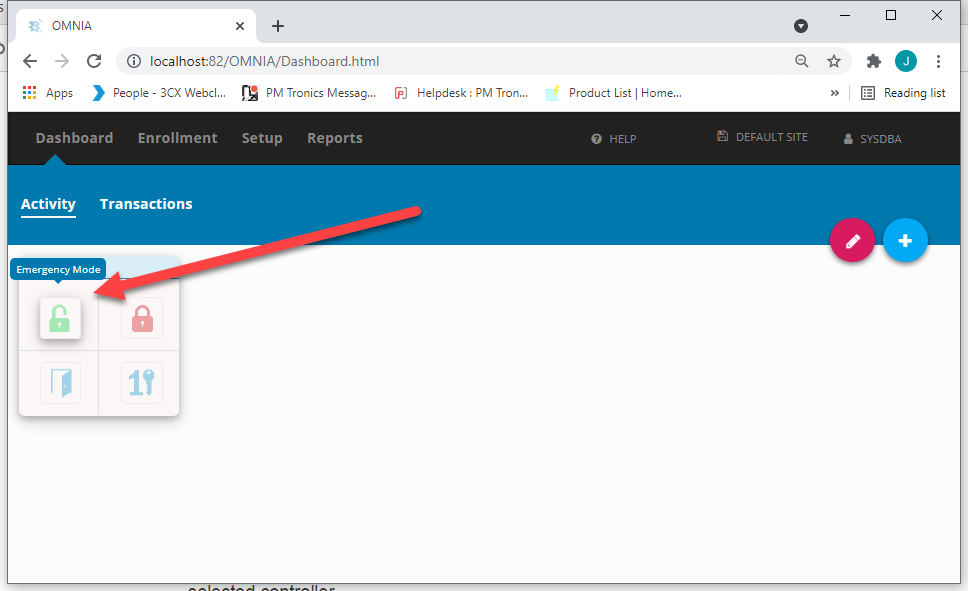
Add a command widget to the dashboard.

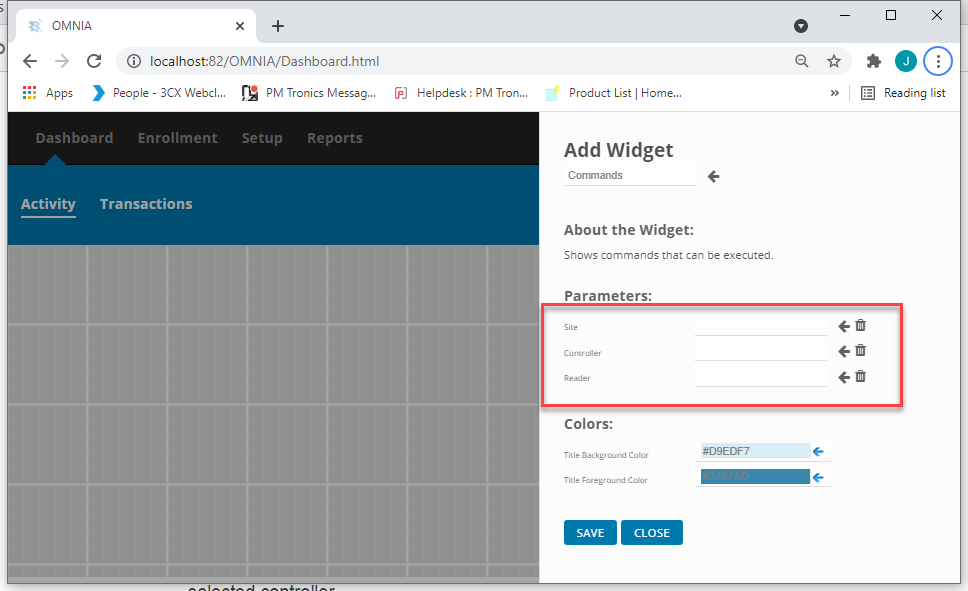
  • Choosing site will activate Emergency mode across all controllers
  • Choosing Controller will activate Emergency mode only on the selected controller
  • Choosing Reader will activate Emergency mode only on the selected reader.
  • Click Save
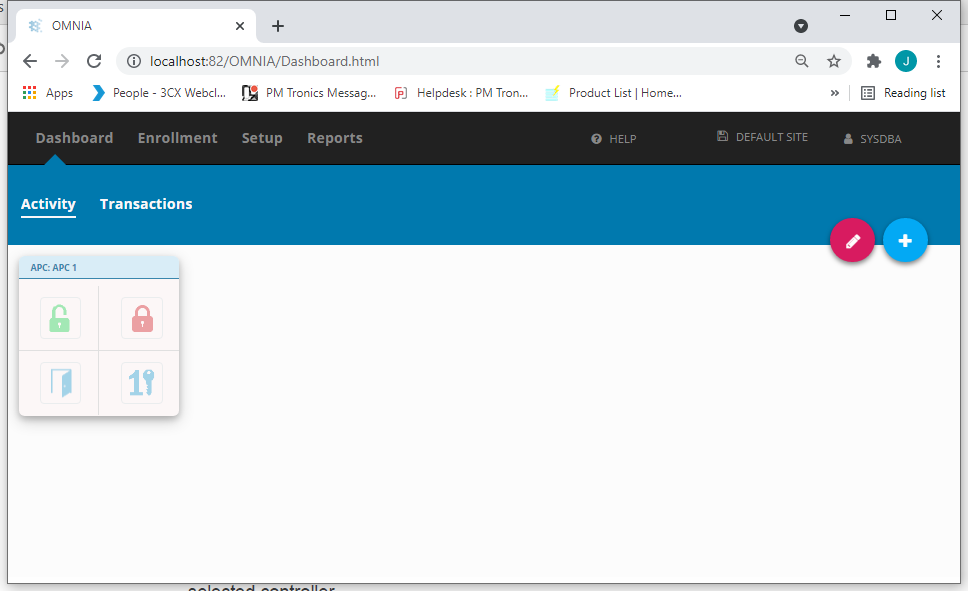
  • The widget will display as shown below

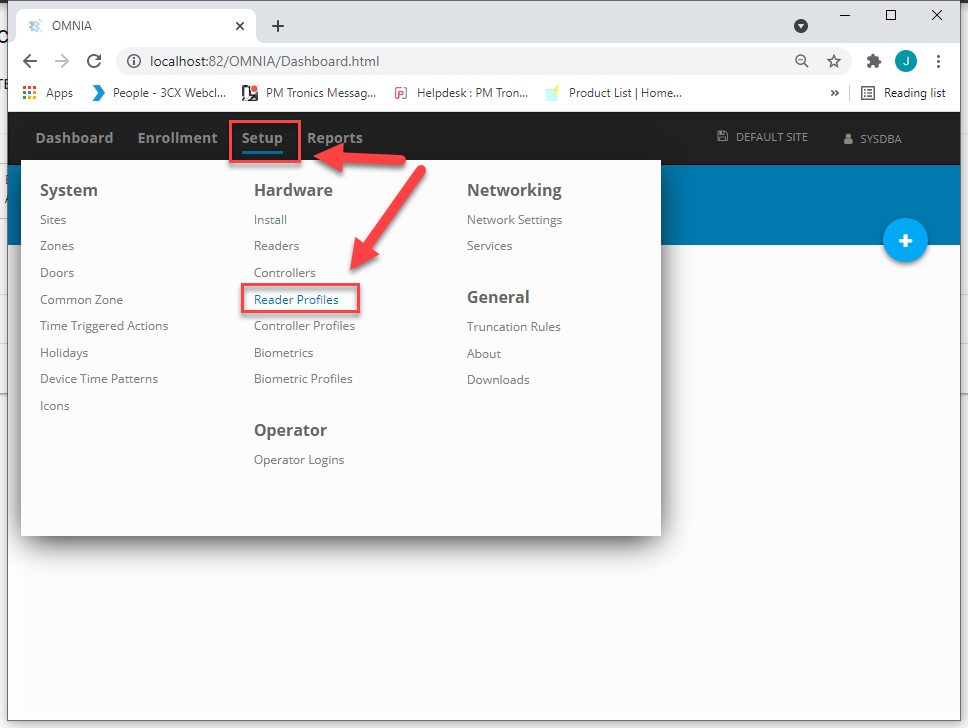
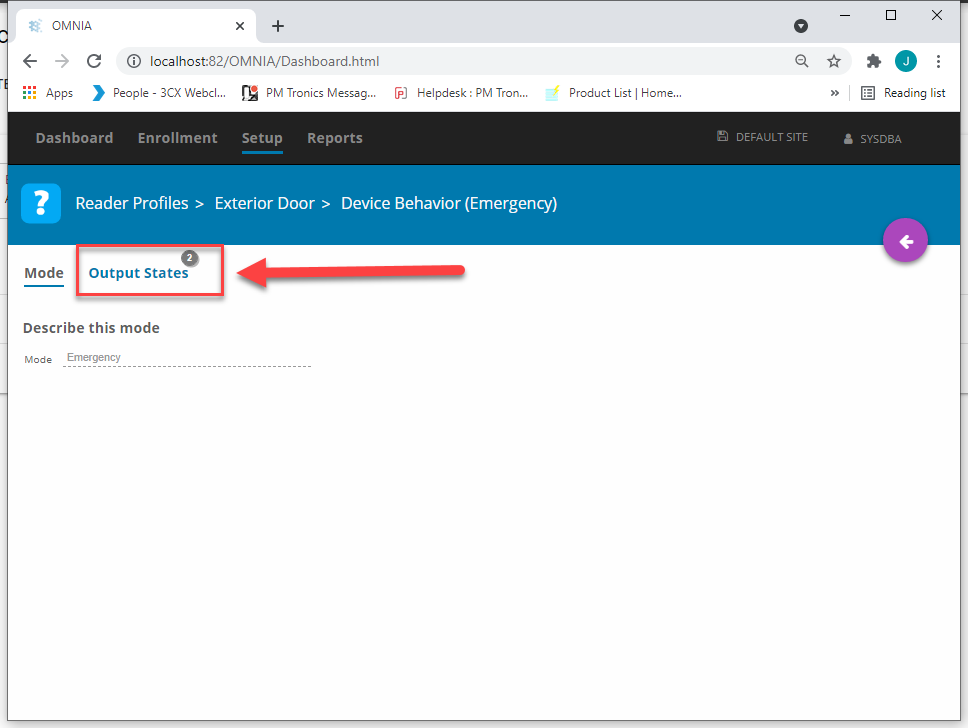
You will need to Edit the Behavior of the Emergency Mode in the Reader Profiles.

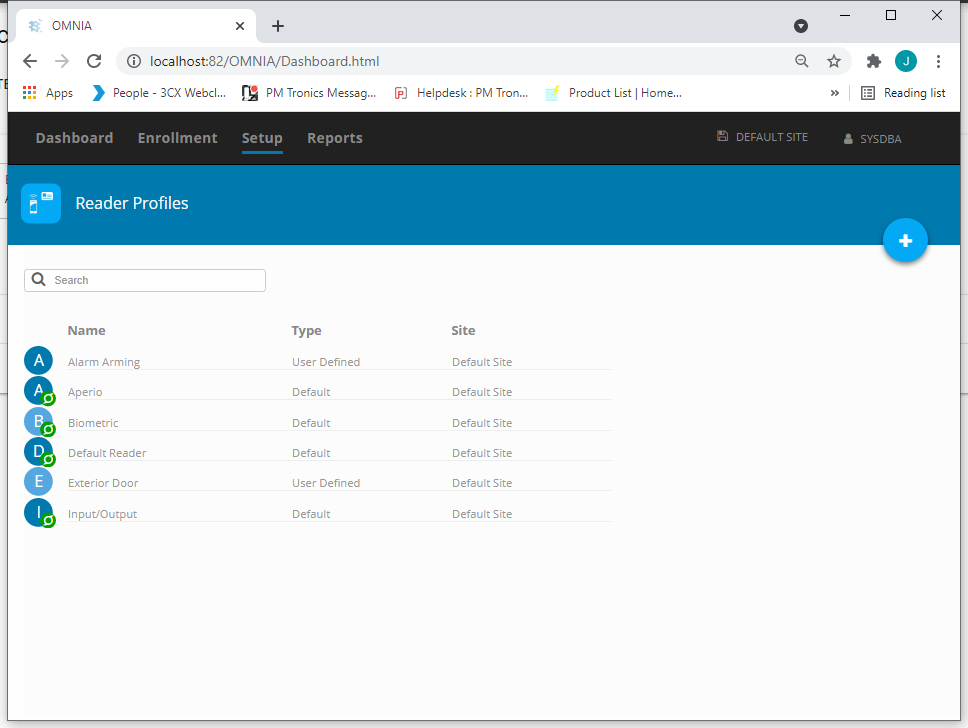
  • Go to Setup/Reader Profiles

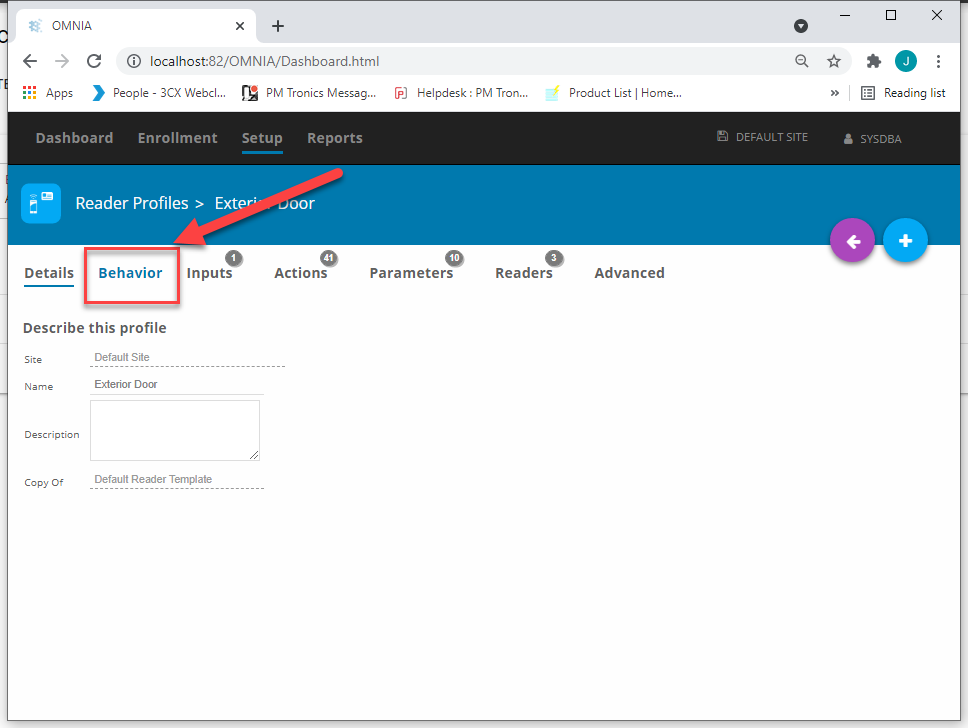
Select the Reader Profile that will be affected by the Emergency Mode

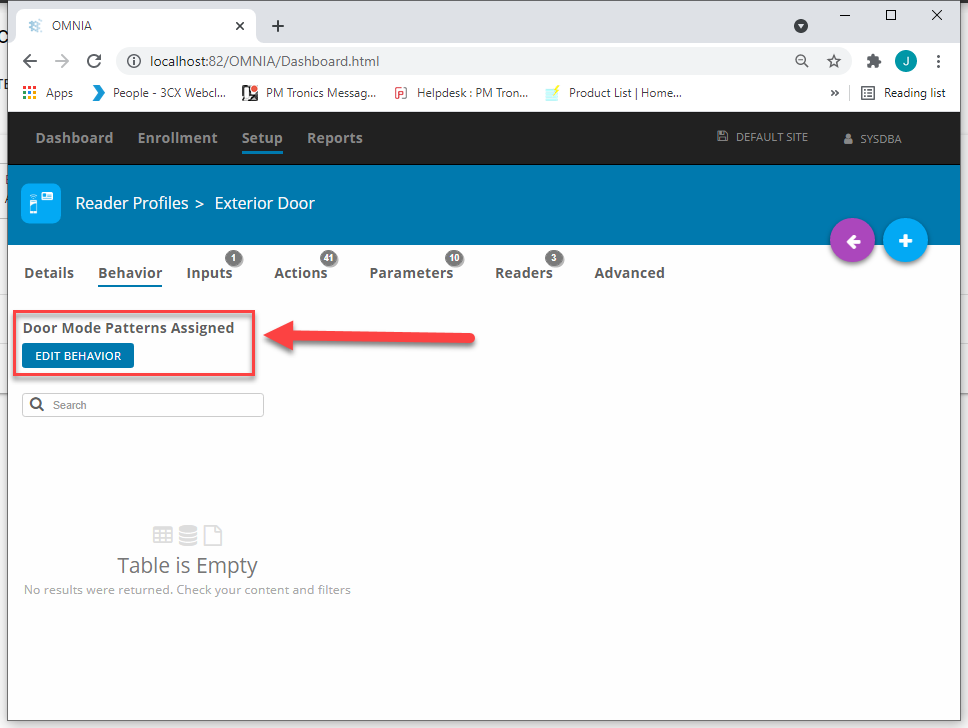
Choose Behavior

Select Edit Behavior

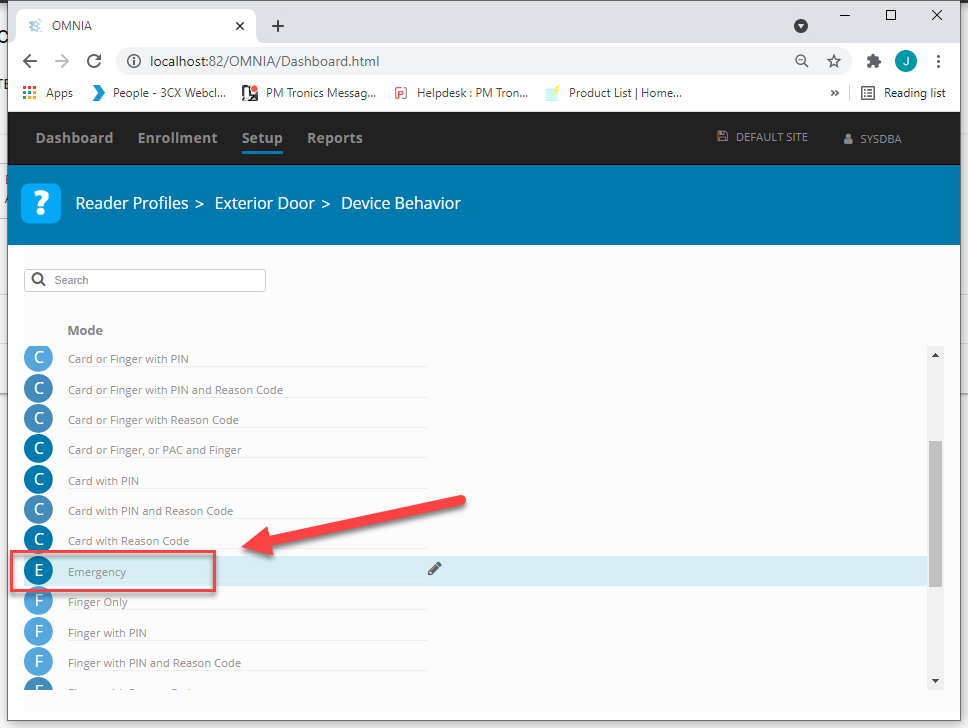
Scroll down to Emergency

Select output states

  • Select to either Drive or Not Drive Relay depending to lock type/lock action.
  • Select Save

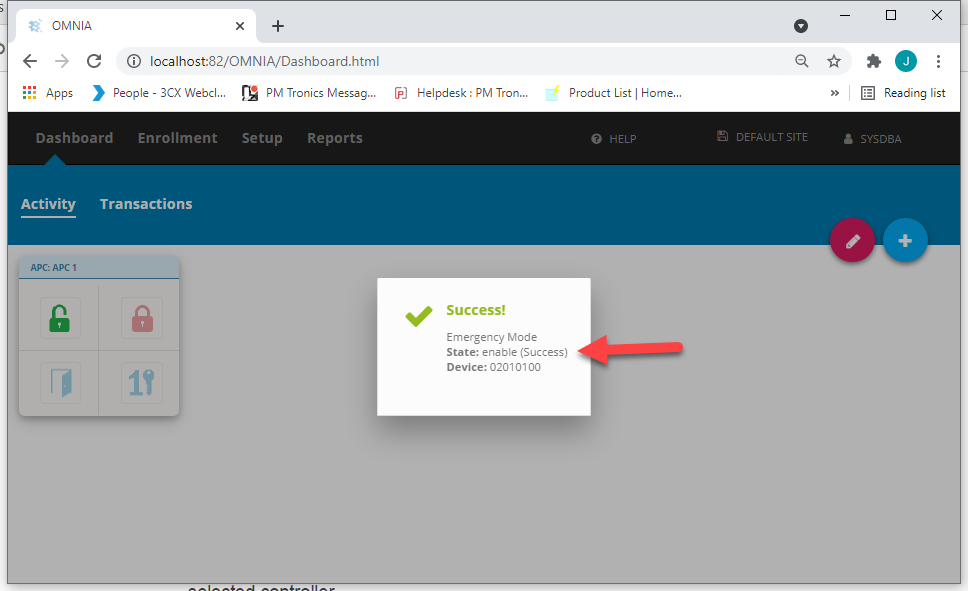
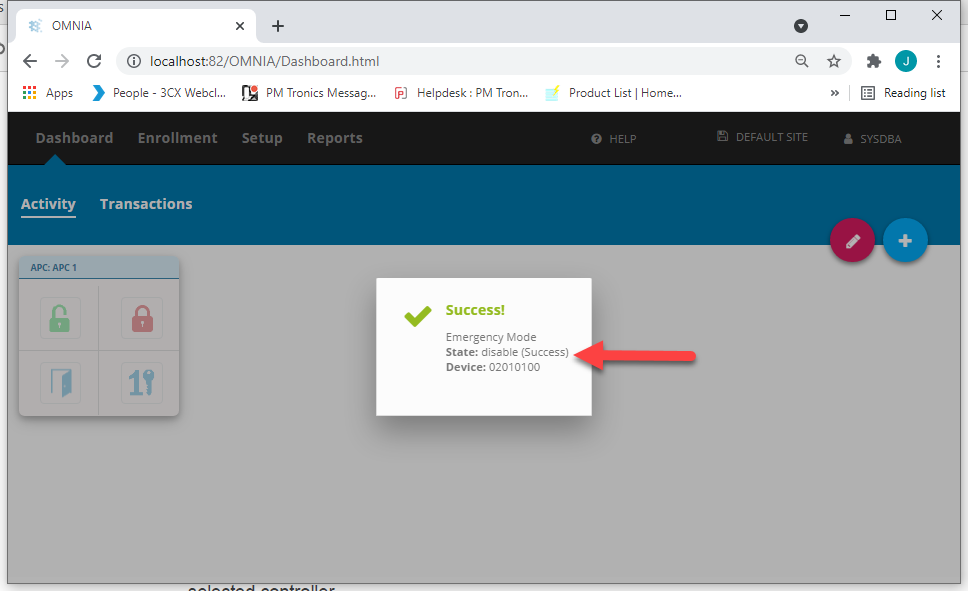
Toggle Emergency mode from the Portal Dashboard.

Need further assistance?

Submit a Support Ticket

Submit a Support Ticket

FAQ

General

Technical Bulletins

Access Control

AmanoNet

Nexxus220

Omnia

Omnia Lite

PM Tronics Hardware

Amano Readers and Credentials

Legacy Hardware

Partner Products

Partner Products

Video Management Systems

Cathexis Video (Amano Vision)

AmanoDVMS

Vision

Is it possible to move or migrate hardware modules between sites in OMNIA?

Is it possible to move or migrate hardware modules between sites in OMNIA?

At this time, there is no supported method to move hardware to a different site.

You may come across some versions of OMNIA that contain a move controller function in the HeatlhChecker application, however, this feature is still in beta and is to be used at your own risk.  In the future, we do plan on having this feature available.

At this time, you will need to uninstall the device from Site A and reinstall into Site B.

Please contact technical support if you require additional assistance.

Need further assistance?
Submit a Support Ticket

Submit a Support Ticket

FAQ

General

Technical Bulletins

Access Control

AmanoNet

Nexxus220

Omnia

Omnia Lite

PM Tronics Hardware

Amano Readers and Credentials

Legacy Hardware

Partner Products

Partner Products

Video Management Systems

Cathexis Video (Amano Vision)

AmanoDVMS

Vision

  • « Go to Previous Page
  • Page 1
  • Interim pages omitted …
  • Page 10
  • Page 11
  • Page 12
  • Page 13
  • Page 14
  • Interim pages omitted …
  • Page 23
  • Go to Next Page »
  • Facebook
  • LinkedIn
  • Twitter

PMT Security

Copyright © 2026 PMT Security, Inc. | All Rights Reserved