• Skip to primary navigation
  • Skip to main content
PMT Security Logo

PMT Security

Advanced Access Control

  • Home
  • About Us
    • Our Partners
    • Our Integrators
  • Solutions
    • Education
    • Retirement & Healthcare
    • Manufacturing
    • Government Facilities
    • Residential
    • Retail Businesses
    • Campgrounds & Outdoor Resorts
  • Products
    • Access Control
      • Control Features
      • Reporting & Monitoring
      • Control Module
      • Digital IO Module
      • Reader Module
      • Readers
    • Video Management
      • Integration
      • Analytics
      • Search & Export
    • Visitor Management
    • Intercom
    • Live Guard Video Monitoring
    • Housings & Pedestals
  • Support
    • Knowledgebase
    • Download Center
    • License Request
    • RMA Request Form
  • Blog
  • Contact Us

Security Best Practices & Support

Create a Reader Profile in OMNIA

Create a Reader Profile in OMNIA

How to Create a Reader Profile

How to Create a Reader Profile

Before stating make sure your new hardware is installed.

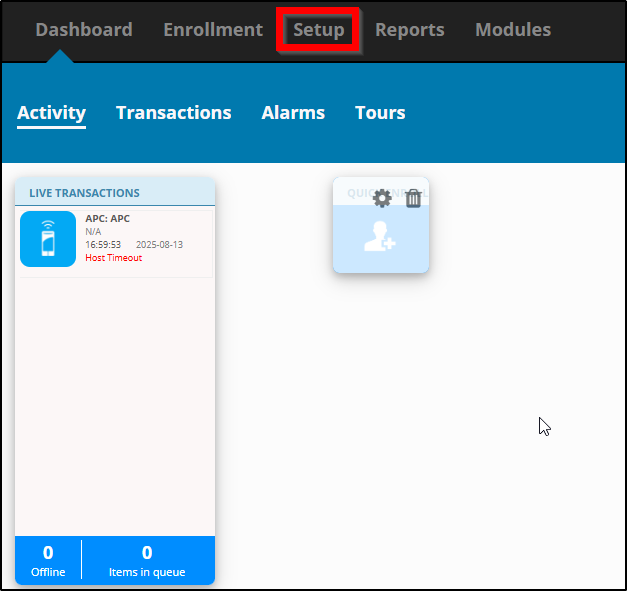
Open OMNIA in a web browser

Select Setup tab to open the drop down menu.

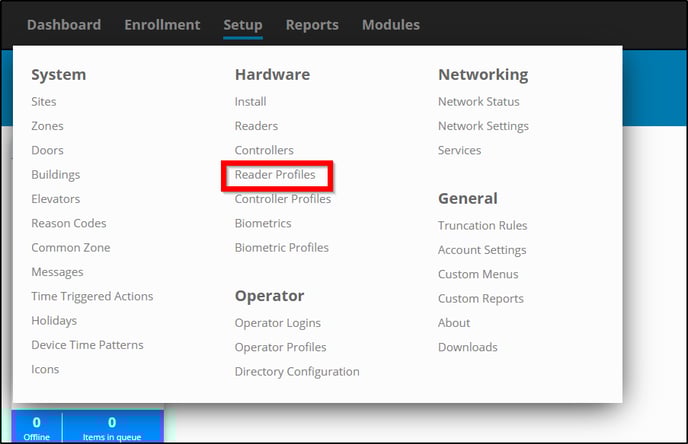
Under Hardware select Reader Profiles.

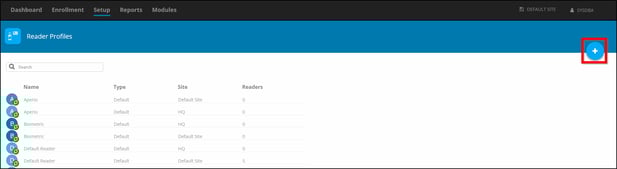
Click Add in the top right. A blue circle with a white +.


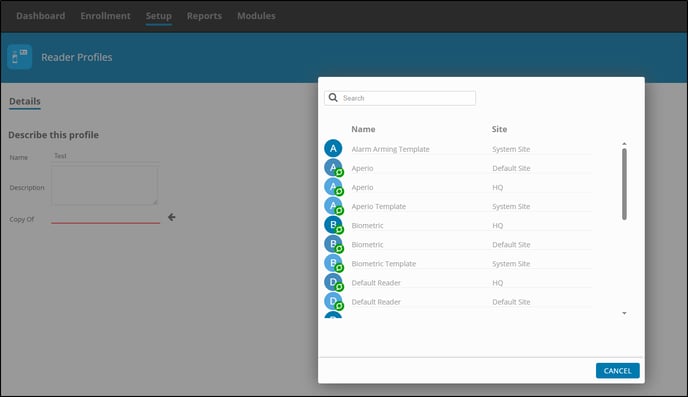
Name your new Reader Profile and Select the profile you would like to make a Copy Of.

*The Copy Of  sets the parameters for what kind of reader profile is preferred.
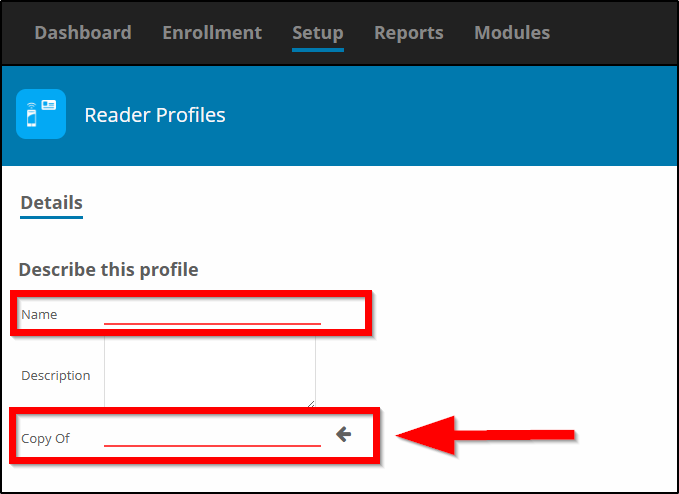


*Notice how you can select the copy from different sites* 


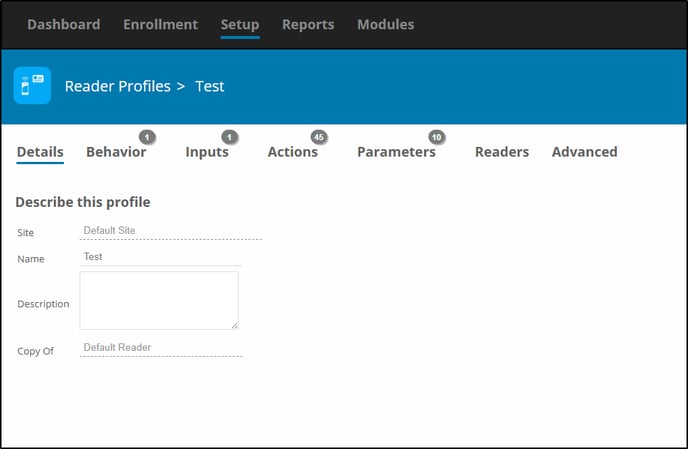
Once Created, you can verify the Details. If this is incorrect you can delete and start over by selecting reader profiles and clicking the trashcan. 

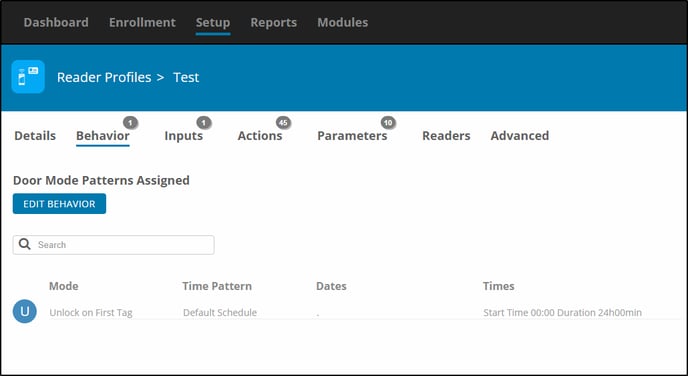
You can change or Edit Behaviors. Example- Unlock on First Tag.

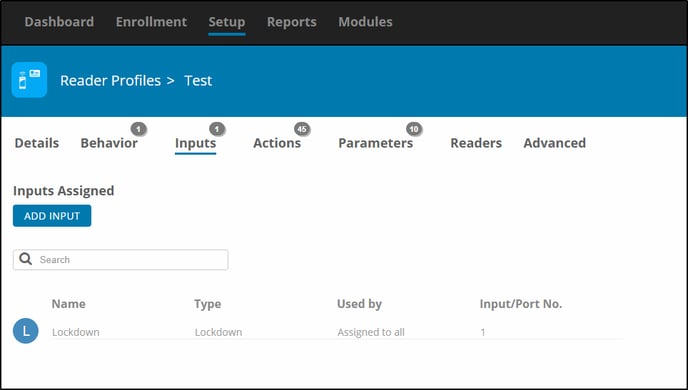
Adding or changing inputs. 

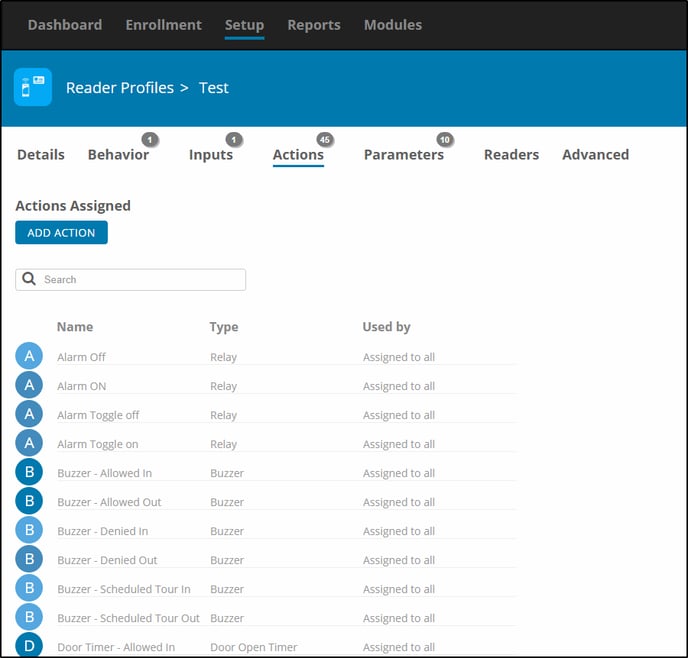
Add Actions (if required, defaults are usually fine)


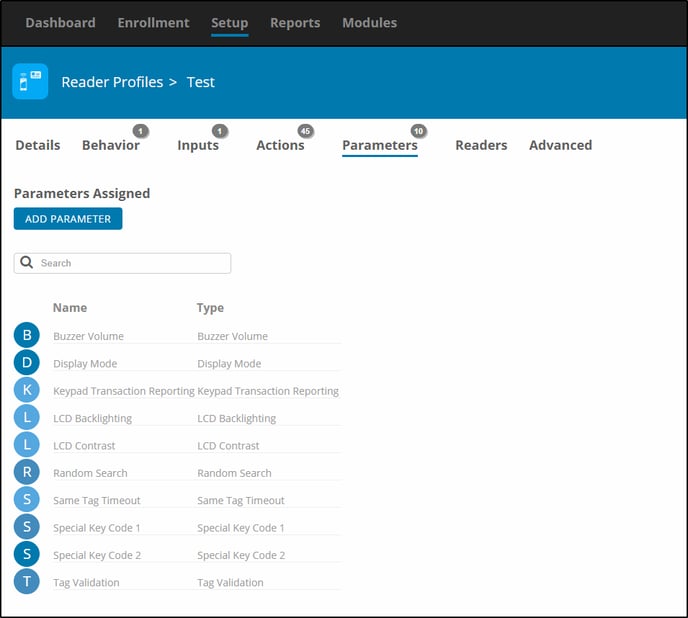
Add Parameters (if required, defaults are usually fine)


Selecting Readers for the Profile.
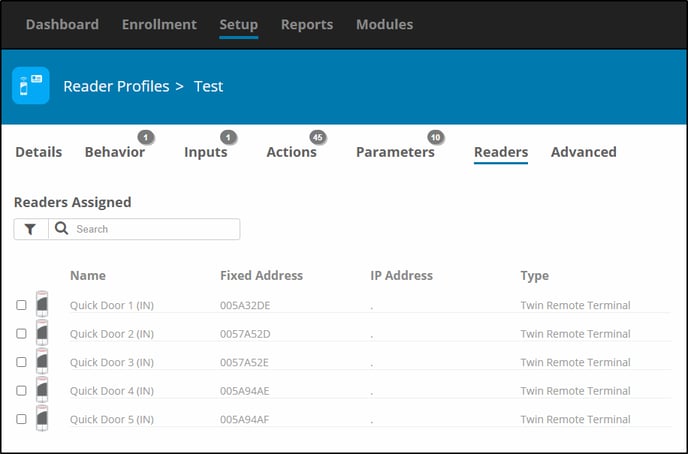
*Note: Once a reader has been assigned to a READER PROFILE, it can only be removed by adding it to another profile. It can not be removed from within its current profile.

Need further assistance?
Submit a Support Ticket

Submit a Support Ticket

FAQ

General

Technical Bulletins

Access Control

AmanoNet

Nexxus220

Omnia

Omnia Lite

PM Tronics Hardware

Amano Readers and Credentials

Legacy Hardware

Partner Products

Partner Products

Video Management Systems

Cathexis Video (Amano Vision)

AmanoDVMS

Vision

Replacing an Antenna Reader terminal with a iTRT or iTRT2 in AmanoNet

Replacing an Antenna Reader terminal with a iTRT or iTRT2 in AmanoNet

Replacing an Antenna Reader terminal with a iTRT or iTRT2 in AmanoNet.

Replacing an Antenna Reader terminal with a iTRT or iTRT2 in AmanoNet

Before stating make sure your new hardware is installed.

(Note* When replacing an Antenna reader terminal with an iTRT or iTRT2 you must replace the reader)

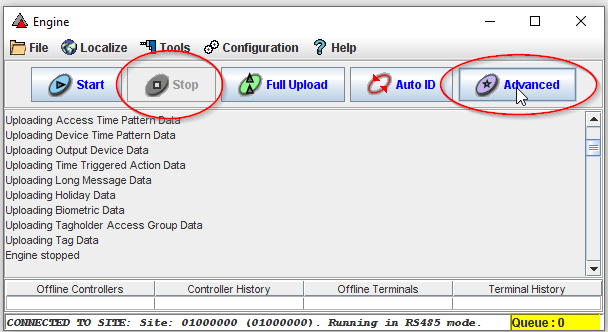
Open the Engine.exe and select stop. Then Select Advanced

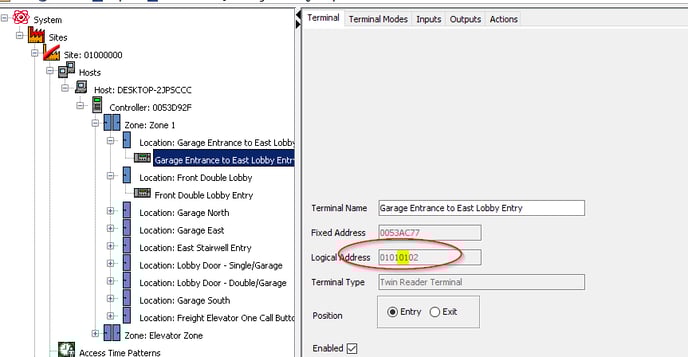
Find the Controller LA locate the Reader terminal you would like to replace. Open Access and search for the terminal that will be replaced then select.  Next to Logical address take note of the highlighted section below. (Example 01)


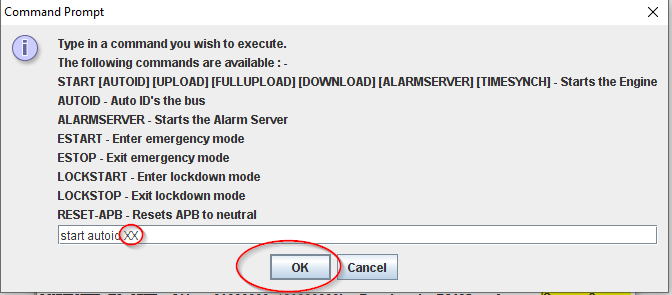
Type START AUTOID (Logical Address of Controller)(Example 01) Then Select Enter

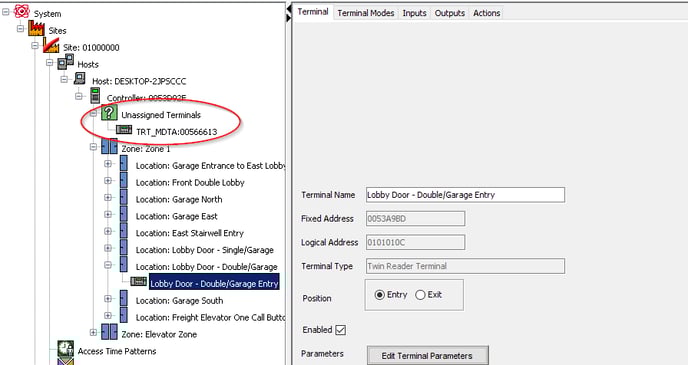
To see the Unassigned Terminals close and reopen Access.exe

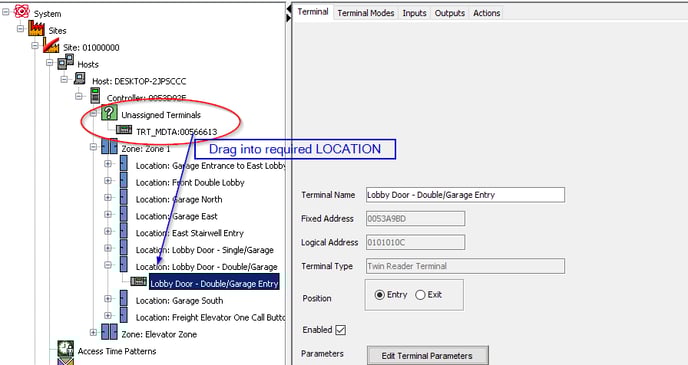
Now that you see the Unassigned Terminals Click and drag the device into the required location. 

Need further assistance?

Submit a Support Ticket

Submit a Support Ticket

FAQ

General

Technical Bulletins

Access Control

AmanoNet

Nexxus220

Omnia

Omnia Lite

PM Tronics Hardware

Amano Readers and Credentials

Legacy Hardware

Partner Products

Partner Products

Video Management Systems

Cathexis Video (Amano Vision)

AmanoDVMS

Vision

Creating Mappable Import User Fields in OMNIA

Creating Mappable Import User Fields

When Importing Tagholder information into OMNIA and you want to import information that is not currently into OMINA

Site is importing Tagholders to OMNIA as has .CSV file with tagholder information.

The information currently in the .CSV file has information that is not currently available to map during the import.

For example the site has a column of information called Permit ID, the site would like this permit ID to be visible for tagholders in OMINA.

A User Field will need to be created in OMINA, this user Field will be available for import mapping after the creation.

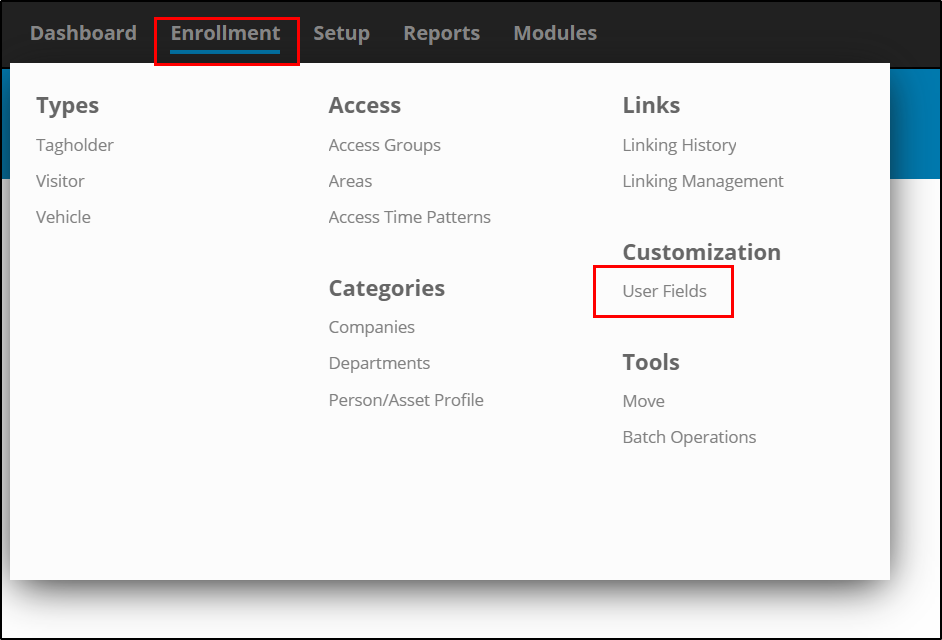
Go to Enrollment, then Select User Fields.

Select the Plus to add a new User Fields

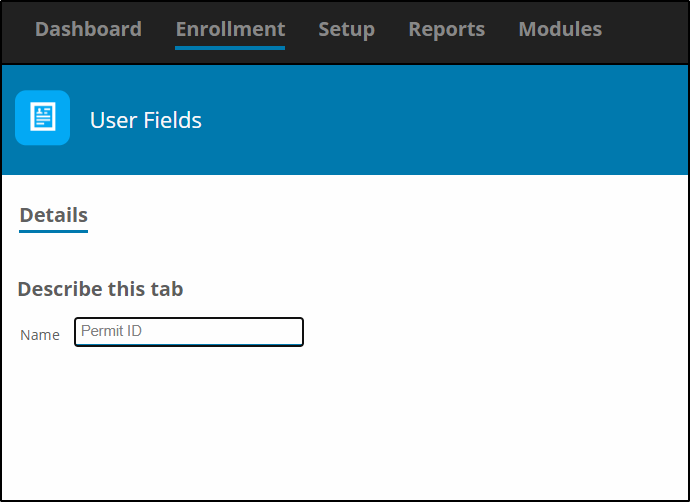
Name the User Field and Select Save

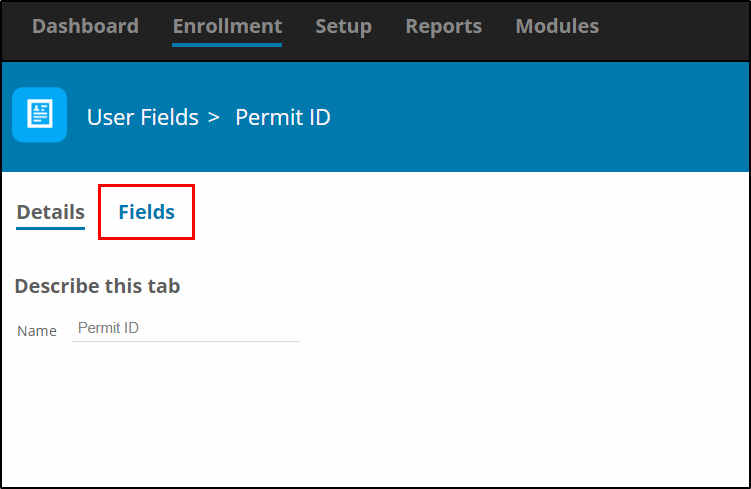
After you save the User Field you will see a Fields Tab, Select the Fields Tab

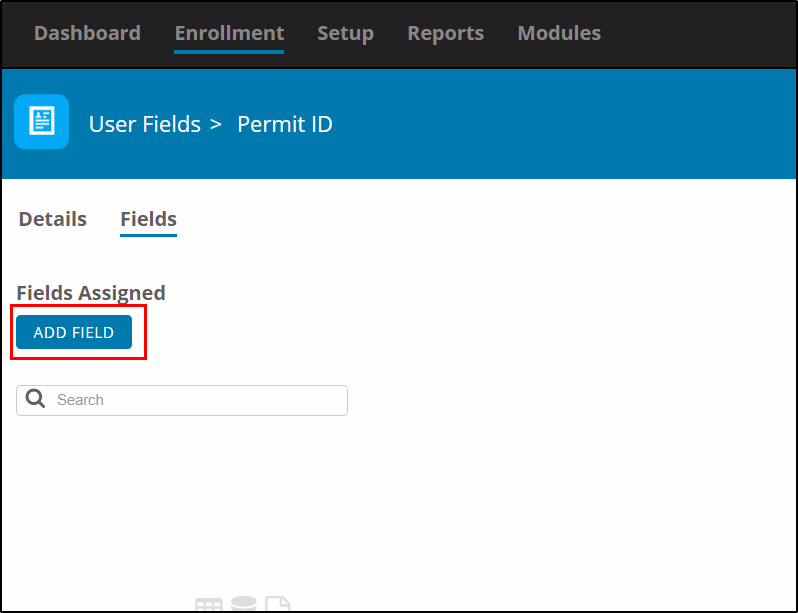
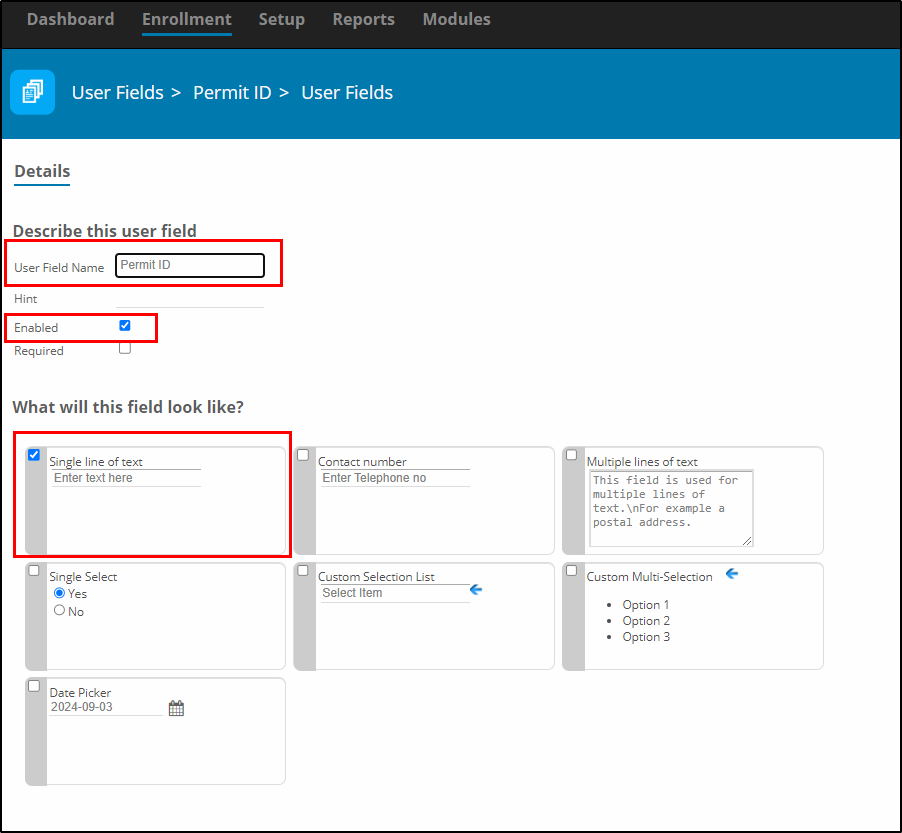
Select Add Field

Here you will be able to customize what and how information is entered for this Field.

Name the Field, the Name to be displayed for the User Field for Tagholder.

Select Enabled, 

Select the type of field. In this example we are using Single Line of text for the Permit ID number.

Select Save

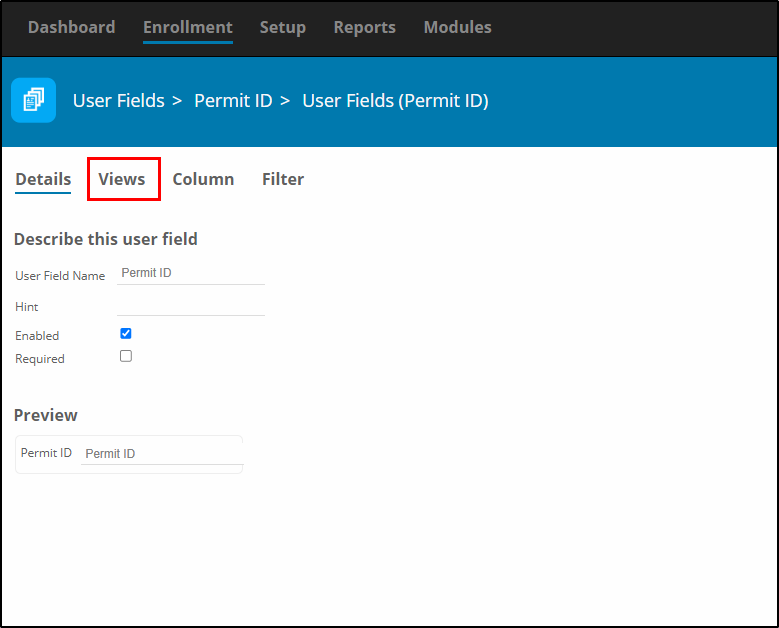
After you select Save, more Options become available. You must now configure where the User Field will be visible and to whom.

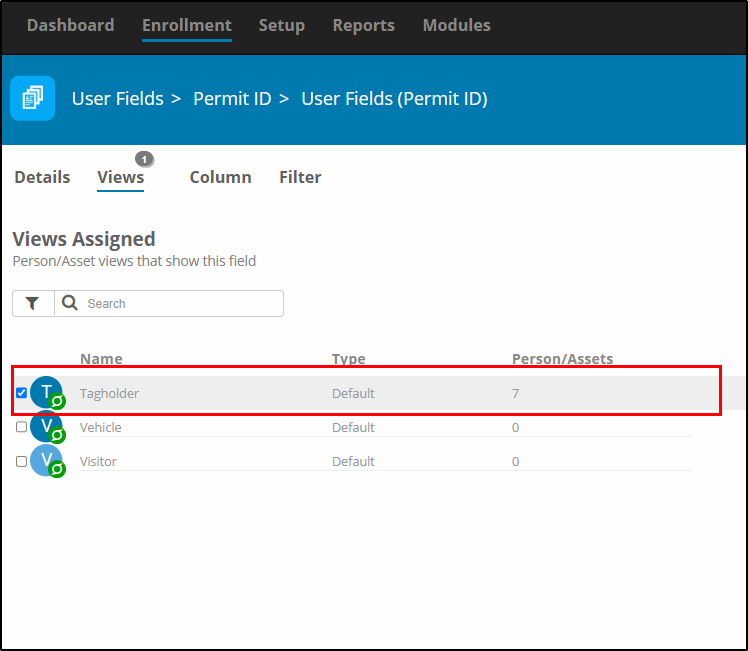
Select Views

For this example, we only want the Permit ID to be viewable for Tagholders.


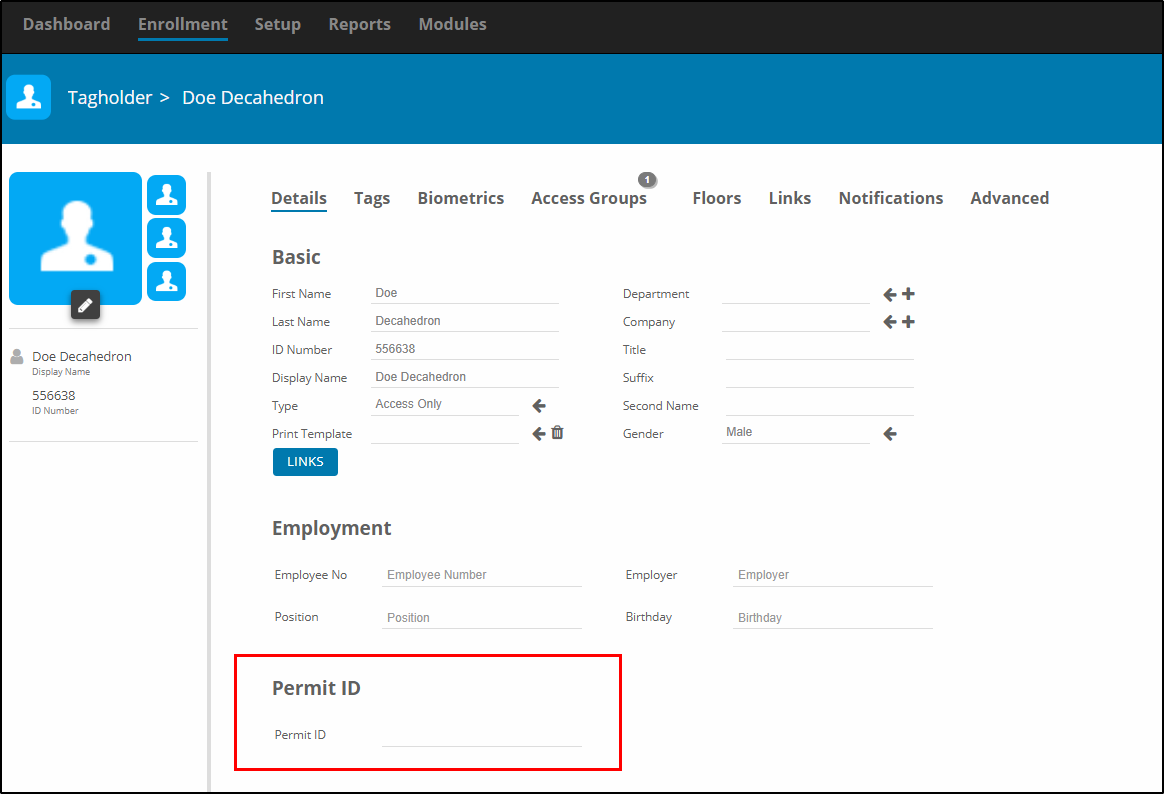
When you view a Tagholder, you will now see the User Field.

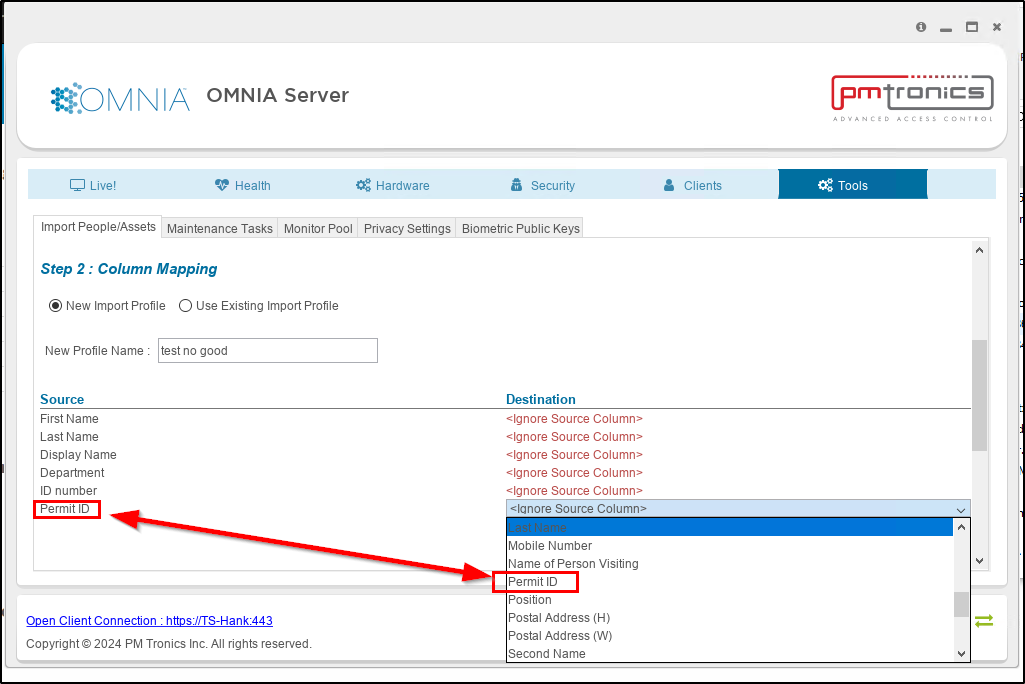
When you import the .CSV file, select the Destination, Permit ID will be available to select as a destination.

Please call 727-786-1900 if you have any questions on this procedure.

Need further assistance?
Submit a Support Ticket

Submit a Support Ticket

FAQ

General

Technical Bulletins

Access Control

AmanoNet

Nexxus220

Omnia

Omnia Lite

PM Tronics Hardware

Amano Readers and Credentials

Legacy Hardware

Partner Products

Partner Products

Video Management Systems

Cathexis Video (Amano Vision)

AmanoDVMS

Vision

Adding Cameras into Cathexis

Adding Cameras into Cathexis

Adding Cameras into Cathexis, creating Database, setting motion recording, analytics, and schedules

Setting up your Cameras

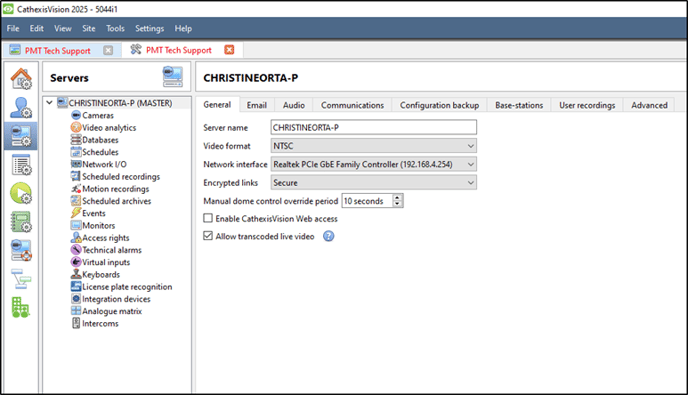
-Open application for CathexisVision

(1-1)

-Login in using:
Name: admin
Password: admin

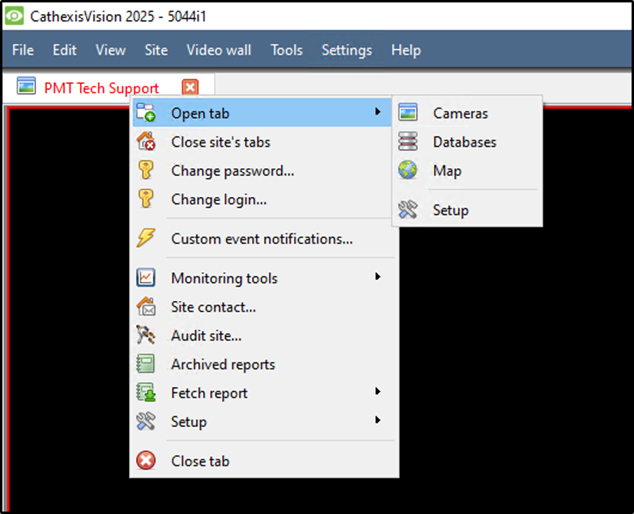
Right Click on the tab Open tab>Setup
or select Site>Open Tab>Setup

(1-2)

Look for the Icon (1-3)


(1-3)


Setting up your Database
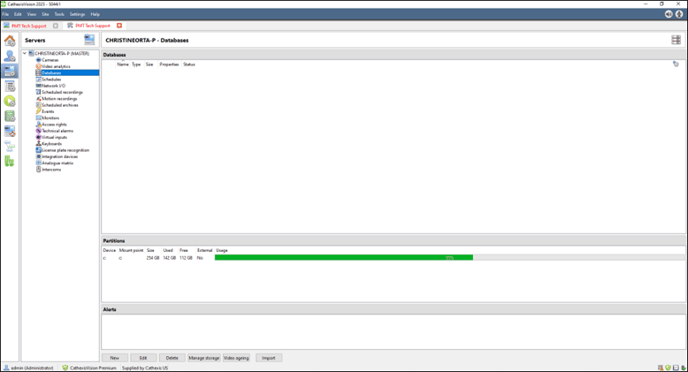
Select Database from the tree. Select New


(2-1)

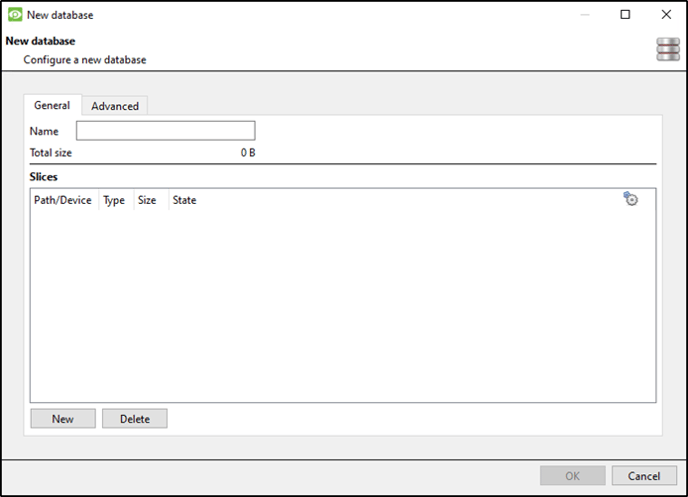
Select New

(2-2)

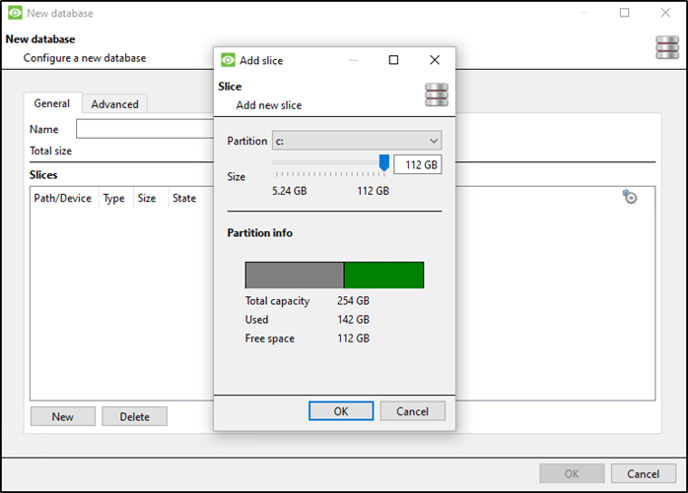
Choose Size and Select OK


(2-3)

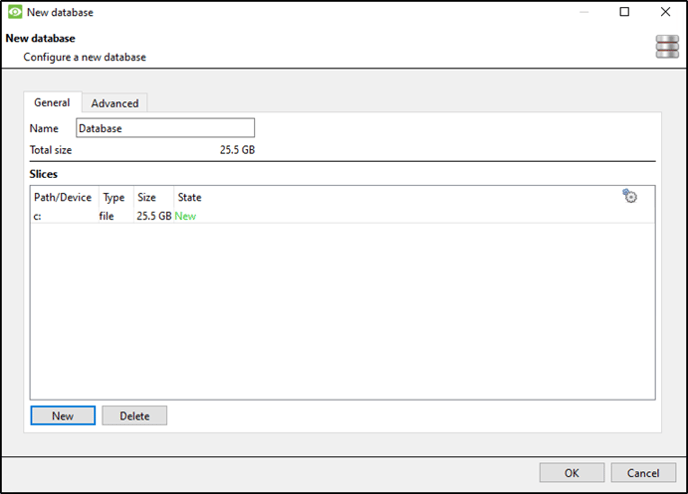
Select OK

(2-4)

Setting up Cameras 
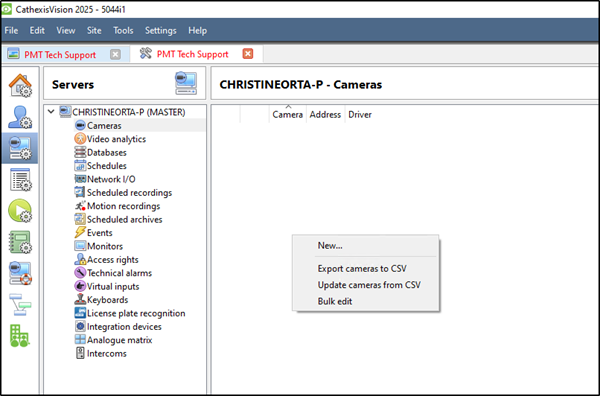
In the drop tree select Cameras

(3-1)

Right Click on the right side or select new at the bottom of the page.

(3-2)

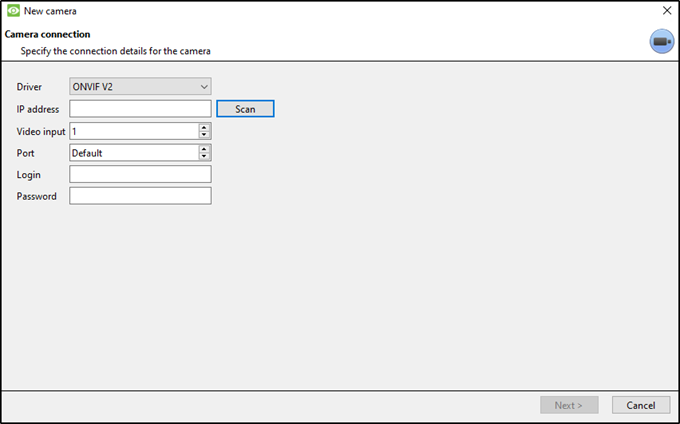
Scan for the cameras IP


(3-3)

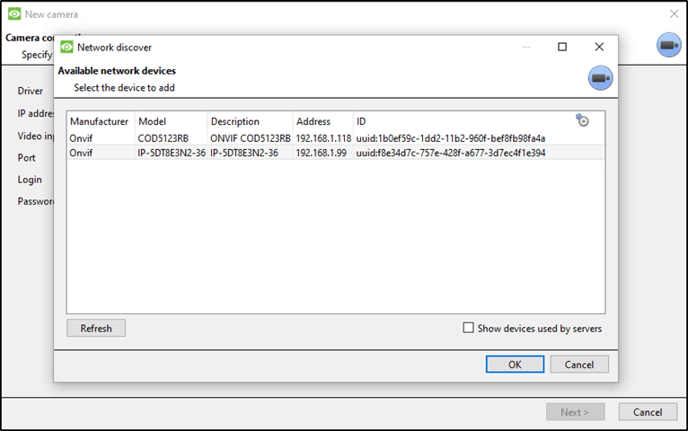
Select which camera you would like to use.

(3-4)

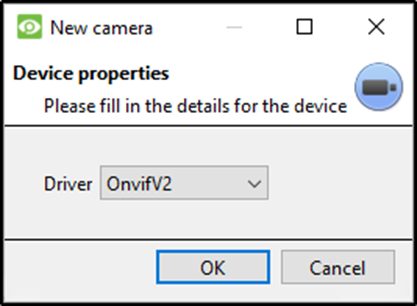
Select the driver that your specific camera uses.

(3-5)

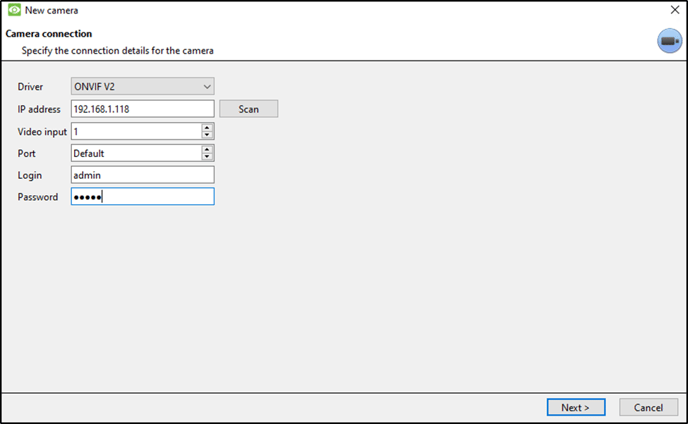
Enter the cameras Login and Password. Select Next >

(3-6)

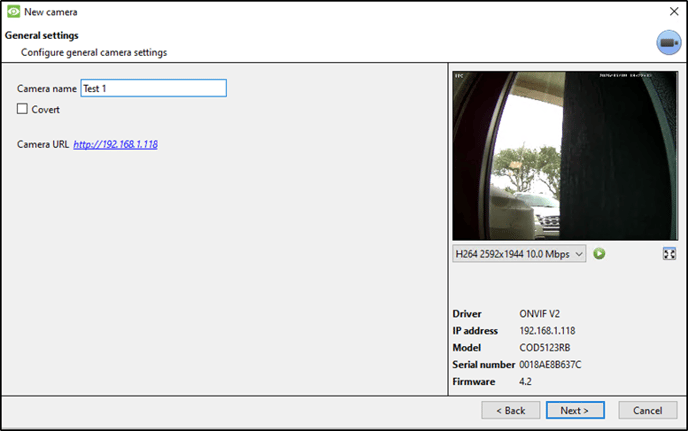
Name your camera. Select Next >

(3-7)

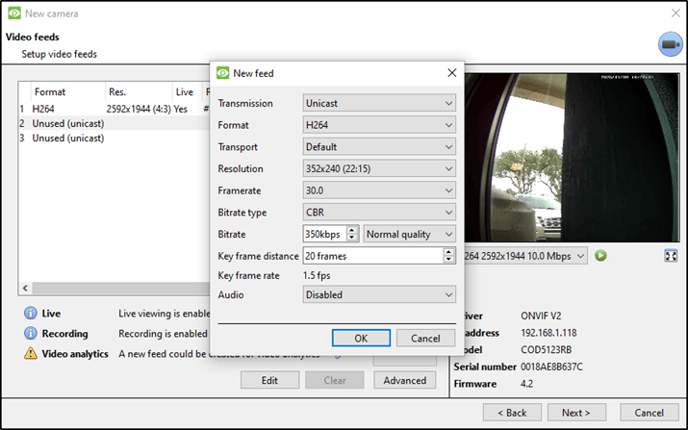
Select 2 Unused (unicast) to create a second feed for analytics. Then select Yes to enable.

(13-8)

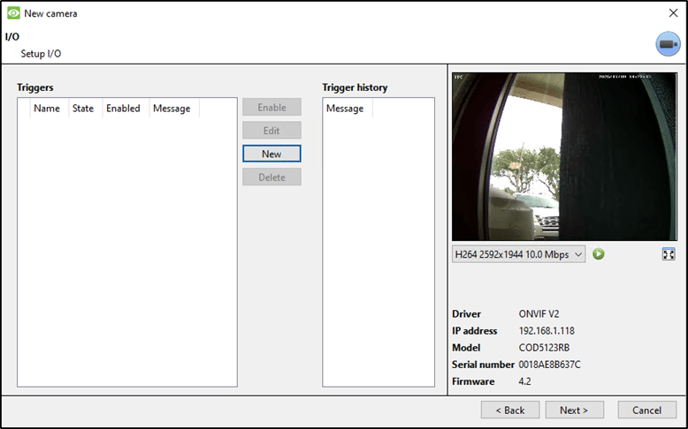
Select Next >

(3-9)

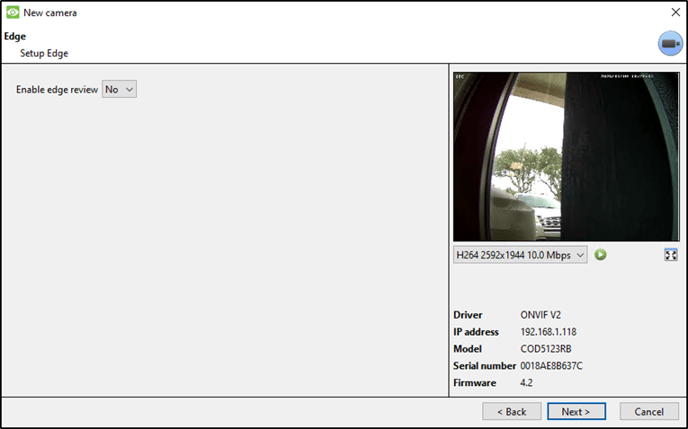
Choose Yes or No and select Next >

(3-10)

Select Enable PTZ if you have a PTZ camera. Select Next >

(3-11)

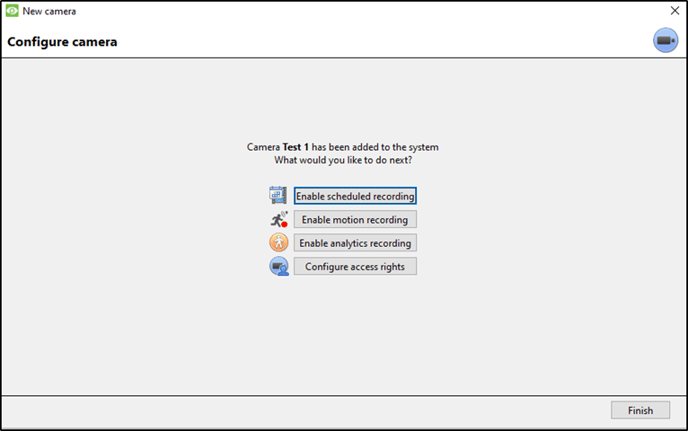
CAMERA CONFIGURATION

(3-12)

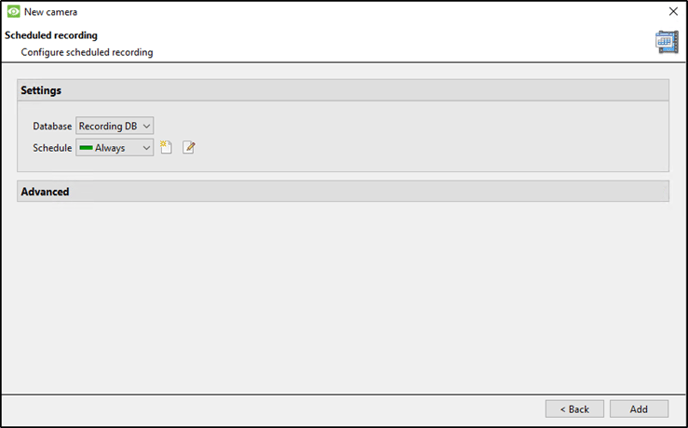
Scheduled Recording

(3-13)

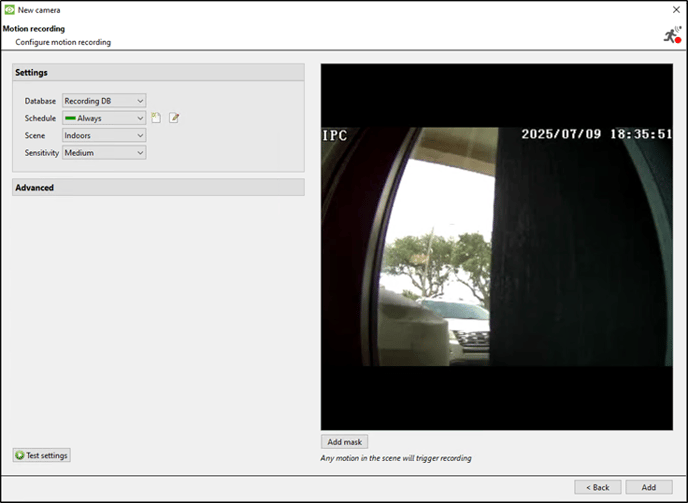
Motion Recording

(3-14)

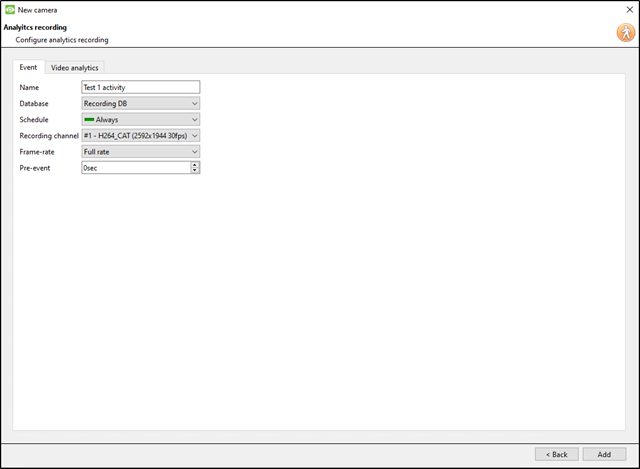
Analytics Recording

(3-15)

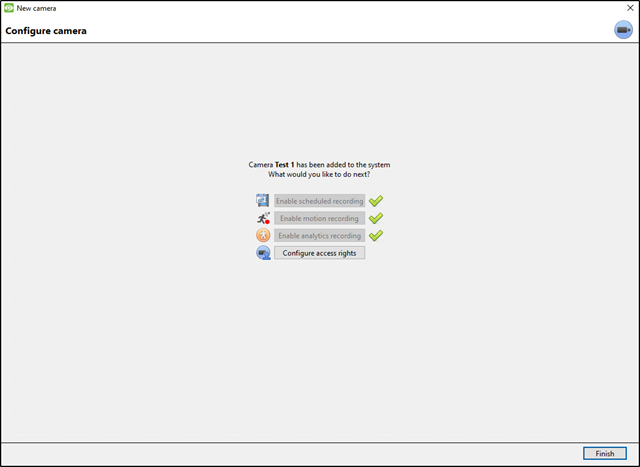
Select Finish

(3-16)

Video Analytics 

Select Video analytics from tree. Select New

(4-1)

New video analytics select Camera, Type, and Algorithm.


(4-2)

Create Zones, Advanced settings, Day/Night, and Triggers. Click OK.

(4-3)

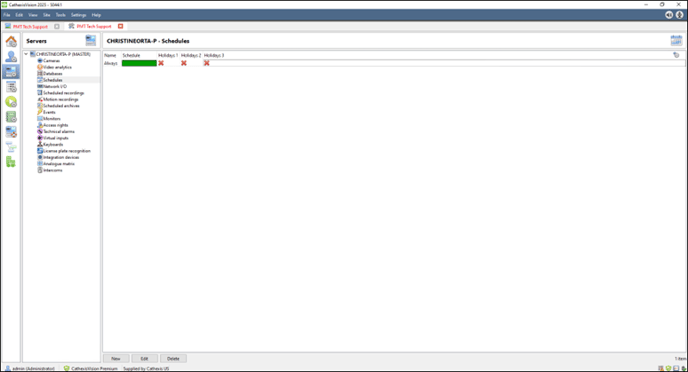
SCHEDULES
Select New

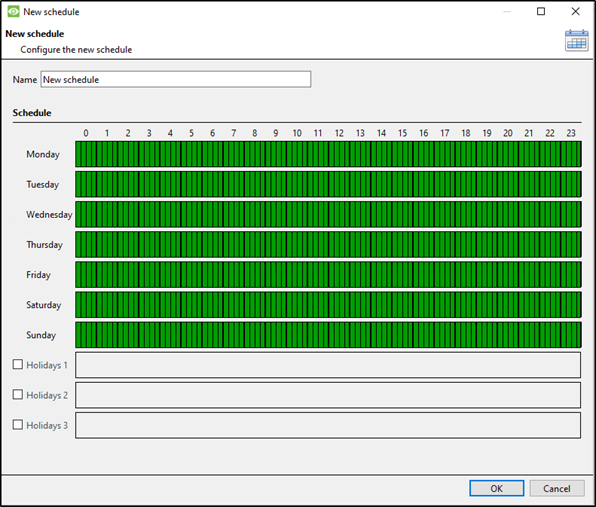
(5-1)

Highlight the day and times you would like to record.

Please call 727-786-1900 if you have any questions on this procedure.

Need further assistance?
Submit a Support Ticket

Submit a Support Ticket

FAQ

General

Technical Bulletins

Access Control

AmanoNet

Nexxus220

Omnia

Omnia Lite

PM Tronics Hardware

Amano Readers and Credentials

Legacy Hardware

Partner Products

Partner Products

Video Management Systems

Cathexis Video (Amano Vision)

AmanoDVMS

Vision

Changing the IP Address of a Previously Installed Controller using the Omnia Software/URL

Changing the IP Address of a Previously Installed Controller using the Omnia Software/URL

How to change controller IP in the OMNIA software using Network Settings.

If you are running OMNIA as a service and do not have the Discovery Tool downloaded on your PC/Server. You can change the IP to a controller using the OMNIA Software. 

Open OMNIA Select Setup>Networking>Network Settings


Choose the correct Controller you would like to make network changes


Once you choose the controller. Make sure to verify the IP you would like to use is available by using Command Prompt. Example type: ping 192.168.100.1 -t
This will perform a continuous ping of the IP address. To cancel: cntrl+c


Fill in the lines for IP Address, Subnet Mask, and Gateway. Then Check the box to make it static. (NOTE: Do Not Select Safe IP) 
Type in your password. Default: masterkey
Select check mark to save. 

Was this article helpful? Yes No

Need further assistance?
Submit a Support Ticket

Submit a Support Ticket

FAQ

General

Technical Bulletins

Access Control

AmanoNet

Nexxus220

Omnia

Omnia Lite

PM Tronics Hardware

Amano Readers and Credentials

Legacy Hardware

Partner Products

Partner Products

Video Management Systems

Cathexis Video (Amano Vision)

AmanoDVMS

Vision

  • « Go to Previous Page
  • Page 1
  • Page 2
  • Page 3
  • Page 4
  • Page 5
  • Page 6
  • Interim pages omitted …
  • Page 23
  • Go to Next Page »
  • Facebook
  • LinkedIn
  • Twitter

PMT Security

Copyright © 2026 PMT Security, Inc. | All Rights Reserved