• Skip to primary navigation
  • Skip to main content
PMT Security Logo

PMT Security

Advanced Access Control

  • Home
  • About Us
    • Security and Trust
    • Our Partners
    • Our Integrators
  • Solutions
    • Education
    • Retirement & Healthcare
    • Manufacturing
    • Government Facilities
    • Residential
    • Retail Businesses
    • Campgrounds & Outdoor Resorts
  • Products
    • Access Control
      • Control Features
      • Reporting & Monitoring
      • Control Module
      • Digital IO Module
      • Reader Module
      • Readers
    • Video Management
      • Integration
      • Analytics
      • Search & Export
    • Visitor Management
    • Intercom
    • Live Guard Video Monitoring
    • Housings & Pedestals
  • Support
    • Knowledgebase
    • Download Center
    • License Request
    • RMA Request Form
  • Blog
  • Contact Us

Tag Printing

How to Print Tags in OMNIA

How to Print Tags in OMNIA

Printing Tags in OMNIA

NOTE:

Install your printer to the PC, before installing the Plugin Manager

To print tags in OMNIA you must install the OMNIA Plugin Mgr, Update the Printer Persistence File, and Create a Tag Template

See Knowledgebase article titled, How to Install the OMNIA Plugin Mgr.

How to Install The OMNIA Plugin Manager

Seen Knowledgebase article, How to Use the OMNIA Card Designer.

How to Use The OMNIA Card Designer

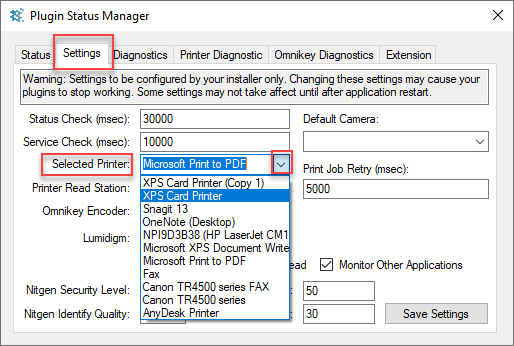
Select your printer in the Plugin Manager

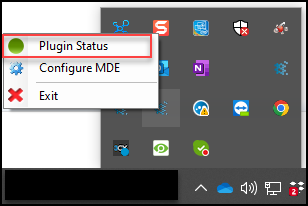
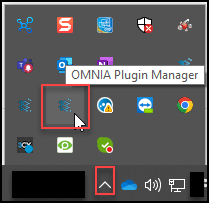
Right click the OMNIA Plugin Manager Icon, select Plugin Status
From the Settings Tab, use the dropdown to select your printer click save settings.
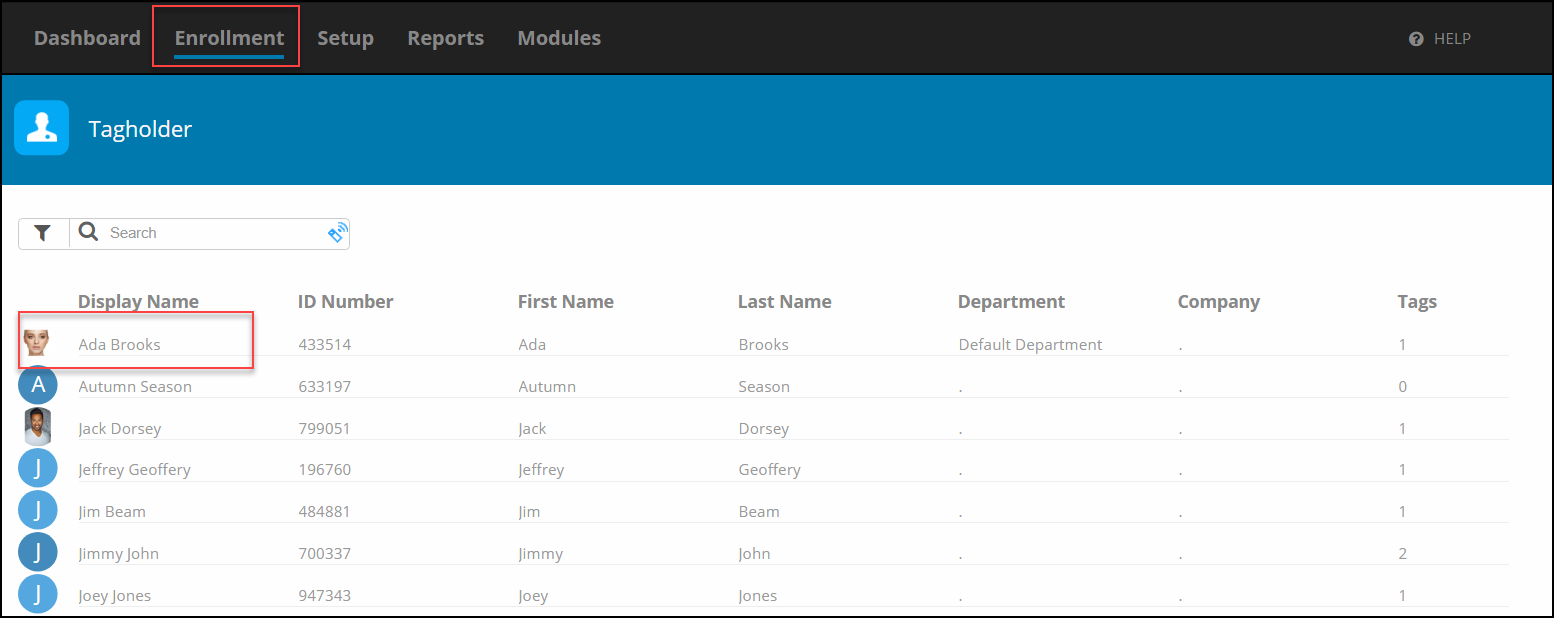
Log into the OMNIA URL , if currently logged in, log out then back in.

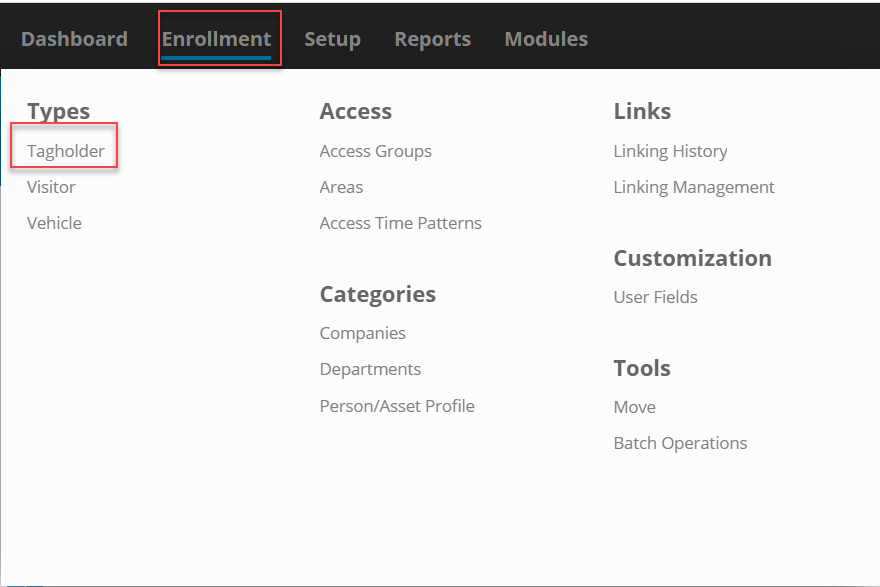
Go to Enrollment\Tagholder and select a Tagholder
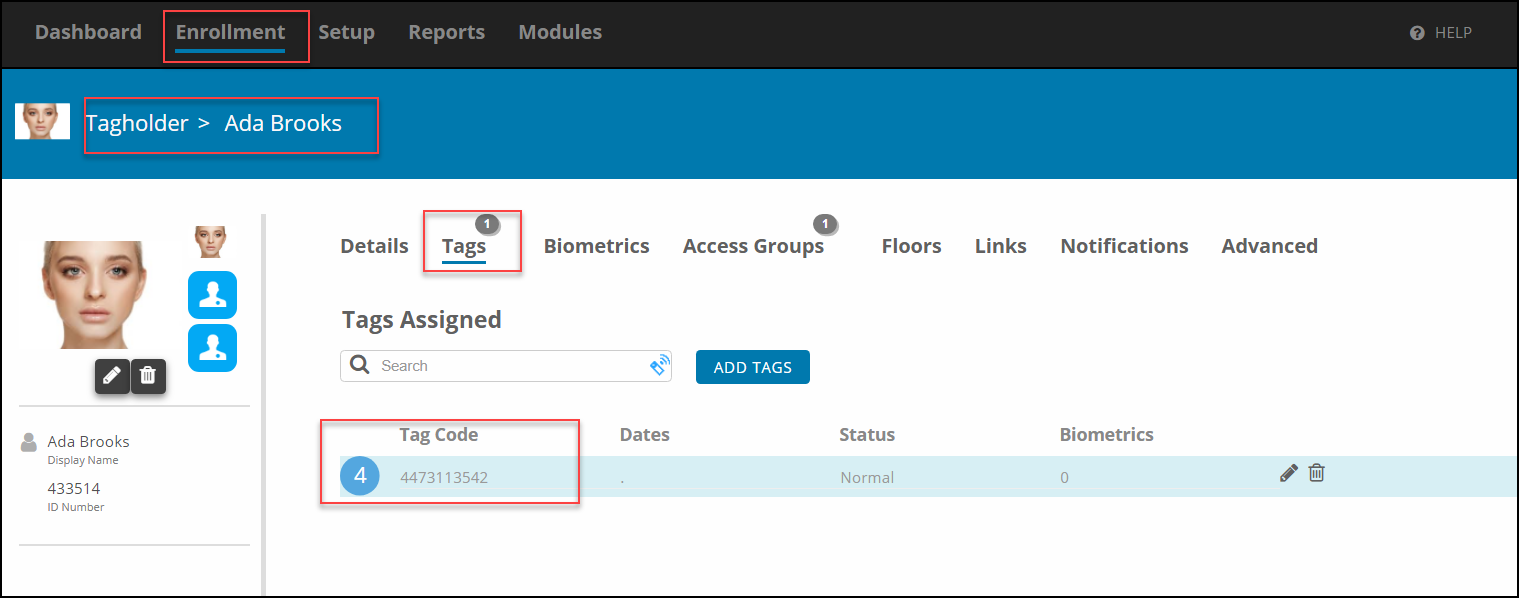
In the Tagholder Screen, Select Tags, then Select the Tag Code
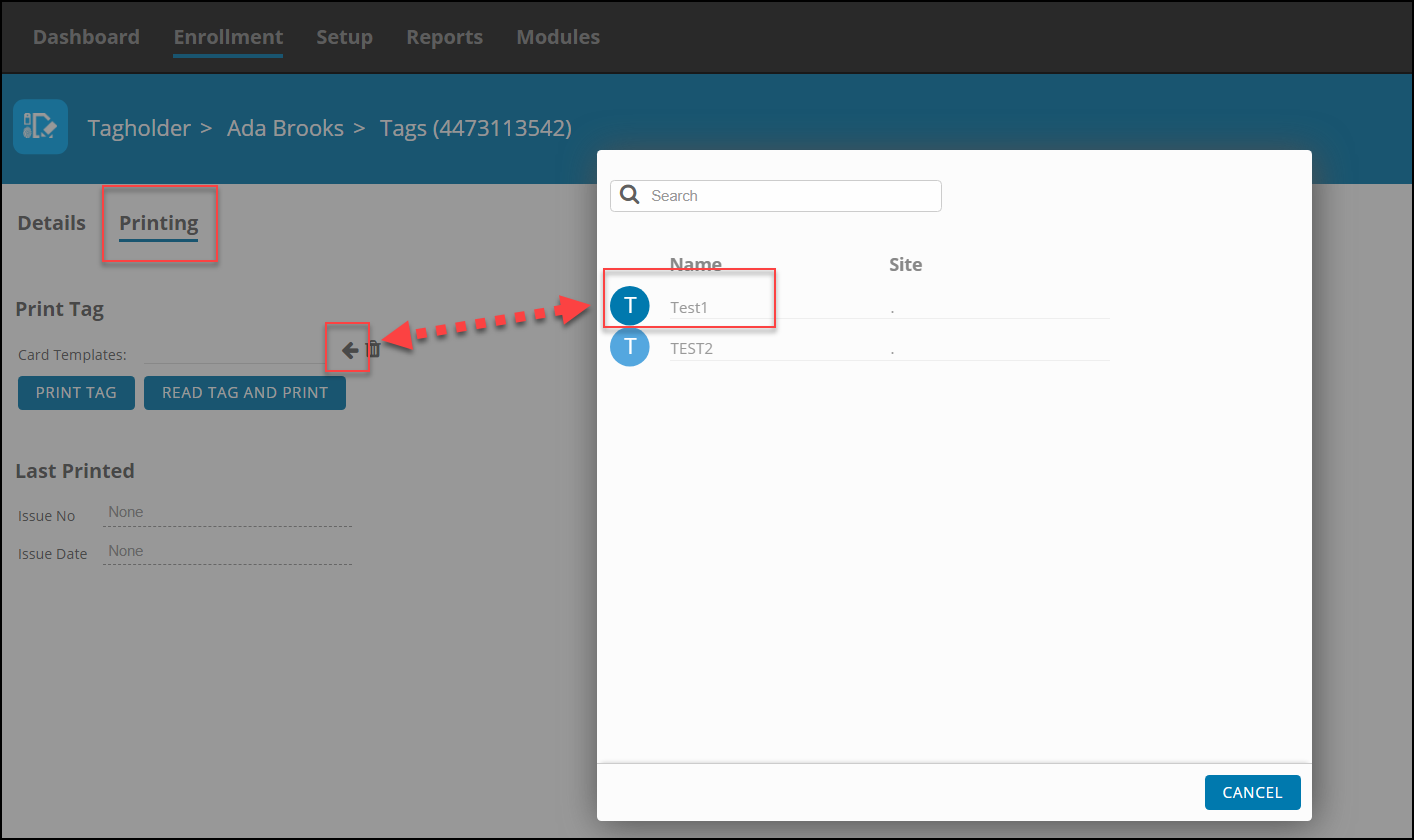
Select Printing, the Print Window will appear. Select your previously designed Card Template by using the arrow and selecting the desired template
After Selecting the Template, Select Print
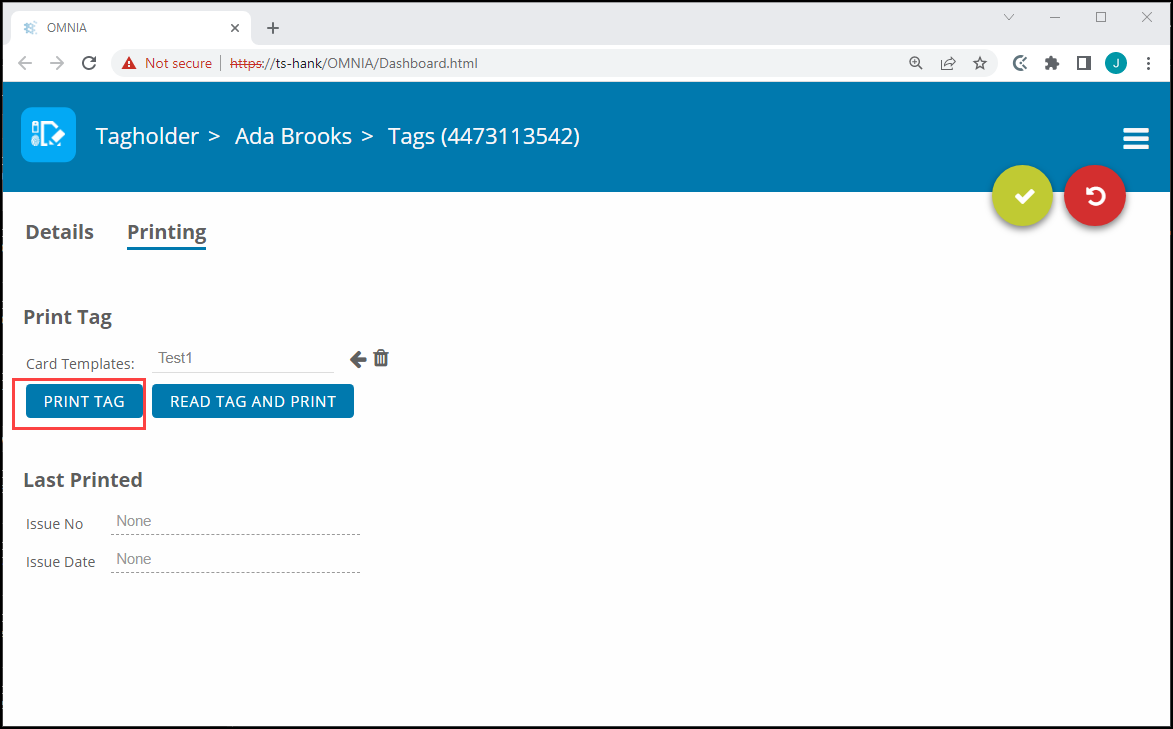
The print job will be sent to the Print Queue.

After the OMNIA Plugin Mgr has been installed, you may have to update the Printer Persistence.xml file.

          Update the Printer Persistence.xml file located at:

          C:\Program Files (x86)\OMNIA\OMNIA Plugin Manager\print\META-INF.
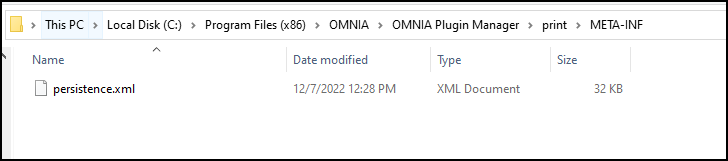
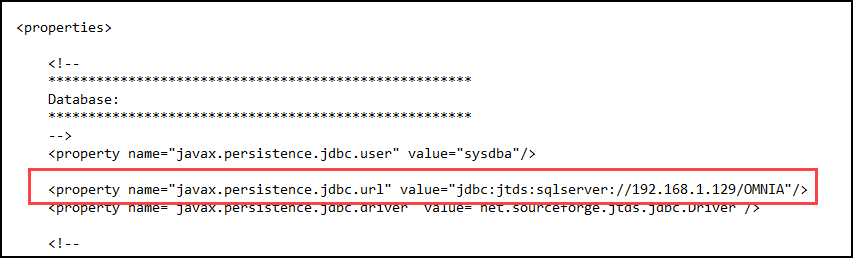
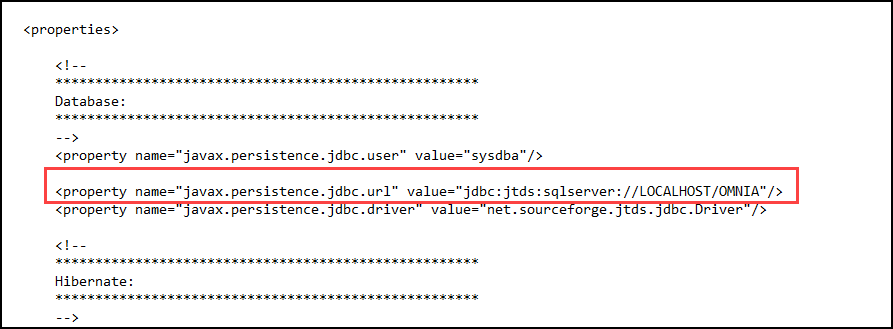
Open the file in Notepad to edit the path and the name of the Database.

Use the IP address of the Database or localhost if the Database resides on the PC you are wanting to print tags from.

Change the Database Name from Portal to OMNIA

NOTE: There are two (2) Locations on the Printing Persistence File that need to be updated.

Using IP of SQL Server
Using LOCALHOST
    Need further assistance?

    Submit a Support Ticket

    Submit a Support Ticket

    FAQ

    General

    Technical Bulletins

    Access Control

    AmanoNet

    Nexxus220

    Omnia

    Omnia Lite

    PM Tronics Hardware

    Amano Readers and Credentials

    Legacy Hardware

    Partner Products

    Partner Products

    Video Management Systems

    Cathexis Video (Amano Vision)

    AmanoDVMS

    Vision

    • Facebook
    • LinkedIn
    • Twitter

    PMT Security

    Copyright © 2026 PMT Security, Inc. | All Rights Reserved

    • Privacy Policy
    • Terms of Use
    • Cookie Policy
    • Accessibility
    • Contact Us