• Skip to primary navigation
  • Skip to main content
PMT Security Logo

PMT Security

Advanced Access Control

  • Home
  • About Us
    • Security and Trust
    • Our Partners
    • Our Integrators
  • Solutions
    • Education
    • Retirement & Healthcare
    • Manufacturing
    • Government Facilities
    • Residential
    • Retail Businesses
    • Campgrounds & Outdoor Resorts
  • Products
    • Access Control
      • Control Features
      • Reporting & Monitoring
      • Control Module
      • Digital IO Module
      • Reader Module
      • Readers
    • Video Management
    • Visitor Management
    • Intercom
    • Live Guard Video Monitoring
    • Housings & Pedestals
  • Support
    • Knowledgebase
    • Download Center
    • License Request
    • RMA Request Form
  • Blog
  • Contact Us

OMNIA

Finding and Adding Sigma Biometric Units to OMNIA 4.6.5

Finding and Adding Sigma Biometric Units to OMNIA 4.6.5

How to add Biometric Units to OMNIA Version 4.x.x

Find the Biometric Unit

Default IP address of the Idemia Sigma Lite is 192.168.1.10

Ensure your NIC is configured for this IP range.

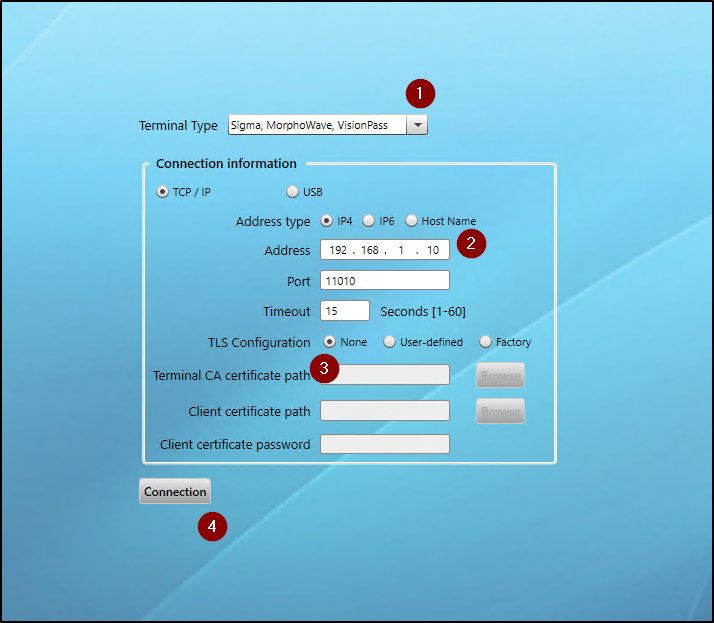
Open the Morpho Biometric Tool Box.
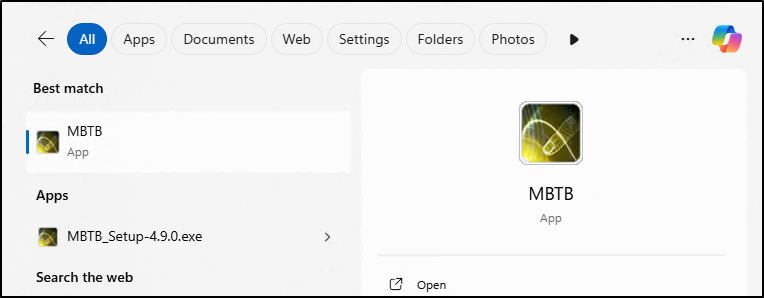
In the Connection Tab:

  1. From the Terminal Type Drop Down, Select Sigma, MorphoWave, VisionPass
  2. Enter the IP address of the Terminal
  3. Select None for TLS Configuration
  4. Select Connection

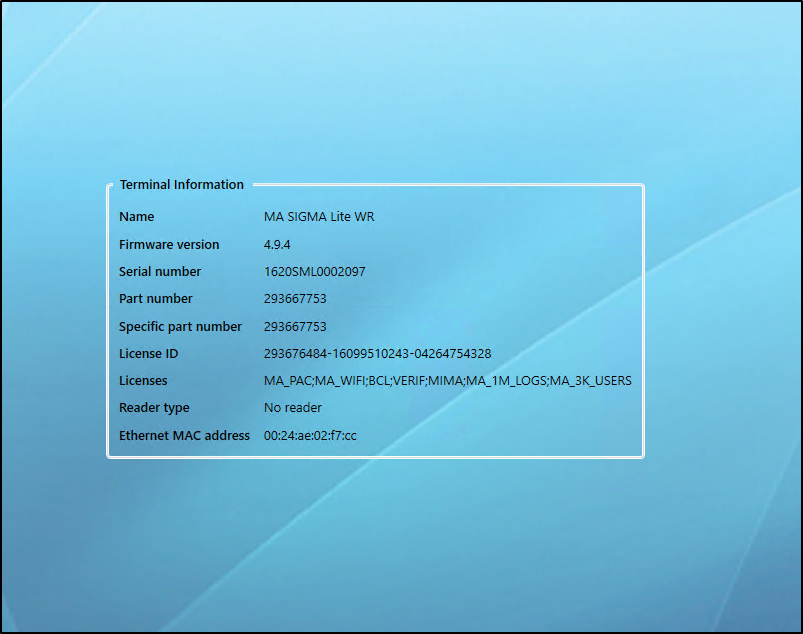
MBTB Connects to the Sigma Lite and will open into the Terminal Information Tab.

The Sigma Lite must have Firmware 4.9.4 or higher to work properly in OMNIA.

You can use the MBTB to upgrade the Firmware on the Biometric Units.
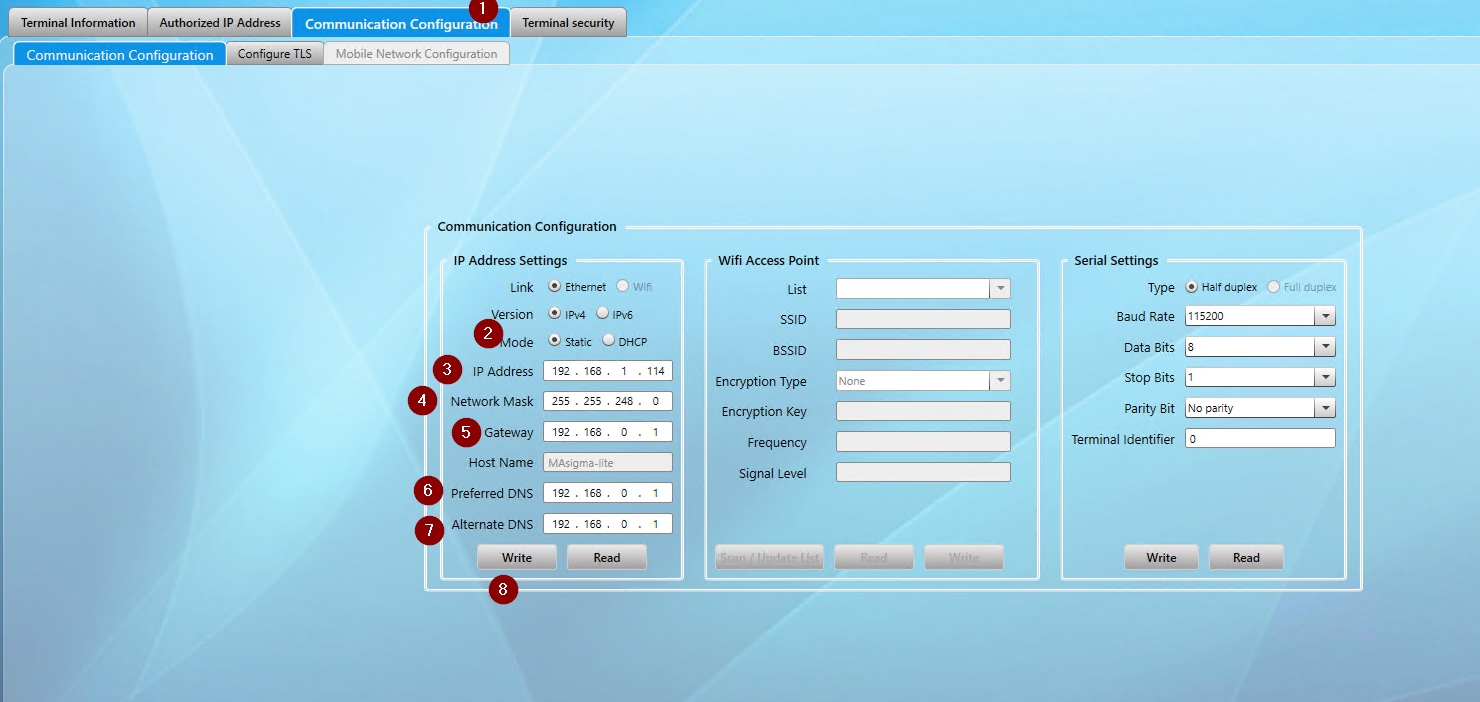
To Change/Update the IP address of the Sigma Lite.

  1. Select the Communication Configuration Tab
  2. Select Static for the Mode
  3. Enter the desired IP address
  4. Enter the desired Network Mask
  5. Enter the desired Gateway
  6. Enter the Preferred DNS
  7. Enter Alternate DNS
  8. Select Write to set Sigma Lite Communication
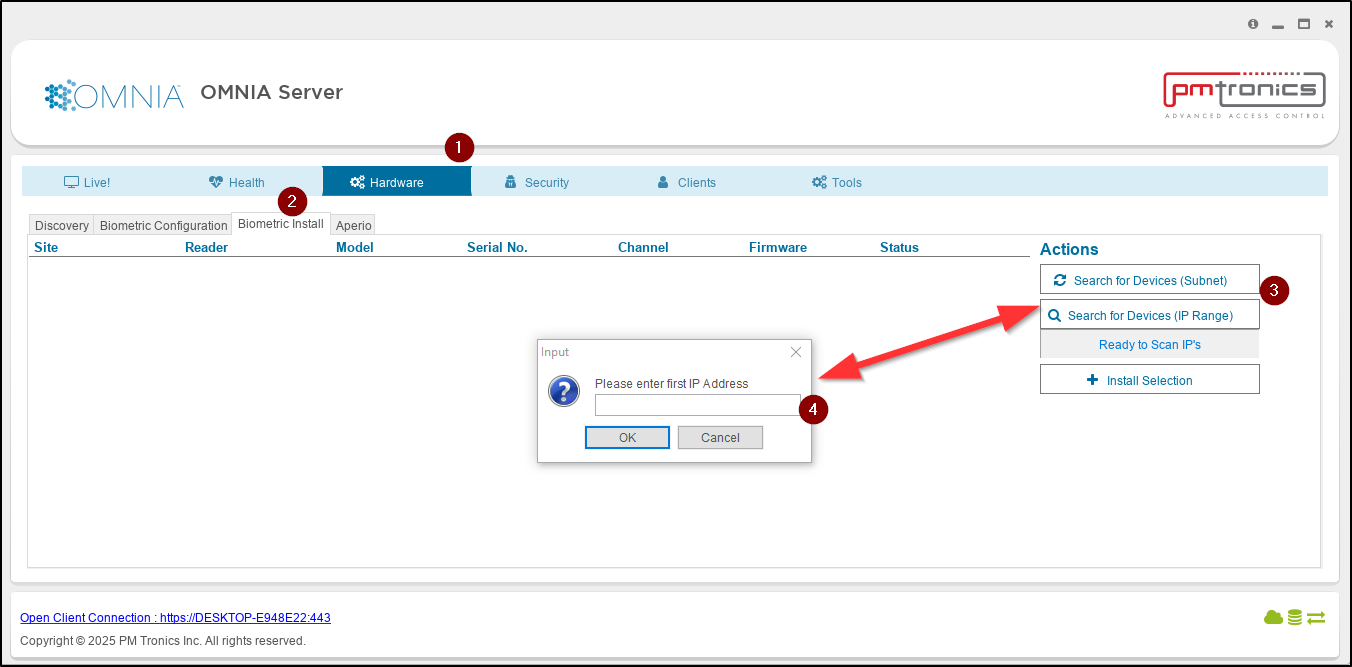
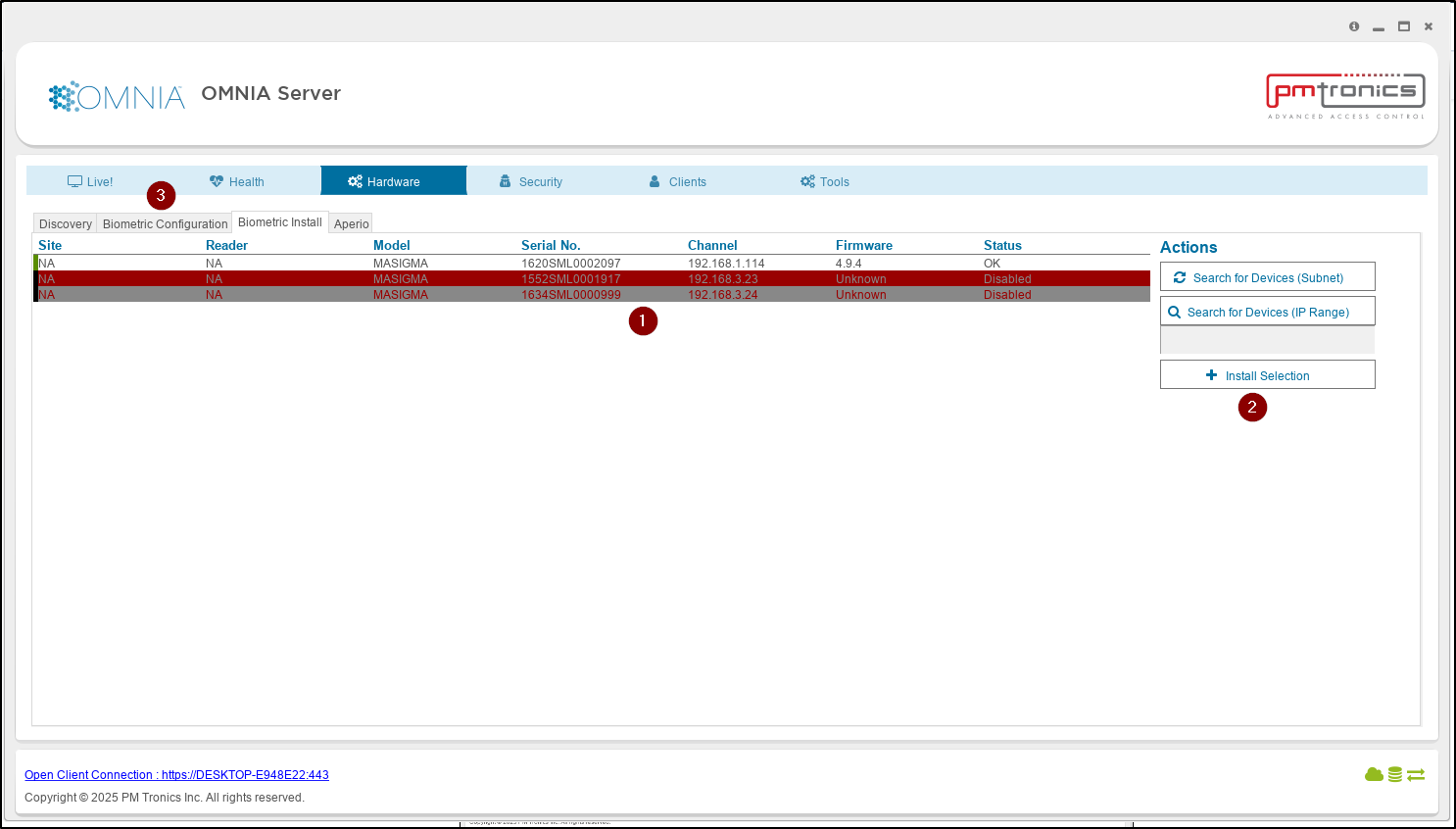
Open the OMNIA Server App.

  1. Select the Hardware Tab
  2. Select the Biometric Install Tab
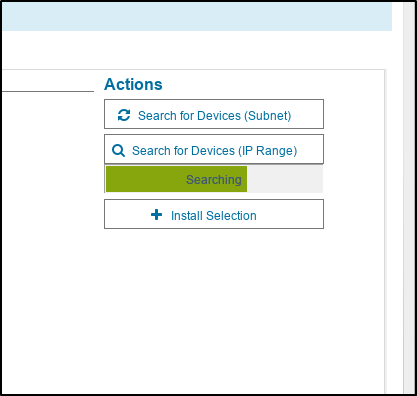
  3. Select Search for Devices
  4. Enter IP address range for desired search and the search will begin
Any Units found during the Search will be displayed.

  1. Select the Sigma Lite
  2. Select Install Selection
     Repeat Process for all Units
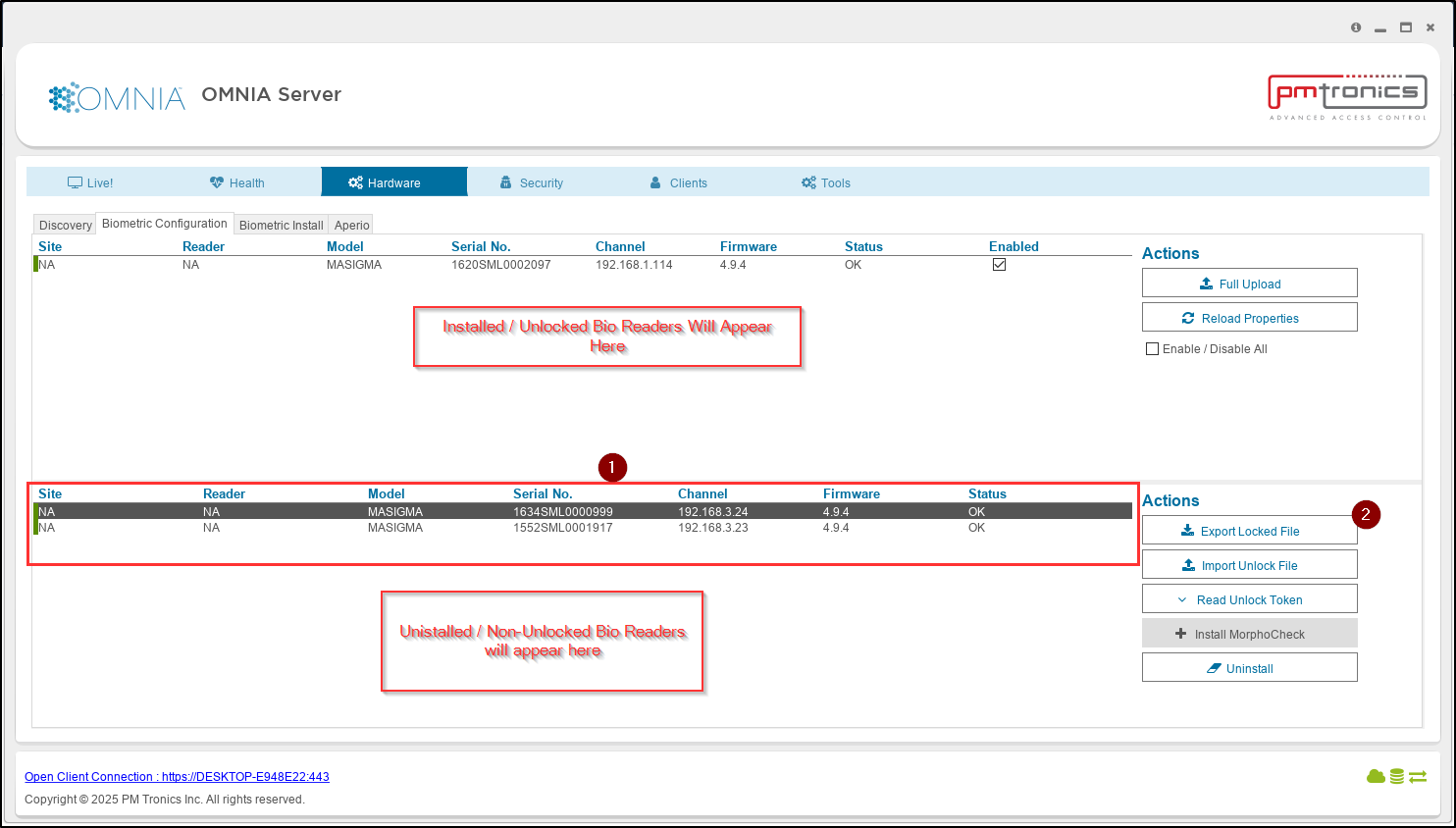
  3. Select the Biometric Configuration Tab
In the Biometric Configuration Tab We will export and import the unlock files required for Installation into OMNA

  1. Select a Reader
  2. Select Export Locked File
    Note: The Export Locked file will contain information for all uninstalled units. No need to export individual/multiple unlock files.
         

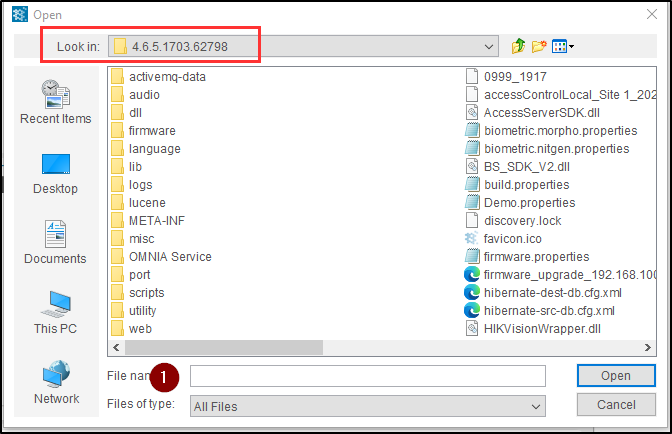
The unlock File default location will be C:\OMNIA\4.6.5…..

  1. Name the Export File and select open
      File is saved with that name.
Get export File to PMTSecurity with Purchase Order.

PMT Security

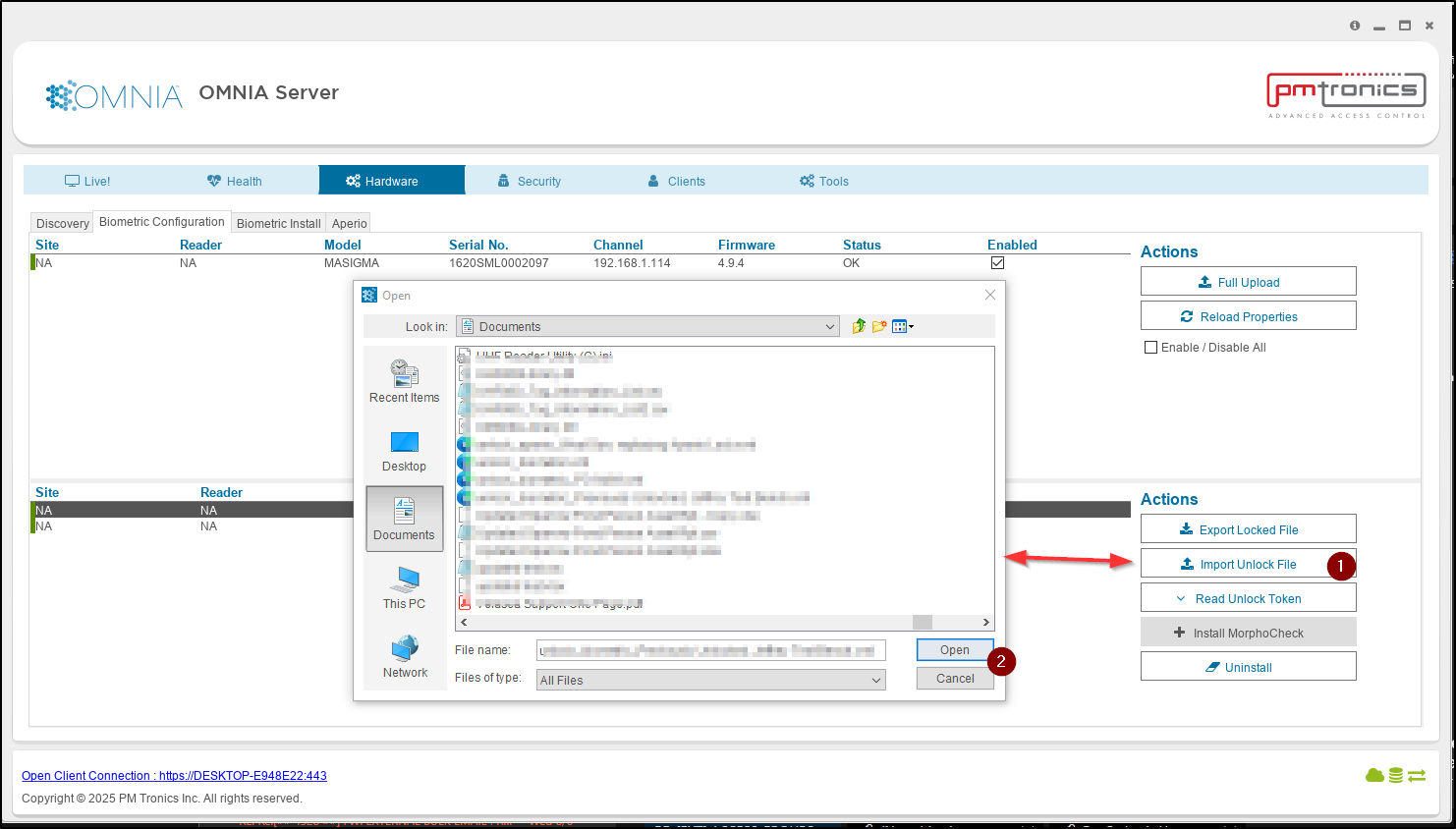
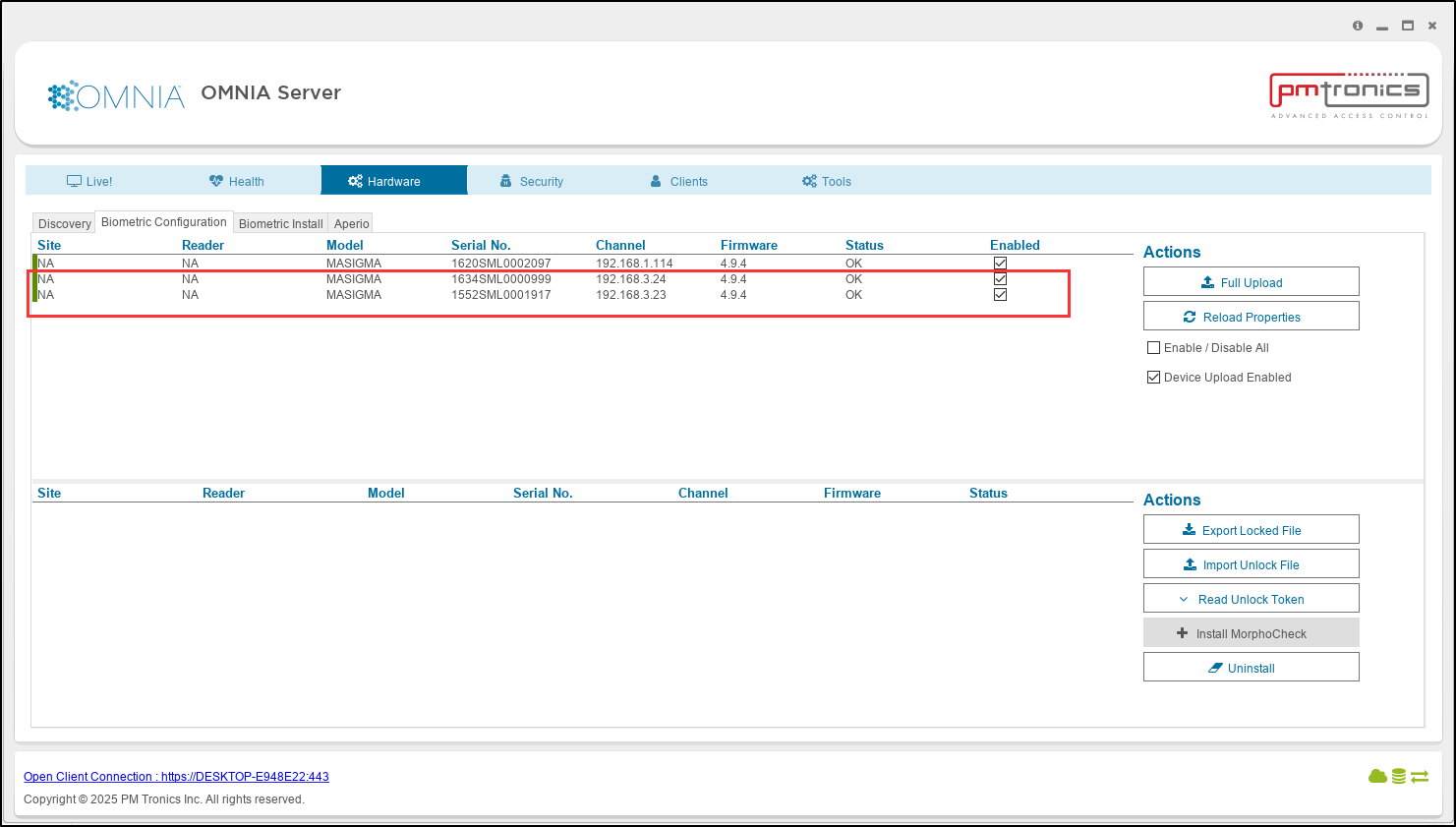
From the Biometric Configuration Tab. Import the Biometric Unlock File.

  1. Select Import Unlock File
    Navigate to location of Unlock File
  2. Select Open to apply.

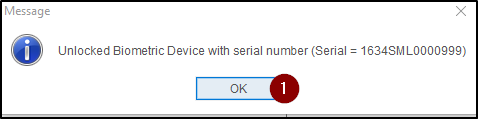
I separate window will open for each New Bio Unit Installed

  1. Select OK to close each window.

In the Biometric Configuration Tab, you will see the Bio Units have now moved. Full uploads can be performed here. The Bio Readers can now be assigned to a Reader in the OMNIA Software URL.
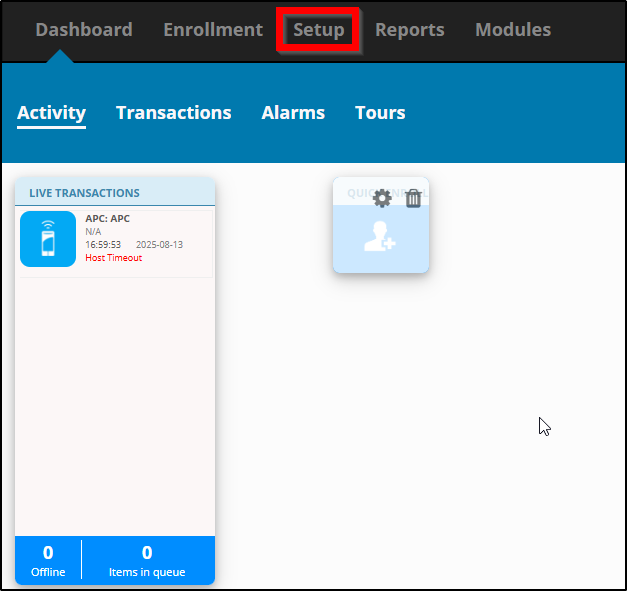
Log into the OMNIA Software

  1. Select Setup
  2. Select Readers, then select the Reader you want to assign the biometric unit to
  3. Select Biometric Input, then select the desired Bio Reader to add
       The Bio Unit is added to the Reader, OMNIA then Sends the Biometric Configuration and Tagholder Biometric Templates to the Biometric Unit.
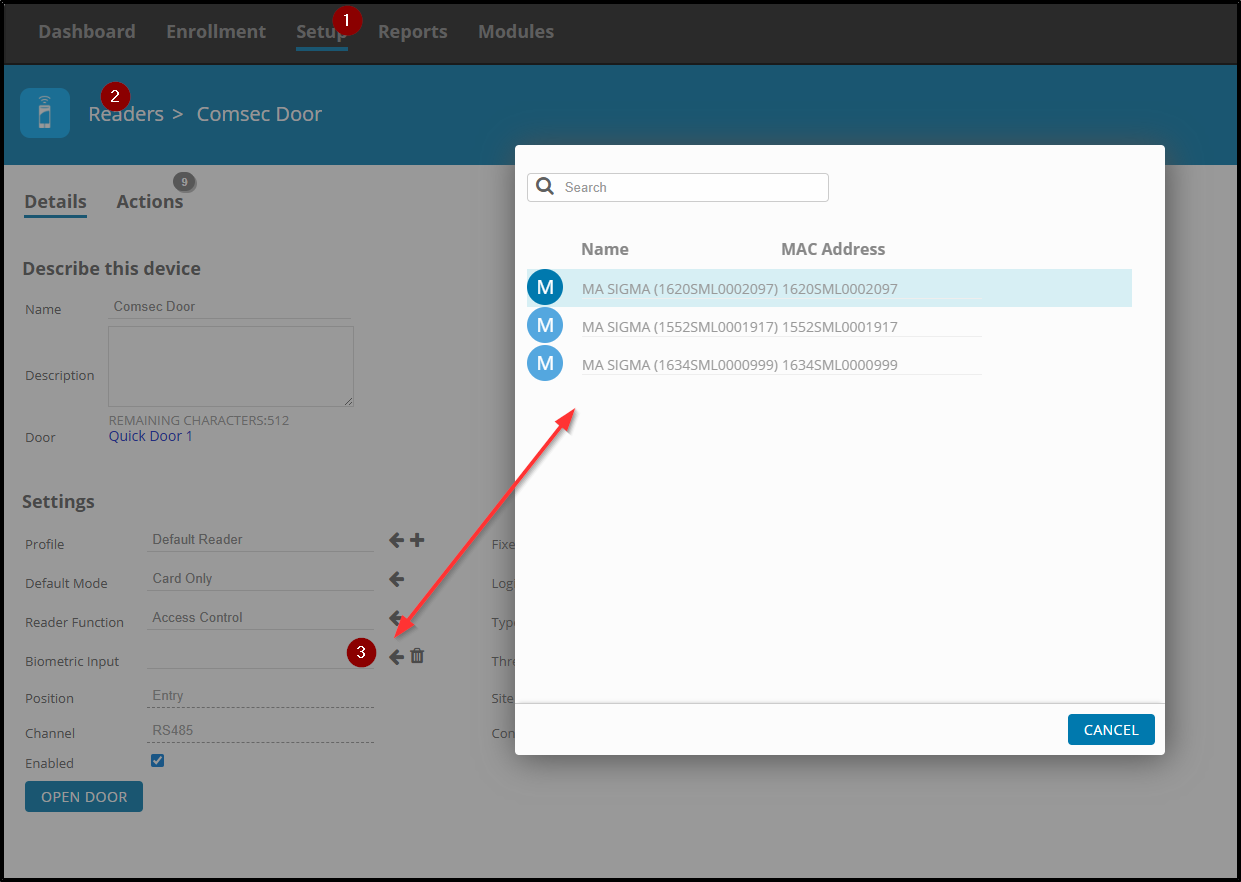
The Biometric Unit is now installed into OMNIA 4.6.5

Need further assistance?
Submit a Support Ticket

Submit a Support Ticket

FAQ

General

Technical Bulletins

Access Control

AmanoNet

Nexxus220

Omnia

Omnia Lite

PM Tronics Hardware

Amano Readers and Credentials

Legacy Hardware

Partner Products

Partner Products

Video Management Systems

Cathexis Video (Amano Vision)

AmanoDVMS

Vision

Create a Reader Profile in OMNIA

Create a Reader Profile in OMNIA

How to Create a Reader Profile

How to Create a Reader Profile

Before stating make sure your new hardware is installed.

Open OMNIA in a web browser

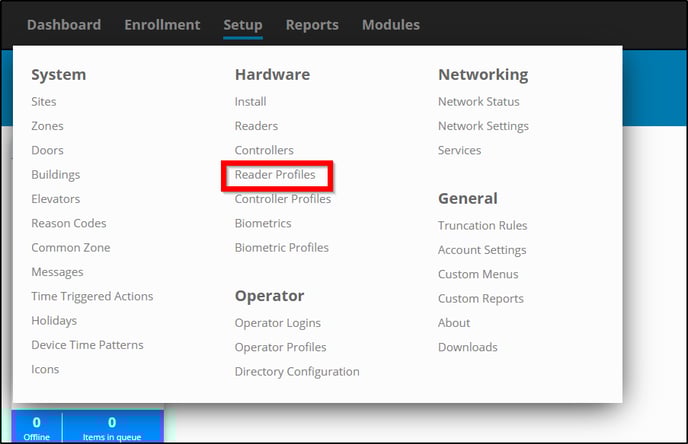
Select Setup tab to open the drop down menu.


Under Hardware select Reader Profiles.


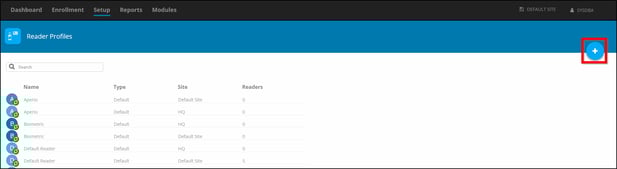
Click Add in the top right. A blue circle with a white +.


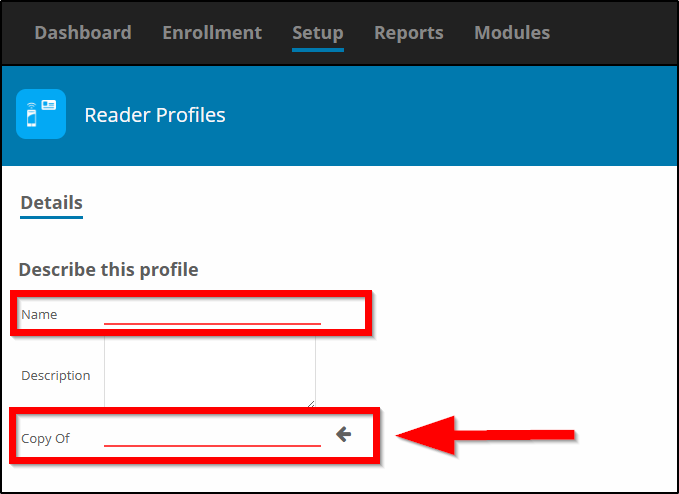
Name your new Reader Profile and Select the profile you would like to make a Copy Of.

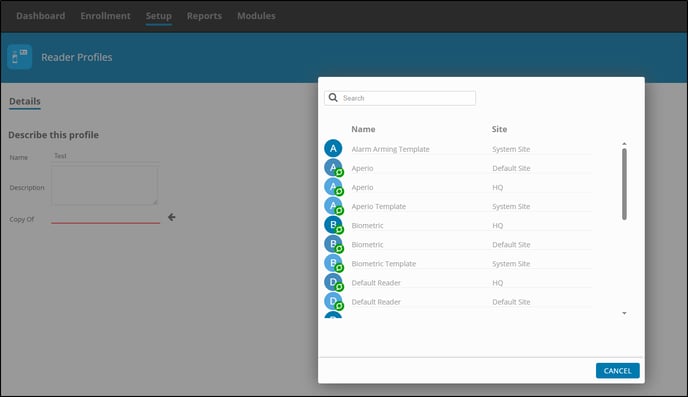
*The Copy Of  sets the parameters for what kind of reader profile is preferred.


*Notice how you can select the copy from different sites* 


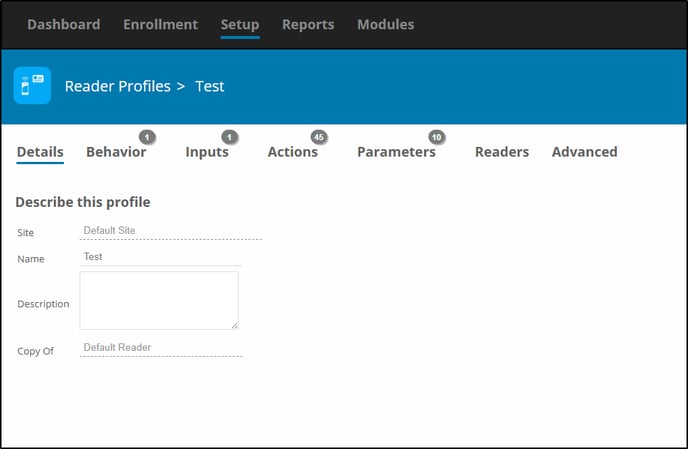
Once Created, you can verify the Details. If this is incorrect you can delete and start over by selecting reader profiles and clicking the trashcan. 


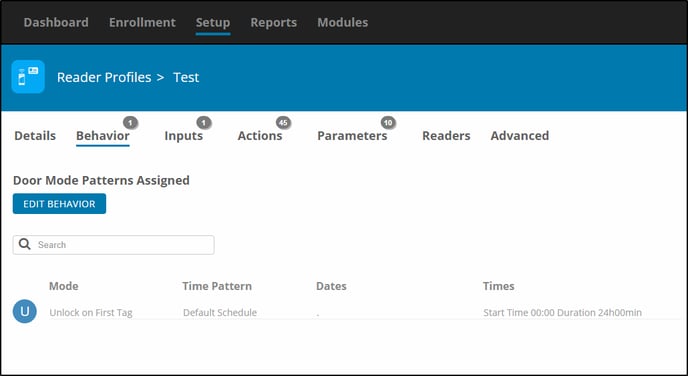
You can change or Edit Behaviors. Example- Unlock on First Tag.


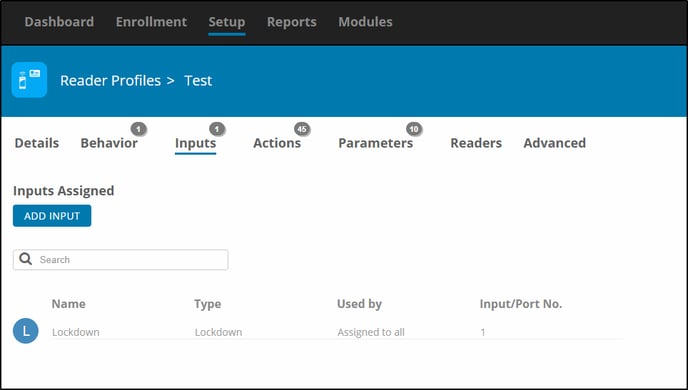
Adding or changing inputs. 


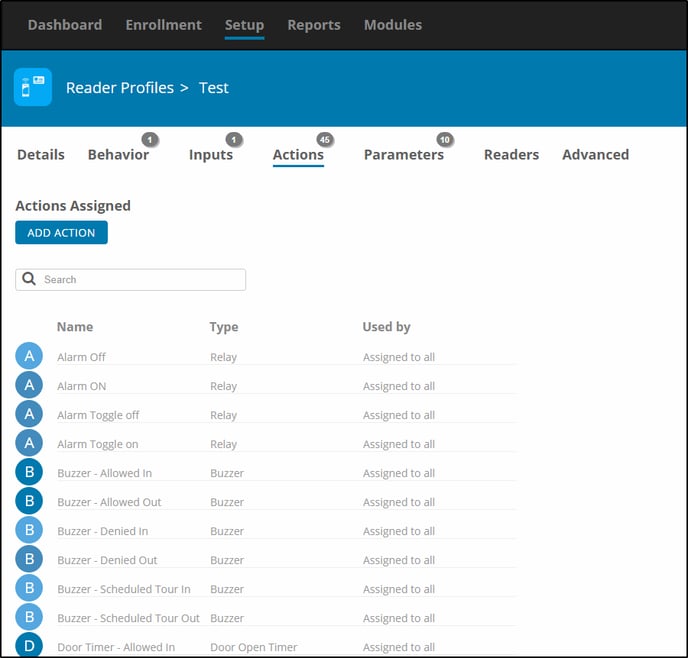
Add Actions (if required, defaults are usually fine)


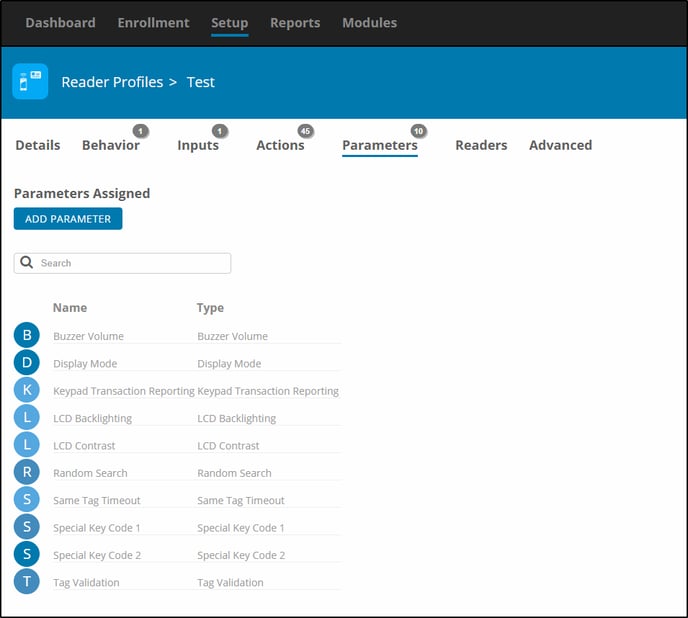
Add Parameters (if required, defaults are usually fine)


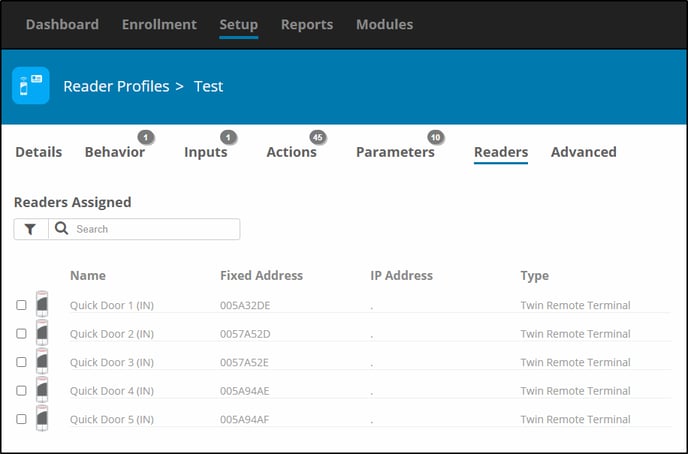
Selecting Readers for the Profile.
*Note: Once a reader has been assigned to a READER PROFILE, it can only be removed by adding it to another profile. It can not be removed from within its current profile.

Need further assistance?
Submit a Support Ticket

Submit a Support Ticket

FAQ

General

Technical Bulletins

Access Control

AmanoNet

Nexxus220

Omnia

Omnia Lite

PM Tronics Hardware

Amano Readers and Credentials

Legacy Hardware

Partner Products

Partner Products

Video Management Systems

Cathexis Video (Amano Vision)

AmanoDVMS

Vision

Creating Mappable Import User Fields in OMNIA

Creating Mappable Import User Fields

When Importing Tagholder information into OMNIA and you want to import information that is not currently into OMINA

Site is importing Tagholders to OMNIA as has .CSV file with tagholder information.

The information currently in the .CSV file has information that is not currently available to map during the import.

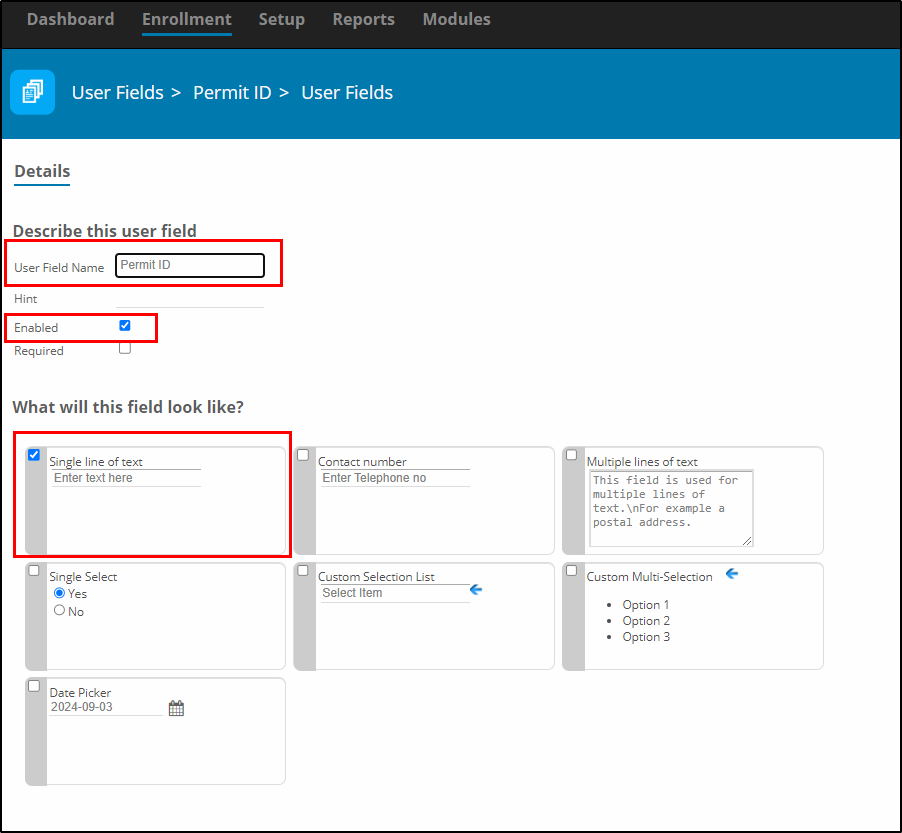
For example the site has a column of information called Permit ID, the site would like this permit ID to be visible for tagholders in OMINA.

A User Field will need to be created in OMINA, this user Field will be available for import mapping after the creation.

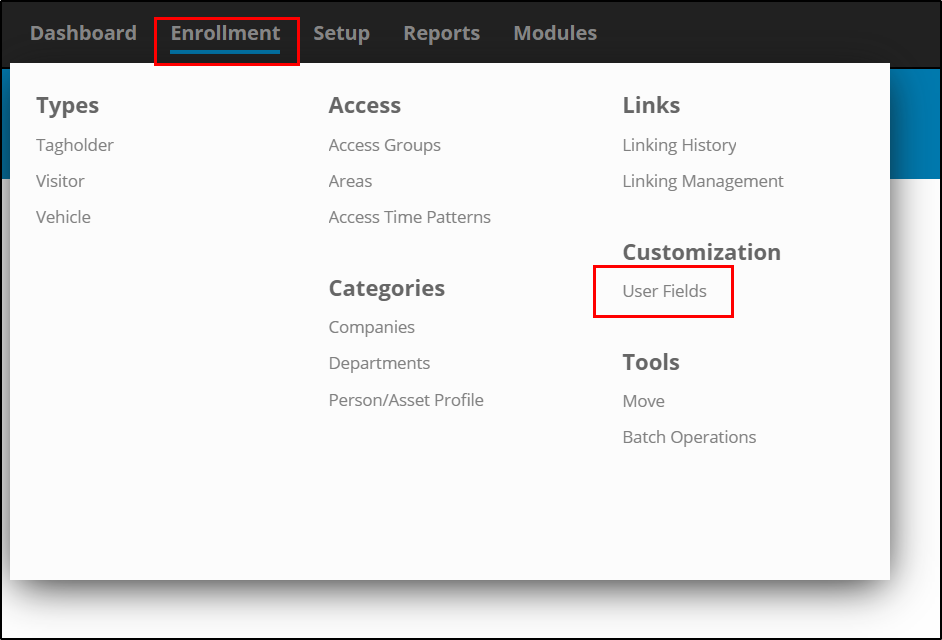
Go to Enrollment, then Select User Fields.

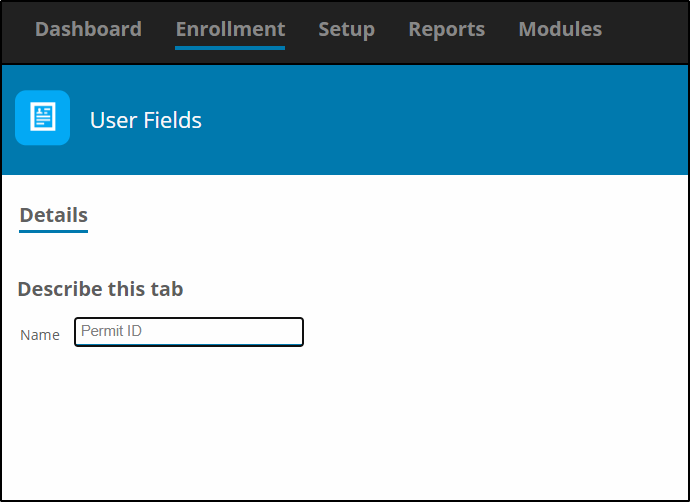
Select the Plus to add a new User Fields

Name the User Field and Select Save

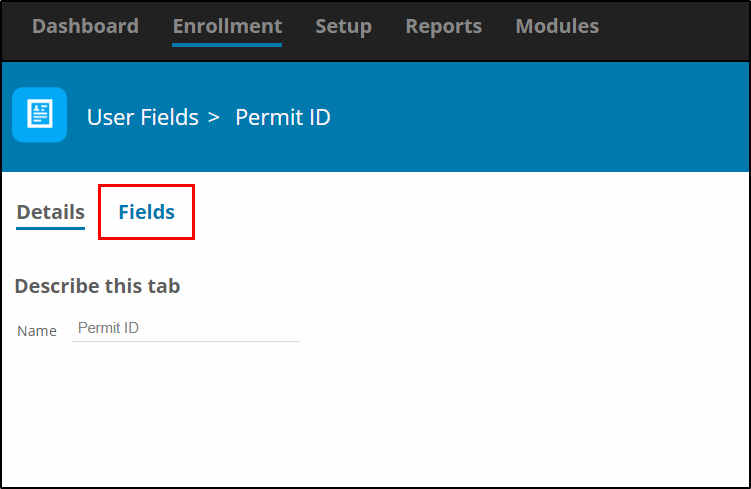
After you save the User Field you will see a Fields Tab, Select the Fields Tab

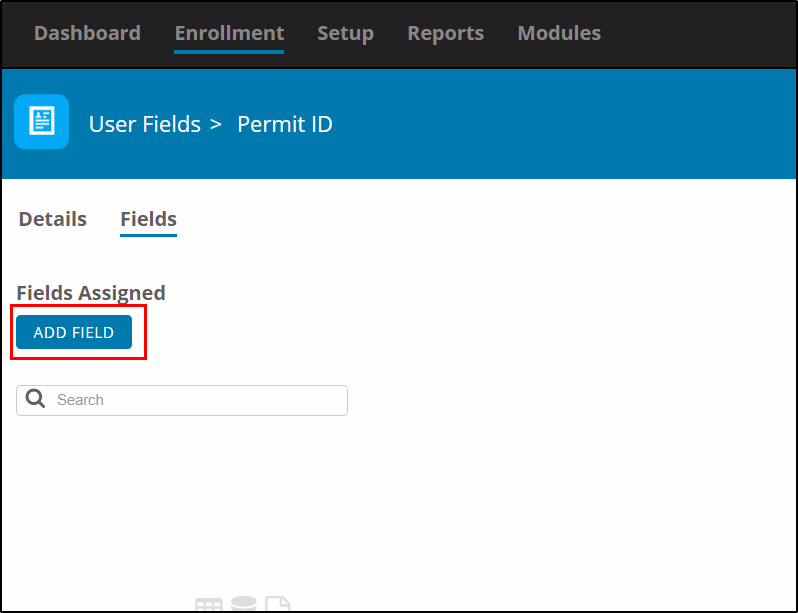
Select Add Field

Here you will be able to customize what and how information is entered for this Field.

Name the Field, the Name to be displayed for the User Field for Tagholder.

Select Enabled, 

Select the type of field. In this example we are using Single Line of text for the Permit ID number.

Select Save

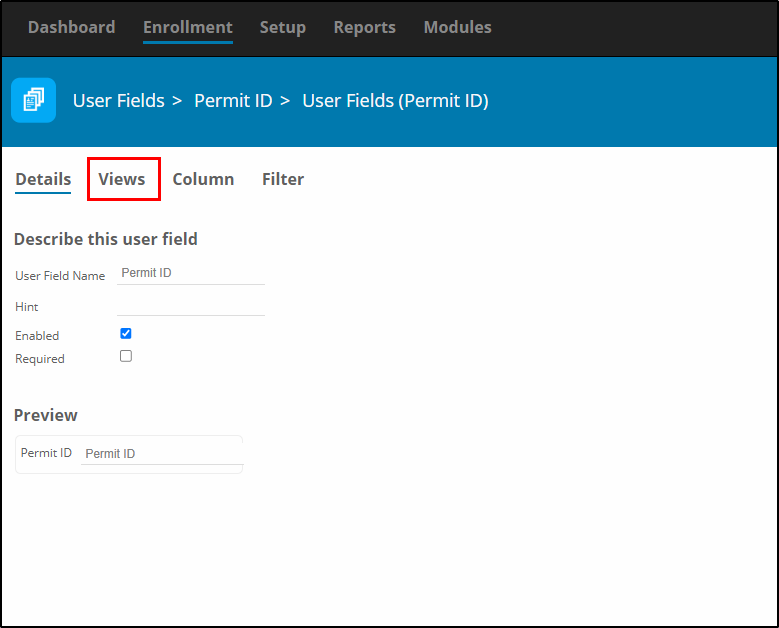
After you select Save, more Options become available. You must now configure where the User Field will be visible and to whom.

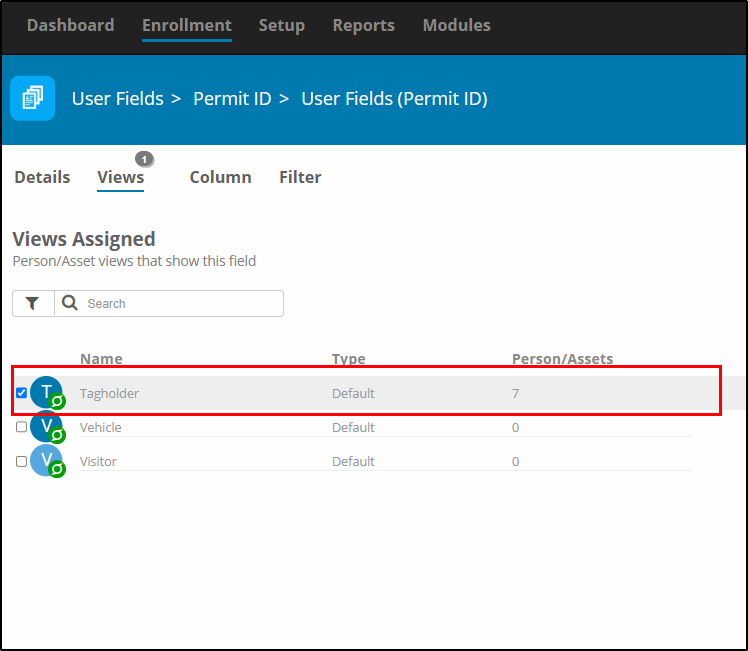
Select Views

For this example, we only want the Permit ID to be viewable for Tagholders.


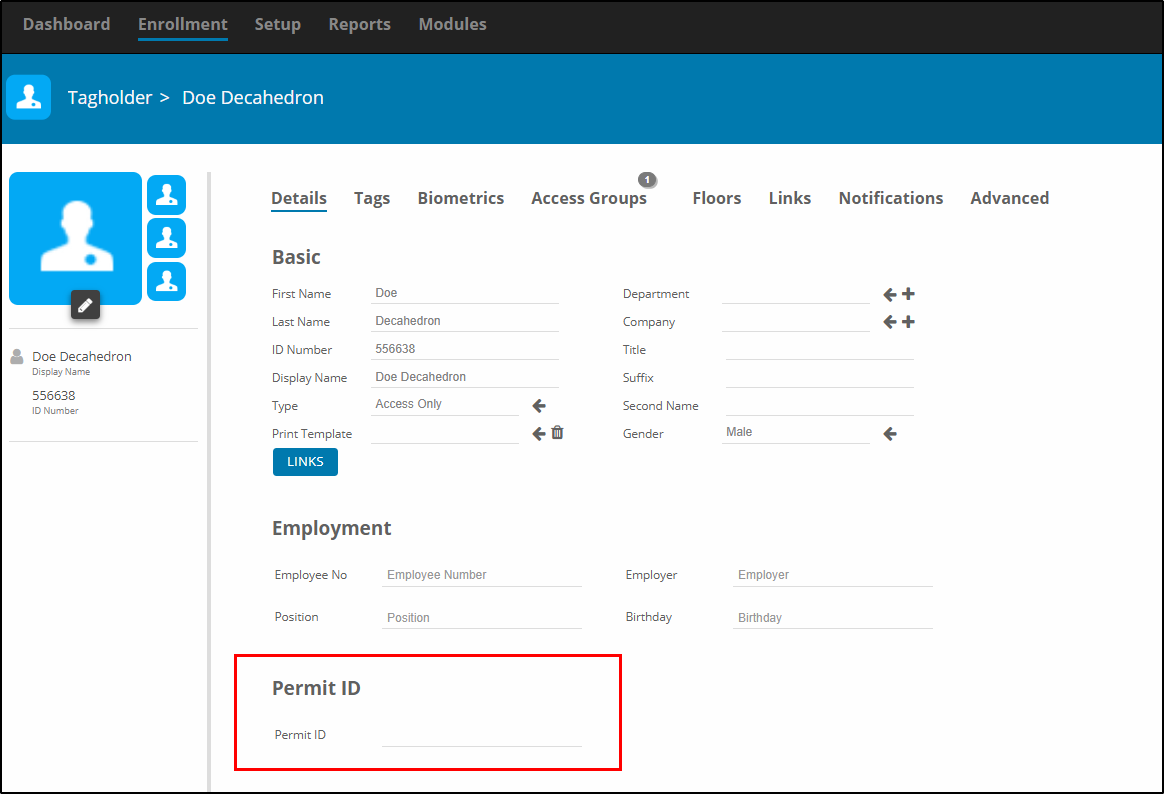
When you view a Tagholder, you will now see the User Field.

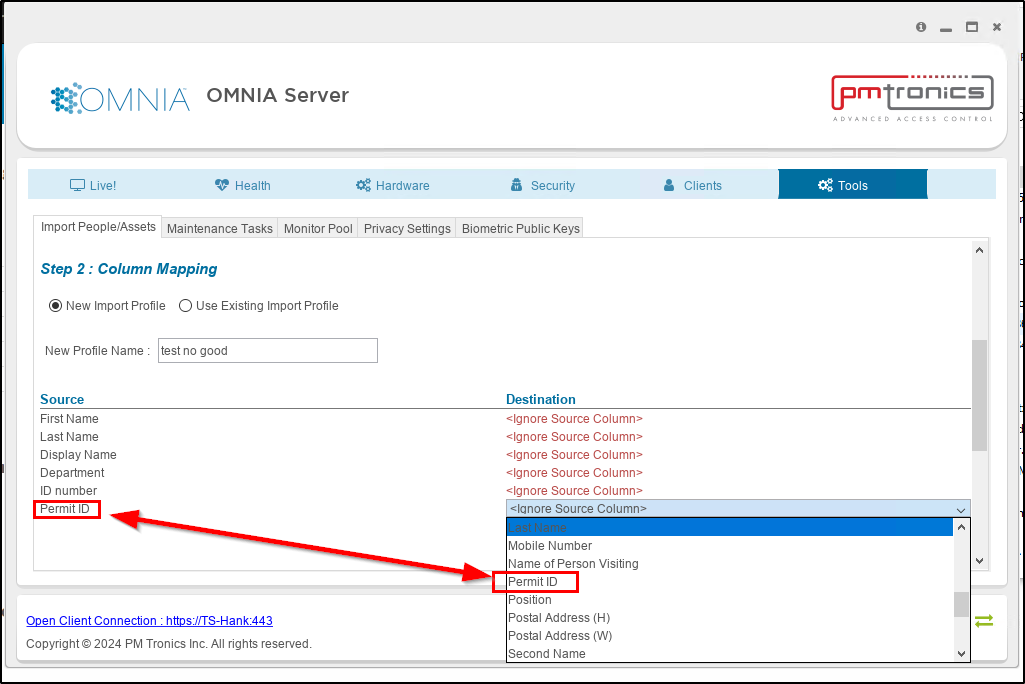
When you import the .CSV file, select the Destination, Permit ID will be available to select as a destination.

Please call 727-786-1900 if you have any questions on this procedure.

Need further assistance?
Submit a Support Ticket

Submit a Support Ticket

FAQ

General

Technical Bulletins

Access Control

AmanoNet

Nexxus220

Omnia

Omnia Lite

PM Tronics Hardware

Amano Readers and Credentials

Legacy Hardware

Partner Products

Partner Products

Video Management Systems

Cathexis Video (Amano Vision)

AmanoDVMS

Vision

How to change the IP Address of a installed Controller in OMNIA

Changing the IP Address of a Previously Installed Controller in OMNIA

There are situations where a controller’s IP address needs to be updated after installation — whether due to network changes, hardware replacement, VLAN restructuring, or system standardization.

If OMNIA is running as a service and the Discovery Tool is not available on the workstation or server, the controller IP can still be changed directly through the OMNIA software interface.

This guide explains how to safely change the IP address of an existing controller using the built-in OMNIA networking tools.

Before You Begin

Before modifying controller network settings:

  • Confirm you have administrator access to OMNIA
  • Verify the new IP address is available on the network
  • Ensure you know the correct subnet mask and gateway information
  • Confirm communication with the controller before making changes

Incorrect network settings can result in communication loss between the controller and server.

Open Network Settings in OMNIA

Inside OMNIA:

  1. Open the software
  2. Navigate to:
Setup > Networking > Network Settings

This section allows you to manage controller communication and network configuration directly from the OMNIA platform.

Select the Correct Controller

Choose the controller you want to modify from the available list.

Before applying changes, confirm you are working with the correct device and verify the existing IP information.

Verify the New IP Address Is Available

Before assigning a new address, verify the IP is not already in use on the network.

Using Command Prompt:

ping 192.168.100.1 -t

Replace the example IP above with the address you plan to assign.

This performs a continuous ping test to help determine whether another device is responding on that address. To stop the test:

CTRL + C

Verifying availability first helps prevent network conflicts and controller communication issues.


Apply the New Network Settings

Enter the following information:

  • IP Address
  • Subnet Mask
  • Gateway

Then:

  • Check the box to make the address static
  • Enter the controller password

Default password:

masterkey

Select the check mark to save the configuration.

Important Configuration Note

When configuring the controller:

  • Do NOT select “Safe IP”

Using the incorrect option may prevent the desired network settings from applying correctly.

After Saving Changes

Once the configuration is saved:

  • Allow the controller time to update
  • Verify communication is restored
  • Confirm events and transactions are reporting normally
  • Test reader and door functionality if applicable

If communication does not resume, verify routing, subnet configuration, firewall rules, and physical network connectivity.

Why Proper IP Management Matters in Access Control

Access control systems rely heavily on stable network communication between controllers, servers, readers, and integrated systems.

Improper IP management can lead to:

  • Controller communication failures
  • Delayed transactions
  • Lost event reporting
  • Integration interruptions
  • Troubleshooting complexity

Using static addressing and documented network standards helps improve long-term system reliability and maintainability across multi-site or enterprise deployments.

Need further assistance? If you require support changing controller network settings, troubleshooting communication issues, or managing OMNIA system infrastructure, contact PMT Security for technical assistance.
Submit a Support Ticket

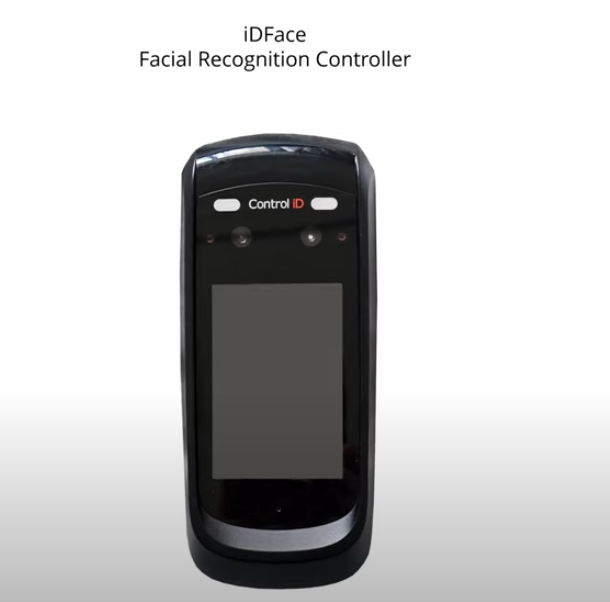
Wiring for iDFace to OSDP

How to wire the iDFace reader to an existing OSDP reader module.

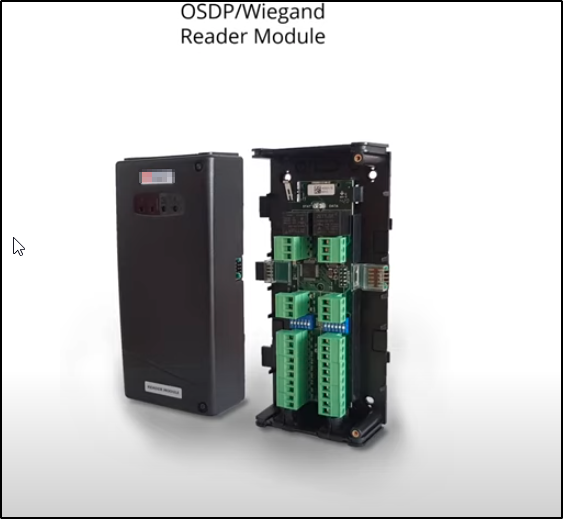
1. **Wiring Overview**: Demonstrates how to wire the iDFace reader to an existing OSDP reader module.

1-Jun-04-2025-12-49-05-6827-PM

2. **OSDP Support**: Installation is supported with the OMNIA system.

2025-06-12 09_39_08-2025-06-12 09_32_24-Window

3. **Connection Instructions**:
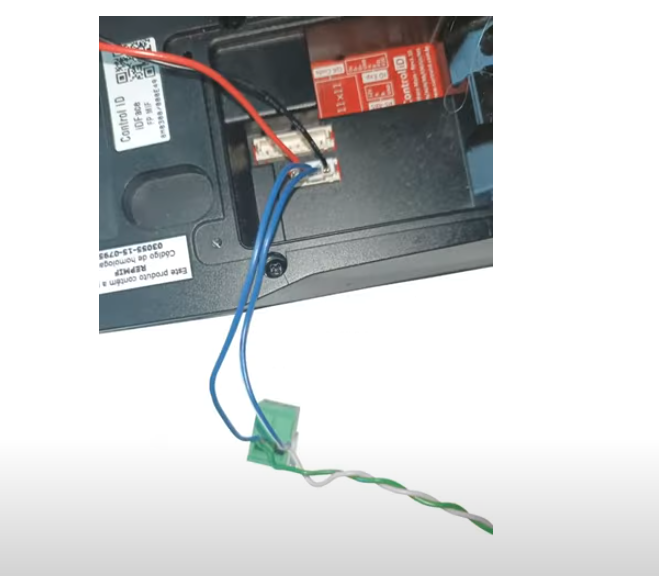
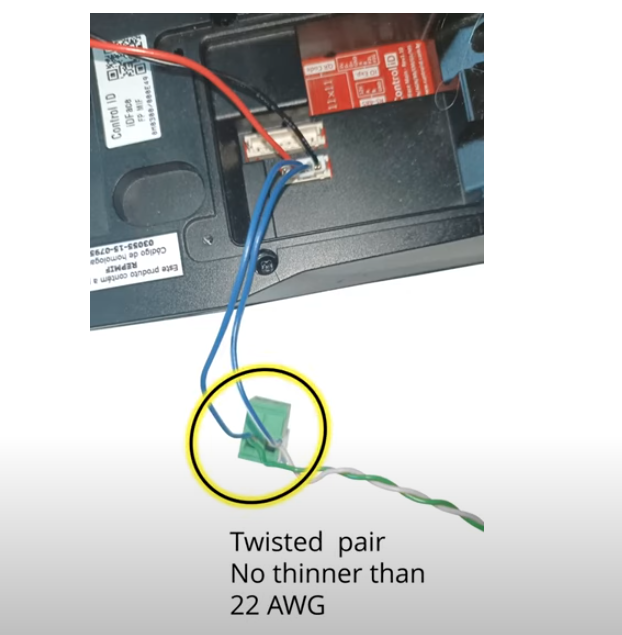
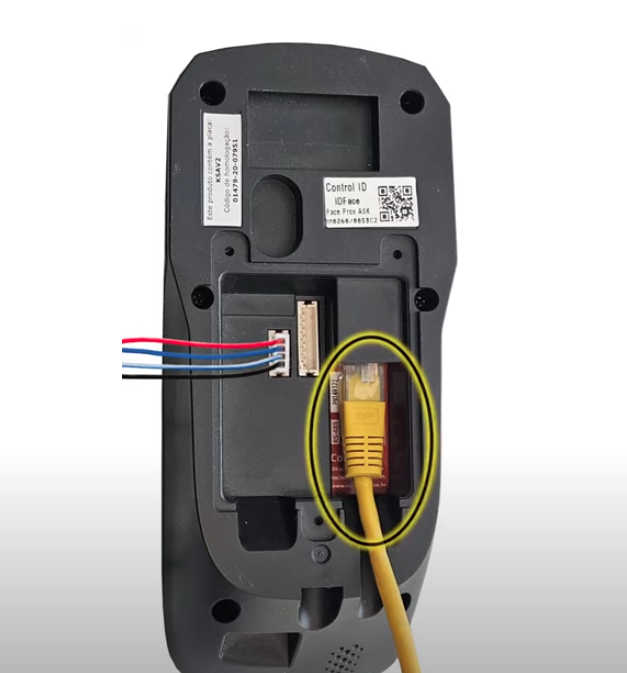
– Use one of the provided four-pin plugs for wiring.
– Extend short wires as necessary to reach the OSDP reader module.
– Utilize green and white twisted pair wires (minimum 22 AWG).
– Cut wire to a length sufficient to reach from the iDFace to the OSDP reader module, allowing 30 cm extra.

3-Jun-04-2025-12-49-05-7567-PM

4. **Wiring Connections**:
– Connect green wire to the blue iDFace wire.
– Connect white wire to the blue and white iDFace wire.
– Connect red and black wires to a 12V DC power supply (2 amps required).

4-Jun-04-2025-12-49-05-7591-PM
7-Jun-04-2025-12-50-55-4866-PM

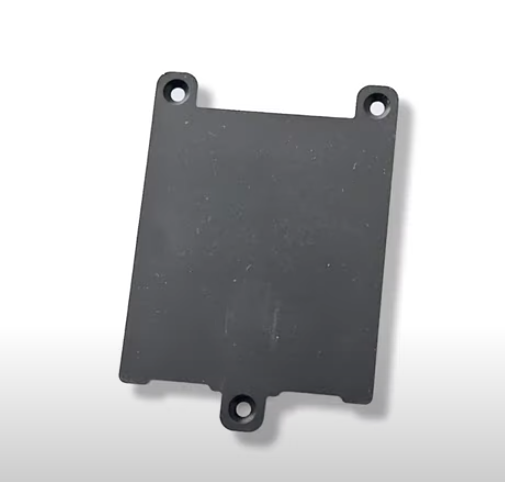
5. **Mounting**: Close the unit with the provided cover and follow mounting instructions.

8-4

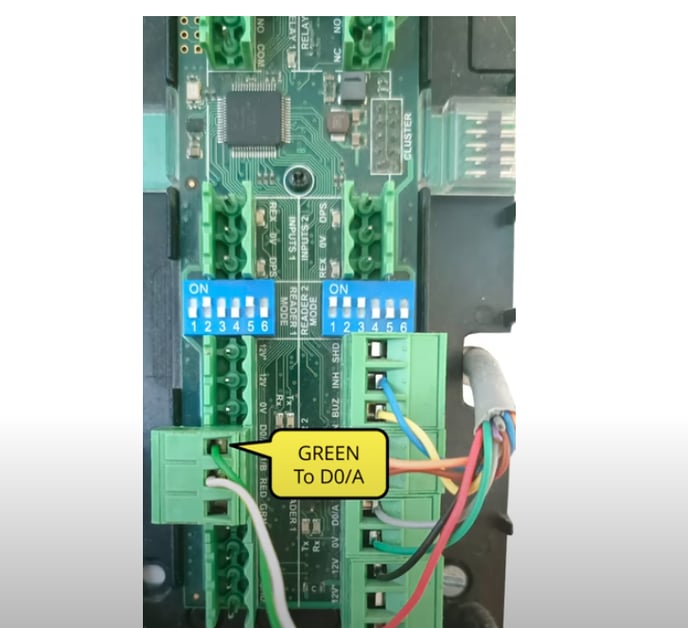
6. **Wiring to OSDP**: Wire green to the D0/A terminal and white to the D1B terminal on the OSDP reader module.

10-3

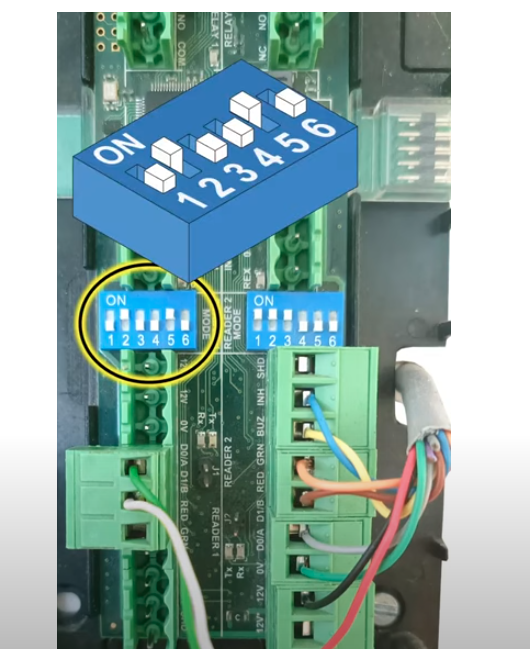
7. **Dip Switch Configuration**: Set the reader port dip switch to 010010 for OSDP mode.

12-3

8. **Next Steps**: Setup the iDFace using the OMNIA software.

  • « Go to Previous Page
  • Page 1
  • Page 2
  • Page 3
  • Page 4
  • Page 5
  • Interim pages omitted …
  • Page 13
  • Go to Next Page »
  • Facebook
  • LinkedIn
  • Twitter

PMT Security

Copyright © 2026 PMT Security, Inc. | All Rights Reserved

  • Privacy Policy
  • Terms of Use
  • Cookie Policy
  • Accessibility
  • Contact Us