• Skip to primary navigation
  • Skip to main content
PMT Security Logo

PMT Security

Advanced Access Control

  • Home
  • About Us
    • Security and Trust
    • Our Partners
    • Our Integrators
  • Solutions
    • Education
    • Retirement & Healthcare
    • Manufacturing
    • Government Facilities
    • Residential
    • Retail Businesses
    • Campgrounds & Outdoor Resorts
  • Products
    • Access Control
      • Control Features
      • Reporting & Monitoring
      • Control Module
      • Digital IO Module
      • Reader Module
      • Readers
    • Video Management
    • Visitor Management
    • Intercom
    • Live Guard Video Monitoring
    • Housings & Pedestals
  • Support
    • Knowledgebase
    • Download Center
    • License Request
    • RMA Request Form
  • Blog
  • Contact Us

OMNIA

How to Print Tags in OMNIA

How to Print Tags in OMNIA

Printing Tags in OMNIA

NOTE:

Install your printer to the PC, before installing the Plugin Manager

To print tags in OMNIA you must install the OMNIA Plugin Mgr, Update the Printer Persistence File, and Create a Tag Template

See Knowledgebase article titled, How to Install the OMNIA Plugin Mgr.

How to Install The OMNIA Plugin Manager

Seen Knowledgebase article, How to Use the OMNIA Card Designer.

How to Use The OMNIA Card Designer

Select your printer in the Plugin Manager

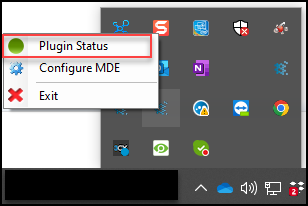
Right click the OMNIA Plugin Manager Icon, select Plugin Status
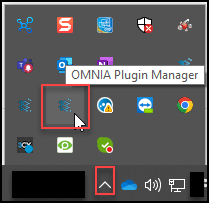
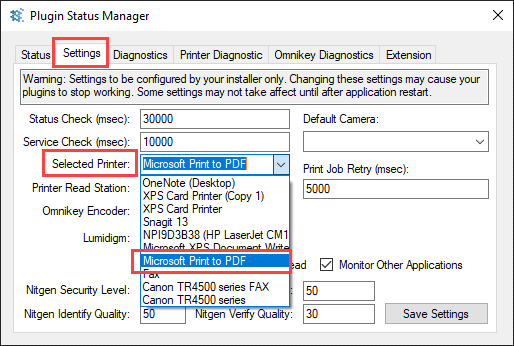
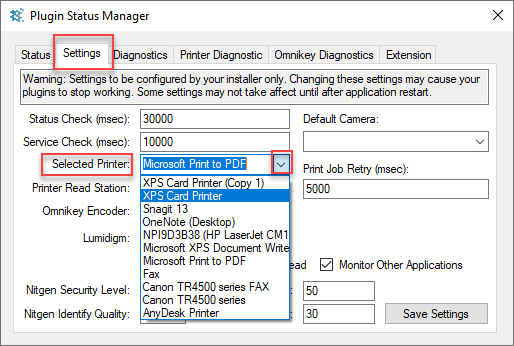
From the Settings Tab, use the dropdown to select your printer click save settings.
Log into the OMNIA URL , if currently logged in, log out then back in.

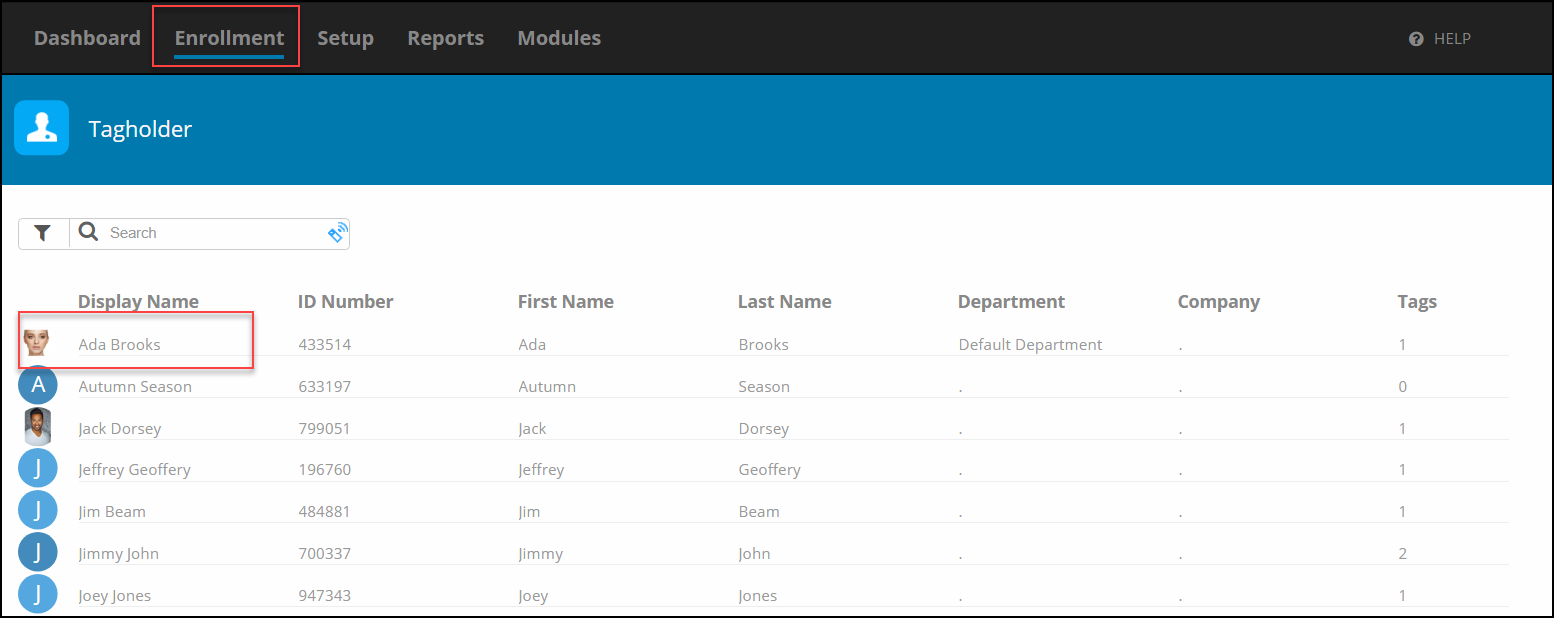
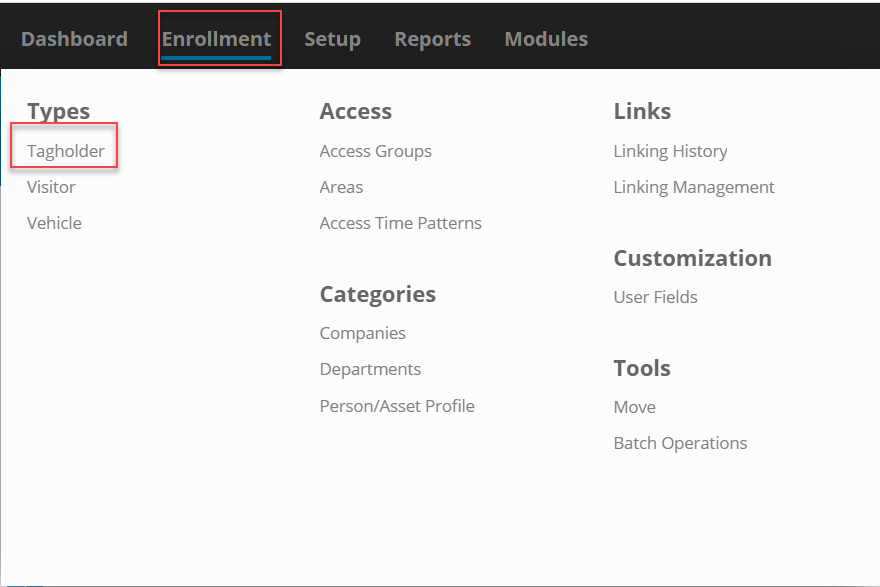
Go to Enrollment\Tagholder and select a Tagholder
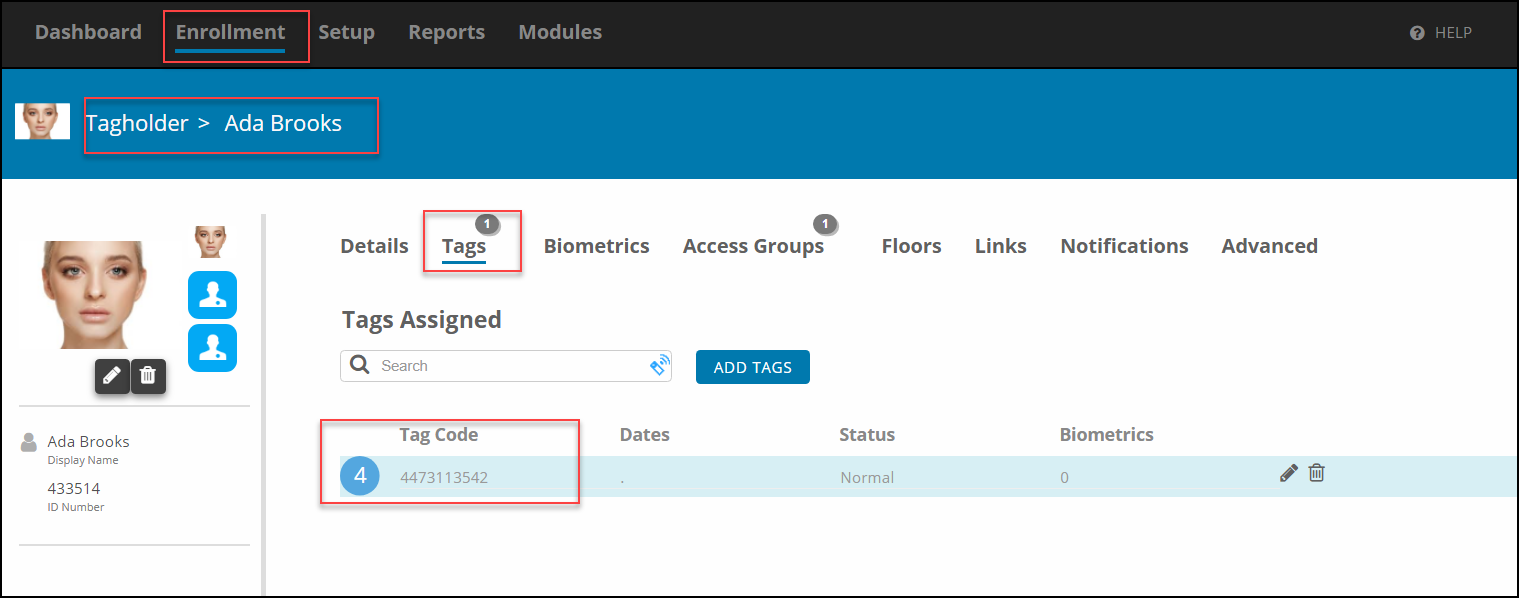
In the Tagholder Screen, Select Tags, then Select the Tag Code
Select Printing, the Print Window will appear. Select your previously designed Card Template by using the arrow and selecting the desired template
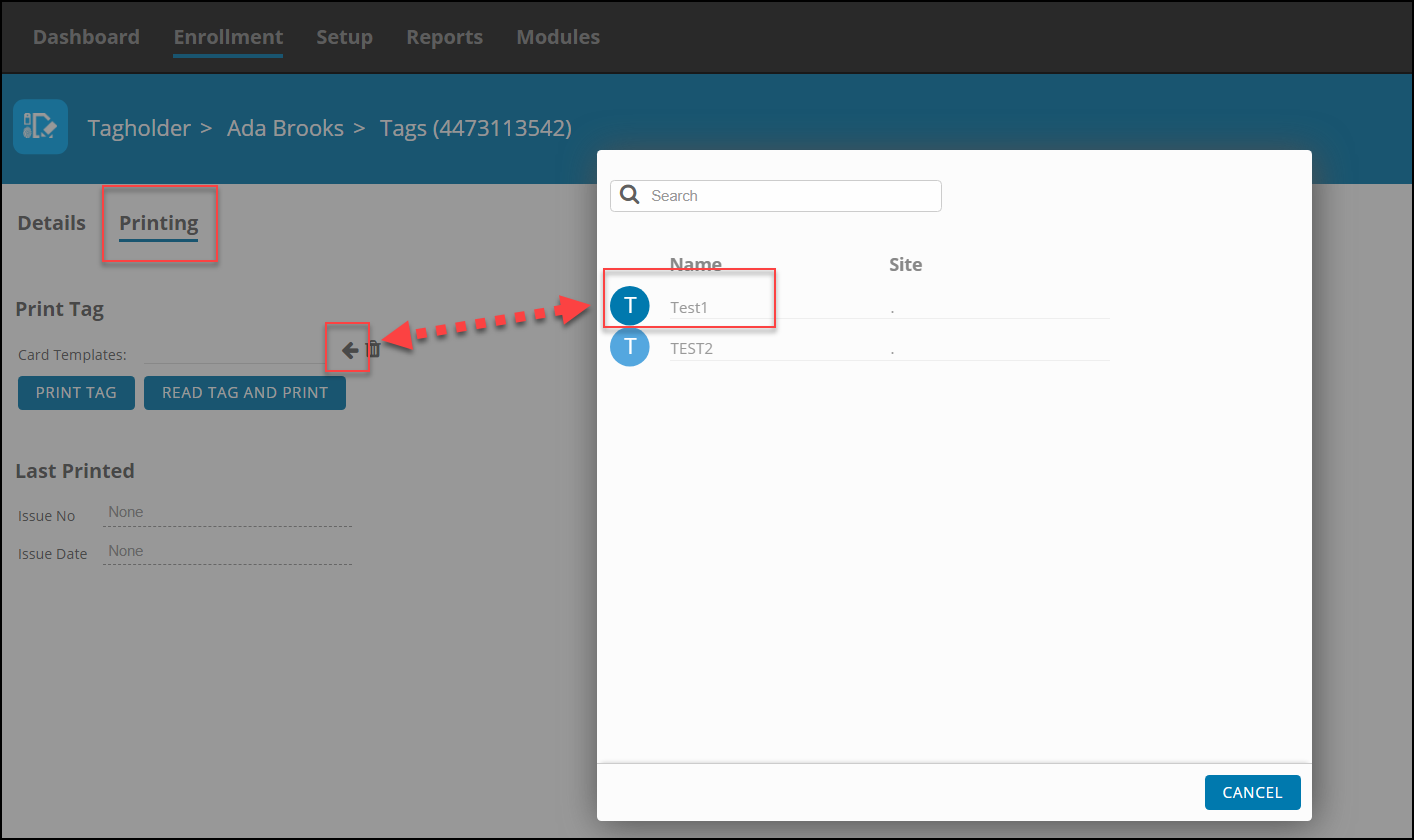
After Selecting the Template, Select Print
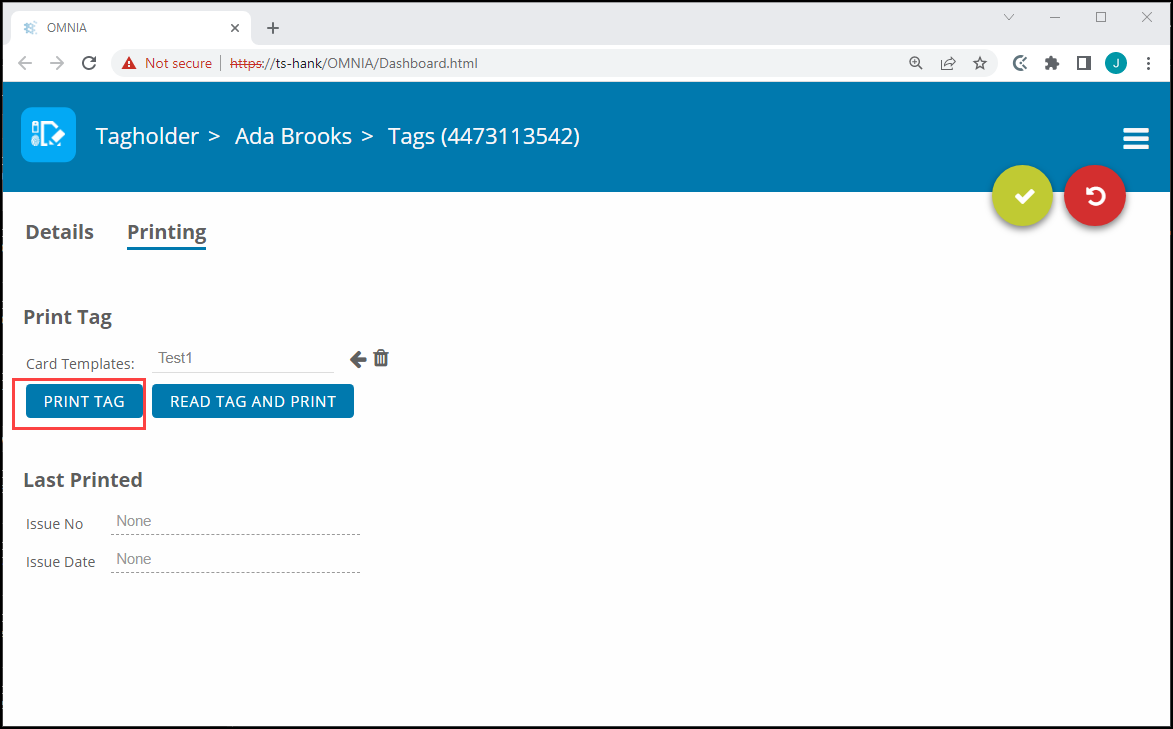
The print job will be sent to the Print Queue.

After the OMNIA Plugin Mgr has been installed, you may have to update the Printer Persistence.xml file.

          Update the Printer Persistence.xml file located at:

          C:\Program Files (x86)\OMNIA\OMNIA Plugin Manager\print\META-INF.
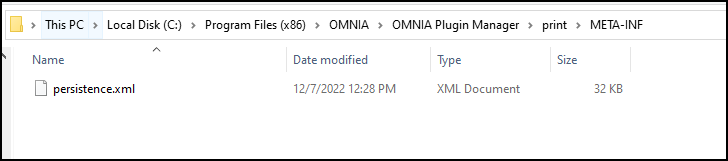
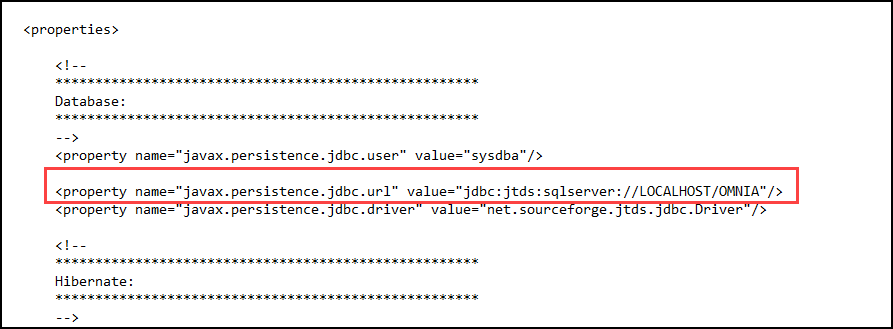
Open the file in Notepad to edit the path and the name of the Database.

Use the IP address of the Database or localhost if the Database resides on the PC you are wanting to print tags from.

Change the Database Name from Portal to OMNIA

NOTE: There are two (2) Locations on the Printing Persistence File that need to be updated.

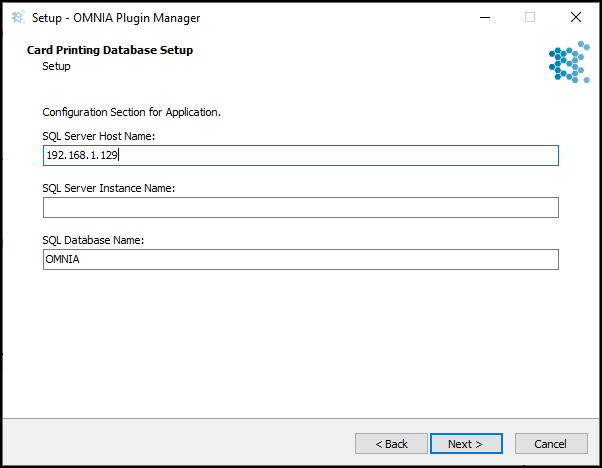
Using IP of SQL Server
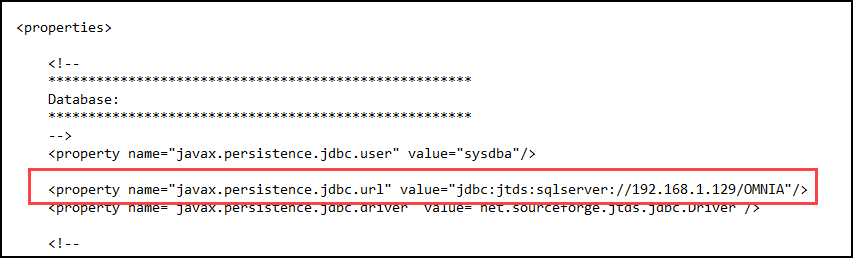
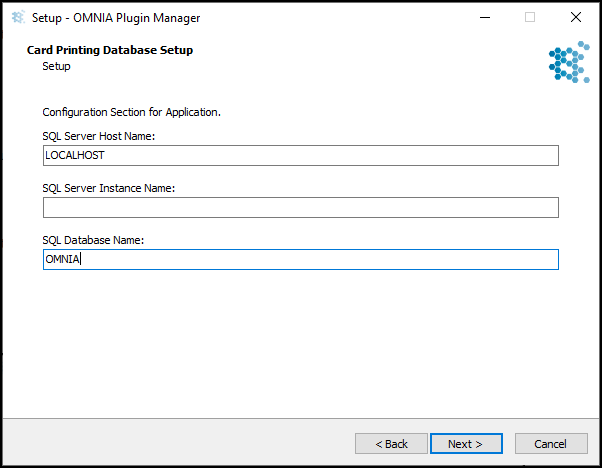
Using LOCALHOST
    Need further assistance?
    Submit a Support Ticket

    Submit a Support Ticket

    FAQ

    General

    Technical Bulletins

    Access Control

    AmanoNet

    Nexxus220

    Omnia

    Omnia Lite

    PM Tronics Hardware

    Amano Readers and Credentials

    Legacy Hardware

    Partner Products

    Partner Products

    Video Management Systems

    Cathexis Video (Amano Vision)

    AmanoDVMS

    Vision

    Updating OMNIA Printer Persistence File

    Updating OMNIA Printer Persistence File

    If the Card Designer Program does not connect to the OMNIA Database.

    After the OMNIA Plugin Mgr has been installed, you may have to update the Printer Persistence.xml file. er the OMNIA Plugin Mgr has been installed, you may have to update the Printer Persistence.xml file.

              Update the Printer Persistence.xml file located at:

              C:\Program Files (x86)\OMNIA\OMNIA Plugin Manager\print\META-INF.

    Open the file in Notepad to edit the path and the name of the Database.

    Use the IP address of the Database or localhost if the Database resides on the PC you are wanting to print tags from.

    Change the Database Name from Portal to OMNIA

    NOTE: There are two (2) Locations on the Printing Persistence File that need to be updated.

    Using IP of SQL Server

    Using LOCALHOST

    Need further assistance?
    Submit a Support Ticket

    Submit a Support Ticket

    FAQ

    General

    Technical Bulletins

    Access Control

    AmanoNet

    Nexxus220

    Omnia

    Omnia Lite

    PM Tronics Hardware

    Amano Readers and Credentials

    Legacy Hardware

    Partner Products

    Partner Products

    Video Management Systems

    Cathexis Video (Amano Vision)

    AmanoDVMS

    Vision

    How to Use The OMNIA Card Designer

    How to Use the OMNIA Card Designer

    Card Designer

    OMNIA has a built-in card designer that automates the process of printing personal information on access cards.

    Card designer is an easy to use graphical interface to design different card templates.

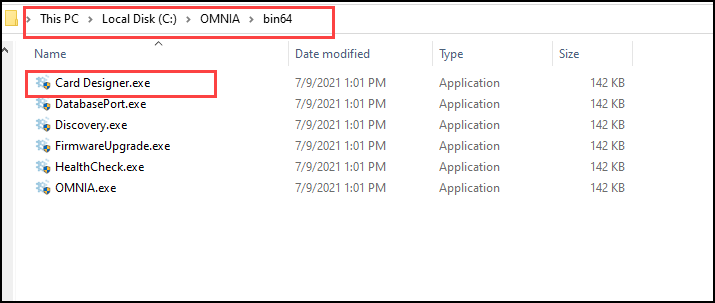
    Find the Card Designer at C:\OMNIA\Bin64\Card Designer.exe

    Run Card Designer as Administrator

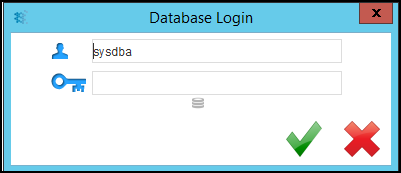
    Card Designer may ask you to log in.

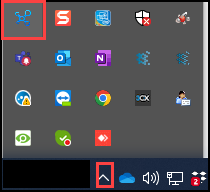
    After launching the Card Designer, The Card Designer Icon will appear in the Task Bar or in the Show Hidden Icons.

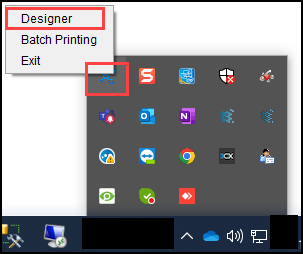
    Right Click the Card Designer Icon and Select Designer

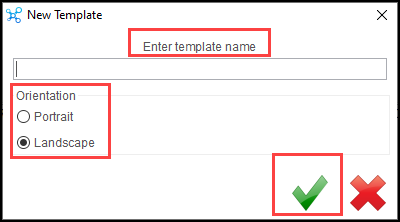
    After Selecting Designer, create a design template by entering a template name, choosing orientation, and selecting save

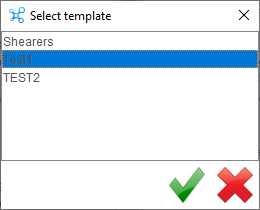
    If you have already Created Templates, select the template you want to edit.

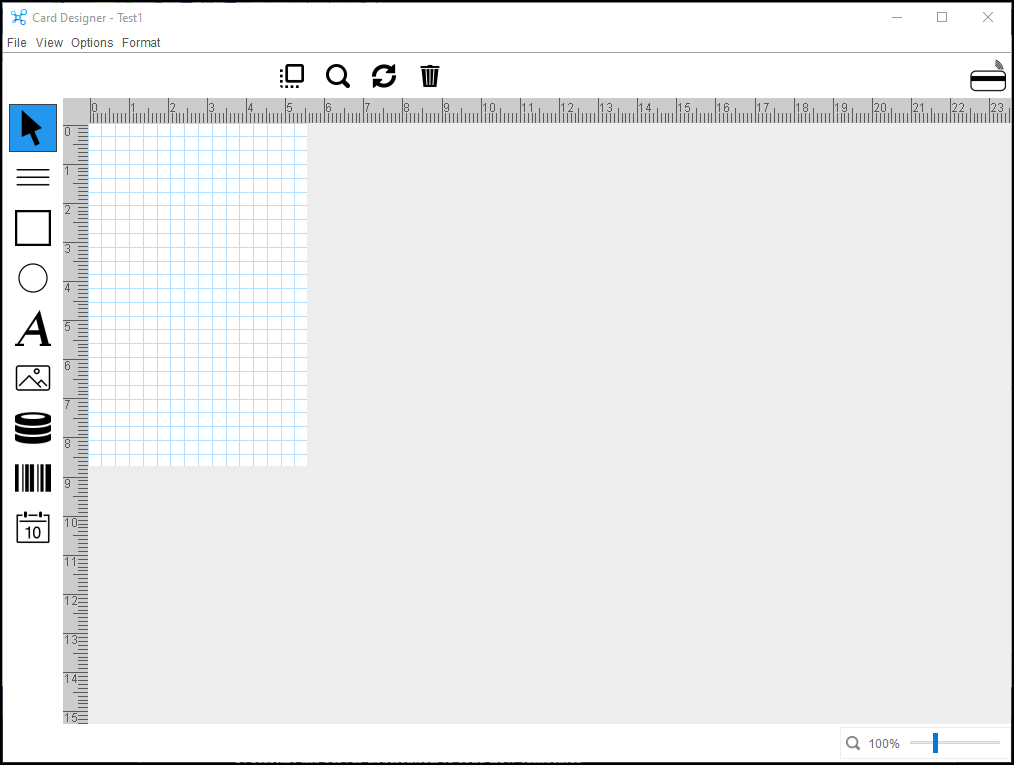
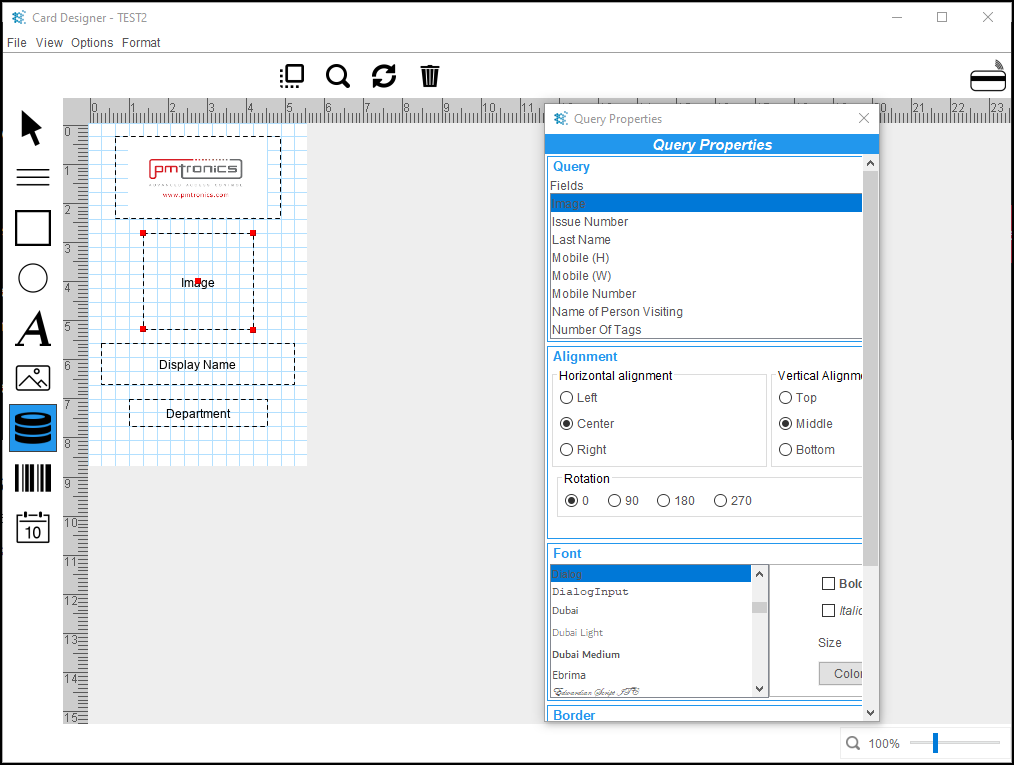
    The template will open in the Card Designer Window, this is where you will create your design template.

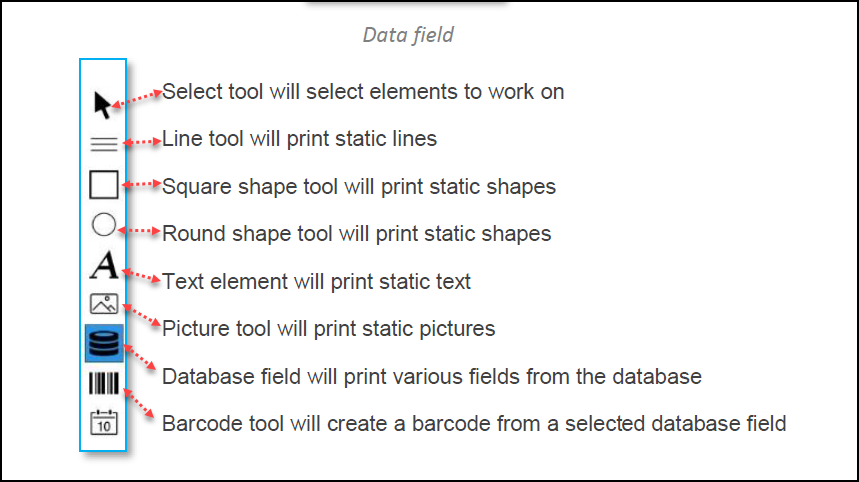
    Data field
    Select tool will select elements to work on
    Line tool will print static lines
    Square shape tool will print static shapes
    Round shape tool will print static shapes
    Text element will print static text
    Picture tool will print static pictures
    Database field will print various fields from the database
    Barcode tool will create a barcode from a selected database field

    The Picture Field will pull information from the PC

    The Database Field will pull information from the OMNIA Database

    Each Field is customizable:

    Alignment: Left, Right, Center, and Horizontal and Vertical

    Rotation: 0, 90, 180, and 270

    Font Type: Bold, Italic, and Size

    Border Position: Horizontal, Vertical

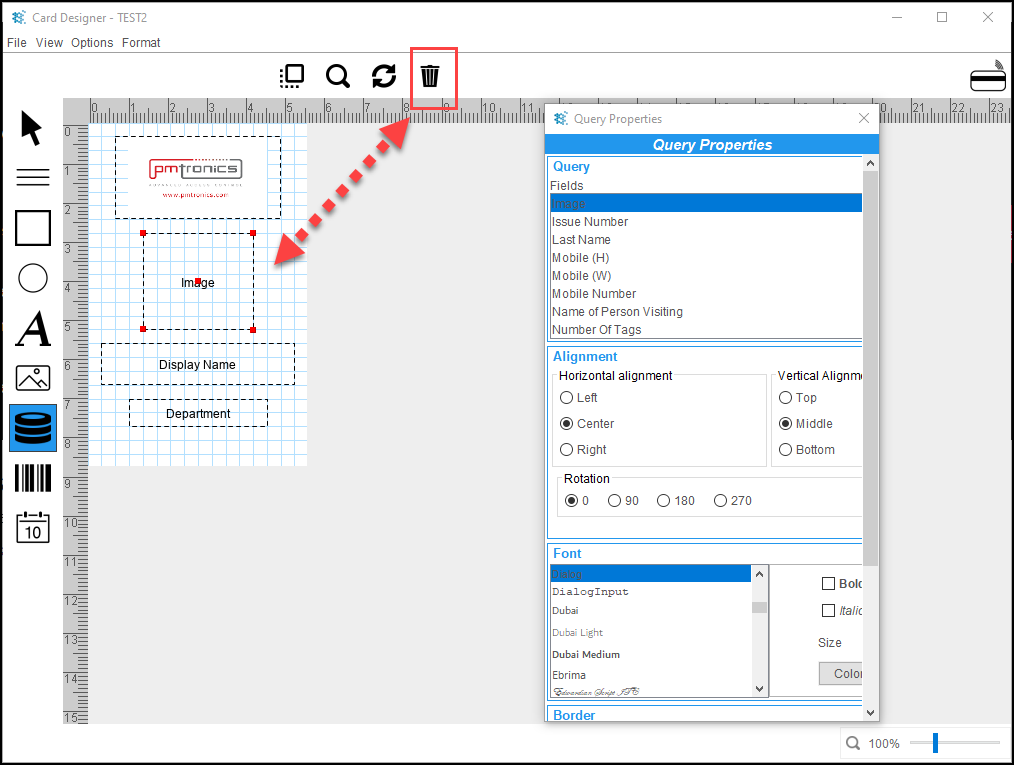
    To delete a field:

    Select it, then select the Trash Can

    There is not a save button, any changes/updates made are saved Automatically, you can close the Card Designer Window


    The Newly Created Template will not be available in the OMNIA URL until you Stop and Exit the OMNIA Server App and Restart it and log back into the OMNIA URL

    We recommend Printing to PDF to verify if you like the positioning of the data fields, this will prevent using up tags/cards and using the printing ribbon. 

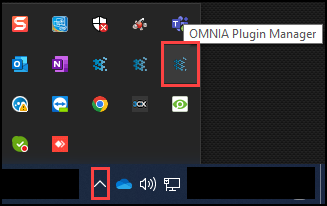
    The printer can be changed in the Plugin Manager. Plugin Manager Icon can be found in Show Hidden Icons in task bar.

    Select the Settings Tab, then use the Select Printer dropdown to select Print to PDF

    Save the Settings.

      Need further assistance?
      Submit a Support Ticket

      Submit a Support Ticket

      FAQ

      General

      Technical Bulletins

      Access Control

      AmanoNet

      Nexxus220

      Omnia

      Omnia Lite

      PM Tronics Hardware

      Amano Readers and Credentials

      Legacy Hardware

      Partner Products

      Partner Products

      Video Management Systems

      Cathexis Video (Amano Vision)

      AmanoDVMS

      Vision

      How to Install The OMNIA Plugin Manager

      How to Install The OMNIA Plugin Manager

      OMNIA Plugin Manager will allow the Multi Discipline Enrollment Reader (MDE) to be used to Enroll Tags for Tagholders into OMNIA.

      To install the OMNIA Plugin Manager.

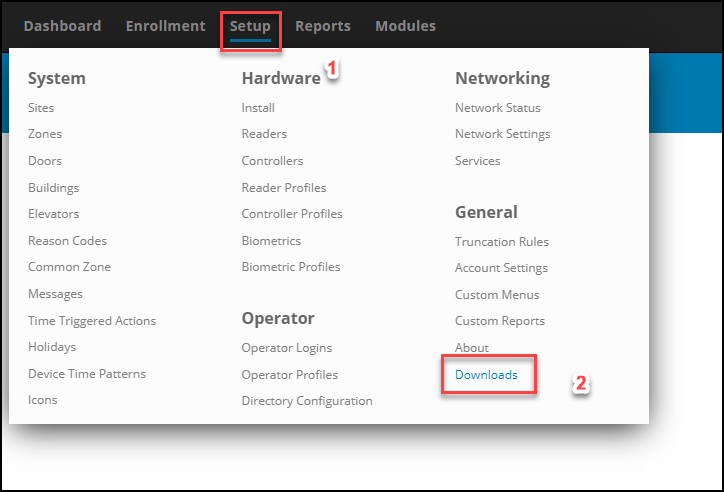
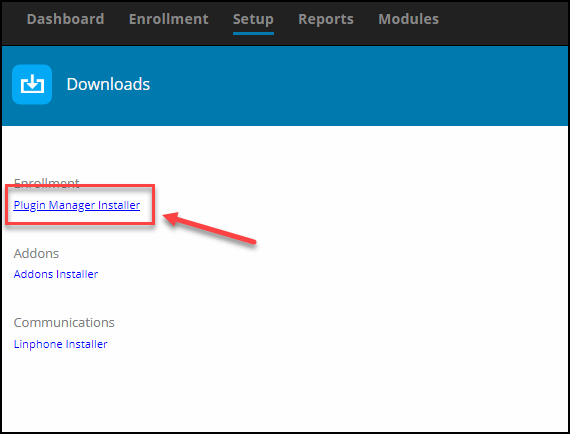
      In the OMNIA URL go to Setup/Downloads

      Select the Plugin Manager Installer

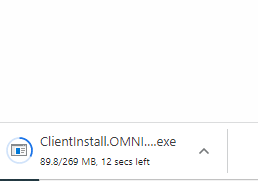
      The Plugin Manager installation files will download

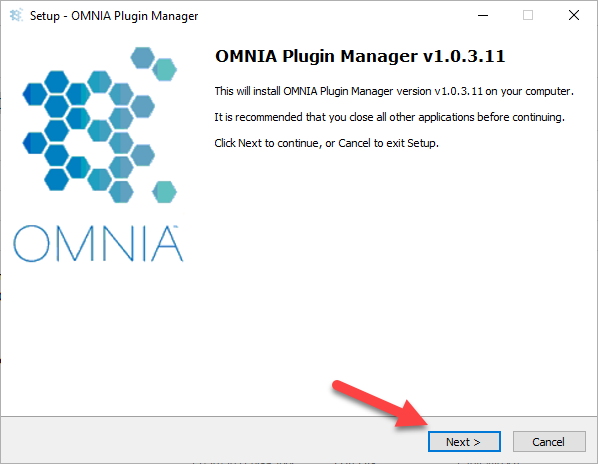
      Once Download Completes, Run the installer as administrator

      Enter the SQL Server Host Name, Localhost if SQL server is running on same PC the Plugin Mgr is being installed IP Address where OMNIA Server App is running or PC Name of where OMNIA Server App is running.

      Leave the SQL Server Instance Name Blank:

      Enter SQL Database Name: OMNIA

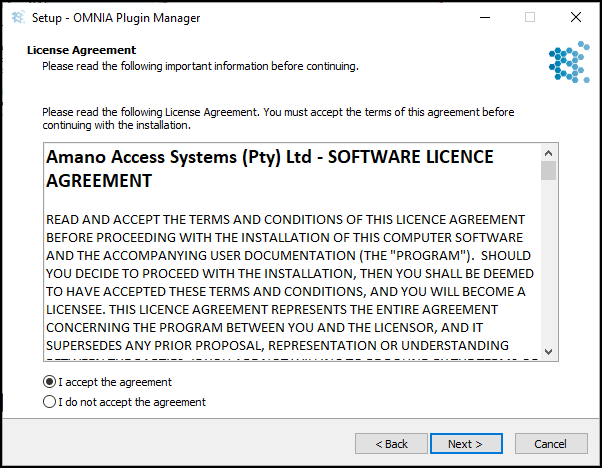
      Accept the License Agreement

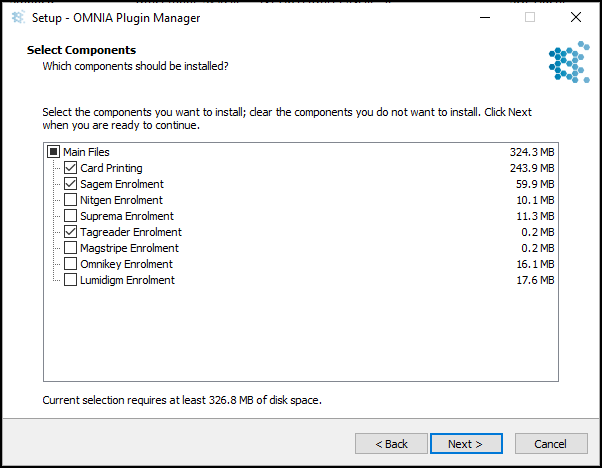
      Select the Components to be installed, Click Next

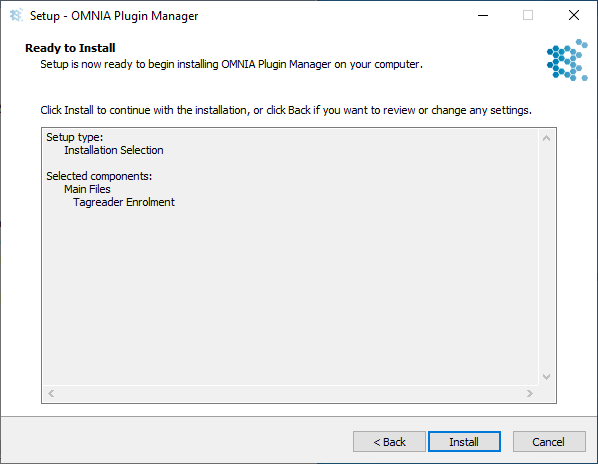
      Click Install

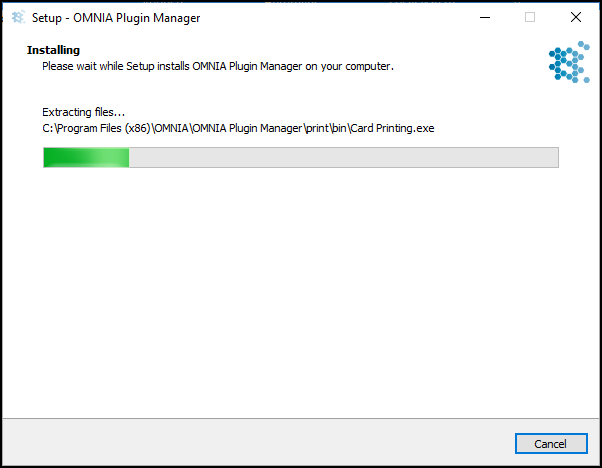
      Installation begins

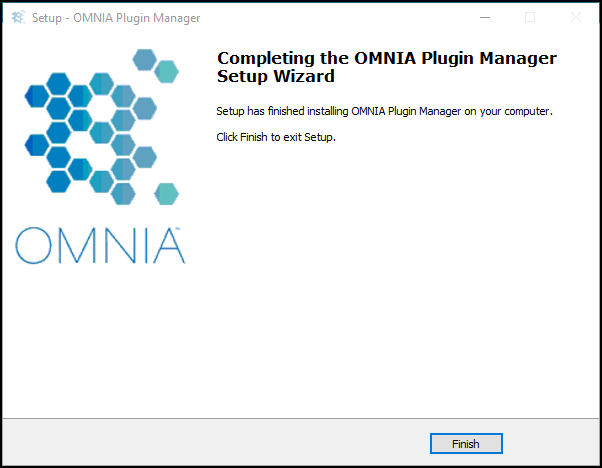
      When Installation Completes, Click Finish

      To Launch the Plugin Manager

      •  Go to C:\ProgramFiles(x86)\OMNIA\OMNIA Plugin Manager\OMNIA Plugin Manager.exe
      •  Run OMNIA Plugin Manager.exe as Administrator

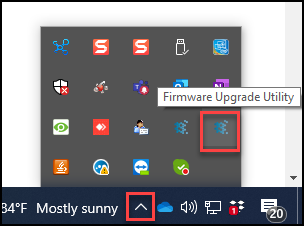
      OMNIA Plugin Manager will appear in task bar under show hidden Icons

      Need further assistance?
      Submit a Support Ticket

      Submit a Support Ticket

      FAQ

      General

      Technical Bulletins

      Access Control

      AmanoNet

      Nexxus220

      Omnia

      Omnia Lite

      PM Tronics Hardware

      Amano Readers and Credentials

      Legacy Hardware

      Partner Products

      Partner Products

      Video Management Systems

      Cathexis Video (Amano Vision)

      AmanoDVMS

      Vision

      Email Notifications In OMNIA

      Email Notifications In OMNIA

      In order for Email Notifications to work in OMNIA,  The Integration Server must be downloaded and Installed.

      After Integration Server installation Actions and Rules will need to be configured for Email Notifications.

      In the OMNIA URL, go to Setup/downloads/Addons 

      The addons installer will download.

      Launch the Client Install

      Accept the Agreement

      Select which Options you want to install, click Next

      This will place an Addons Folder in the root of OMNIA

      Inside the Addon Folder there will be a Bin Folder

      Launch the Integration Server

      Integration Server

      To Create Actions and Rules,  Click on Integration, Select Either Actions or Rules

      Creating Actions

      Select Integration, from the drop down select Actions

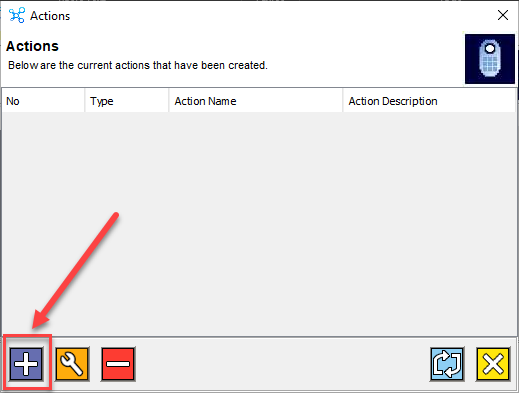
      Click on the Plus to add an Action

      The Action Wizard Launches

      Give the Action a Name, Give a Description if needed.

      From the Action Type Drop Down Select Email

      After Selecting Email, you will see areas that need the Email Server Information

      After entering the Email Server Information, Click the Next Arrow

      Enter a Valid Email address in the To: 

      You can Enter any Value you would like in the from.

      In this example we are using a Mailgun Email Server but chose to use OMNIA@OMNIA.com for the From email address

      Right Click inside the box below the subject line to select what details will be included in the email.

      For This example, Event Name, First Name, Last Name, and Time were selected for details in the Email Notification

      Click Next

      A summary of the Action created displays

      Click the Next button

      An Action is now created and will display. If this is your first action created the number will be 1, for this example this was the 9th Action Created.

      Click the X to close the Actions Window

      Creating a Rule

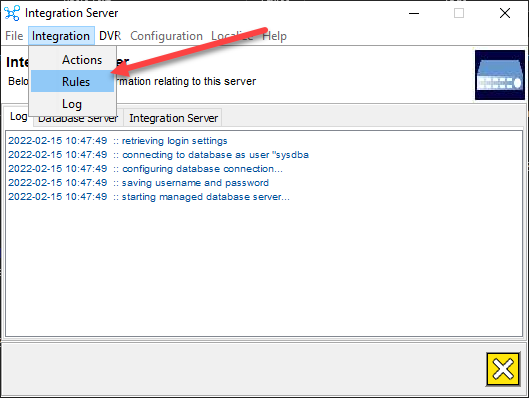
      On the Integration Server, Select Integration, from the drop down select Rules

      Select the Plus Button to create a New Rule

      The Rule Wizard will Launch, Click Next

      Give the Rule a Name, Give the Rule a Description if needed.

      Always Select IXP400 as the Rule Type

      In this example , we are setting up a rule to Email when a tagholder uses a specific Door

      For this example , we selected Events, Tags, Terminals, and Tagholders.

      Click Next

      The Events Page Displays

      We will now need to choose the Event for the Rule

      Scroll to Find the Event, Highlight it, 

      Click Next

      The Tags Page Displays

      We will now need to choose which tag for the rule

      Scroll to find the Correct Tagholders Tag. 

      Click Next

      The Tagholders Page Displays

      We will need to choose the Correct Tagholders Name

      Click Next

      The Terminal Page Displays

      We will need to select the Terminal for the Rule

      Click Next

      The Active Time Page will Display

      This will allow you to choose, if needed, an Active Time Period for the Rule to be Enforced

      By Default the Active Time is 24/7 and Holidays.

      Click Next

      You may Edit the Active Time Period by clicking on the Wrench

      You may Edit the Active Time, 

      When Finished Editing the Active Time, click the Green Check Box

      The Action Selection Page will Display

      You will choose the Action you want to take place for this rule. In this example we have only created One Action.

      Select the Action, Press the Arrow Left Button to move the Action to the Selected Actions

      Click Next

      You will get a notification of Completed, and will be able to scroll in the message listing the details of the Rule and Action Associated with the Rule

      Click Next to Finish

      A Rules page Displays

      Click the X to Finish

      Click on the Integration Server Tab to view the current rules and actions taking place

      Need further assistance?

      Submit a Support Ticket

      Submit a Support Ticket

      FAQ

      General

      Technical Bulletins

      Access Control

      AmanoNet

      Nexxus220

      Omnia

      Omnia Lite

      PM Tronics Hardware

      Amano Readers and Credentials

      Legacy Hardware

      Partner Products

      Partner Products

      Video Management Systems

      Cathexis Video (Amano Vision)

      AmanoDVMS

      Vision

      • « Go to Previous Page
      • Page 1
      • Interim pages omitted …
      • Page 5
      • Page 6
      • Page 7
      • Page 8
      • Page 9
      • Interim pages omitted …
      • Page 13
      • Go to Next Page »
      • Facebook
      • LinkedIn
      • Twitter

      PMT Security

      Copyright © 2026 PMT Security, Inc. | All Rights Reserved

      • Privacy Policy
      • Terms of Use
      • Cookie Policy
      • Accessibility
      • Contact Us