
OMNIA Reports
The Reports function provides multiple avenues for retrieving information from OMNIA. Reports can be accessed via the Reports Tab in OMNIA.
In the Reports Tab you will find different types of reports you can run.
The Reports that will be available will depend on which version your site is running. This example is with OMNIA 4.1 Enterprise License.
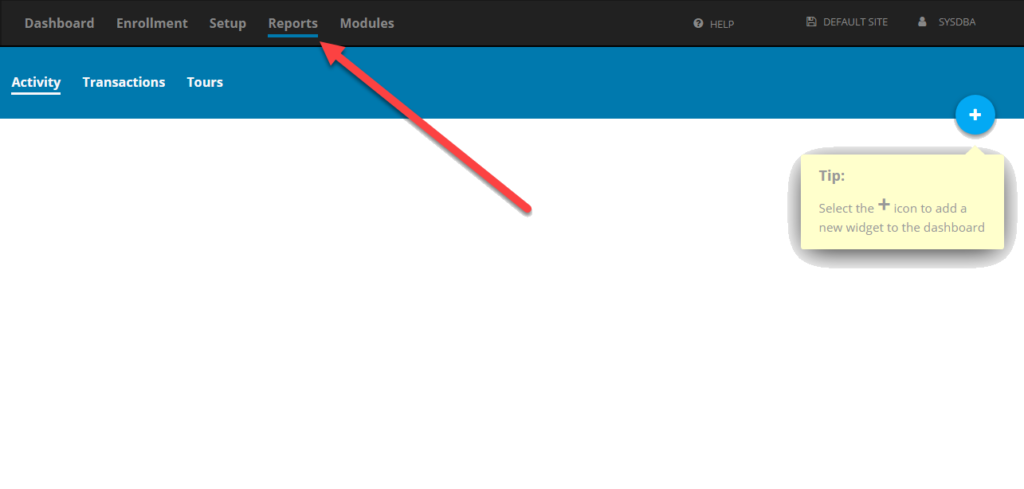
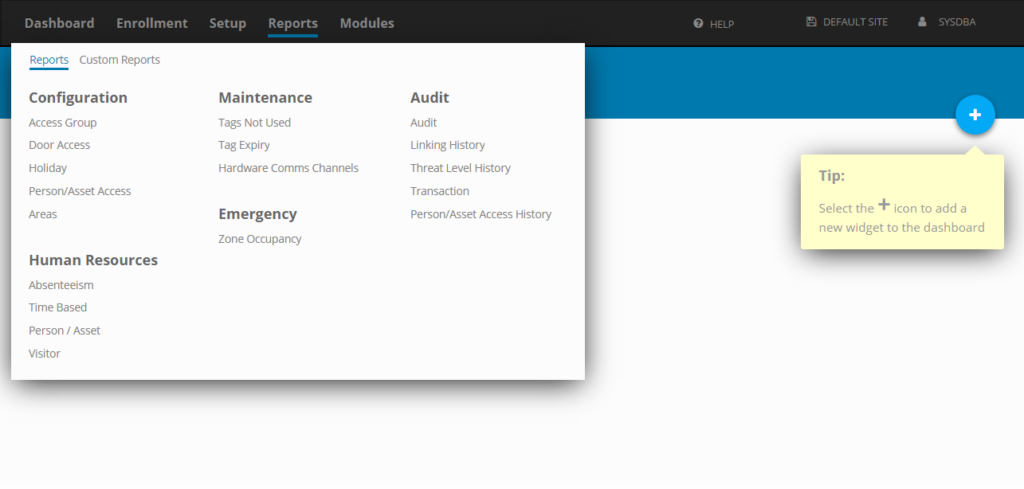
The Reports tab is broken down into different categories:
- Configuration
- Human Resources
- Maintenance
- Emergency
- Audit
Configuration:
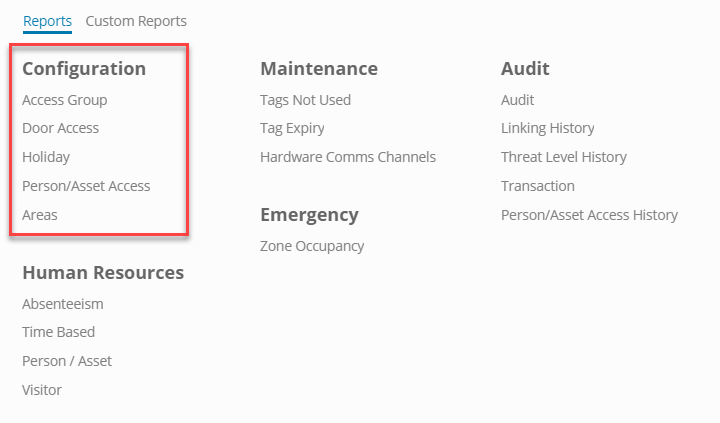
- Access Group– Will display Detailed Access Groups configuration settings. Such as: Access Pattern Name, the Area Name the Access Group is assigned to. It will also display any Access Time Pattern information associated with the Access Group.
- Door Access– Will display tagholders and what doors they have access too
- After Naming and saving report name, more options appear for reporting. Columns of data can be added as well as numerous filters to customize the reporting.
- Holiday Report– Will display any Holidays that have been Configured by the Site’s Admin into the system. Holidays must be entered into the System Manually.
- Person/Asset Access– Will display all current Person/Asset records with their assigned access groups, areas, and time patterns.
- Area– Will Display Areas and the Doors that belong to them. Includes door name, entry, exit, zone, building and floor.
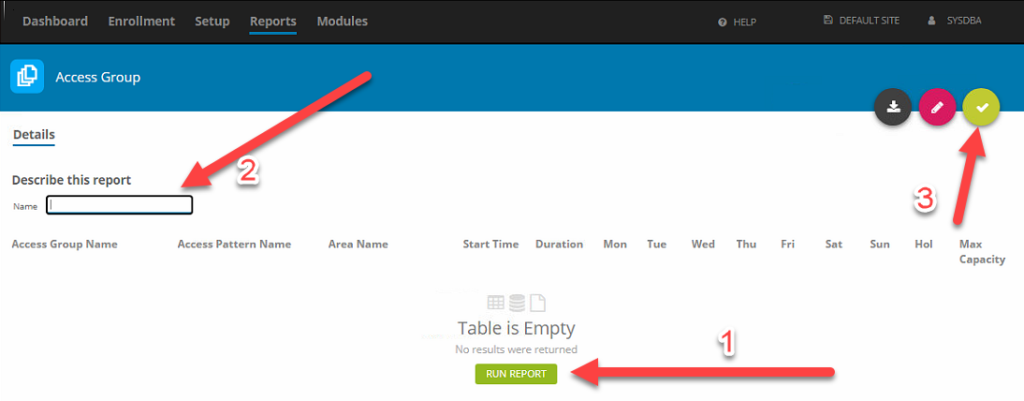
The First time accessing a report mentioned above there will be no reports to run. Click on the Plus to Create a New Report.
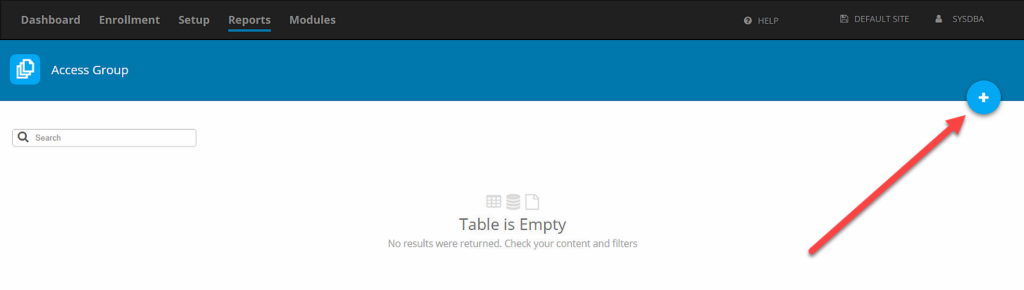
At this point the Options are:
- Run the Report
- Add a Name for the Report
- Save the Report
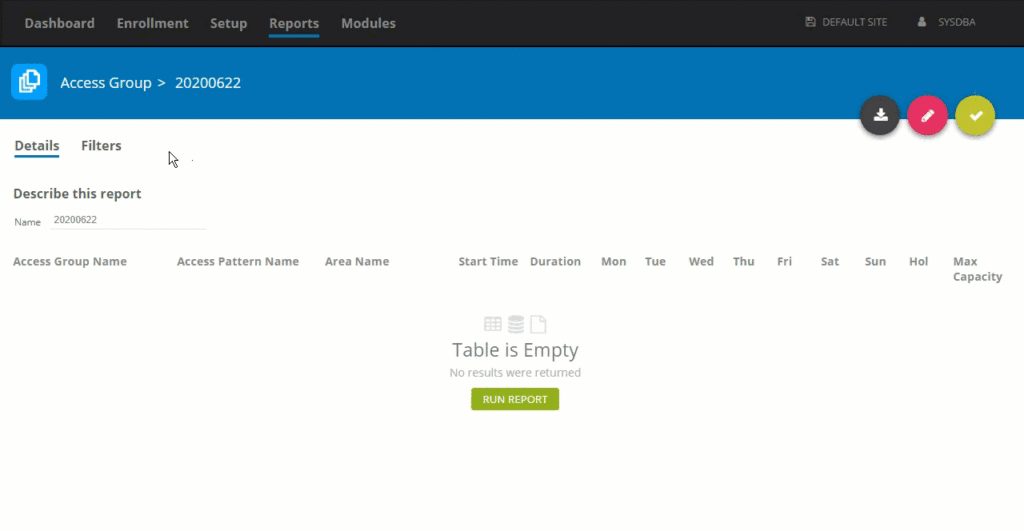
Once the Report is Named and Saved, a Filters Tab appears. This Filters Tab will allow customization of the Report.
The Report Can Now be run to view the results.
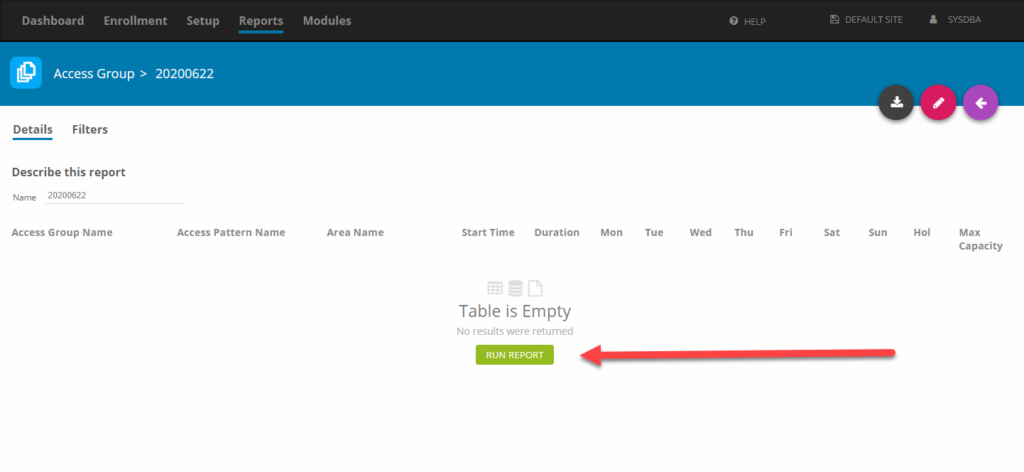
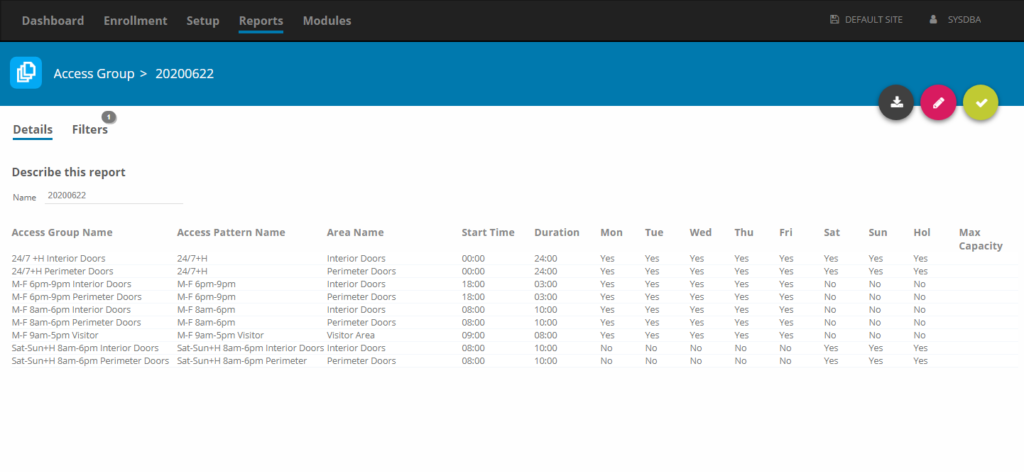
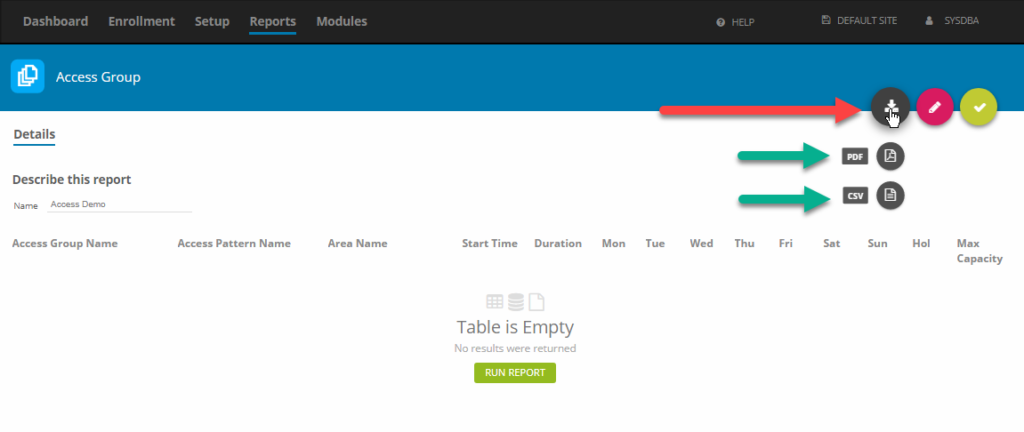
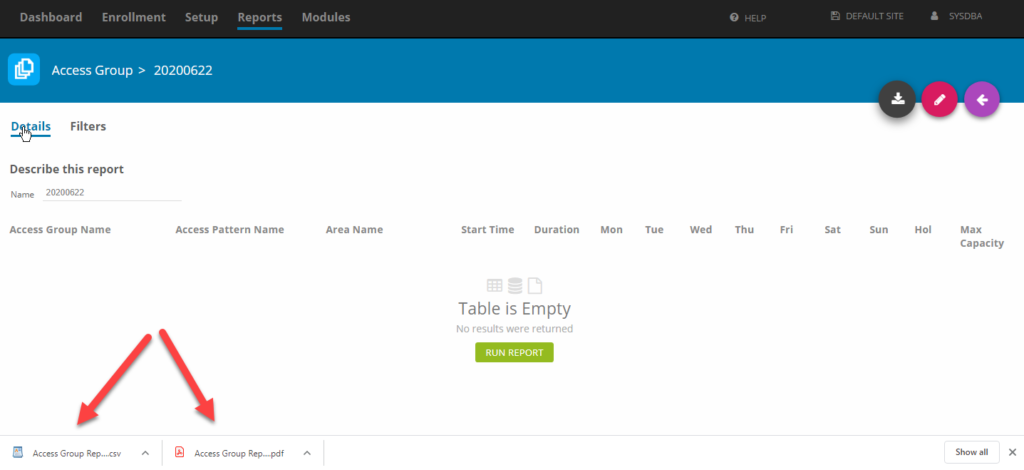
There are Multiple Options to Save your Report
- CSV
Each option will download the Report with the File type chosen.
Human Resources:
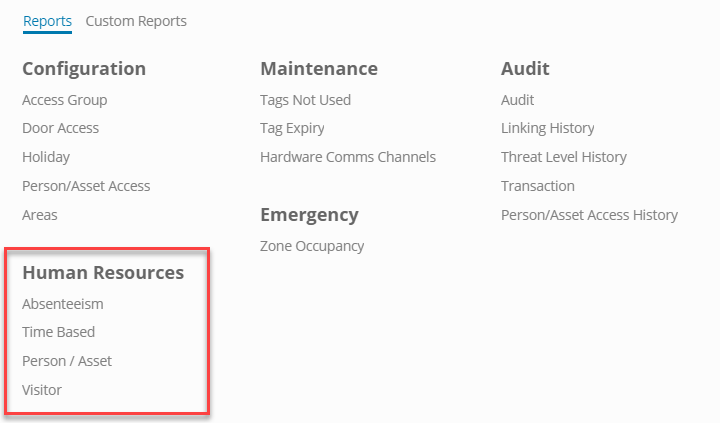
- Absenteeism– provides information on absenteeism
- Time Based Reports– displays historical information on Hours Worked, First In and Last Out
- Person/Asset– provides Person/Asset Details
- Visitor– shows information on who received visitors and who the visitors are
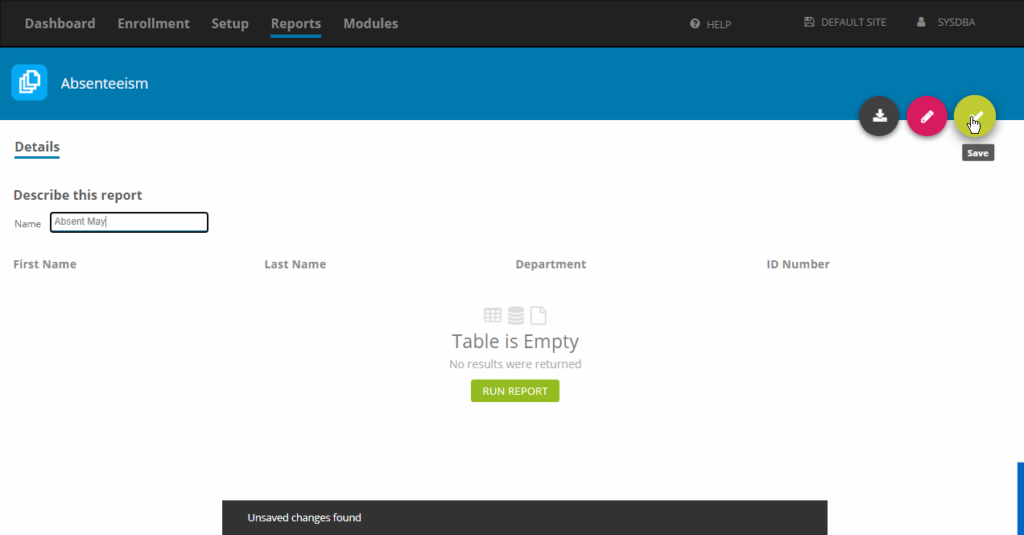
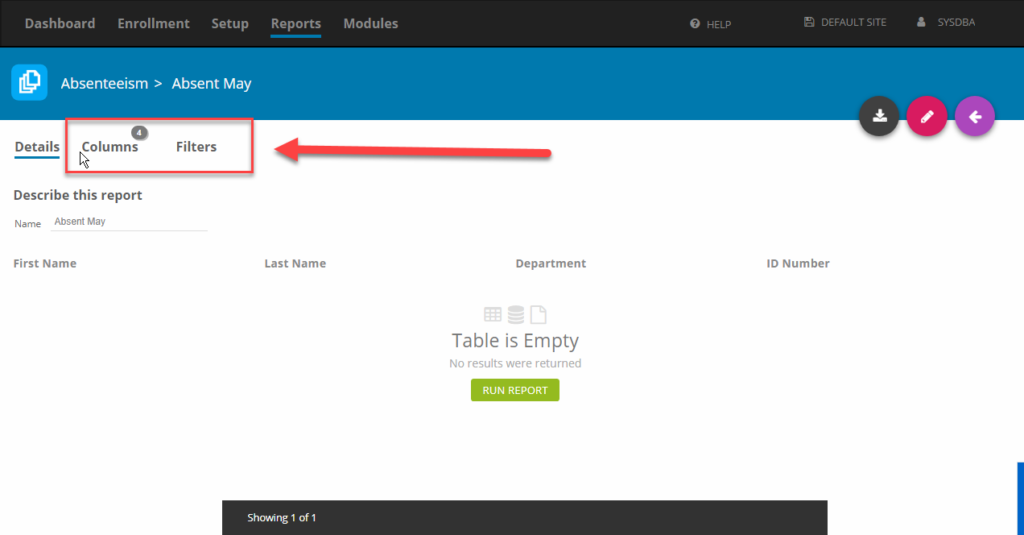
NOTE: After Naming and Saving Report, a Columns tab appears as well as the Filter Tab. The Columns Tab will allow customization of the Columns in the Report.
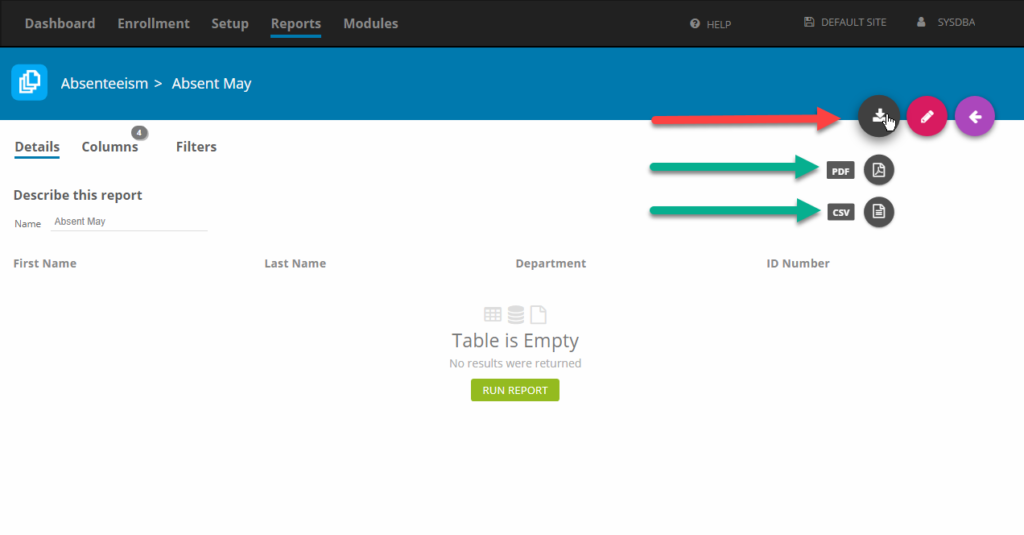
These reports can also be saved as a PDF or CSV file.
Maintenance:
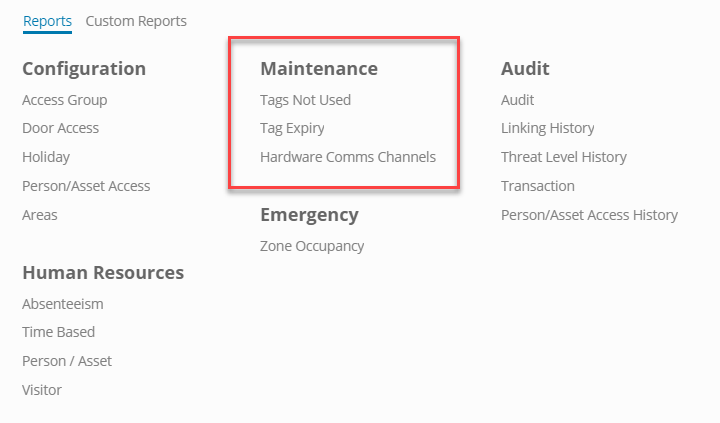
- Tags not used– Show current Person/Assets who have not used their tags since a configurable date.
- Tag Expiry– Displays Tags that expire in a given date range for current Person/Access
- Hardware Comms Channels– Shows Controller, Readers, and associated channel info grouped by area.
NOTE: The Reports in this section have the Filters Tabs already enabled by default. These reports can be Saved as a PDF or CSV file.
Emergency:
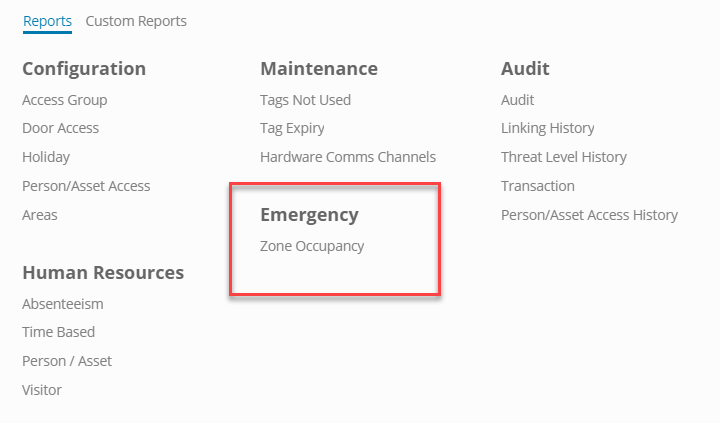
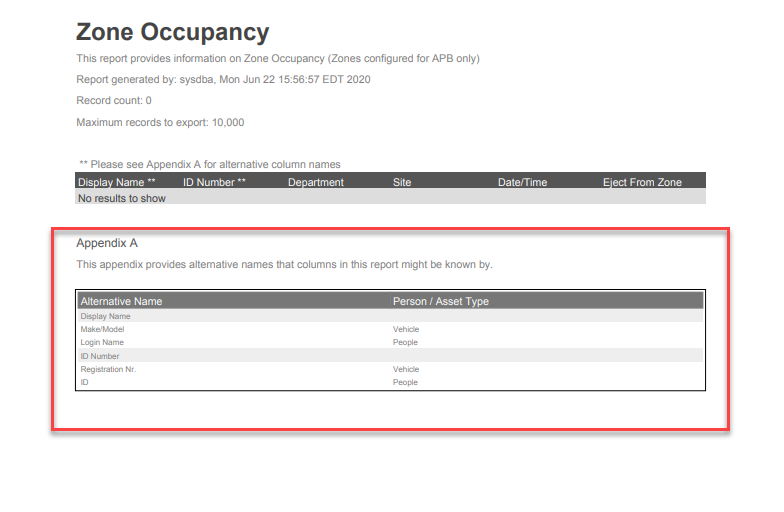
Zone Occupancy– This report provides information on Zone Occupancy (Zones configured for Anti-Pass Back APB only). This report also contains an appendix providing alternative names that columns in this report might be known by.
Audit:
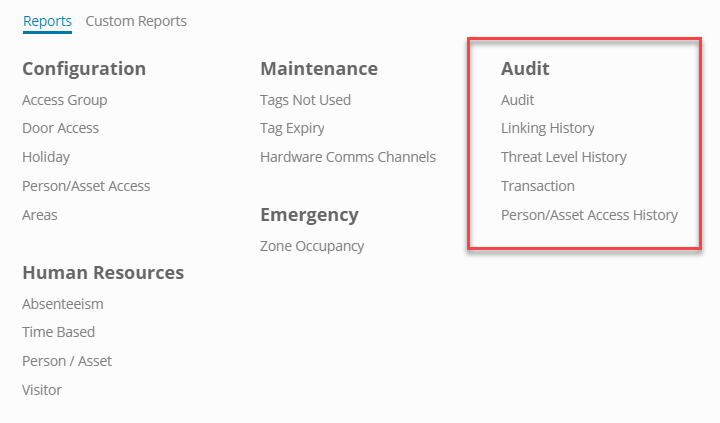
- Audit– This report displays audited changes to the system. System changes-Record Deletion and Record Creation.
- Linking History– This report provides historical information on the assignment of Assets/People to tagholders. E.g. When was a vehicle allocated to a driver or a visitor hosted by an employee. When was a computer/scanner assigned to an employee.
- Threat Level History– This report provides historical information on Threat Levels. E.g. Which operator activated a threat level and when.
- Transactions– This report shows a historical view of transactions.
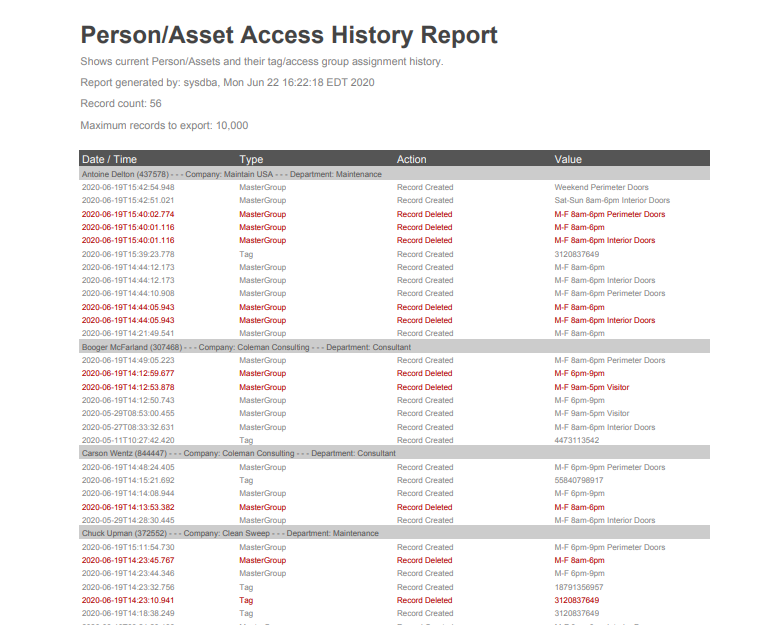
- Person/Asset Access History– Shows current Person/Assets and their Tag/Access group assignment history.
Need further assistance?