• Skip to primary navigation
  • Skip to main content
PMT Security Logo

PMT Security

Advanced Access Control

  • Home
  • About Us
    • Our Partners
    • Our Integrators
  • Solutions
    • Residential
    • Government Facilities
    • Education
    • Retirement
    • Manufacturing
    • Retail Businesses
    • Campgrounds & Outdoor Resorts
  • Products
    • Access Control
      • Control Features
      • Reporting & Monitoring
      • Control Module
      • Digital IO Module
      • Reader Module
      • Readers
    • Video Management
      • Integration
      • Analytics
      • Search & Export
    • Visitor Management
  • Support
    • Knowledgebase
    • Download Center
    • License Request
    • RMA Request Form
  • Blog
  • Contact Us

Technical Bulletins

Setting the IP address of a PMT Security Device by Directly Connecting To It with a Laptop.

Setting the IP address of a PMT Security Device by Directly Connecting To It with a Laptop.

Setting an IP Address of a controller that is not found on the Network

Sometimes it is not possible to find the default address of the controller across a sites network. In that case it is recommended to use a laptop and ethernet cable to set the desired IP address.

You will need the Discovery Tool on the Laptop, The Discovery Tool is not a Stand Alone Tool and can only be found in the OMNIA Folder after OMNIA is Installed on the Laptop.

If OMNIA is not installed on the laptop, go to PMTSecurity.com, download and install OMNIA.exe, After installation the Laptop will have an OMNIA folder found under C:

  1. Direct Connection
    Connect the controller directly to a laptop or PC using an Ethernet cable. Thumbnail Image
  2. Restore Factory Settings
    Once connected, reset the controller to its factory default settings.     * Change Dip switch one to ON and power cycle the device.    * Leave Dip switch one ON for at least 45 seconds, then change dip switch one to OFF.  
  3. Default IP Address
    After resetting, the controller will revert to its default IP address:
    192.168.100.1


Putting Laptop NIC in IP range of Default controller IP

In your search bar. Type View Network Connections. Select the icon shown below.

Rick click on the Ethernet Network Card you are using and select Properties.


Double Click the Internet Protocol Version 4(TCP/IPv4).
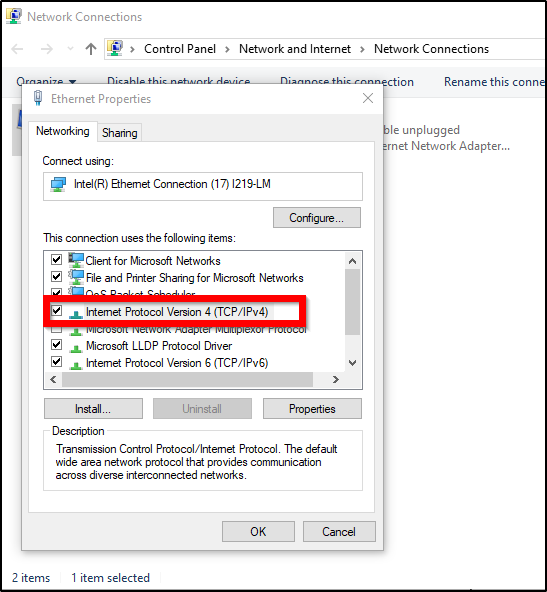
If PC has Obtain an IP address automatically

  1. Select Use the FollowingIP address.
  2. Set IP address to fall into the  PMT Security’s default IP address range.
       * Do not use 192.168.100.x, DO NOT USE .1
  3. Set the Subnet Mask to 255.255.255.0
  4. Set the Default Gateway to 192.168.100.1
      * This will not interfere with communication to the device.
  5. Set the Preferred DNS server address to anything.
      * 8.8.8.8 and 8.8.4.4 are Googles DNS server addresses.
  6. Select OK, This properties window will Close, Select OK to close Ethernet PropertiesWindow. Select Close on Ethernet Status Window.

You can verify your changes by using the Command Prompt and typing ipconfig and pressing enter. This will display current IP configuration settings.


If PC already has Use the Following IP address Selected
Select Advanced…

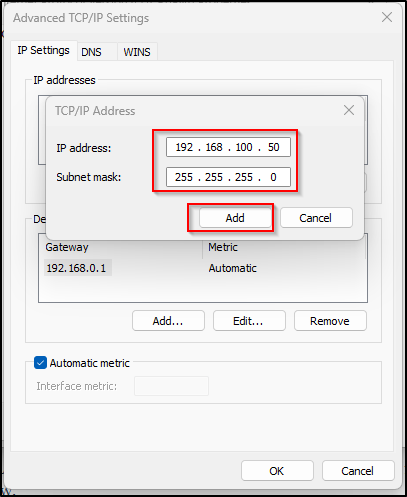
  1. Under the IP addresses Window, Select Add…a TCP/IP address window will open.
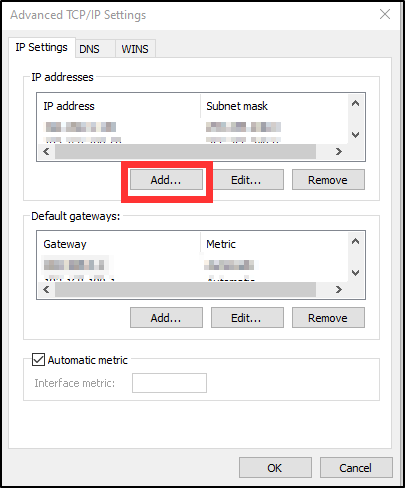
  1. Set the IP Address to 192.168.100.x
      * Do Not Use .1
  2. Set the Subnet Mask to 255.255.255.0
  3. Select Add to close TCP/IP window, address added will be seen in the IP addresses window.
  4. Select Add… under Default Gateways:
      * A TCP/IP Gateway Address window will open.
  5. Set the Gateway to 192.168.100.1
      * This will not interfere with communication to the device.
  6. Select Add to close the TCP/IP Gateway Address window, gateway will be seen in the window.

 7. Select OK, The properties window will Close, Select OK to close Ethernet Properties Window. Select Close on Ethernet Status Window.

You can verify your changes by using the Command Prompt and typing ipconfig /all and pressing enter. This will display current IP configuration settings.

Open the Discovery Tool. C: > OMNIA > bin64

When the Discovery Tool opens:

Select the Search for Devices (Subnet) or Search forDevice (By IP). Searching by Subnet will search automatically. When selecting Search for Device (By IP) enter the default IP address of the device.192.168.100.1 and Select OK
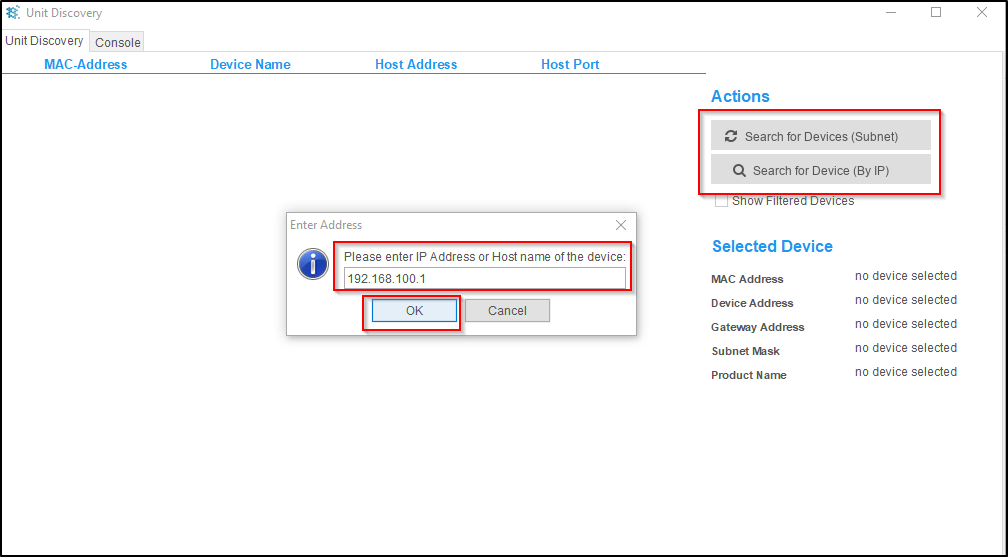


Once Found the device will appear in the Discovery Tool.

Double Click the Device to open the Network Settings Window.


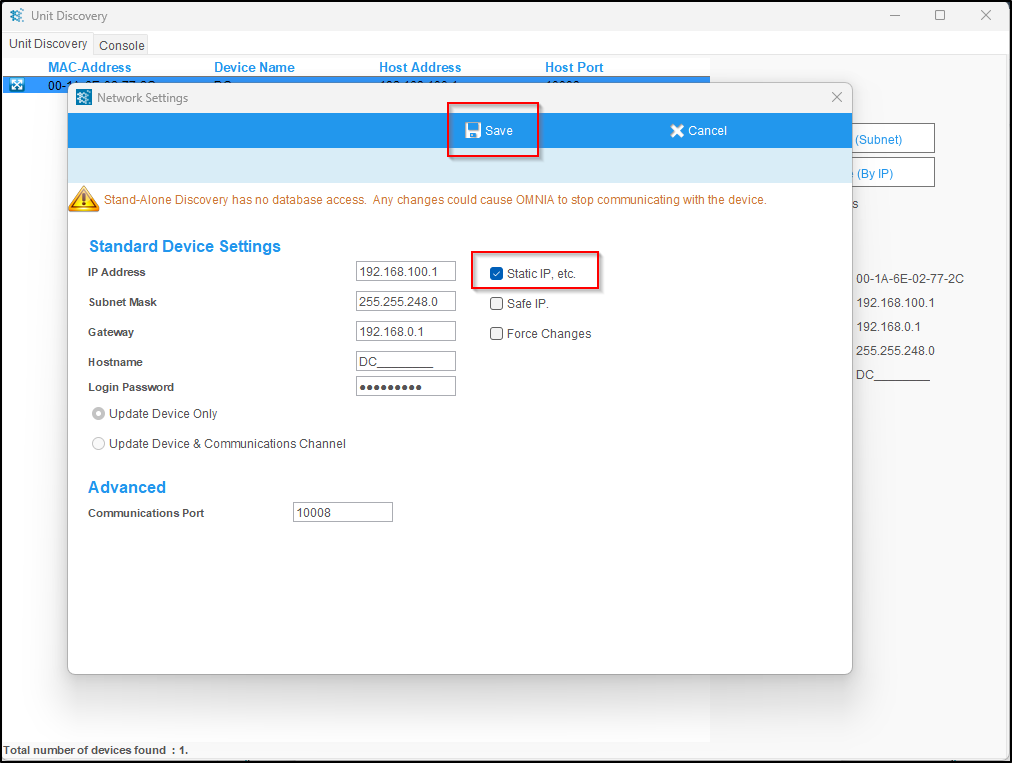
Select Static IP, etc. Change the IP Address, Subnet Mask, and Gateway to the desired configuration. The password will be masterkey.

Select Save. You will see a changes saved message. Select Back to close this window.

NOTE: 

  • It is very important to enter the correct information here, an incorrect subnet mask and or gateway will cause communication issues once this device is put on the site’s network.
  • Do NOT Select Safe IP, Safe IP will configure the device to only communicate with the device being used to set the IP address.
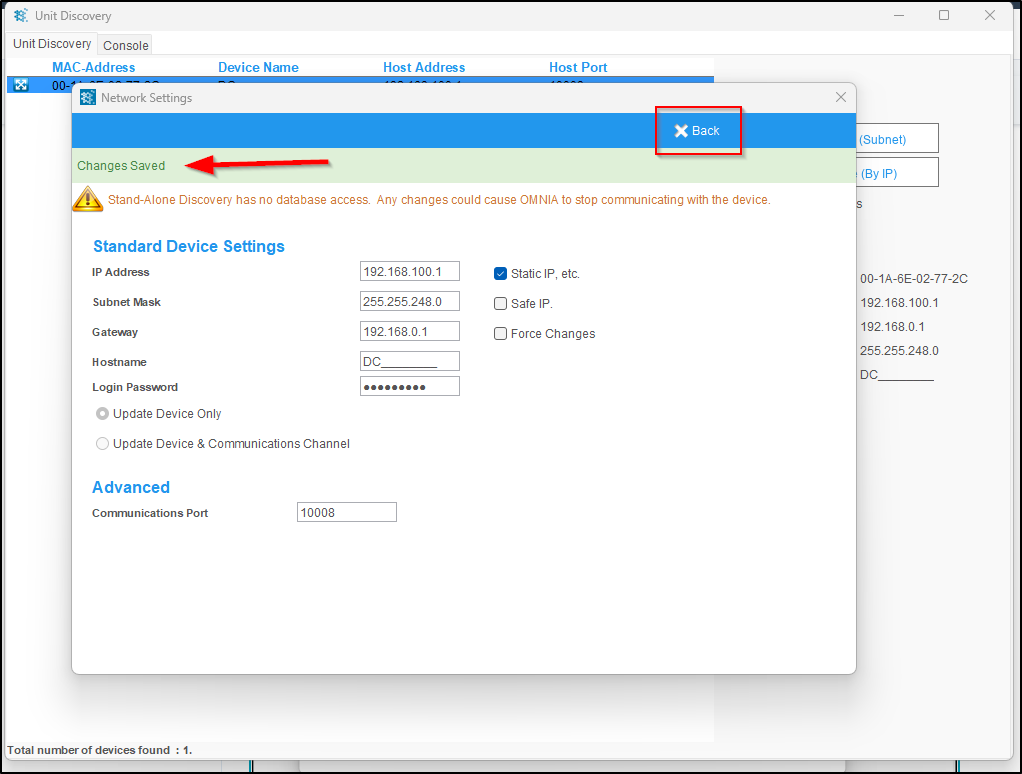

You have now Manually Configured the Device’s IP Address, Subnet Mask, and Gateway.

You can now place this device on the Site’s Network and Install into the Software.

Need further assistance?
Submit a Support Ticket

Submit a Support Ticket

FAQ

General

Can I initiate RS485 comms to a terminal from an existing IP terminal?

How to Select the Right Cable for the job

IDEMIA Sigma Lite Readers NOT compatible for use in AmanoNet or Nexus220

Network Configuration – Best Practices

Technical Bulletins

Akuvox R20 Wiring Diagram to Wiegand Reader Module (WRM)

Finding and Adding Sigma Biometric Units to OMNIA 4.6.5

How to add a PAC Tag type to a Tag Holder

How to upgrade OMNIA hardware firmware using the OMNIA Firmware Upgrade Tool

OMNIA CSV Imports 

OMNIA Run as a Service fix for v4.x

Upgrading To OMNIA 4.6.5 and 2019 SQL Express With Tools

Access Control

AmanoNet

AmanoNet Back up using IB Console

AmanoNet Minimum PC Requirements and Specifications

AmanoNet System Migration Notes

Archive Tagholders in AmanoNet

Archive Transactions in AmanoNet

AutoID IP Hardware in AmanoNet

How to get PMTSecurity a copy of the AmanoNet Access Control Database

How to move AmanoNet Access Control System from one PC to another (Firebird)

IDEMIA Sigma Lite Readers NOT compatible for use in AmanoNet or Nexus220

ImproNet/AmanoNet Database Backup: SQL

Nexxus220

Change Default Password in Nexus220
Database Migration from Nexus220/IXP220 to OMNIA
How to fix a Java SE Binary Error in Nexus220 Software
How to get a copy of a database from Nexus220 Software
How to move Nexus220 to a different PC
IDEMIA Sigma Lite Readers NOT compatible for use in AmanoNet or Nexus220
Move Nexus220 Access Control System from one PC to another (Firebird)
Nexus220 Firmware Upgrade
Nexus220 Notifications Configuration/Email Configuration
Nexus220 The number of doors for this license has been exceeded
Nexus220 Web Reports Using Microsoft Edge
Reduce length of time on buzzer for readers in Nexus220

Omnia

Adding a New Department in Omnia

Adding Companies to Omnia

Adding Widgets to the OMNIA Dashboard

Aperio Wireless Lock Integration

Basic Setup Guide:  Akuvox

Basic Trouble Shooting OMNIA

Batch Operations OMNIA

Change SYSDBA Password in OMNIA

Changing the IP Address of a Previously Installed Controller using the Omnia Software/URL

Configuring Web Session Timeouts in OMINA

Omnia Lite

Convert a Nexus Lite Database into OMNIA Lite Database

OMNIA LiTE Backup

PM Tronics Hardware

Amano Readers and Credentials

Change Modulation mode on XQT904 Quad Transmitter
How do I change Wiegand Output Mode on Amano readers?

Legacy Hardware

Factory Reset legacy Amano IP Cameras (sold prior to 2018)

Factory Reset Nexus220 controller

How do I factory reset the EC2 (400i) controller?

Setting IP on PMTronics Inc. Access Control Hardware

Partner Products

Partner Products

IDEMIA Sigma Lite Readers NOT compatible for use in AmanoNet or Nexus220

Installing Cathexis Carbon and Adding a new Account

Setting Read Range on a Conekt Reader

STID Configuration

Video Management Systems

Cathexis Video (Amano Vision)

Adding Cameras into Cathexis

Cathexis Video AV (AntiVirus Exceptions)

Installing Cathexis Carbon and Adding a new Account

Quick Start Guide for Cathexis Vision Version 2025

AmanoDVMS

Which AmanoDVMS ports need to be open on my firewall?

Vision

Adding Cameras into Cathexis

AmanoVision web access user name case sensitivity usage

OMNIA CSV Imports 

OMNIA CSV Imports 

How to import Tagholders into OMNIA with a .CSV file

OMNIA CSV Imports 

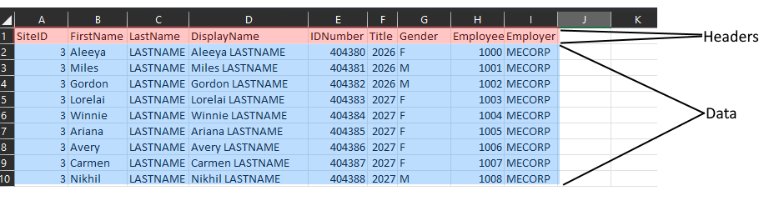
The OMNIA application provides a simple CSV import utility that can be used to import tagholders, vehicles and visitors. 

  1. Create a CSV file with headers and required data. A list of fields available for import can be seen in the table below. 
  2. The minimum needed data to import is First Name, Last Name, and ID Number 
Birthday Fax (H) Postal Address (W) 
Company Fax (W) Second Name 
Department First Name Street Address (H) 
Device Serial No Gender Street Address (W 
Driver’s License No ID Number Suffix 
Email (H) Last Name Title 
Email (W) Mobile Number Vehicle Color 
Email Address Name of person visiting  
Employee No Position  
Employer Postal Address (H) 
 

CSV Document should resemble this: 

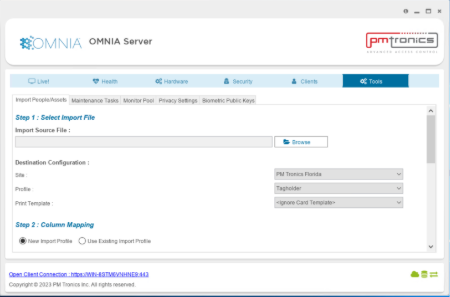
  1. Go to the OMNIA Server Application and select the TOOLS tab: 

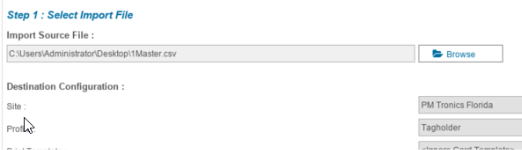
Click the ‘Browse’ button and browse to your saved CSV file and select the file: 

The Browse box should now show the path to your CSV file. 

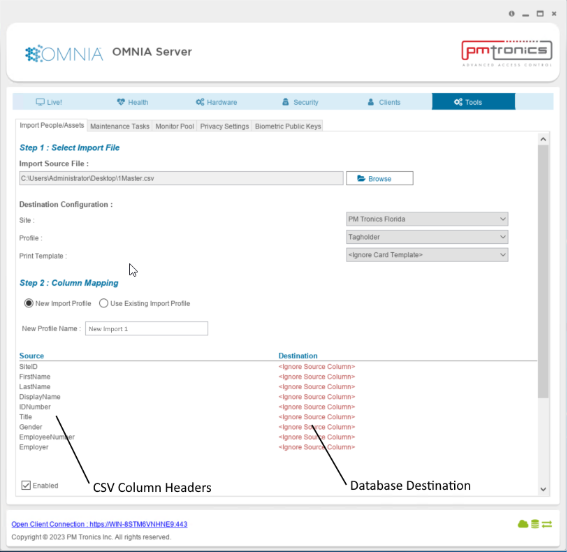
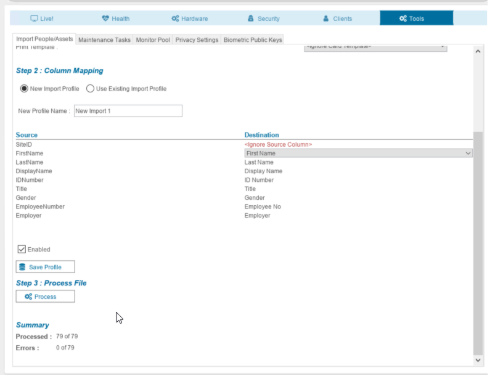
  1. Move down to Step 2: Column Mapping, before doing anything else, create a New Profile Name. In the left of the table, you will see the column headers from you CSV file, we now need to map those to fields in the database that we want to populate with the import. 

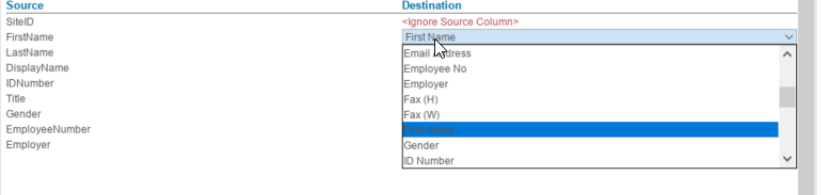
Map the source to destination by clicking on the red DESTINATION rows on the right, these are drop-downs that you can use to map your CSV source to the correct field in the database, save the profile by clicking the save button: 

The saved profiles will be available for subsequent imports using the same .CSV file.

  1. Move down to Step 3: Process File, press the Process button  

Review the summary at the bottom to confirm that the import was successful: 

  1. Errors or failures are usually caused by the use of special characters, extra spaces before or after records, lines between records or mismatches between source and destination mapping. 

Need further assistance?

Submit a Support Ticket

Submit a Support Ticket

FAQ

General

Can I initiate RS485 comms to a terminal from an existing IP terminal?

How to Select the Right Cable for the job

IDEMIA Sigma Lite Readers NOT compatible for use in AmanoNet or Nexus220

Network Configuration – Best Practices

Technical Bulletins

Akuvox R20 Wiring Diagram to Wiegand Reader Module (WRM)

Finding and Adding Sigma Biometric Units to OMNIA 4.6.5

How to add a PAC Tag type to a Tag Holder

How to upgrade OMNIA hardware firmware using the OMNIA Firmware Upgrade Tool

OMNIA Run as a Service fix for v4.x

Setting the IP address of a PMT Security Device by Directly Connecting To It with a Laptop.

Upgrading To OMNIA 4.6.5 and 2019 SQL Express With Tools

Access Control

AmanoNet

AmanoNet Back up using IB Console

AmanoNet Minimum PC Requirements and Specifications

AmanoNet System Migration Notes

Archive Tagholders in AmanoNet

Archive Transactions in AmanoNet

AutoID IP Hardware in AmanoNet

How to get PMTSecurity a copy of the AmanoNet Access Control Database

How to move AmanoNet Access Control System from one PC to another (Firebird)

IDEMIA Sigma Lite Readers NOT compatible for use in AmanoNet or Nexus220

ImproNet/AmanoNet Database Backup: SQL

Nexxus220

Change Default Password in Nexus220
Database Migration from Nexus220/IXP220 to OMNIA
How to fix a Java SE Binary Error in Nexus220 Software
How to get a copy of a database from Nexus220 Software
How to move Nexus220 to a different PC
IDEMIA Sigma Lite Readers NOT compatible for use in AmanoNet or Nexus220
Move Nexus220 Access Control System from one PC to another (Firebird)
Nexus220 Firmware Upgrade
Nexus220 Notifications Configuration/Email Configuration
Nexus220 The number of doors for this license has been exceeded
Nexus220 Web Reports Using Microsoft Edge
Reduce length of time on buzzer for readers in Nexus220

Omnia

Adding a New Department in Omnia

Adding Companies to Omnia

Adding Widgets to the OMNIA Dashboard

Aperio Wireless Lock Integration

Basic Setup Guide:  Akuvox

Basic Trouble Shooting OMNIA

Batch Operations OMNIA

Change SYSDBA Password in OMNIA

Changing the IP Address of a Previously Installed Controller using the Omnia Software/URL

Configuring Web Session Timeouts in OMINA

Omnia Lite

Convert a Nexus Lite Database into OMNIA Lite Database

OMNIA LiTE Backup

PM Tronics Hardware

Amano Readers and Credentials

Change Modulation mode on XQT904 Quad Transmitter
How do I change Wiegand Output Mode on Amano readers?

Legacy Hardware

Factory Reset legacy Amano IP Cameras (sold prior to 2018)

Factory Reset Nexus220 controller

How do I factory reset the EC2 (400i) controller?

Setting IP on PMTronics Inc. Access Control Hardware

Partner Products

Partner Products

IDEMIA Sigma Lite Readers NOT compatible for use in AmanoNet or Nexus220

Installing Cathexis Carbon and Adding a new Account

Setting Read Range on a Conekt Reader

STID Configuration

Video Management Systems

Cathexis Video (Amano Vision)

Adding Cameras into Cathexis

Cathexis Video AV (AntiVirus Exceptions)

Installing Cathexis Carbon and Adding a new Account

Quick Start Guide for Cathexis Vision Version 2025

AmanoDVMS

Which AmanoDVMS ports need to be open on my firewall?

Vision

Adding Cameras into Cathexis

AmanoVision web access user name case sensitivity usage

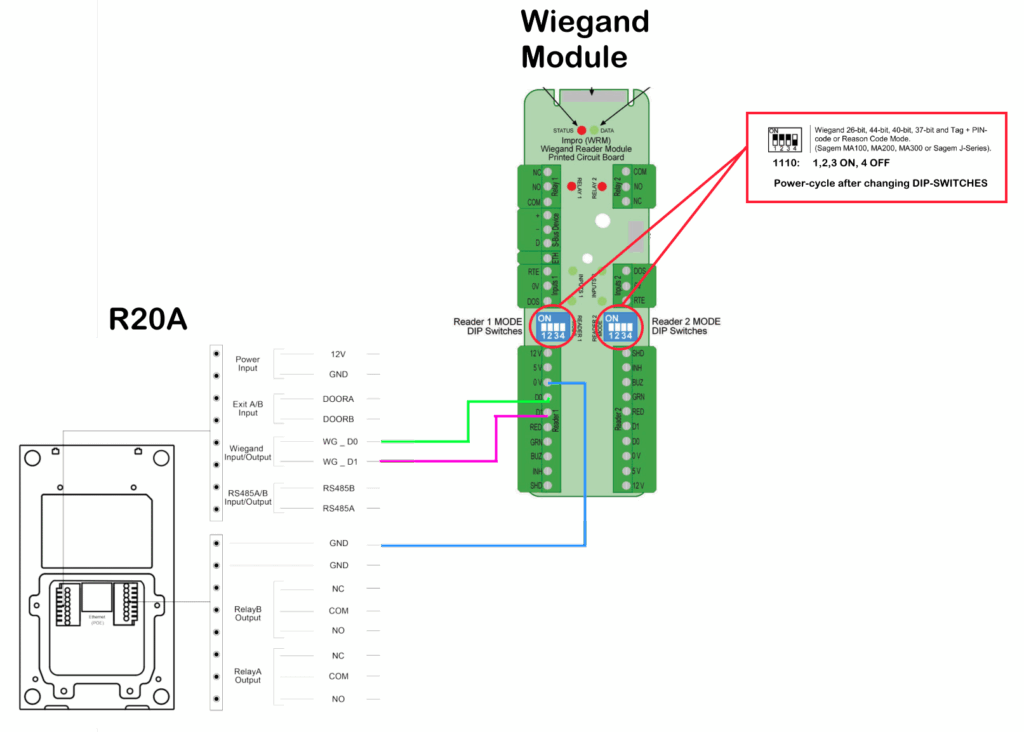
Akuvox R20 Wiring Diagram to Wiegand Reader Module (WRM)

Akuvox R20 Wiring Diagram to Wiegand Reader Module (WRM)

How to wire an Akuvox R20 to a Wiegand Reader Module

Need further assistance?

Submit a Support Ticket

Submit a Support Ticket

FAQ

General

Can I initiate RS485 comms to a terminal from an existing IP terminal?

How to Select the Right Cable for the job

IDEMIA Sigma Lite Readers NOT compatible for use in AmanoNet or Nexus220

Network Configuration – Best Practices

Technical Bulletins

Finding and Adding Sigma Biometric Units to OMNIA 4.6.5

How to add a PAC Tag type to a Tag Holder

How to upgrade OMNIA hardware firmware using the OMNIA Firmware Upgrade Tool

OMNIA CSV Imports 

OMNIA Run as a Service fix for v4.x

Setting the IP address of a PMT Security Device by Directly Connecting To It with a Laptop.

Upgrading To OMNIA 4.6.5 and 2019 SQL Express With Tools

Access Control

AmanoNet

AmanoNet Back up using IB Console

AmanoNet Minimum PC Requirements and Specifications

AmanoNet System Migration Notes

Archive Tagholders in AmanoNet

Archive Transactions in AmanoNet

AutoID IP Hardware in AmanoNet

How to get PMTSecurity a copy of the AmanoNet Access Control Database

How to move AmanoNet Access Control System from one PC to another (Firebird)

IDEMIA Sigma Lite Readers NOT compatible for use in AmanoNet or Nexus220

ImproNet/AmanoNet Database Backup: SQL

Nexxus220

Change Default Password in Nexus220
Database Migration from Nexus220/IXP220 to OMNIA
How to fix a Java SE Binary Error in Nexus220 Software
How to get a copy of a database from Nexus220 Software
How to move Nexus220 to a different PC
IDEMIA Sigma Lite Readers NOT compatible for use in AmanoNet or Nexus220
Move Nexus220 Access Control System from one PC to another (Firebird)
Nexus220 Firmware Upgrade
Nexus220 Notifications Configuration/Email Configuration
Nexus220 The number of doors for this license has been exceeded
Nexus220 Web Reports Using Microsoft Edge
Reduce length of time on buzzer for readers in Nexus220

Omnia

Adding a New Department in Omnia

Adding Companies to Omnia

Adding Widgets to the OMNIA Dashboard

Aperio Wireless Lock Integration

Basic Setup Guide:  Akuvox

Basic Trouble Shooting OMNIA

Batch Operations OMNIA

Change SYSDBA Password in OMNIA

Changing the IP Address of a Previously Installed Controller using the Omnia Software/URL

Configuring Web Session Timeouts in OMINA

Omnia Lite

Convert a Nexus Lite Database into OMNIA Lite Database

OMNIA LiTE Backup

PM Tronics Hardware

Amano Readers and Credentials

Change Modulation mode on XQT904 Quad Transmitter
How do I change Wiegand Output Mode on Amano readers?

Legacy Hardware

Factory Reset legacy Amano IP Cameras (sold prior to 2018)

Factory Reset Nexus220 controller

How do I factory reset the EC2 (400i) controller?

Setting IP on PMTronics Inc. Access Control Hardware

Partner Products

Partner Products

IDEMIA Sigma Lite Readers NOT compatible for use in AmanoNet or Nexus220

Installing Cathexis Carbon and Adding a new Account

Setting Read Range on a Conekt Reader

STID Configuration

Video Management Systems

Cathexis Video (Amano Vision)

Adding Cameras into Cathexis

Cathexis Video AV (AntiVirus Exceptions)

Installing Cathexis Carbon and Adding a new Account

Quick Start Guide for Cathexis Vision Version 2025

AmanoDVMS

Which AmanoDVMS ports need to be open on my firewall?

Vision

Adding Cameras into Cathexis

AmanoVision web access user name case sensitivity usage

How to add a PAC Tag type to a Tag Holder

How to add a PAC Tag type to a Tag Holder

How to add a personal access code to a tag holder.

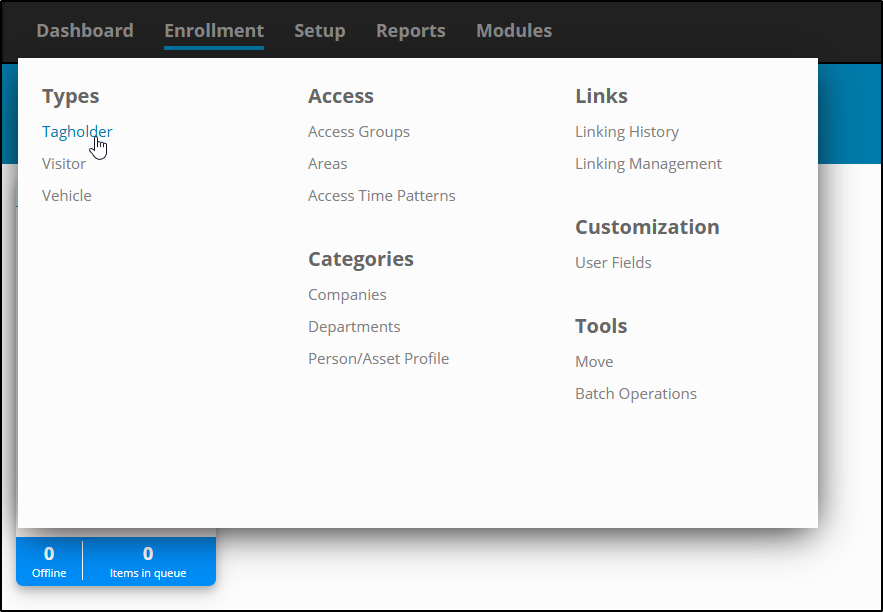
Open OMNIA, Select the Enrollment Tab to open the drop down menu. Click Tagholder.

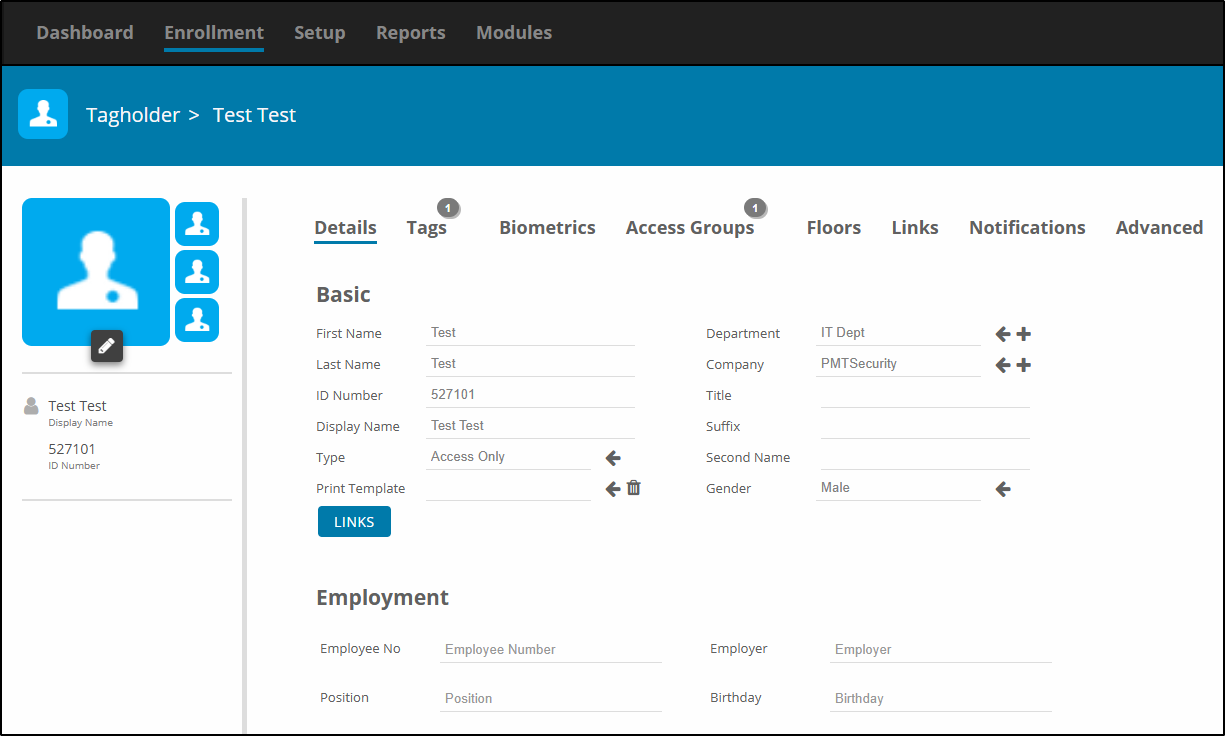
Choose which Tagholder to add a Personal Access Code

Select the Tags tab.

Select ADD TAGS.

Select ENROLLMENT WIZARD.

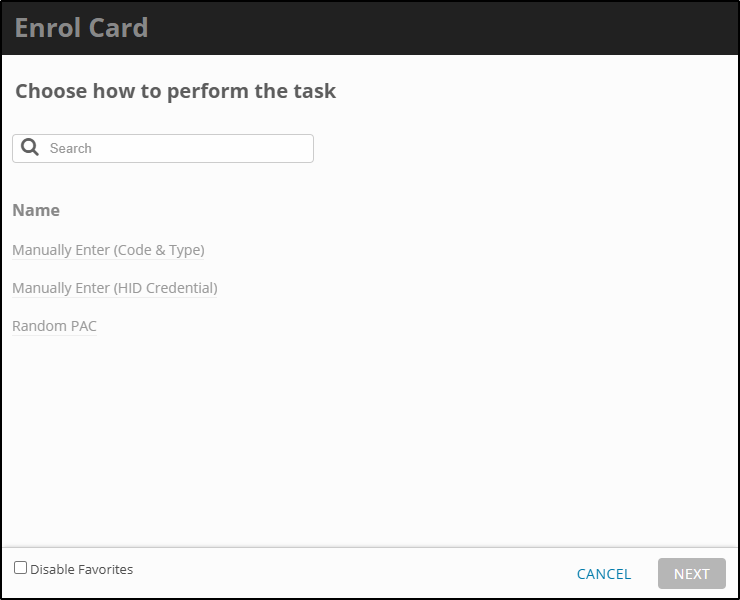
Select Enroll Card.

For PAC select either Manually Enter (Code & Type) or Random PAC.

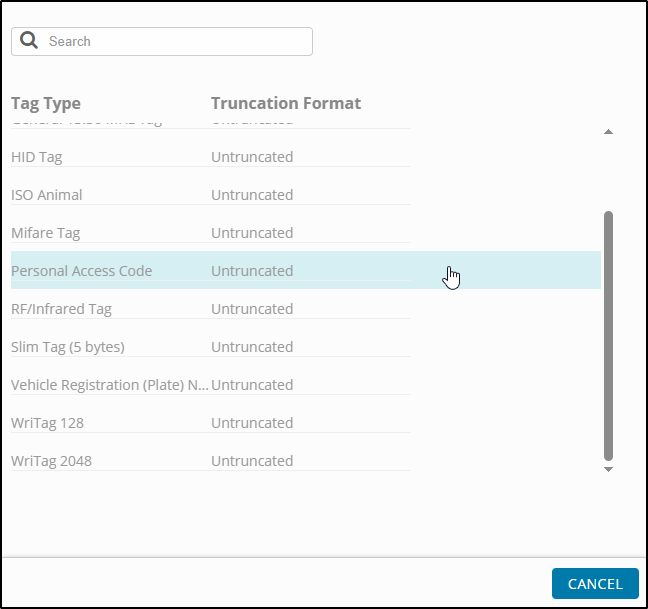
Enter your desired Personal Access code (Tag Code). Then select Tag Type.

Scroll down and select Personal Access Code.

Select the green check mark to save desired settings.

Need further assistance?
Submit a Support Ticket

Submit a Support Ticket

FAQ

General

Can I initiate RS485 comms to a terminal from an existing IP terminal?

How to Select the Right Cable for the job

IDEMIA Sigma Lite Readers NOT compatible for use in AmanoNet or Nexus220

Network Configuration – Best Practices

Technical Bulletins

Akuvox R20 Wiring Diagram to Wiegand Reader Module (WRM)

Finding and Adding Sigma Biometric Units to OMNIA 4.6.5

How to upgrade OMNIA hardware firmware using the OMNIA Firmware Upgrade Tool

OMNIA CSV Imports 

OMNIA Run as a Service fix for v4.x

Setting the IP address of a PMT Security Device by Directly Connecting To It with a Laptop.

Upgrading To OMNIA 4.6.5 and 2019 SQL Express With Tools

Access Control

AmanoNet

AmanoNet Back up using IB Console

AmanoNet Minimum PC Requirements and Specifications

AmanoNet System Migration Notes

Archive Tagholders in AmanoNet

Archive Transactions in AmanoNet

AutoID IP Hardware in AmanoNet

How to get PMTSecurity a copy of the AmanoNet Access Control Database

How to move AmanoNet Access Control System from one PC to another (Firebird)

IDEMIA Sigma Lite Readers NOT compatible for use in AmanoNet or Nexus220

ImproNet/AmanoNet Database Backup: SQL

Nexxus220

Change Default Password in Nexus220
Database Migration from Nexus220/IXP220 to OMNIA
How to fix a Java SE Binary Error in Nexus220 Software
How to get a copy of a database from Nexus220 Software
How to move Nexus220 to a different PC
IDEMIA Sigma Lite Readers NOT compatible for use in AmanoNet or Nexus220
Move Nexus220 Access Control System from one PC to another (Firebird)
Nexus220 Firmware Upgrade
Nexus220 Notifications Configuration/Email Configuration
Nexus220 The number of doors for this license has been exceeded
Nexus220 Web Reports Using Microsoft Edge
Reduce length of time on buzzer for readers in Nexus220

Omnia

Adding a New Department in Omnia

Adding Companies to Omnia

Adding Widgets to the OMNIA Dashboard

Aperio Wireless Lock Integration

Basic Setup Guide:  Akuvox

Basic Trouble Shooting OMNIA

Batch Operations OMNIA

Change SYSDBA Password in OMNIA

Changing the IP Address of a Previously Installed Controller using the Omnia Software/URL

Configuring Web Session Timeouts in OMINA

Omnia Lite

Convert a Nexus Lite Database into OMNIA Lite Database

OMNIA LiTE Backup

PM Tronics Hardware

Amano Readers and Credentials

Change Modulation mode on XQT904 Quad Transmitter
How do I change Wiegand Output Mode on Amano readers?

Legacy Hardware

Factory Reset legacy Amano IP Cameras (sold prior to 2018)

Factory Reset Nexus220 controller

How do I factory reset the EC2 (400i) controller?

Setting IP on PMTronics Inc. Access Control Hardware

Partner Products

Partner Products

IDEMIA Sigma Lite Readers NOT compatible for use in AmanoNet or Nexus220

Installing Cathexis Carbon and Adding a new Account

Setting Read Range on a Conekt Reader

STID Configuration

Video Management Systems

Cathexis Video (Amano Vision)

Adding Cameras into Cathexis

Cathexis Video AV (AntiVirus Exceptions)

Installing Cathexis Carbon and Adding a new Account

Quick Start Guide for Cathexis Vision Version 2025

AmanoDVMS

Which AmanoDVMS ports need to be open on my firewall?

Vision

Adding Cameras into Cathexis

AmanoVision web access user name case sensitivity usage

Finding and Adding Sigma Biometric Units to OMNIA 4.6.5

Finding and Adding Sigma Biometric Units to OMNIA 4.6.5

How to add Biometric Units to OMNIA Version 4.x.x

Find the Biometric Unit

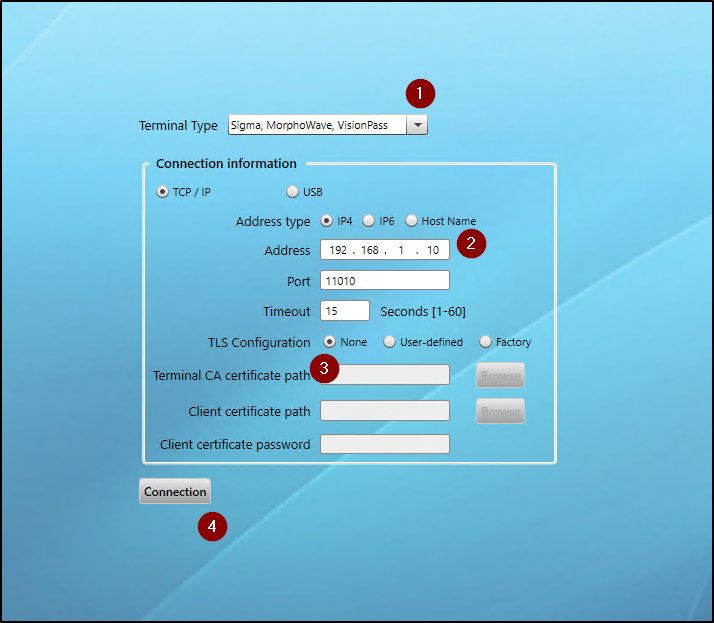
Default IP address of the Idemia Sigma Lite is 192.168.1.10

Ensure your NIC is configured for this IP range.

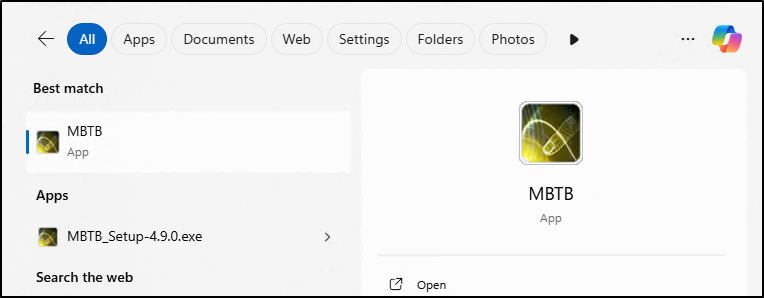
Open the Morpho Biometric Tool Box.

In the Connection Tab:

  1. From the Terminal Type Drop Down, Select Sigma, MorphoWave, VisionPass
  2. Enter the IP address of the Terminal
  3. Select None for TLS Configuration
  4. Select Connection

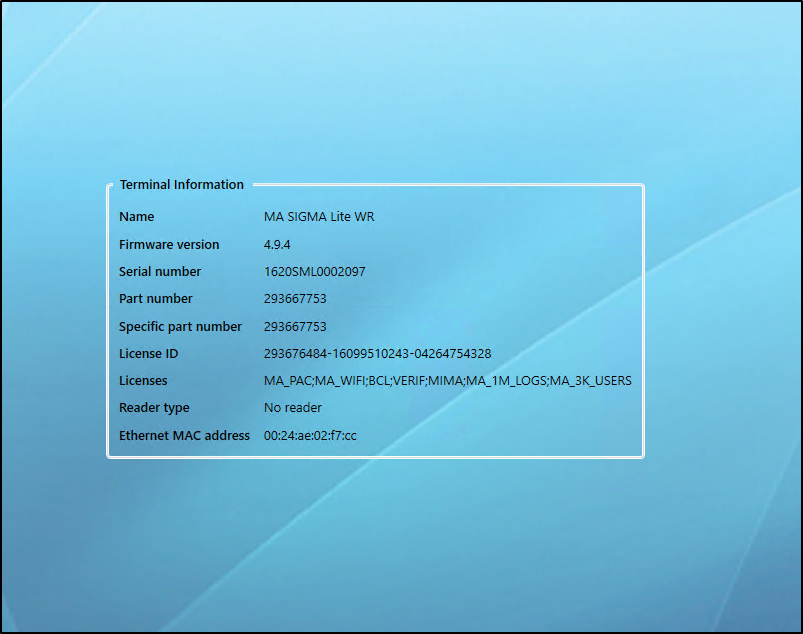
MBTB Connects to the Sigma Lite and will open into the Terminal Information Tab.

The Sigma Lite must have Firmware 4.9.4 or higher to work properly in OMNIA.

You can use the MBTB to upgrade the Firmware on the Biometric Units.

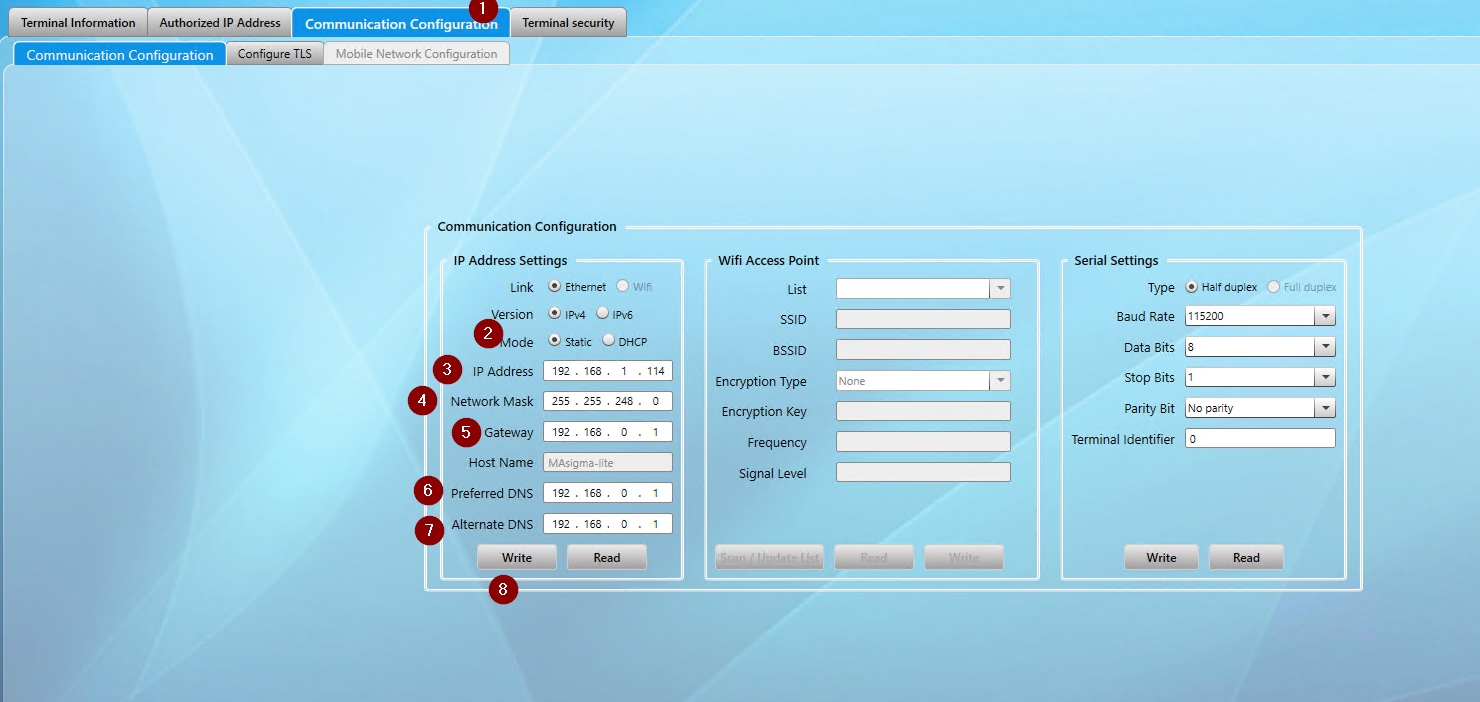
To Change/Update the IP address of the Sigma Lite.

  1. Select the Communication Configuration Tab
  2. Select Static for the Mode
  3. Enter the desired IP address
  4. Enter the desired Network Mask
  5. Enter the desired Gateway
  6. Enter the Preferred DNS
  7. Enter Alternate DNS
  8. Select Write to set Sigma Lite Communication

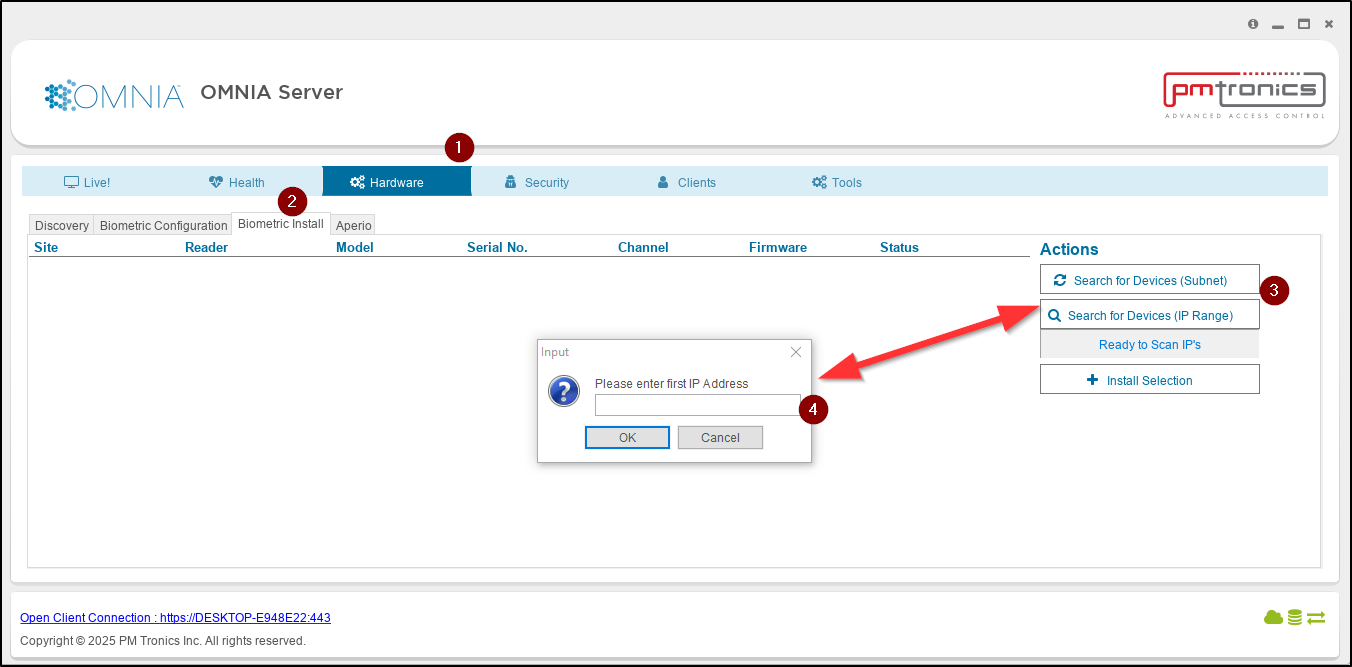
Open the OMNIA Server App.

  1. Select the Hardware Tab
  2. Select the Biometric Install Tab
  3. Select Search for Devices
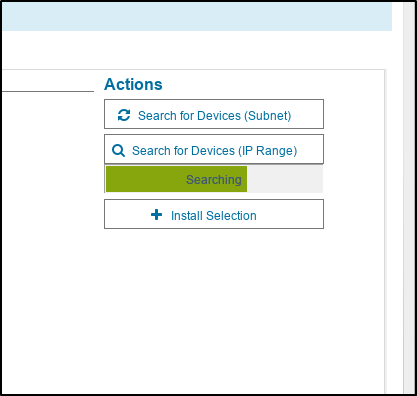
  4. Enter IP address range for desired search and the search will begin

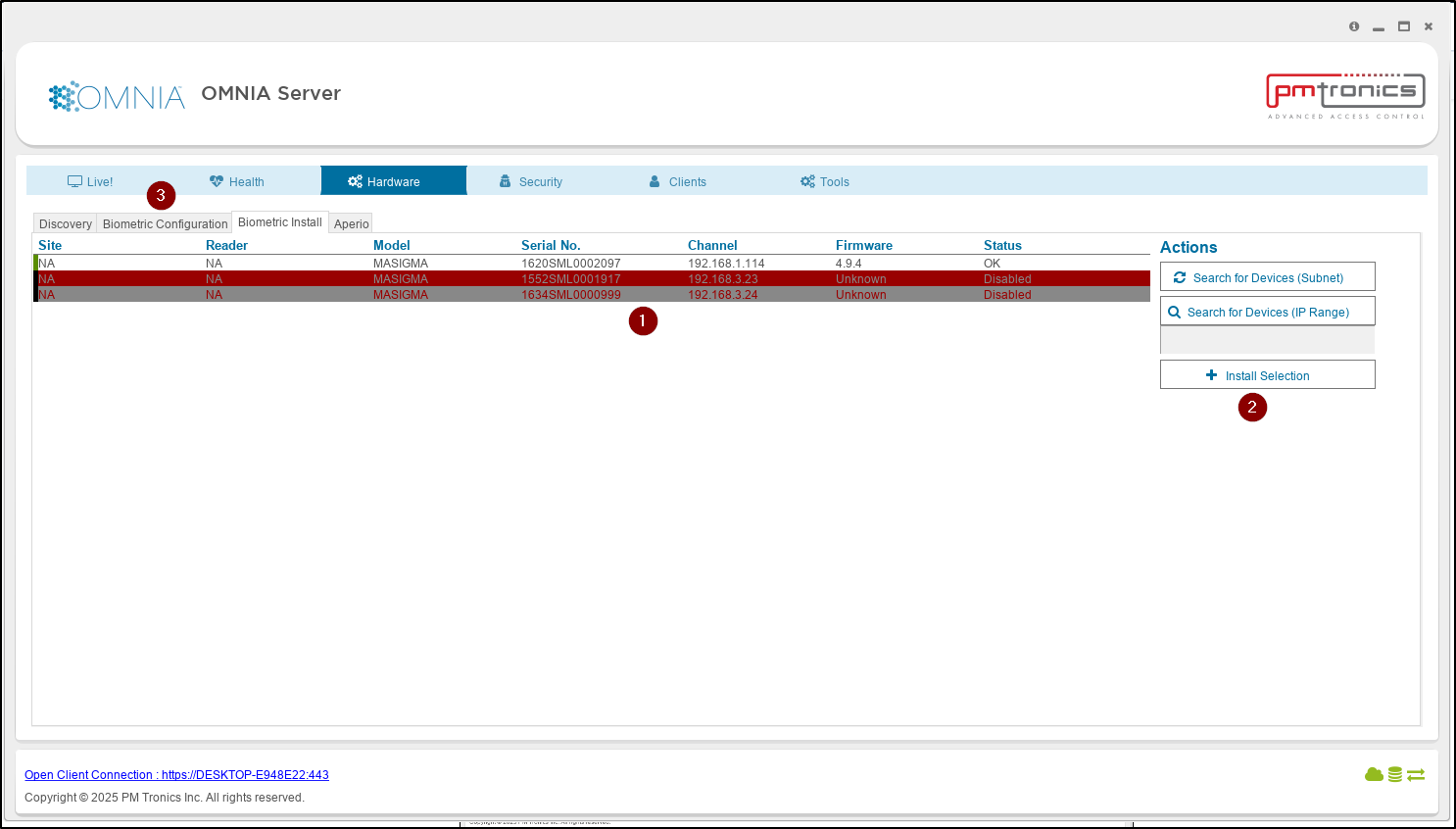
Any Units found during the Search will be displayed.

  1. Select the Sigma Lite
  2. Select Install Selection
     Repeat Process for all Units
  3. Select the Biometric Configuration Tab

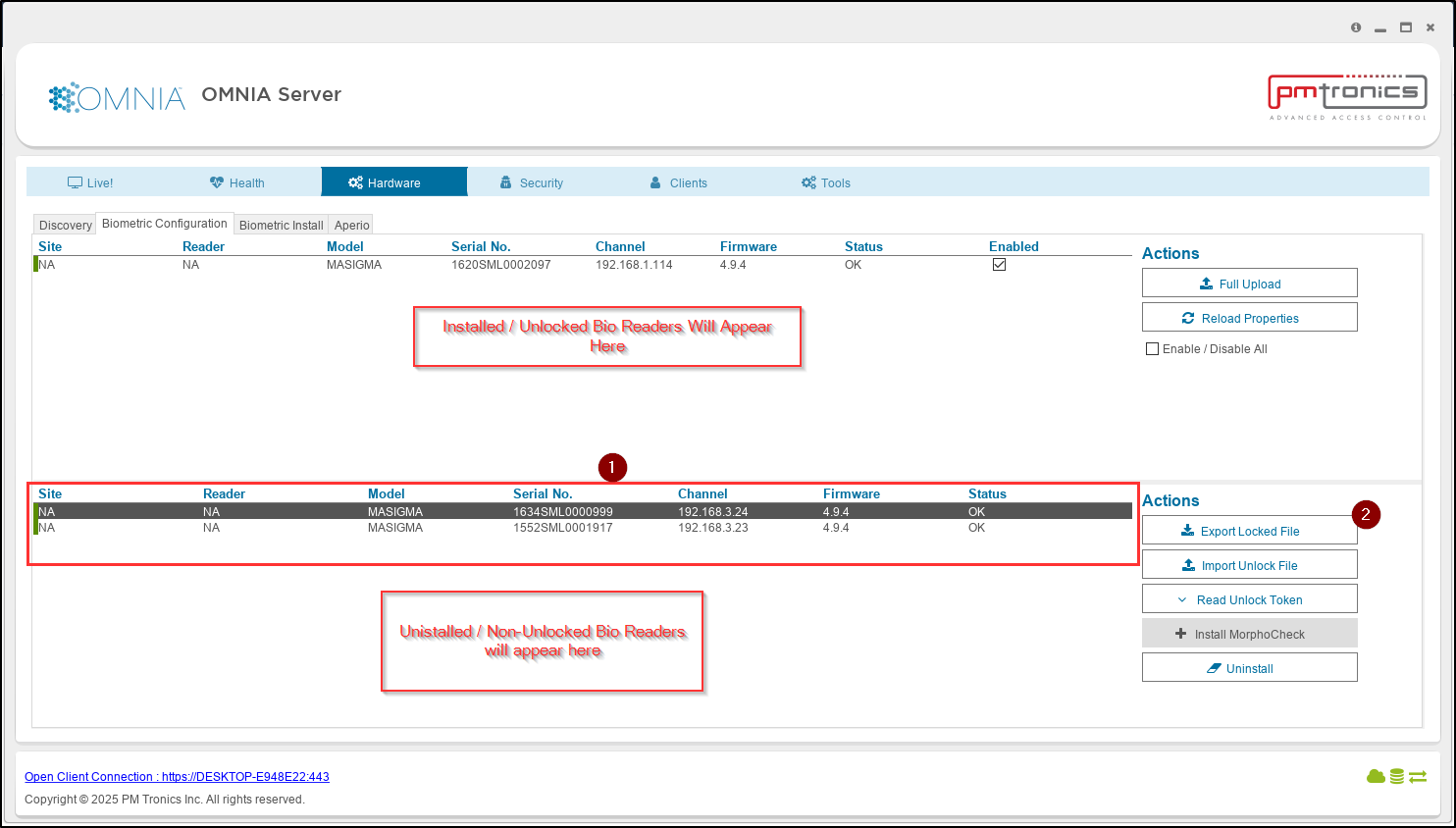
In the Biometric Configuration Tab We will export and import the unlock files required for Installation into OMNA

  1. Select a Reader
  2. Select Export Locked File
    Note: The Export Locked file will contain information for all uninstalled units. No need to export individual/multiple unlock files.
         

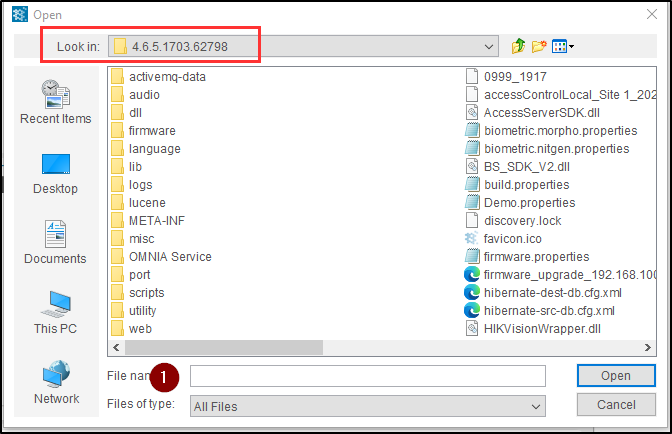
The unlock File default location will be C:\OMNIA\4.6.5…..

  1. Name the Export File and select open
      File is saved with that name.

Get export File to PMTSecurity with Purchase Order.

PMT Security

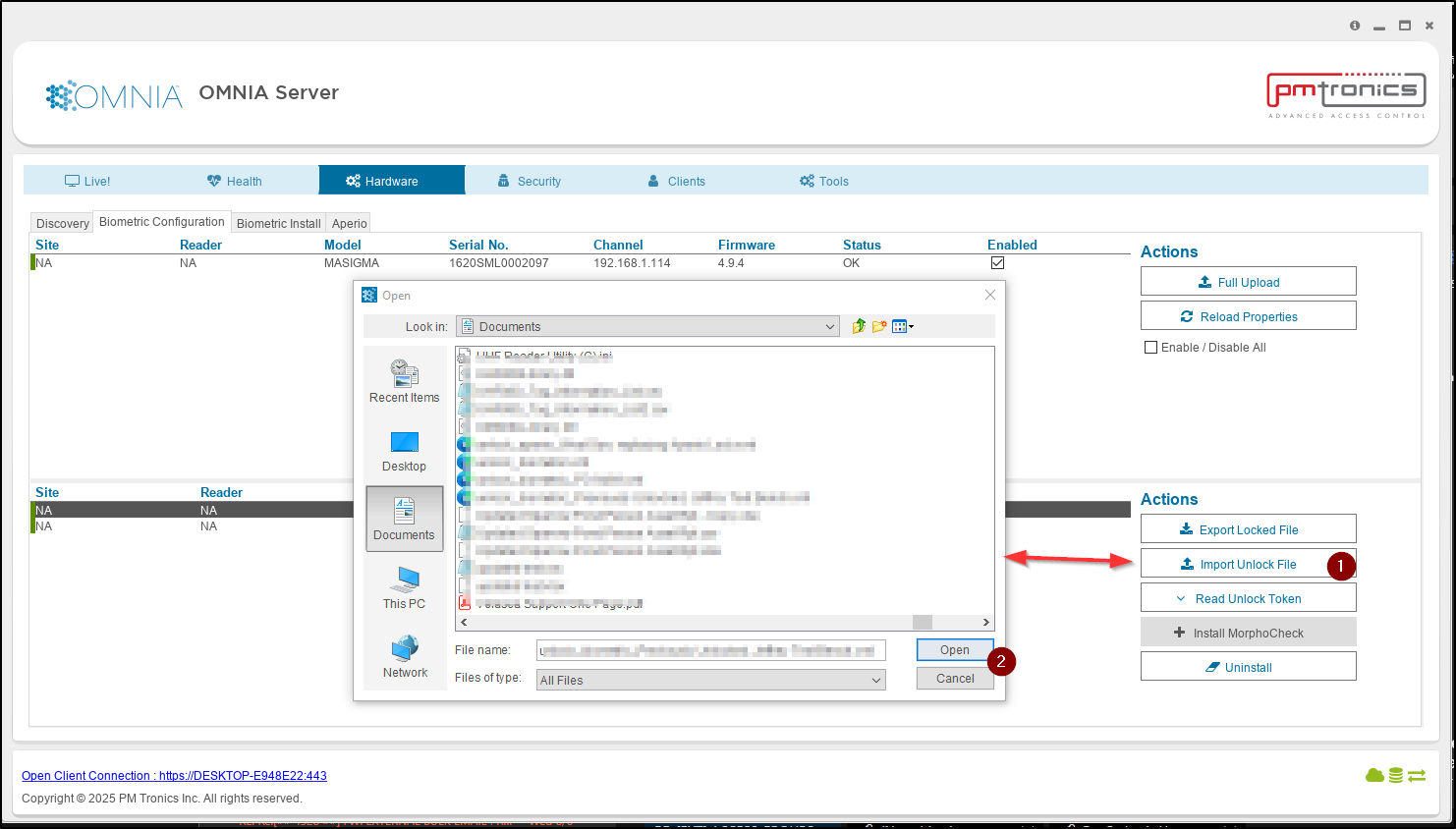
From the Biometric Configuration Tab. Import the Biometric Unlock File.

  1. Select Import Unlock File
    Navigate to location of Unlock File
  2. Select Open to apply.

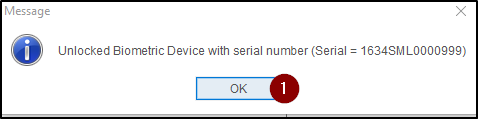
I separate window will open for each New Bio Unit Installed

  1. Select OK to close each window.

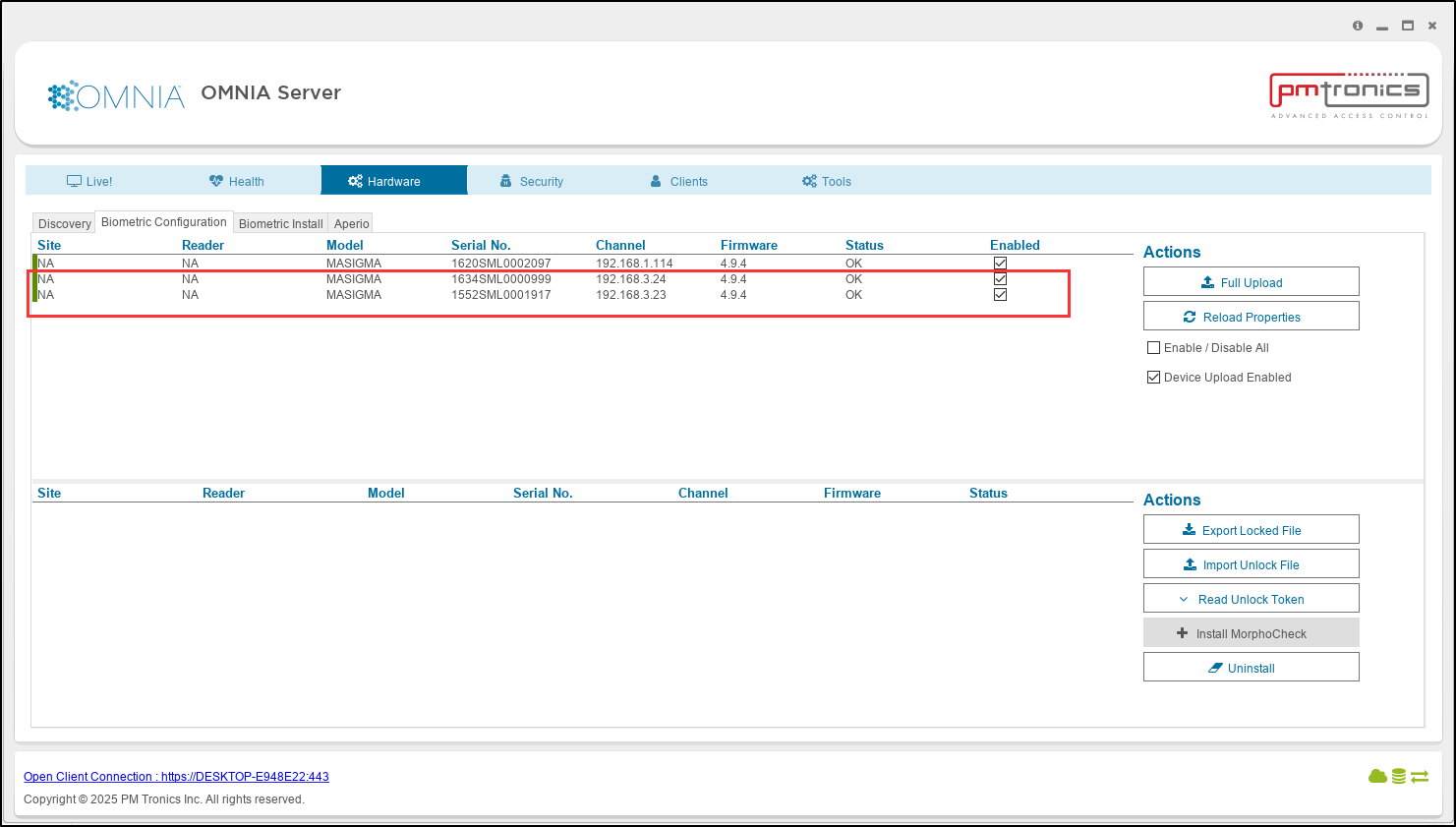
In the Biometric Configuration Tab, you will see the Bio Units have now moved. Full uploads can be performed here. The Bio Readers can now be assigned to a Reader in the OMNIA Software URL.

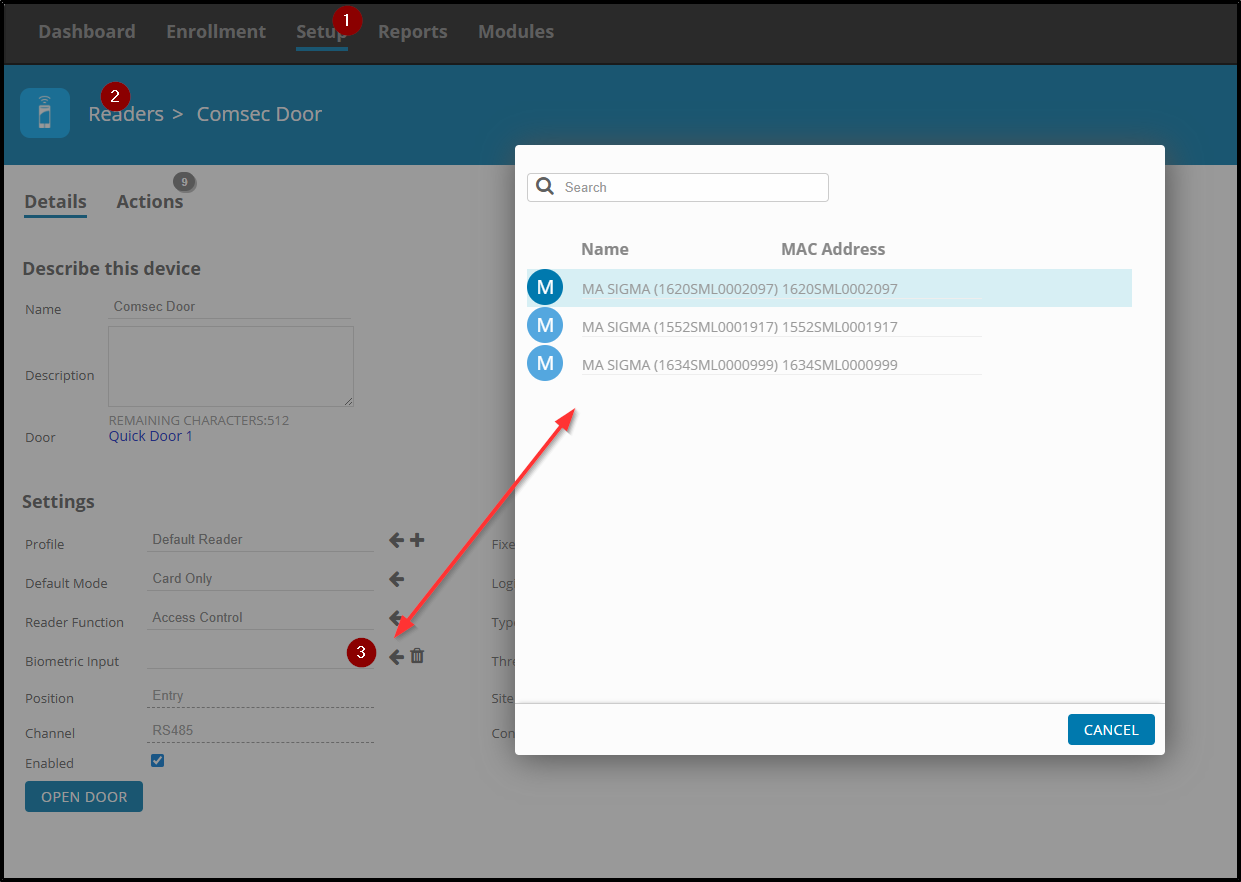
Log into the OMNIA Software

  1. Select Setup
  2. Select Readers, then select the Reader you want to assign the biometric unit to
  3. Select Biometric Input, then select the desired Bio Reader to add
       The Bio Unit is added to the Reader, OMNIA then Sends the Biometric Configuration and Tagholder Biometric Templates to the Biometric Unit.

The Biometric Unit is now installed into OMNIA 4.6.5

Need further assistance?

Submit a Support Ticket

Submit a Support Ticket

FAQ

General

Can I initiate RS485 comms to a terminal from an existing IP terminal?

How to Select the Right Cable for the job

IDEMIA Sigma Lite Readers NOT compatible for use in AmanoNet or Nexus220

Network Configuration – Best Practices

Technical Bulletins

Akuvox R20 Wiring Diagram to Wiegand Reader Module (WRM)

How to add a PAC Tag type to a Tag Holder

How to upgrade OMNIA hardware firmware using the OMNIA Firmware Upgrade Tool

OMNIA CSV Imports 

OMNIA Run as a Service fix for v4.x

Setting the IP address of a PMT Security Device by Directly Connecting To It with a Laptop.

Upgrading To OMNIA 4.6.5 and 2019 SQL Express With Tools

Access Control

AmanoNet

AmanoNet Back up using IB Console

AmanoNet Minimum PC Requirements and Specifications

AmanoNet System Migration Notes

Archive Tagholders in AmanoNet

Archive Transactions in AmanoNet

AutoID IP Hardware in AmanoNet

How to get PMTSecurity a copy of the AmanoNet Access Control Database

How to move AmanoNet Access Control System from one PC to another (Firebird)

IDEMIA Sigma Lite Readers NOT compatible for use in AmanoNet or Nexus220

ImproNet/AmanoNet Database Backup: SQL

Nexxus220

Change Default Password in Nexus220
Database Migration from Nexus220/IXP220 to OMNIA
How to fix a Java SE Binary Error in Nexus220 Software
How to get a copy of a database from Nexus220 Software
How to move Nexus220 to a different PC
IDEMIA Sigma Lite Readers NOT compatible for use in AmanoNet or Nexus220
Move Nexus220 Access Control System from one PC to another (Firebird)
Nexus220 Firmware Upgrade
Nexus220 Notifications Configuration/Email Configuration
Nexus220 The number of doors for this license has been exceeded
Nexus220 Web Reports Using Microsoft Edge
Reduce length of time on buzzer for readers in Nexus220

Omnia

Adding a New Department in Omnia

Adding Companies to Omnia

Adding Widgets to the OMNIA Dashboard

Aperio Wireless Lock Integration

Basic Setup Guide:  Akuvox

Basic Trouble Shooting OMNIA

Batch Operations OMNIA

Change SYSDBA Password in OMNIA

Changing the IP Address of a Previously Installed Controller using the Omnia Software/URL

Configuring Web Session Timeouts in OMINA

Omnia Lite

Convert a Nexus Lite Database into OMNIA Lite Database

OMNIA LiTE Backup

PM Tronics Hardware

Amano Readers and Credentials

Change Modulation mode on XQT904 Quad Transmitter
How do I change Wiegand Output Mode on Amano readers?

Legacy Hardware

Factory Reset legacy Amano IP Cameras (sold prior to 2018)

Factory Reset Nexus220 controller

How do I factory reset the EC2 (400i) controller?

Setting IP on PMTronics Inc. Access Control Hardware

Partner Products

Partner Products

IDEMIA Sigma Lite Readers NOT compatible for use in AmanoNet or Nexus220

Installing Cathexis Carbon and Adding a new Account

Setting Read Range on a Conekt Reader

STID Configuration

Video Management Systems

Cathexis Video (Amano Vision)

Adding Cameras into Cathexis

Cathexis Video AV (AntiVirus Exceptions)

Installing Cathexis Carbon and Adding a new Account

Quick Start Guide for Cathexis Vision Version 2025

AmanoDVMS

Which AmanoDVMS ports need to be open on my firewall?

Vision

Adding Cameras into Cathexis

AmanoVision web access user name case sensitivity usage

  • Page 1
  • Page 2
  • Go to Next Page »

PMT Security

Copyright © 2025 PMT Security, Inc. | All Rights Reserved