• Skip to primary navigation
  • Skip to main content
PMT Security Logo

PMT Security

Advanced Access Control

  • Home
  • About Us
    • Our Partners
    • Our Integrators
  • Solutions
    • Residential
    • Government Facilities
    • Education
    • Retirement
    • Manufacturing
    • Retail Businesses
    • Campgrounds & Outdoor Resorts
  • Products
    • Access Control
      • Control Features
      • Reporting & Monitoring
      • Control Module
      • Digital IO Module
      • Reader Module
      • Readers
    • Video Management
      • Integration
      • Analytics
      • Search & Export
    • Visitor Management
  • Support
    • Knowledgebase
    • Download Center
    • License Request
    • RMA Request Form
  • Blog
  • Contact Us

Access Control

Replacing an Antenna Reader terminal with a iTRT or iTRT2 in AmanoNet

Replacing an Antenna Reader terminal with a iTRT or iTRT2 in AmanoNet

Replacing an Antenna Reader terminal with a iTRT or iTRT2 in AmanoNet.

Replacing an Antenna Reader terminal with a iTRT or iTRT2 in AmanoNet

Before stating make sure your new hardware is installed.

(Note* When replacing an Antenna reader terminal with an iTRT or iTRT2 you must replace the reader)

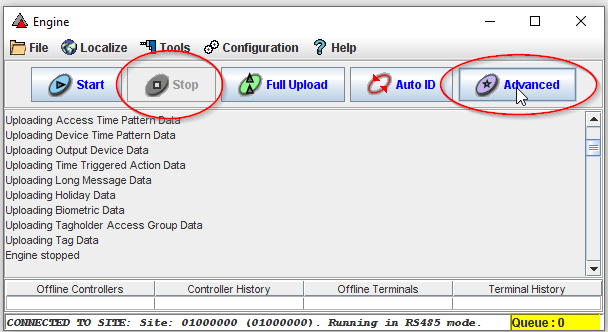
Open the Engine.exe and select stop. Then Select Advanced
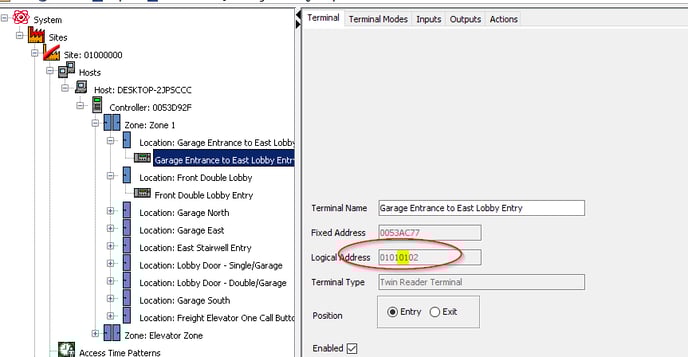
Find the Controller LA locate the Reader terminal you would like to replace. Open Access and search for the terminal that will be replaced then select.  Next to Logical address take note of the highlighted section below. (Example 01)


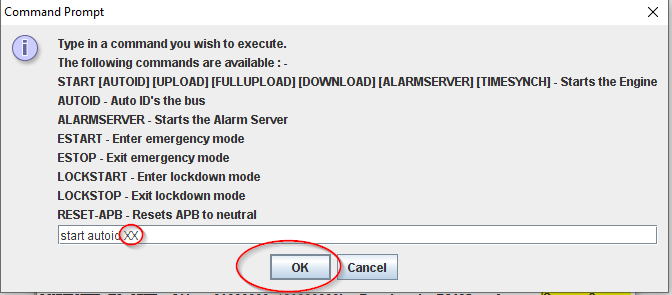
Type START AUTOID (Logical Address of Controller)(Example 01) Then Select Enter
To see the Unassigned Terminals close and reopen Access.exe
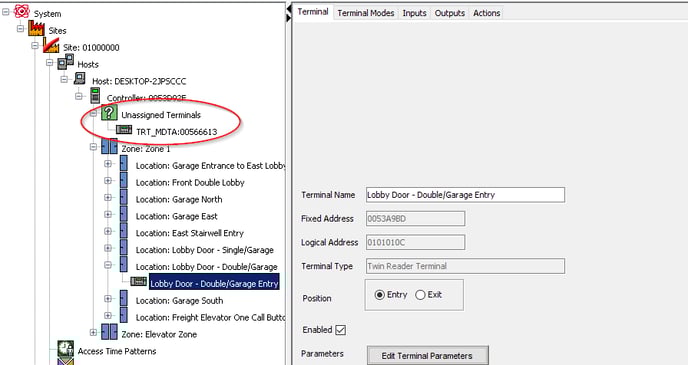
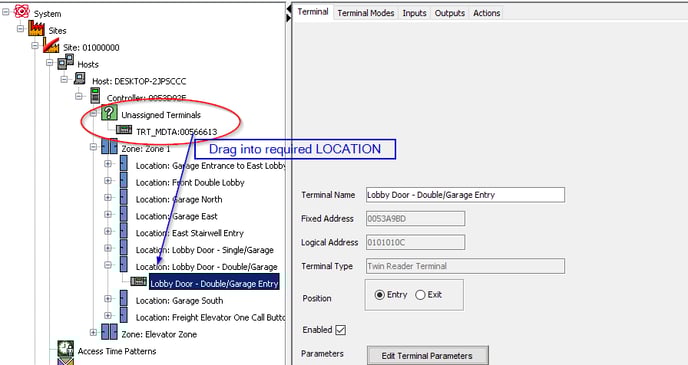
Now that you see the Unassigned Terminals Click and drag the device into the required location. 
Need further assistance?
Submit a Support Ticket

Submit a Support Ticket

FAQ

General

Can I initiate RS485 comms to a terminal from an existing IP terminal?

How to Select the Right Cable for the job

IDEMIA Sigma Lite Readers NOT compatible for use in AmanoNet or Nexus220

Network Configuration – Best Practices

Technical Bulletins

Akuvox R20 Wiring Diagram to Wiegand Reader Module (WRM)

Finding and Adding Sigma Biometric Units to OMNIA 4.6.5

How to add a PAC Tag type to a Tag Holder

How to upgrade OMNIA hardware firmware using the OMNIA Firmware Upgrade Tool

OMNIA CSV Imports 

OMNIA Run as a Service fix for v4.x

Setting the IP address of a PMT Security Device by Directly Connecting To It with a Laptop.

Upgrading To OMNIA 4.6.5 and 2019 SQL Express With Tools

Access Control

AmanoNet

AmanoNet Back up using IB Console

AmanoNet Minimum PC Requirements and Specifications

AmanoNet System Migration Notes

Archive Tagholders in AmanoNet

Archive Transactions in AmanoNet

AutoID IP Hardware in AmanoNet

How to get PMTSecurity a copy of the AmanoNet Access Control Database

How to move AmanoNet Access Control System from one PC to another (Firebird)

IDEMIA Sigma Lite Readers NOT compatible for use in AmanoNet or Nexus220

ImproNet/AmanoNet Database Backup: SQL

Nexxus220

Change Default Password in Nexus220
Database Migration from Nexus220/IXP220 to OMNIA
How to fix a Java SE Binary Error in Nexus220 Software
How to get a copy of a database from Nexus220 Software
How to move Nexus220 to a different PC
IDEMIA Sigma Lite Readers NOT compatible for use in AmanoNet or Nexus220
Move Nexus220 Access Control System from one PC to another (Firebird)
Nexus220 Firmware Upgrade
Nexus220 Notifications Configuration/Email Configuration
Nexus220 The number of doors for this license has been exceeded
Nexus220 Web Reports Using Microsoft Edge
Reduce length of time on buzzer for readers in Nexus220

Omnia

Adding a New Department in Omnia

Adding Companies to Omnia

Adding Widgets to the OMNIA Dashboard

Aperio Wireless Lock Integration

Basic Setup Guide:  Akuvox

Basic Trouble Shooting OMNIA

Batch Operations OMNIA

Change SYSDBA Password in OMNIA

Changing the IP Address of a Previously Installed Controller using the Omnia Software/URL

Configuring Web Session Timeouts in OMINA

Omnia Lite

Convert a Nexus Lite Database into OMNIA Lite Database

OMNIA LiTE Backup

PM Tronics Hardware

Amano Readers and Credentials

Change Modulation mode on XQT904 Quad Transmitter
How do I change Wiegand Output Mode on Amano readers?

Legacy Hardware

Factory Reset legacy Amano IP Cameras (sold prior to 2018)

Factory Reset Nexus220 controller

How do I factory reset the EC2 (400i) controller?

Setting IP on PMTronics Inc. Access Control Hardware

Partner Products

Partner Products

IDEMIA Sigma Lite Readers NOT compatible for use in AmanoNet or Nexus220

Installing Cathexis Carbon and Adding a new Account

Setting Read Range on a Conekt Reader

STID Configuration

Video Management Systems

Cathexis Video (Amano Vision)

Adding Cameras into Cathexis

Cathexis Video AV (AntiVirus Exceptions)

Installing Cathexis Carbon and Adding a new Account

Quick Start Guide for Cathexis Vision Version 2025

AmanoDVMS

Which AmanoDVMS ports need to be open on my firewall?

Vision

Adding Cameras into Cathexis

AmanoVision web access user name case sensitivity usage

Creating Mappable Import User Fields in OMNIA

Creating Mappable Import User Fields

When Importing Tagholder information into OMNIA and you want to import information that is not currently into OMINA

Site is importing Tagholders to OMNIA as has .CSV file with tagholder information.

The information currently in the .CSV file has information that is not currently available to map during the import.

For example the site has a column of information called Permit ID, the site would like this permit ID to be visible for tagholders in OMINA.

A User Field will need to be created in OMINA, this user Field will be available for import mapping after the creation.

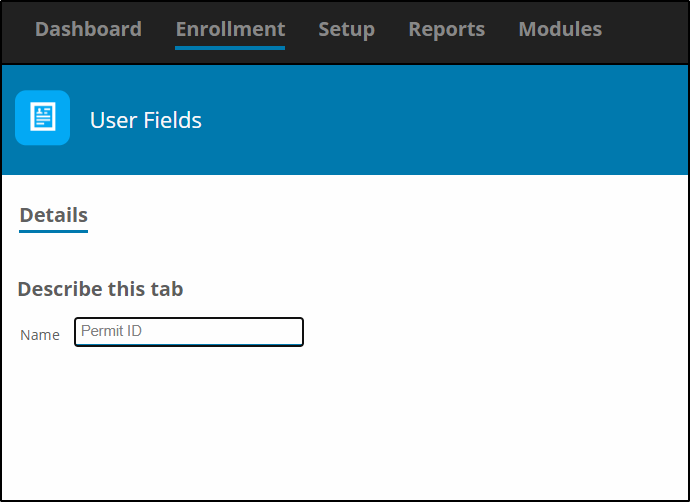
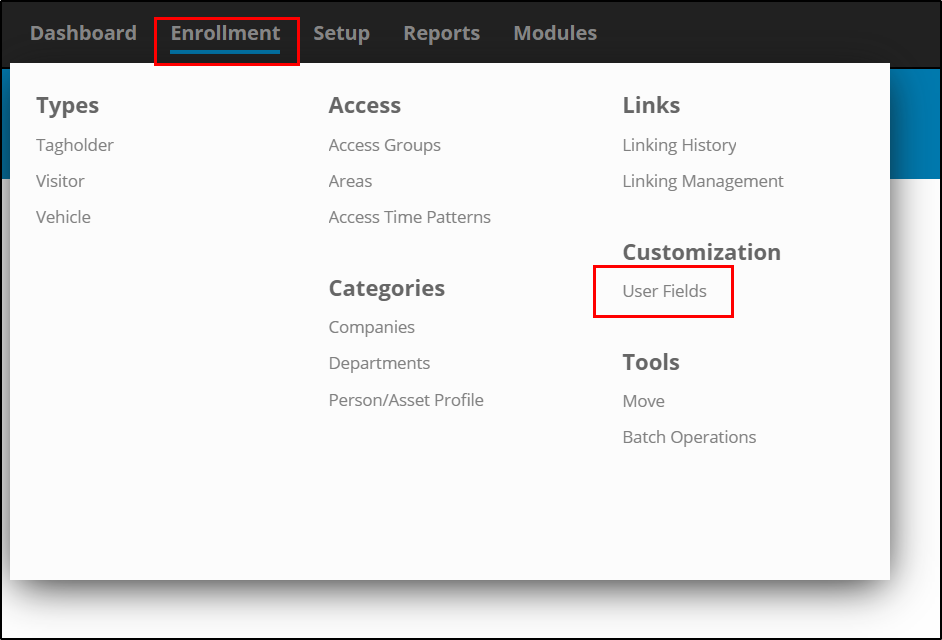
Go to Enrollment, then Select User Fields.

Select the Plus to add a new User Fields

Name the User Field and Select Save

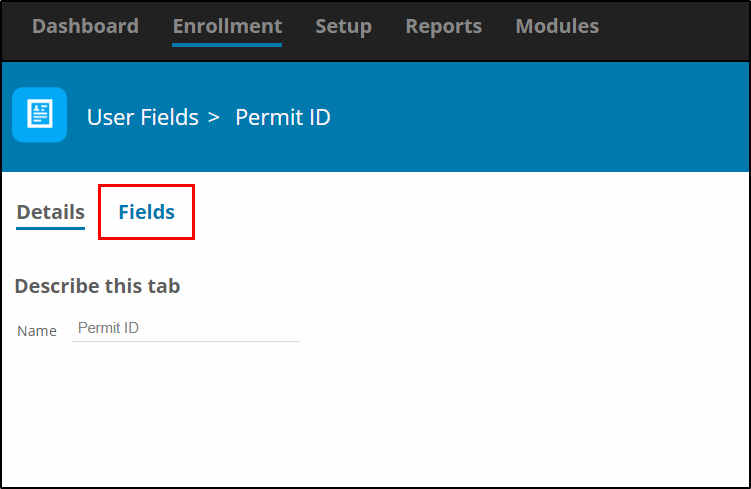
After you save the User Field you will see a Fields Tab, Select the Fields Tab

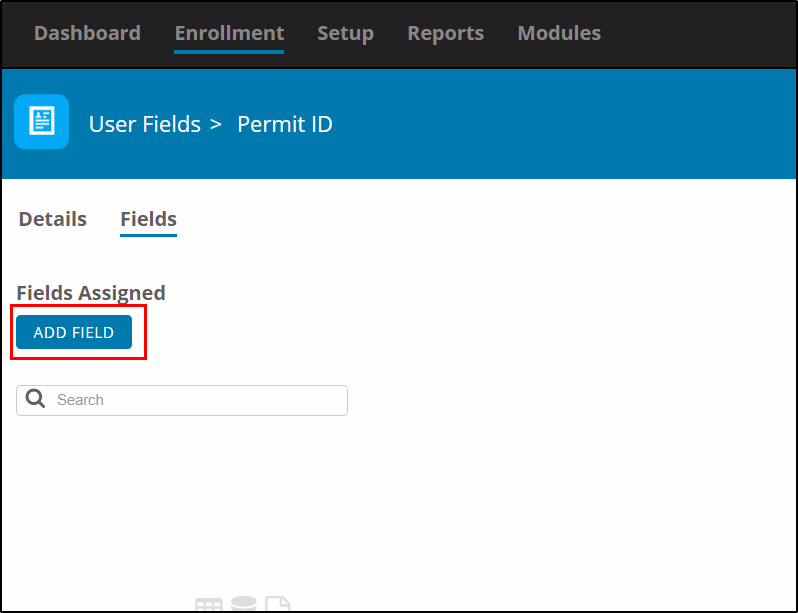
Select Add Field

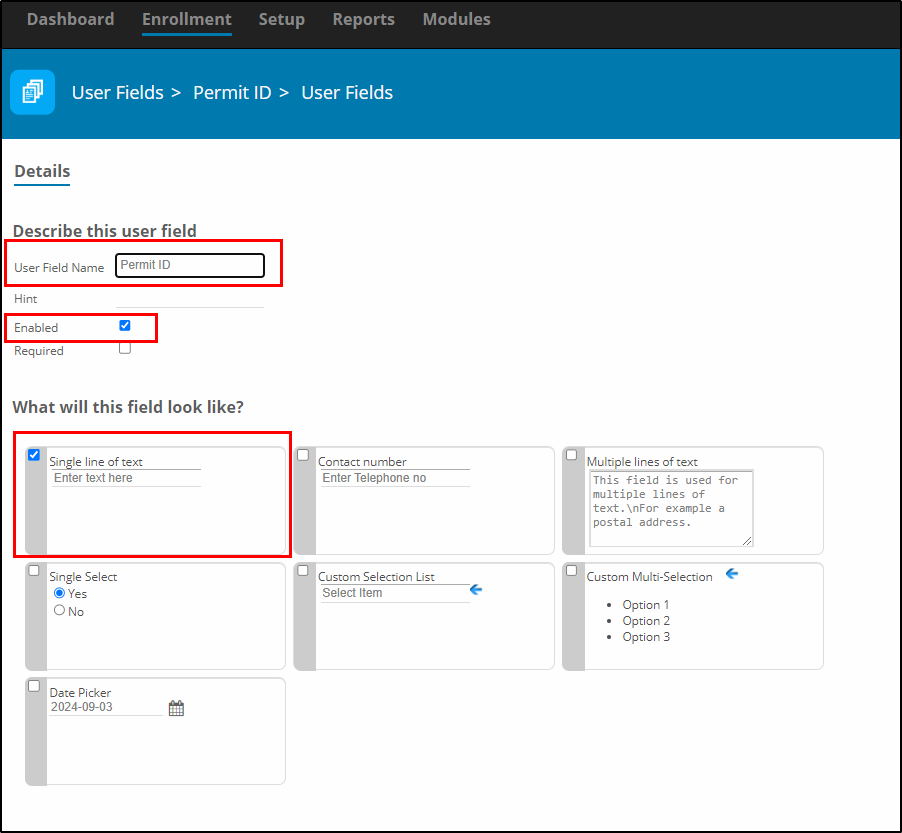
Here you will be able to customize what and how information is entered for this Field.

Name the Field, the Name to be displayed for the User Field for Tagholder.

Select Enabled, 

Select the type of field. In this example we are using Single Line of text for the Permit ID number.

Select Save

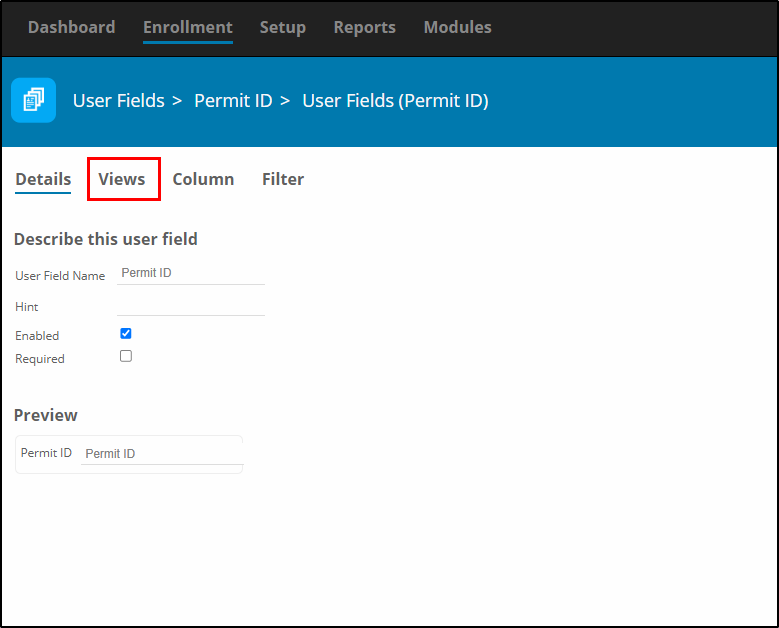
After you select Save, more Options become available. You must now configure where the User Field will be visible and to whom.

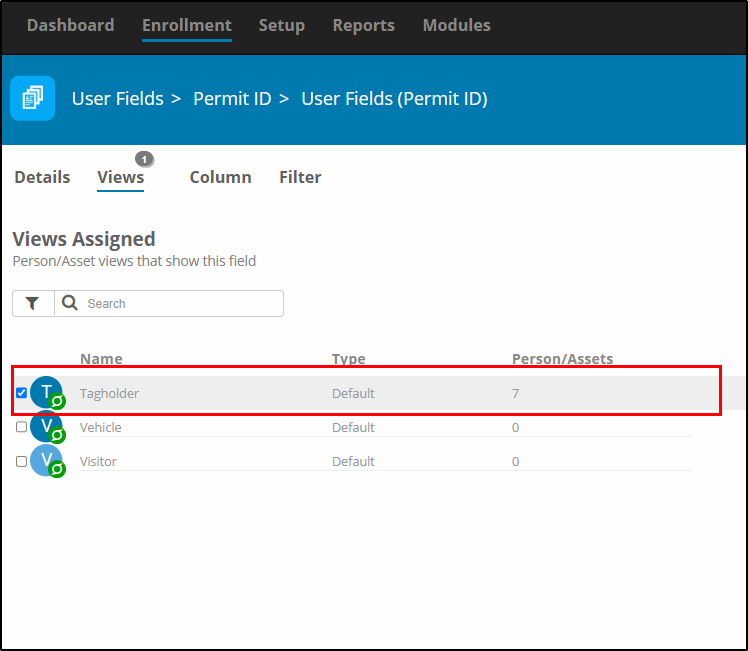
Select Views

For this example, we only want the Permit ID to be viewable for Tagholders.


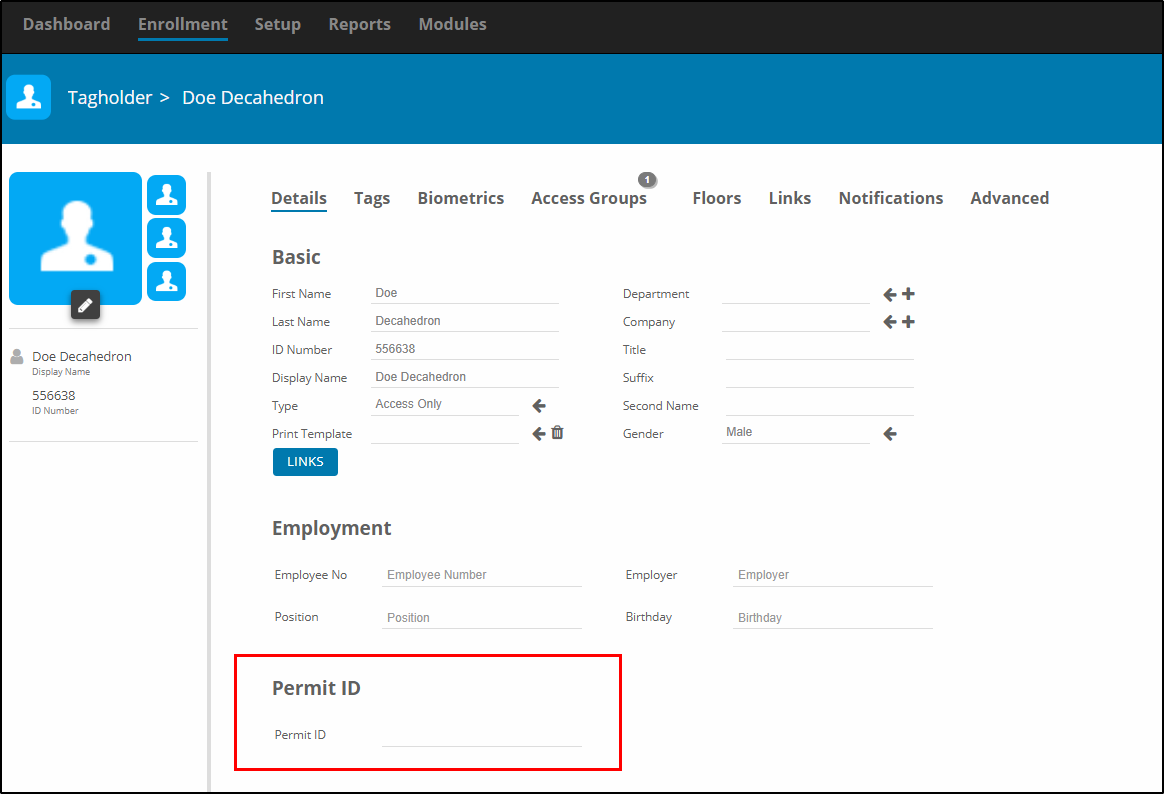
When you view a Tagholder, you will now see the User Field.

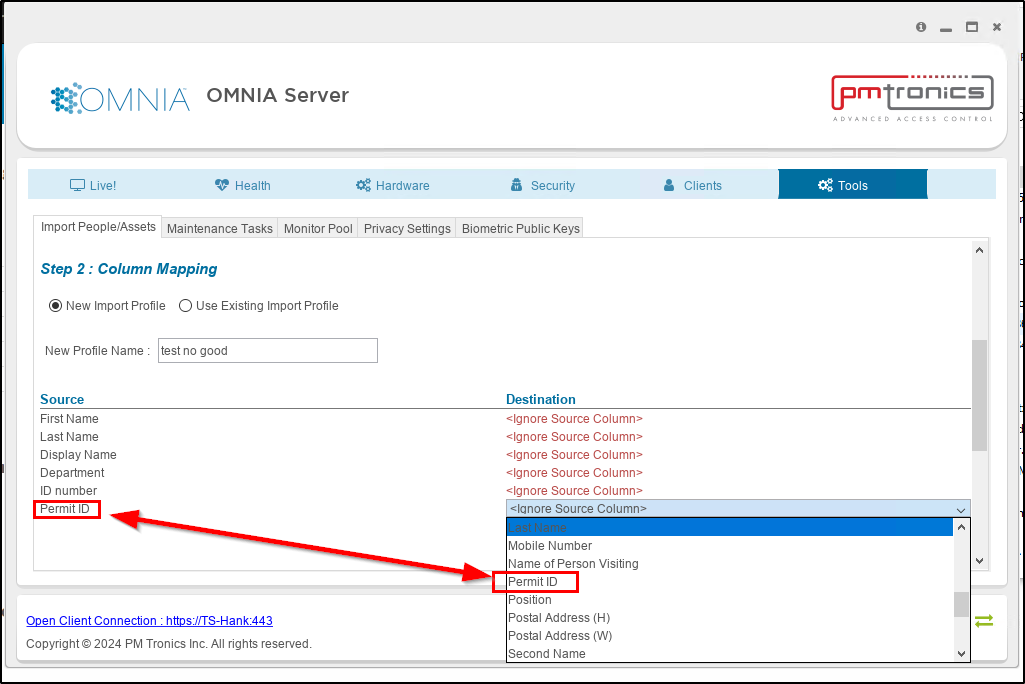
When you import the .CSV file, select the Destination, Permit ID will be available to select as a destination.

Please call 727-786-1900 if you have any questions on this procedure.

Need further assistance?
Submit a Support Ticket

Submit a Support Ticket

FAQ

General

Can I initiate RS485 comms to a terminal from an existing IP terminal?

How to Select the Right Cable for the job

IDEMIA Sigma Lite Readers NOT compatible for use in AmanoNet or Nexus220

Network Configuration – Best Practices

Technical Bulletins

Akuvox R20 Wiring Diagram to Wiegand Reader Module (WRM)

Finding and Adding Sigma Biometric Units to OMNIA 4.6.5

How to add a PAC Tag type to a Tag Holder

How to upgrade OMNIA hardware firmware using the OMNIA Firmware Upgrade Tool

OMNIA CSV Imports 

OMNIA Run as a Service fix for v4.x

Setting the IP address of a PMT Security Device by Directly Connecting To It with a Laptop.

Upgrading To OMNIA 4.6.5 and 2019 SQL Express With Tools

Access Control

AmanoNet

AmanoNet Back up using IB Console

AmanoNet Minimum PC Requirements and Specifications

AmanoNet System Migration Notes

Archive Tagholders in AmanoNet

Archive Transactions in AmanoNet

AutoID IP Hardware in AmanoNet

How to get PMTSecurity a copy of the AmanoNet Access Control Database

How to move AmanoNet Access Control System from one PC to another (Firebird)

IDEMIA Sigma Lite Readers NOT compatible for use in AmanoNet or Nexus220

ImproNet/AmanoNet Database Backup: SQL

Nexxus220

Change Default Password in Nexus220
Database Migration from Nexus220/IXP220 to OMNIA
How to fix a Java SE Binary Error in Nexus220 Software
How to get a copy of a database from Nexus220 Software
How to move Nexus220 to a different PC
IDEMIA Sigma Lite Readers NOT compatible for use in AmanoNet or Nexus220
Move Nexus220 Access Control System from one PC to another (Firebird)
Nexus220 Firmware Upgrade
Nexus220 Notifications Configuration/Email Configuration
Nexus220 The number of doors for this license has been exceeded
Nexus220 Web Reports Using Microsoft Edge
Reduce length of time on buzzer for readers in Nexus220

Omnia

Adding a New Department in Omnia

Adding Companies to Omnia

Adding Widgets to the OMNIA Dashboard

Aperio Wireless Lock Integration

Basic Setup Guide:  Akuvox

Basic Trouble Shooting OMNIA

Batch Operations OMNIA

Change SYSDBA Password in OMNIA

Changing the IP Address of a Previously Installed Controller using the Omnia Software/URL

Configuring Web Session Timeouts in OMINA

Omnia Lite

Convert a Nexus Lite Database into OMNIA Lite Database

OMNIA LiTE Backup

PM Tronics Hardware

Amano Readers and Credentials

Change Modulation mode on XQT904 Quad Transmitter
How do I change Wiegand Output Mode on Amano readers?

Legacy Hardware

Factory Reset legacy Amano IP Cameras (sold prior to 2018)

Factory Reset Nexus220 controller

How do I factory reset the EC2 (400i) controller?

Setting IP on PMTronics Inc. Access Control Hardware

Partner Products

Partner Products

IDEMIA Sigma Lite Readers NOT compatible for use in AmanoNet or Nexus220

Installing Cathexis Carbon and Adding a new Account

Setting Read Range on a Conekt Reader

STID Configuration

Video Management Systems

Cathexis Video (Amano Vision)

Adding Cameras into Cathexis

Cathexis Video AV (AntiVirus Exceptions)

Installing Cathexis Carbon and Adding a new Account

Quick Start Guide for Cathexis Vision Version 2025

AmanoDVMS

Which AmanoDVMS ports need to be open on my firewall?

Vision

Adding Cameras into Cathexis

AmanoVision web access user name case sensitivity usage

Wiring for IDFace to OSDP

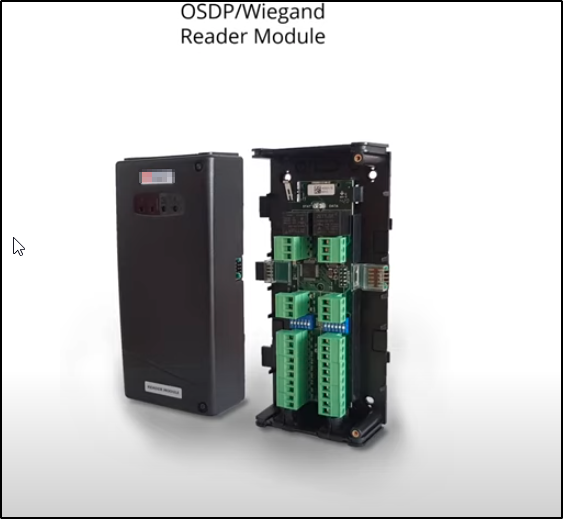
How to wire the iDFace reader to an existing OSDP reader module.

1. **Wiring Overview**: Demonstrates how to wire the iDFace reader to an existing OSDP reader module.

1-Jun-04-2025-12-49-05-6827-PM

2. **OSDP Support**: Installation is supported with the OMNIA system.

2025-06-12 09_39_08-2025-06-12 09_32_24-Window

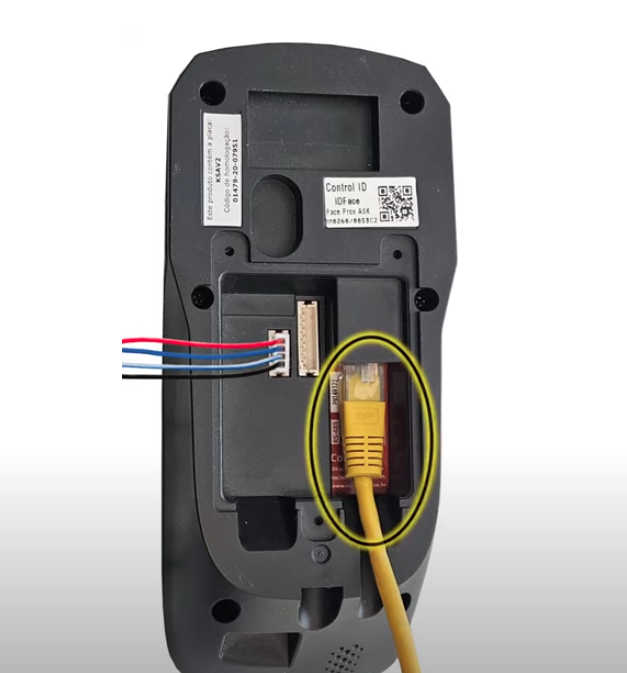
3. **Connection Instructions**:
– Use one of the provided four-pin plugs for wiring.
– Extend short wires as necessary to reach the OSDP reader module.
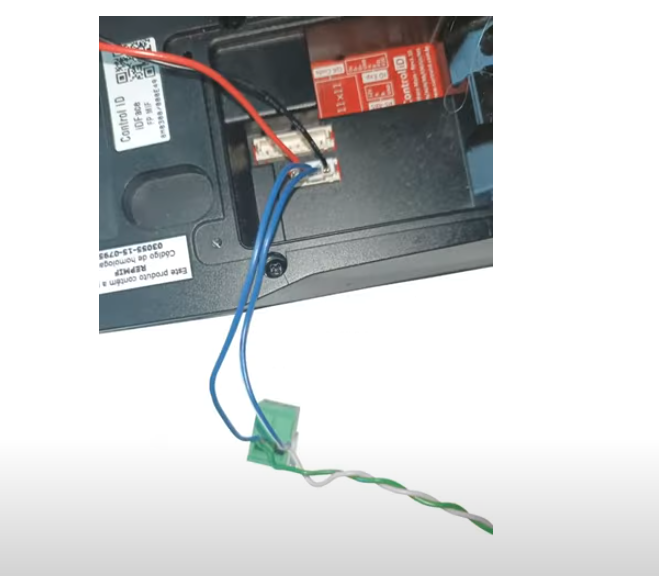
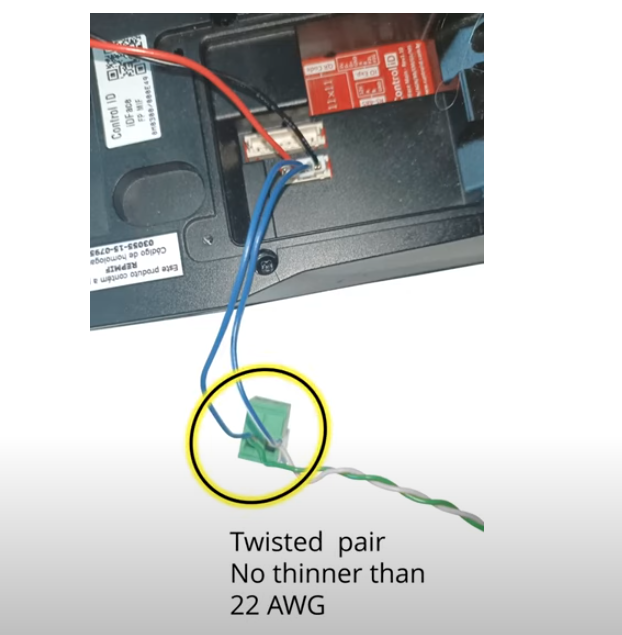
– Utilize green and white twisted pair wires (minimum 22 AWG).
– Cut wire to a length sufficient to reach from the iDFace to the OSDP reader module, allowing 30 cm extra.

3-Jun-04-2025-12-49-05-7567-PM

4. **Wiring Connections**:
– Connect green wire to the blue iDFace wire.
– Connect white wire to the blue and white iDFace wire.
– Connect red and black wires to a 12V DC power supply (2 amps required).

4-Jun-04-2025-12-49-05-7591-PM
7-Jun-04-2025-12-50-55-4866-PM

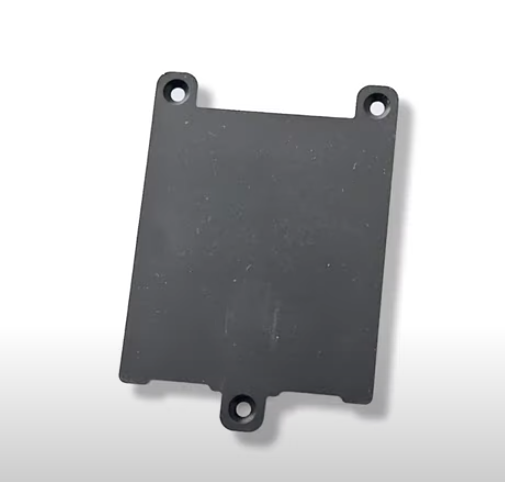
5. **Mounting**: Close the unit with the provided cover and follow mounting instructions.

8-4

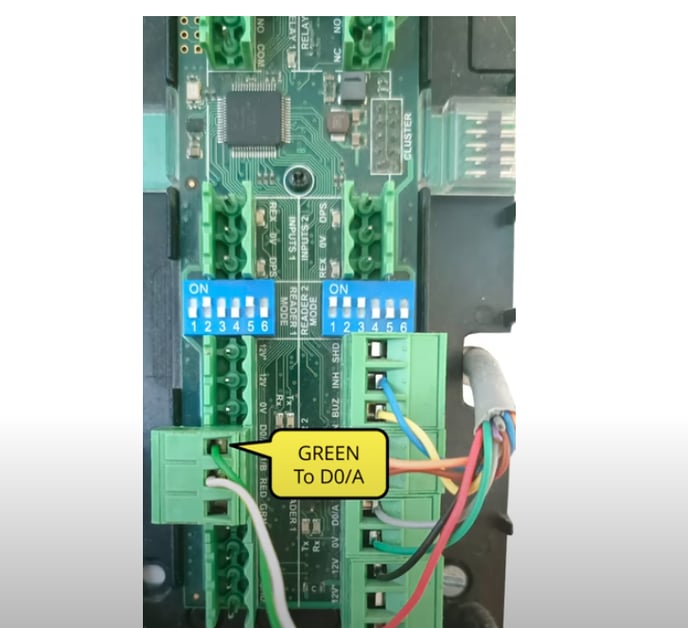
6. **Wiring to OSDP**: Wire green to the D0/A terminal and white to the D1B terminal on the OSDP reader module.

10-3

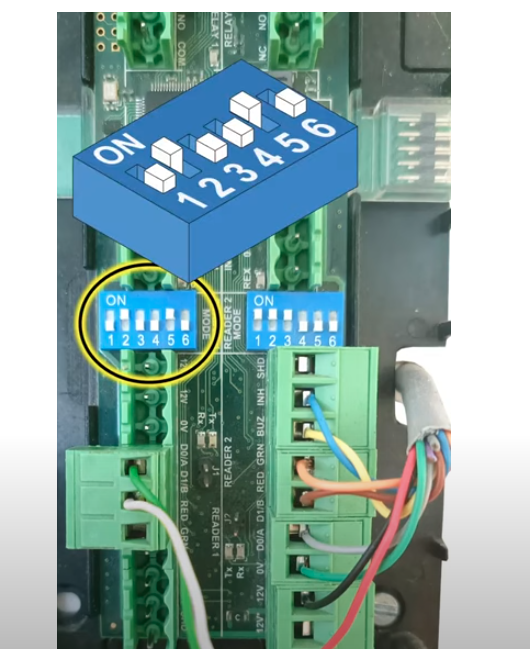
7. **Dip Switch Configuration**: Set the reader port dip switch to 010010 for OSDP mode.

12-3

8. **Next Steps**: Setup the iDFace using the OMNIA software.

Upgrading from OMNIA 4X to 5X

Upgrading from OMNIA 4X to 5X

Upgrading from OMNIA 4x to 5x. Using SQL 2019

Stop/Exit the engine for OMNIA 4x.

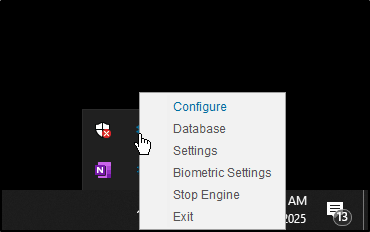
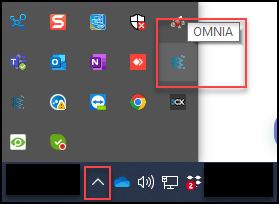
Select the arrow in the bottom right of the screen to open up the hidden Icons. 

Stop Engine 1

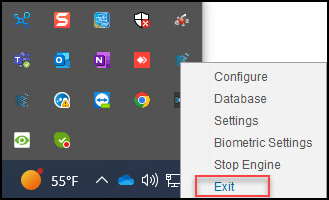
Right Click on the OMNIA ICON. (Make sure you are not selecting the Plug in Manager) Select Stop Engine and then select Exit. 

Stop Engine 2

Stop OMNIA as a Service.

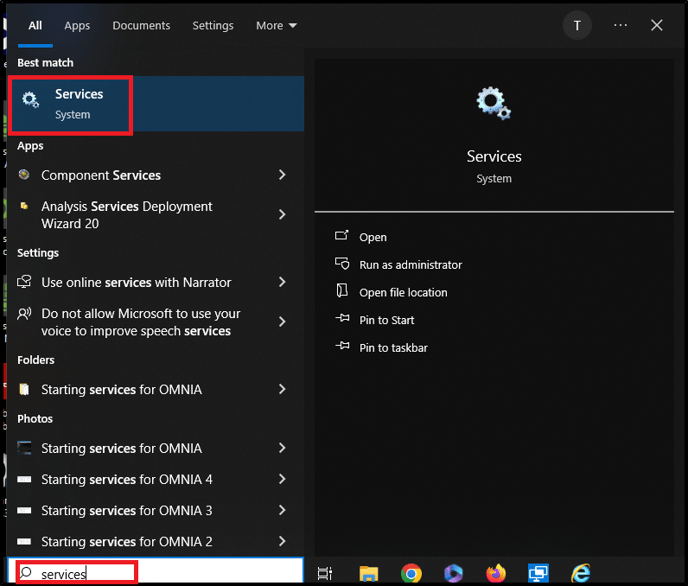
In the search bar enter “services”

Services 1

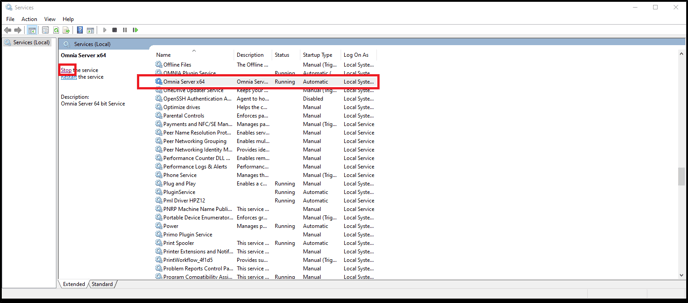
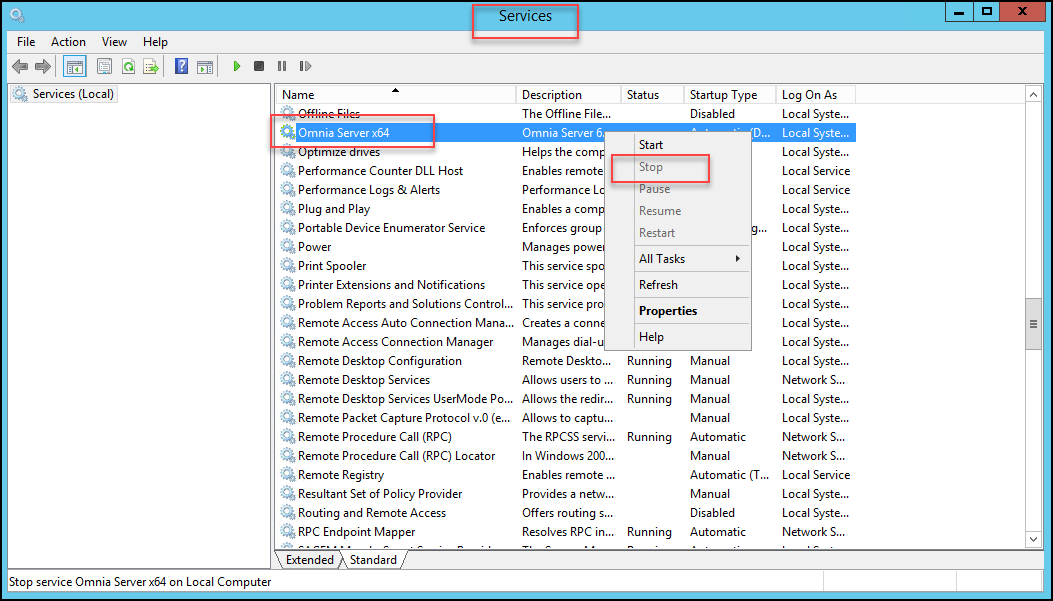
Search for Omnia Server x64. Either right click and select stop or select stop as shown below. 

Services 2

DETACHING THE DATABASE
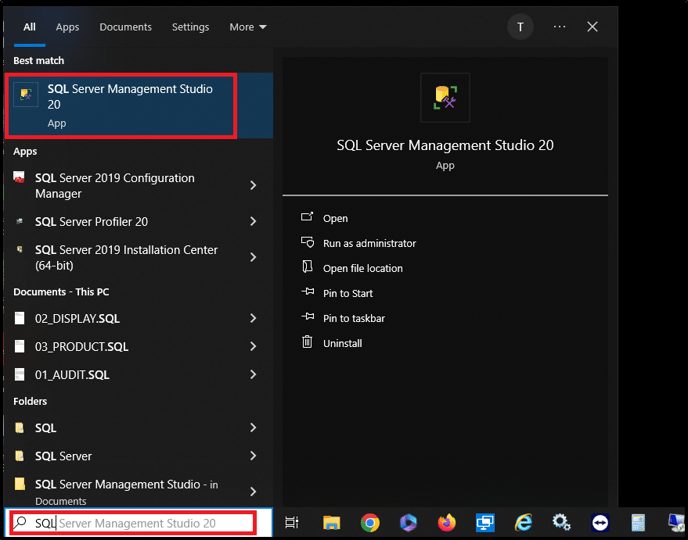
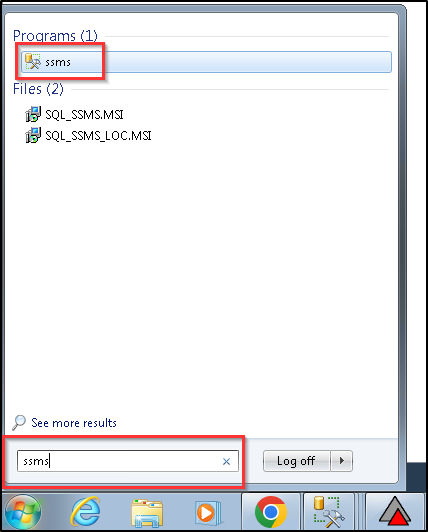
In the search bar type SQL Server Management Studio. Open the App.

SQL 1

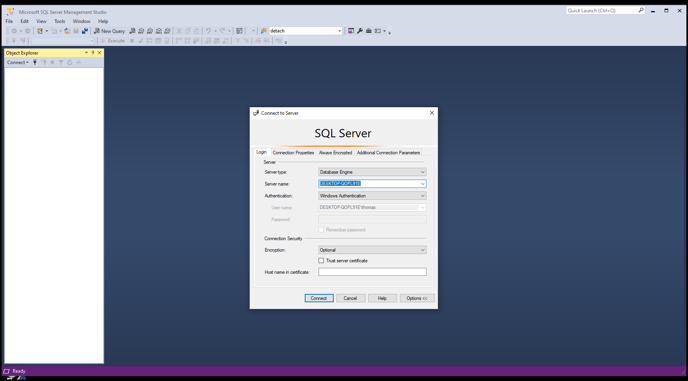
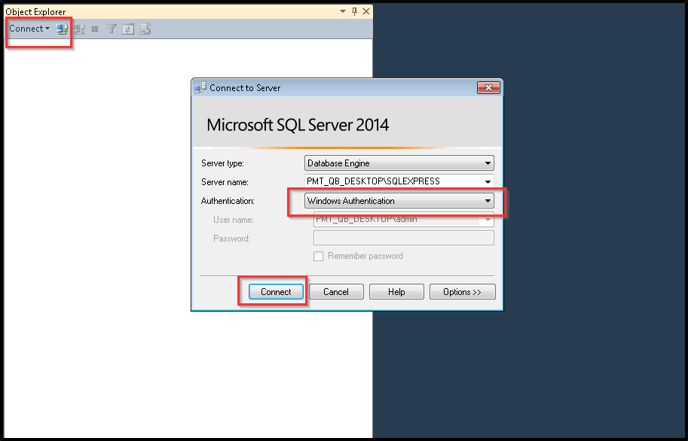
Sign-in. Either Windows Authentication or SYSDBA. 

SQL 2

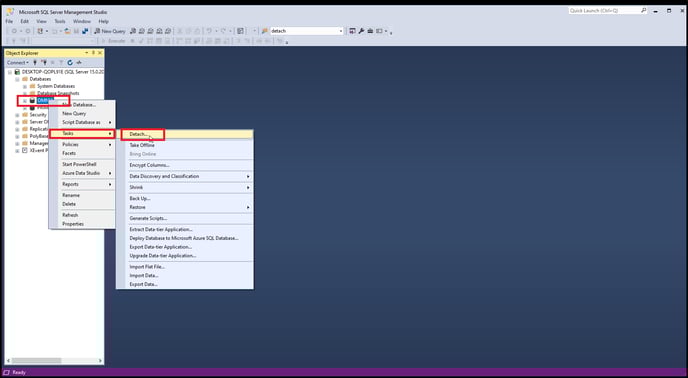
Expand Database Tree. Right Click on the Database “OMNIA”. Open Tasks and select Detach…

SQL 3

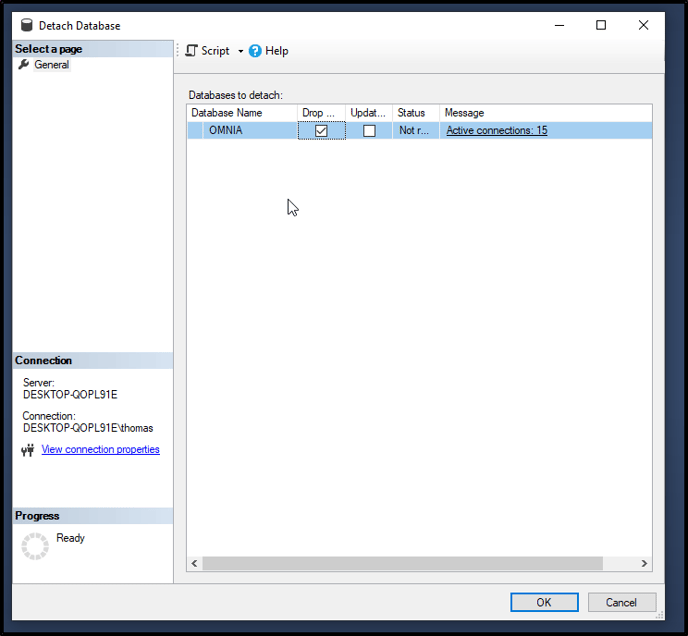
Check the Box under Drop… Then Select OK

SQL 4

Move DATABASE

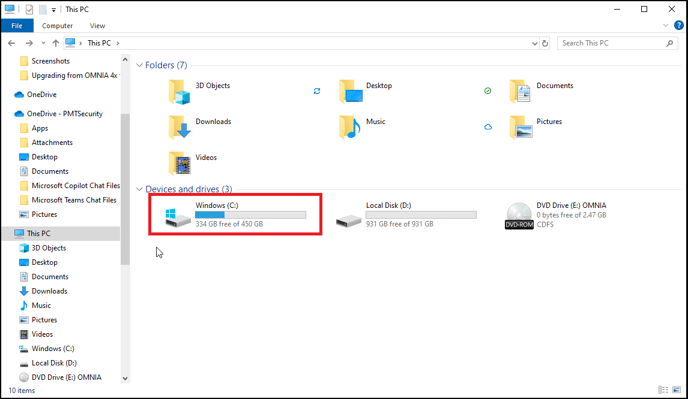
Open up Windows File Explorer. Selects Windows (C:)

move data 1

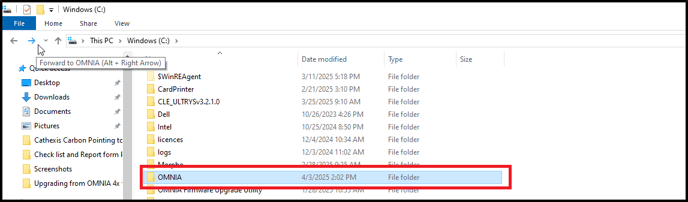
Select the OMNIA folder. 

Database Copy-1

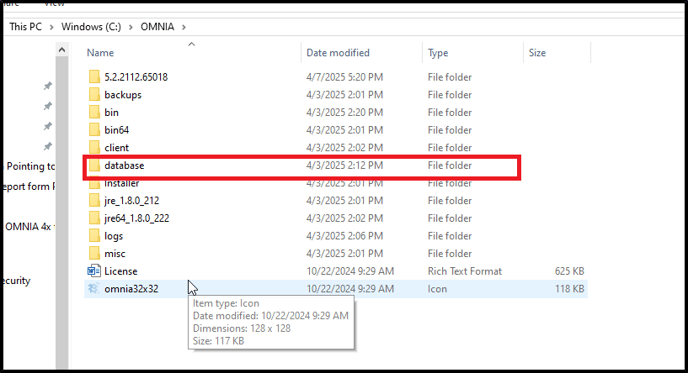
Select the Database folder.

Database Copy 2

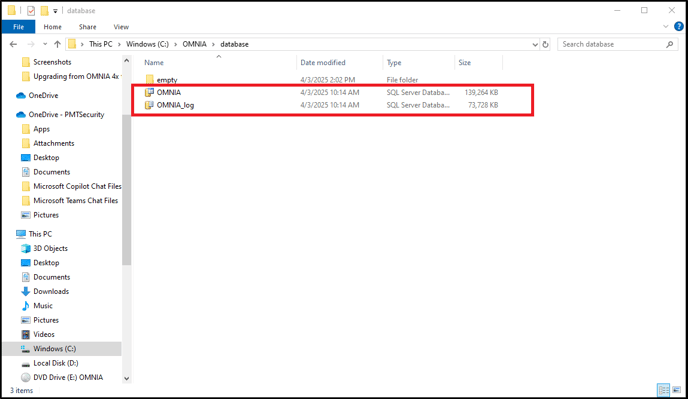
Highlight then drag and drop the OMNIA and OMNIA log to another location on the PC. (example is to put files on the desktop)

move data 5-1

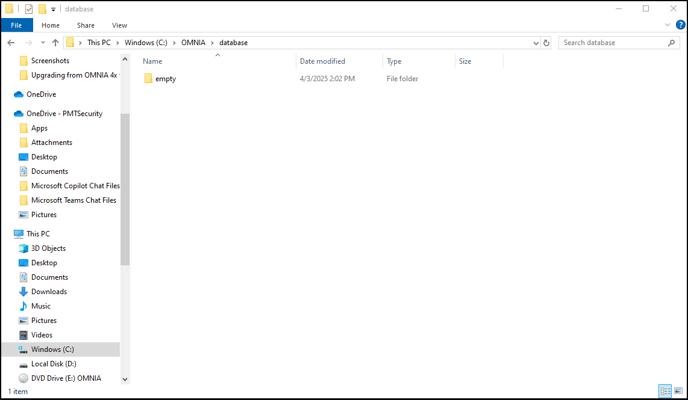
When you are done it should look like this.

move data 4
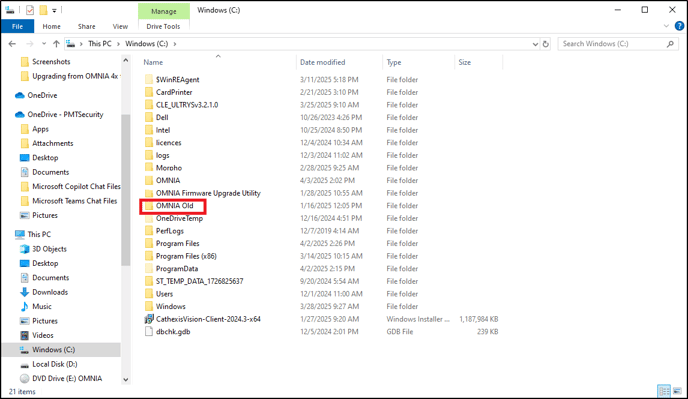
In the Windows (C:) Rename the OMNIA folder to OMNIA Old

move data 2-1

New OMNIA Install V5x

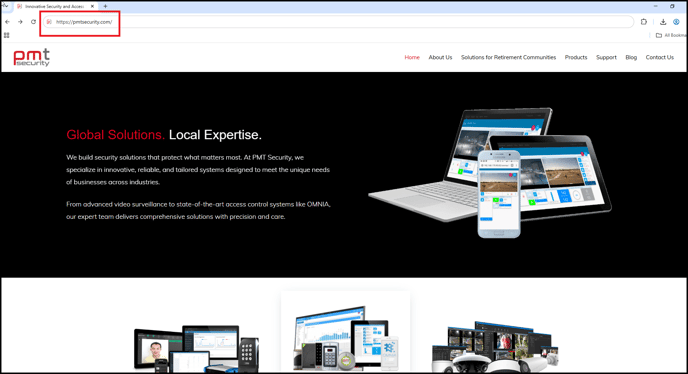
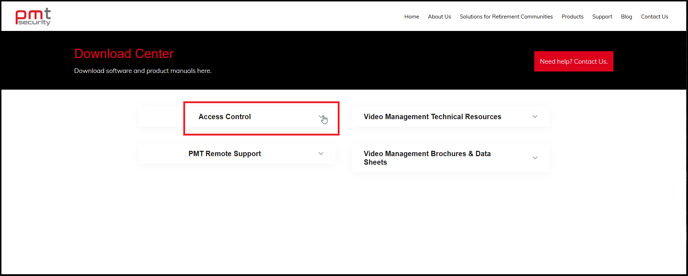
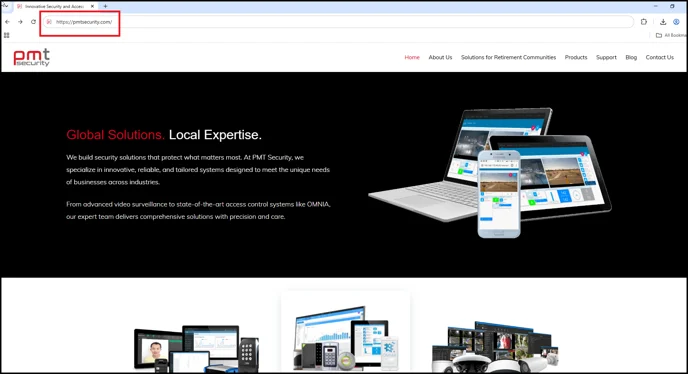
Open Browser and enter Http://pmtsecurity.com/ 

1-Apr-11-2025-01-57-19-1593-PM

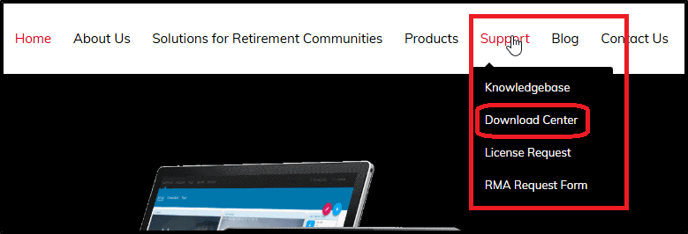
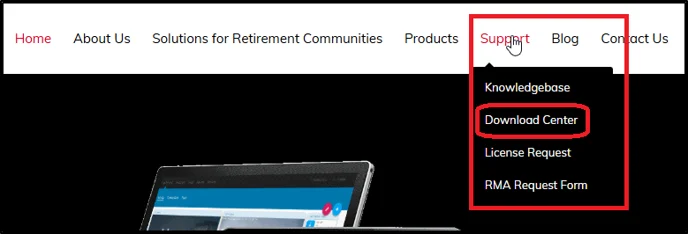
Move curser over Support to reveal Support tree. Select Download Center.

2-Apr-11-2025-01-57-19-0116-PM

Select Access Control

3-Apr-11-2025-01-57-19-0327-PM

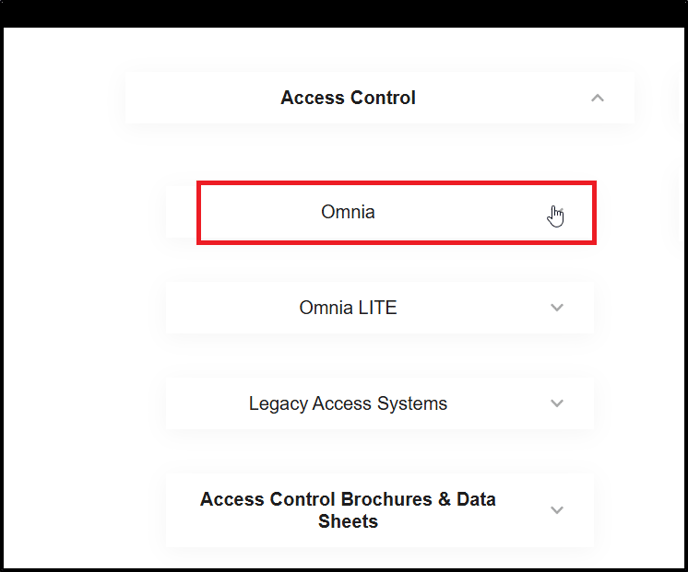
Select OMNIA

4-Apr-11-2025-01-57-19-0204-PM

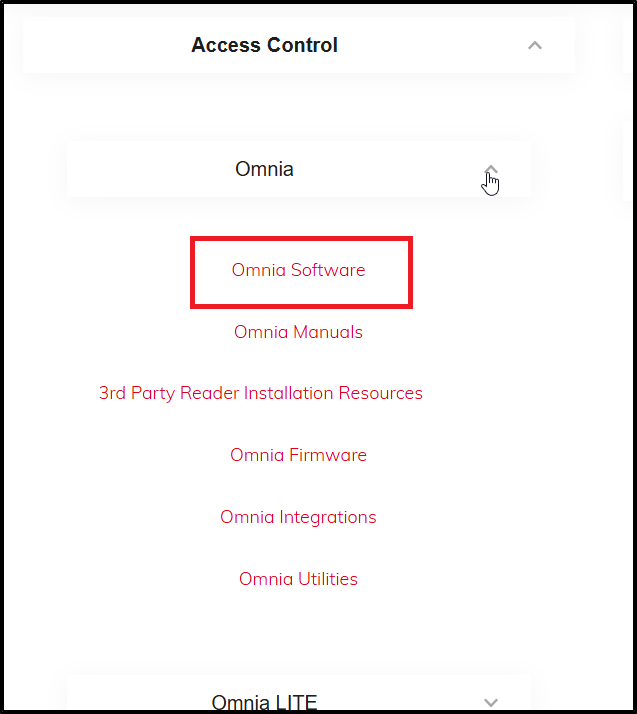
Select Omnia Software

5-3

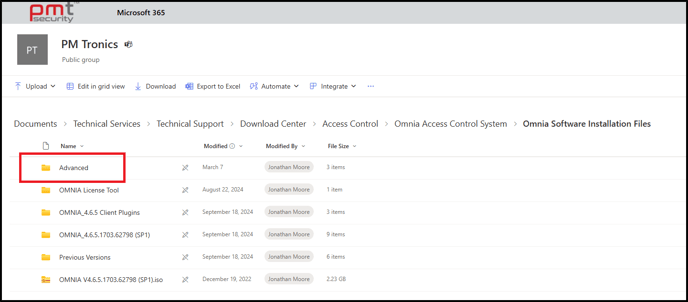
Select Advanced

6-3

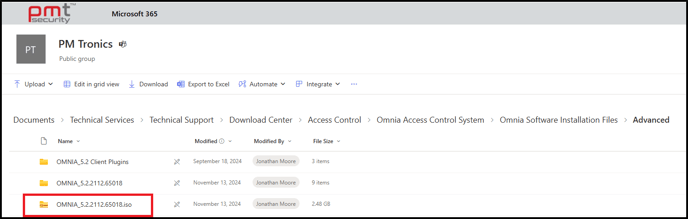
Select OMNIA_5.2.2112

7-3

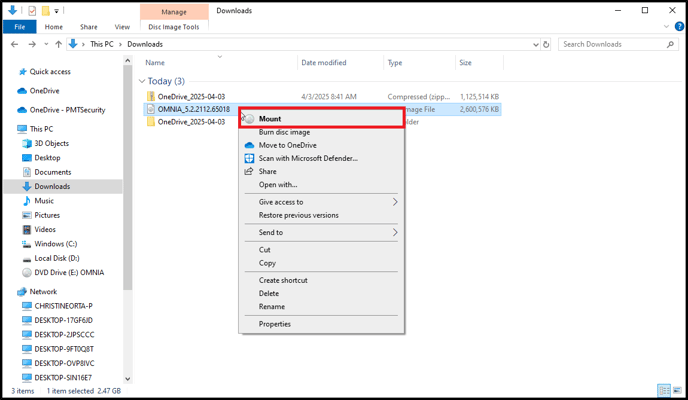
Go to File Explorer and open the Downloads folder. Right Click OMNIA_5.2.2112.65018 and Select Mount

10-1

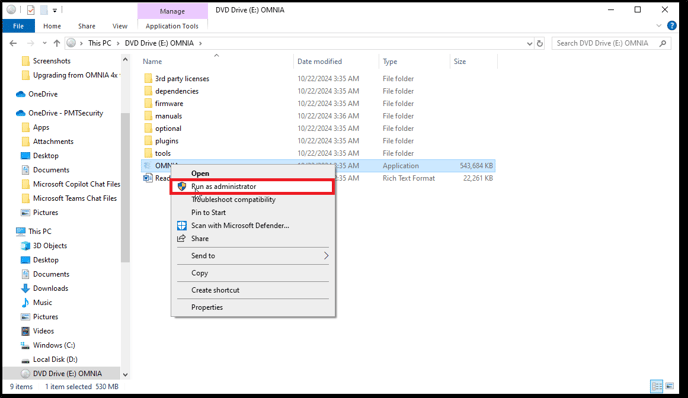
Right Click OMNIA and Run as administrator.

12-1

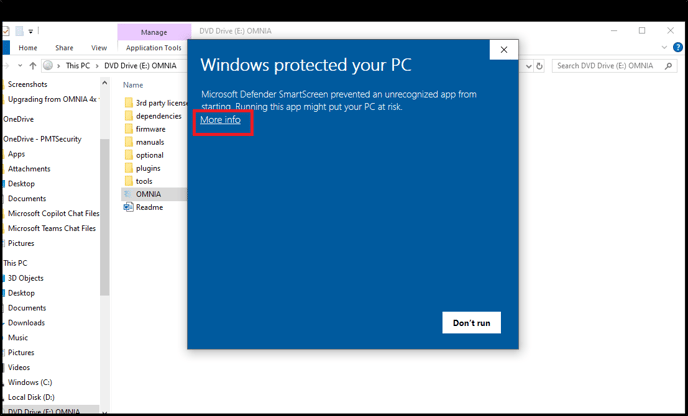
This window will appear Select More info

13-1

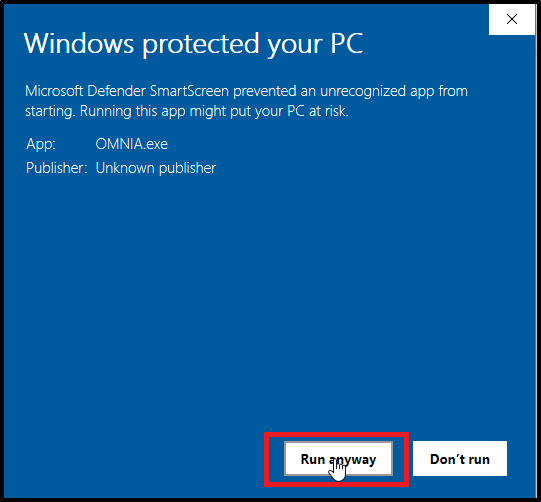
Select Run Anyway

14

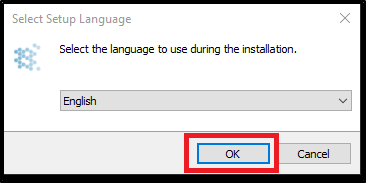
Select Language

15

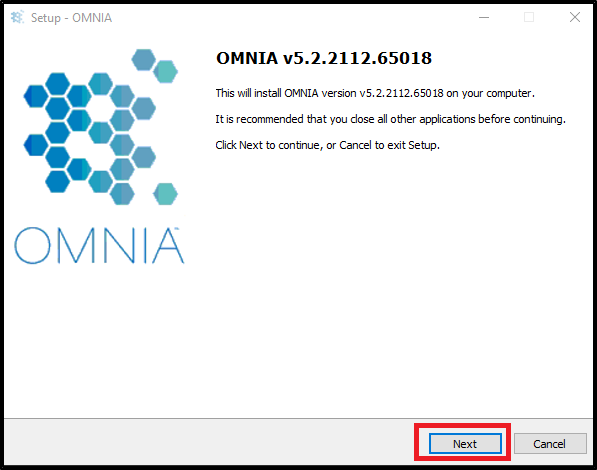
Select Next

16

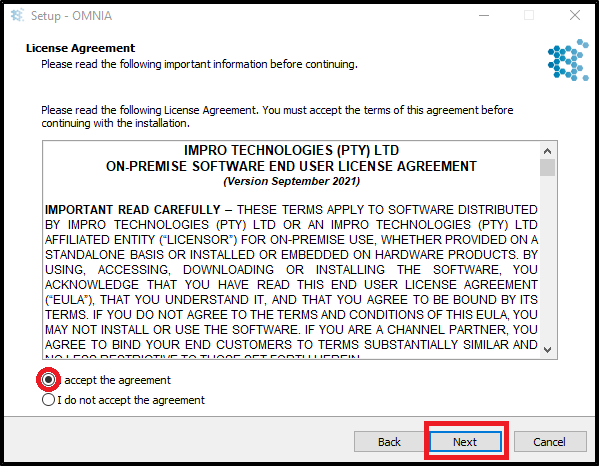
Review License Agreement, Accept, and select Next to Continue

17

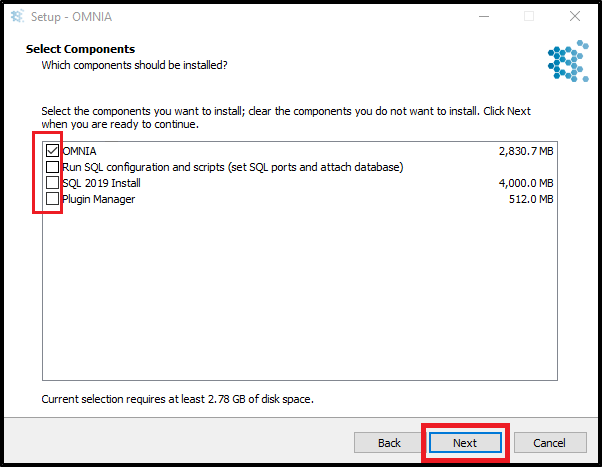
Select OMNIA then next.

18-1

Make sure you have followed the previous steps on detaching the Database.
Select Yes.

19

Select Next

20

Select Next

21

Select Next

22

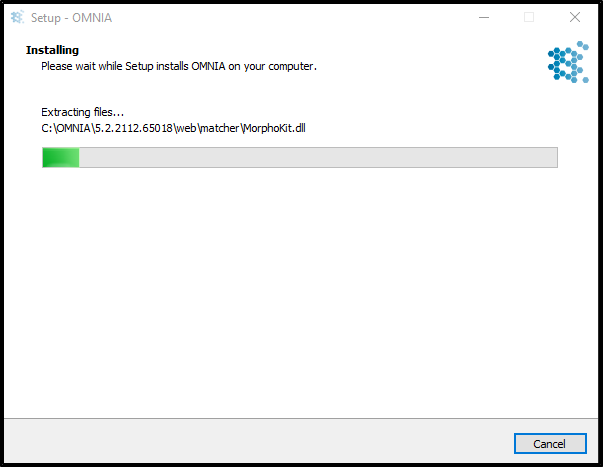
Installation

23

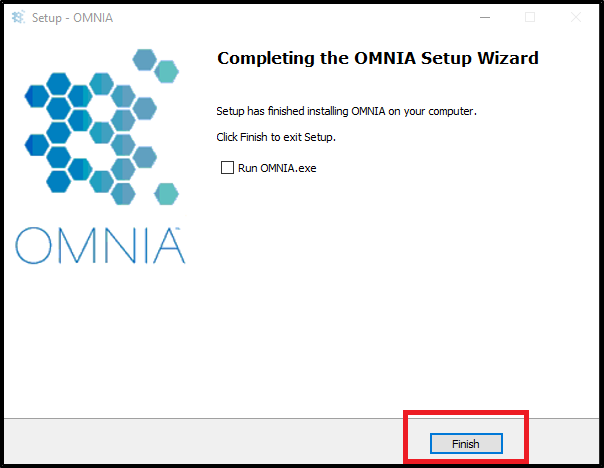
DO NOT start OMNIA.exe. 
Select Finish

24

Attaching Database

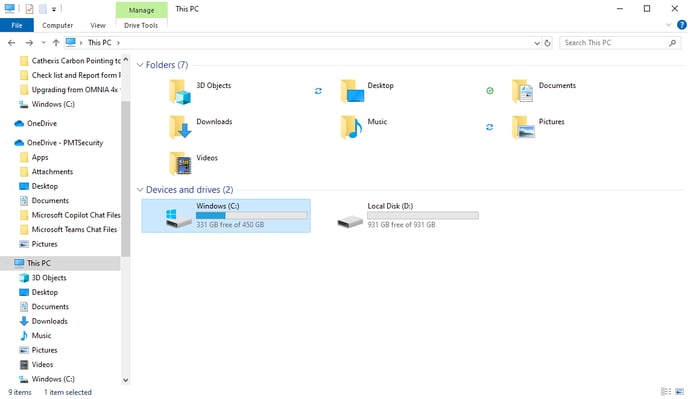
Open Windows (C:)

OMNIA 5x 2

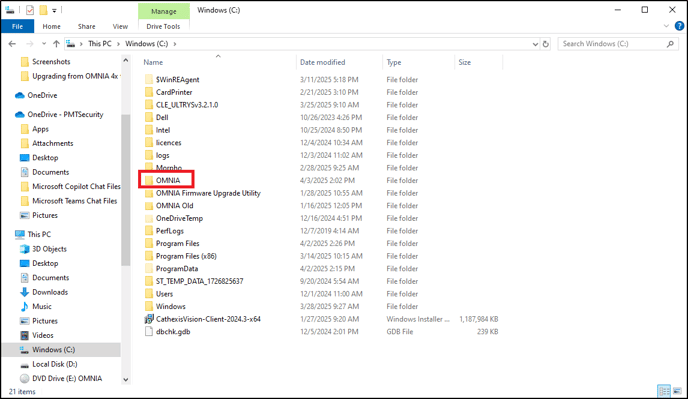
Open OMNIA folder. 

move data 2-2

Select Database

Database Copy 2

Grab your Database and Database Log files, drag then drop them in the Database Folder

move data 4

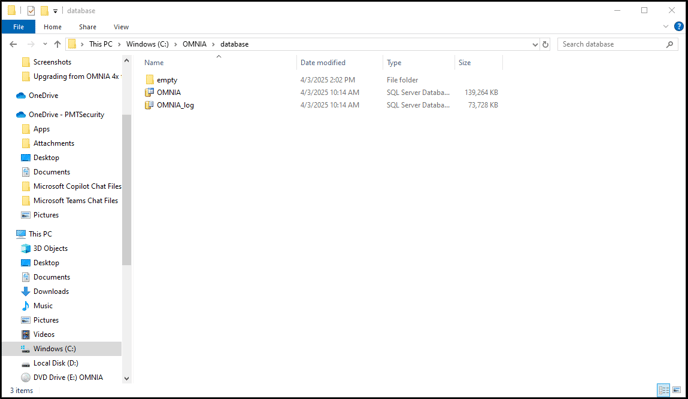
This is what it should look like. 

move data 5

Open Microsoft SQL Server Management Studio

SQL 2

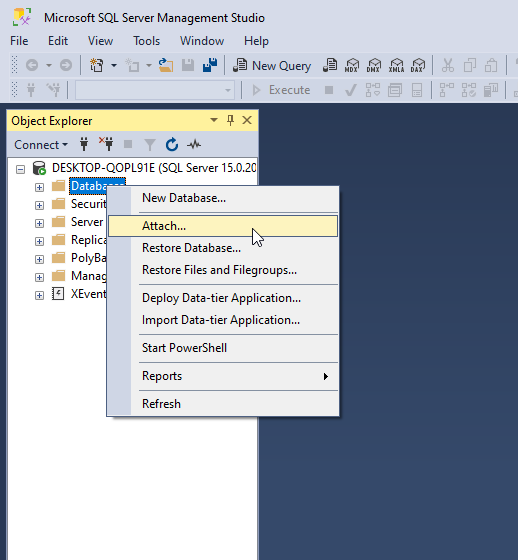
Right Click on Database and Select Attach.

attached data

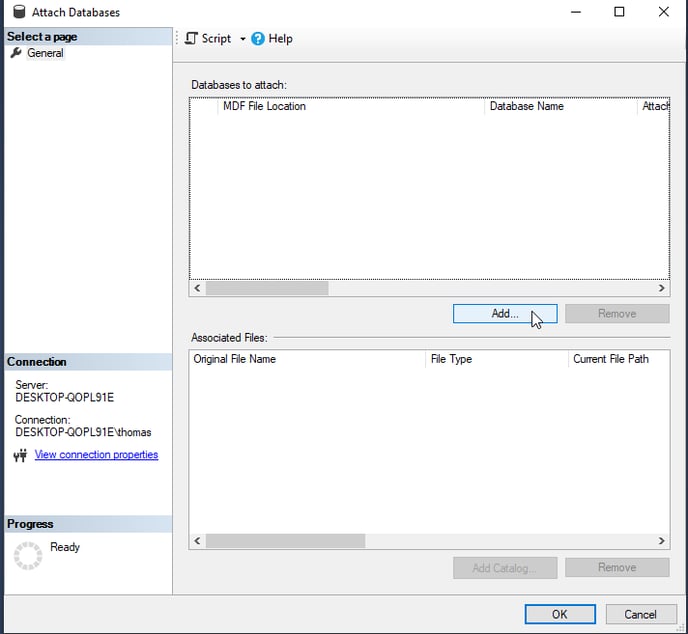
Select Add…

attached data 2

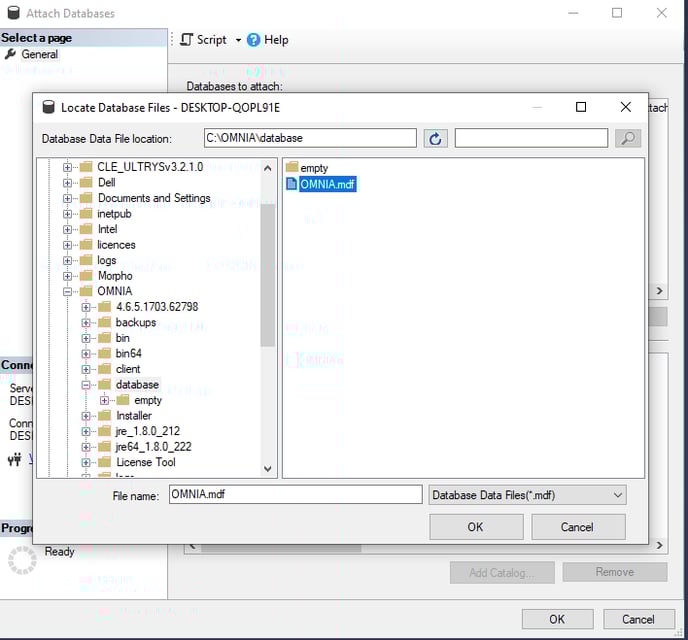
Expand the OMNIA folder then select Database. The OMNIA.mdf should show. Highlight and select OK.

attached data 3

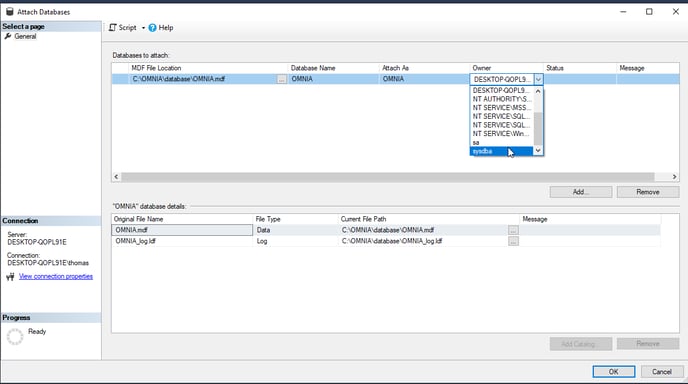
Scroll Right and expand the Owner options and select sysdba.
Select OK

attached data 4

Exit from Microsoft SQL Management Studio and Open OMNIA. 

If you are running OMNIA as a service. Open up the services app and start OMNIA. Open browser after 4 minutes and type LocalHost:82 in the browser search bar.

Need further assistance?
Submit a Support Ticket

Submit a Support Ticket

FAQ

General

Can I initiate RS485 comms to a terminal from an existing IP terminal?
How to Select the Right Cable for the job

IDEMIA Sigma Lite Readers NOT compatible for use in AmanoNet or Nexus220

Network Configuration – Best Practices

Technical Bulletins

Akuvox R20 Wiring Diagram to Wiegand Reader Module (WRM)

Finding and Adding Sigma Biometric Units to OMNIA 4.6.5

How to add a PAC Tag type to a Tag Holder

How to upgrade OMNIA hardware firmware using the OMNIA Firmware Upgrade Tool

OMNIA CSV Imports 

OMNIA Run as a Service fix for v4.x

Setting the IP address of a PMT Security Device by Directly Connecting To It with a Laptop.

Upgrading To OMNIA 4.6.5 and 2019 SQL Express With Tools

Access Control

AmanoNet

AmanoNet Back up using IB Console

AmanoNet Minimum PC Requirements and Specifications

AmanoNet System Migration Notes

Archive Tagholders in AmanoNet

Archive Transactions in AmanoNet

AutoID IP Hardware in AmanoNet

How to get PMTSecurity a copy of the AmanoNet Access Control Database

How to move AmanoNet Access Control System from one PC to another (Firebird)

IDEMIA Sigma Lite Readers NOT compatible for use in AmanoNet or Nexus220

ImproNet/AmanoNet Database Backup: SQL

Nexxus220

Change Default Password in Nexus220
Database Migration from Nexus220/IXP220 to OMNIA
How to fix a Java SE Binary Error in Nexus220 Software
How to get a copy of a database from Nexus220 Software
How to move Nexus220 to a different PC
IDEMIA Sigma Lite Readers NOT compatible for use in AmanoNet or Nexus220
Move Nexus220 Access Control System from one PC to another (Firebird)
Nexus220 Firmware Upgrade
Nexus220 Notifications Configuration/Email Configuration
Nexus220 The number of doors for this license has been exceeded
Nexus220 Web Reports Using Microsoft Edge
Reduce length of time on buzzer for readers in Nexus220

Omnia

Adding a New Department in Omnia

Adding Companies to Omnia

Adding Widgets to the OMNIA Dashboard

Aperio Wireless Lock Integration

Basic Setup Guide:  Akuvox

Basic Trouble Shooting OMNIA

Batch Operations OMNIA

Change SYSDBA Password in OMNIA

Changing the IP Address of a Previously Installed Controller using the Omnia Software/URL

Configuring Web Session Timeouts in OMINA

Omnia Lite

Convert a Nexus Lite Database into OMNIA Lite Database

OMNIA LiTE Backup

PM Tronics Hardware

Amano Readers and Credentials

Change Modulation mode on XQT904 Quad Transmitter
How do I change Wiegand Output Mode on Amano readers?

Legacy Hardware

Factory Reset legacy Amano IP Cameras (sold prior to 2018)

Factory Reset Nexus220 controller

How do I factory reset the EC2 (400i) controller?

Setting IP on PMTronics Inc. Access Control Hardware

Partner Products

Partner Products

IDEMIA Sigma Lite Readers NOT compatible for use in AmanoNet or Nexus220

Installing Cathexis Carbon and Adding a new Account

Setting Read Range on a Conekt Reader

STID Configuration

Video Management Systems

Cathexis Video (Amano Vision)

Adding Cameras into Cathexis

Cathexis Video AV (AntiVirus Exceptions)

Installing Cathexis Carbon and Adding a new Account

Quick Start Guide for Cathexis Vision Version 2025

AmanoDVMS

Which AmanoDVMS ports need to be open on my firewall?

Vision

Adding Cameras into Cathexis

AmanoVision web access user name case sensitivity usage

Upgrading To OMNIA 4.6.5 and 2019 SQL Express With Tools

How to upgrade OMNIA and SQL Express

How to upgrade OMNIA and SQL Express to OMNIA 4.6.5 and 2019 SQL Express With Tools

Upgrading OMNIA to 4.65 and SQL to 2019 Express

Pre Installation NOTES:

SQL 2019 Express With Tools is only compatible with some Windows Operating System.

     Windows 10, 11, and Windows Server 2016, 2019, and 2022 have been tested.

SQL Server Management Studio 19 (SSMS) does not install with the OMNIA.iso, this will have to be downloaded, installed, and used to Attach OMNIA database into SQL.

OMNIA 4.6.5 is compatible with SQL 2014 Express.

Download OMNIA 4.6.5 

Navigate to PMTSecurity.com and download the software and save for use at a later step.

OMNIA.exe will Install OMNIA 4.6.5 ONLY

OMNIA.iso  will Install OMNIA 4.6.5 and SQL2019 Express

Backup the OMNIA database.

This step is highly recommended. Keep in mind, regular backups should be conducted. A backup kept off the localhost ensures recovery if OMNIA server becomes unrepairable.

See Knowledgebase Article for Backing Up OMNIA Database

https://pmtronics.com/omnia-database-backup

Ensure the current version of OMNIA Server App and/or OMNIA Service is not running.

OMNIA Server App

Exit out of the OMNIA Server App.
Right Click the OMNIA Server App Icon in the “Show Hidden Icons” from the taskbar and select EXIT

If OMNIA is running as a Service, Open Services and Stop the Service.

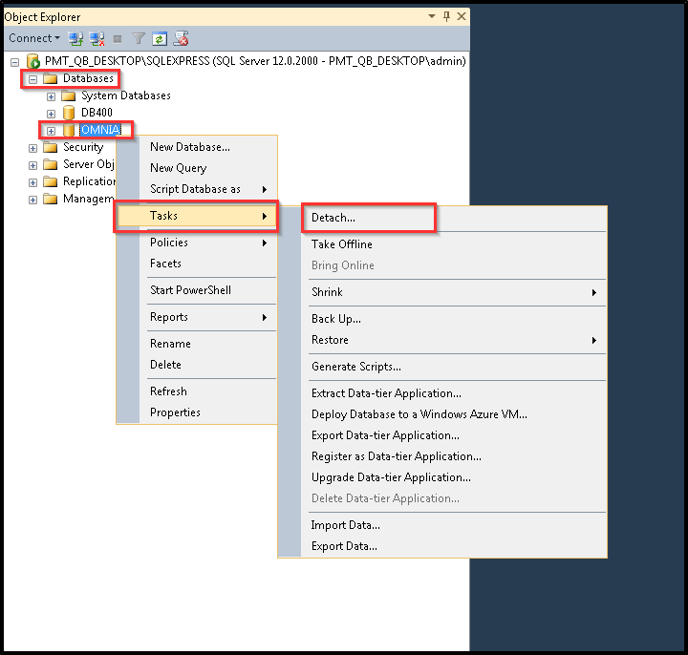
Detach the Database from SQL using the Sql Server Management Studio (SSMS)

Open SQL Server Management Studio (SSMS)

Connect Using  “Windows Authentication”

Expand the Database tree, Select OMNIA and Right Click, Select Tasks then Select Detach.

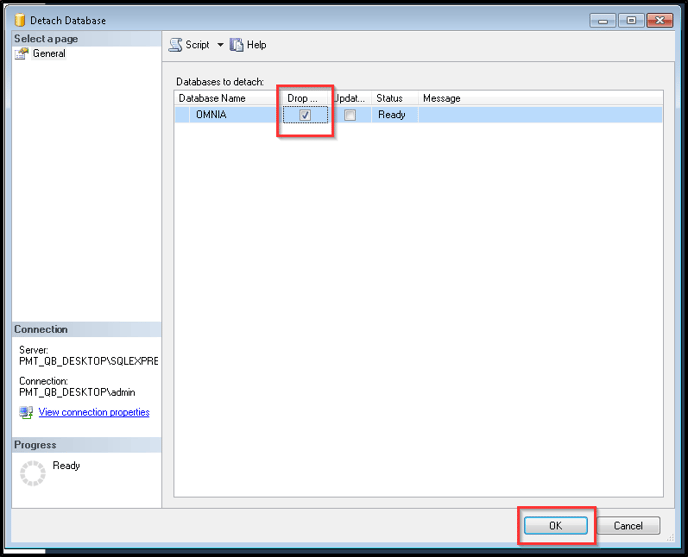
Select Drop and then Select OK

Create a Copy of the OMNIA Database and the OMNIA Database  log file. Save for use in a following step

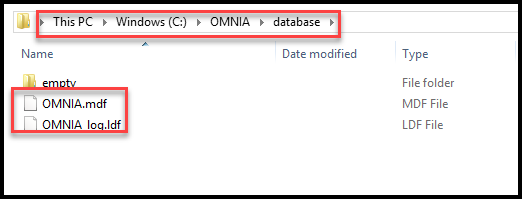
     Navigate to C:\OMNIA\Database\

     Select and Copy BOTH the OMNIA.mdf and OMNIA_log.ldf files. Save files where they can be accessed again. 

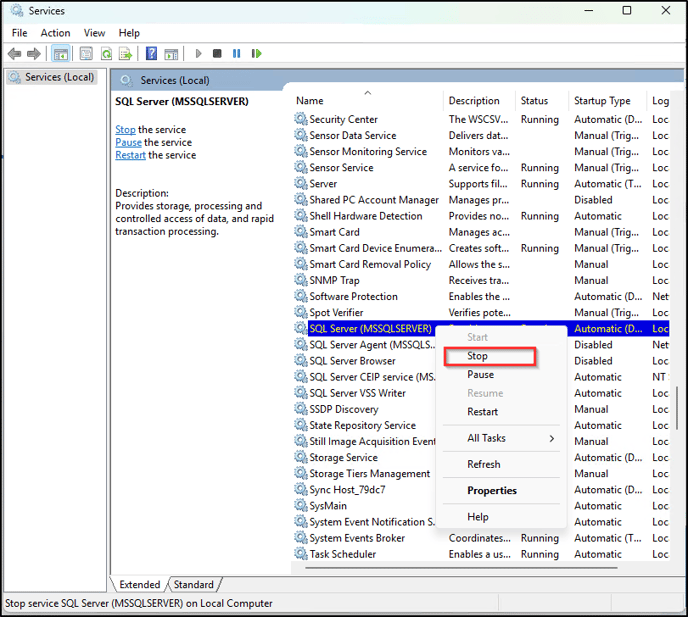
Stop the current SQL service

Open the Services, Search for SQL Server, Right Click and Select Stop

Rename the current OMNIA folder.

We recommend this step as a precaution, keeping the previous OMNIA version folder ensures the ability to roll back to the previous version in case of upgrade failure. Renaming the OMNIA folder will provided a clean path of installation for the new software version. The OMNIA installation will create a new OMNIA folder. 

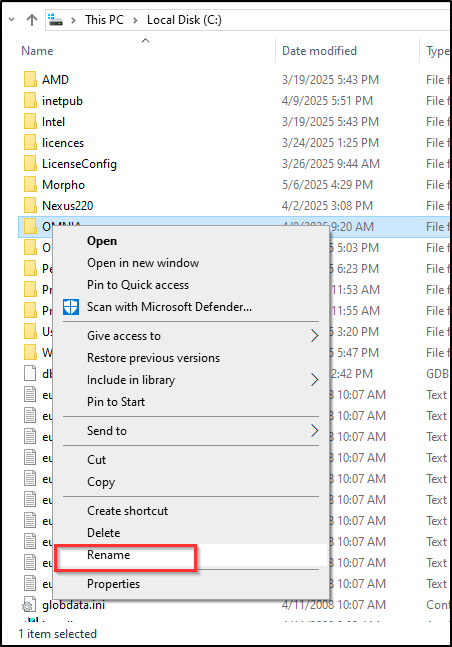
Navigate to C:\OMNIA, highlight the OMNIA folder, right click and select rename.

Name the folder something else. ex.  OMNIA4_5

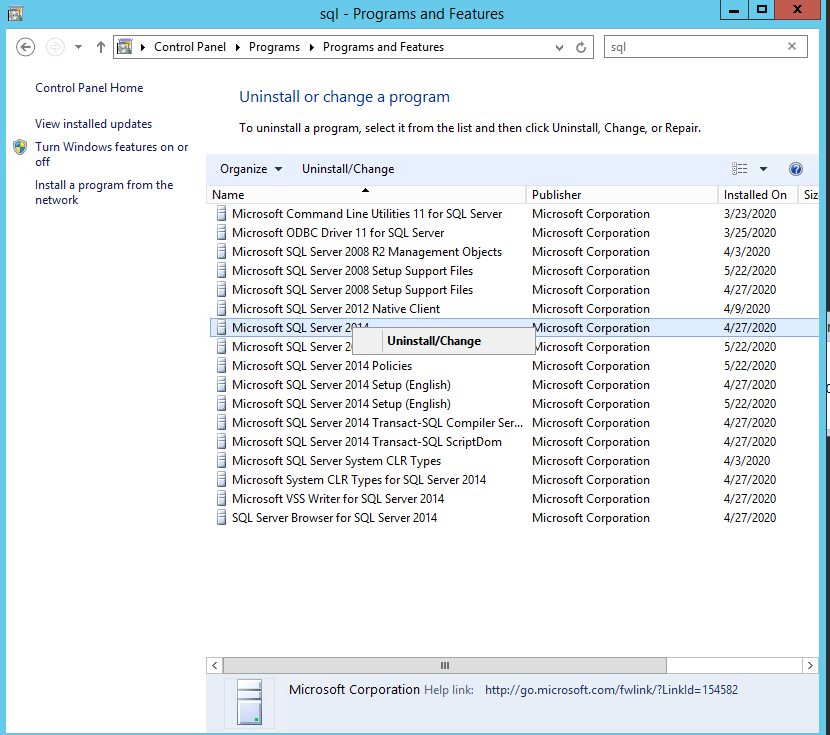
Uninstall the older version SQL Server Management Studio as well.

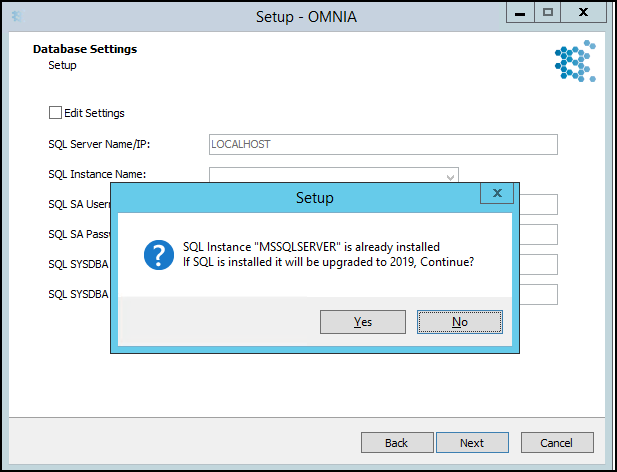
If the existing site has SQL 2014 configured, the uninstallation of SQL 2014 is required before installing 2019. The OMNIA installation does not upgrade SQL 2014 to SQL 2019 automatically and the SQL 2019 Installation will not occur.

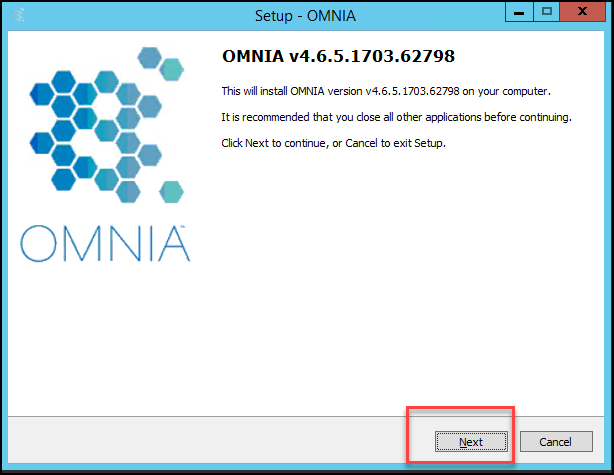
Begin the OMNIA 4.6.5 Installation

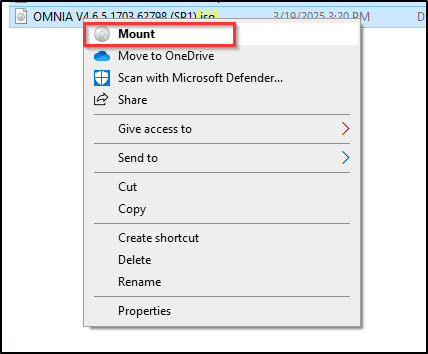
Mount the OMNIA 4.6.5 .ISO 

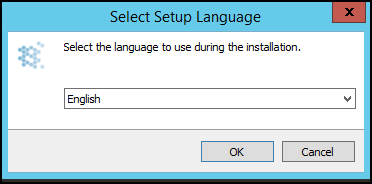
Right Click OMNIA.exe and run as AdministratorUsing the new OMNIA installer, follow the prompts to complete installation.

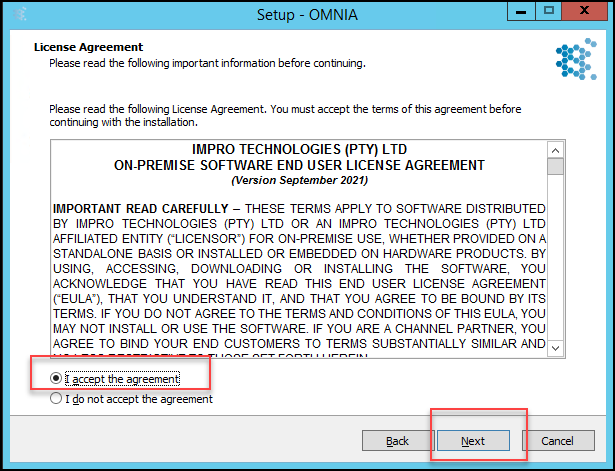
Accept the Agreement and Select Next

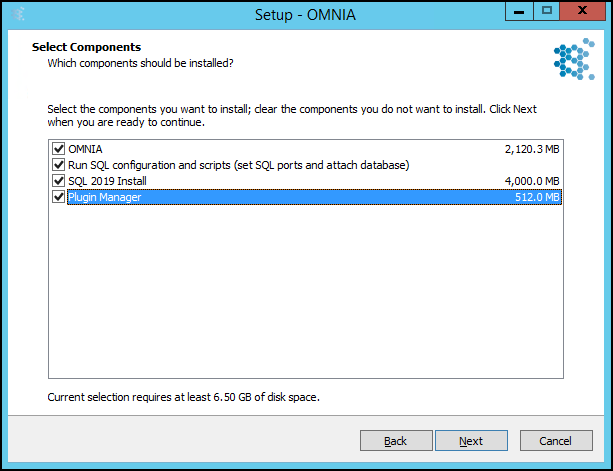
Select what options you want installed.

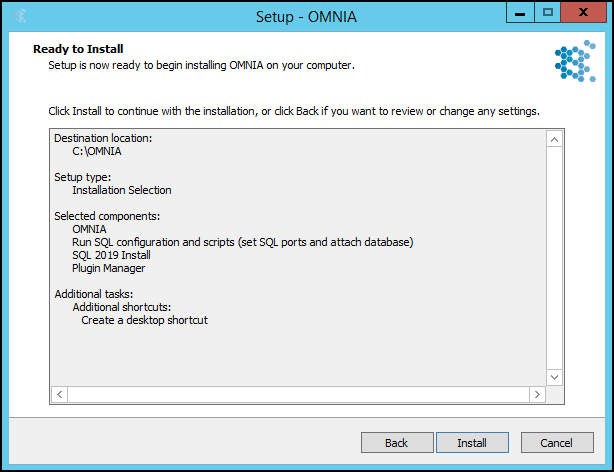
In this example we are installing OMNIA, the OMNIA Plugin Mgr,  and SQL 2019 Express with tools. We will be also running the SQL Configuration and Scripts.

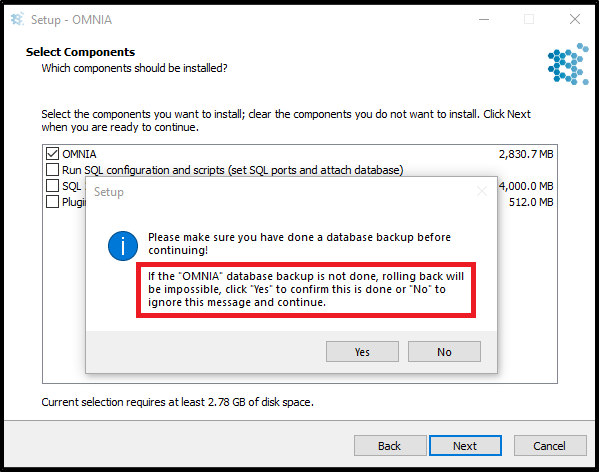
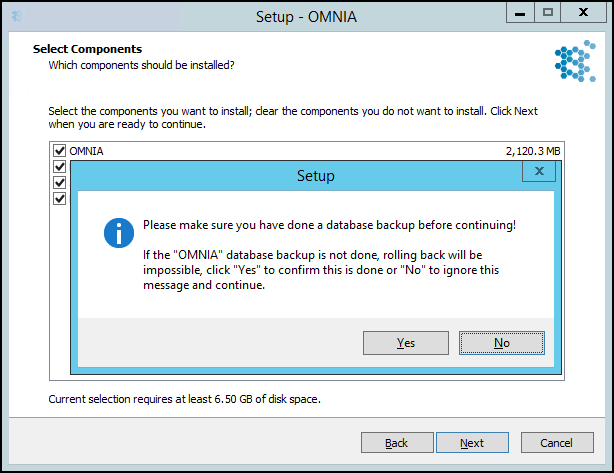
Confirm a Database backup has been made, or a copy of the database has been made.

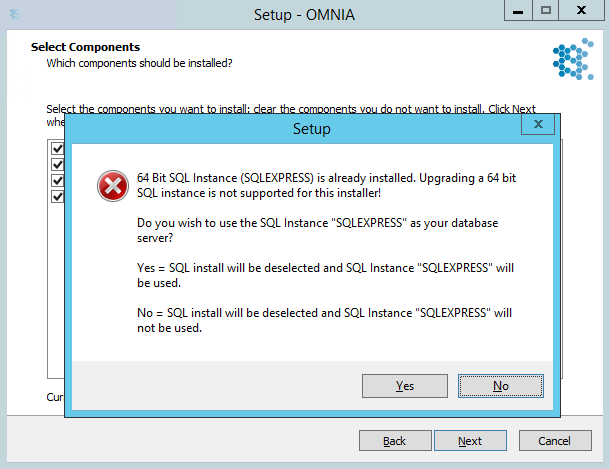
If you receive the message below, you have not completely uninstalled the previous version of 

SQL express completely. Select Yes and Next

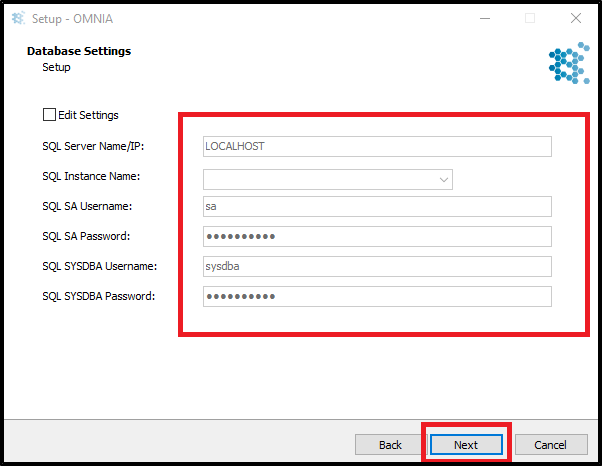
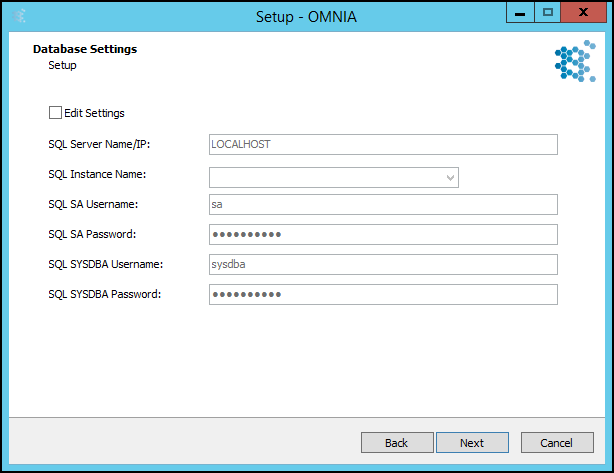
Leave this page blank unless the basic OMNIA information has been changed/updated.

Select Next

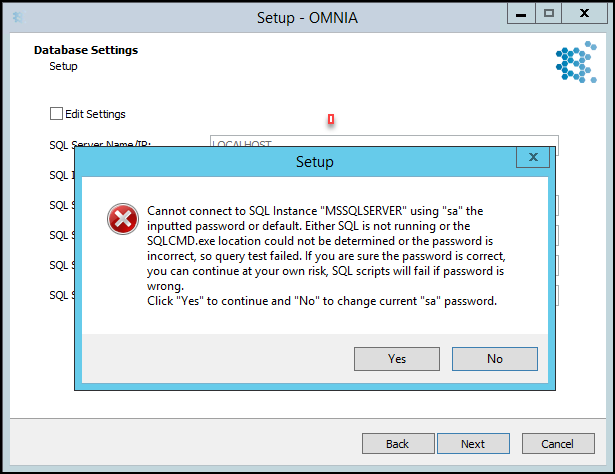
The below error is common and does not cause concern. SQL has not been installed yet so it cannot connect to the SQL Instance, Select Yes, then Next

This is a false indicator, this installer will not upgrade SQL 2014 to SQL 2019. Select Yes

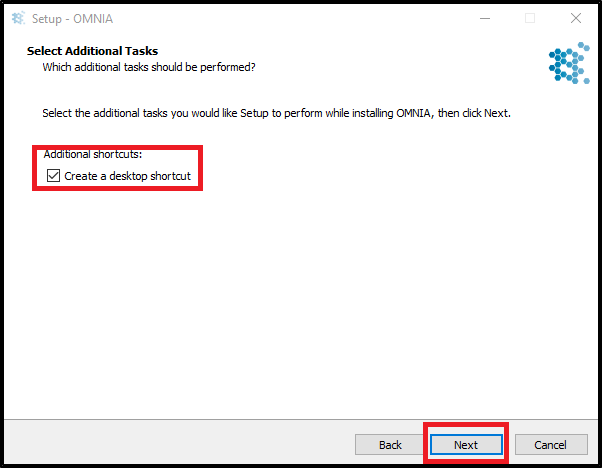
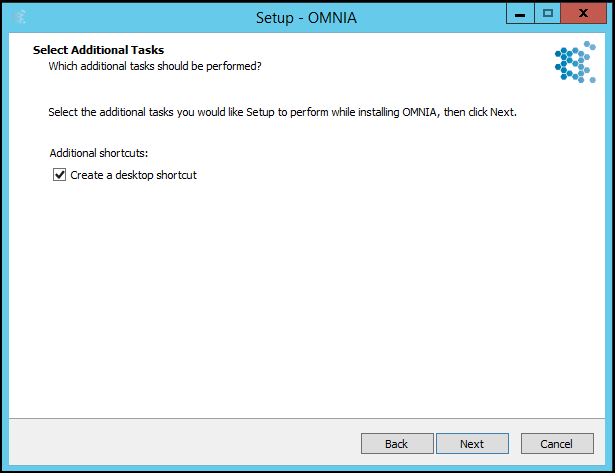
Select if you would like a short cut for the OMNIA Server App to be placed on the desktop,

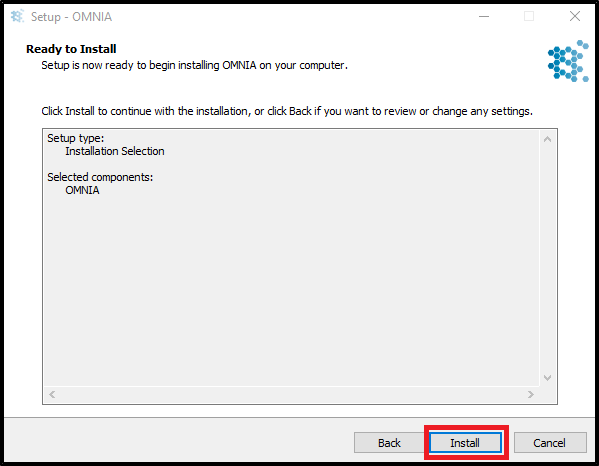
Select Install

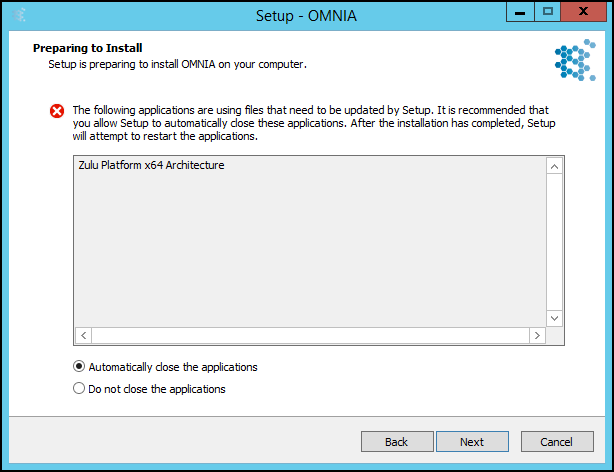
The installation process may find programs that need to be restarted, Select Automatically close the applications then select Next

The Installation Wizard will complete.

NOTE:

Do not start OMNIA now, You will need to place the OMNIA Database and Log File into the new OMNIA installation database folder before starting OMNIA.

24

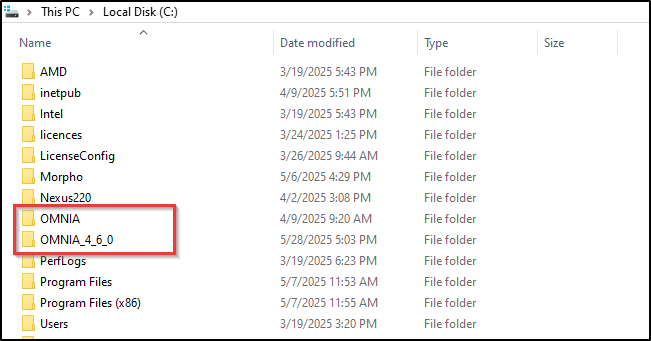
In the C: drive you will see two OMNIA folders.

Navigate to C:\OMNIA\Database and Place the copy of the OMNIA.mdf and OMNIA_log.ldf files there.

Download and install the latest version of the SQL Server Management Studio App.

Download from Microsoft.com and run the Installer as Administrator

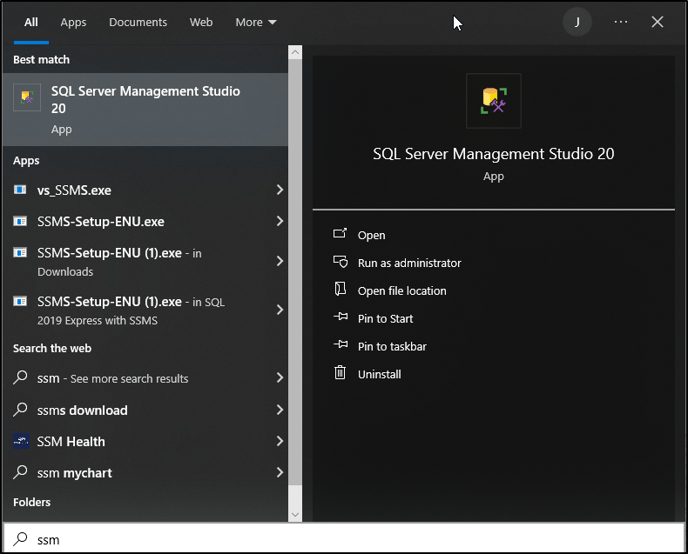
Open the SQL Server Management Studio App

Open the SQL Server Management Studio App

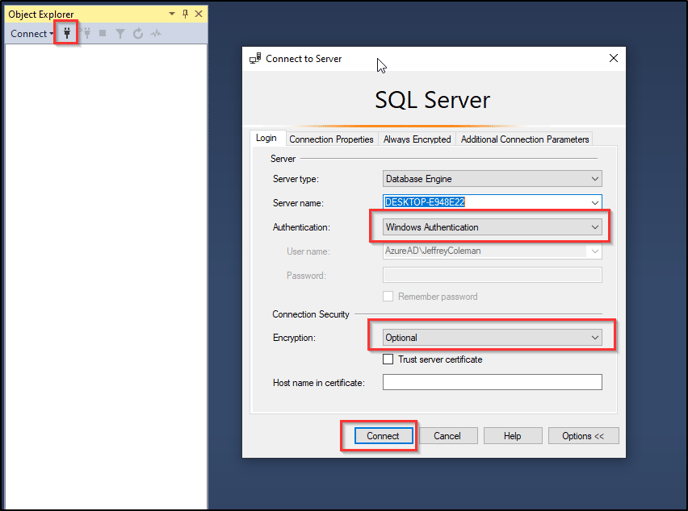
Log into SSMS with “Windows Authentication” with the Encryption set to “Optional”

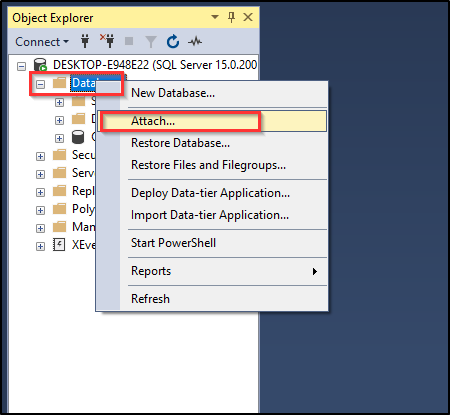
Highlight Databases, Right Click and Select Attach

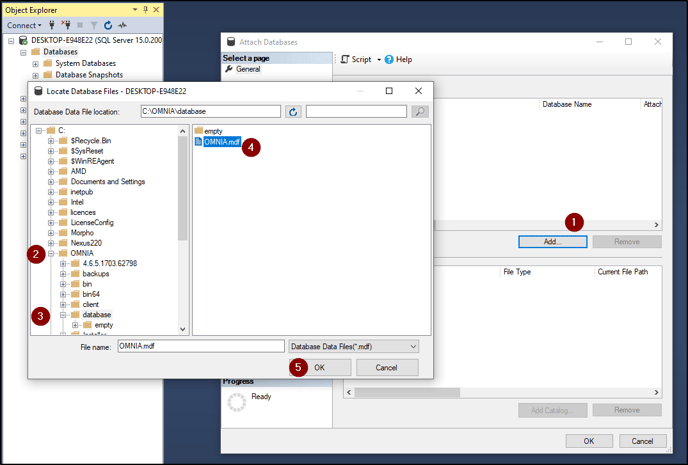
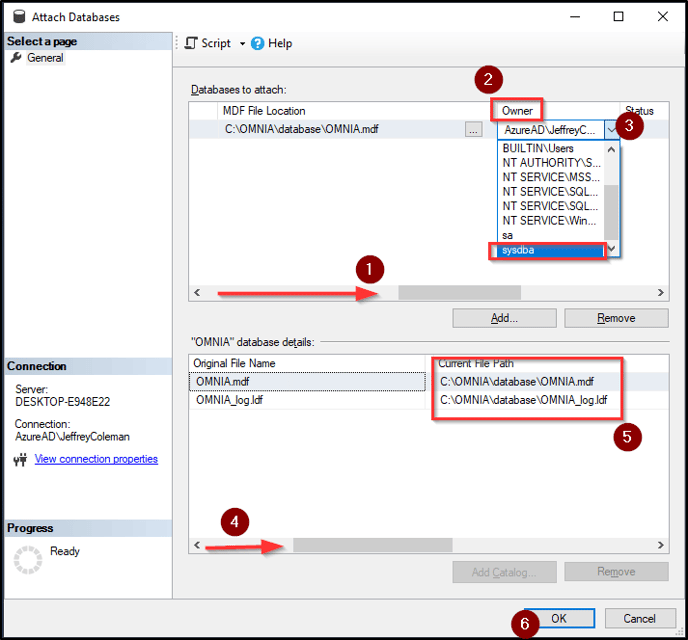
In the Attach Database Window

  1. Select Add and a Locate Database Files window opens, 
  2. in the Locate Database Files window, Use the tree to Navigate to OMNIA, click the (+) to Expand OMNIA
  3. Select database
  4. Select the OMINA.mdf file
  5. Select OK

In the next window, in the Database to Attach field, scroll right to display the “Owner” Column. Use the dropdown to select sysdba as the owner.

  1. In the Attach Database window and in the Databases to attach window, Scroll right
  2. Find the Owner Column
  3. Use the dropdown to select sysdba as the owner
  4. In the OMNIA database details, Scroll right to the Current File Path
  5. Verify location of database and log file is correct. 
  6. Select OK

Start OMNIA Server App.

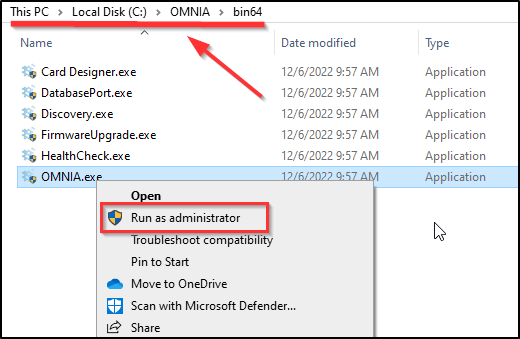
Navigate to C:\OMNIA\Bin64.

Run OMNIA.exe as Admin

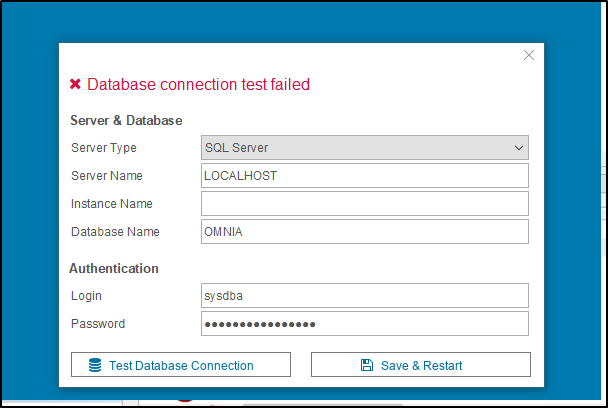
If you get Database connection test failed.

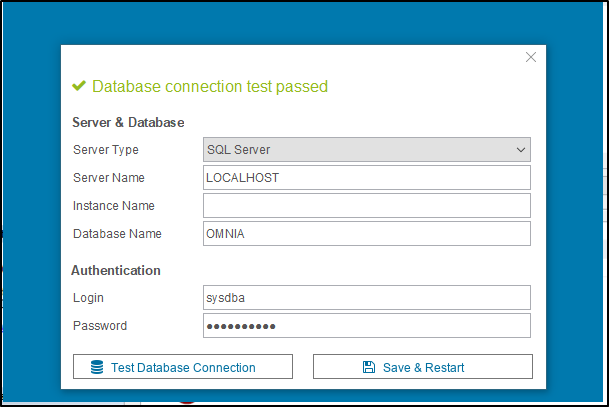
Replace the sysdba password with masterkey and select Test Database Connection 

The End Result will be as below, 

Select Save and Restart.

OMNIA is now Upgraded

Submit a Support Ticket

FAQ

General

Can I initiate RS485 comms to a terminal from an existing IP terminal?

How to Select the Right Cable for the job

IDEMIA Sigma Lite Readers NOT compatible for use in AmanoNet or Nexus220

Network Configuration – Best Practices

Technical Bulletins

Akuvox R20 Wiring Diagram to Wiegand Reader Module (WRM)

Finding and Adding Sigma Biometric Units to OMNIA 4.6.5

How to add a PAC Tag type to a Tag Holder

How to upgrade OMNIA hardware firmware using the OMNIA Firmware Upgrade Tool

OMNIA CSV Imports 

OMNIA Run as a Service fix for v4.x

Setting the IP address of a PMT Security Device by Directly Connecting To It with a Laptop.

Access Control

AmanoNet

AmanoNet Back up using IB Console

AmanoNet Minimum PC Requirements and Specifications

AmanoNet System Migration Notes

Archive Tagholders in AmanoNet

Archive Transactions in AmanoNet

AutoID IP Hardware in AmanoNet

How to get PMTSecurity a copy of the AmanoNet Access Control Database

How to move AmanoNet Access Control System from one PC to another (Firebird)

IDEMIA Sigma Lite Readers NOT compatible for use in AmanoNet or Nexus220

ImproNet/AmanoNet Database Backup: SQL

Nexxus220

Change Default Password in Nexus220
Database Migration from Nexus220/IXP220 to OMNIA
How to fix a Java SE Binary Error in Nexus220 Software
How to get a copy of a database from Nexus220 Software
How to move Nexus220 to a different PC
IDEMIA Sigma Lite Readers NOT compatible for use in AmanoNet or Nexus220
Move Nexus220 Access Control System from one PC to another (Firebird)
Nexus220 Firmware Upgrade
Nexus220 Notifications Configuration/Email Configuration
Nexus220 The number of doors for this license has been exceeded
Nexus220 Web Reports Using Microsoft Edge
Reduce length of time on buzzer for readers in Nexus220

Omnia

Adding a New Department in Omnia

Adding Companies to Omnia

Adding Widgets to the OMNIA Dashboard

Aperio Wireless Lock Integration

Basic Setup Guide:  Akuvox

Basic Trouble Shooting OMNIA

Batch Operations OMNIA

Change SYSDBA Password in OMNIA

Changing the IP Address of a Previously Installed Controller using the Omnia Software/URL

Configuring Web Session Timeouts in OMINA

Omnia Lite

Convert a Nexus Lite Database into OMNIA Lite Database

OMNIA LiTE Backup

PM Tronics Hardware

Amano Readers and Credentials

Change Modulation mode on XQT904 Quad Transmitter
How do I change Wiegand Output Mode on Amano readers?

Legacy Hardware

Factory Reset legacy Amano IP Cameras (sold prior to 2018)

Factory Reset Nexus220 controller

How do I factory reset the EC2 (400i) controller?

Setting IP on PMTronics Inc. Access Control Hardware

Partner Products

Partner Products

IDEMIA Sigma Lite Readers NOT compatible for use in AmanoNet or Nexus220

Installing Cathexis Carbon and Adding a new Account

Setting Read Range on a Conekt Reader

STID Configuration

Video Management Systems

Cathexis Video (Amano Vision)

Adding Cameras into Cathexis

Cathexis Video AV (AntiVirus Exceptions)

Installing Cathexis Carbon and Adding a new Account

Quick Start Guide for Cathexis Vision Version 2025

AmanoDVMS

Which AmanoDVMS ports need to be open on my firewall?

Vision

Adding Cameras into Cathexis

AmanoVision web access user name case sensitivity usage

  • « Go to Previous Page
  • Page 1
  • Page 2
  • Page 3
  • Page 4
  • Page 5
  • Interim pages omitted …
  • Page 18
  • Go to Next Page »

PMT Security

Copyright © 2025 PMT Security, Inc. | All Rights Reserved