• Skip to primary navigation
  • Skip to main content
PMT Security Logo

PMT Security

Advanced Access Control

  • Home
  • About Us
    • Our Partners
    • Our Integrators
  • Solutions
    • Residential
    • Government Facilities
    • Education
    • Retirement
    • Manufacturing
    • Retail Businesses
    • Campgrounds & Outdoor Resorts
  • Products
    • Access Control
      • Control Features
      • Reporting & Monitoring
      • Control Module
      • Digital IO Module
      • Reader Module
      • Readers
    • Video Management
      • Integration
      • Analytics
      • Search & Export
    • Visitor Management
  • Support
    • Knowledgebase
    • Download Center
    • License Request
    • RMA Request Form
  • Blog
  • Contact Us

Access Control

How to upgrade OMNIA hardware firmware using the OMNIA Firmware Upgrade Tool

How to upgrade OMNIA hardware firmware using the OMNIA Firmware Upgrade Tool.

Using the OMNIA Firmware Upgrade Tool

How to upgrade OMNIA hardware firmware using the OMNIA Firmware Upgrade Tool.

In this example we will be upgrading an XRT920, iTRT. This process can be used to upgrade any OMNIA Hardware firmware version.

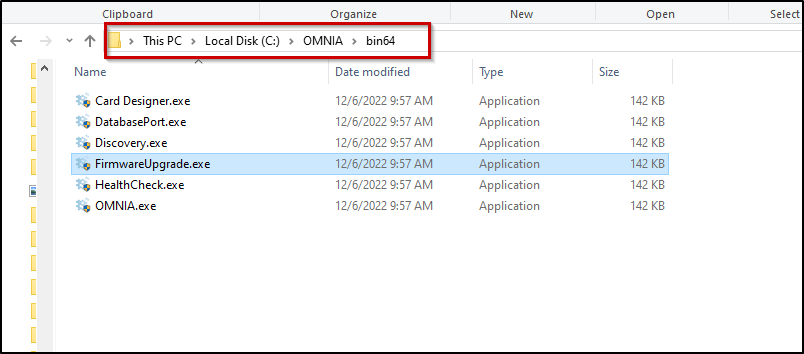
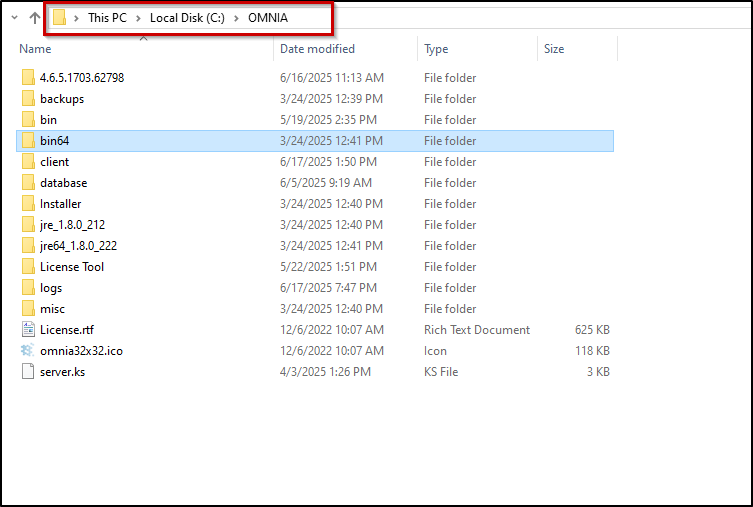
Open the Firmware Upgrade tool.

  • Navigate to C:\OMNIA\bin64\FirmwareUpgrade.exe
Before Using Stop OMNIA from communicating with Controller.

There are multiple ways of Stopping the Engine.

  • From the hidden Icon Tray, Right Click the OMNIA Icon and select Stop Engine
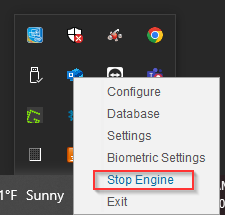
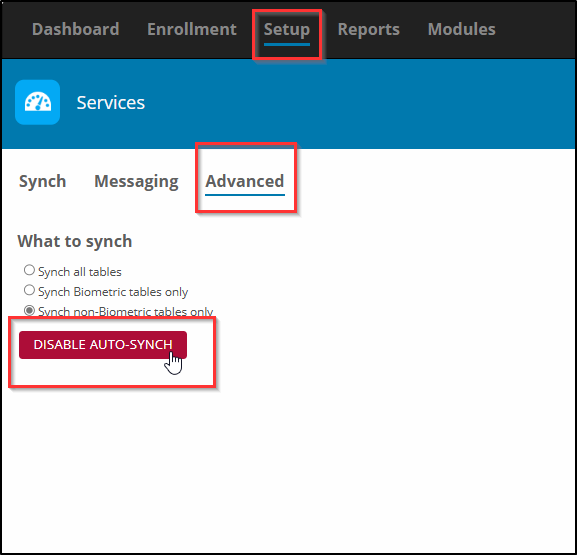
  • Or from the OMNIA URL by disabling the Auto-Sync
  • Setup/Services/Advanced
  • Select Disable Auto-Sync

Search For Devices

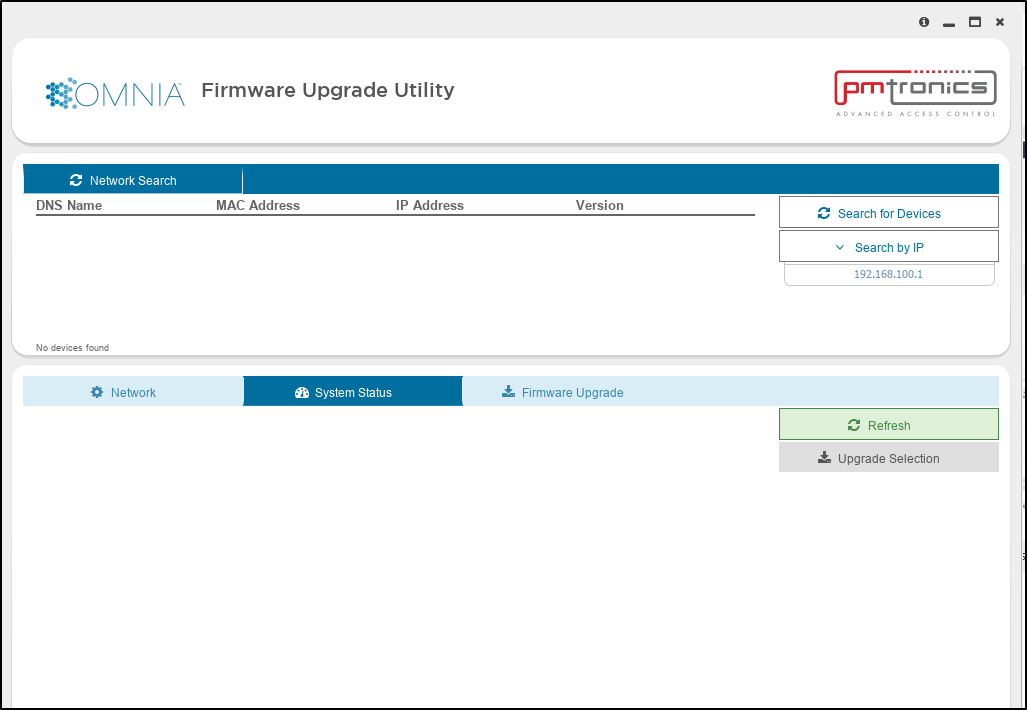
After launching the Firmware Upgrade Tool, You must search for the IP of the OMNIA Controller the device is associated with.

  1.  Select Search for Devices to search via the Subnet or manually enter IP address of controller and Search by IP.
  2. From the Search Results, Select the Controller
  3. Select System Status
  4. Select Refresh to discover devices associated with the OMNIA Controller
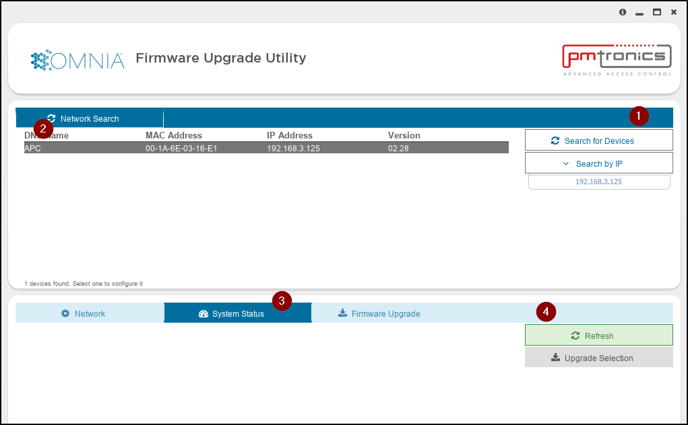
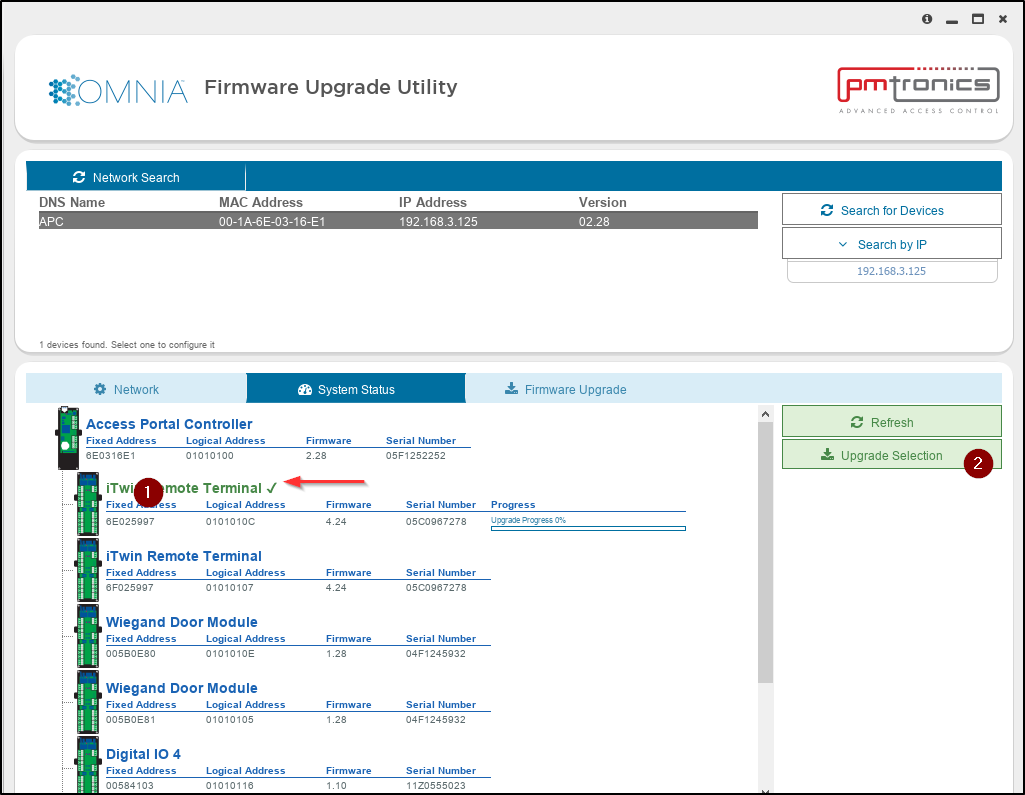
The Search will return with a list of associated devices. 

Note:

RS485 Communication Terminals will appear even if not installed yet but IP terminals will only appear after being installed/associated with Controller.
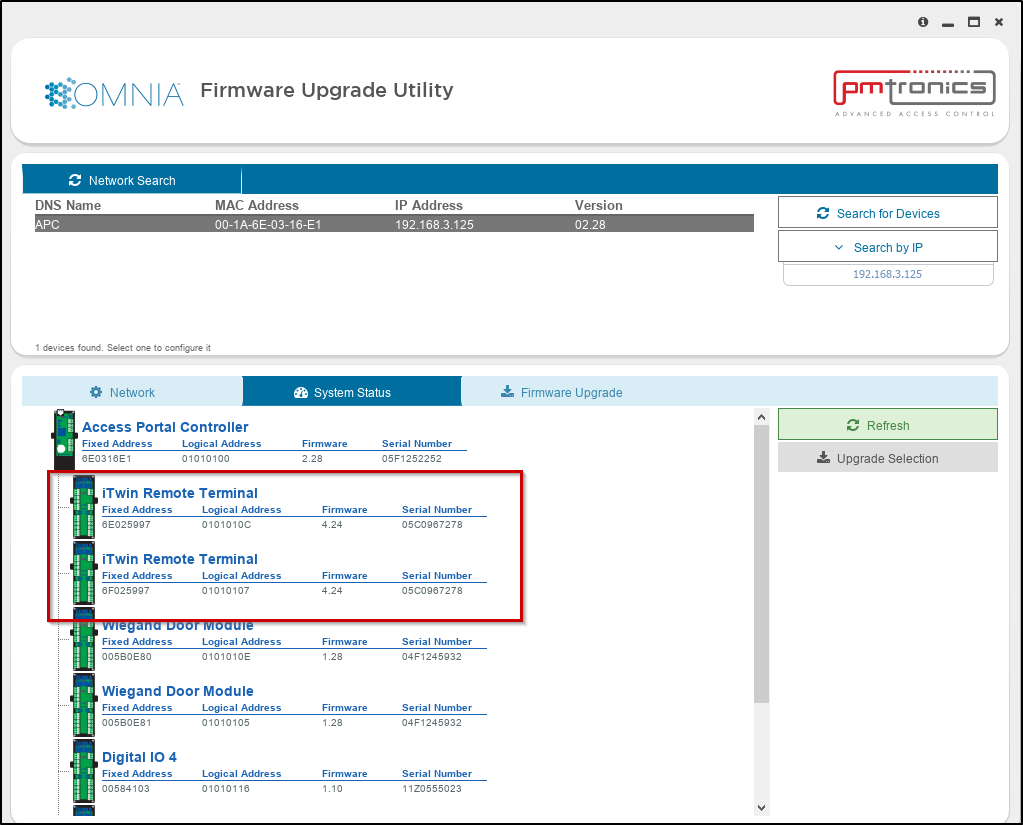
Select the Terminal you want to upgrade.

  1. Select the Terminal ( Both Fixed Addresses will upgrade )
  2. Select Upgrade Selection

The upgrade process begins and begins displaying a progress bar.
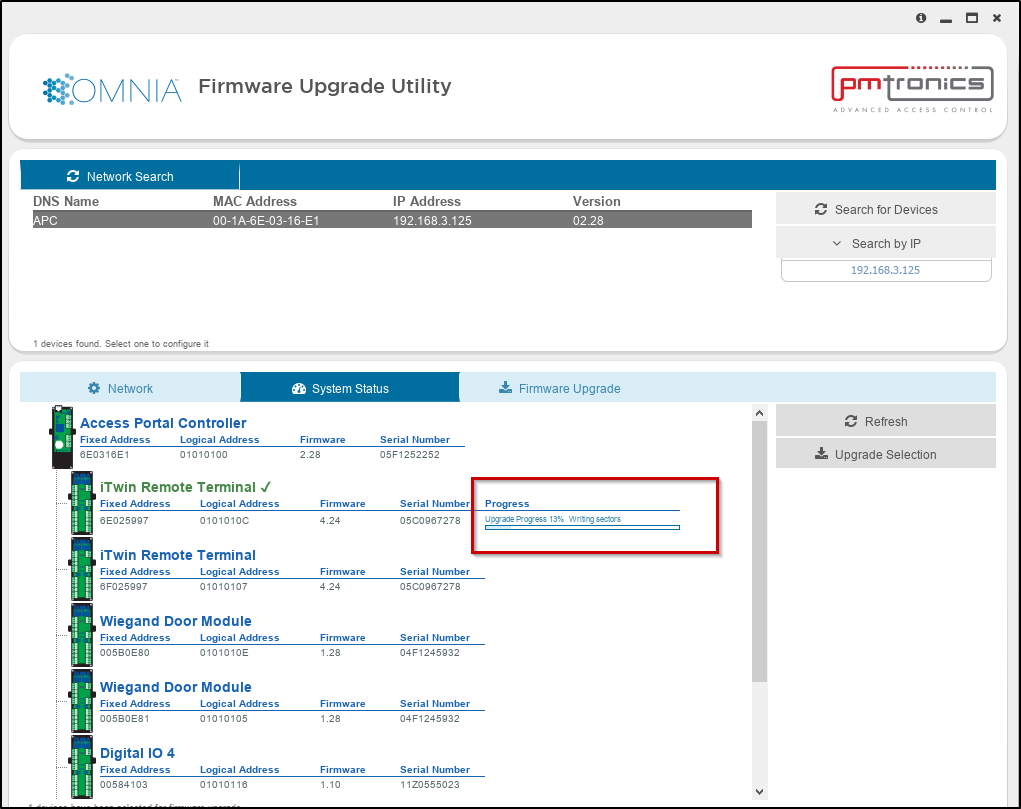
After the upgrade has completed, the screen will refresh. You will be able to see the new Firmware Version.
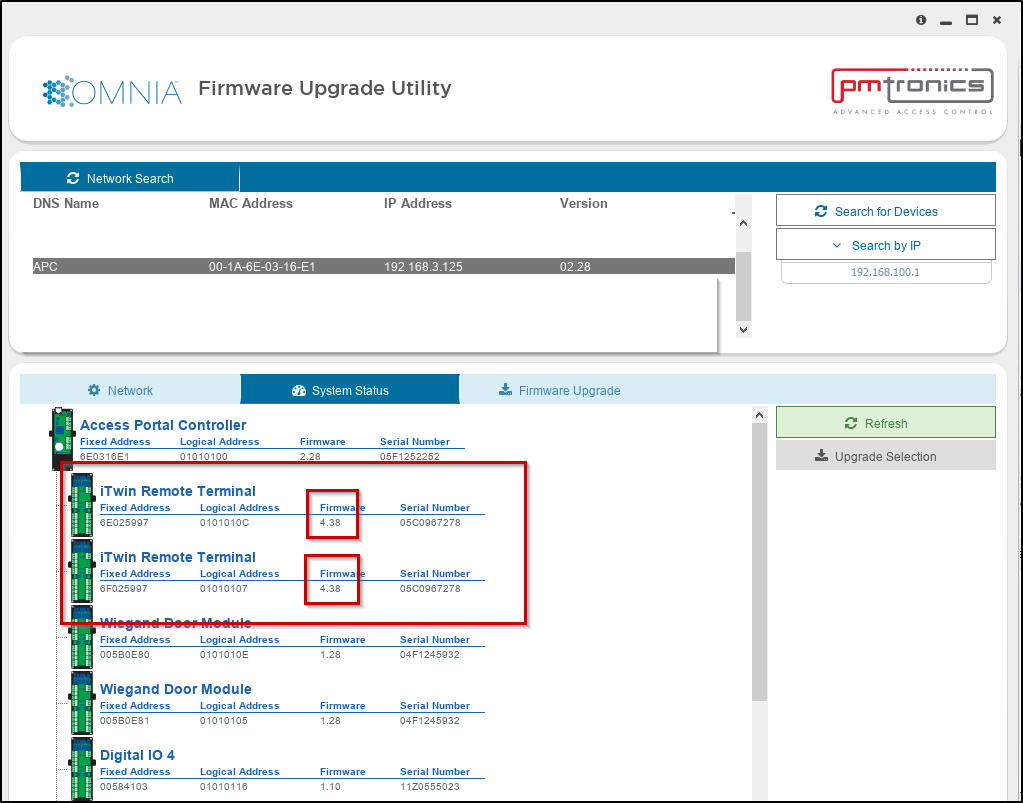
The Firmware upgrade process is now complete.


Ensure to use the Correct Firmware Version.

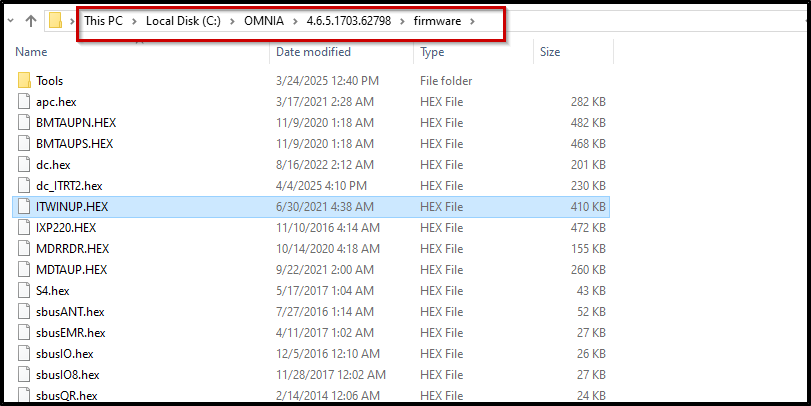
The Firmware Upgrade Tool will use the firmware versions located in the OMNIA firmware folder. 
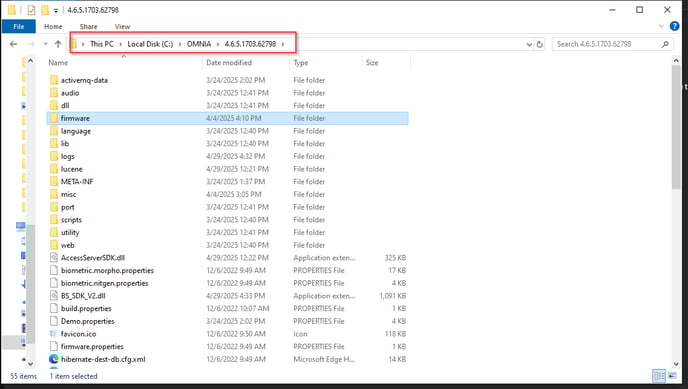
To Ensure you are upgrading to the correct Version of Firmware, you will need to replace the current version of firmware.

NOTE:

It is recommended not to delete or overwrite the current version of firmware. This is just in case the firmware upgrade does not provide the required results and a rollback to the previous version of firmware is needed.

It is recommended to rename the current version.  Example: For this tutorial we are upgrading an XRT920, the firmware for this is named ITWINUP.HEX. Rename ITWINUP.HEX to ITWINUPHEX.4.16 and save, then copy over and paste in the newer version of firmware. It will have the name ITWINUP.HEX.
     

Submit a Support Ticket

FAQ

General

Can I initiate RS485 comms to a terminal from an existing IP terminal?

How to Select the Right Cable for the job

IDEMIA Sigma Lite Readers NOT compatible for use in AmanoNet or Nexus220

Network Configuration – Best Practices

Technical Bulletins

Akuvox R20 Wiring Diagram to Wiegand Reader Module (WRM)

Finding and Adding Sigma Biometric Units to OMNIA 4.6.5

How to add a PAC Tag type to a Tag Holder

OMNIA CSV Imports 

OMNIA Run as a Service fix for v4.x

Setting the IP address of a PMT Security Device by Directly Connecting To It with a Laptop.

Upgrading To OMNIA 4.6.5 and 2019 SQL Express With Tools

Access Control

AmanoNet

AmanoNet Back up using IB Console

AmanoNet Minimum PC Requirements and Specifications

AmanoNet System Migration Notes

Archive Tagholders in AmanoNet

Archive Transactions in AmanoNet

AutoID IP Hardware in AmanoNet

How to get PMTSecurity a copy of the AmanoNet Access Control Database

How to move AmanoNet Access Control System from one PC to another (Firebird)

IDEMIA Sigma Lite Readers NOT compatible for use in AmanoNet or Nexus220

ImproNet/AmanoNet Database Backup: SQL

Nexxus220

Change Default Password in Nexus220
Database Migration from Nexus220/IXP220 to OMNIA
How to fix a Java SE Binary Error in Nexus220 Software
How to get a copy of a database from Nexus220 Software
How to move Nexus220 to a different PC
IDEMIA Sigma Lite Readers NOT compatible for use in AmanoNet or Nexus220
Move Nexus220 Access Control System from one PC to another (Firebird)
Nexus220 Firmware Upgrade
Nexus220 Notifications Configuration/Email Configuration
Nexus220 The number of doors for this license has been exceeded
Nexus220 Web Reports Using Microsoft Edge
Reduce length of time on buzzer for readers in Nexus220

Omnia

Adding a New Department in Omnia

Adding Companies to Omnia

Adding Widgets to the OMNIA Dashboard

Aperio Wireless Lock Integration

Basic Setup Guide:  Akuvox

Basic Trouble Shooting OMNIA

Batch Operations OMNIA

Change SYSDBA Password in OMNIA

Changing the IP Address of a Previously Installed Controller using the Omnia Software/URL

Configuring Web Session Timeouts in OMINA

Omnia Lite

Convert a Nexus Lite Database into OMNIA Lite Database

OMNIA LiTE Backup

PM Tronics Hardware

Amano Readers and Credentials

Change Modulation mode on XQT904 Quad Transmitter
How do I change Wiegand Output Mode on Amano readers?

Legacy Hardware

Factory Reset legacy Amano IP Cameras (sold prior to 2018)

Factory Reset Nexus220 controller

How do I factory reset the EC2 (400i) controller?

Setting IP on PMTronics Inc. Access Control Hardware

Partner Products

Partner Products

IDEMIA Sigma Lite Readers NOT compatible for use in AmanoNet or Nexus220

Installing Cathexis Carbon and Adding a new Account

Setting Read Range on a Conekt Reader

STID Configuration

Video Management Systems

Cathexis Video (Amano Vision)

Adding Cameras into Cathexis

Cathexis Video AV (AntiVirus Exceptions)

Installing Cathexis Carbon and Adding a new Account

Quick Start Guide for Cathexis Vision Version 2025

AmanoDVMS

Which AmanoDVMS ports need to be open on my firewall?

Vision

Adding Cameras into Cathexis

AmanoVision web access user name case sensitivity usage

Navigating IPTool 3

Navigating IPTool 3

How to navigate, search, change IP and Open camera using the IPTool 3

Make sure you have IPTOOL3 installed on a computer and connected to the same network as your IP cameras.

1. Installation: https://pmtsecurity.com/download-center/

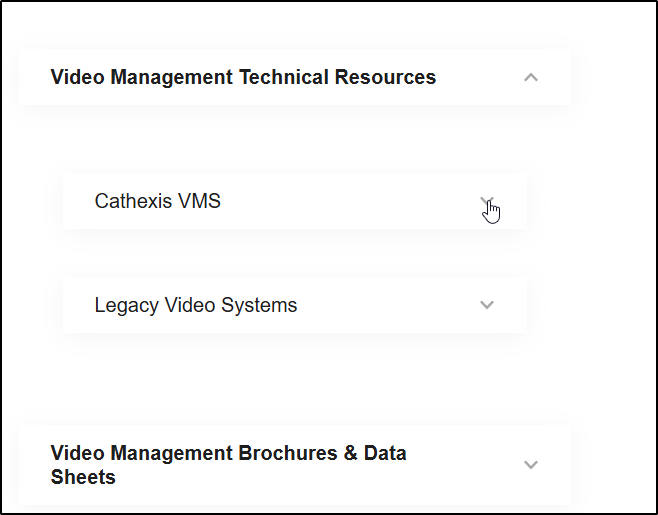
     a. Select Video Management Technical Resources arrow.

1-Jun-12-2025-03-40-41-5211-PM

     b. Select Cathexis VMS

2-Jun-12-2025-03-40-41-5202-PM

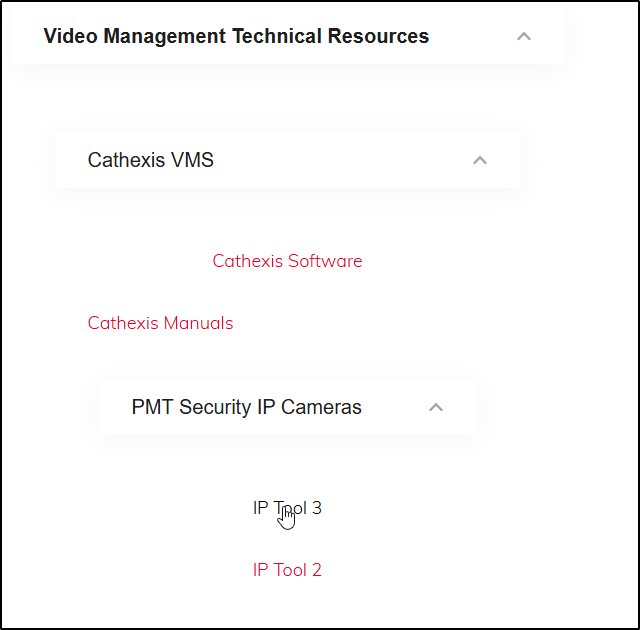
     c. Select the IPTOOL3

3-Jun-12-2025-03-40-41-5211-PM

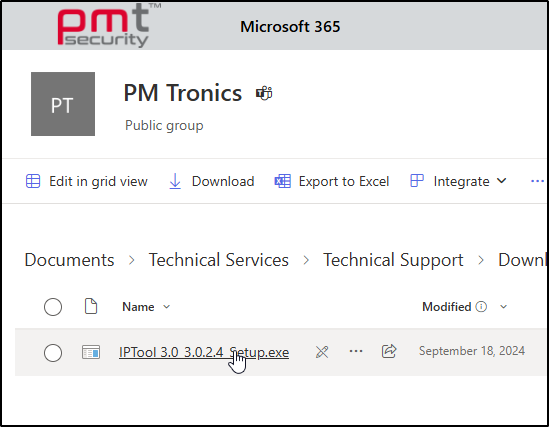
     d. Select the .exe Setup and download

4-Jun-12-2025-03-40-41-5204-PM

2. Network Scan:

Run IPTOOL3 and let it scan your network to detect any IP cameras.

     a. Open IPTool by double clicking or right click and select Open.

5-Jun-12-2025-03-40-41-5202-PM

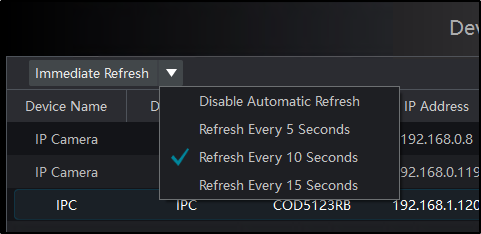
     b. Once open you can regulate how often the network search is conducted. 

6-Jun-12-2025-03-40-41-5234-PM

     c. Select the down arrow to adjust the Refresh rate.

7-Jun-12-2025-03-50-52-8897-PM

3. Camera Selection:

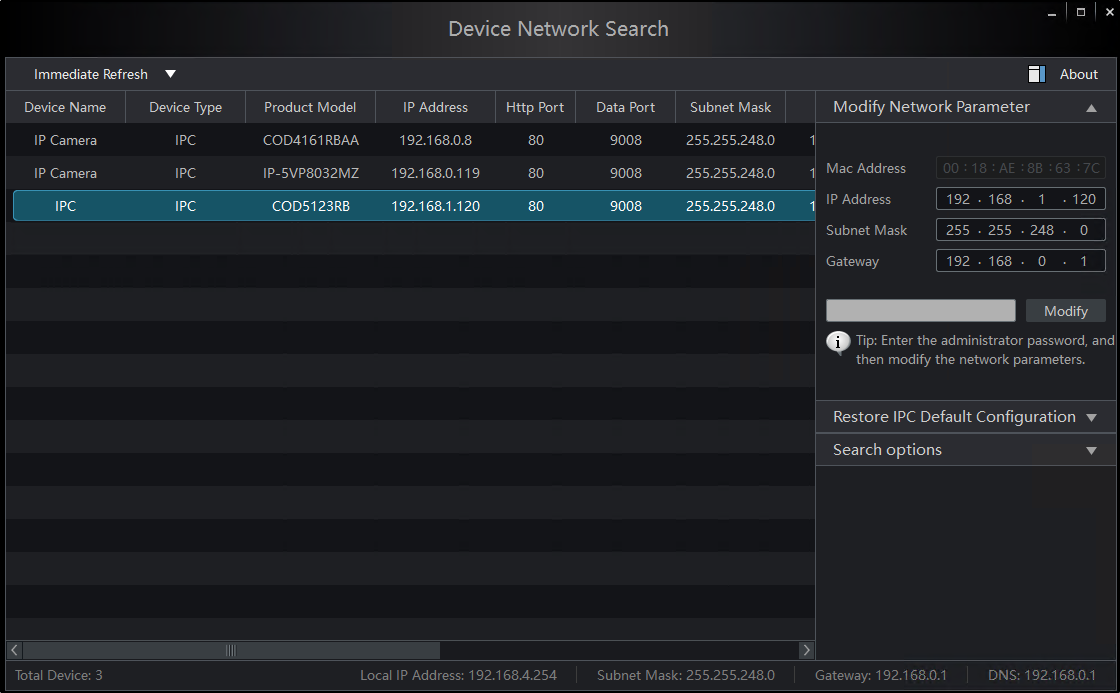
Once the cameras are detected, you can select the specific camera you want to work with.

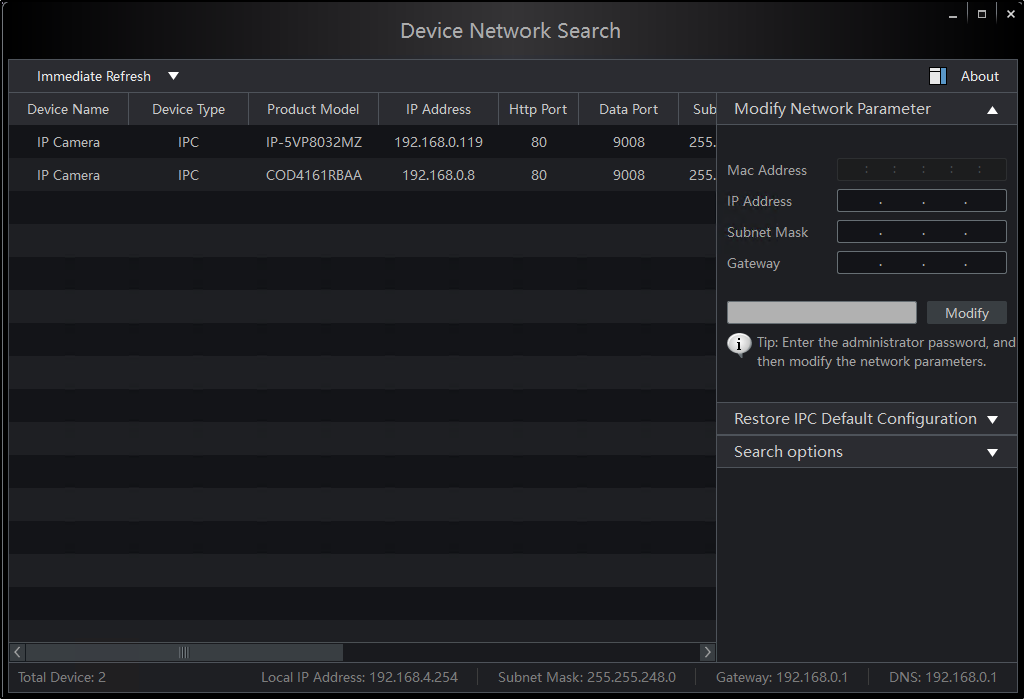
     a. Select camera

8-Jun-12-2025-04-07-10-0302-PM

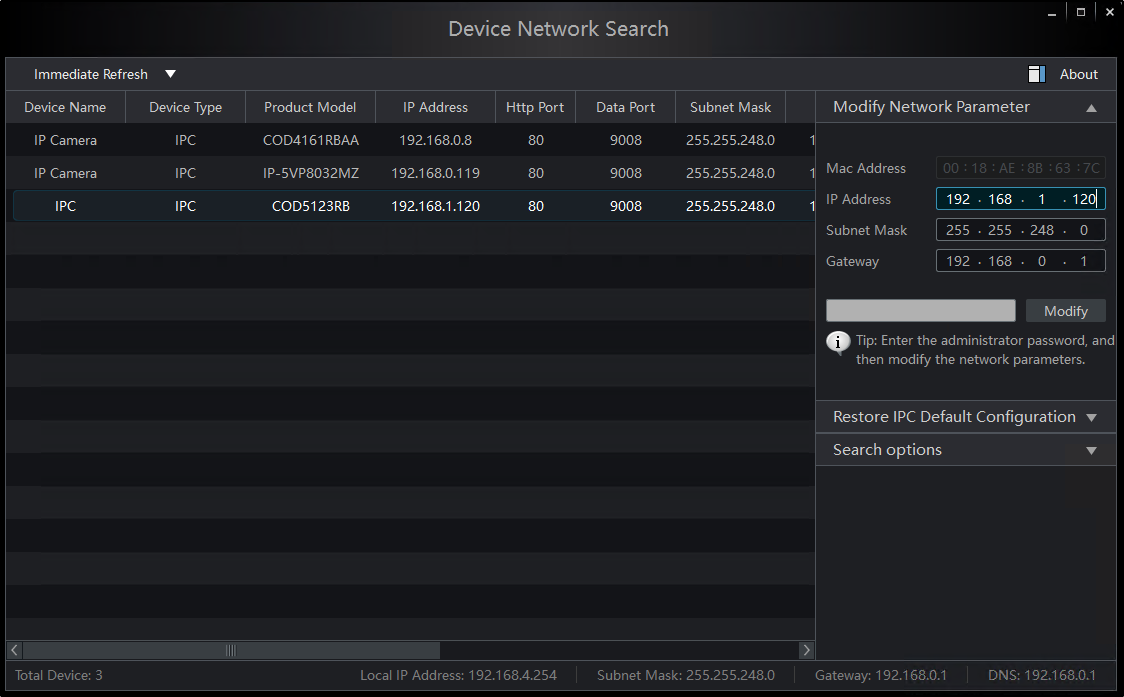
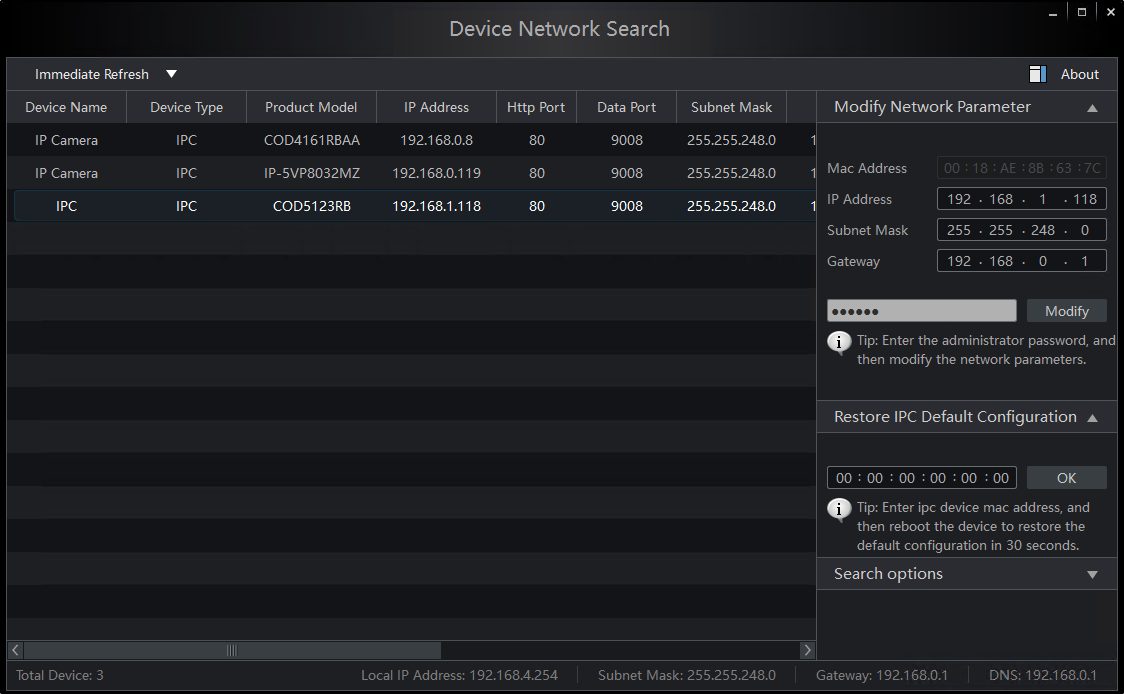
     b. To change the IP Address, Subnet Mask, and Gateway. In the Modify Network Parameter section select each box you want to make changes to.

10-Jun-12-2025-05-11-06-5704-PM

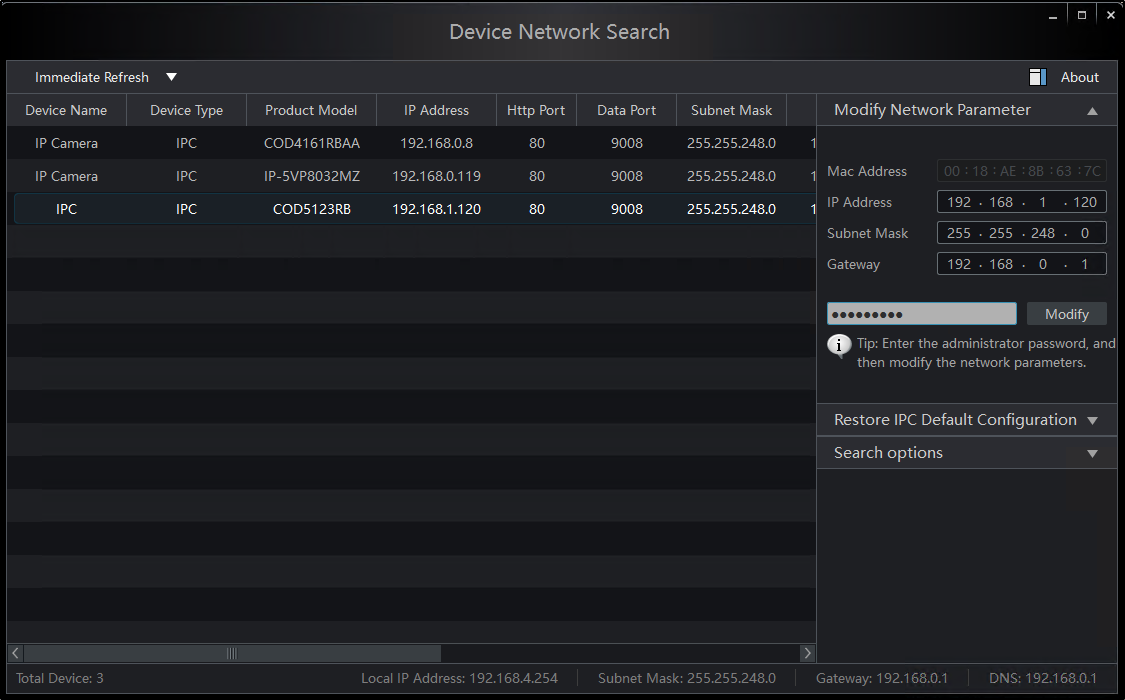
     c. Once you’ve made the necessary changes. Select the grey box and enter the password to your camera then click Modify. 

Default IP for PMT Security Cameras: 192.168.226.201

Default Password for PMT Security Cameras: 123456

11-4

     d. To Restore IPC Default Configuration enter IPC Device mac address then reboot the device within 30 seconds.

14-1

4. Configuration Path:

IPTOOL3 provides path to IPC URL.

     a. Double click the Camera

8-Jun-12-2025-04-07-10-0302-PM

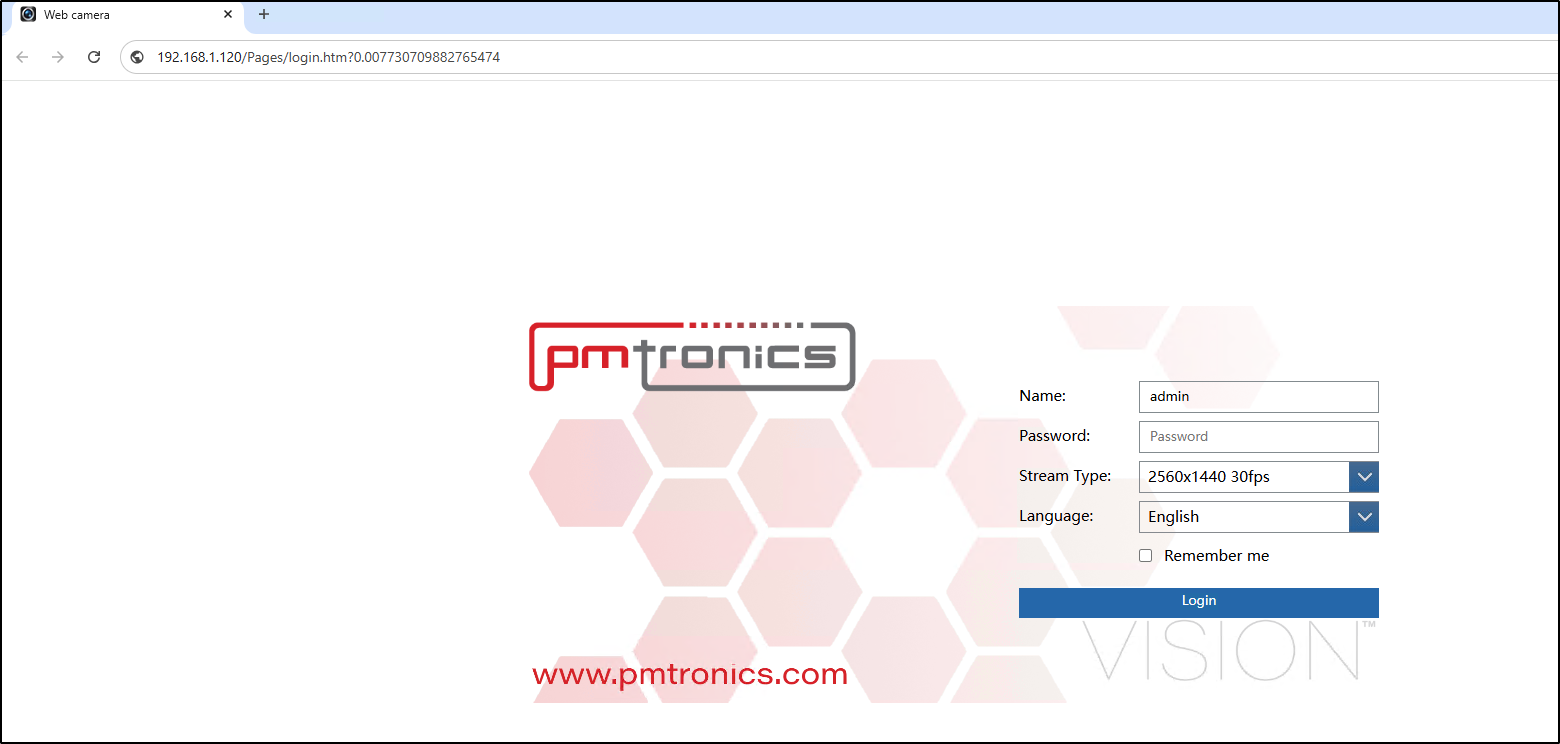
     b. It will open in your default Web-Browser. From here you will be able to log into the camera to continue camera configuration before installation in the Video Management System.
9-Jun-12-2025-05-29-11-4691-PM

Submit a Support Ticket

FAQ

General

Can I initiate RS485 comms to a terminal from an existing IP terminal?

How to Select the Right Cable for the job

IDEMIA Sigma Lite Readers NOT compatible for use in AmanoNet or Nexus220

Network Configuration – Best Practices

Technical Bulletins

Akuvox R20 Wiring Diagram to Wiegand Reader Module (WRM)

Finding and Adding Sigma Biometric Units to OMNIA 4.6.5

How to add a PAC Tag type to a Tag Holder

How to upgrade OMNIA hardware firmware using the OMNIA Firmware Upgrade Tool

OMNIA CSV Imports 

OMNIA Run as a Service fix for v4.x

Setting the IP address of a PMT Security Device by Directly Connecting To It with a Laptop.

Upgrading To OMNIA 4.6.5 and 2019 SQL Express With Tools

Access Control

AmanoNet

AmanoNet Back up using IB Console

AmanoNet Minimum PC Requirements and Specifications

AmanoNet System Migration Notes

Archive Tagholders in AmanoNet

Archive Transactions in AmanoNet

AutoID IP Hardware in AmanoNet

How to get PMTSecurity a copy of the AmanoNet Access Control Database

How to move AmanoNet Access Control System from one PC to another (Firebird)

IDEMIA Sigma Lite Readers NOT compatible for use in AmanoNet or Nexus220

ImproNet/AmanoNet Database Backup: SQL

Nexxus220

Change Default Password in Nexus220
Database Migration from Nexus220/IXP220 to OMNIA
How to fix a Java SE Binary Error in Nexus220 Software
How to get a copy of a database from Nexus220 Software
How to move Nexus220 to a different PC
IDEMIA Sigma Lite Readers NOT compatible for use in AmanoNet or Nexus220
Move Nexus220 Access Control System from one PC to another (Firebird)
Nexus220 Firmware Upgrade
Nexus220 Notifications Configuration/Email Configuration
Nexus220 The number of doors for this license has been exceeded
Nexus220 Web Reports Using Microsoft Edge
Reduce length of time on buzzer for readers in Nexus220

Omnia

Adding a New Department in Omnia

Adding Companies to Omnia

Adding Widgets to the OMNIA Dashboard

Aperio Wireless Lock Integration

Basic Setup Guide:  Akuvox

Basic Trouble Shooting OMNIA

Batch Operations OMNIA

Change SYSDBA Password in OMNIA

Changing the IP Address of a Previously Installed Controller using the Omnia Software/URL

Configuring Web Session Timeouts in OMINA

Omnia Lite

Convert a Nexus Lite Database into OMNIA Lite Database

OMNIA LiTE Backup

PM Tronics Hardware

Amano Readers and Credentials

Change Modulation mode on XQT904 Quad Transmitter
How do I change Wiegand Output Mode on Amano readers?

Legacy Hardware

Factory Reset legacy Amano IP Cameras (sold prior to 2018)

Factory Reset Nexus220 controller

How do I factory reset the EC2 (400i) controller?

Setting IP on PMTronics Inc. Access Control Hardware

Partner Products

Partner Products

IDEMIA Sigma Lite Readers NOT compatible for use in AmanoNet or Nexus220

Installing Cathexis Carbon and Adding a new Account

Setting Read Range on a Conekt Reader

STID Configuration

Video Management Systems

Cathexis Video (Amano Vision)

Adding Cameras into Cathexis

Cathexis Video AV (AntiVirus Exceptions)

Installing Cathexis Carbon and Adding a new Account

Quick Start Guide for Cathexis Vision Version 2025

AmanoDVMS

Which AmanoDVMS ports need to be open on my firewall?

Vision

Adding Cameras into Cathexis

AmanoVision web access user name case sensitivity usage

OMNIA DATABASE BACKUP USING SQL 2019

OMNIA Database Backup SQL 2019

This process involves making a backup of the OMNIA Database using Sql Server Management Studio 2019.

OMNIA Database Backup

For SQL Server Management Studio 2019

OMNIA Database Backup

It is essential that regular backups are made and kept on removable media, or on a networked drive.

Storing backups on the local disk will not prevent data loss if the hard drive fails.

To Backup your OMNIA Database:


In the windows search bar. Type SQL Server Management Studio

 Open SQL Server Management Studio
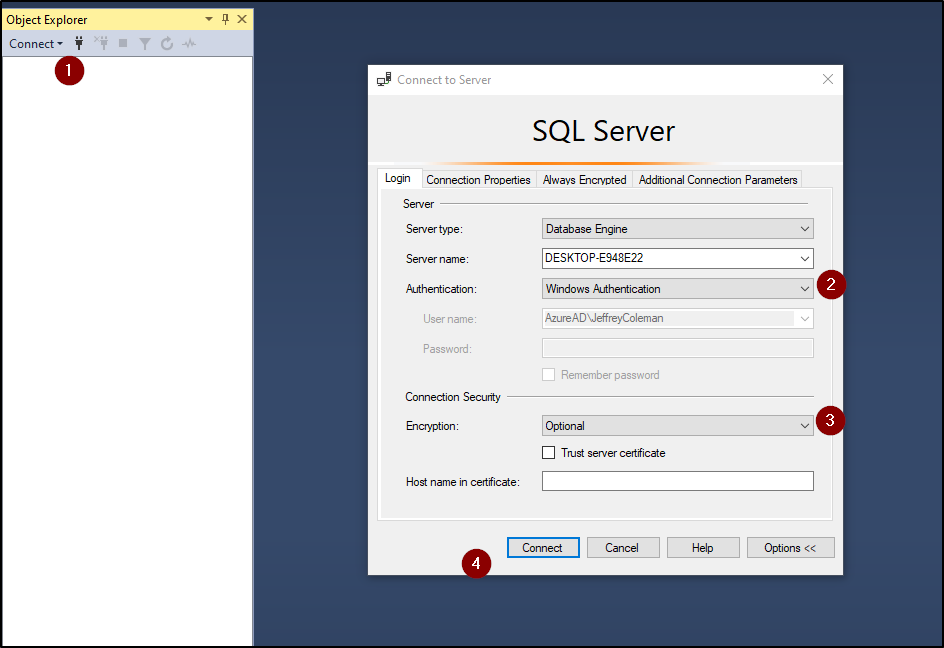
Login using your Login Details

  1. Click Connect
  2. Select Windows Authentication
        Other Possible Logins:
                   User = sysdba   Password = masterkey
                   User = sa           Password = M@sterkey1
  3. Select Optional for Encryption
  4. Select Connect


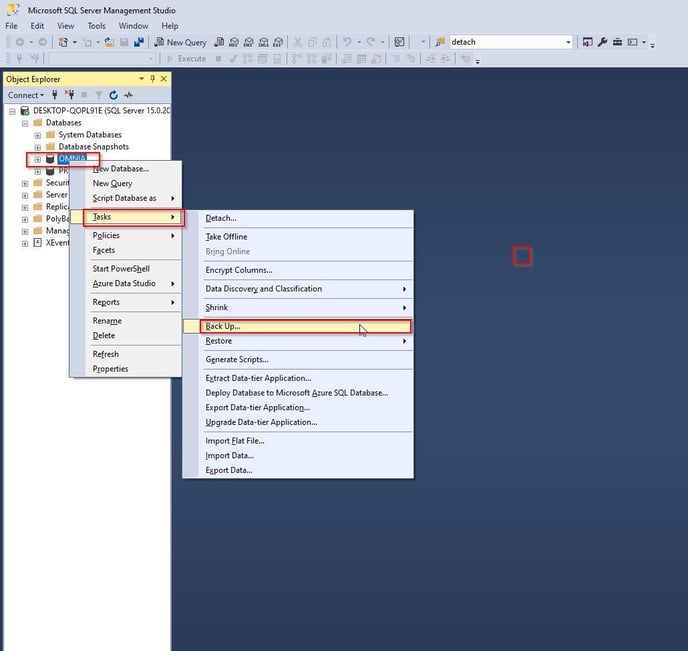
Expand the Database Folder by clicking on the +
Right Click on OMNIA > Tasks> Back Up…

OMNIA_Tasks_Backups

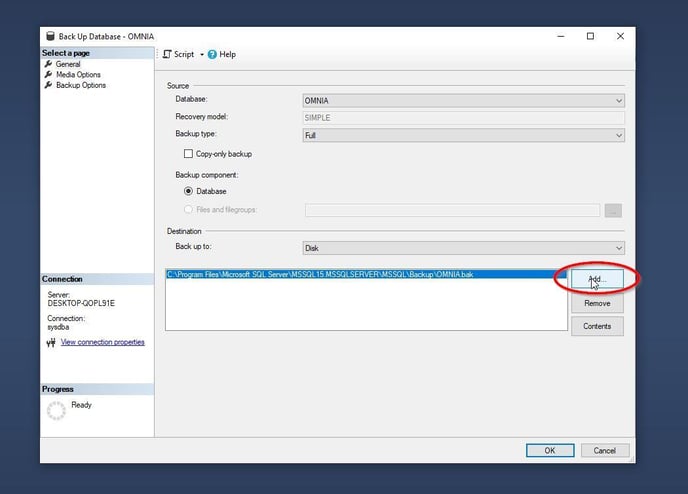
Click on the Add…

Add_Destination

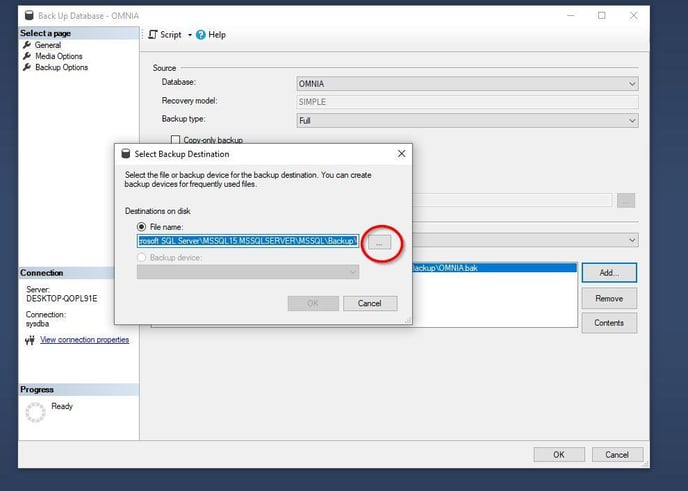
Select the (…) option.

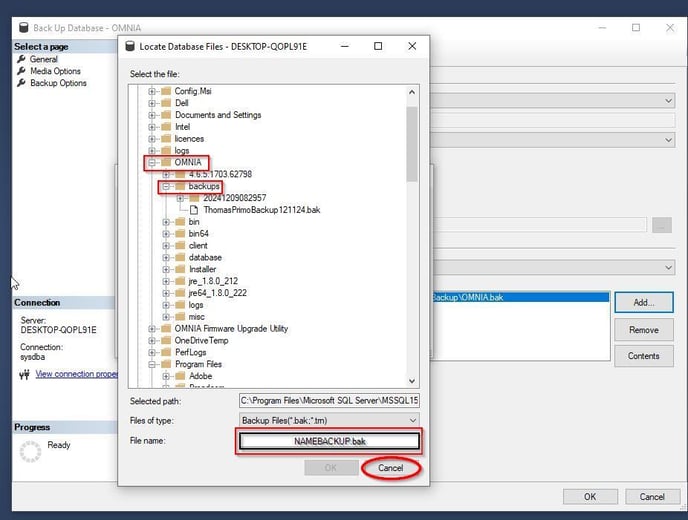
Locate:     [Drive:] \OMNIA\database\Backups

OR

The location you want to make backups to

Select Destination
Thomas_backup

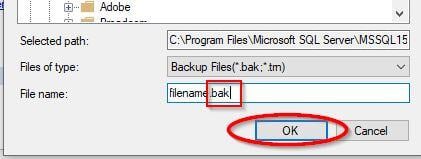
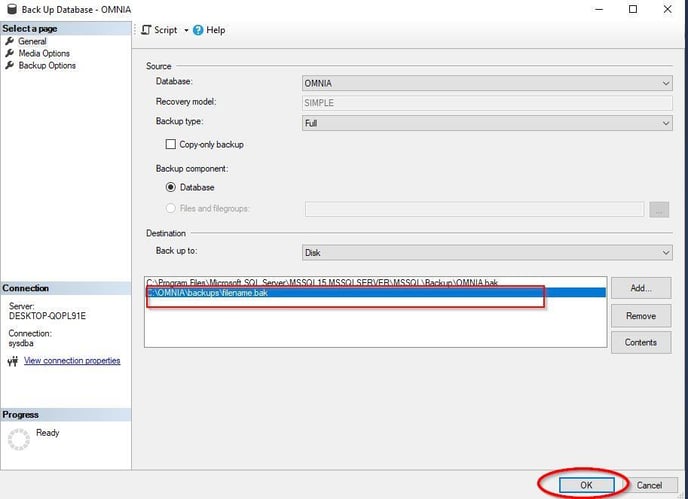
Enter a name for your backup with a suffix off  .Bak
Select Ok

bak

Select OK

bak

Select your destination and Click OK

Final

Once the backup is successful you will see a backup completed a message.

Your Backup of the OMNIA Database is now Complete.

Submit a Support Ticket

FAQ

General

Can I initiate RS485 comms to a terminal from an existing IP terminal?

How to Select the Right Cable for the job

IDEMIA Sigma Lite Readers NOT compatible for use in AmanoNet or Nexus220

Network Configuration – Best Practices

Technical Bulletins

Akuvox R20 Wiring Diagram to Wiegand Reader Module (WRM)

Finding and Adding Sigma Biometric Units to OMNIA 4.6.5

How to add a PAC Tag type to a Tag Holder

How to upgrade OMNIA hardware firmware using the OMNIA Firmware Upgrade Tool

OMNIA CSV Imports 

OMNIA Run as a Service fix for v4.x

Setting the IP address of a PMT Security Device by Directly Connecting To It with a Laptop.

Upgrading To OMNIA 4.6.5 and 2019 SQL Express With Tools

Access Control

AmanoNet

AmanoNet Back up using IB Console

AmanoNet Minimum PC Requirements and Specifications

AmanoNet System Migration Notes

Archive Tagholders in AmanoNet

Archive Transactions in AmanoNet

AutoID IP Hardware in AmanoNet

How to get PMTSecurity a copy of the AmanoNet Access Control Database

How to move AmanoNet Access Control System from one PC to another (Firebird)

IDEMIA Sigma Lite Readers NOT compatible for use in AmanoNet or Nexus220

ImproNet/AmanoNet Database Backup: SQL

Nexxus220

Change Default Password in Nexus220
Database Migration from Nexus220/IXP220 to OMNIA
How to fix a Java SE Binary Error in Nexus220 Software
How to get a copy of a database from Nexus220 Software
How to move Nexus220 to a different PC
IDEMIA Sigma Lite Readers NOT compatible for use in AmanoNet or Nexus220
Move Nexus220 Access Control System from one PC to another (Firebird)
Nexus220 Firmware Upgrade
Nexus220 Notifications Configuration/Email Configuration
Nexus220 The number of doors for this license has been exceeded
Nexus220 Web Reports Using Microsoft Edge
Reduce length of time on buzzer for readers in Nexus220

Omnia

Adding a New Department in Omnia

Adding Companies to Omnia

Adding Widgets to the OMNIA Dashboard

Aperio Wireless Lock Integration

Basic Setup Guide:  Akuvox

Basic Trouble Shooting OMNIA

Batch Operations OMNIA

Change SYSDBA Password in OMNIA

Changing the IP Address of a Previously Installed Controller using the Omnia Software/URL

Configuring Web Session Timeouts in OMINA

Omnia Lite

Convert a Nexus Lite Database into OMNIA Lite Database

OMNIA LiTE Backup

PM Tronics Hardware

Amano Readers and Credentials

Change Modulation mode on XQT904 Quad Transmitter
How do I change Wiegand Output Mode on Amano readers?

Legacy Hardware

Factory Reset legacy Amano IP Cameras (sold prior to 2018)

Factory Reset Nexus220 controller

How do I factory reset the EC2 (400i) controller?

Setting IP on PMTronics Inc. Access Control Hardware

Partner Products

Partner Products

IDEMIA Sigma Lite Readers NOT compatible for use in AmanoNet or Nexus220

Installing Cathexis Carbon and Adding a new Account

Setting Read Range on a Conekt Reader

STID Configuration

Video Management Systems

Cathexis Video (Amano Vision)

Adding Cameras into Cathexis

Cathexis Video AV (AntiVirus Exceptions)

Installing Cathexis Carbon and Adding a new Account

Quick Start Guide for Cathexis Vision Version 2025

AmanoDVMS

Which AmanoDVMS ports need to be open on my firewall?

Vision

Adding Cameras into Cathexis

AmanoVision web access user name case sensitivity usage

Nexus220 Notifications Configuration/Email Configuration

Nexus220 Notifications Configuration/Email Configuration

How to configure SMTP2GO for use in Nexus220

Nexus220 uses SSL security protocol for email notifications. Most email servers require TLS security protocol.
SMTP2GO will allow SSL security connections.

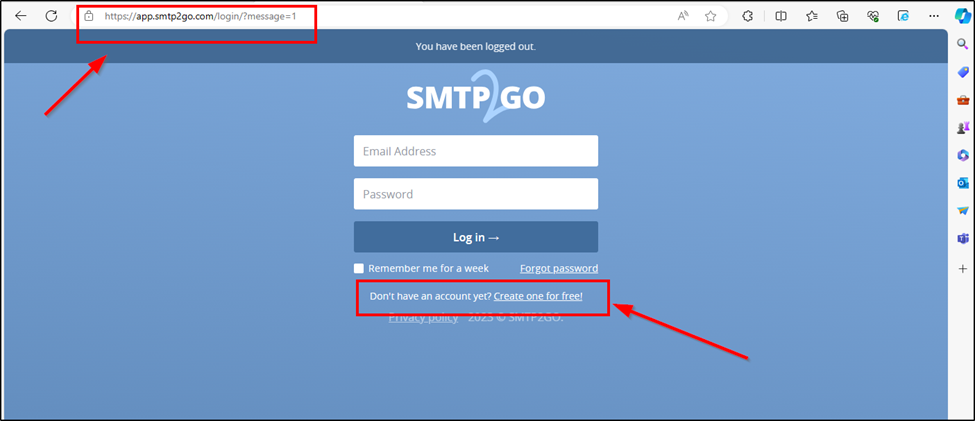
Go to https://app.smtp2go.com/, Select create free account.

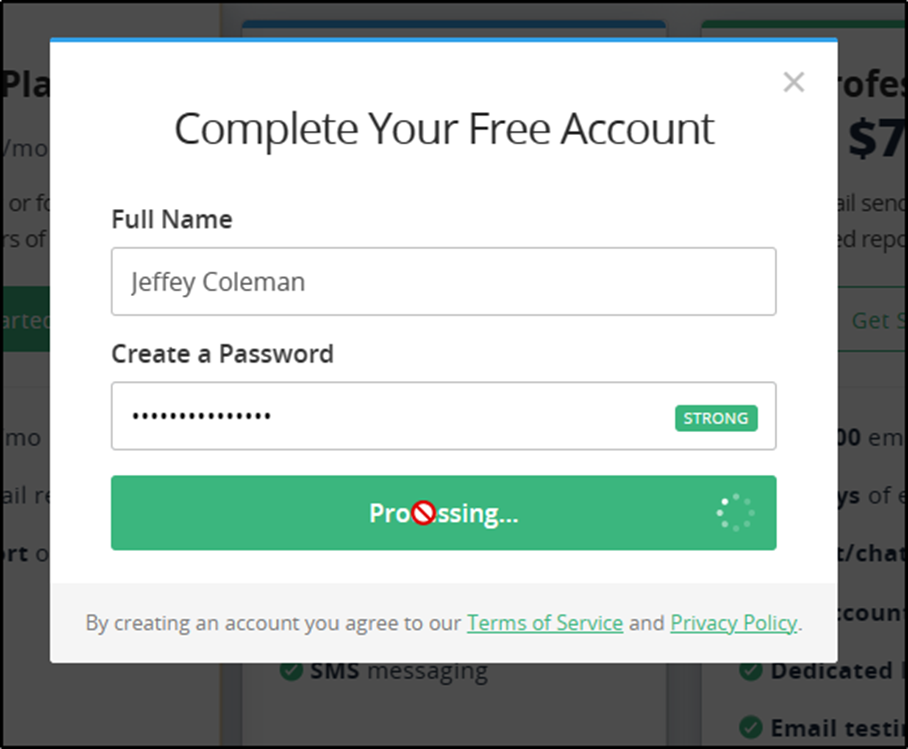
Select the Free Plan, Enter a Name and Create a Password

use an email address for the account,

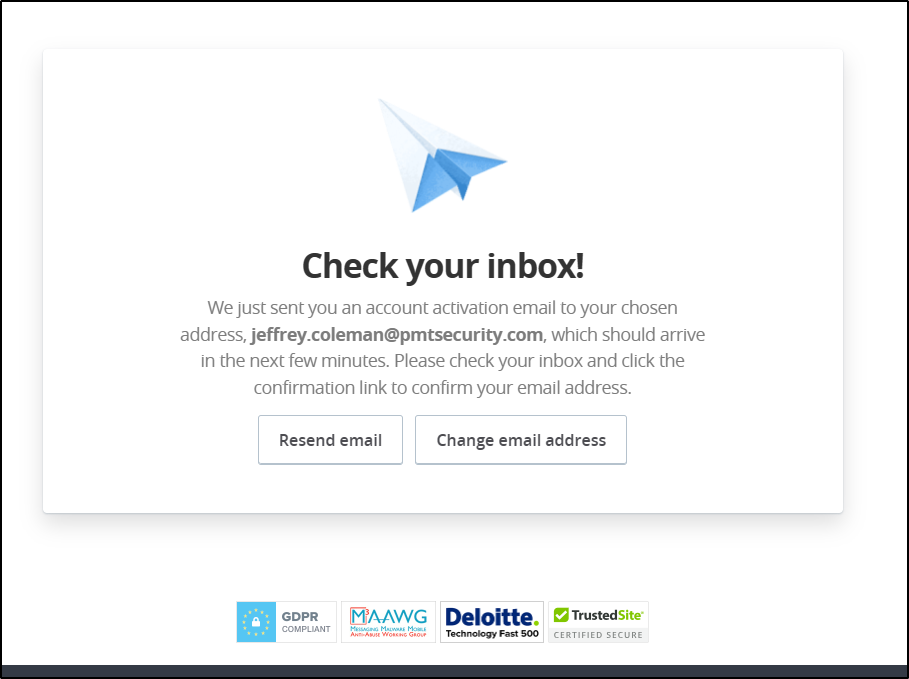
Confirm your email address and Activate your account.

After you Select Activate Account,

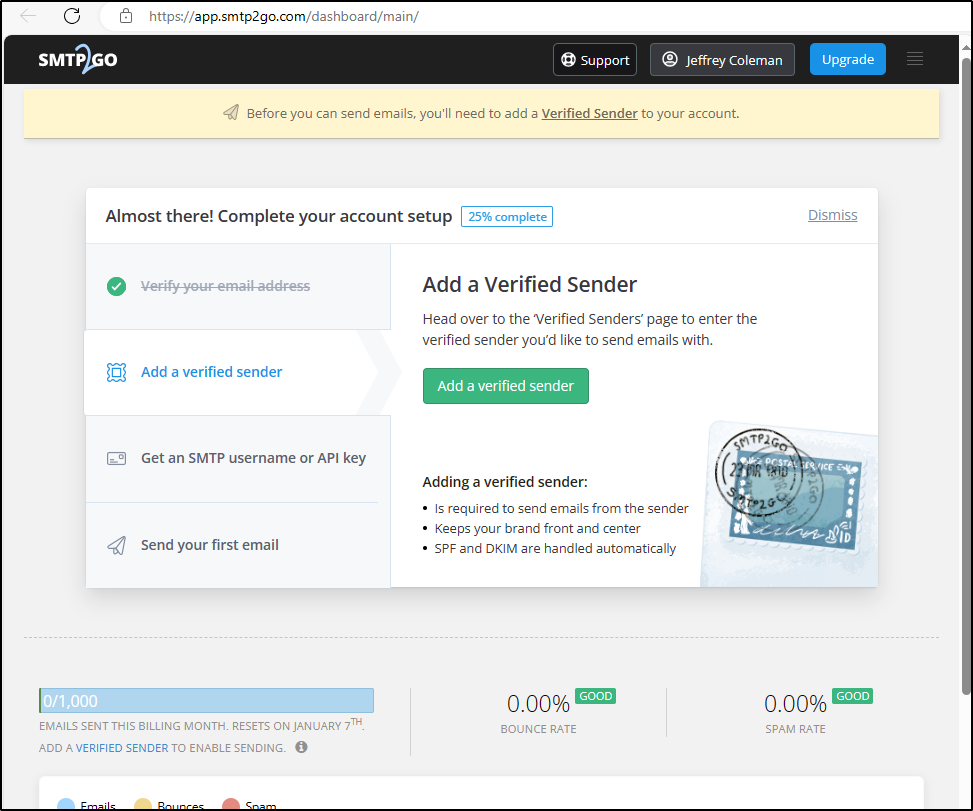
The SMTP 2 Go website will open. You will need to add a Verified Sender.

Select Add a Verified Sender

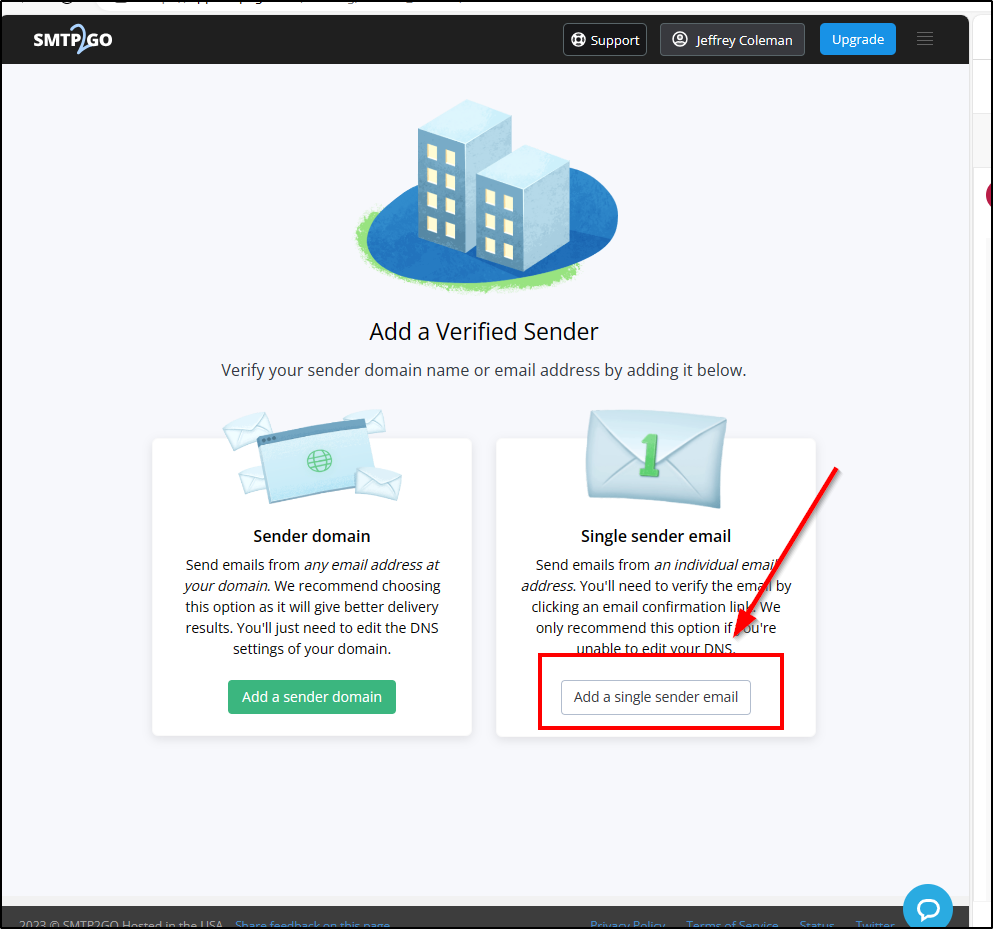
Select Add a Single User

Add your own email address and select Send verification Email.

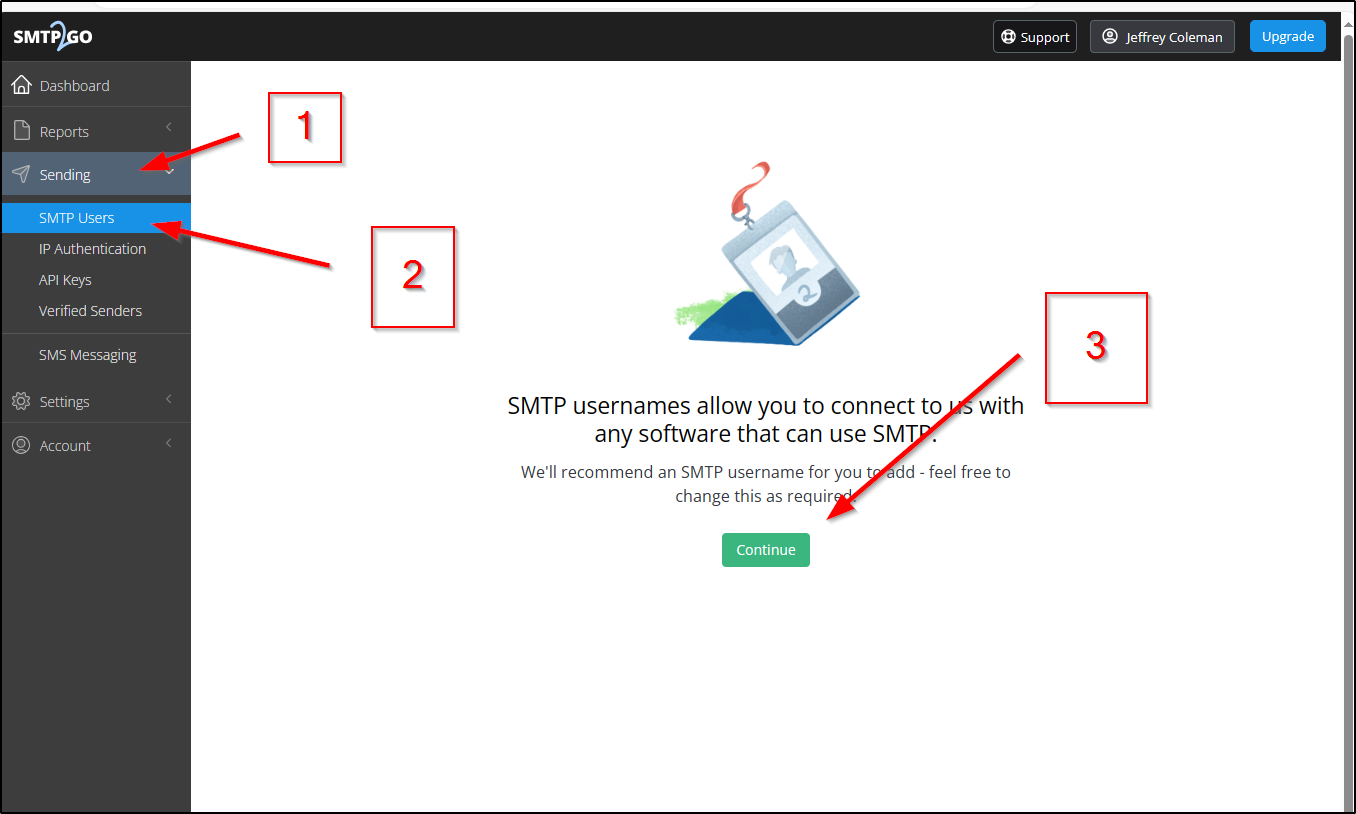
Once the Sender Email is Verified, Create an SMTP Username

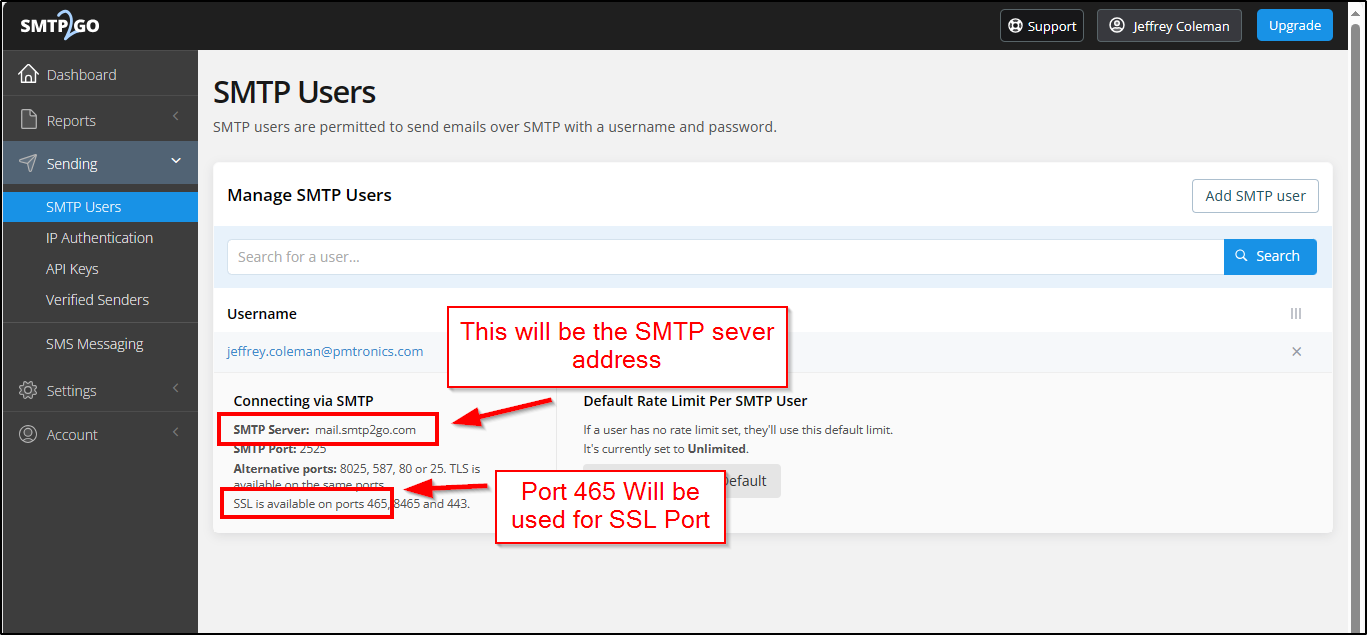
Go to Sending/SMTP Users and select continue

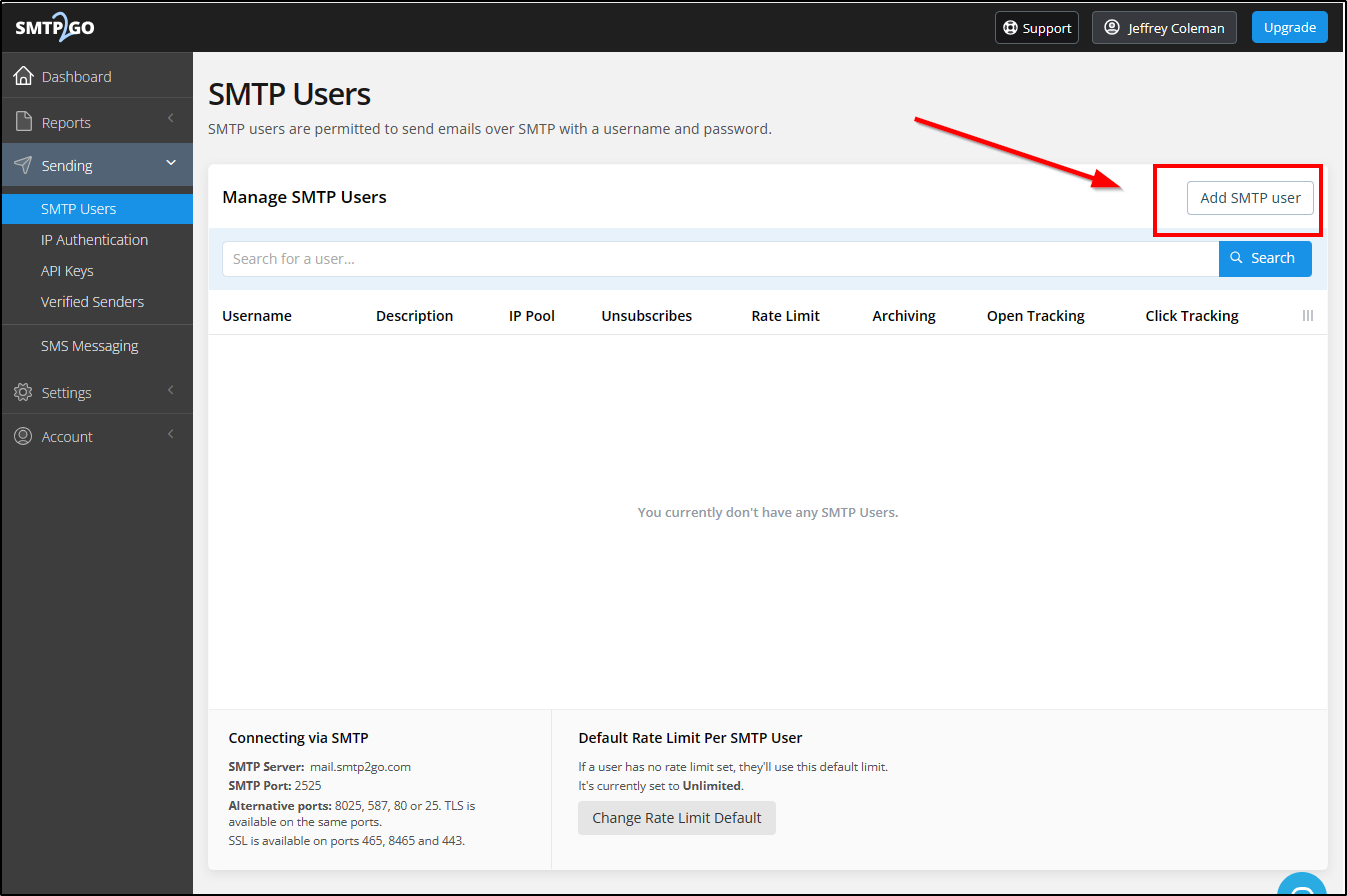
Select Add SMTP User

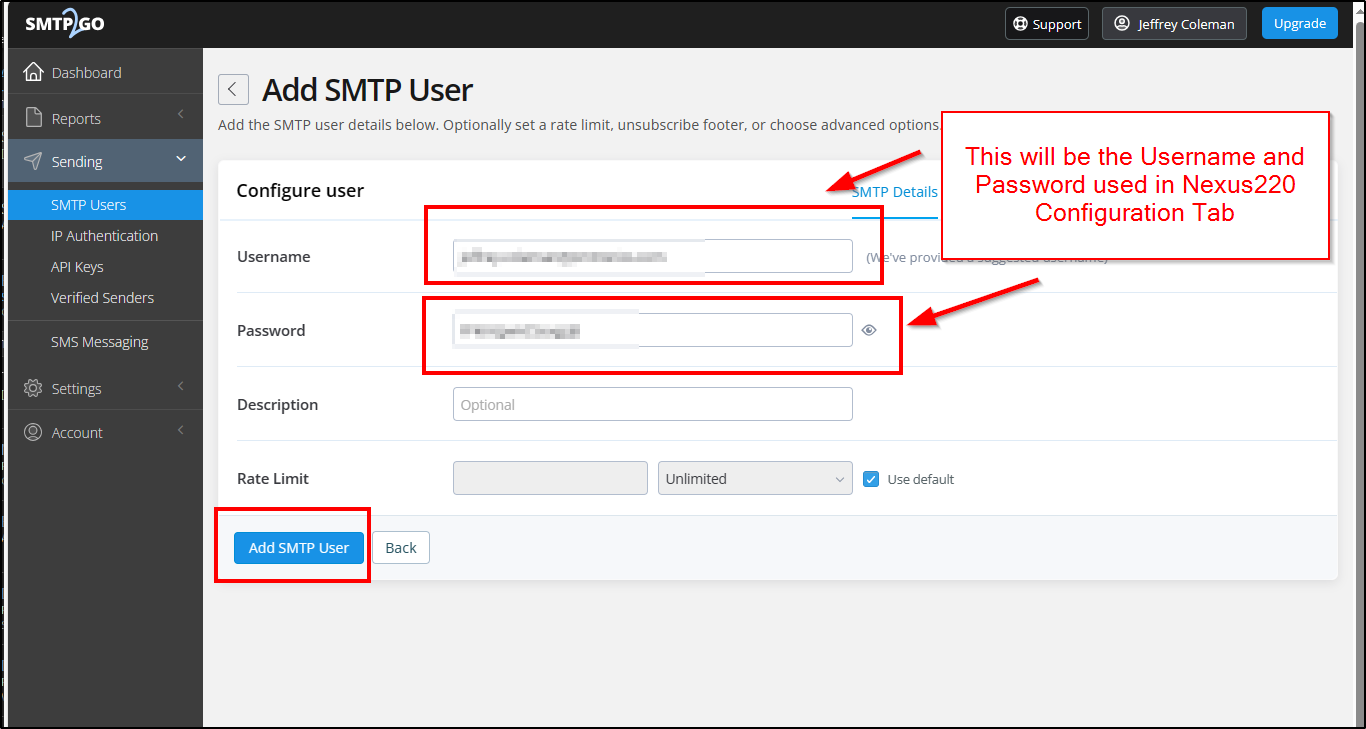
Create a Username and Password for the SMTP User.

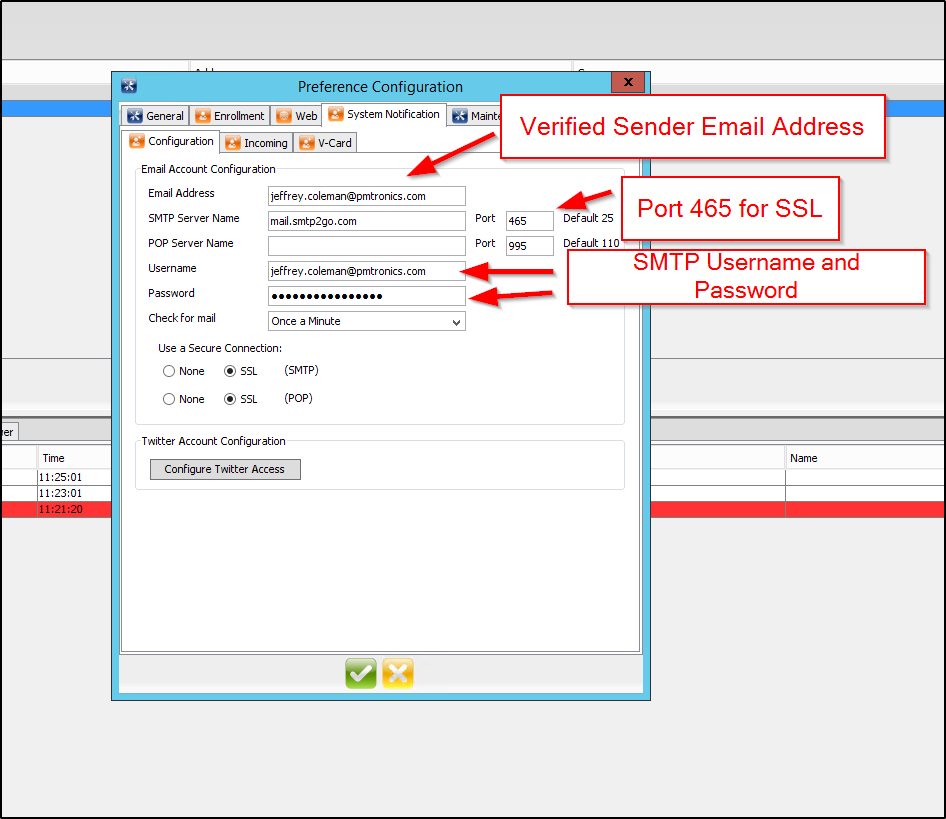
This username and password will be used in Nexus220.

In the Nexus220 Configuration Page, Enter the Information

Select Add a Single User

The SMTP to go set up is complete

Need further assistance?

Submit a Support Ticket

Submit a Support Ticket

FAQ

General

Can I initiate RS485 comms to a terminal from an existing IP terminal?

How to Select the Right Cable for the job

IDEMIA Sigma Lite Readers NOT compatible for use in AmanoNet or Nexus220

Network Configuration – Best Practices

Technical Bulletins

Akuvox R20 Wiring Diagram to Wiegand Reader Module (WRM)

Finding and Adding Sigma Biometric Units to OMNIA 4.6.5

How to add a PAC Tag type to a Tag Holder

How to upgrade OMNIA hardware firmware using the OMNIA Firmware Upgrade Tool

OMNIA CSV Imports 

OMNIA Run as a Service fix for v4.x

Setting the IP address of a PMT Security Device by Directly Connecting To It with a Laptop.

Upgrading To OMNIA 4.6.5 and 2019 SQL Express With Tools

Access Control

AmanoNet

AmanoNet Back up using IB Console

AmanoNet Minimum PC Requirements and Specifications

AmanoNet System Migration Notes

Archive Tagholders in AmanoNet

Archive Transactions in AmanoNet

AutoID IP Hardware in AmanoNet

How to get PMTSecurity a copy of the AmanoNet Access Control Database

How to move AmanoNet Access Control System from one PC to another (Firebird)

IDEMIA Sigma Lite Readers NOT compatible for use in AmanoNet or Nexus220

ImproNet/AmanoNet Database Backup: SQL

Nexxus220

Change Default Password in Nexus220
Database Migration from Nexus220/IXP220 to OMNIA
How to fix a Java SE Binary Error in Nexus220 Software
How to get a copy of a database from Nexus220 Software
How to move Nexus220 to a different PC
IDEMIA Sigma Lite Readers NOT compatible for use in AmanoNet or Nexus220
Move Nexus220 Access Control System from one PC to another (Firebird)
Nexus220 Firmware Upgrade
Nexus220 The number of doors for this license has been exceeded
Nexus220 Web Reports Using Microsoft Edge
Reduce length of time on buzzer for readers in Nexus220
Replacing Nexus220 Controller with APC Controller and Wiegand Reader Module

Omnia

Adding a New Department in Omnia

Adding Companies to Omnia

Adding Widgets to the OMNIA Dashboard

Aperio Wireless Lock Integration

Basic Setup Guide:  Akuvox

Basic Trouble Shooting OMNIA

Batch Operations OMNIA

Change SYSDBA Password in OMNIA

Changing the IP Address of a Previously Installed Controller using the Omnia Software/URL

Configuring Web Session Timeouts in OMINA

Omnia Lite

Convert a Nexus Lite Database into OMNIA Lite Database

OMNIA LiTE Backup

PM Tronics Hardware

Amano Readers and Credentials

Change Modulation mode on XQT904 Quad Transmitter
How do I change Wiegand Output Mode on Amano readers?

Legacy Hardware

Factory Reset legacy Amano IP Cameras (sold prior to 2018)

Factory Reset Nexus220 controller

How do I factory reset the EC2 (400i) controller?

Setting IP on PMTronics Inc. Access Control Hardware

Partner Products

Partner Products

IDEMIA Sigma Lite Readers NOT compatible for use in AmanoNet or Nexus220

Installing Cathexis Carbon and Adding a new Account

Setting Read Range on a Conekt Reader

STID Configuration

Video Management Systems

Cathexis Video (Amano Vision)

Adding Cameras into Cathexis

Cathexis Video AV (AntiVirus Exceptions)

Installing Cathexis Carbon and Adding a new Account

Quick Start Guide for Cathexis Vision Version 2025

AmanoDVMS

Which AmanoDVMS ports need to be open on my firewall?

Vision

Adding Cameras into Cathexis

AmanoVision web access user name case sensitivity usage

TCP and UDP ports for ImproNet/AmanoNet

TCP and UDP ports for ImproNet/AmanoNet

Ports that AmanoNet uses to Communicate Properly

Ports in AmanoNet are used for various purposes and protocols. Here is a list of TCP and UDP ports along with their corresponding functionalities:

TCP Ports:

– Port 80: Used for HTTP Web Reports.

– Port 443: Used for SSL Web Reports.

– Port 1433: Used for MS SQL.

– Port 3050: Used for Firebird.

– Port 10008: Used for All IP Terminals.

– Port 10500: Used for Discovery.

– Port 11010: Used for Morpho.

– Port 26661: Used for Alarm Viewer.

– Port 26663: Used for Transaction Viewer.

– Port 26665: Used for Messaging Port.

– Port 26667: Used for Door Status Port.

– Port 26668: Used for Engine Status Port.

– Port 26669: Used for Host Validation Port.

– Port 26680: Used for Security Server Port.

UDP Ports:

– Port 10002: Used for EC2 Controller.

– Port 10008: Used for IP Terminals.

– Port 10500: Used for Discovery.

These ports play a crucial role in facilitating communication and data transfer within the AmanoNet system.

Need further assistance?

Submit a Support Ticket

Submit a Support Ticket

FAQ

General

Can I initiate RS485 comms to a terminal from an existing IP terminal?

How to Select the Right Cable for the job

IDEMIA Sigma Lite Readers NOT compatible for use in AmanoNet or Nexus220

Network Configuration – Best Practices

Technical Bulletins

Akuvox R20 Wiring Diagram to Wiegand Reader Module (WRM)

Finding and Adding Sigma Biometric Units to OMNIA 4.6.5

How to add a PAC Tag type to a Tag Holder

How to upgrade OMNIA hardware firmware using the OMNIA Firmware Upgrade Tool

OMNIA CSV Imports 

OMNIA Run as a Service fix for v4.x

Setting the IP address of a PMT Security Device by Directly Connecting To It with a Laptop.

Upgrading To OMNIA 4.6.5 and 2019 SQL Express With Tools

Access Control

AmanoNet

AmanoNet Back up using IB Console

AmanoNet Minimum PC Requirements and Specifications

AmanoNet System Migration Notes

Archive Tagholders in AmanoNet

Archive Transactions in AmanoNet

AutoID IP Hardware in AmanoNet

How to get PMTSecurity a copy of the AmanoNet Access Control Database

How to move AmanoNet Access Control System from one PC to another (Firebird)

IDEMIA Sigma Lite Readers NOT compatible for use in AmanoNet or Nexus220

ImproNet/AmanoNet Database Backup: SQL

Nexxus220

Change Default Password in Nexus220
Database Migration from Nexus220/IXP220 to OMNIA
How to fix a Java SE Binary Error in Nexus220 Software
How to get a copy of a database from Nexus220 Software
How to move Nexus220 to a different PC
IDEMIA Sigma Lite Readers NOT compatible for use in AmanoNet or Nexus220
Move Nexus220 Access Control System from one PC to another (Firebird)
Nexus220 Firmware Upgrade
Nexus220 Notifications Configuration/Email Configuration
Nexus220 The number of doors for this license has been exceeded
Nexus220 Web Reports Using Microsoft Edge
Reduce length of time on buzzer for readers in Nexus220

Omnia

Adding a New Department in Omnia

Adding Companies to Omnia

Adding Widgets to the OMNIA Dashboard

Aperio Wireless Lock Integration

Basic Setup Guide:  Akuvox

Basic Trouble Shooting OMNIA

Batch Operations OMNIA

Change SYSDBA Password in OMNIA

Changing the IP Address of a Previously Installed Controller using the Omnia Software/URL

Configuring Web Session Timeouts in OMINA

Omnia Lite

Convert a Nexus Lite Database into OMNIA Lite Database

OMNIA LiTE Backup

PM Tronics Hardware

Amano Readers and Credentials

Change Modulation mode on XQT904 Quad Transmitter
How do I change Wiegand Output Mode on Amano readers?

Legacy Hardware

Factory Reset legacy Amano IP Cameras (sold prior to 2018)

Factory Reset Nexus220 controller

How do I factory reset the EC2 (400i) controller?

Setting IP on PMTronics Inc. Access Control Hardware

Partner Products

Partner Products

IDEMIA Sigma Lite Readers NOT compatible for use in AmanoNet or Nexus220

Installing Cathexis Carbon and Adding a new Account

Setting Read Range on a Conekt Reader

STID Configuration

Video Management Systems

Cathexis Video (Amano Vision)

Adding Cameras into Cathexis

Cathexis Video AV (AntiVirus Exceptions)

Installing Cathexis Carbon and Adding a new Account

Quick Start Guide for Cathexis Vision Version 2025

AmanoDVMS

Which AmanoDVMS ports need to be open on my firewall?

Vision

Adding Cameras into Cathexis

AmanoVision web access user name case sensitivity usage

  • « Go to Previous Page
  • Page 1
  • Page 2
  • Page 3
  • Page 4
  • Page 5
  • Page 6
  • Interim pages omitted …
  • Page 18
  • Go to Next Page »

PMT Security

Copyright © 2025 PMT Security, Inc. | All Rights Reserved